Cambridge A Level Information Technology (from 2017) 9626 — 2021 Feb/March Paper 2 · Variant 0
9626/20/F/M/21
The question paper and its mark scheme, free to read here and free to download. This is Cambridge’s own paper, exactly as it was sat.
Question paper4 pages
Mark scheme
No mark scheme is in the library for this paper.
Paper as text
Question paper, page 1
This document has 4 pages. Cambridge International AS & A Level DC (PQ/SG) 200092/3 © UCLES 2021 [Turn over * 0 0 3 3 0 2 8 3 5 5 * INFORMATION TECHNOLOGY 9626/02 Paper 2 Practical February/March 2021 2 hours 30 minutes You will need: Candidate source files (listed on page 2) INSTRUCTIONS ● Carry out every instruction in each task. ● Save your work using the file names given in the task as and when instructed. ● You must not have access to the internet or any email system during this examination. ● You must save your work in the correct file format as stated in the tasks. If you save work in an incorrect file format, you will not receive marks for that task. INFORMATION ● The total mark for this paper is 110. ● The number of marks for each task or part task is shown in brackets [ ].
Question paper, page 2
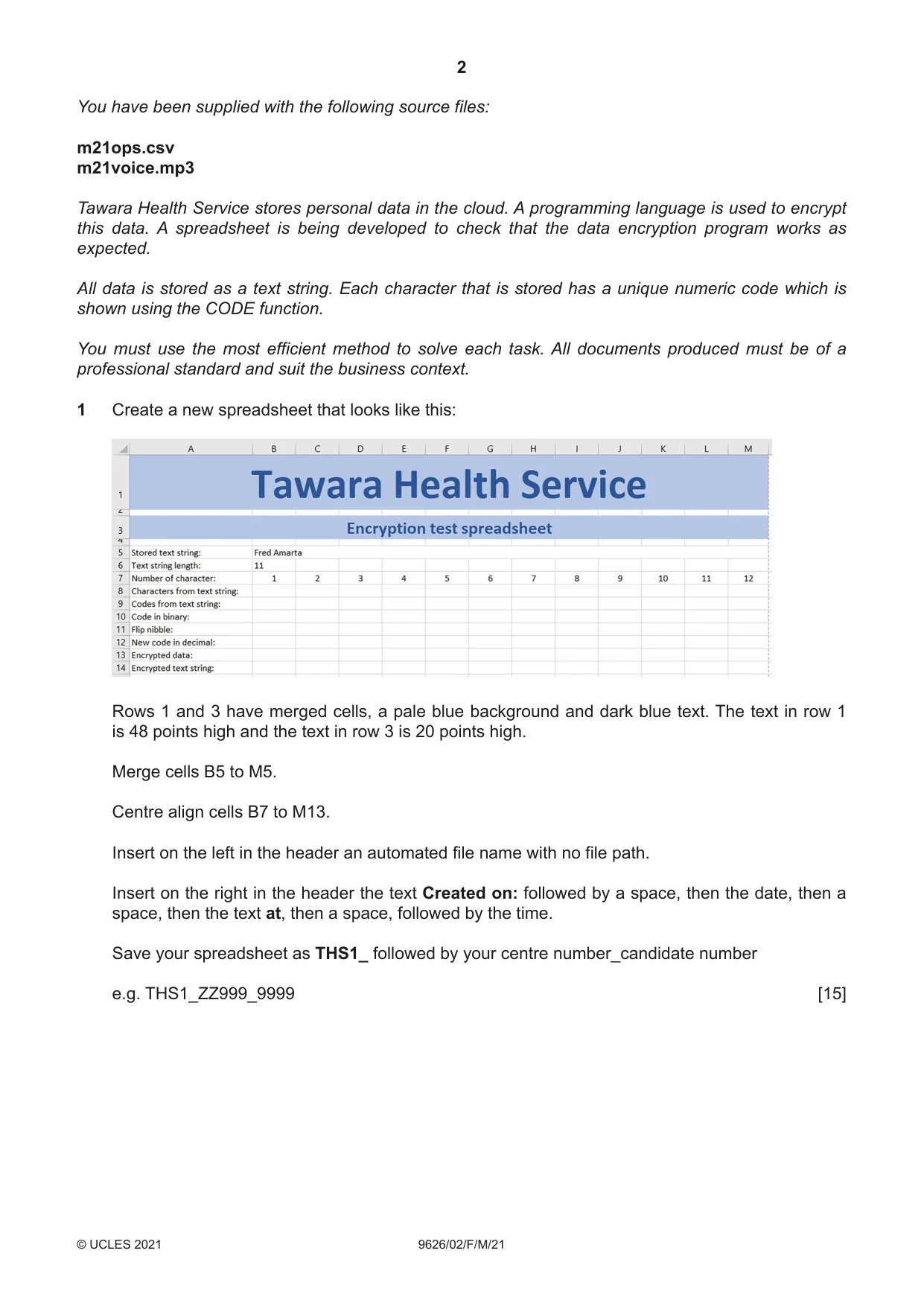
2 9626/02/F/M/21 © UCLES 2021 You have been supplied with the following source files: m21ops.csv m21voice.mp3 Tawara Health Service stores personal data in the cloud. A programming language is used to encrypt this data. A spreadsheet is being developed to check that the data encryption program works as expected. All data is stored as a text string. Each character that is stored has a unique numeric code which is shown using the CODE function. You must use the most efficient method to solve each task. All documents produced must be of a professional standard and suit the business context. 1 Create a new spreadsheet that looks like this: Rows 1 and 3 have merged cells, a pale blue background and dark blue text. The text in row 1 is 48 points high and the text in row 3 is 20 points high. Merge cells B5 to M5. Centre align cells B7 to M13. Insert on the left in the header an automated file name with no file path. Insert on the right in the header the text Created on: followed by a space, then the date, then a space, then the text at, then a space, followed by the time. Save your spreadsheet as THS1_ followed by your centre number_candidate number e.g. THS1_ZZ999_9999 [15]
Question paper, page 3
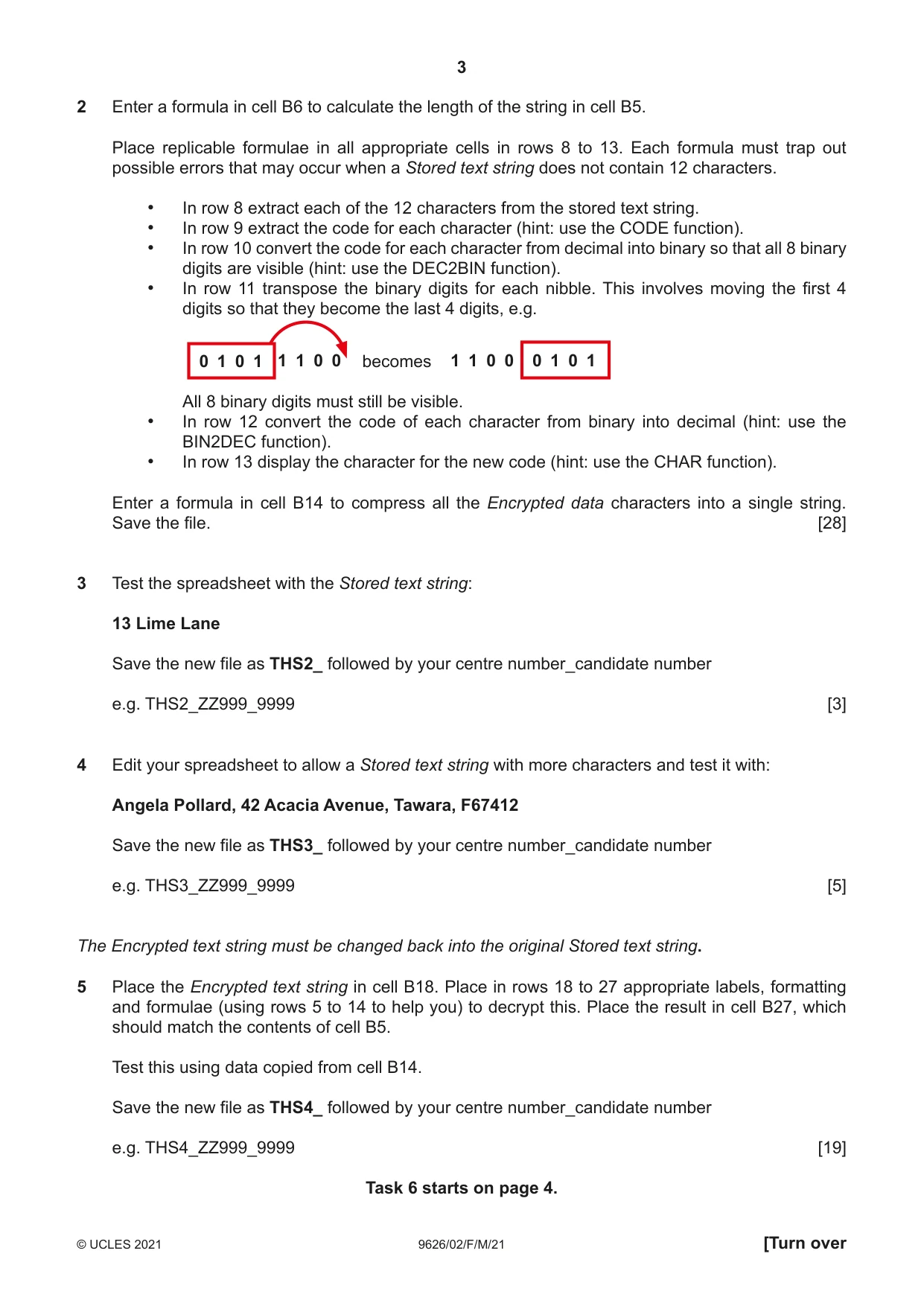
3 9626/02/F/M/21 © UCLES 2021 [Turn over 2 Enter a formula in cell B6 to calculate the length of the string in cell B5. Place replicable formulae in all appropriate cells in rows 8 to 13. Each formula must trap out possible errors that may occur when a Stored text string does not contain 12 characters. • In row 8 extract each of the 12 characters from the stored text string. • In row 9 extract the code for each character (hint: use the CODE function). • In row 10 convert the code for each character from decimal into binary so that all 8 binary digits are visible (hint: use the DEC2BIN function). • In row 11 transpose the binary digits for each nibble. This involves moving the first 4 digits so that they become the last 4 digits, e.g. 0 1 0 1 1 1 0 0 becomes 0 1 0 1 1 1 0 0 All 8 binary digits must still be visible. • In row 12 convert the code of each character from binary into decimal (hint: use the BIN2DEC function). • In row 13 display the character for the new code (hint: use the CHAR function). Enter a formula in cell B14 to compress all the Encrypted data characters into a single string. Save the file. [28] 3 Test the spreadsheet with the Stored text string: 13 Lime Lane Save the new file as THS2_ followed by your centre number_candidate number e.g. THS2_ZZ999_9999 [3] 4 Edit your spreadsheet to allow a Stored text string with more characters and test it with: Angela Pollard, 42 Acacia Avenue, Tawara, F67412 Save the new file as THS3_ followed by your centre number_candidate number e.g. THS3_ZZ999_9999 [5] The Encrypted text string must be changed back into the original Stored text string. 5 Place the Encrypted text string in cell B18. Place in rows 18 to 27 appropriate labels, formatting and formulae (using rows 5 to 14 to help you) to decrypt this. Place the result in cell B27, which should match the contents of cell B5. Test this using data copied from cell B14. Save the new file as THS4_ followed by your centre number_candidate number e.g. THS4_ZZ999_9999 [19] Task 6 starts on page 4.
Question paper, page 4
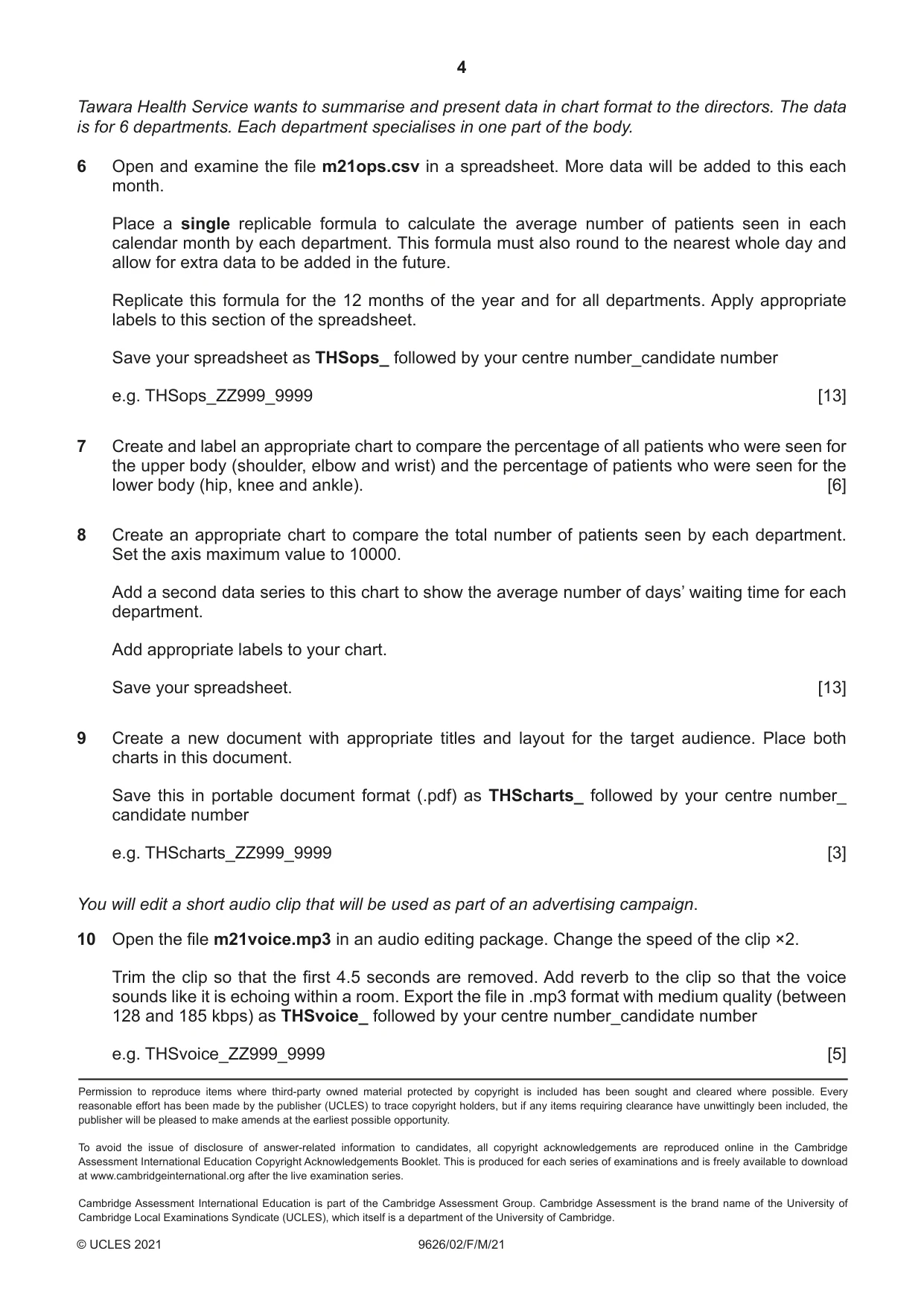
4 9626/02/F/M/21 © UCLES 2021 Tawara Health Service wants to summarise and present data in chart format to the directors. The data is for 6 departments. Each department specialises in one part of the body. 6 Open and examine the file m21ops.csv in a spreadsheet. More data will be added to this each month. Place a single replicable formula to calculate the average number of patients seen in each calendar month by each department. This formula must also round to the nearest whole day and allow for extra data to be added in the future. Replicate this formula for the 12 months of the year and for all departments. Apply appropriate labels to this section of the spreadsheet. Save your spreadsheet as THSops_ followed by your centre number_candidate number e.g. THSops_ZZ999_9999 [13] 7 Create and label an appropriate chart to compare the percentage of all patients who were seen for the upper body (shoulder, elbow and wrist) and the percentage of patients who were seen for the lower body (hip, knee and ankle). [6] 8 Create an appropriate chart to compare the total number of patients seen by each department. Set the axis maximum value to 10000. Add a second data series to this chart to show the average number of days’ waiting time for each department. Add appropriate labels to your chart. Save your spreadsheet. [13] 9 Create a new document with appropriate titles and layout for the target audience. Place both charts in this document. Save this in portable document format (.pdf) as THScharts_ followed by your centre number_ candidate number e.g. THScharts_ZZ999_9999 [3] You will edit a short audio clip that will be used as part of an advertising campaign. 10 Open the file m21voice.mp3 in an audio editing package. Change the speed of the clip ×2. Trim the clip so that the first 4.5 seconds are removed. Add reverb to the clip so that the voice sounds like it is echoing within a room. Export the file in .mp3 format with medium quality (between 128 and 185 kbps) as THSvoice_ followed by your centre number_candidate number e.g. THSvoice_ZZ999_9999 [5] Permission to reproduce items where third-party owned material protected by copyright is included has been sought and cleared where possible. Every reasonable effort has been made by the publisher (UCLES) to trace copyright holders, but if any items requiring clearance have unwittingly been included, the publisher will be pleased to make amends at the earliest possible opportunity. To avoid the issue of disclosure of answer-related information to candidates, all copyright acknowledgements are reproduced online in the Cambridge Assessment International Education Copyright Acknowledgements Booklet. This is produced for each series of examinations and is freely available to download at www.cambridgeinternational.org after the live examination series. Cambridge Assessment International Education is part of the Cambridge Assessment Group. Cambridge Assessment is the brand name of the University of Cambridge Local Examinations Syndicate (UCLES), which itself is a department of the University of Cambridge.