Cambridge A Level Information Technology (from 2017) 9626 — 2025 Feb/March Paper 2 · Variant 0
9626/20/F/M/25 · 90 marks · 150 min
The question paper and its mark scheme, free to read here and free to download. This is Cambridge’s own paper, exactly as it was sat.
Question paper8 pages


Mark scheme
No mark scheme is in the library for this paper.
Paper as text
Question paper, page 1
This document has 8 pages. Any blank pages are indicated. [Turn over Cambridge International AS & A Level INFORMATION TECHNOLOGY 9626/02 Paper 2 Practical February/March 2025 2 hours 30 minutes You will need: Candidate source files (listed on page 2) INSTRUCTIONS ● Carry out every instruction in each task. ● Save your work using the file names given in the task as and when instructed. ● You must not have access to either the internet or any email system during this examination. ● You must save your work in the correct file format as stated in the tasks. If work is saved in an incorrect file format, you will not receive marks for that task. INFORMATION ● The total mark for this paper is 90. ● The number of marks for each question or part question is shown in brackets [ ]. * 6 0 4 8 2 0 1 4 0 7 * DC (PQ/FC) 346543/4 © UCLES 2025
Question paper, page 2
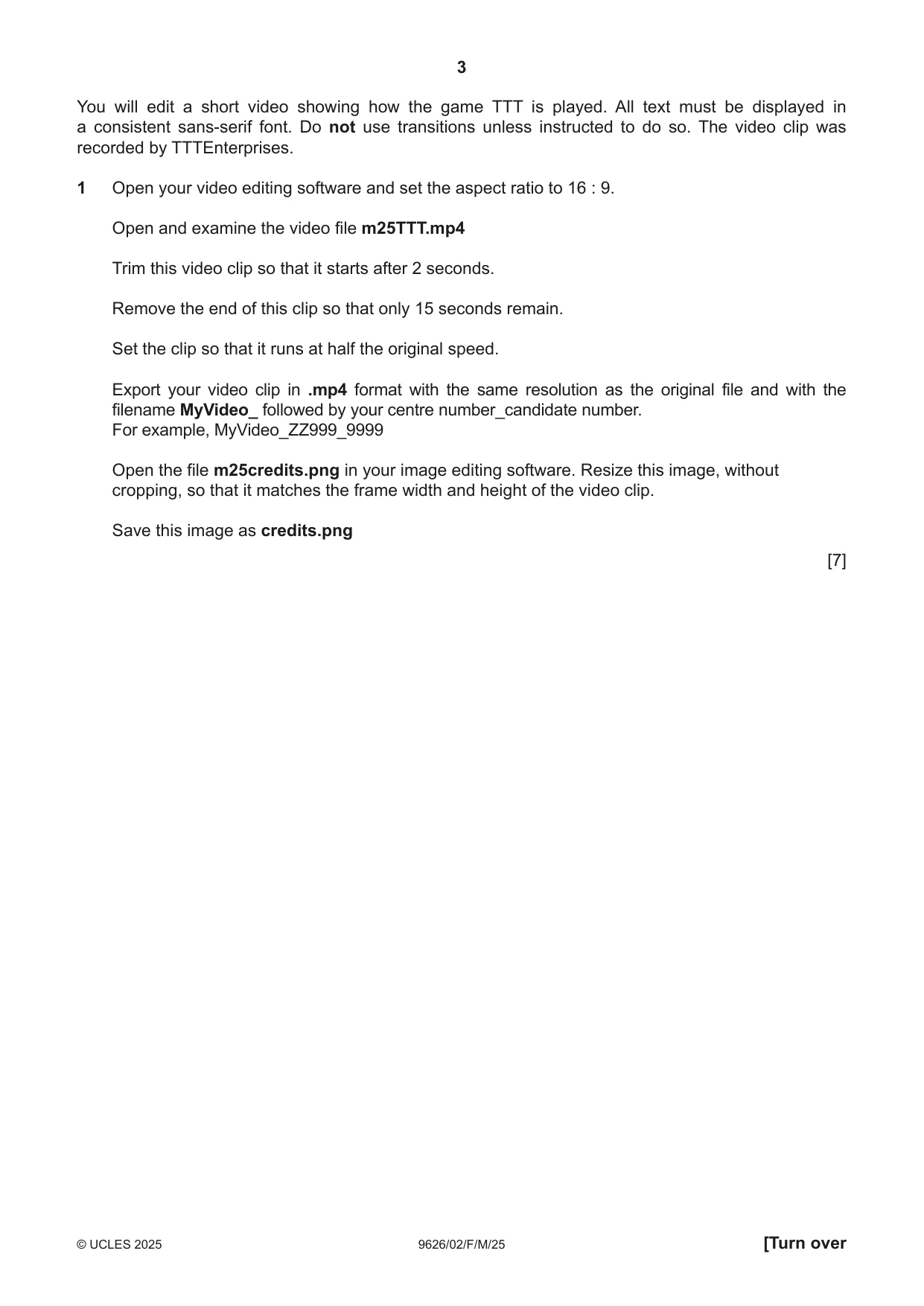
2 9626/02/F/M/25 © UCLES 2025 You have been supplied with the following source files: m25credits.png m25customer.csv m25TTT.mp4 You must use the most efficient method to solve each task. All work produced must be of a professional standard and contain your candidate details.
Question paper, page 3
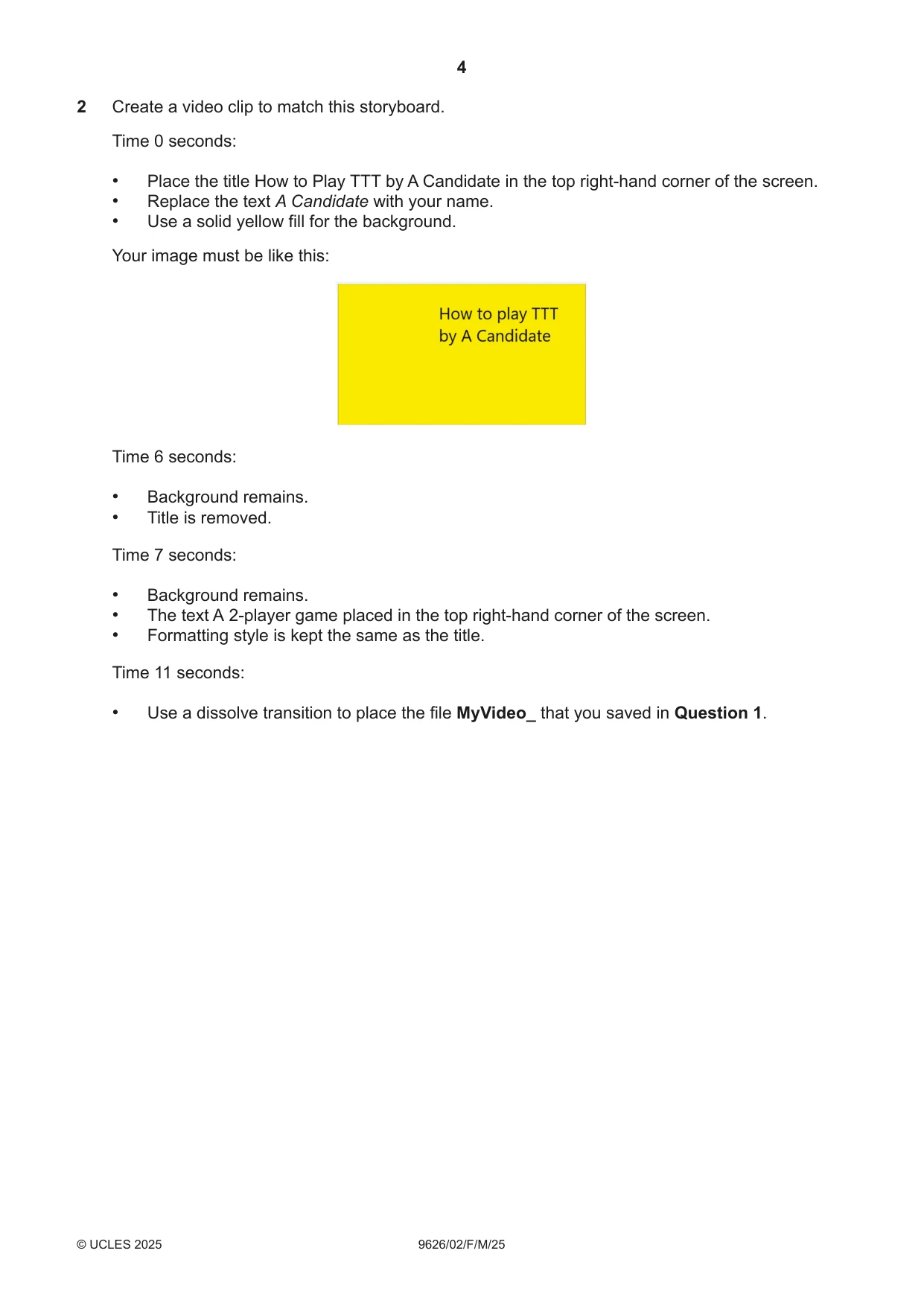
3 9626/02/F/M/25 © UCLES 2025 [Turn over You will edit a short video showing how the game TTT is played. All text must be displayed in a consistent sans-serif font. Do not use transitions unless instructed to do so. The video clip was recorded by TTTEnterprises. 1 Open your video editing software and set the aspect ratio to 16 : 9. Open and examine the video file m25TTT.mp4 Trim this video clip so that it starts after 2 seconds. Remove the end of this clip so that only 15 seconds remain. Set the clip so that it runs at half the original speed. Export your video clip in .mp4 format with the same resolution as the original file and with the filename MyVideo_ followed by your centre number_candidate number. For example, MyVideo_ZZ999_9999 Open the file m25credits.png in your image editing software. Resize this image, without cropping, so that it matches the frame width and height of the video clip. Save this image as credits.png [7]
Question paper, page 4
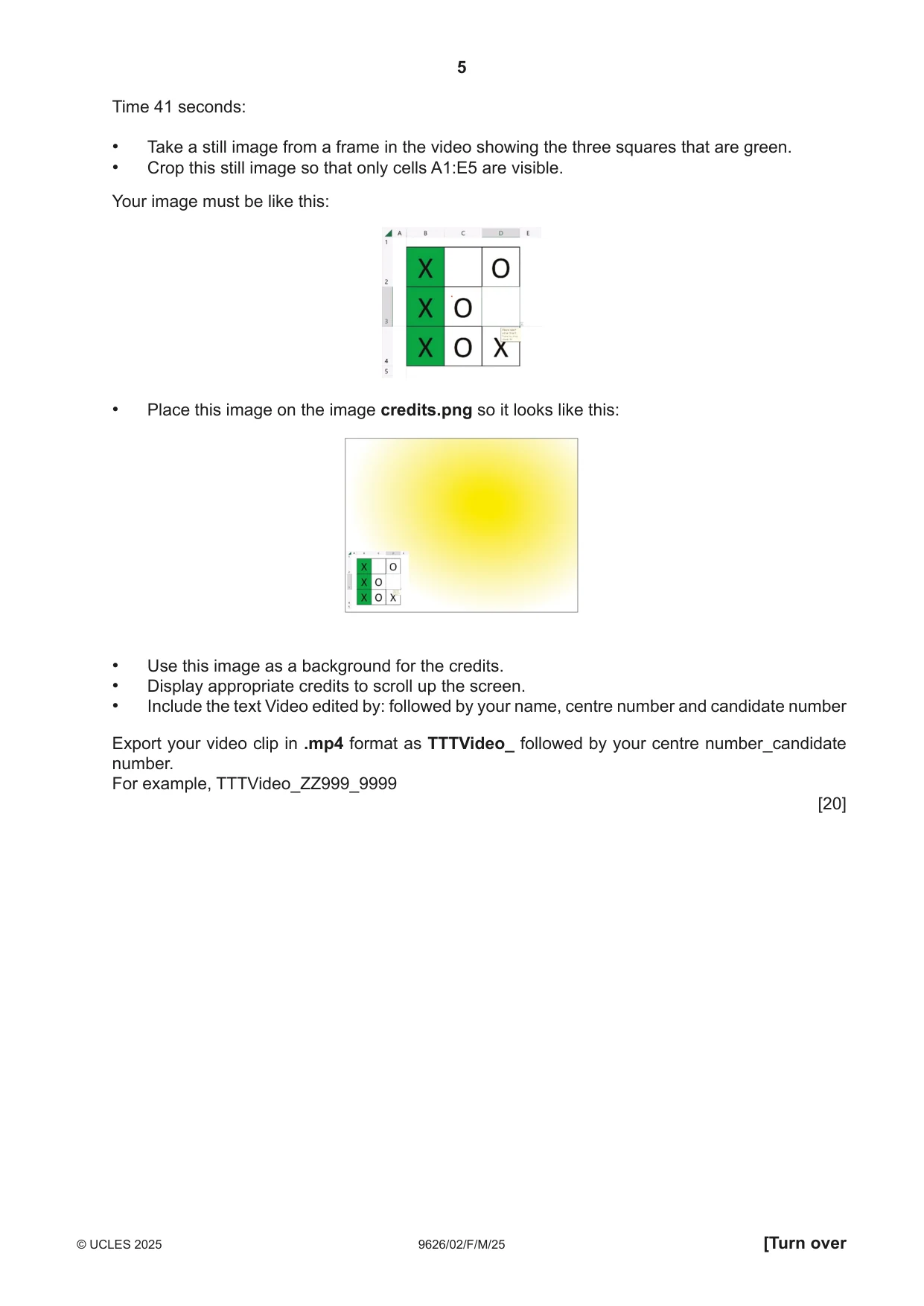
4 9626/02/F/M/25 © UCLES 2025 2 Create a video clip to match this storyboard. Time 0 seconds: • Place the title How to Play TTT by A Candidate in the top right-hand corner of the screen. • Replace the text A Candidate with your name. • Use a solid yellow fill for the background. Your image must be like this: Time 6 seconds: • Background remains. • Title is removed. Time 7 seconds: • Background remains. • The text A 2-player game placed in the top right-hand corner of the screen. • Formatting style is kept the same as the title. Time 11 seconds: • Use a dissolve transition to place the file MyVideo_ that you saved in Question 1.
Question paper, page 5
5 9626/02/F/M/25 © UCLES 2025 [Turn over Time 41 seconds: • Take a still image from a frame in the video showing the three squares that are green. • Crop this still image so that only cells A1:E5 are visible. Your image must be like this: • Place this image on the image credits.png so it looks like this: • Use this image as a background for the credits. • Display appropriate credits to scroll up the screen. • Include the text Video edited by: followed by your name, centre number and candidate number Export your video clip in .mp4 format as TTTVideo_ followed by your centre number_candidate number. For example, TTTVideo_ZZ999_9999 [20]
Question paper, page 6
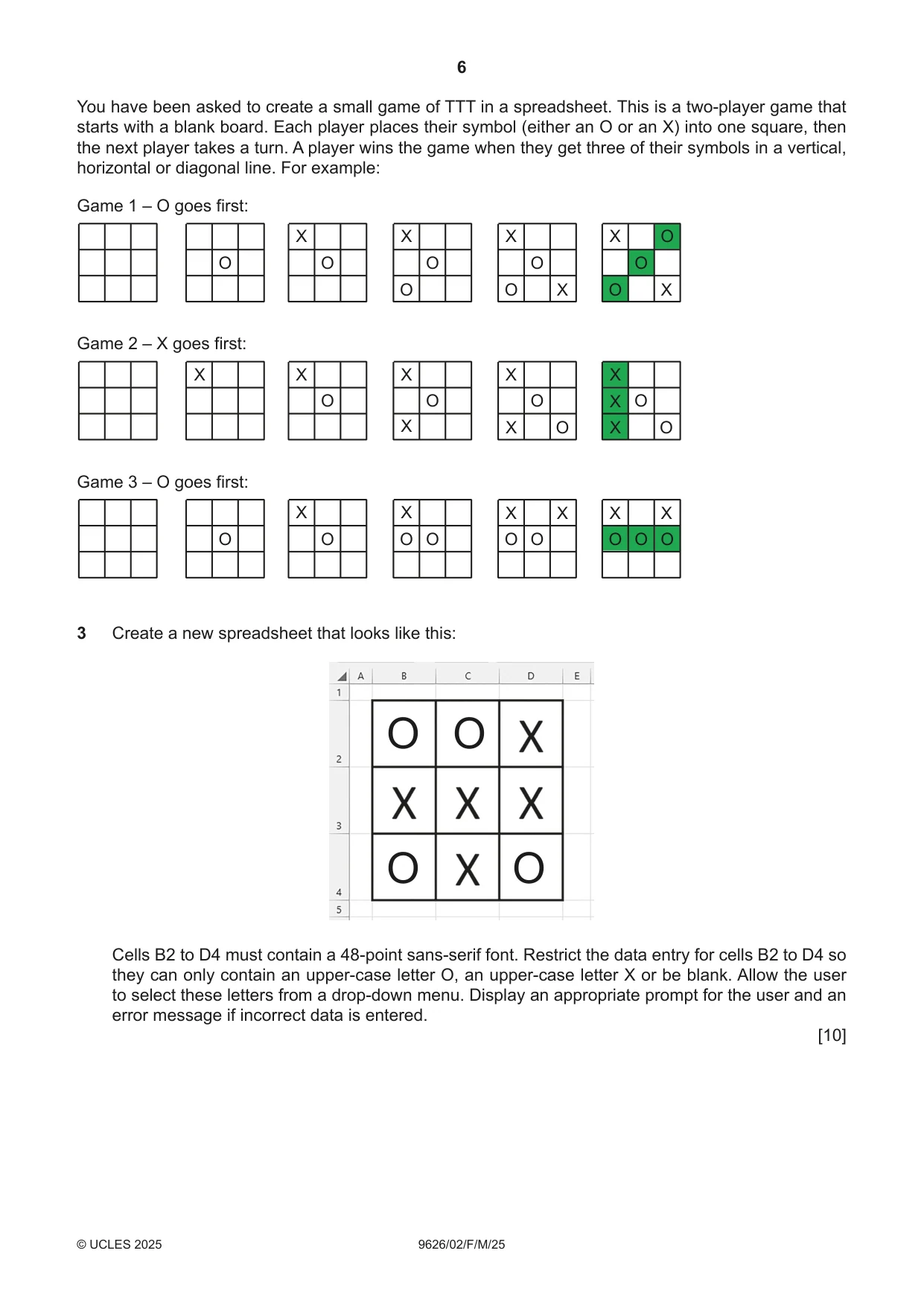
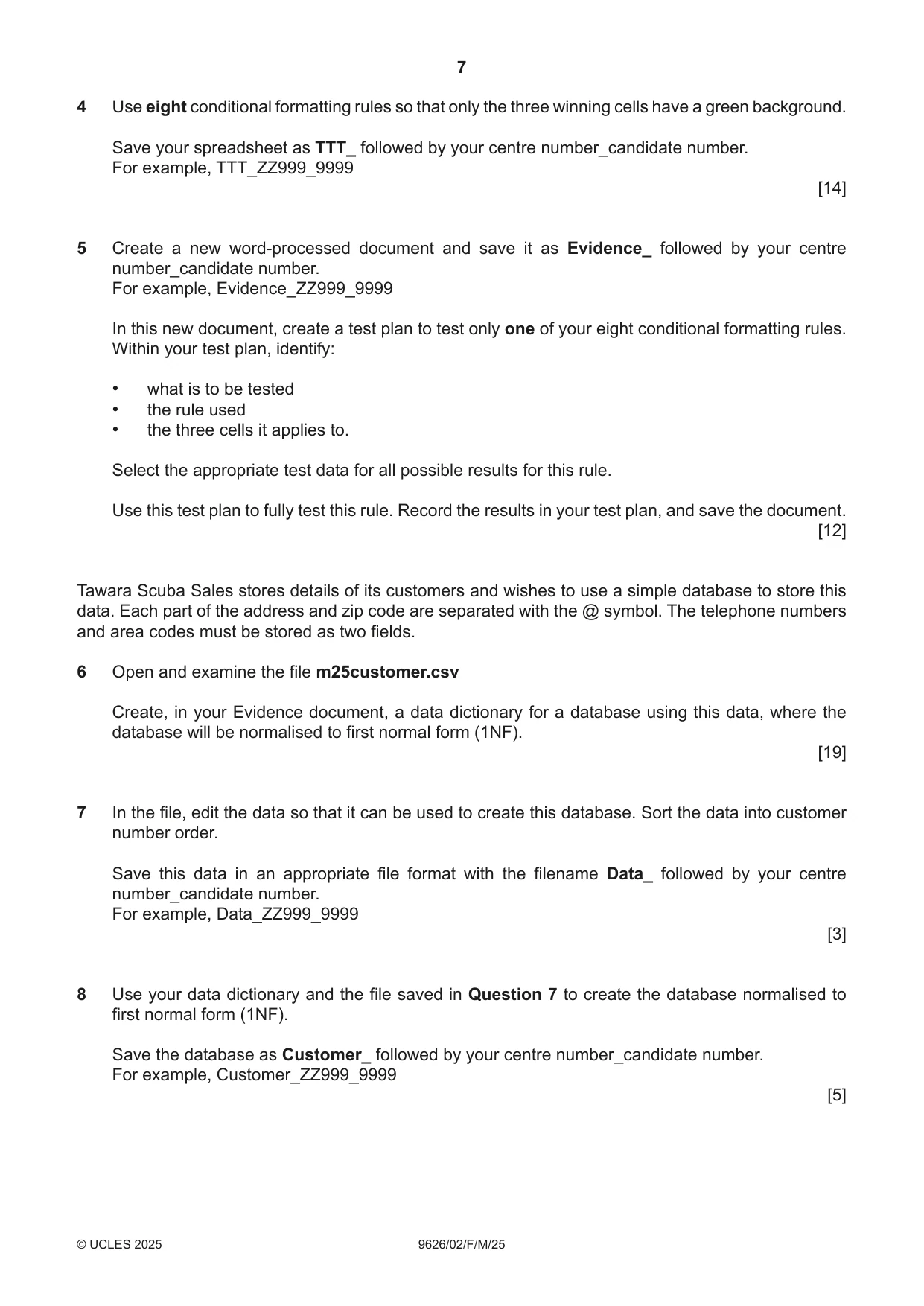
6 9626/02/F/M/25 © UCLES 2025 You have been asked to create a small game of TTT in a spreadsheet. This is a two-player game that starts with a blank board. Each player places their symbol (either an O or an X) into one square, then the next player takes a turn. A player wins the game when they get three of their symbols in a vertical, horizontal or diagonal line. For example: O O X O O X O O X X O O O X X Game 1 – O goes first: O X X O X X O X X O O O X X X Game 2 – X goes first: O O X O O X O O X X O O O X X Game 3 – O goes first: 3 Create a new spreadsheet that looks like this: O O O O Cells B2 to D4 must contain a 48-point sans-serif font. Restrict the data entry for cells B2 to D4 so they can only contain an upper-case letter O, an upper-case letter X or be blank. Allow the user to select these letters from a drop-down menu. Display an appropriate prompt for the user and an error message if incorrect data is entered. [10]
Question paper, page 7
7 9626/02/F/M/25 © UCLES 2025 4 Use eight conditional formatting rules so that only the three winning cells have a green background. Save your spreadsheet as TTT_ followed by your centre number_candidate number. For example, TTT_ZZ999_9999 [14] 5 Create a new word-processed document and save it as Evidence_ followed by your centre number_candidate number. For example, Evidence_ZZ999_9999 In this new document, create a test plan to test only one of your eight conditional formatting rules. Within your test plan, identify: • what is to be tested • the rule used • the three cells it applies to. Select the appropriate test data for all possible results for this rule. Use this test plan to fully test this rule. Record the results in your test plan, and save the document. [12] Tawara Scuba Sales stores details of its customers and wishes to use a simple database to store this data. Each part of the address and zip code are separated with the @ symbol. The telephone numbers and area codes must be stored as two fields. 6 Open and examine the file m25customer.csv Create, in your Evidence document, a data dictionary for a database using this data, where the database will be normalised to first normal form (1NF). [19] 7 In the file, edit the data so that it can be used to create this database. Sort the data into customer number order. Save this data in an appropriate file format with the filename Data_ followed by your centre number_candidate number. For example, Data_ZZ999_9999 [3] 8 Use your data dictionary and the file saved in Question 7 to create the database normalised to first normal form (1NF). Save the database as Customer_ followed by your centre number_candidate number. For example, Customer_ZZ999_9999 [5]
Question paper, page 8
8 9626/02/F/M/25 © UCLES 2025 Permission to reproduce items where third-party owned material protected by copyright is included has been sought and cleared where possible. Every reasonable effort has been made by the publisher (UCLES) to trace copyright holders, but if any items requiring clearance have unwittingly been included, the publisher will be pleased to make amends at the earliest possible opportunity. To avoid the issue of disclosure of answer-related information to candidates, all copyright acknowledgements are reproduced online in the Cambridge Assessment International Education Copyright Acknowledgements Booklet. This is produced for each series of examinations and is freely available to download at www.cambridgeinternational.org after the live examination series. Cambridge Assessment International Education is part of Cambridge Assessment. Cambridge Assessment is the brand name of the University of Cambridge Local Examinations Syndicate (UCLES), which is a department of the University of Cambridge. BLANK PAGE
What you needed in this session
Cambridge’s own grade thresholds for 2025 Feb/March, Paper 2 · Variant 0. A higher threshold means an easier paper — the bar moves with how the cohort did.