Cambridge A Level Information Technology (from 2017) 9626 — 2025 May/June Paper 2 · Variant 0
9626/20/M/J/25 · 90 marks · 150 min
The question paper and its mark scheme, free to read here and free to download. This is Cambridge’s own paper, exactly as it was sat.
Question paper8 pages



Mark scheme
No mark scheme is in the library for this paper.
Paper as text
Question paper, page 1
This document has 8 pages. Any blank pages are indicated. [Turn over Cambridge International AS & A Level * 1 4 3 5 0 4 9 1 0 1 * INFORMATION TECHNOLOGY 9626/02 Paper 2 Practical May/June 2025 2 hours 30 minutes You will need: Candidate source files (listed on page 2) INSTRUCTIONS ● Carry out every instruction in each task. ● Save your work using the file names given in the task as and when instructed. ● You must not have access to either the internet or any email system during this examination. ● You must save your work in the correct file format as stated in the tasks. If work is saved in an incorrect file format, you will not receive marks for that task. INFORMATION ● The total mark for this paper is 90. ● The number of marks for each question or part question is shown in brackets [ ]. DC (CJ/SG) 346665/3 © UCLES 2025
Question paper, page 2
2 9626/02/M/J/25 © UCLES 2025 You have been supplied with the following source files: j25clownfish.mp4 j25data.csv j25divers.mp4 j25teacher.csv You must use the most efficient method to solve each task. All work produced must be of a professional standard and suit the business context.
Question paper, page 3
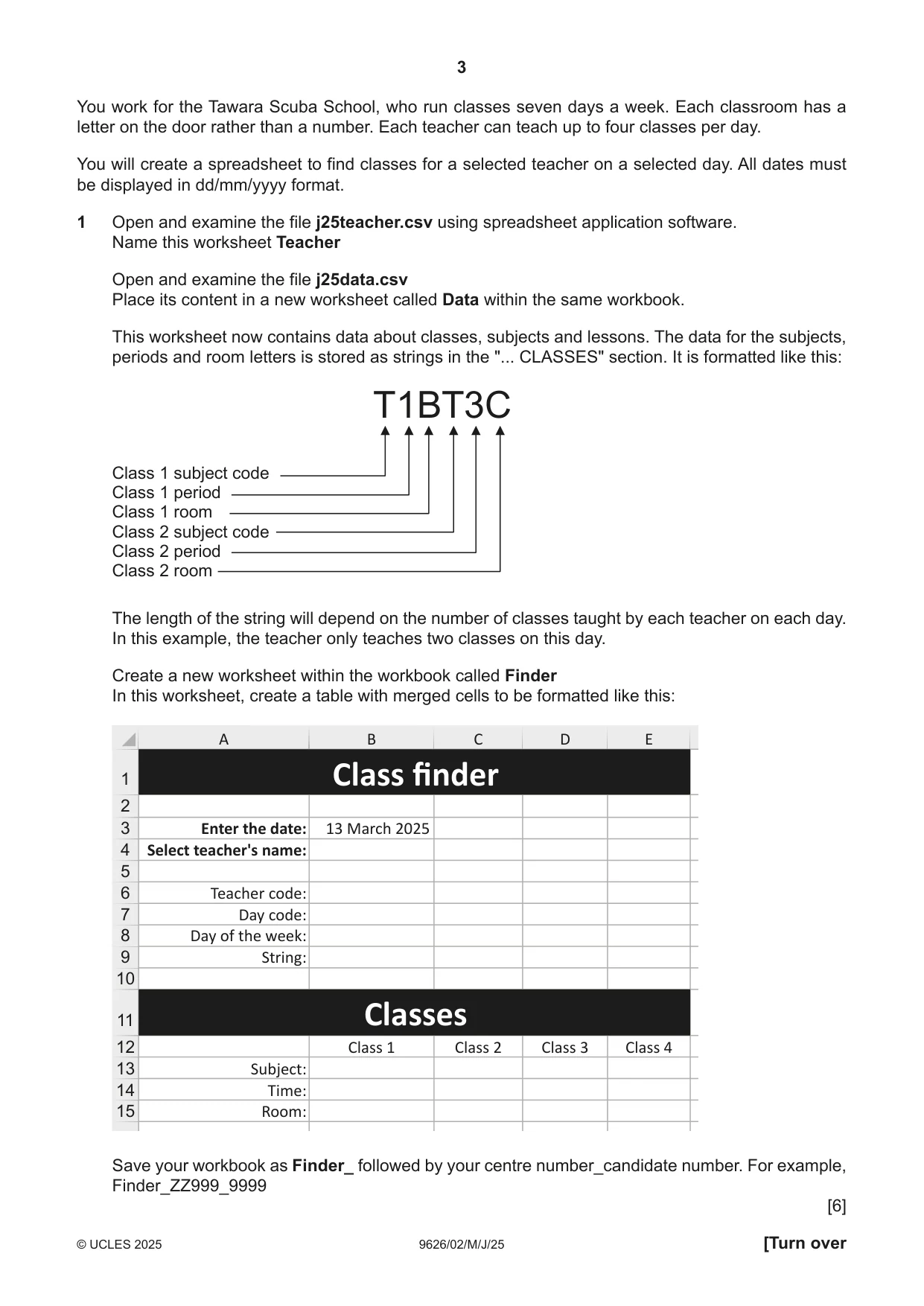
3 9626/02/M/J/25 © UCLES 2025 [Turn over You work for the Tawara Scuba School, who run classes seven days a week. Each classroom has a letter on the door rather than a number. Each teacher can teach up to four classes per day. You will create a spreadsheet to find classes for a selected teacher on a selected day. All dates must be displayed in dd/mm/yyyy format. 1 Open and examine the file j25teacher.csv using spreadsheet application software. Name this worksheet Teacher Open and examine the file j25data.csv Place its content in a new worksheet called Data within the same workbook. This worksheet now contains data about classes, subjects and lessons. The data for the subjects, periods and room letters is stored as strings in the "... CLASSES" section. It is formatted like this: T1BT3C Class 1 subject code Class 1 period Class 1 room Class 2 subject code Class 2 period Class 2 room The length of the string will depend on the number of classes taught by each teacher on each day. In this example, the teacher only teaches two classes on this day. Create a new worksheet within the workbook called Finder In this worksheet, create a table with merged cells to be formatted like this: 1 2 3 4 5 6 7 8 9 10 11 12 13 14 15 Class finder Classes A Enter the date: 13 March 2025 Teacher code: Day code: Day of the week: String: Subject: Class 1 Class 2 Class 3 Class 4 Time: Room: Select teacher's name: B C D E Save your workbook as Finder_ followed by your centre number_candidate number. For example, Finder_ZZ999_9999 [6]
Question paper, page 4
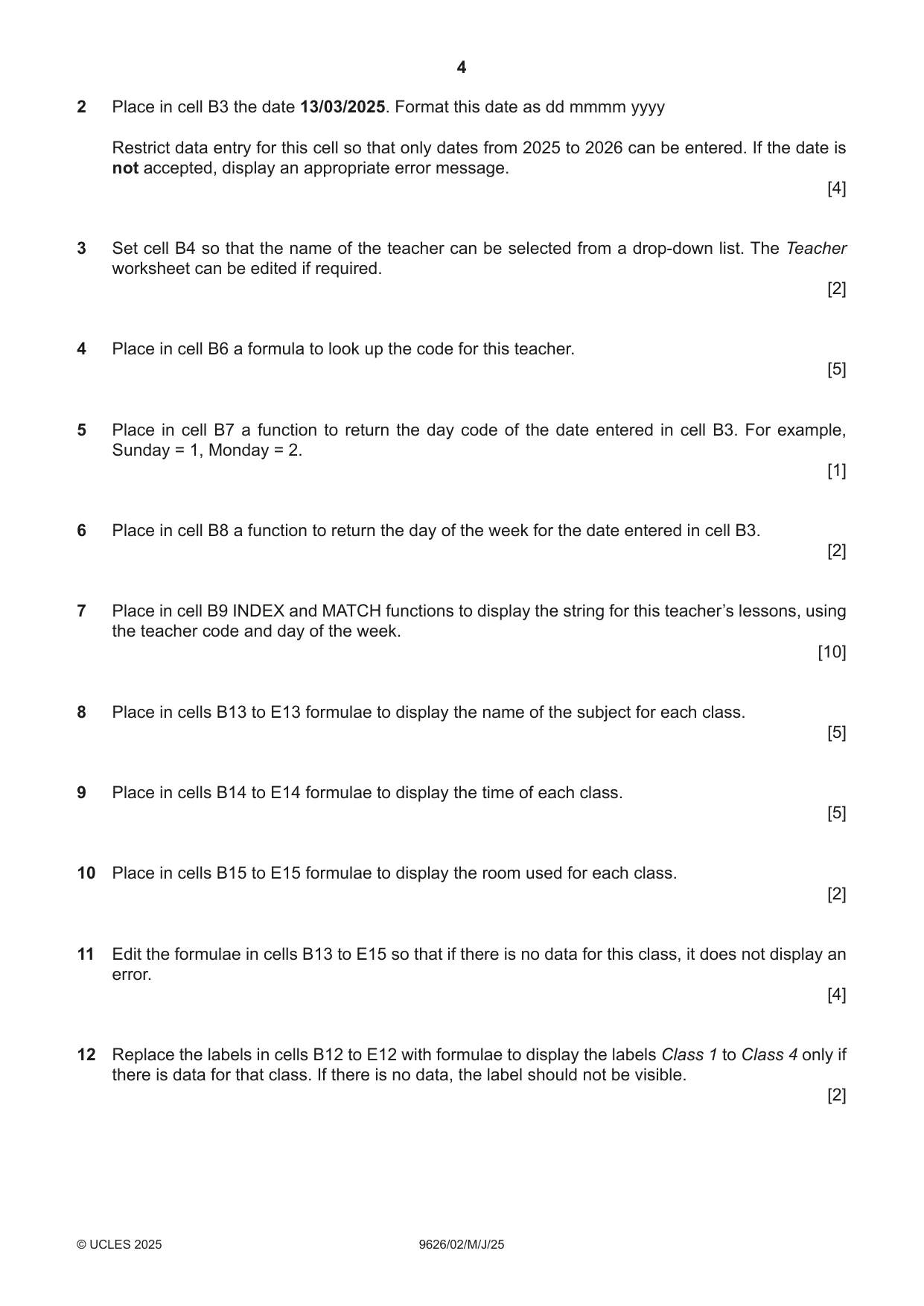
4 9626/02/M/J/25 © UCLES 2025 2 Place in cell B3 the date 13/03/2025. Format this date as dd mmmm yyyy Restrict data entry for this cell so that only dates from 2025 to 2026 can be entered. If the date is not accepted, display an appropriate error message. [4] 3 Set cell B4 so that the name of the teacher can be selected from a drop-down list. The Teacher worksheet can be edited if required. [2] 4 Place in cell B6 a formula to look up the code for this teacher. [5] 5 Place in cell B7 a function to return the day code of the date entered in cell B3. For example, Sunday = 1, Monday = 2. [1] 6 Place in cell B8 a function to return the day of the week for the date entered in cell B3. [2] 7 Place in cell B9 INDEX and MATCH functions to display the string for this teacher’s lessons, using the teacher code and day of the week. [10] 8 Place in cells B13 to E13 formulae to display the name of the subject for each class. [5] 9 Place in cells B14 to E14 formulae to display the time of each class. [5] 10 Place in cells B15 to E15 formulae to display the room used for each class. [2] 11 Edit the formulae in cells B13 to E15 so that if there is no data for this class, it does not display an error. [4] 12 Replace the labels in cells B12 to E12 with formulae to display the labels Class 1 to Class 4 only if there is data for that class. If there is no data, the label should not be visible. [2]
Question paper, page 5
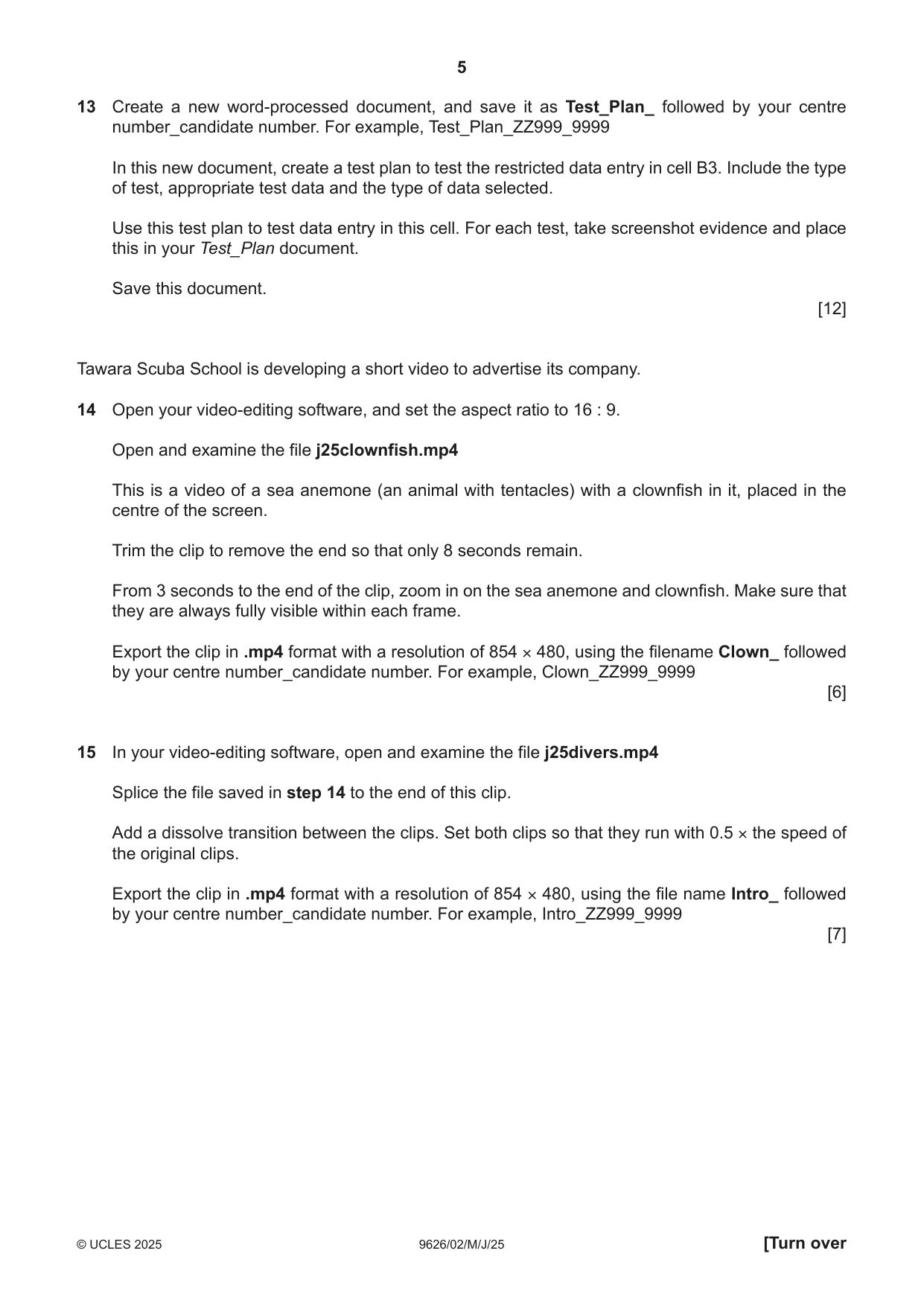
5 9626/02/M/J/25 © UCLES 2025 [Turn over 13 Create a new word-processed document, and save it as Test_Plan_ followed by your centre number_candidate number. For example, Test_Plan_ZZ999_9999 In this new document, create a test plan to test the restricted data entry in cell B3. Include the type of test, appropriate test data and the type of data selected. Use this test plan to test data entry in this cell. For each test, take screenshot evidence and place this in your Test_Plan document. Save this document. [12] Tawara Scuba School is developing a short video to advertise its company. 14 Open your video-editing software, and set the aspect ratio to 16 : 9. Open and examine the file j25clownfish.mp4 This is a video of a sea anemone (an animal with tentacles) with a clownfish in it, placed in the centre of the screen. Trim the clip to remove the end so that only 8 seconds remain. From 3 seconds to the end of the clip, zoom in on the sea anemone and clownfish. Make sure that they are always fully visible within each frame. Export the clip in .mp4 format with a resolution of 854 × 480, using the filename Clown_ followed by your centre number_candidate number. For example, Clown_ZZ999_9999 [6] 15 In your video-editing software, open and examine the file j25divers.mp4 Splice the file saved in step 14 to the end of this clip. Add a dissolve transition between the clips. Set both clips so that they run with 0.5 × the speed of the original clips. Export the clip in .mp4 format with a resolution of 854 × 480, using the file name Intro_ followed by your centre number_candidate number. For example, Intro_ZZ999_9999 [7]
Question paper, page 6
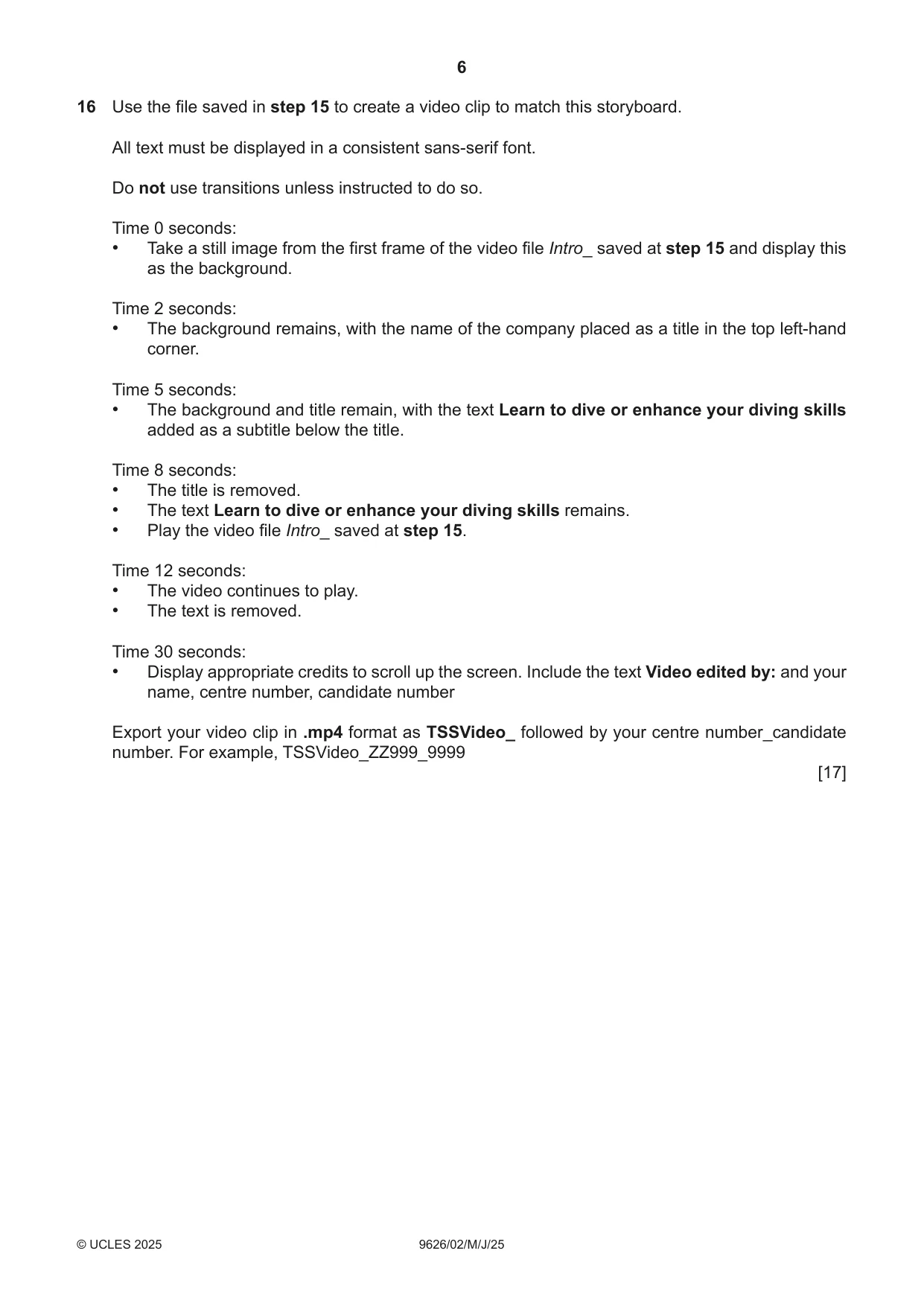
6 9626/02/M/J/25 © UCLES 2025 16 Use the file saved in step 15 to create a video clip to match this storyboard. All text must be displayed in a consistent sans-serif font. Do not use transitions unless instructed to do so. Time 0 seconds: • Take a still image from the first frame of the video file Intro_ saved at step 15 and display this as the background. Time 2 seconds: • The background remains, with the name of the company placed as a title in the top left-hand corner. Time 5 seconds: • The background and title remain, with the text Learn to dive or enhance your diving skills added as a subtitle below the title. Time 8 seconds: • The title is removed. • The text Learn to dive or enhance your diving skills remains. • Play the video file Intro_ saved at step 15. Time 12 seconds: • The video continues to play. • The text is removed. Time 30 seconds: • Display appropriate credits to scroll up the screen. Include the text Video edited by: and your name, centre number, candidate number Export your video clip in .mp4 format as TSSVideo_ followed by your centre number_candidate number. For example, TSSVideo_ZZ999_9999 [17]
Question paper, page 7
7 9626/02/M/J/25 © UCLES 2025 BLANK PAGE
Question paper, page 8
8 9626/02/M/J/25 © UCLES 2025 Permission to reproduce items where third-party owned material protected by copyright is included has been sought and cleared where possible. Every reasonable effort has been made by the publisher (UCLES) to trace copyright holders, but if any items requiring clearance have unwittingly been included, the publisher will be pleased to make amends at the earliest possible opportunity. To avoid the issue of disclosure of answer-related information to candidates, all copyright acknowledgements are reproduced online in the Cambridge Assessment International Education Copyright Acknowledgements Booklet. This is produced for each series of examinations and is freely available to download at www.cambridgeinternational.org after the live examination series. Cambridge Assessment International Education is part of Cambridge Assessment. Cambridge Assessment is the brand name of the University of Cambridge Local Examinations Syndicate (UCLES), which is a department of the University of Cambridge. BLANK PAGE
What you needed in this session
Cambridge’s own grade thresholds for 2025 May/June, Paper 2 · Variant 0. A higher threshold means an easier paper — the bar moves with how the cohort did.