Cambridge A Level Information Technology (from 2017) 9626 — 2020 Oct/Nov Paper 2 · Variant 0
9626/20/O/N/20
The question paper and its mark scheme, free to read here and free to download. This is Cambridge’s own paper, exactly as it was sat.
Question paper8 pages

Mark scheme
No mark scheme is in the library for this paper.
Paper as text
Question paper, page 1
Cambridge International AS & A Level INFORMATION TECHNOLOGY 9626/02 Paper 2 Practical October/November 2020 2 hours 30 minutes You will need: Candidate source files (listed on page 2) INSTRUCTIONS ● Carry out every instruction in each task. ● Save your work using the file names given in the task as and when instructed. ● You must not have access to the internet or any email system during this examination. ● You must save your work in the correct file format as stated in the tasks. If you save work in an incorrect file format, you will not receive marks for that task. INFORMATION ● The total mark for this paper is 110. ● The number of marks for each task or part task is shown in brackets [ ]. This document has 8 pages. Blank pages are indicated. DC (LK/TP) 180969/3 © UCLES 2020 [Turn over * 1 5 5 9 6 2 8 5 3 3 *
Question paper, page 2
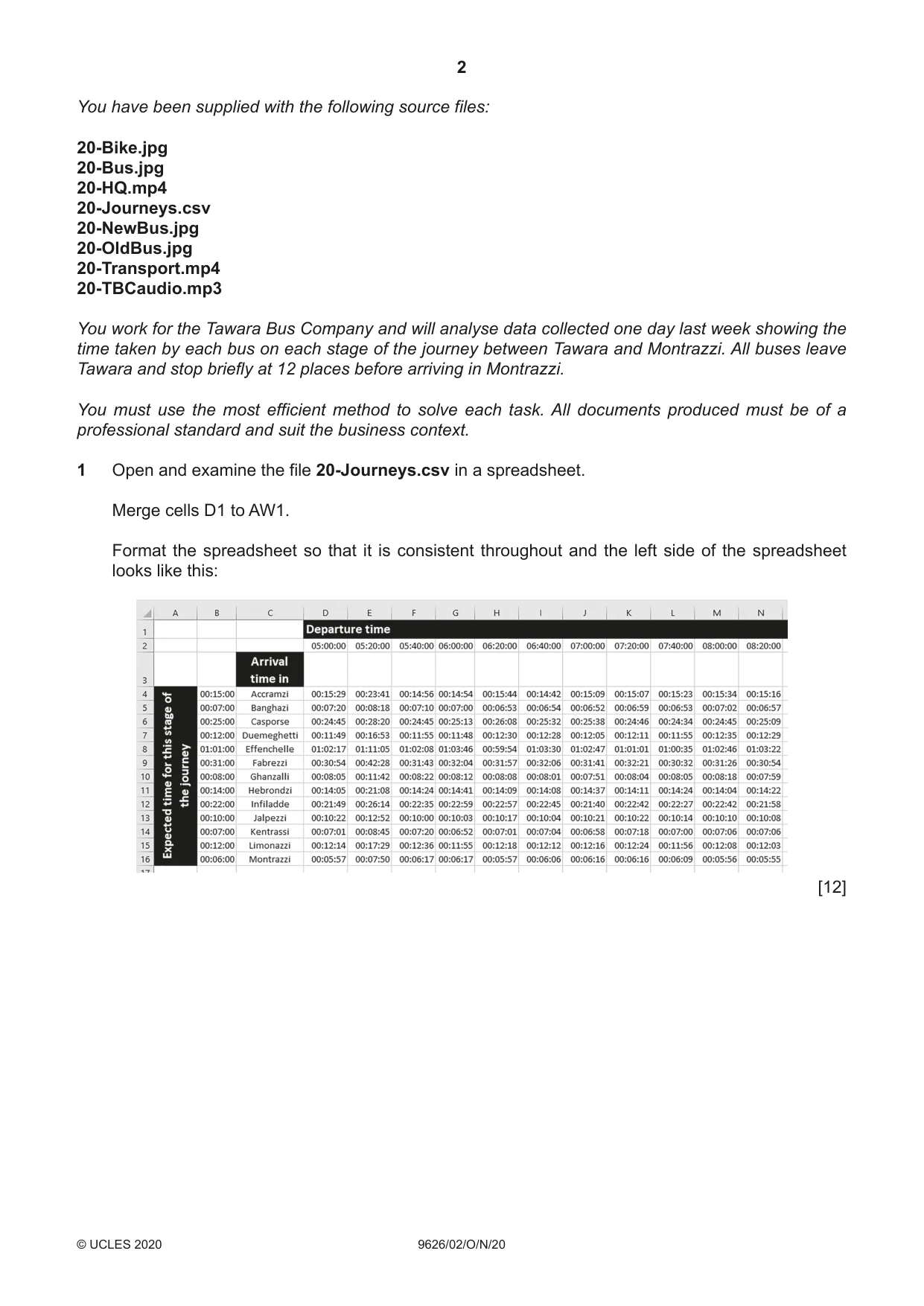
2 9626/02/O/N/20 © UCLES 2020 You have been supplied with the following source files: 20-Bike.jpg 20-Bus.jpg 20-HQ.mp4 20-Journeys.csv 20-NewBus.jpg 20-OldBus.jpg 20-Transport.mp4 20-TBCaudio.mp3 You work for the Tawara Bus Company and will analyse data collected one day last week showing the time taken by each bus on each stage of the journey between Tawara and Montrazzi. All buses leave Tawara and stop briefly at 12 places before arriving in Montrazzi. You must use the most efficient method to solve each task. All documents produced must be of a professional standard and suit the business context. 1 Open and examine the file 20-Journeys.csv in a spreadsheet. Merge cells D1 to AW1. Format the spreadsheet so that it is consistent throughout and the left side of the spreadsheet looks like this: [12]
Question paper, page 3
3 9626/02/O/N/20 © UCLES 2020 [Turn over 2 Insert appropriate formulae and labels in: • row 18 to calculate the total expected journey time • row 18 to calculate the total journey time for each bus • row 19 to calculate the arrival time for each bus • column AX to count, for each place, the number of times when a bus was later than expected. For each stage of each journey, use conditional formatting to display the contents of the cell as: • white text on a red background if this stage took longer than the expected time • black text on a yellow background if the stage time was the same as the expected time • dark blue text on a light green background if the stage time was less than the expected time. Insert a formula in cell D20 to calculate, for all stages of all buses, the percentage of stages when the bus was later than expected. Include an appropriate label for this cell. Apply appropriate formatting to your spreadsheet. Place your name, centre number and candidate number in the header of the spreadsheet. Save your spreadsheet as Stage_ followed by your centre number_candidate number e.g. Stage_ZZ999_9999 [32] EVIDENCE 1 Your spreadsheet. 3 Create a second identical spreadsheet in your workbook. In this new spreadsheet: • change the background colour of all cells with a black background to blue • delete rows 18, 19 and 20 • remove the conditional formatting from all cells. Save this spreadsheet as Arrive_ followed by your centre number_candidate number e.g. Arrive_ZZ999_9999 [4] EVIDENCE 2 Your new spreadsheet.
Question paper, page 4
4 9626/02/O/N/20 © UCLES 2020 4 In this new spreadsheet: • edit the text in the merged cell A4:A16 to say Expected length of journey to this town • place in cell B3 the time 00:00:00 • place in cell B4 a formula to display the expected time taken to reach this town • use the data stored in your Stage spreadsheet to help you replicate this formula for each town • place replicable formulae in cells D4 to AW16, without changing the structure of the spreadsheet, to display the time that each bus arrived at each town • for each stage of each journey, use conditional formatting to display the contents of the cell as black text on a light green background for any stage where the bus was on time or early. Save your spreadsheet. [17] EVIDENCE 3 Your new spreadsheet. You will create, for the Tawara Bus Company, a short promotional video clip to try to persuade new customers to use their bus service. The original video clip was filmed on location in Tawara by TMBvideo. All video and audio clips produced must be of a professional standard and suit the business context. 5 Open the file 20-HQ.mp4 in video editing software. Set the aspect ratio to 16:9. Remove from the video clip the: • sound • first 12.5 seconds • end so that only 2 seconds remain. Change the speed of the video clip (slow it) so that its total duration is 4 seconds. Save your video clip in .mp4 format with a resolution of 854 × 480 and the file name TBC_ followed by your centre number_candidate number e.g. TBC_ZZ999_9999 [7] EVIDENCE 4 Your video clip TBC_ 6 Take a still image from the last frame of this video clip. Save it with the file name TBC1 in a format suitable for importing into your video editing software. [2] EVIDENCE 5 Your still image TBC1
Question paper, page 5
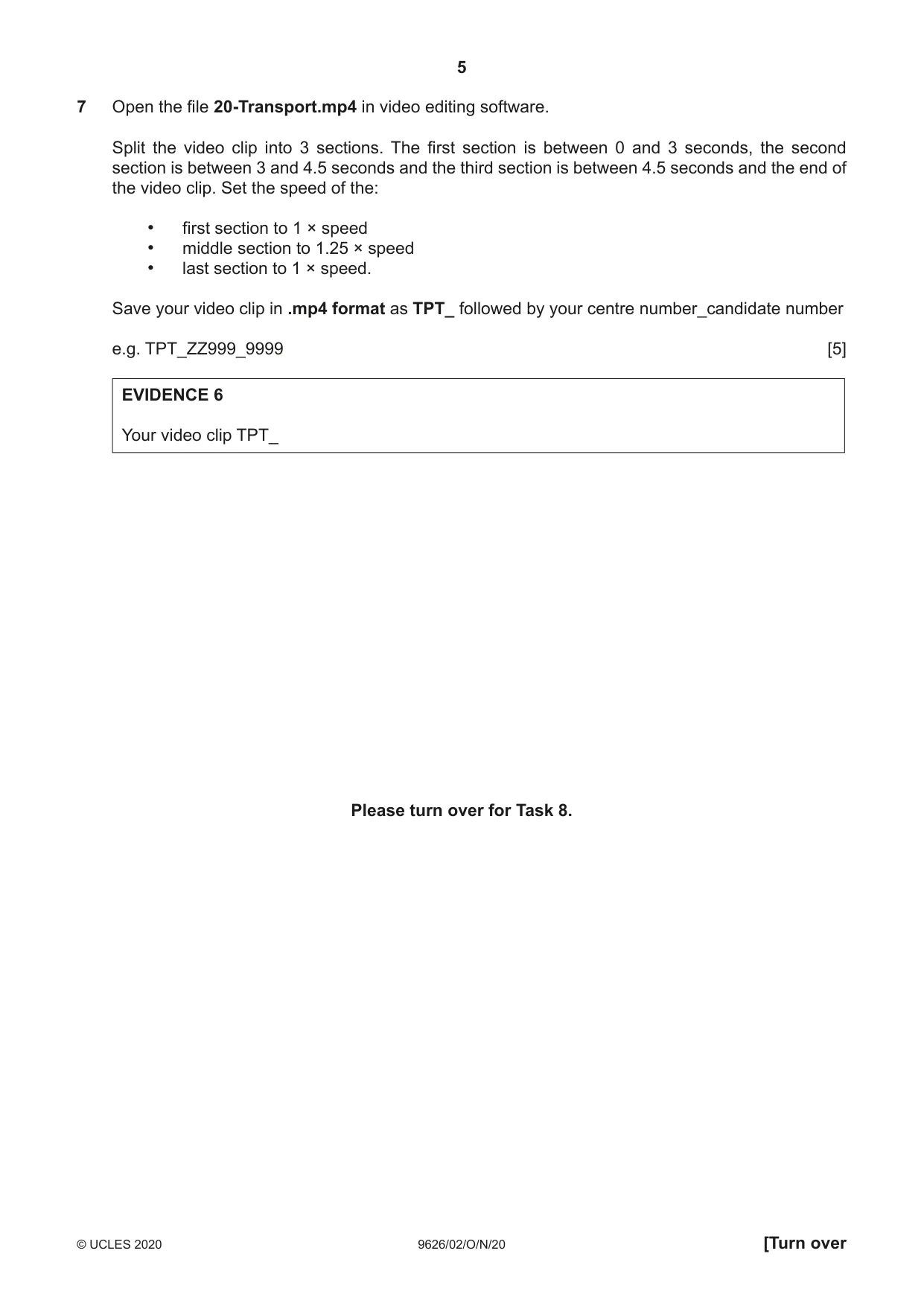
5 9626/02/O/N/20 © UCLES 2020 [Turn over 7 Open the file 20-Transport.mp4 in video editing software. Split the video clip into 3 sections. The first section is between 0 and 3 seconds, the second section is between 3 and 4.5 seconds and the third section is between 4.5 seconds and the end of the video clip. Set the speed of the: • first section to 1 × speed • middle section to 1.25 × speed • last section to 1 × speed. Save your video clip in .mp4 format as TPT_ followed by your centre number_candidate number e.g. TPT_ZZ999_9999 [5] EVIDENCE 6 Your video clip TPT_ Please turn over for Task 8.
Question paper, page 6
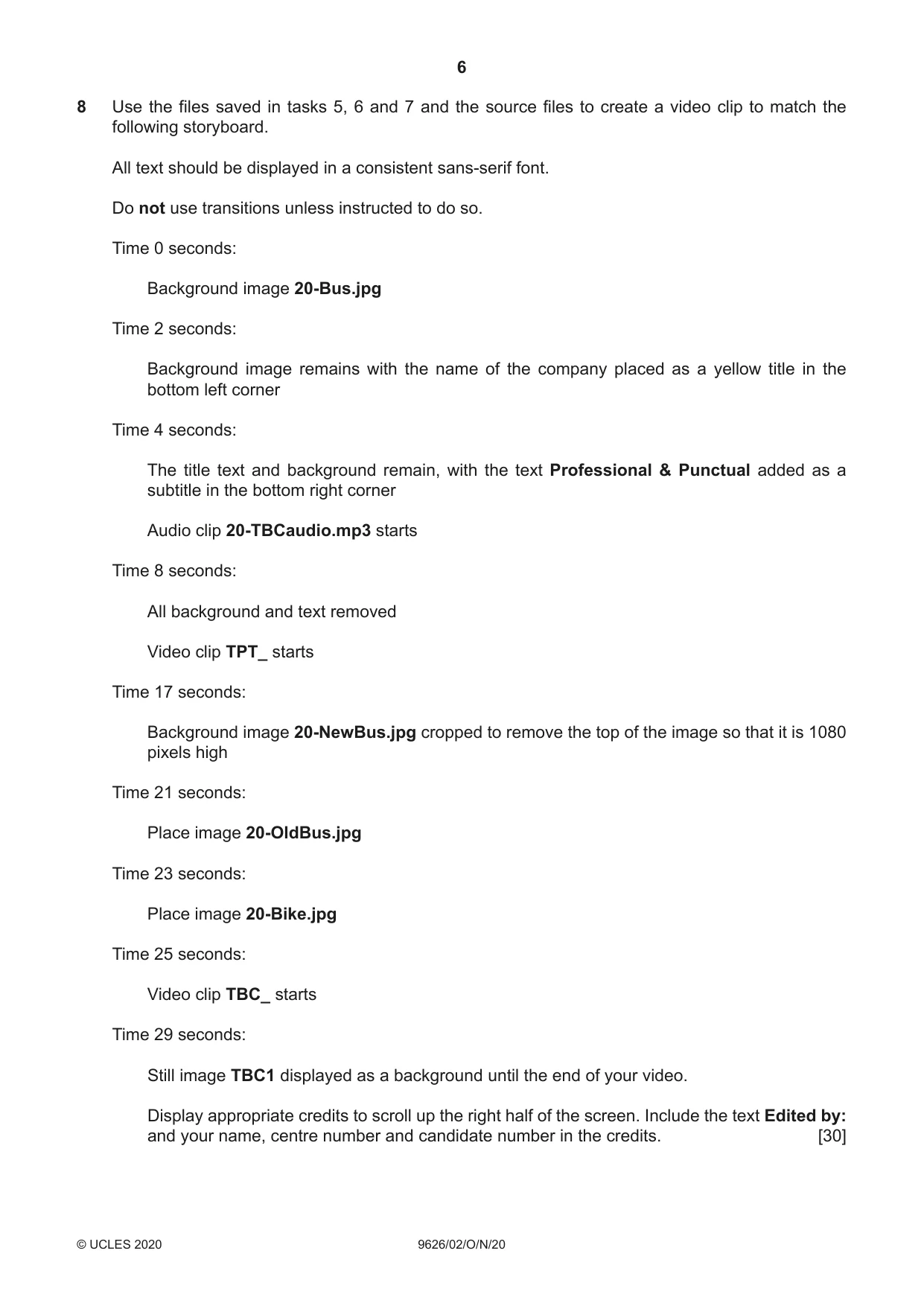
6 9626/02/O/N/20 © UCLES 2020 8 Use the files saved in tasks 5, 6 and 7 and the source files to create a video clip to match the following storyboard. All text should be displayed in a consistent sans-serif font. Do not use transitions unless instructed to do so. Time 0 seconds: Background image 20-Bus.jpg Time 2 seconds: Background image remains with the name of the company placed as a yellow title in the bottom left corner Time 4 seconds: The title text and background remain, with the text Professional & Punctual added as a subtitle in the bottom right corner Audio clip 20-TBCaudio.mp3 starts Time 8 seconds: All background and text removed Video clip TPT_ starts Time 17 seconds: Background image 20-NewBus.jpg cropped to remove the top of the image so that it is 1080 pixels high Time 21 seconds: Place image 20-OldBus.jpg Time 23 seconds: Place image 20-Bike.jpg Time 25 seconds: Video clip TBC_ starts Time 29 seconds: Still image TBC1 displayed as a background until the end of your video. Display appropriate credits to scroll up the right half of the screen. Include the text Edited by: and your name, centre number and candidate number in the credits. [30]
Question paper, page 7
7 9626/02/O/N/20 © UCLES 2020 9 Export your video clip in .mp4 format as TVideo_ followed by your centre number_candidate number e.g. TVideo_ZZ999_9999 [1] EVIDENCE 7 Your video clip TVideo_
Question paper, page 8
8 9626/02/O/N/20 © UCLES 2020 Permission to reproduce items where third-party owned material protected by copyright is included has been sought and cleared where possible. Every reasonable effort has been made by the publisher (UCLES) to trace copyright holders, but if any items requiring clearance have unwittingly been included, the publisher will be pleased to make amends at the earliest possible opportunity. To avoid the issue of disclosure of answer-related information to candidates, all copyright acknowledgements are reproduced online in the Cambridge Assessment International Education Copyright Acknowledgements Booklet. This is produced for each series of examinations and is freely available to download at www.cambridgeinternational.org after the live examination series. Cambridge Assessment International Education is part of the Cambridge Assessment Group. Cambridge Assessment is the brand name of the University of Cambridge Local Examinations Syndicate (UCLES), which itself is a department of the University of Cambridge. BLANK PAGE