Cambridge A Level Information Technology (from 2017) 9626 — 2018 May/June Paper 2 · Variant 0
9626/20/M/J/18
The question paper and its mark scheme, free to read here and free to download. This is Cambridge’s own paper, exactly as it was sat.
Question paper4 pages
Mark scheme
No mark scheme is in the library for this paper.
Paper as text
Question paper, page 1
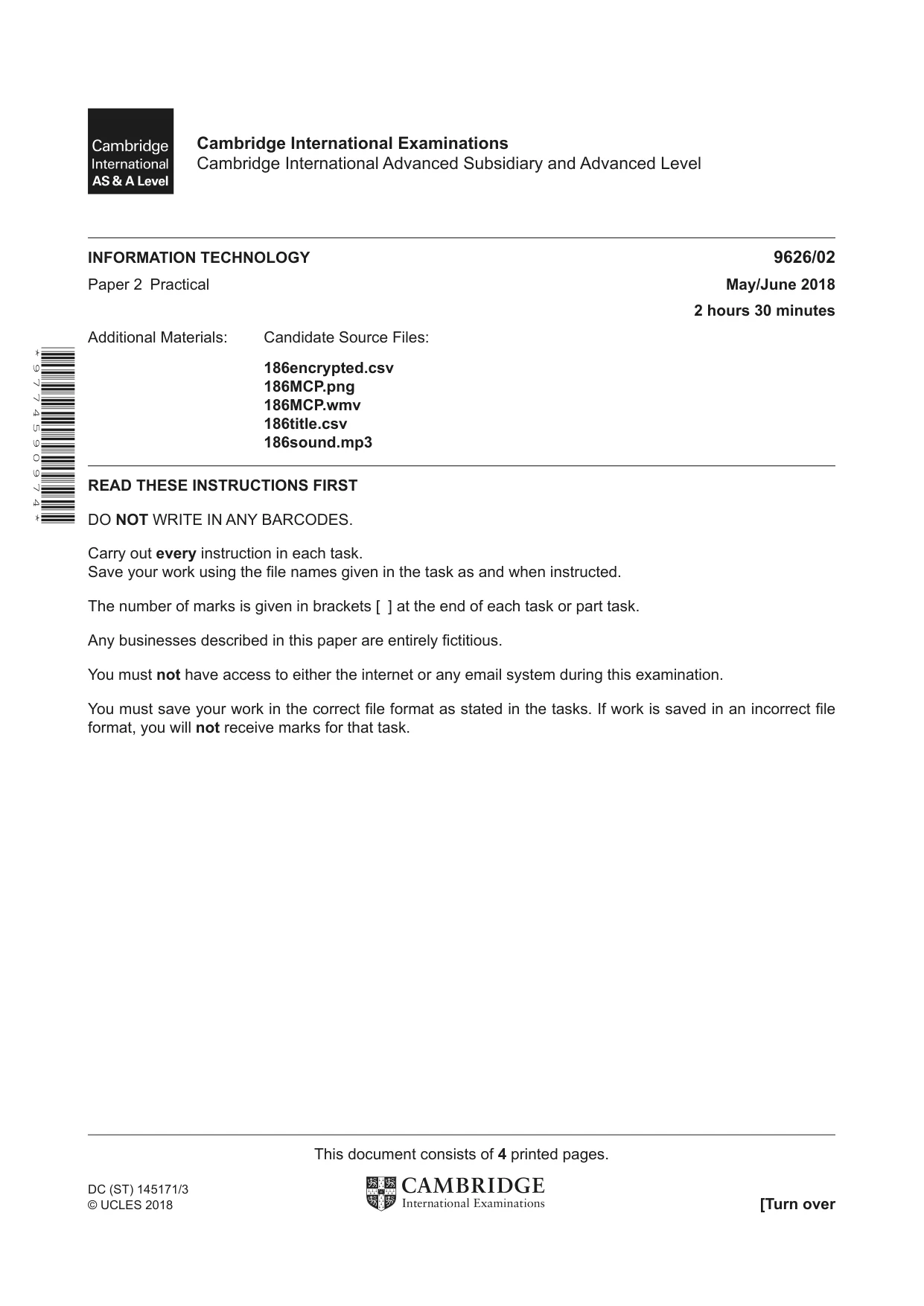
* 9 7 7 4 5 9 0 9 7 4 * INFORMATION TECHNOLOGY 9626/02 Paper 2 Practical May/June 2018 2 hours 30 minutes Additional Materials: Candidate Source Files: 186encrypted.csv 186MCP.png 186MCP.wmv 186title.csv 186sound.mp3 READ THESE INSTRUCTIONS FIRST DO NOT WRITE IN ANY BARCODES. Carry out every instruction in each task. Save your work using the file names given in the task as and when instructed. The number of marks is given in brackets [ ] at the end of each task or part task. Any businesses described in this paper are entirely fictitious. You must not have access to either the internet or any email system during this examination. You must save your work in the correct file format as stated in the tasks. If work is saved in an incorrect file format, you will not receive marks for that task. This document consists of 4 printed pages. DC (ST) 145171/3 © UCLES 2018 [Turn over Cambridge International Examinations Cambridge International Advanced Subsidiary and Advanced Level
Question paper, page 2
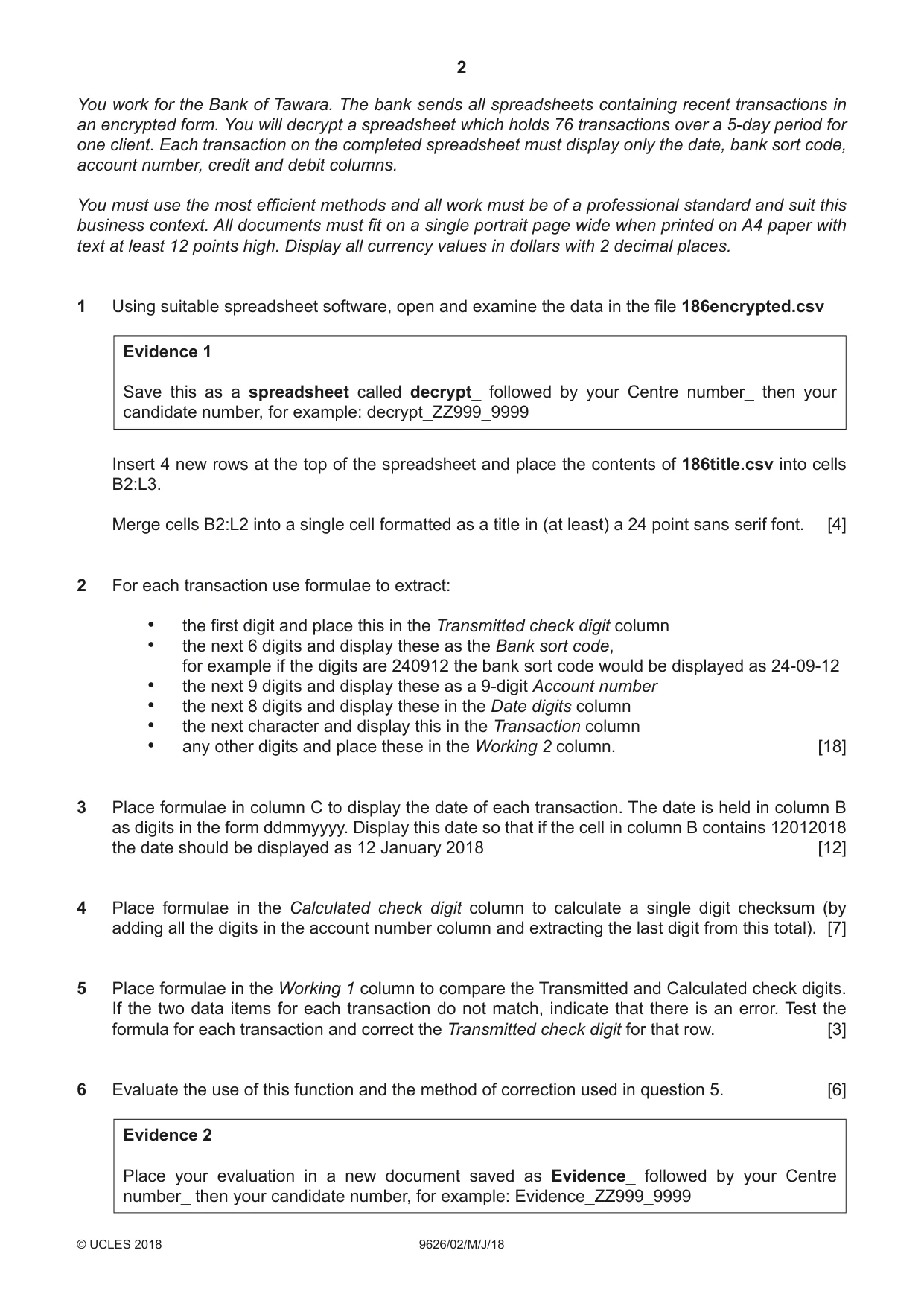
2 9626/02/M/J/18 © UCLES 2018 You work for the Bank of Tawara. The bank sends all spreadsheets containing recent transactions in an encrypted form. You will decrypt a spreadsheet which holds 76 transactions over a 5-day period for one client. Each transaction on the completed spreadsheet must display only the date, bank sort code, account number, credit and debit columns. You must use the most efficient methods and all work must be of a professional standard and suit this business context. All documents must fit on a single portrait page wide when printed on A4 paper with text at least 12 points high. Display all currency values in dollars with 2 decimal places. 1 Using suitable spreadsheet software, open and examine the data in the file 186encrypted.csv Evidence 1 Save this as a spreadsheet called decrypt_ followed by your Centre number_ then your candidate number, for example: decrypt_ZZ999_9999 Insert 4 new rows at the top of the spreadsheet and place the contents of 186title.csv into cells B2:L3. Merge cells B2:L2 into a single cell formatted as a title in (at least) a 24 point sans serif font. [4] 2 For each transaction use formulae to extract: • the first digit and place this in the Transmitted check digit column • the next 6 digits and display these as the Bank sort code, for example if the digits are 240912 the bank sort code would be displayed as 24-09-12 • the next 9 digits and display these as a 9-digit Account number • the next 8 digits and display these in the Date digits column • the next character and display this in the Transaction column • any other digits and place these in the Working 2 column. [18] 3 Place formulae in column C to display the date of each transaction. The date is held in column B as digits in the form ddmmyyyy. Display this date so that if the cell in column B contains 12012018 the date should be displayed as 12 January 2018 [12] 4 Place formulae in the Calculated check digit column to calculate a single digit checksum (by adding all the digits in the account number column and extracting the last digit from this total). [7] 5 Place formulae in the Working 1 column to compare the Transmitted and Calculated check digits. If the two data items for each transaction do not match, indicate that there is an error. Test the formula for each transaction and correct the Transmitted check digit for that row. [3] 6 Evaluate the use of this function and the method of correction used in question 5. [6] Evidence 2 Place your evaluation in a new document saved as Evidence_ followed by your Centre number_ then your candidate number, for example: Evidence_ZZ999_9999
Question paper, page 3
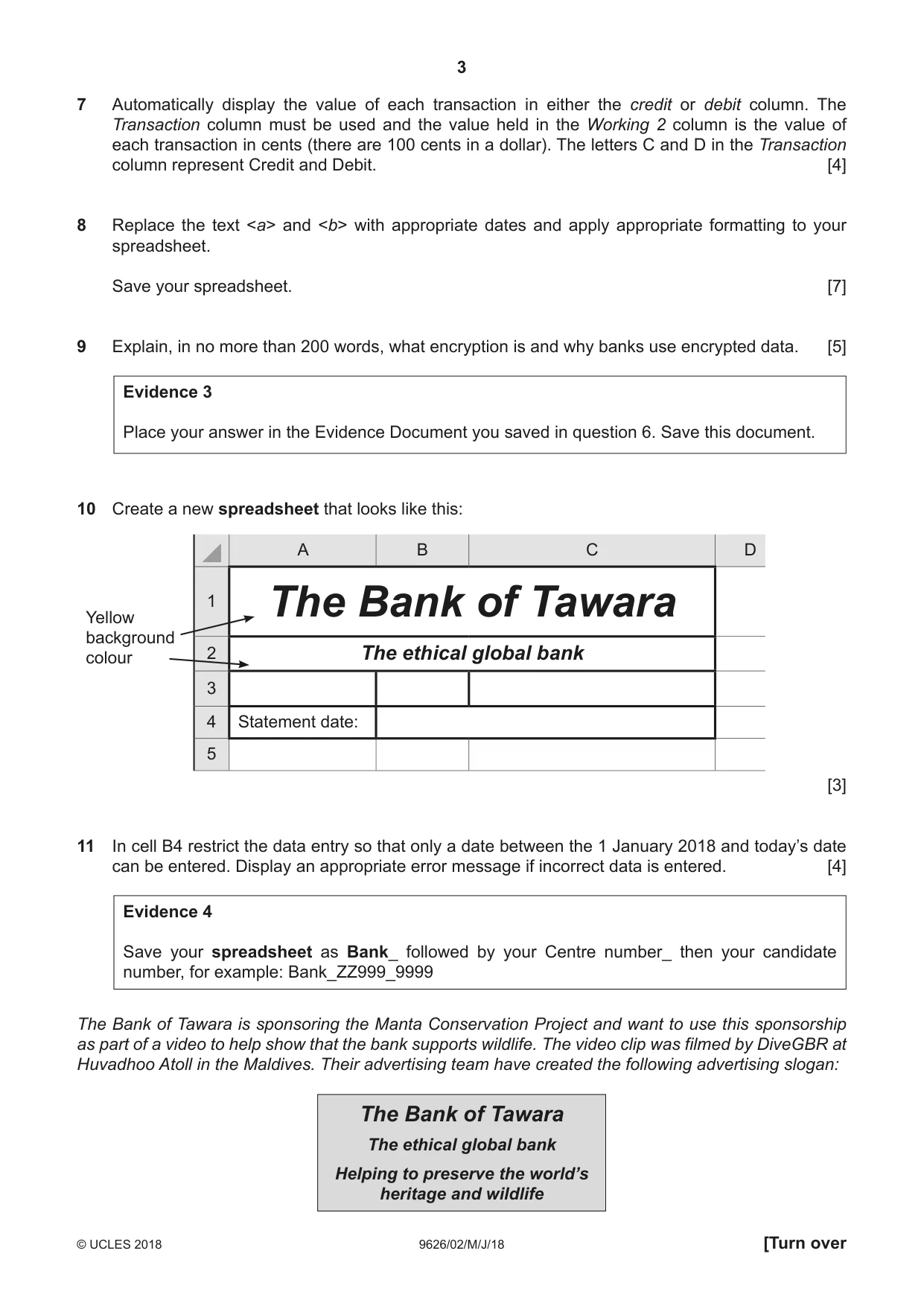
3 9626/02/M/J/18 © UCLES 2018 [Turn over 7 Automatically display the value of each transaction in either the credit or debit column. The Transaction column must be used and the value held in the Working 2 column is the value of each transaction in cents (there are 100 cents in a dollar). The letters C and D in the Transaction column represent Credit and Debit. [4] 8 Replace the text <a> and <b> with appropriate dates and apply appropriate formatting to your spreadsheet. Save your spreadsheet. [7] 9 Explain, in no more than 200 words, what encryption is and why banks use encrypted data. [5] Evidence 3 Place your answer in the Evidence Document you saved in question 6. Save this document. 10 Create a new spreadsheet that looks like this: A B C D 1 The Bank of Tawara 2 The ethical global bank 3 4 Statement date: 5 [3] 11 In cell B4 restrict the data entry so that only a date between the 1 January 2018 and today’s date can be entered. Display an appropriate error message if incorrect data is entered. [4] Evidence 4 Save your spreadsheet as Bank_ followed by your Centre number_ then your candidate number, for example: Bank_ZZ999_9999 The Bank of Tawara is sponsoring the Manta Conservation Project and want to use this sponsorship as part of a video to help show that the bank supports wildlife. The video clip was filmed by DiveGBR at Huvadhoo Atoll in the Maldives. Their advertising team have created the following advertising slogan: The Bank of Tawara The ethical global bank Helping to preserve the world’s heritage and wildlife Yellow background colour
Question paper, page 4
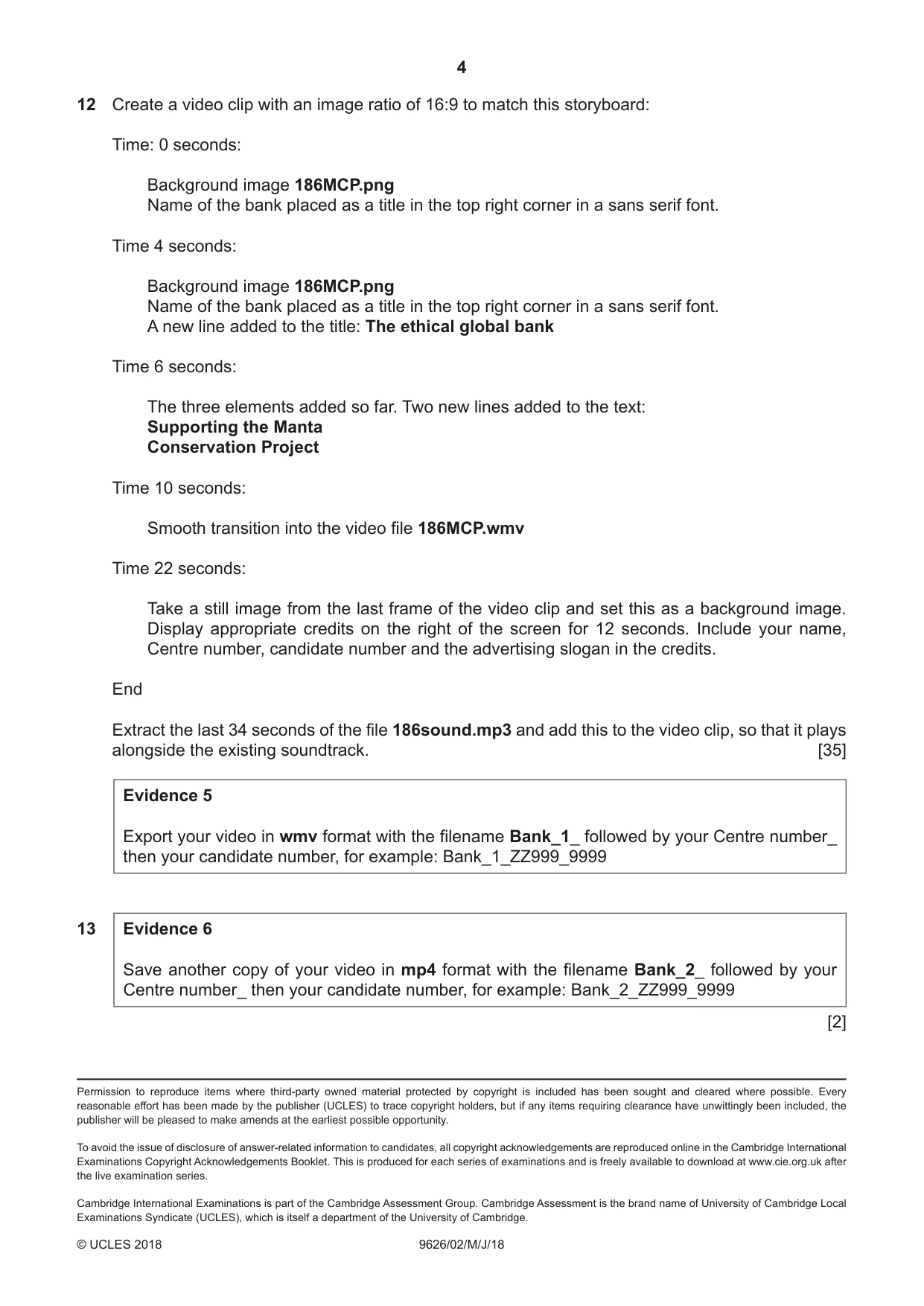
4 9626/02/M/J/18 © UCLES 2018 12 Create a video clip with an image ratio of 16:9 to match this storyboard: Time: 0 seconds: Background image 186MCP.png Name of the bank placed as a title in the top right corner in a sans serif font. Time 4 seconds: Background image 186MCP.png Name of the bank placed as a title in the top right corner in a sans serif font. A new line added to the title: The ethical global bank Time 6 seconds: The three elements added so far. Two new lines added to the text: Supporting the Manta Conservation Project Time 10 seconds: Smooth transition into the video file 186MCP.wmv Time 22 seconds: Take a still image from the last frame of the video clip and set this as a background image. Display appropriate credits on the right of the screen for 12 seconds. Include your name, Centre number, candidate number and the advertising slogan in the credits. End Extract the last 34 seconds of the file 186sound.mp3 and add this to the video clip, so that it plays alongside the existing soundtrack. [35] Evidence 5 Export your video in wmv format with the filename Bank_1_ followed by your Centre number_ then your candidate number, for example: Bank_1_ZZ999_9999 13 Evidence 6 Save another copy of your video in mp4 format with the filename Bank_2_ followed by your Centre number_ then your candidate number, for example: Bank_2_ZZ999_9999 [2] Permission to reproduce items where third-party owned material protected by copyright is included has been sought and cleared where possible. Every reasonable effort has been made by the publisher (UCLES) to trace copyright holders, but if any items requiring clearance have unwittingly been included, the publisher will be pleased to make amends at the earliest possible opportunity. To avoid the issue of disclosure of answer-related information to candidates, all copyright acknowledgements are reproduced online in the Cambridge International Examinations Copyright Acknowledgements Booklet. This is produced for each series of examinations and is freely available to download at www.cie.org.uk after the live examination series. Cambridge International Examinations is part of the Cambridge Assessment Group. Cambridge Assessment is the brand name of University of Cambridge Local Examinations Syndicate (UCLES), which is itself a department of the University of Cambridge.