Cambridge IGCSE Information and Communication Technology (9-1) 0983 — 2020 May/June Paper 2 · Variant 1
0983/21/M/J/20
The question paper and its mark scheme, free to read here and free to download. This is Cambridge’s own paper, exactly as it was sat.
Question paper12 pages
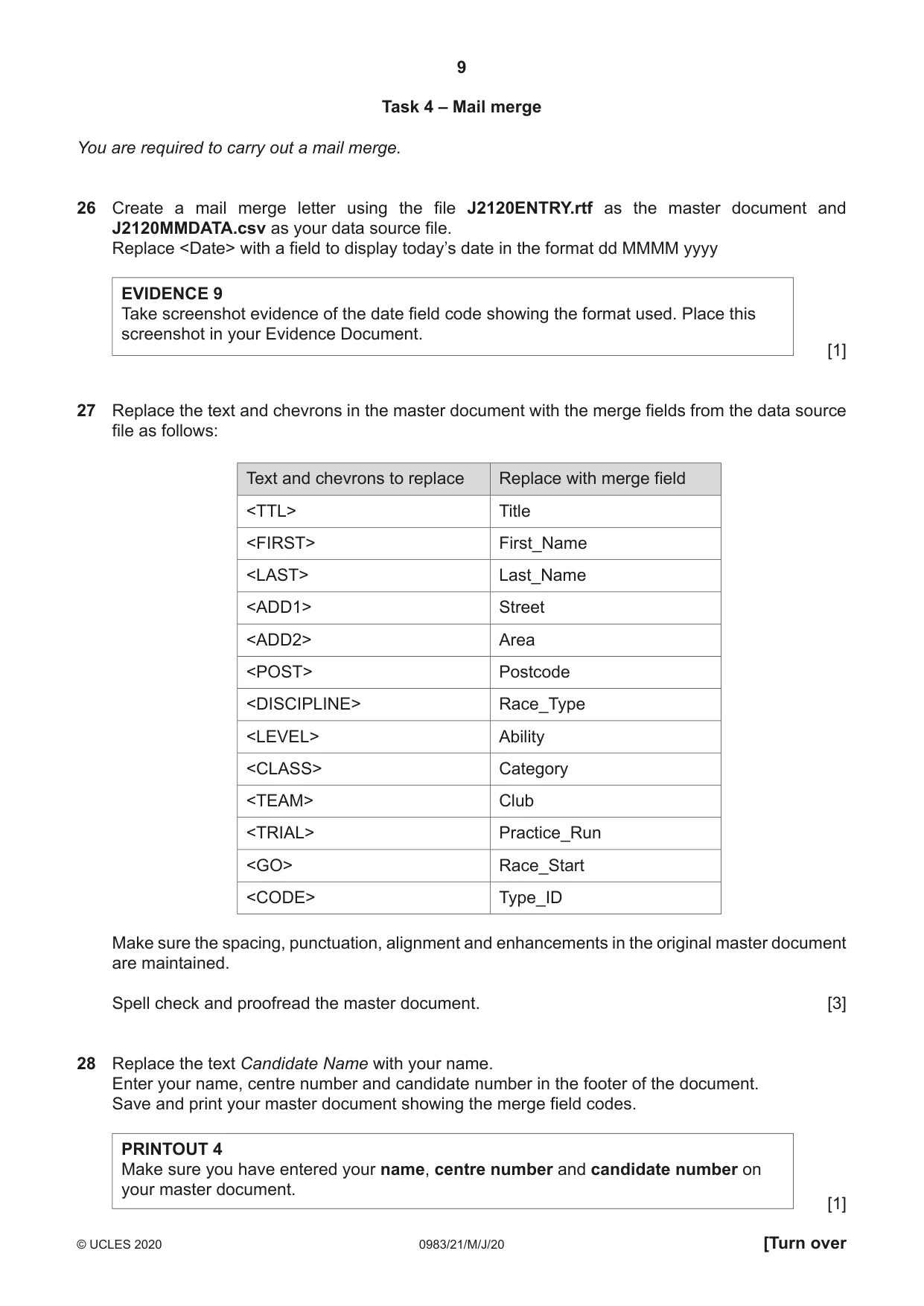
Mark scheme14 pages
Answers below. Sit the paper first if you are practising.
Paper as text
Question paper, page 1
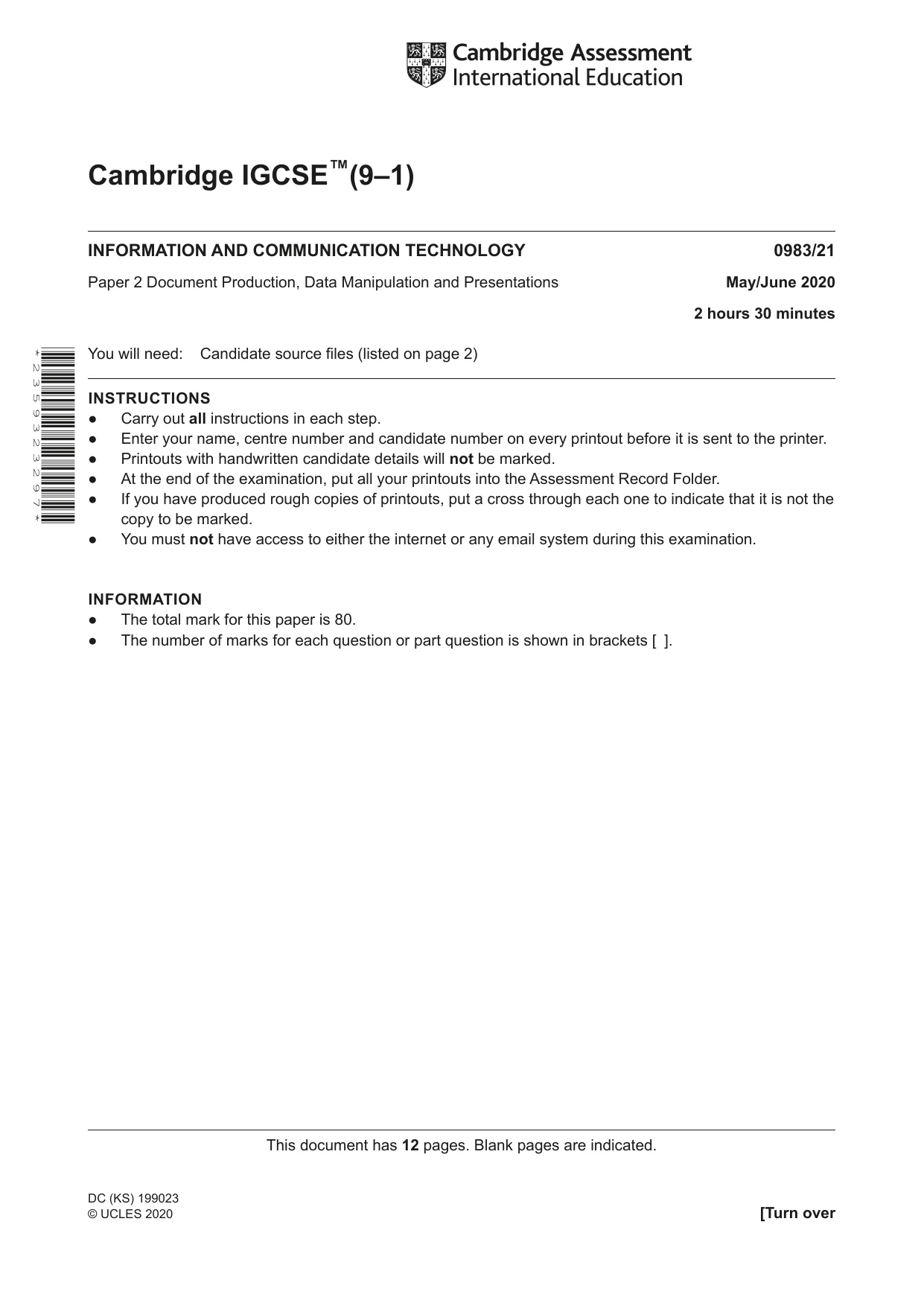
Cambridge IGCSE™(9–1) This document has 12 pages. Blank pages are indicated. * 2 3 5 9 3 2 3 2 9 7 * DC (KS) 199023 © UCLES 2020 [Turn over INFORMATION AND COMMUNICATION TECHNOLOGY 0983/21 Paper 2 Document Production, Data Manipulation and Presentations May/June 2020 2 hours 30 minutes You will need: Candidate source files (listed on page 2) INSTRUCTIONS ● Carry out all instructions in each step. ● Enter your name, centre number and candidate number on every printout before it is sent to the printer. ● Printouts with handwritten candidate details will not be marked. ● At the end of the examination, put all your printouts into the Assessment Record Folder. ● If you have produced rough copies of printouts, put a cross through each one to indicate that it is not the copy to be marked. ● You must not have access to either the internet or any email system during this examination. INFORMATION ● The total mark for this paper is 80. ● The number of marks for each question or part question is shown in brackets [ ].
Question paper, page 2
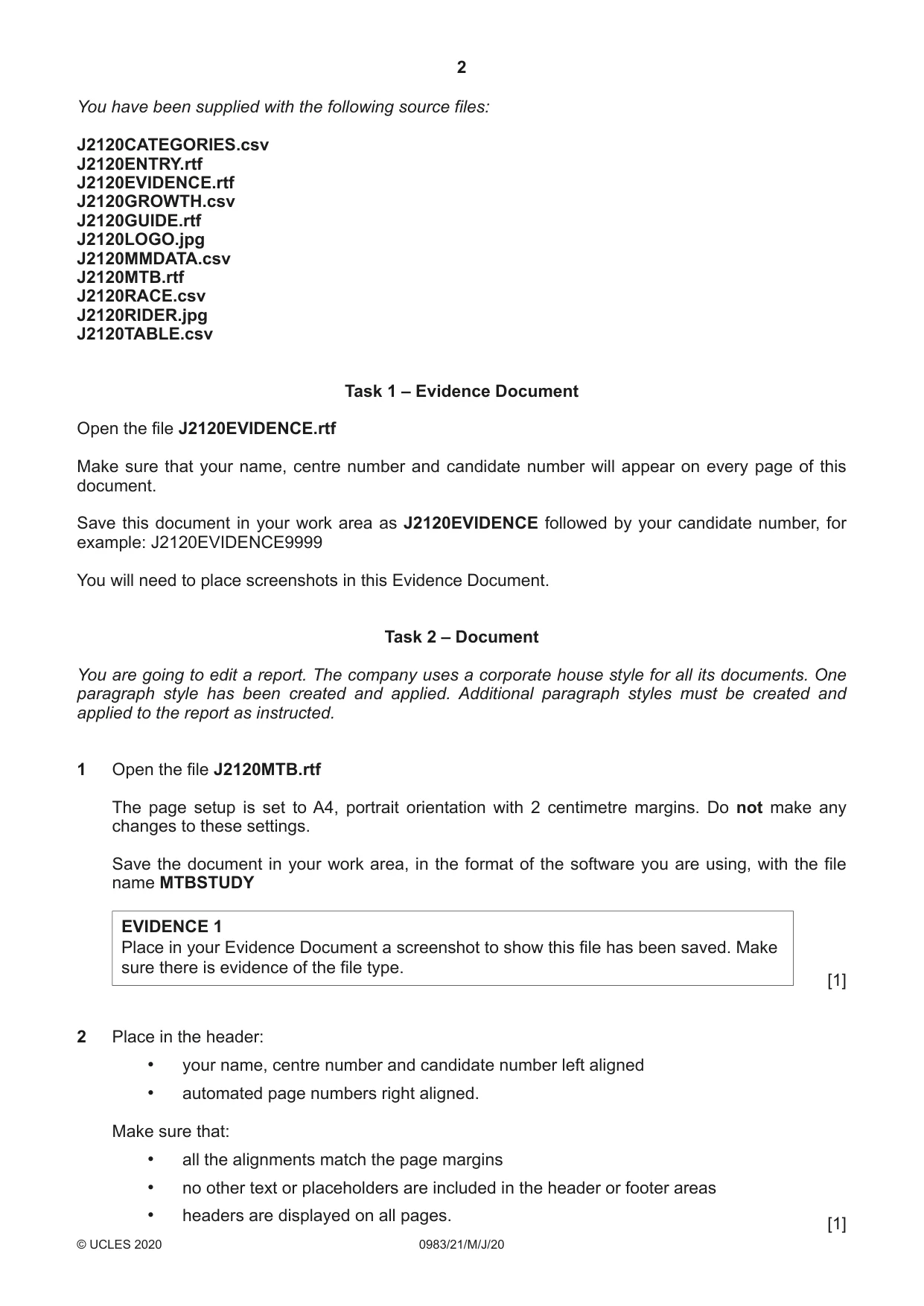
2 0983/21/M/J/20 © UCLES 2020 You have been supplied with the following source files: J2120CATEGORIES.csv J2120ENTRY.rtf J2120EVIDENCE.rtf J2120GROWTH.csv J2120GUIDE.rtf J2120LOGO.jpg J2120MMDATA.csv J2120MTB.rtf J2120RACE.csv J2120RIDER.jpg J2120TABLE.csv Task 1 – Evidence Document Open the file J2120EVIDENCE.rtf Make sure that your name, centre number and candidate number will appear on every page of this document. Save this document in your work area as J2120EVIDENCE followed by your candidate number, for example: J2120EVIDENCE9999 You will need to place screenshots in this Evidence Document. Task 2 – Document You are going to edit a report. The company uses a corporate house style for all its documents. One paragraph style has been created and applied. Additional paragraph styles must be created and applied to the report as instructed. 1 Open the file J2120MTB.rtf The page setup is set to A4, portrait orientation with 2 centimetre margins. Do not make any changes to these settings. Save the document in your work area, in the format of the software you are using, with the file name MTBSTUDY EVIDENCE 1 Place in your Evidence Document a screenshot to show this file has been saved. Make sure there is evidence of the file type. [1] 2 Place in the header: • your name, centre number and candidate number left aligned • automated page numbers right aligned. Make sure that: • all the alignments match the page margins • no other text or placeholders are included in the header or footer areas • headers are displayed on all pages. [1]
Question paper, page 3
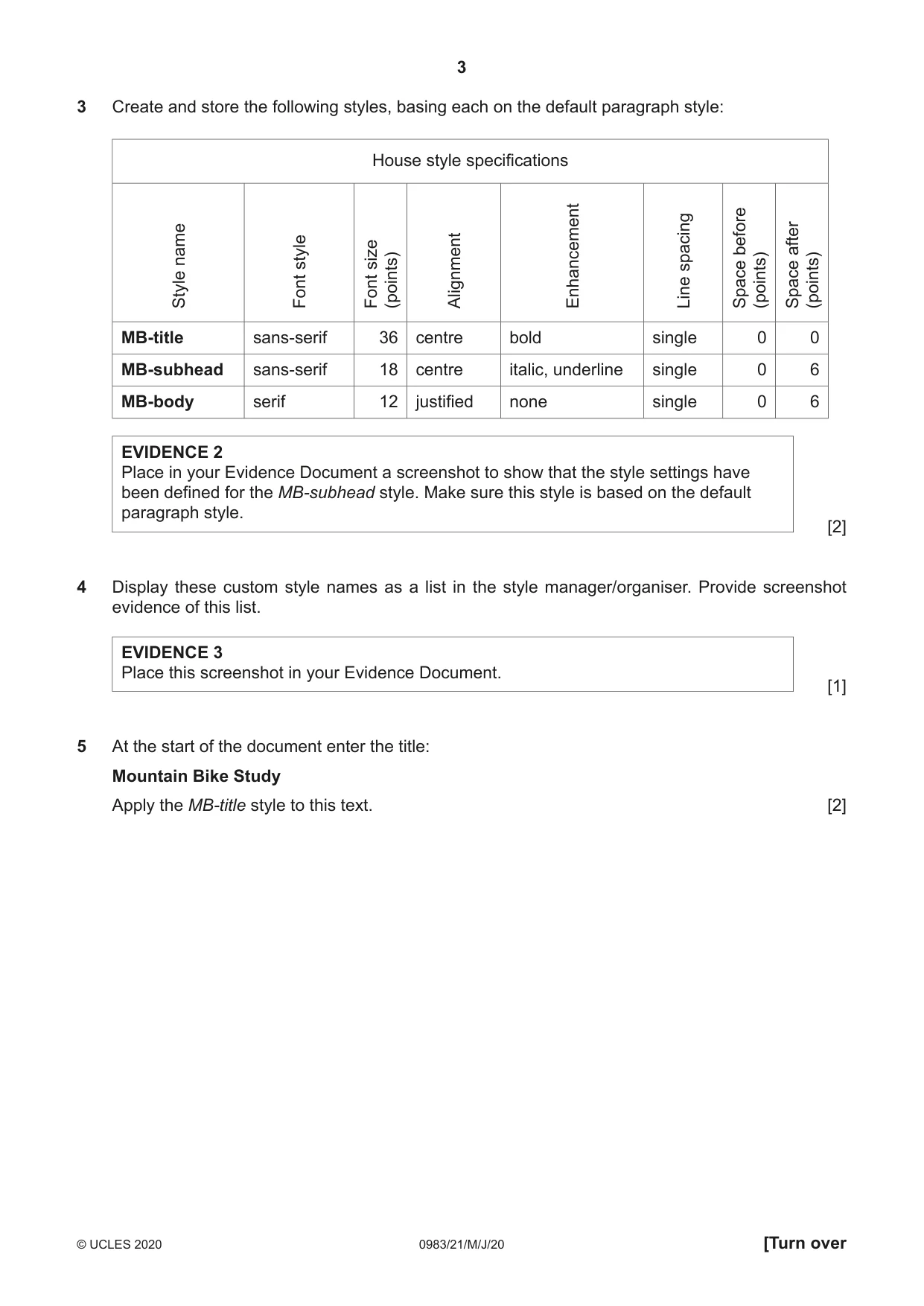
3 0983/21/M/J/20 © UCLES 2020 [Turn over 3 Create and store the following styles, basing each on the default paragraph style: House style specifications Style name Font style Font size (points) Alignment Enhancement Line spacing Space before (points) Space after (points) MB-title sans-serif 36 centre bold single 0 0 MB-subhead sans-serif 18 centre italic, underline single 0 6 MB-body serif 12 justified none single 0 6 EVIDENCE 2 Place in your Evidence Document a screenshot to show that the style settings have been defined for the MB-subhead style. Make sure this style is based on the default paragraph style. [2] 4 Display these custom style names as a list in the style manager/organiser. Provide screenshot evidence of this list. EVIDENCE 3 Place this screenshot in your Evidence Document. [1] 5 At the start of the document enter the title: Mountain Bike Study Apply the MB-title style to this text. [2]
Question paper, page 4
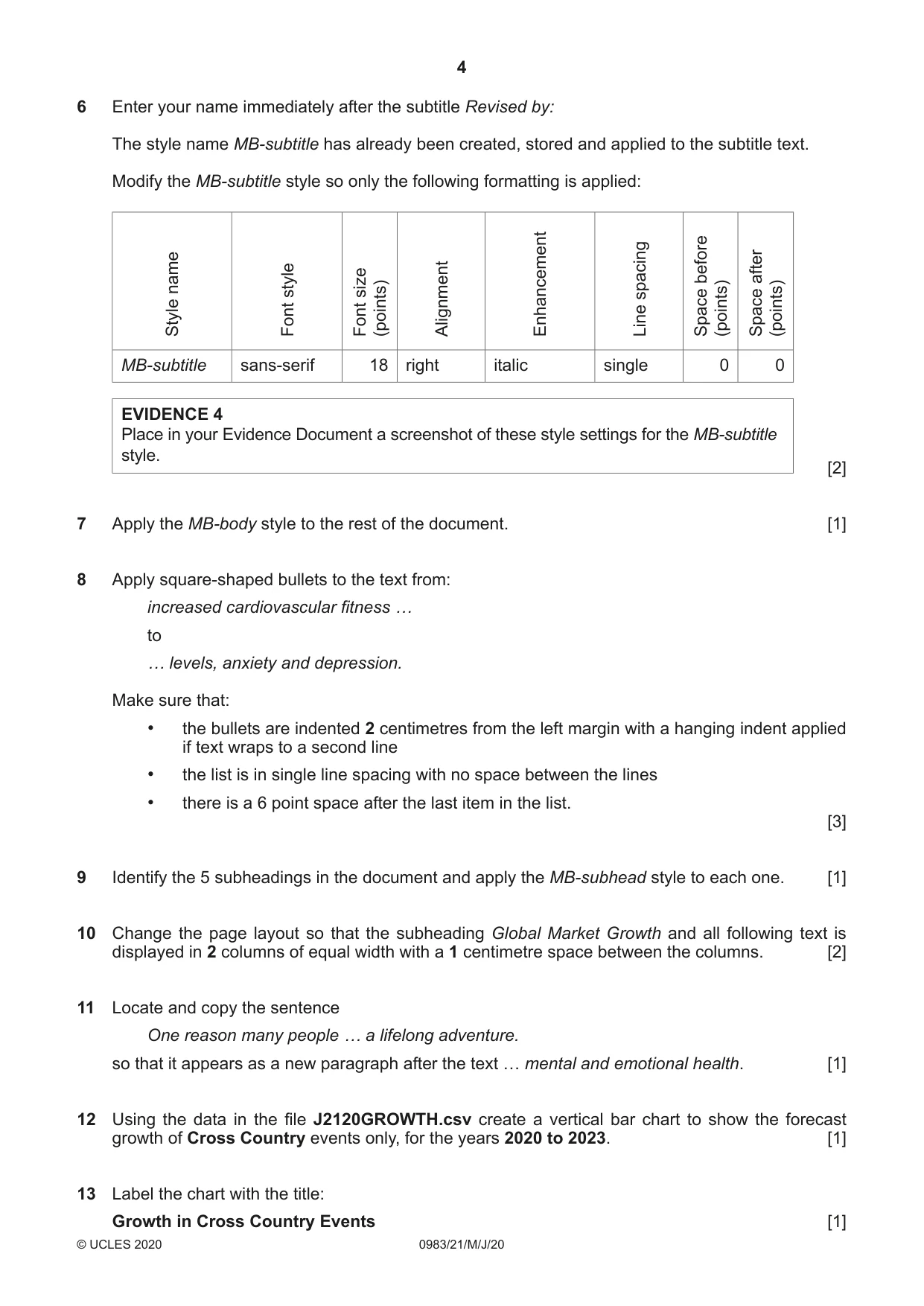
4 0983/21/M/J/20 © UCLES 2020 6 Enter your name immediately after the subtitle Revised by: The style name MB-subtitle has already been created, stored and applied to the subtitle text. Modify the MB-subtitle style so only the following formatting is applied: Style name Font style Font size (points) Alignment Enhancement Line spacing Space before (points) Space after (points) MB-subtitle sans-serif 18 right italic single 0 0 EVIDENCE 4 Place in your Evidence Document a screenshot of these style settings for the MB-subtitle style. [2] 7 Apply the MB-body style to the rest of the document. [1] 8 Apply square-shaped bullets to the text from: increased cardiovascular fitness … to … levels, anxiety and depression. Make sure that: • the bullets are indented 2 centimetres from the left margin with a hanging indent applied if text wraps to a second line • the list is in single line spacing with no space between the lines • there is a 6 point space after the last item in the list. [3] 9 Identify the 5 subheadings in the document and apply the MB-subhead style to each one. [1] 10 Change the page layout so that the subheading Global Market Growth and all following text is displayed in 2 columns of equal width with a 1 centimetre space between the columns. [2] 11 Locate and copy the sentence One reason many people … a lifelong adventure. so that it appears as a new paragraph after the text … mental and emotional health. [1] 12 Using the data in the file J2120GROWTH.csv create a vertical bar chart to show the forecast growth of Cross Country events only, for the years 2020 to 2023. [1] 13 Label the chart with the title: Growth in Cross Country Events [1]
Question paper, page 5
5 0983/21/M/J/20 © UCLES 2020 [Turn over 14 Format the value axis scale to display: • the title Number of Events • a minimum value of 9000 • a maximum value of 10500 • increments of 250 [3] 15 Display only the values as data labels above each bar. Do not display a category axis title or a legend. [1] 16 Insert the chart after the paragraph ending …number of cross country events: Make sure that: • the chart and all data fits within the column width • all data labels are displayed in full with no overlap. [1] 17 Import the image J2120RIDER.jpg and place it in the paragraph beginning Most races are organised… Crop the image to remove the top third (i.e. most of the sky above the clouds). Format the image so that: • it is resized to a width of 3.5 centimetres • it is aligned to the left of the column and top of the paragraph starting Most races are organised… • the text wraps round the image. [4] 18 Format the paragraph that starts Research has shown… so that it: • is indented 1 centimetre from both the left and right of the column • displays an external 3 to 4 point black border. [2] 19 Spell check and proofread the document. Make sure that: • the list, chart and paragraph with the outside border are not split over columns or pages • there are no widows or orphans • there are no blank pages • spacing is consistent between all items. Save the document using the same file name and format used in Step 1. Print the document. PRINTOUT 1 Make sure your name, centre number and candidate number are on your report. [1] [Total: 31]
Question paper, page 6
6 0983/21/M/J/20 © UCLES 2020 Task 3 – Database You are now going to prepare some reports. Dates are to be imported in the format of day month year. 20 Using a suitable database package, import the file J2120RACE.csv Use these field names and data types: Field name Data type Format Entry_ID Text Last_Name Text First_Name Text Club Text Cat_Code Text Birth_Date Date/Time Age_Jan Number Integer Laps Number Integer Race_Time Date/Time hh:mm:ss Event_Rank Text Points Number Integer Race_No Number Integer Licence Boolean/Logical To display as Yes/No Set Entry_ID as a primary key. Save the data. EVIDENCE 5 Place in your Evidence Document a screenshot showing the primary key, field names and data types used in the table. [2] 21 Import the file J2120CATEGORIES.csv as a new table in your database. Set Cat_Code as a primary key. Create a one-to-many relationship between Cat_Code in the categories table and Cat_Code in the race table. EVIDENCE 6 Place in your Evidence Document screenshot(s) showing the type of relationship between the two tables. [1]
Question paper, page 7
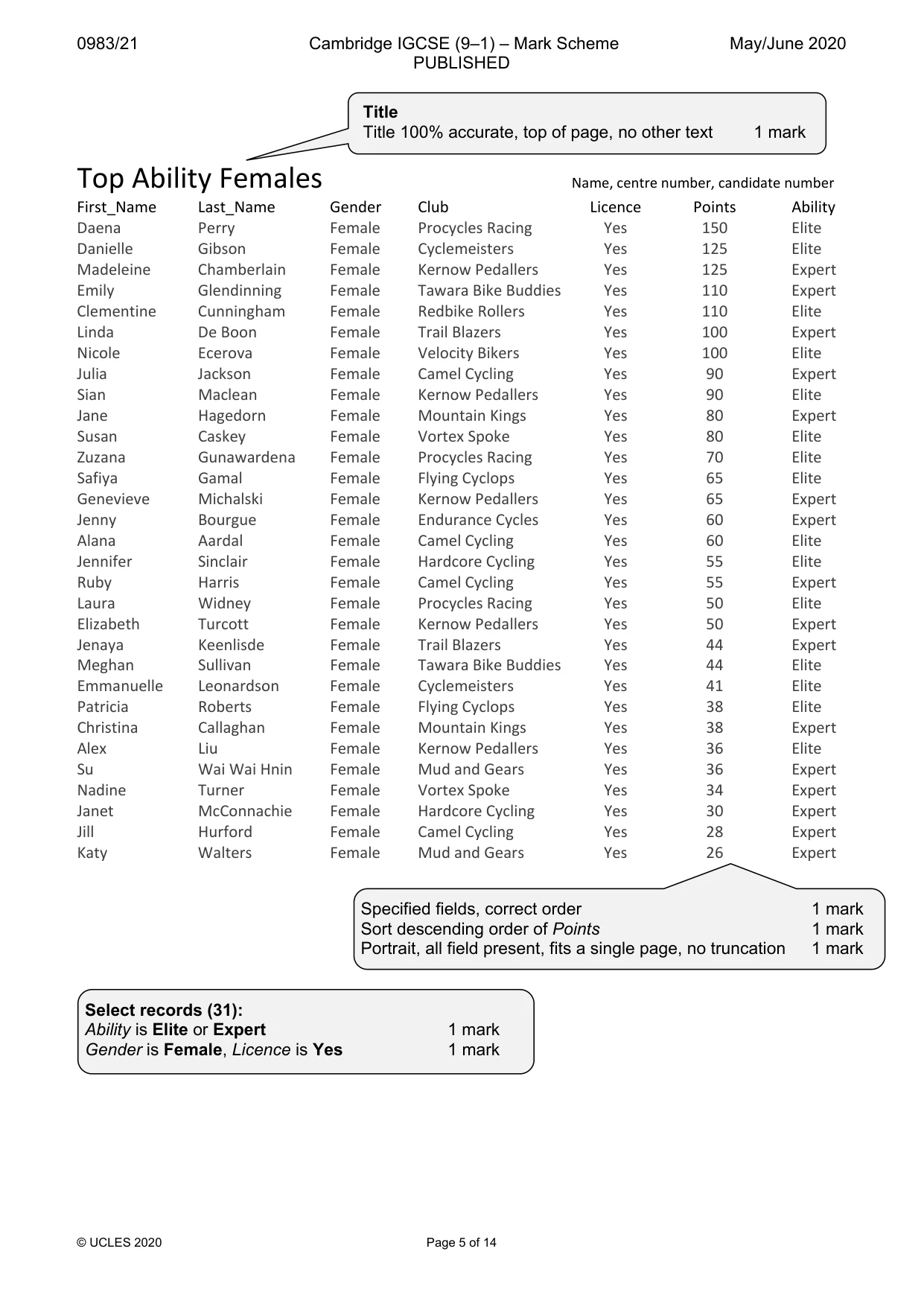
7 0983/21/M/J/20 © UCLES 2020 [Turn over 22 Enter the following details as a new record in the race table: Entry_ID XC0657 Last_Name Britton First_Name Jamie Club Bike Runners Cat_Code SV19PM Birth_Date 25/09/1958 Age_Jan 61 Laps 4 Race_Time 01:15:26 Event_Rank 5 Points 90 Race_No 1162 Licence Yes Check your data entry for errors. Save the data. [2] 23 Using fields from both tables produce a tabular report that: • selects the records where: – Ability is Elite or Expert – Gender is Female – Licence is Yes • shows only the fields: First_Name, Last_Name, Gender, Club, Licence, Points and Ability in this order, with data and labels displayed in full. Do not group the data • sorts the data into descending order of Points • has a page orientation of portrait • fits on a single page • includes only the text Top Ability Females as a title at the top of the page • has your name, centre number and candidate number on the report. Save and print your report. PRINTOUT 2 Make sure that you have entered your name, centre number and candidate number on your report. [6]
Question paper, page 8
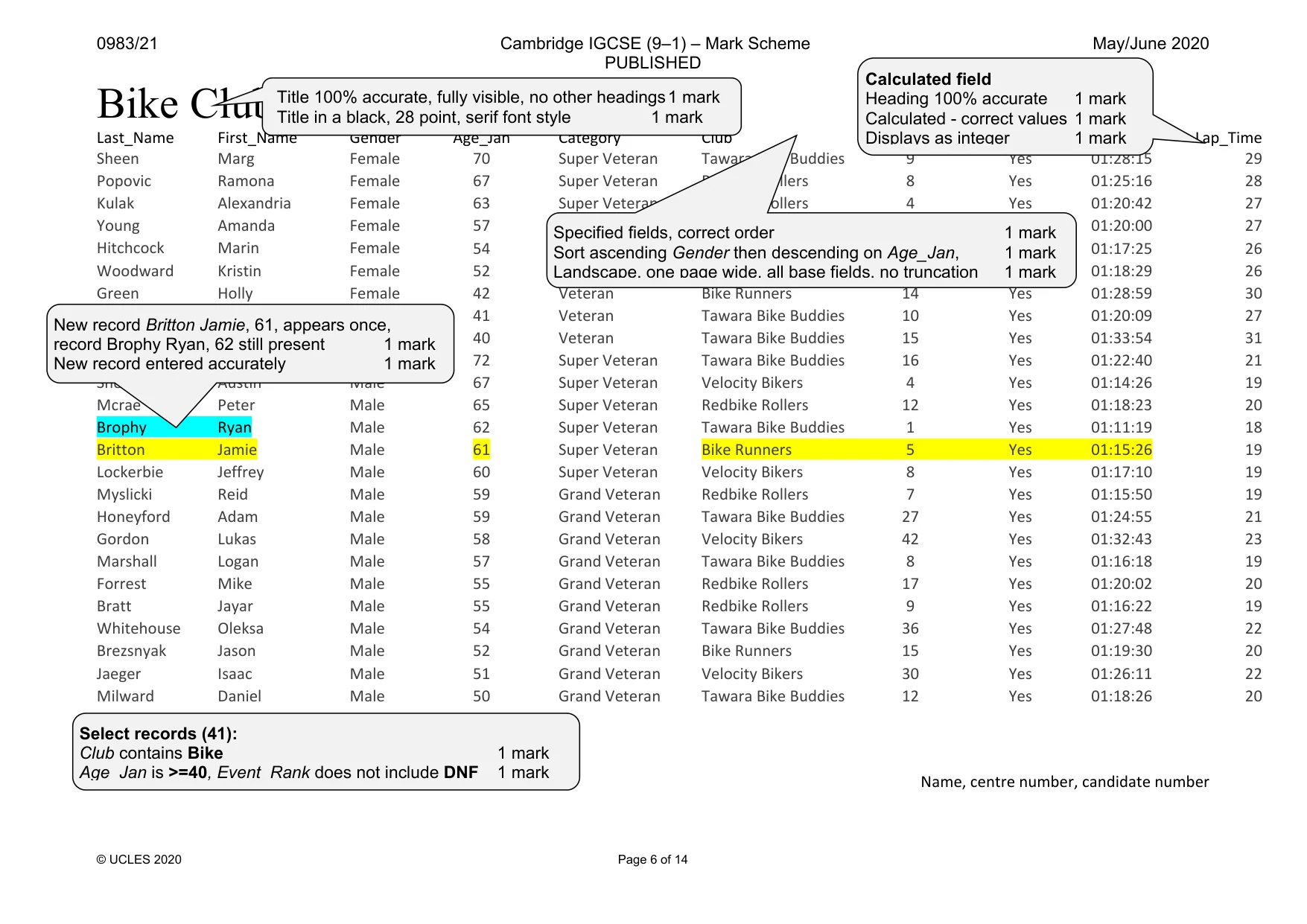
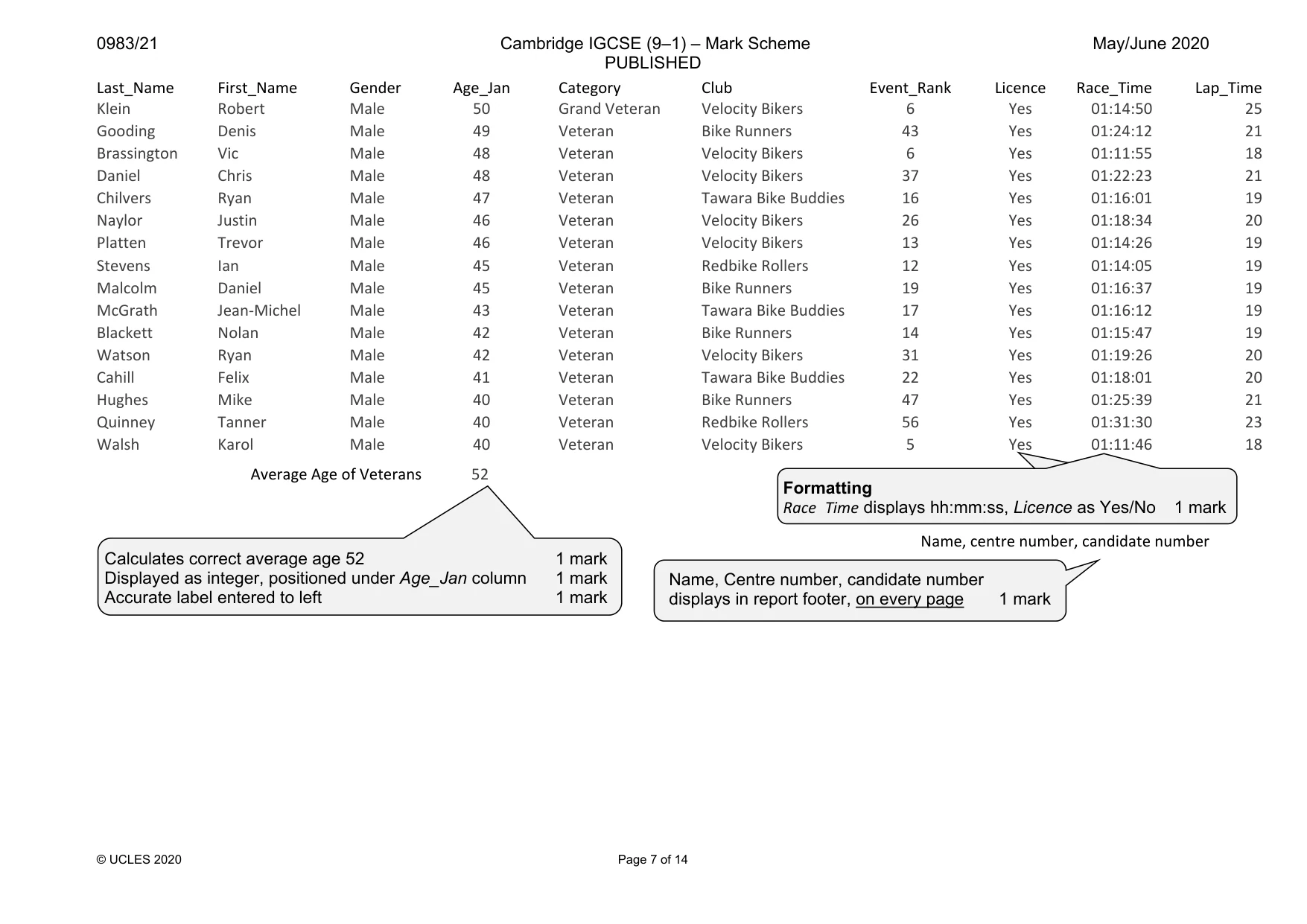
8 0983/21/M/J/20 © UCLES 2020 24 Using fields from both tables, produce a tabular report that: • selects the records where: – Club includes the text Bike – Age_Jan is 40 or more – Event_Rank does not include DNF • contains a new field called Lap_Time which is calculated at run-time and displayed as integer. This field will calculate the average time per lap. Multiply Race_Time by 1440 and divide by the number of Laps. Format this field to display as integer format • shows only the following fields: Last_Name, First_Name, Gender, Age_Jan, Category, Club, Event_Rank, Licence, Race_Time and Lap_Time in this order, with data and labels displayed in full. Do not group the data • sorts the data into ascending order of Gender then descending order of Age_Jan • has a page orientation of landscape • fits on a single page wide • includes only the text Bike Club Veterans as a title at the top of the page, formatted so that it displays: – in a black, 28 point, serif font style – with all text fully visible • calculates the average age and displays this as an integer below the Age_Jan column • has a label Average Age of Veterans to the left of this value • includes only your name, centre number and candidate number in the footer of the report so it appears on every page with no other data displayed. Save and print your report. PRINTOUT 3 Make sure that you have entered your name, centre number and candidate number on your report. EVIDENCE 7 Place in your Evidence Document a screenshot showing the database formula used to calculate the average age. [15] 25 Export the report created in Step 24 in portable document format (pdf). Save the exported file in your work area. EVIDENCE 8 Place in your Evidence Document a screenshot to show the exported file saved in your work area. Make sure there is evidence of the file type. [1] [Total: 27]
Question paper, page 9
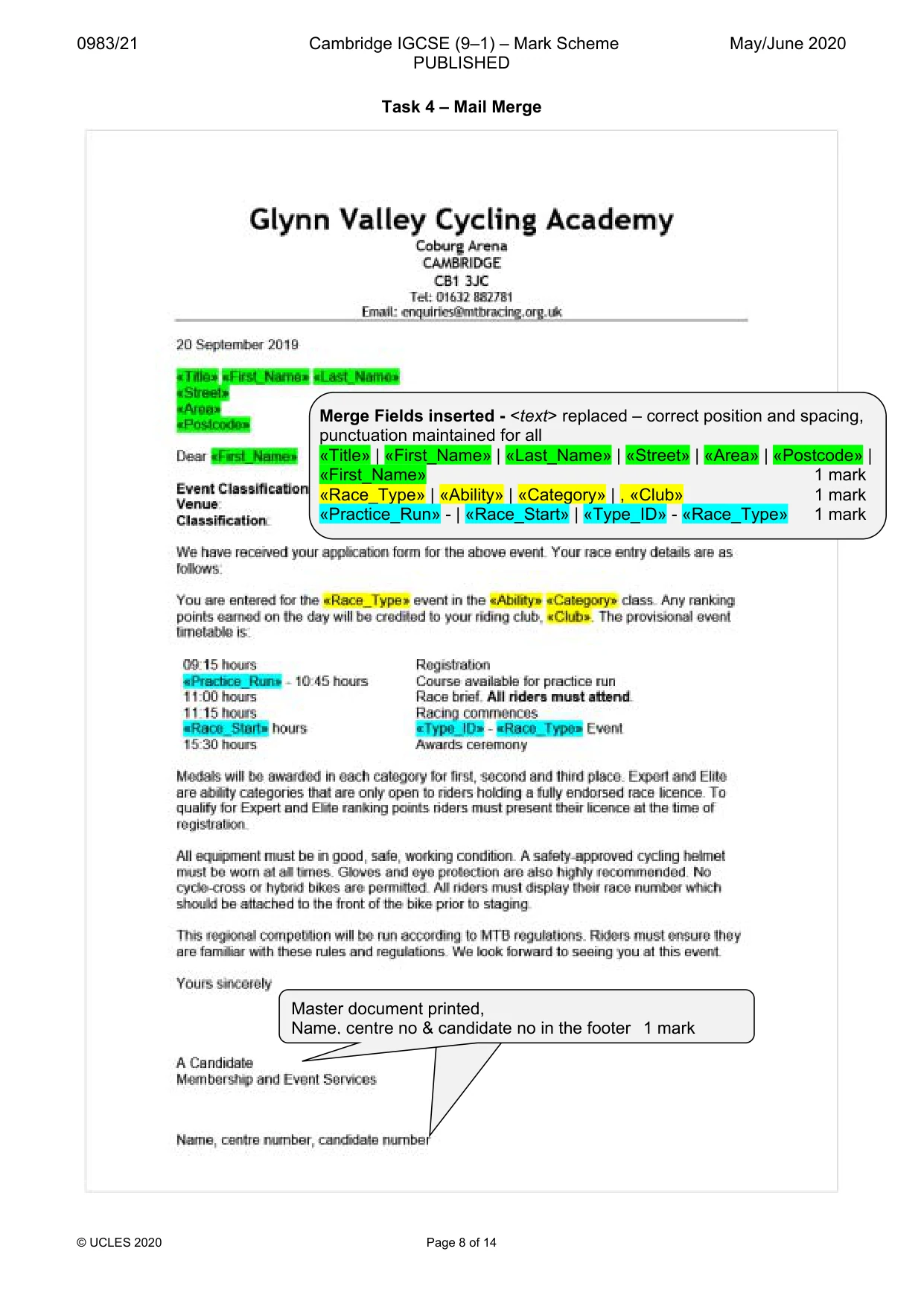
9 0983/21/M/J/20 © UCLES 2020 [Turn over Task 4 – Mail merge You are required to carry out a mail merge. 26 Create a mail merge letter using the file J2120ENTRY.rtf as the master document and J2120MMDATA.csv as your data source file. Replace <Date> with a field to display today’s date in the format dd MMMM yyyy EVIDENCE 9 Take screenshot evidence of the date field code showing the format used. Place this screenshot in your Evidence Document. [1] 27 Replace the text and chevrons in the master document with the merge fields from the data source file as follows: Text and chevrons to replace Replace with merge field <TTL> Title <FIRST> First_Name <LAST> Last_Name <ADD1> Street <ADD2> Area <POST> Postcode <DISCIPLINE> Race_Type <LEVEL> Ability <CLASS> Category <TEAM> Club <TRIAL> Practice_Run <GO> Race_Start <CODE> Type_ID Make sure the spacing, punctuation, alignment and enhancements in the original master document are maintained. Spell check and proofread the master document. [3] 28 Replace the text Candidate Name with your name. Enter your name, centre number and candidate number in the footer of the document. Save and print your master document showing the merge field codes. PRINTOUT 4 Make sure you have entered your name, centre number and candidate number on your master document. [1]
Question paper, page 10
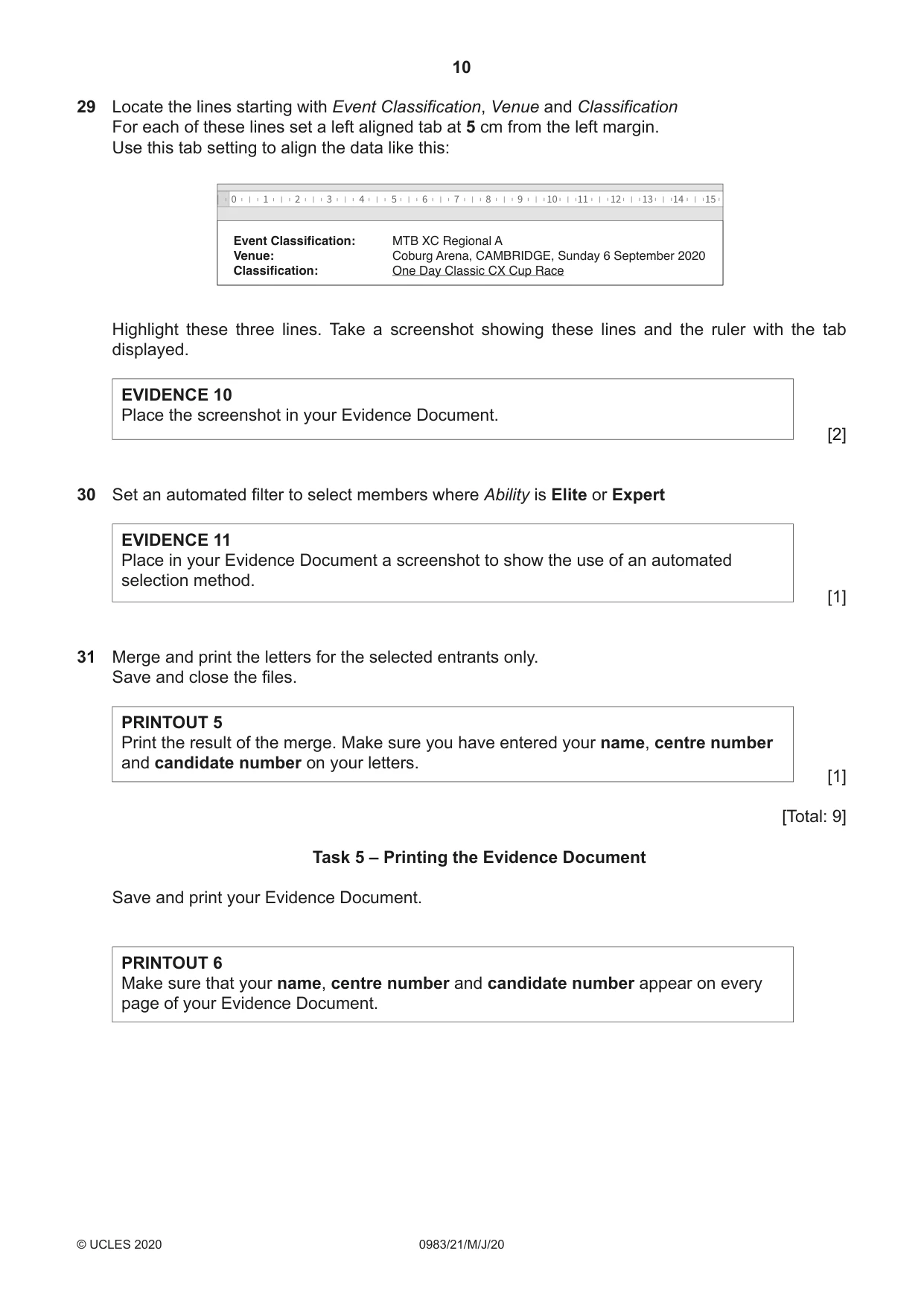
10 0983/21/M/J/20 © UCLES 2020 29 Locate the lines starting with Event Classification, Venue and Classification For each of these lines set a left aligned tab at 5 cm from the left margin. Use this tab setting to align the data like this: 1 0 2 3 4 5 6 7 8 9 10 11 12 13 14 15 Event Classification: Venue: Classification: MTB XC Regional A Coburg Arena, CAMBRIDGE, Sunday 6 September 2020 One Day Classic CX Cup Race Highlight these three lines. Take a screenshot showing these lines and the ruler with the tab displayed. EVIDENCE 10 Place the screenshot in your Evidence Document. [2] 30 Set an automated filter to select members where Ability is Elite or Expert EVIDENCE 11 Place in your Evidence Document a screenshot to show the use of an automated selection method. [1] 31 Merge and print the letters for the selected entrants only. Save and close the files. PRINTOUT 5 Print the result of the merge. Make sure you have entered your name, centre number and candidate number on your letters. [1] [Total: 9] Task 5 – Printing the Evidence Document Save and print your Evidence Document. PRINTOUT 6 Make sure that your name, centre number and candidate number appear on every page of your Evidence Document.
Question paper, page 11
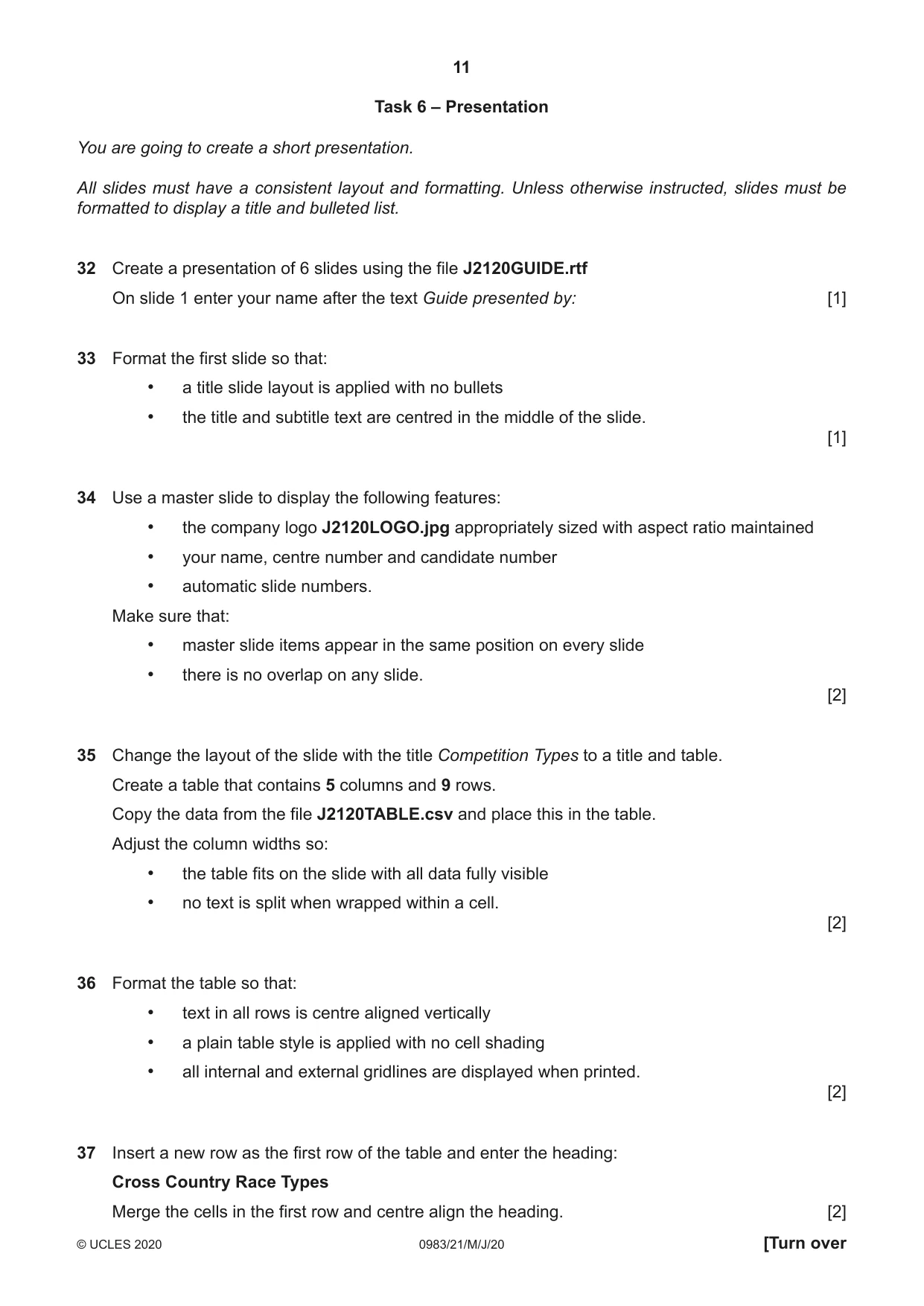
11 0983/21/M/J/20 © UCLES 2020 [Turn over Task 6 – Presentation You are going to create a short presentation. All slides must have a consistent layout and formatting. Unless otherwise instructed, slides must be formatted to display a title and bulleted list. 32 Create a presentation of 6 slides using the file J2120GUIDE.rtf On slide 1 enter your name after the text Guide presented by: [1] 33 Format the first slide so that: • a title slide layout is applied with no bullets • the title and subtitle text are centred in the middle of the slide. [1] 34 Use a master slide to display the following features: • the company logo J2120LOGO.jpg appropriately sized with aspect ratio maintained • your name, centre number and candidate number • automatic slide numbers. Make sure that: • master slide items appear in the same position on every slide • there is no overlap on any slide. [2] 35 Change the layout of the slide with the title Competition Types to a title and table. Create a table that contains 5 columns and 9 rows. Copy the data from the file J2120TABLE.csv and place this in the table. Adjust the column widths so: • the table fits on the slide with all data fully visible • no text is split when wrapped within a cell. [2] 36 Format the table so that: • text in all rows is centre aligned vertically • a plain table style is applied with no cell shading • all internal and external gridlines are displayed when printed. [2] 37 Insert a new row as the first row of the table and enter the heading: Cross Country Race Types Merge the cells in the first row and centre align the heading. [2]
Question paper, page 12
12 0983/21/M/J/20 © UCLES 2020 Permission to reproduce items where third-party owned material protected by copyright is included has been sought and cleared where possible. Every reasonable effort has been made by the publisher (UCLES) to trace copyright holders, but if any items requiring clearance have unwittingly been included, the publisher will be pleased to make amends at the earliest possible opportunity. To avoid the issue of disclosure of answer-related information to candidates, all copyright acknowledgements are reproduced online in the Cambridge Assessment International Education Copyright Acknowledgements Booklet. This is produced for each series of examinations and is freely available to download at www.cambridgeinternational.org after the live examination series. Cambridge Assessment International Education is part of the Cambridge Assessment Group. Cambridge Assessment is the brand name of the University of Cambridge Local Examinations Syndicate (UCLES), which itself is a department of the University of Cambridge. 38 Format rows 1 and 2 of the table to be: • bold with an 18 point font size • filled with light grey shading (20–35%). [2] 39 Save the presentation. Print the presentation as handouts with 2 slides to the page, each slide filling about half the page. PRINTOUT 7 Print this handout. Make sure your name, centre number and candidate number are on all slides. [1] [Total: 13]
Mark scheme, page 1
This document consists of 14 printed pages. © UCLES 2020 [Turn over Cambridge IGCSE™ (9–1) INFORMATION AND COMMUNICATION TECHNOLOGY 0983/21 Paper 2 Practical Test A May/June 2020 MARK SCHEME Maximum Mark: 80 Published Students did not sit exam papers in the June 2020 series due to the Covid-19 global pandemic. This mark scheme is published to support teachers and students and should be read together with the question paper. It shows the requirements of the exam. The answer column of the mark scheme shows the proposed basis on which Examiners would award marks for this exam. Where appropriate, this column also provides the most likely acceptable alternative responses expected from students. Examiners usually review the mark scheme after they have seen student responses and update the mark scheme if appropriate. In the June series, Examiners were unable to consider the acceptability of alternative responses, as there were no student responses to consider. Mark schemes should usually be read together with the Principal Examiner Report for Teachers. However, because students did not sit exam papers, there is no Principal Examiner Report for Teachers for the June 2020 series. Cambridge International will not enter into discussions about these mark schemes. Cambridge International is publishing the mark schemes for the June 2020 series for most Cambridge IGCSE™ and Cambridge International A & AS Level components, and some Cambridge O Level components.
Mark scheme, page 2
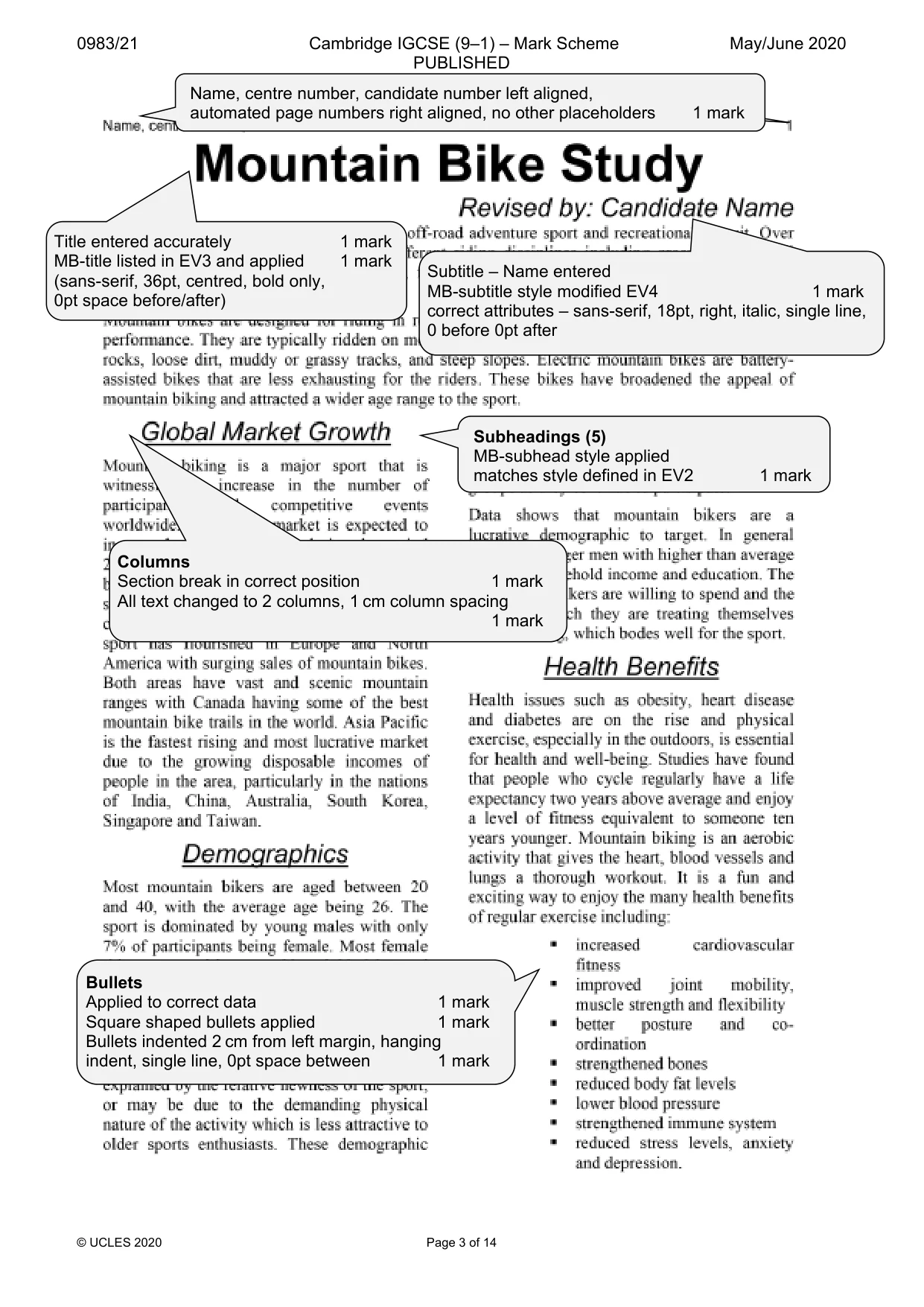
0983/21 Cambridge IGCSE (9–1) – Mark Scheme PUBLISHED May/June 2020 © UCLES 2020 Page 2 of 14 Generic Marking Principles These general marking principles must be applied by all examiners when marking candidate answers. They should be applied alongside the specific content of the mark scheme or generic level descriptors for a question. Each question paper and mark scheme will also comply with these marking principles. GENERIC MARKING PRINCIPLE 1: Marks must be awarded in line with: • the specific content of the mark scheme or the generic level descriptors for the question • the specific skills defined in the mark scheme or in the generic level descriptors for the question • the standard of response required by a candidate as exemplified by the standardisation scripts. GENERIC MARKING PRINCIPLE 2: Marks awarded are always whole marks (not half marks, or other fractions). GENERIC MARKING PRINCIPLE 3: Marks must be awarded positively: • marks are awarded for correct/valid answers, as defined in the mark scheme. However, credit is given for valid answers which go beyond the scope of the syllabus and mark scheme, referring to your Team Leader as appropriate • marks are awarded when candidates clearly demonstrate what they know and can do • marks are not deducted for errors • marks are not deducted for omissions • answers should only be judged on the quality of spelling, punctuation and grammar when these features are specifically assessed by the question as indicated by the mark scheme. The meaning, however, should be unambiguous. GENERIC MARKING PRINCIPLE 4: Rules must be applied consistently e.g. in situations where candidates have not followed instructions or in the application of generic level descriptors. GENERIC MARKING PRINCIPLE 5: Marks should be awarded using the full range of marks defined in the mark scheme for the question (however; the use of the full mark range may be limited according to the quality of the candidate responses seen). GENERIC MARKING PRINCIPLE 6: Marks awarded are based solely on the requirements as defined in the mark scheme. Marks should not be awarded with grade thresholds or grade descriptors in mind.
Mark scheme, page 3
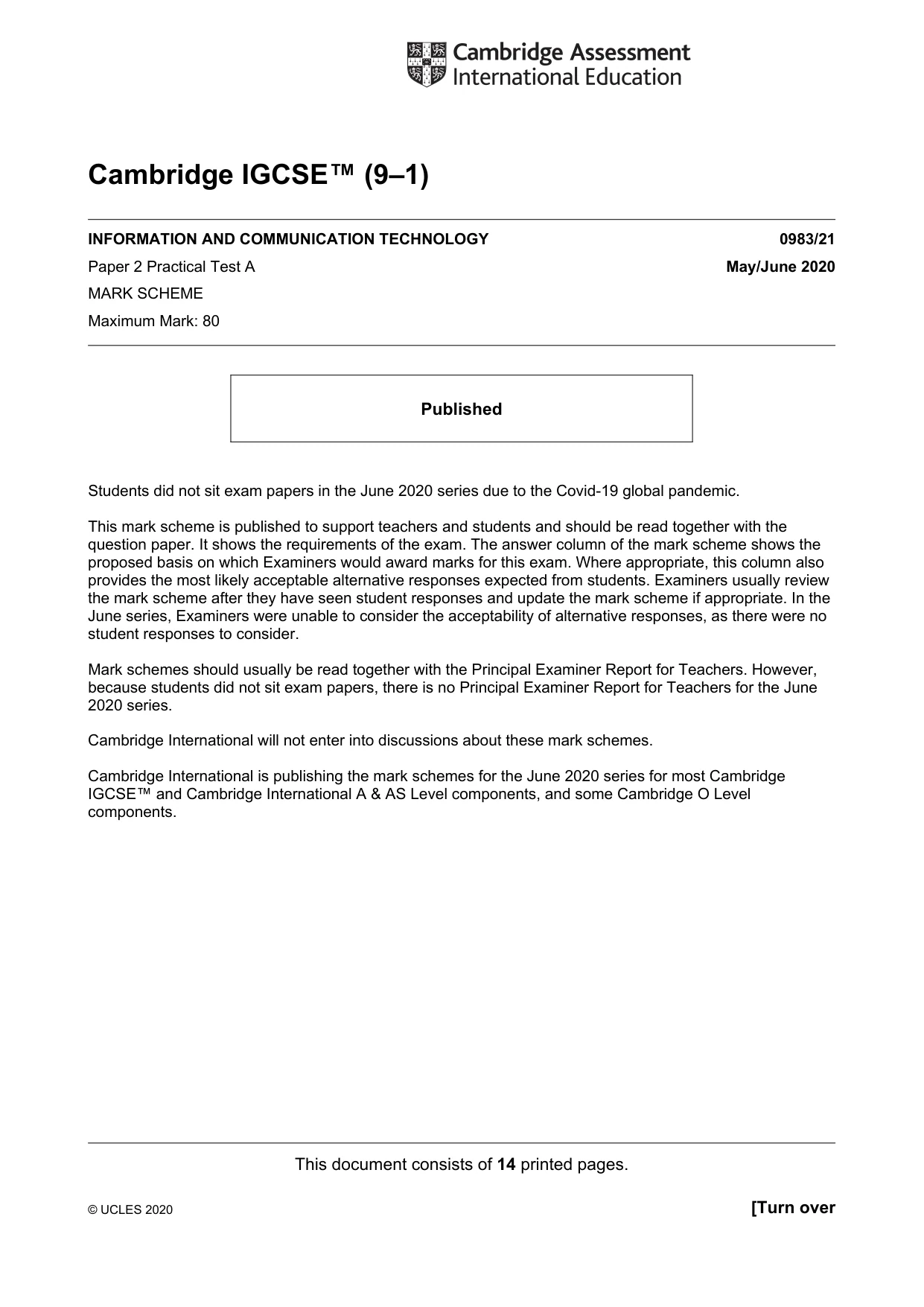
0983/21 Cambridge IGCSE (9–1) – Mark Scheme PUBLISHED May/June 2020 © UCLES 2020 Page 3 of 14 Name, centre number, candidate number left aligned, automated page numbers right aligned, no other placeholders 1 mark Title entered accurately 1 mark MB-title listed in EV3 and applied 1 mark (sans-serif, 36pt, centred, bold only, 0pt space before/after) Subtitle – Name entered MB-subtitle style modified EV4 1 mark correct attributes – sans-serif, 18pt, right, italic, single line, 0 before 0pt after Columns Section break in correct position 1 mark All text changed to 2 columns, 1 cm column spacing 1 mark Subheadings (5) MB-subhead style applied matches style defined in EV2 1 mark Bullets Applied to correct data 1 mark Square shaped bullets applied 1 mark Bullets indented 2 cm from left margin, hanging indent, single line, 0pt space between 1 mark
Mark scheme, page 4
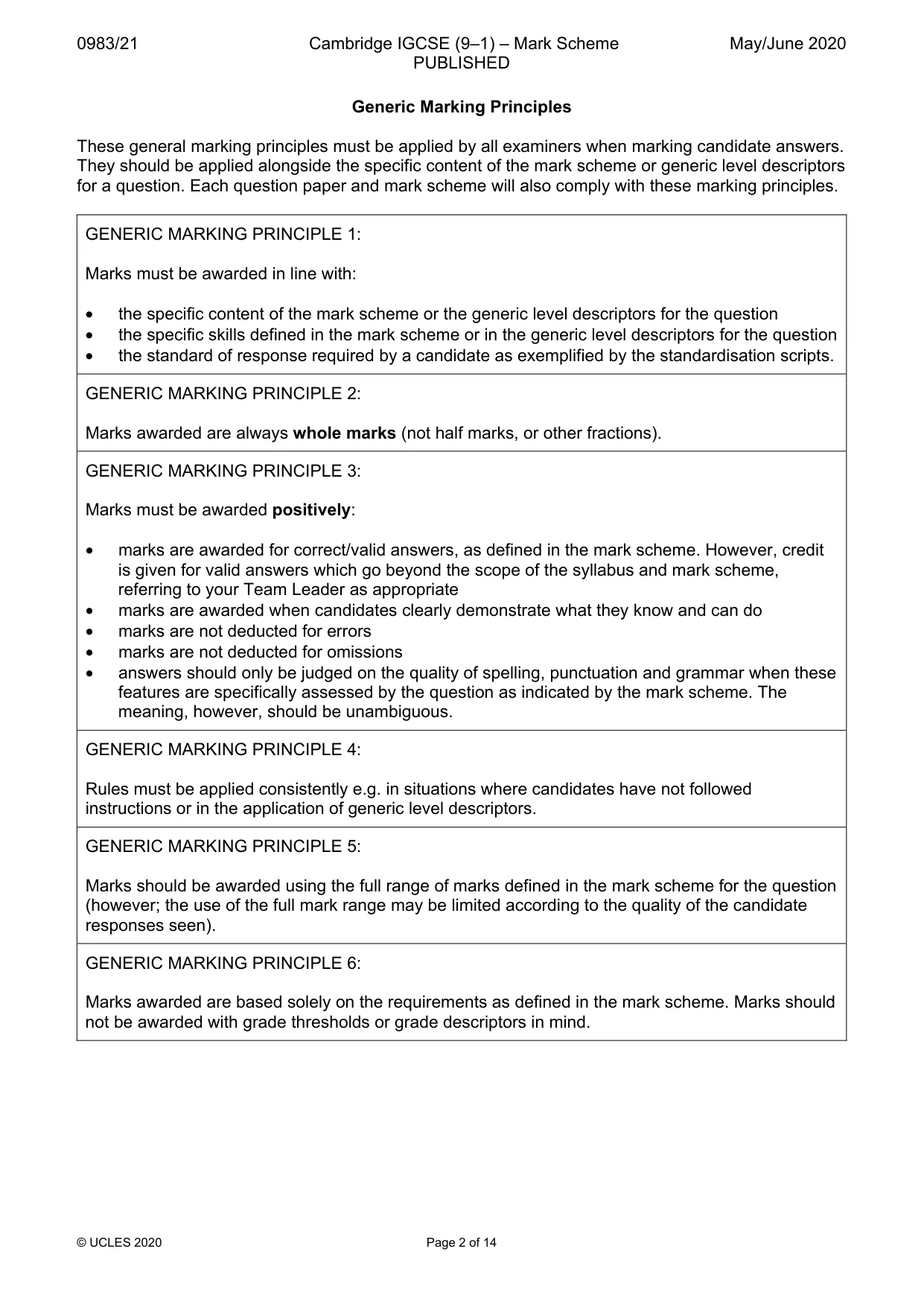
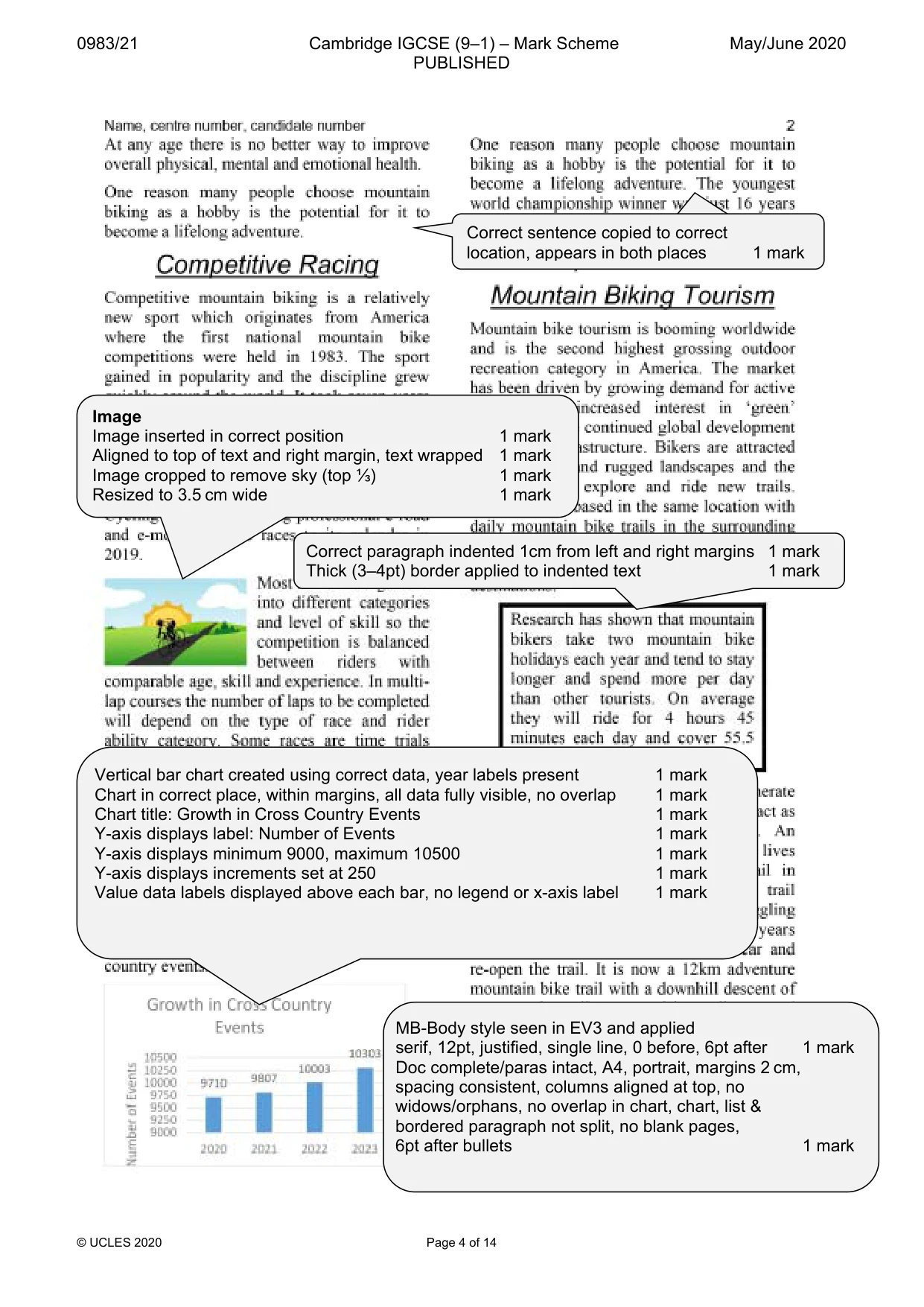
0983/21 Cambridge IGCSE (9–1) – Mark Scheme PUBLISHED May/June 2020 © UCLES 2020 Page 4 of 14 Correct sentence copied to correct location, appears in both places 1 mark Correct paragraph indented 1cm from left and right margins 1 mark Thick (3–4pt) border applied to indented text 1 mark Image Image inserted in correct position 1 mark Aligned to top of text and right margin, text wrapped 1 mark Image cropped to remove sky (top ⅓) 1 mark Resized to 3.5 cm wide 1 mark Vertical bar chart created using correct data, year labels present 1 mark Chart in correct place, within margins, all data fully visible, no overlap 1 mark Chart title: Growth in Cross Country Events 1 mark Y-axis displays label: Number of Events 1 mark Y-axis displays minimum 9000, maximum 10500 1 mark Y-axis displays increments set at 250 1 mark Value data labels displayed above each bar, no legend or x-axis label 1 mark MB-Body style seen in EV3 and applied serif, 12pt, justified, single line, 0 before, 6pt after 1 mark Doc complete/paras intact, A4, portrait, margins 2 cm, spacing consistent, columns aligned at top, no widows/orphans, no overlap in chart, chart, list & bordered paragraph not split, no blank pages, 6pt after bullets 1 mark
Mark scheme, page 5
0983/21 Cambridge IGCSE (9–1) – Mark Scheme PUBLISHED May/June 2020 © UCLES 2020 Page 5 of 14 Top Ability Females Name, centre number, candidate number First_Name Last_Name Gender Club Licence Points Ability Daena Perry Female Procycles Racing Yes 150 Elite Danielle Gibson Female Cyclemeisters Yes 125 Elite Madeleine Chamberlain Female Kernow Pedallers Yes 125 Expert Emily Glendinning Female Tawara Bike Buddies Yes 110 Expert Clementine Cunningham Female Redbike Rollers Yes 110 Elite Linda De Boon Female Trail Blazers Yes 100 Expert Nicole Ecerova Female Velocity Bikers Yes 100 Elite Julia Jackson Female Camel Cycling Yes 90 Expert Sian Maclean Female Kernow Pedallers Yes 90 Elite Jane Hagedorn Female Mountain Kings Yes 80 Expert Susan Caskey Female Vortex Spoke Yes 80 Elite Zuzana Gunawardena Female Procycles Racing Yes 70 Elite Safiya Gamal Female Flying Cyclops Yes 65 Elite Genevieve Michalski Female Kernow Pedallers Yes 65 Expert Jenny Bourgue Female Endurance Cycles Yes 60 Expert Alana Aardal Female Camel Cycling Yes 60 Elite Jennifer Sinclair Female Hardcore Cycling Yes 55 Elite Ruby Harris Female Camel Cycling Yes 55 Expert Laura Widney Female Procycles Racing Yes 50 Elite Elizabeth Turcott Female Kernow Pedallers Yes 50 Expert Jenaya Keenlisde Female Trail Blazers Yes 44 Expert Meghan Sullivan Female Tawara Bike Buddies Yes 44 Elite Emmanuelle Leonardson Female Cyclemeisters Yes 41 Elite Patricia Roberts Female Flying Cyclops Yes 38 Elite Christina Callaghan Female Mountain Kings Yes 38 Expert Alex Liu Female Kernow Pedallers Yes 36 Elite Su Wai Wai Hnin Female Mud and Gears Yes 36 Expert Nadine Turner Female Vortex Spoke Yes 34 Expert Janet McConnachie Female Hardcore Cycling Yes 30 Expert Jill Hurford Female Camel Cycling Yes 28 Expert Katy Walters Female Mud and Gears Yes 26 Expert Select records (31): Ability is Elite or Expert 1 mark Gender is Female, Licence is Yes 1 mark Specified fields, correct order 1 mark Sort descending order of Points 1 mark Portrait, all field present, fits a single page, no truncation 1 mark Title Title 100% accurate, top of page, no other text 1 mark
Mark scheme, page 6
0983/21 Cambridge IGCSE (9–1) – Mark Scheme PUBLISHED May/June 2020 © UCLES 2020 Page 6 of 14 Bike Club Veterans Last_Name First_Name Gender Age_Jan Category Club Event_Rank Licence Race_Time Lap_Time Sheen Marg Female 70 Super Veteran Tawara Bike Buddies 9 Yes 01:28:15 29 Popovic Ramona Female 67 Super Veteran Redbike Rollers 8 Yes 01:25:16 28 Kulak Alexandria Female 63 Super Veteran Redbike Rollers 4 Yes 01:20:42 27 Young Amanda Female 57 Grand Veteran Bike Runners 4 Yes 01:20:00 27 Hitchcock Marin Female 54 Grand Veteran Bike Runners 1 Yes 01:17:25 26 Woodward Kristin Female 52 Grand Veteran Redbike Rollers 2 Yes 01:18:29 26 Green Holly Female 42 Veteran Bike Runners 14 Yes 01:28:59 30 Cole Ashley Female 41 Veteran Tawara Bike Buddies 10 Yes 01:20:09 27 Poole Stacy Female 40 Veteran Tawara Bike Buddies 15 Yes 01:33:54 31 Muir Dan Male 72 Super Veteran Tawara Bike Buddies 16 Yes 01:22:40 21 Shearer Austin Male 67 Super Veteran Velocity Bikers 4 Yes 01:14:26 19 Mcrae Peter Male 65 Super Veteran Redbike Rollers 12 Yes 01:18:23 20 Brophy Ryan Male 62 Super Veteran Tawara Bike Buddies 1 Yes 01:11:19 18 Britton Jamie Male 61 Super Veteran Bike Runners 5 Yes 01:15:26 19 Lockerbie Jeffrey Male 60 Super Veteran Velocity Bikers 8 Yes 01:17:10 19 Myslicki Reid Male 59 Grand Veteran Redbike Rollers 7 Yes 01:15:50 19 Honeyford Adam Male 59 Grand Veteran Tawara Bike Buddies 27 Yes 01:24:55 21 Gordon Lukas Male 58 Grand Veteran Velocity Bikers 42 Yes 01:32:43 23 Marshall Logan Male 57 Grand Veteran Tawara Bike Buddies 8 Yes 01:16:18 19 Forrest Mike Male 55 Grand Veteran Redbike Rollers 17 Yes 01:20:02 20 Bratt Jayar Male 55 Grand Veteran Redbike Rollers 9 Yes 01:16:22 19 Whitehouse Oleksa Male 54 Grand Veteran Tawara Bike Buddies 36 Yes 01:27:48 22 Brezsnyak Jason Male 52 Grand Veteran Bike Runners 15 Yes 01:19:30 20 Jaeger Isaac Male 51 Grand Veteran Velocity Bikers 30 Yes 01:26:11 22 Milward Daniel Male 50 Grand Veteran Tawara Bike Buddies 12 Yes 01:18:26 20 Name, centre number, candidate number Title 100% accurate, fully visible, no other headings 1 mark Title in a black, 28 point, serif font style 1 mark Calculated field Heading 100% accurate 1 mark Calculated - correct values 1 mark Displays as integer 1 mark Specified fields, correct order 1 mark Sort ascending Gender then descending on Age_Jan, 1 mark Landscape, one page wide, all base fields, no truncation 1 mark New record Britton Jamie, 61, appears once, record Brophy Ryan, 62 still present 1 mark New record entered accurately 1 mark Select records (41): Club contains Bike 1 mark Age Jan is >=40, Event Rank does not include DNF 1 mark
Mark scheme, page 7
0983/21 Cambridge IGCSE (9–1) – Mark Scheme PUBLISHED May/June 2020 © UCLES 2020 Page 7 of 14 Last_Name First_Name Gender Age_Jan Category Club Event_Rank Licence Race_Time Lap_Time Klein Robert Male 50 Grand Veteran Velocity Bikers 6 Yes 01:14:50 25 Gooding Denis Male 49 Veteran Bike Runners 43 Yes 01:24:12 21 Brassington Vic Male 48 Veteran Velocity Bikers 6 Yes 01:11:55 18 Daniel Chris Male 48 Veteran Velocity Bikers 37 Yes 01:22:23 21 Chilvers Ryan Male 47 Veteran Tawara Bike Buddies 16 Yes 01:16:01 19 Naylor Justin Male 46 Veteran Velocity Bikers 26 Yes 01:18:34 20 Platten Trevor Male 46 Veteran Velocity Bikers 13 Yes 01:14:26 19 Stevens Ian Male 45 Veteran Redbike Rollers 12 Yes 01:14:05 19 Malcolm Daniel Male 45 Veteran Bike Runners 19 Yes 01:16:37 19 McGrath Jean-Michel Male 43 Veteran Tawara Bike Buddies 17 Yes 01:16:12 19 Blackett Nolan Male 42 Veteran Bike Runners 14 Yes 01:15:47 19 Watson Ryan Male 42 Veteran Velocity Bikers 31 Yes 01:19:26 20 Cahill Felix Male 41 Veteran Tawara Bike Buddies 22 Yes 01:18:01 20 Hughes Mike Male 40 Veteran Bike Runners 47 Yes 01:25:39 21 Quinney Tanner Male 40 Veteran Redbike Rollers 56 Yes 01:31:30 23 Walsh Karol Male 40 Veteran Velocity Bikers 5 Yes 01:11:46 18 Average Age of Veterans 52 Name, centre number, candidate number Name, Centre number, candidate number displays in report footer, on every page 1 mark Formatting Race Time displays hh:mm:ss, Licence as Yes/No 1 mark Calculates correct average age 52 1 mark Displayed as integer, positioned under Age_Jan column 1 mark Accurate label entered to left 1 mark
Mark scheme, page 8
0983/21 Cambridge IGCSE (9–1) – Mark Scheme PUBLISHED May/June 2020 © UCLES 2020 Page 8 of 14 Task 4 – Mail Merge Merge Fields inserted - <text> replaced – correct position and spacing, punctuation maintained for all «Title» | «First_Name» | «Last_Name» | «Street» | «Area» | «Postcode» | «First_Name» 1 mark «Race_Type» | «Ability» | «Category» | , «Club» 1 mark «Practice_Run» - | «Race_Start» | «Type_ID» - «Race_Type» 1 mark Master document printed, Name, centre no & candidate no in the footer 1 mark
Mark scheme, page 9
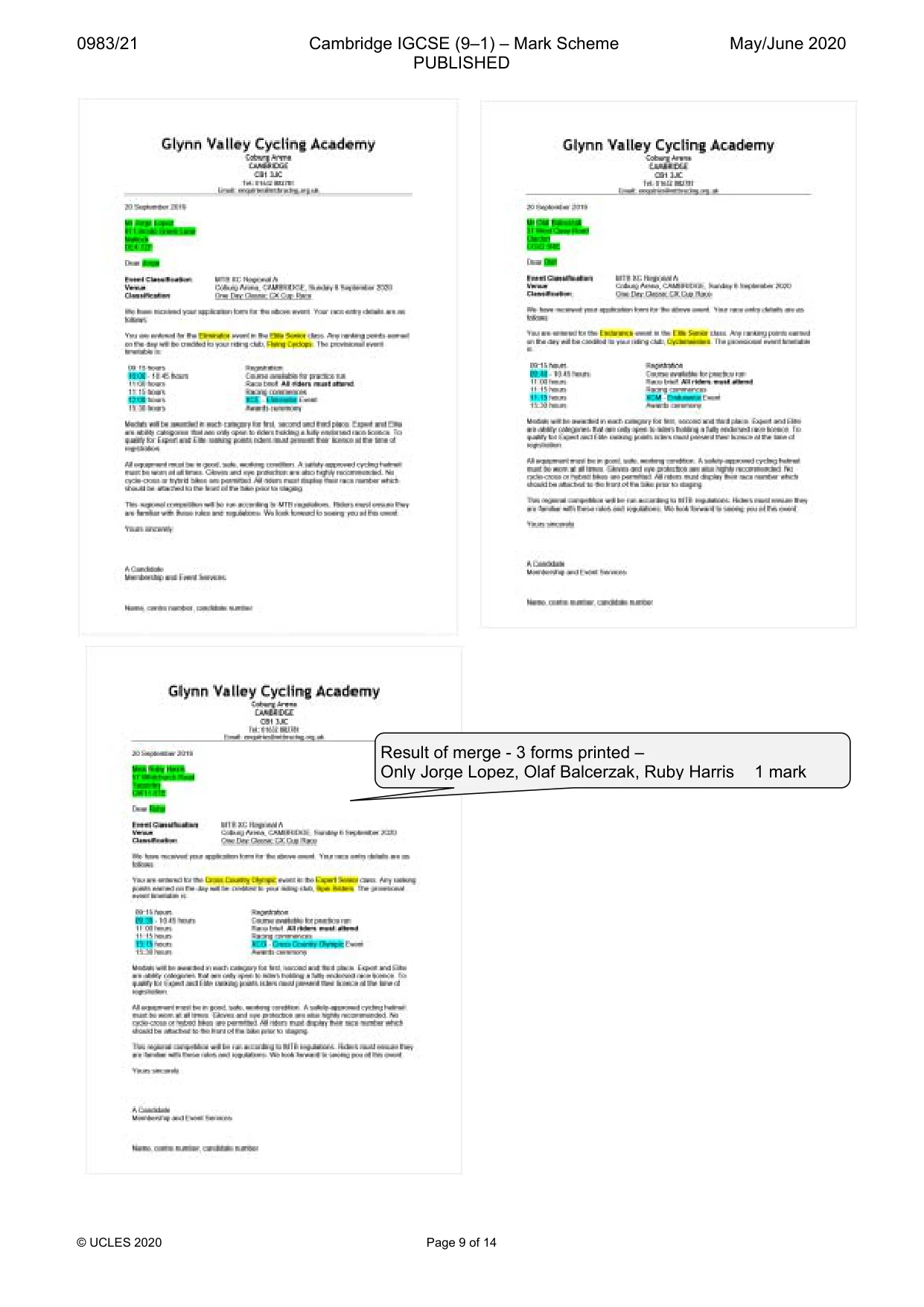
0983/21 Cambridge IGCSE (9–1) – Mark Scheme PUBLISHED May/June 2020 © UCLES 2020 Page 9 of 14 Result of merge - 3 forms printed – Only Jorge Lopez, Olaf Balcerzak, Ruby Harris 1 mark
Mark scheme, page 10
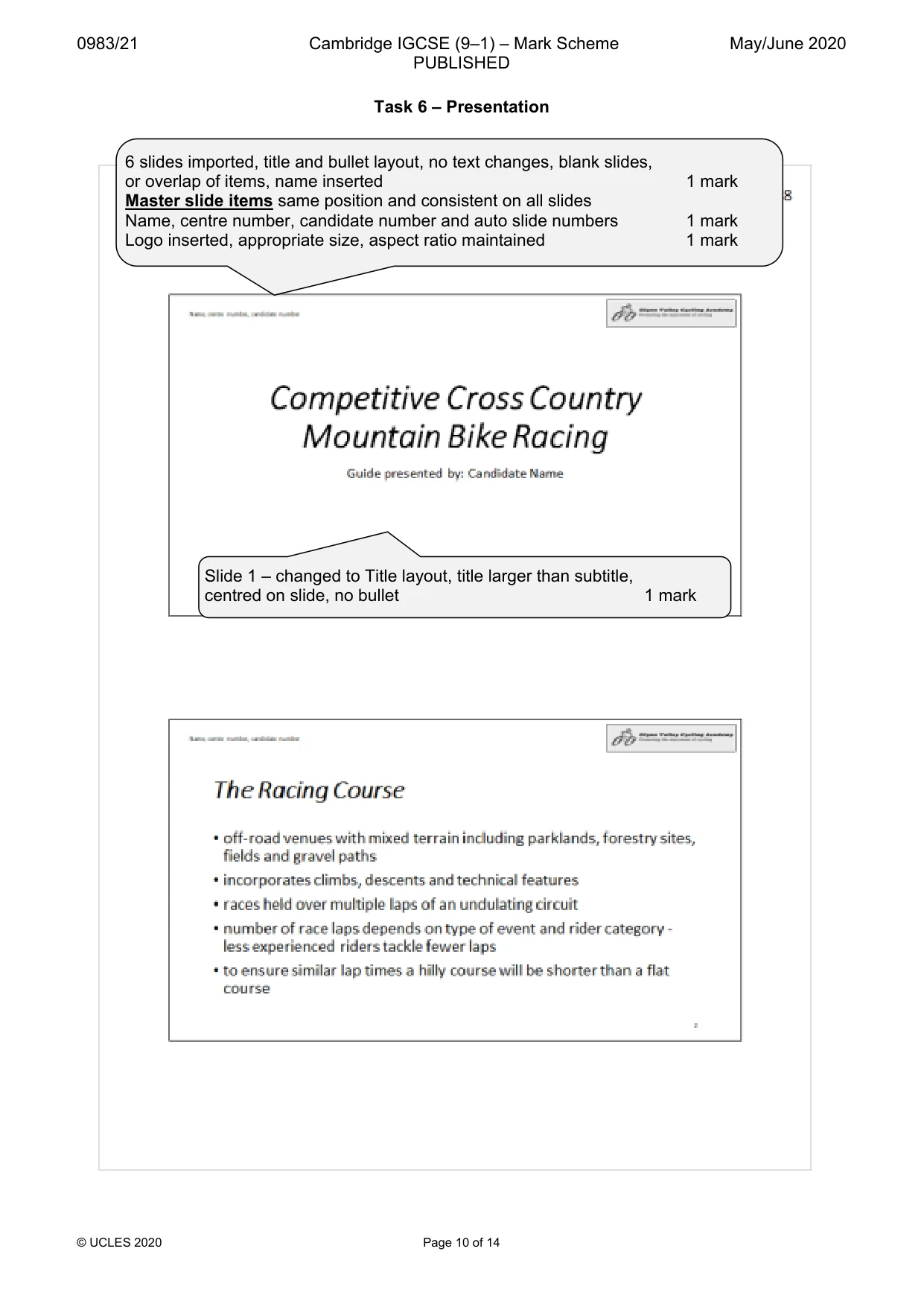
0983/21 Cambridge IGCSE (9–1) – Mark Scheme PUBLISHED May/June 2020 © UCLES 2020 Page 10 of 14 Task 6 – Presentation 6 slides imported, title and bullet layout, no text changes, blank slides, or overlap of items, name inserted 1 mark Master slide items same position and consistent on all slides Name, centre number, candidate number and auto slide numbers 1 mark Logo inserted, appropriate size, aspect ratio maintained 1 mark Slide 1 – changed to Title layout, title larger than subtitle, centred on slide, no bullet 1 mark
Mark scheme, page 11
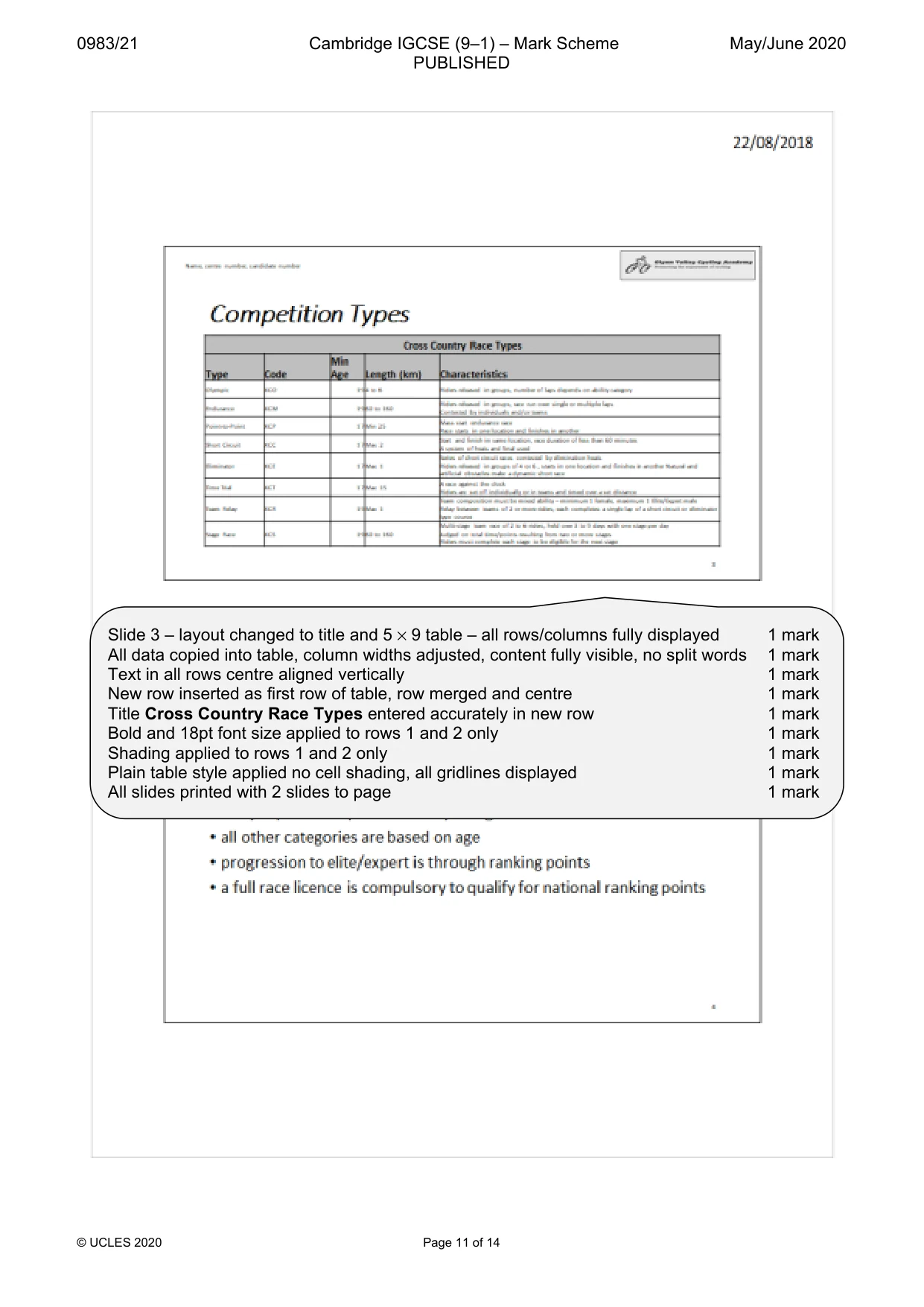
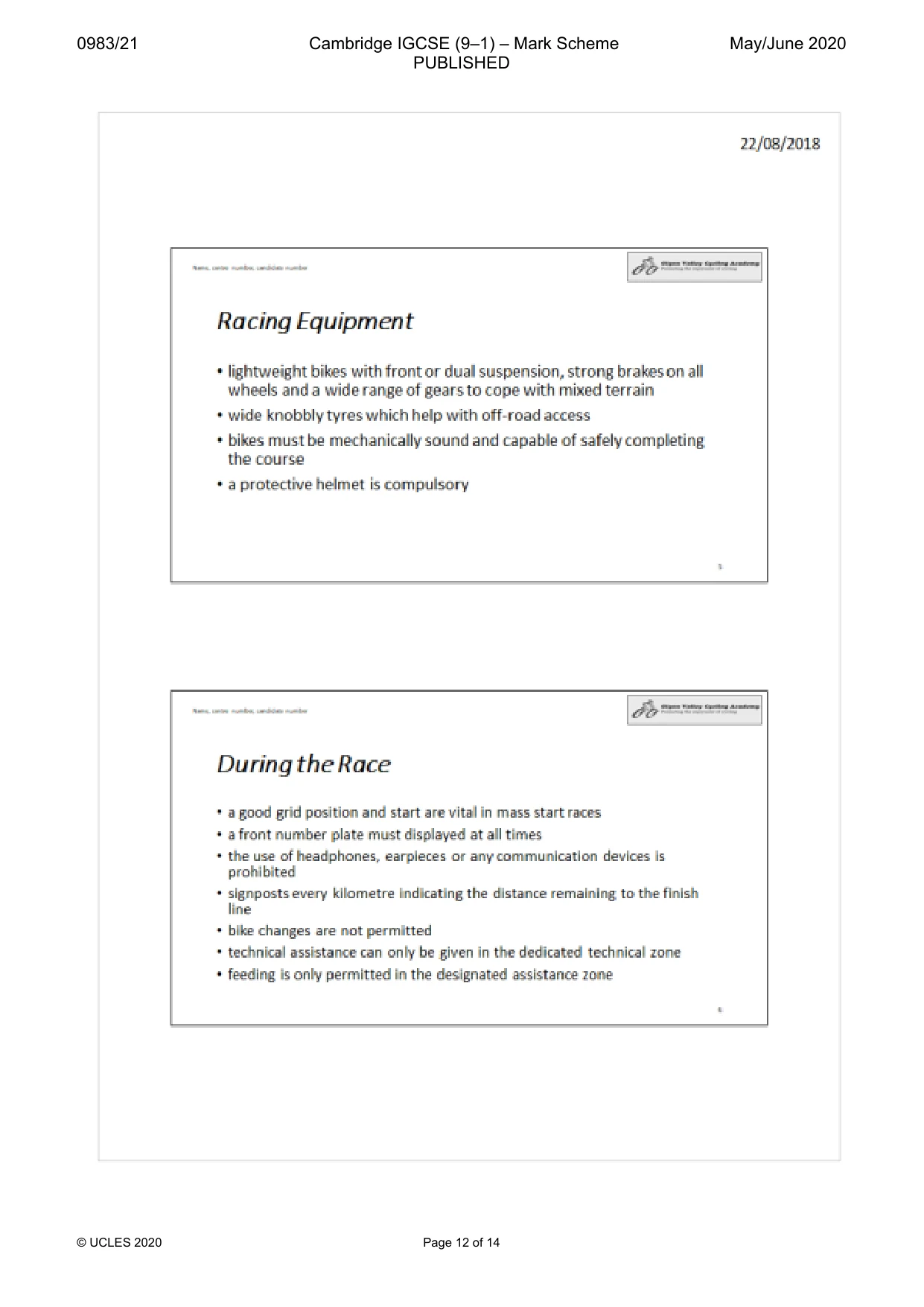
0983/21 Cambridge IGCSE (9–1) – Mark Scheme PUBLISHED May/June 2020 © UCLES 2020 Page 11 of 14 Slide 3 – layout changed to title and 5 × 9 table – all rows/columns fully displayed 1 mark All data copied into table, column widths adjusted, content fully visible, no split words 1 mark Text in all rows centre aligned vertically 1 mark New row inserted as first row of table, row merged and centre 1 mark Title Cross Country Race Types entered accurately in new row 1 mark Bold and 18pt font size applied to rows 1 and 2 only 1 mark Shading applied to rows 1 and 2 only 1 mark Plain table style applied no cell shading, all gridlines displayed 1 mark All slides printed with 2 slides to page 1 mark
Mark scheme, page 12
0983/21 Cambridge IGCSE (9–1) – Mark Scheme PUBLISHED May/June 2020 © UCLES 2020 Page 12 of 14
Mark scheme, page 13
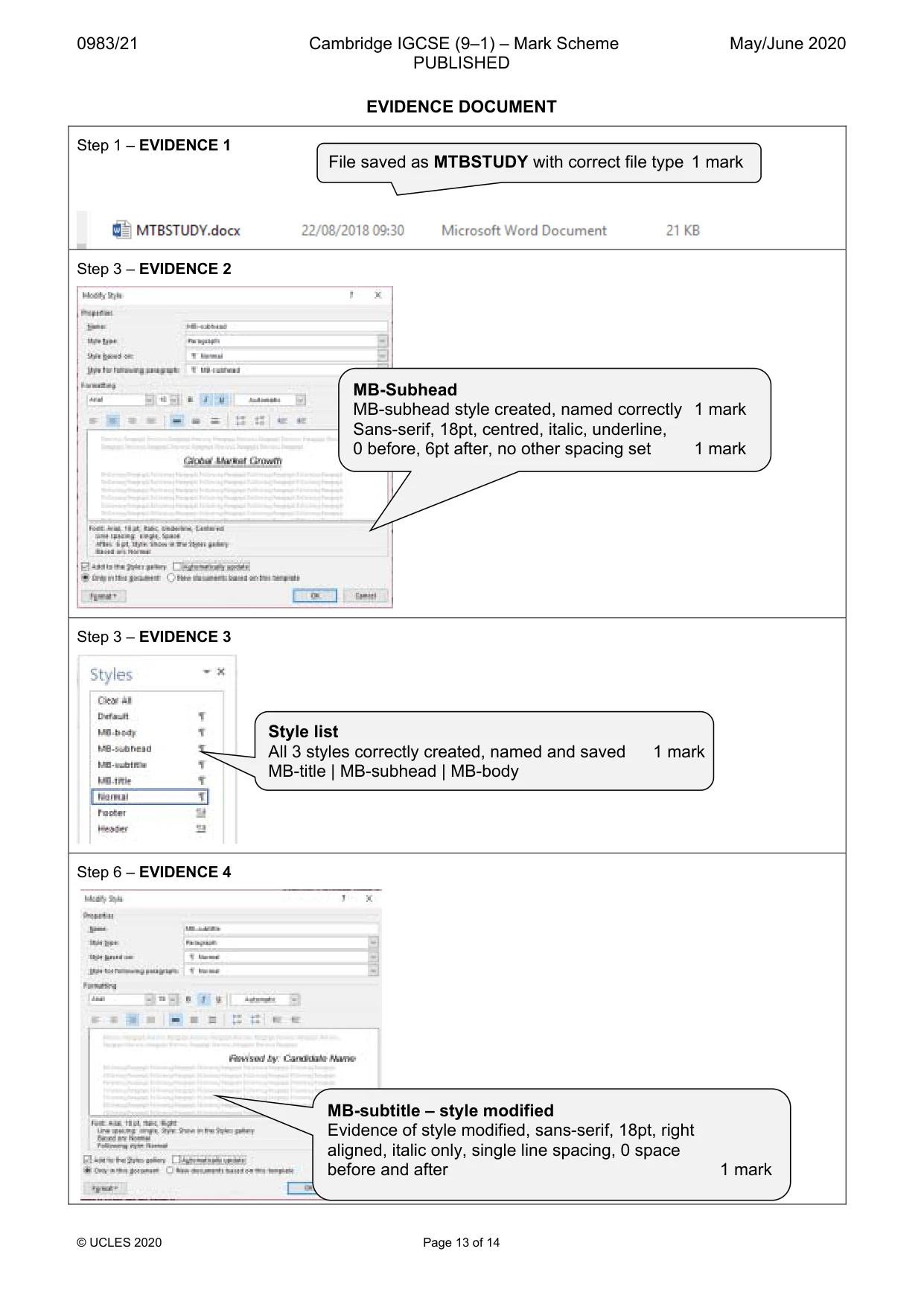
0983/21 Cambridge IGCSE (9–1) – Mark Scheme PUBLISHED May/June 2020 © UCLES 2020 Page 13 of 14 EVIDENCE DOCUMENT Step 1 – EVIDENCE 1 Step 3 – EVIDENCE 2 Step 3 – EVIDENCE 3 Step 6 – EVIDENCE 4 File saved as MTBSTUDY with correct file type 1 mark MB-Subhead MB-subhead style created, named correctly 1 mark Sans-serif, 18pt, centred, italic, underline, 0 before, 6pt after, no other spacing set 1 mark Style list All 3 styles correctly created, named and saved 1 mark MB-title | MB-subhead | MB-body MB-subtitle – style modified Evidence of style modified, sans-serif, 18pt, right aligned, italic only, single line spacing, 0 space before and after 1 mark
Mark scheme, page 14
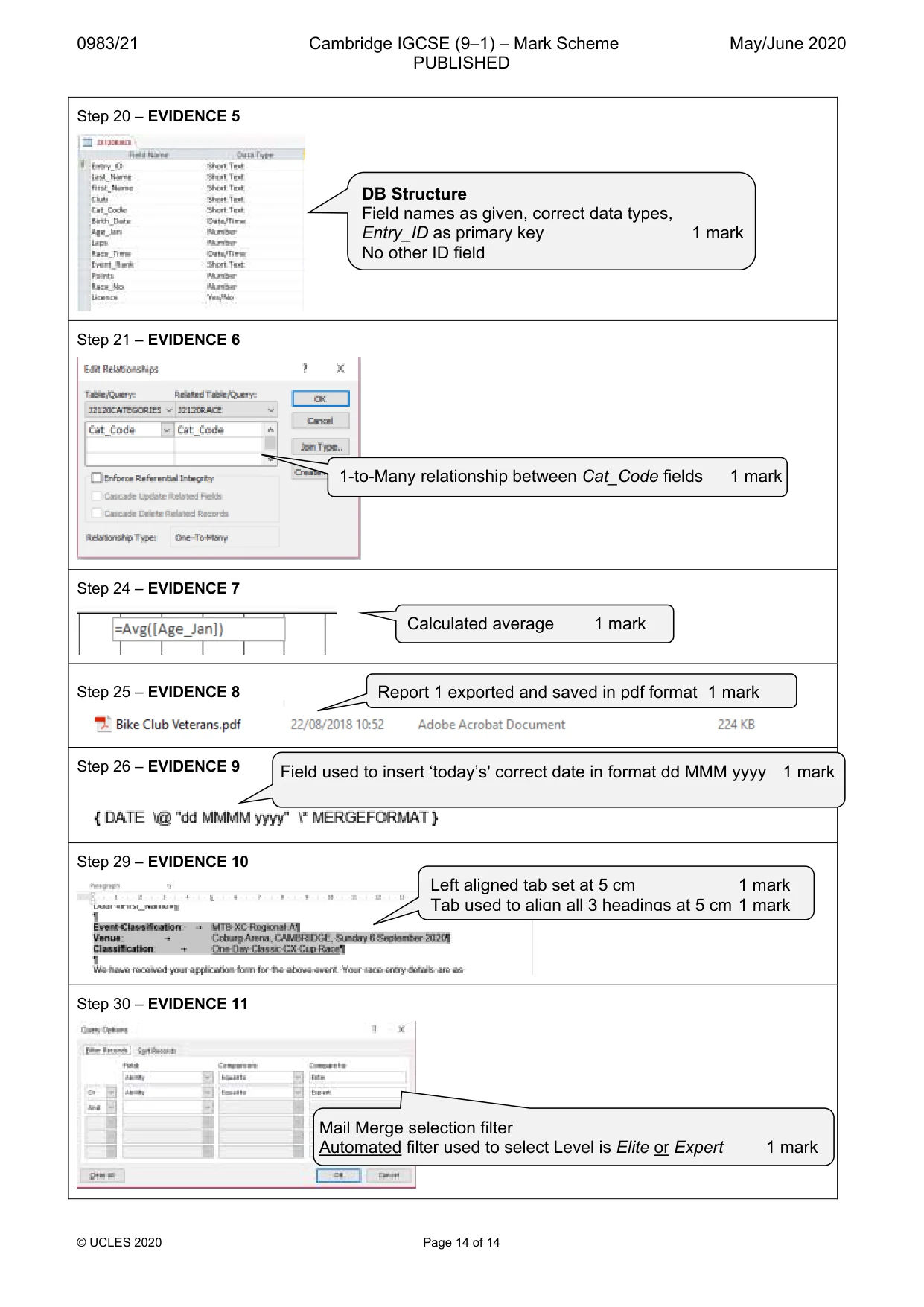
0983/21 Cambridge IGCSE (9–1) – Mark Scheme PUBLISHED May/June 2020 © UCLES 2020 Page 14 of 14 Step 20 – EVIDENCE 5 Step 21 – EVIDENCE 6 Step 24 – EVIDENCE 7 Step 25 – EVIDENCE 8 Step 26 – EVIDENCE 9 Step 29 – EVIDENCE 10 Step 30 – EVIDENCE 11 DB Structure Field names as given, correct data types, Entry_ID as primary key 1 mark No other ID field 1-to-Many relationship between Cat_Code fields 1 mark Report 1 exported and saved in pdf format 1 mark Calculated average 1 mark Field used to insert ‘today’s' correct date in format dd MMM yyyy 1 mark Left aligned tab set at 5 cm 1 mark Tab used to align all 3 headings at 5 cm 1 mark Mail Merge selection filter Automated filter used to select Level is Elite or Expert 1 mark