Cambridge A Level Applied Information and Communication Technology 9713 — 2008 Oct/Nov Paper 4 · Variant 1
9713/41/O/N/08 · 90 marks · ≈101 min
The question paper and its mark scheme, free to read here and free to download. This is Cambridge’s own paper, exactly as it was sat.
Question paper6 pages
Mark scheme3 pages
Answers below. Sit the paper first if you are practising.
Paper as text
Question paper, page 1
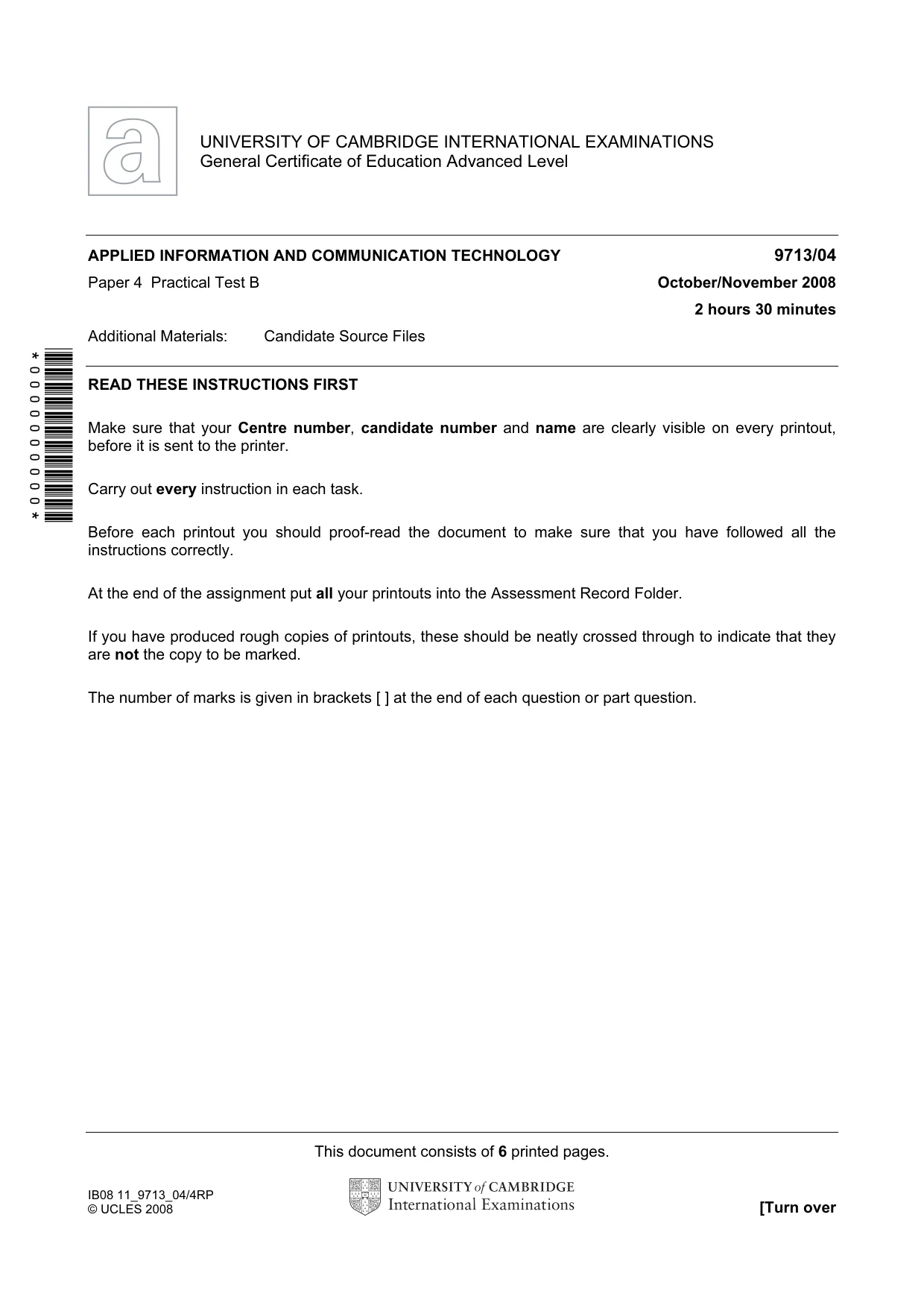
This document consists of 6 printed pages. IB08 11_9713_04/4RP © UCLES 2008 [Turn over *0000000000* UNIVERSITY OF CAMBRIDGE INTERNATIONAL EXAMINATIONS General Certificate of Education Advanced Level APPLIED INFORMATION AND COMMUNICATION TECHNOLOGY 9713/04 Paper 4 Practical Test B October/November 2008 2 hours 30 minutes Additional Materials: Candidate Source Files READ THESE INSTRUCTIONS FIRST Make sure that your Centre number, candidate number and name are clearly visible on every printout, before it is sent to the printer. Carry out every instruction in each task. Before each printout you should proof-read the document to make sure that you have followed all the instructions correctly. At the end of the assignment put all your printouts into the Assessment Record Folder. If you have produced rough copies of printouts, these should be neatly crossed through to indicate that they are not the copy to be marked. The number of marks is given in brackets [ ] at the end of each question or part question.
Question paper, page 2
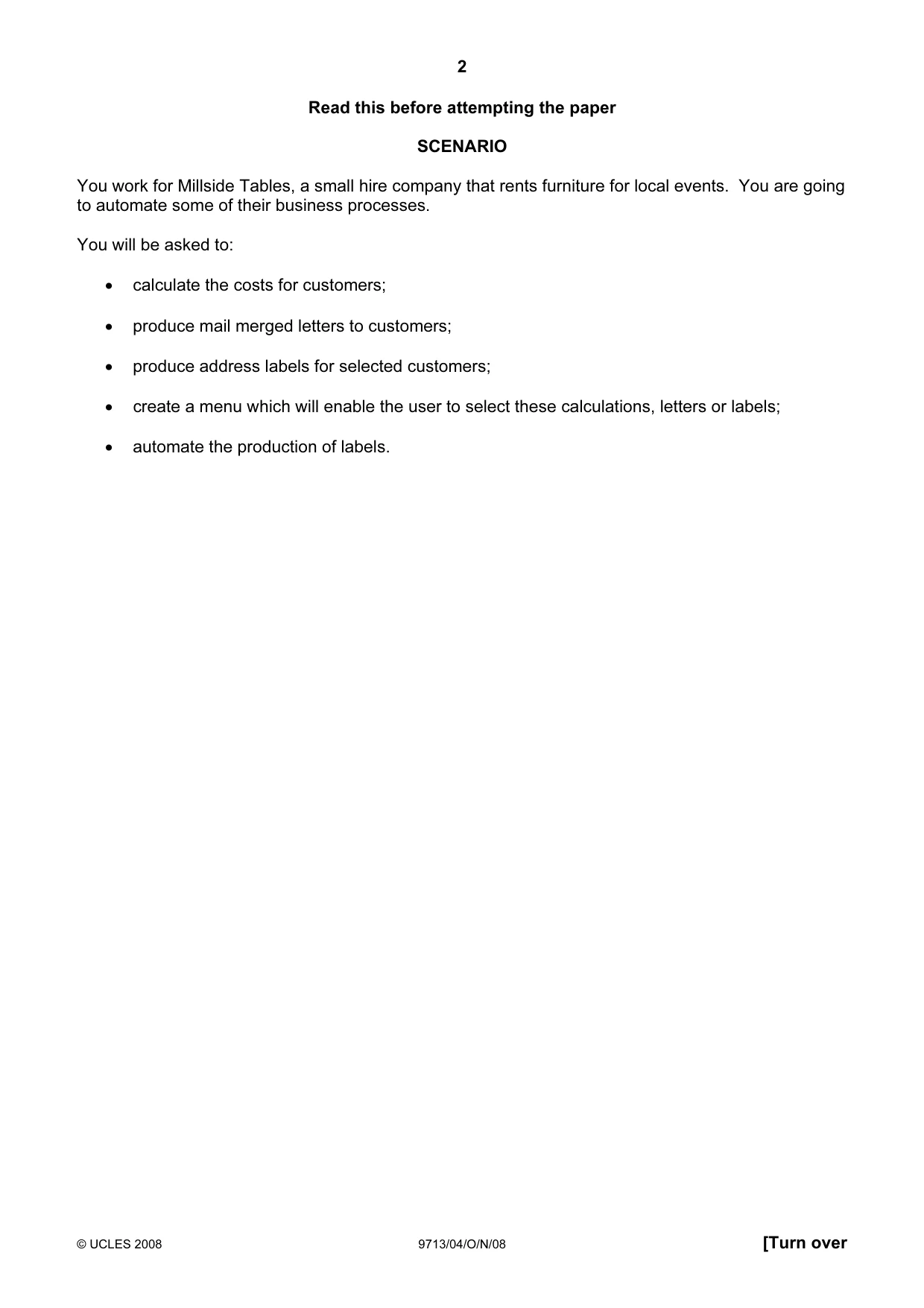
2 © UCLES 2008 9713/04/O/N/08 [Turn over Read this before attempting the paper SCENARIO You work for Millside Tables, a small hire company that rents furniture for local events. You are going to automate some of their business processes. You will be asked to: • calculate the costs for customers; • produce mail merged letters to customers; • produce address labels for selected customers; • create a menu which will enable the user to select these calculations, letters or labels; • automate the production of labels.
Question paper, page 3
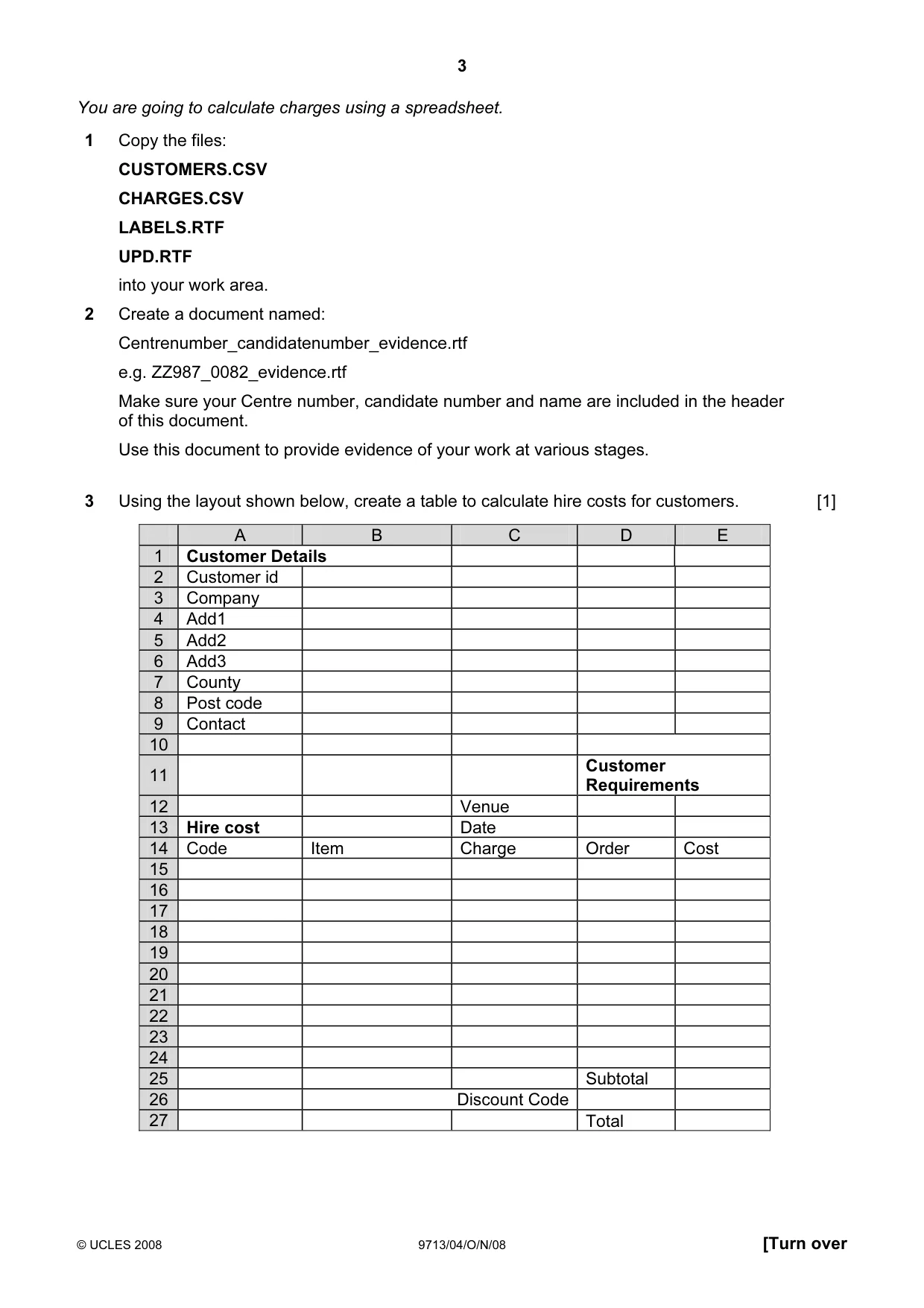
3 © UCLES 2008 9713/04/O/N/08 [Turn over You are going to calculate charges using a spreadsheet. 1 Copy the files: CUSTOMERS.CSV CHARGES.CSV LABELS.RTF UPD.RTF into your work area. 2 Create a document named: Centrenumber_candidatenumber_evidence.rtf e.g. ZZ987_0082_evidence.rtf Make sure your Centre number, candidate number and name are included in the header of this document. Use this document to provide evidence of your work at various stages. 3 Using the layout shown below, create a table to calculate hire costs for customers. [1] A B C D E 1 Customer Details 2 Customer id 3 Company 4 Add1 5 Add2 6 Add3 7 County 8 Post code 9 Contact 10 11 Customer Requirements 12 Venue 13 Hire cost Date 14 Code Item Charge Order Cost 15 16 17 18 19 20 21 22 23 24 25 Subtotal 26 Discount Code 27 Total
Question paper, page 4
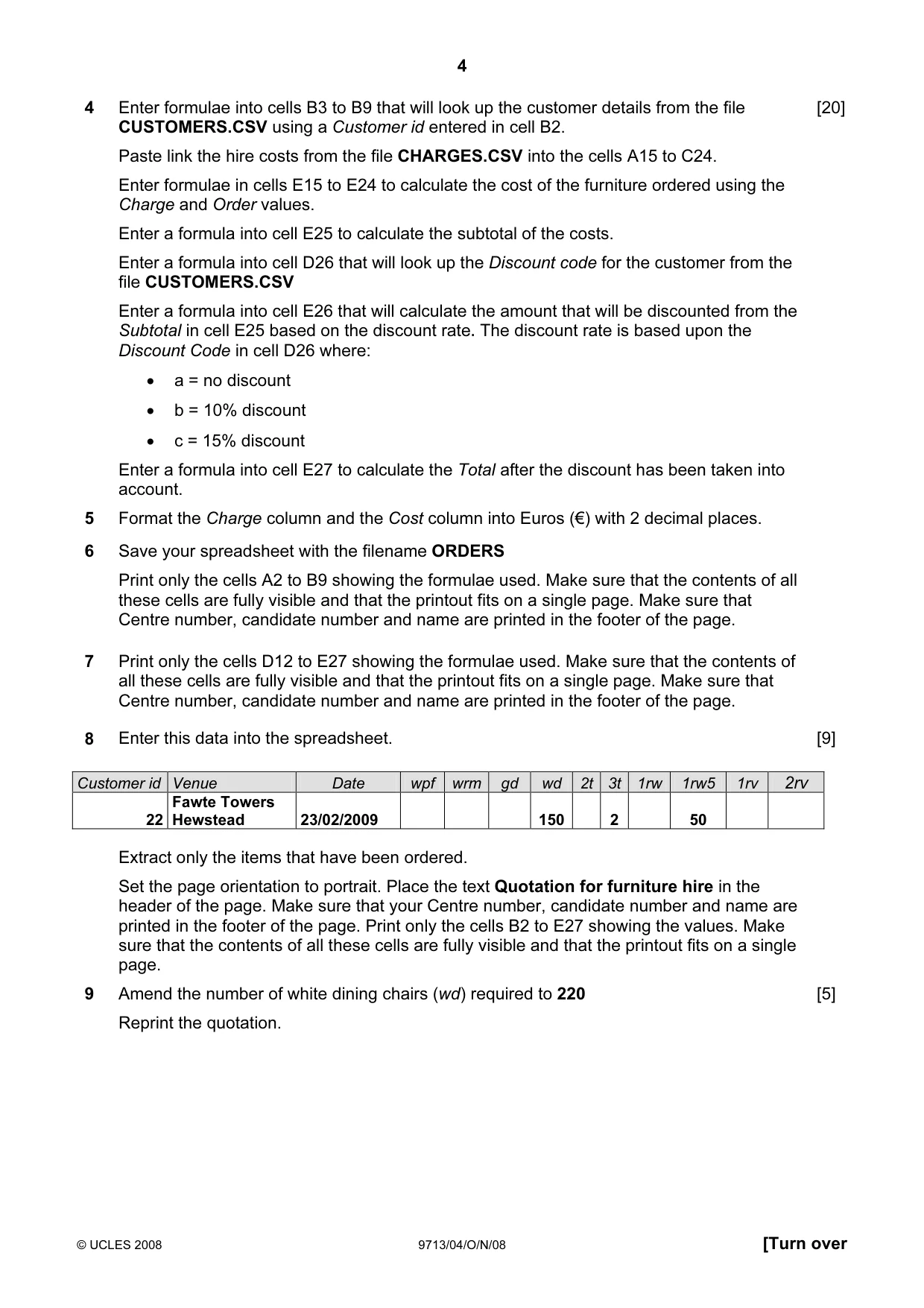
4 © UCLES 2008 9713/04/O/N/08 [Turn over 4 Enter formulae into cells B3 to B9 that will look up the customer details from the file CUSTOMERS.CSV using a Customer id entered in cell B2. Paste link the hire costs from the file CHARGES.CSV into the cells A15 to C24. Enter formulae in cells E15 to E24 to calculate the cost of the furniture ordered using the Charge and Order values. Enter a formula into cell E25 to calculate the subtotal of the costs. Enter a formula into cell D26 that will look up the Discount code for the customer from the file CUSTOMERS.CSV Enter a formula into cell E26 that will calculate the amount that will be discounted from the Subtotal in cell E25 based on the discount rate. The discount rate is based upon the Discount Code in cell D26 where: • a = no discount • b = 10% discount • c = 15% discount Enter a formula into cell E27 to calculate the Total after the discount has been taken into account. [20] 5 Format the Charge column and the Cost column into Euros (€) with 2 decimal places. 6 Save your spreadsheet with the filename ORDERS Print only the cells A2 to B9 showing the formulae used. Make sure that the contents of all these cells are fully visible and that the printout fits on a single page. Make sure that Centre number, candidate number and name are printed in the footer of the page. 7 Print only the cells D12 to E27 showing the formulae used. Make sure that the contents of all these cells are fully visible and that the printout fits on a single page. Make sure that Centre number, candidate number and name are printed in the footer of the page. 8 Enter this data into the spreadsheet. [9] Customer id Venue Date wpf wrm gd wd 2t 3t 1rw 1rw5 1rv 2rv 22 Fawte Towers Hewstead 23/02/2009 150 2 50 Extract only the items that have been ordered. Set the page orientation to portrait. Place the text Quotation for furniture hire in the header of the page. Make sure that your Centre number, candidate number and name are printed in the footer of the page. Print only the cells B2 to E27 showing the values. Make sure that the contents of all these cells are fully visible and that the printout fits on a single page. 9 Amend the number of white dining chairs (wd) required to 220 Reprint the quotation. [5]
Question paper, page 5
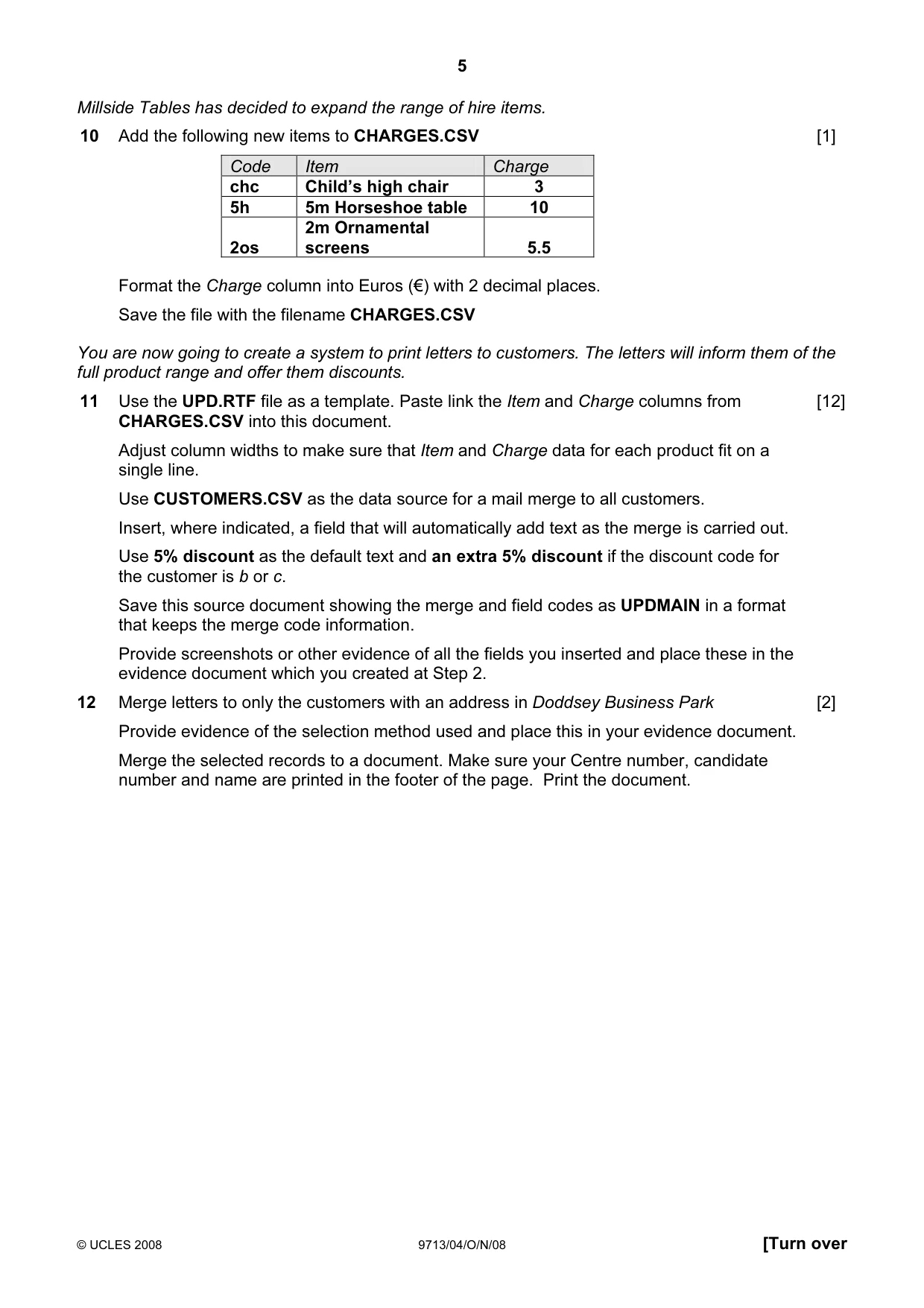
5 © UCLES 2008 9713/04/O/N/08 [Turn over Millside Tables has decided to expand the range of hire items. 10 Add the following new items to CHARGES.CSV [1] Code Item Charge chc Child’s high chair 3 5h 5m Horseshoe table 10 2os 2m Ornamental screens 5.5 Format the Charge column into Euros (€) with 2 decimal places. Save the file with the filename CHARGES.CSV You are now going to create a system to print letters to customers. The letters will inform them of the full product range and offer them discounts. 11 Use the UPD.RTF file as a template. Paste link the Item and Charge columns from CHARGES.CSV into this document. Adjust column widths to make sure that Item and Charge data for each product fit on a single line. Use CUSTOMERS.CSV as the data source for a mail merge to all customers. Insert, where indicated, a field that will automatically add text as the merge is carried out. Use 5% discount as the default text and an extra 5% discount if the discount code for the customer is b or c. Save this source document showing the merge and field codes as UPDMAIN in a format that keeps the merge code information. Provide screenshots or other evidence of all the fields you inserted and place these in the evidence document which you created at Step 2. [12] 12 Merge letters to only the customers with an address in Doddsey Business Park Provide evidence of the selection method used and place this in your evidence document. Merge the selected records to a document. Make sure your Centre number, candidate number and name are printed in the footer of the page. Print the document. [2]
Question paper, page 6
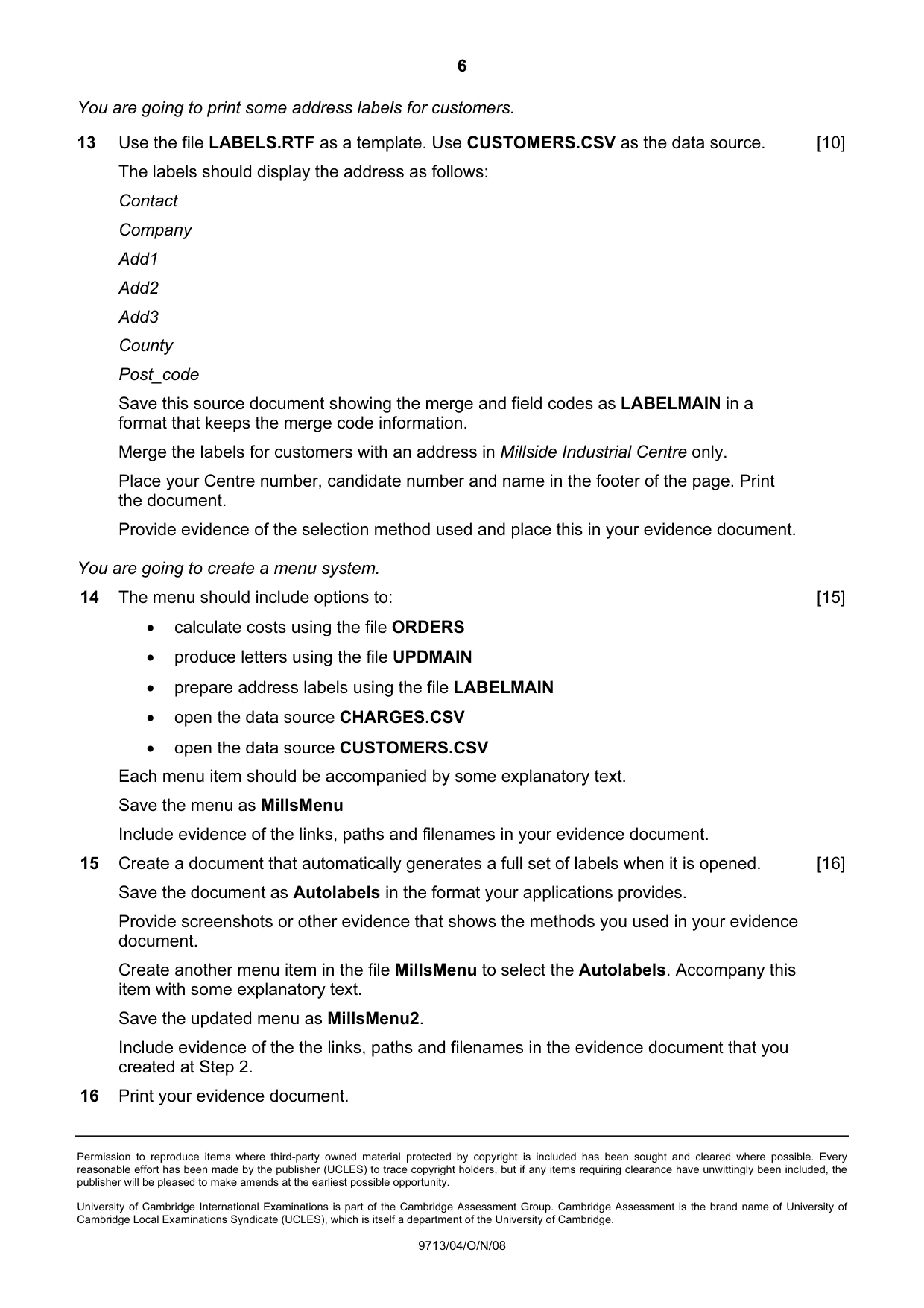
6 Permission to reproduce items where third-party owned material protected by copyright is included has been sought and cleared where possible. Every reasonable effort has been made by the publisher (UCLES) to trace copyright holders, but if any items requiring clearance have unwittingly been included, the publisher will be pleased to make amends at the earliest possible opportunity. University of Cambridge International Examinations is part of the Cambridge Assessment Group. Cambridge Assessment is the brand name of University of Cambridge Local Examinations Syndicate (UCLES), which is itself a department of the University of Cambridge. 9713/04/O/N/08 You are going to print some address labels for customers. 13 Use the file LABELS.RTF as a template. Use CUSTOMERS.CSV as the data source. The labels should display the address as follows: Contact Company Add1 Add2 Add3 County Post_code Save this source document showing the merge and field codes as LABELMAIN in a format that keeps the merge code information. Merge the labels for customers with an address in Millside Industrial Centre only. Place your Centre number, candidate number and name in the footer of the page. Print the document. Provide evidence of the selection method used and place this in your evidence document. [10] You are going to create a menu system. 14 The menu should include options to: • calculate costs using the file ORDERS • produce letters using the file UPDMAIN • prepare address labels using the file LABELMAIN • open the data source CHARGES.CSV • open the data source CUSTOMERS.CSV Each menu item should be accompanied by some explanatory text. Save the menu as MillsMenu Include evidence of the links, paths and filenames in your evidence document. [15] 15 Create a document that automatically generates a full set of labels when it is opened. Save the document as Autolabels in the format your applications provides. Provide screenshots or other evidence that shows the methods you used in your evidence document. Create another menu item in the file MillsMenu to select the Autolabels. Accompany this item with some explanatory text. Save the updated menu as MillsMenu2. Include evidence of the the links, paths and filenames in the evidence document that you created at Step 2. [16] 16 Print your evidence document.
Mark scheme, page 1
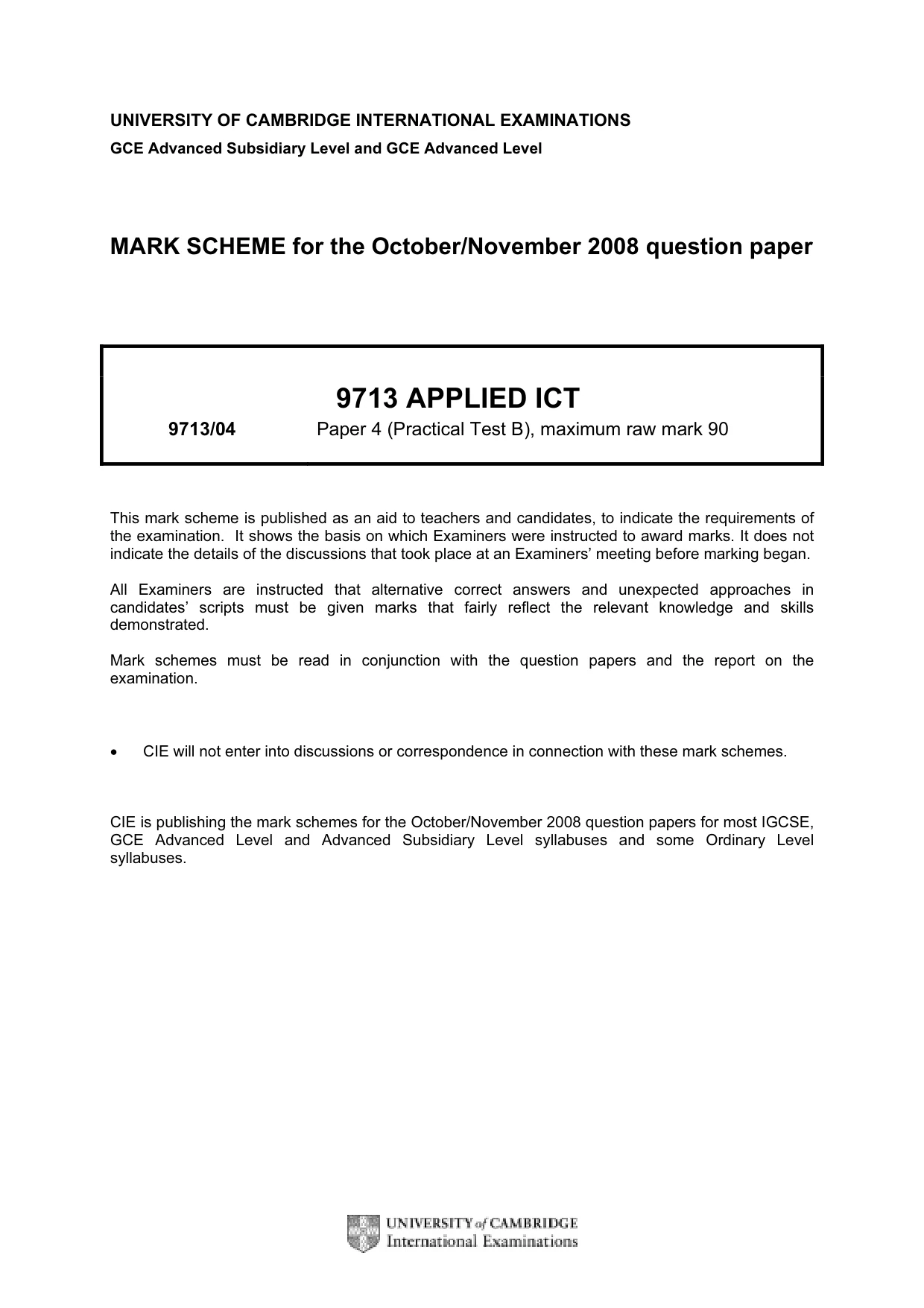
UNIVERSITY OF CAMBRIDGE INTERNATIONAL EXAMINATIONS GCE Advanced Subsidiary Level and GCE Advanced Level MARK SCHEME for the October/November 2008 question paper 9713 APPLIED ICT 9713/04 Paper 4 (Practical Test B), maximum raw mark 90 This mark scheme is published as an aid to teachers and candidates, to indicate the requirements of the examination. It shows the basis on which Examiners were instructed to award marks. It does not indicate the details of the discussions that took place at an Examiners’ meeting before marking began. All Examiners are instructed that alternative correct answers and unexpected approaches in candidates’ scripts must be given marks that fairly reflect the relevant knowledge and skills demonstrated. Mark schemes must be read in conjunction with the question papers and the report on the examination. • CIE will not enter into discussions or correspondence in connection with these mark schemes. CIE is publishing the mark schemes for the October/November 2008 question papers for most IGCSE, GCE Advanced Level and Advanced Subsidiary Level syllabuses and some Ordinary Level syllabuses.
Mark scheme, page 2
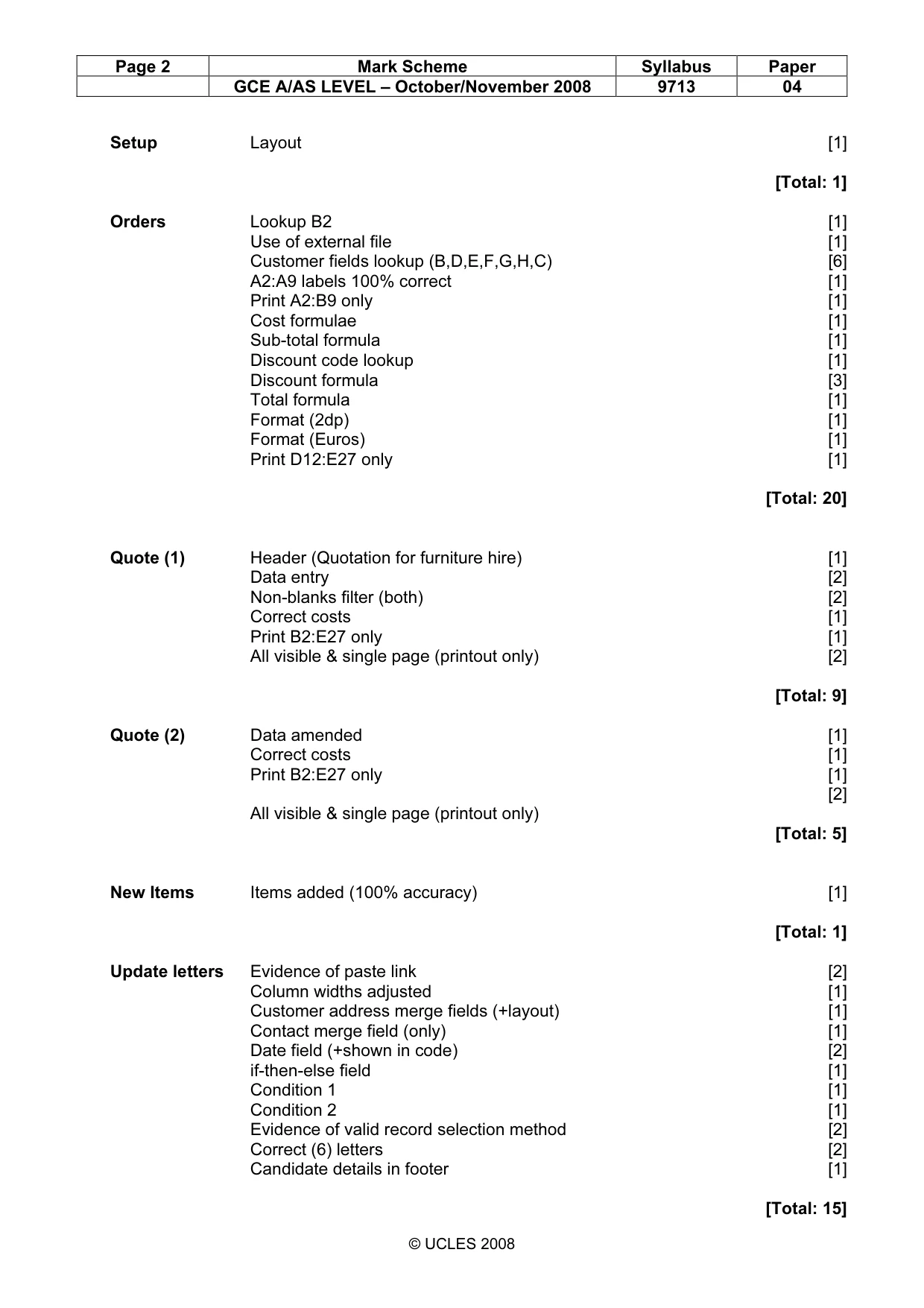
Page 2 Mark Scheme Syllabus Paper GCE A/AS LEVEL – October/November 2008 9713 04 © UCLES 2008 Setup Layout [1] [Total: 1] Orders Lookup B2 [1] Use of external file [1] Customer fields lookup (B,D,E,F,G,H,C) [6] A2:A9 labels 100% correct [1] Print A2:B9 only [1] Cost formulae [1] Sub-total formula [1] Discount code lookup [1] Discount formula [3] Total formula [1] Format (2dp) [1] Format (Euros) [1] Print D12:E27 only [1] [Total: 20] Quote (1) Header (Quotation for furniture hire) [1] Data entry [2] Non-blanks filter (both) [2] Correct costs [1] Print B2:E27 only [1] All visible & single page (printout only) [2] [Total: 9] Quote (2) Data amended [1] Correct costs [1] Print B2:E27 only [1] All visible & single page (printout only) [2] [Total: 5] New Items Items added (100% accuracy) [1] [Total: 1] Update letters Evidence of paste link [2] Column widths adjusted [1] Customer address merge fields (+layout) [1] Contact merge field (only) [1] Date field (+shown in code) [2] if-then-else field [1] Condition 1 [1] Condition 2 [1] Evidence of valid record selection method [2] Correct (6) letters [2] Candidate details in footer [1] [Total: 15]
Mark scheme, page 3
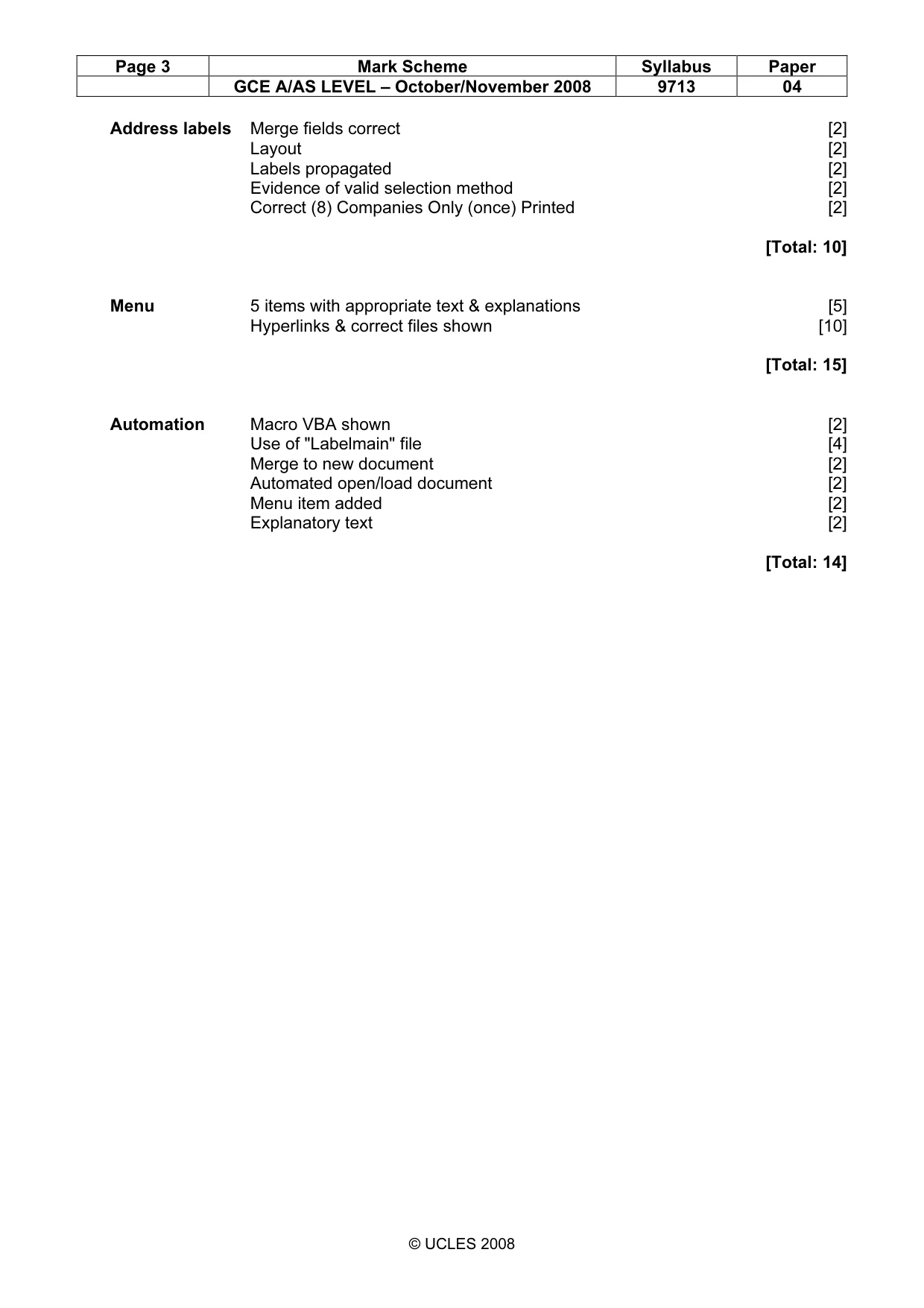
Page 3 Mark Scheme Syllabus Paper GCE A/AS LEVEL – October/November 2008 9713 04 © UCLES 2008 Address labels Merge fields correct [2] Layout [2] Labels propagated [2] Evidence of valid selection method [2] Correct (8) Companies Only (once) Printed [2] [Total: 10] Menu 5 items with appropriate text & explanations [5] Hyperlinks & correct files shown [10] [Total: 15] Automation Macro VBA shown [2] Use of "Labelmain" file [4] Merge to new document [2] Automated open/load document [2] Menu item added [2] Explanatory text [2] [Total: 14]
What you needed in this session
Cambridge’s own grade thresholds for 2008 Oct/Nov, Paper 4 · Variant 1. A higher threshold means an easier paper — the bar moves with how the cohort did.