Cambridge A Level Applied Information and Communication Technology 9713 — 2015 May/June Paper 4 · Variant 1
9713/41/M/J/15 · 90 marks · ≈101 min
The question paper and its mark scheme, free to read here and free to download. This is Cambridge’s own paper, exactly as it was sat.
Question paper8 pages



Mark scheme7 pages
Answers below. Sit the paper first if you are practising.
Paper as text
Question paper, page 1
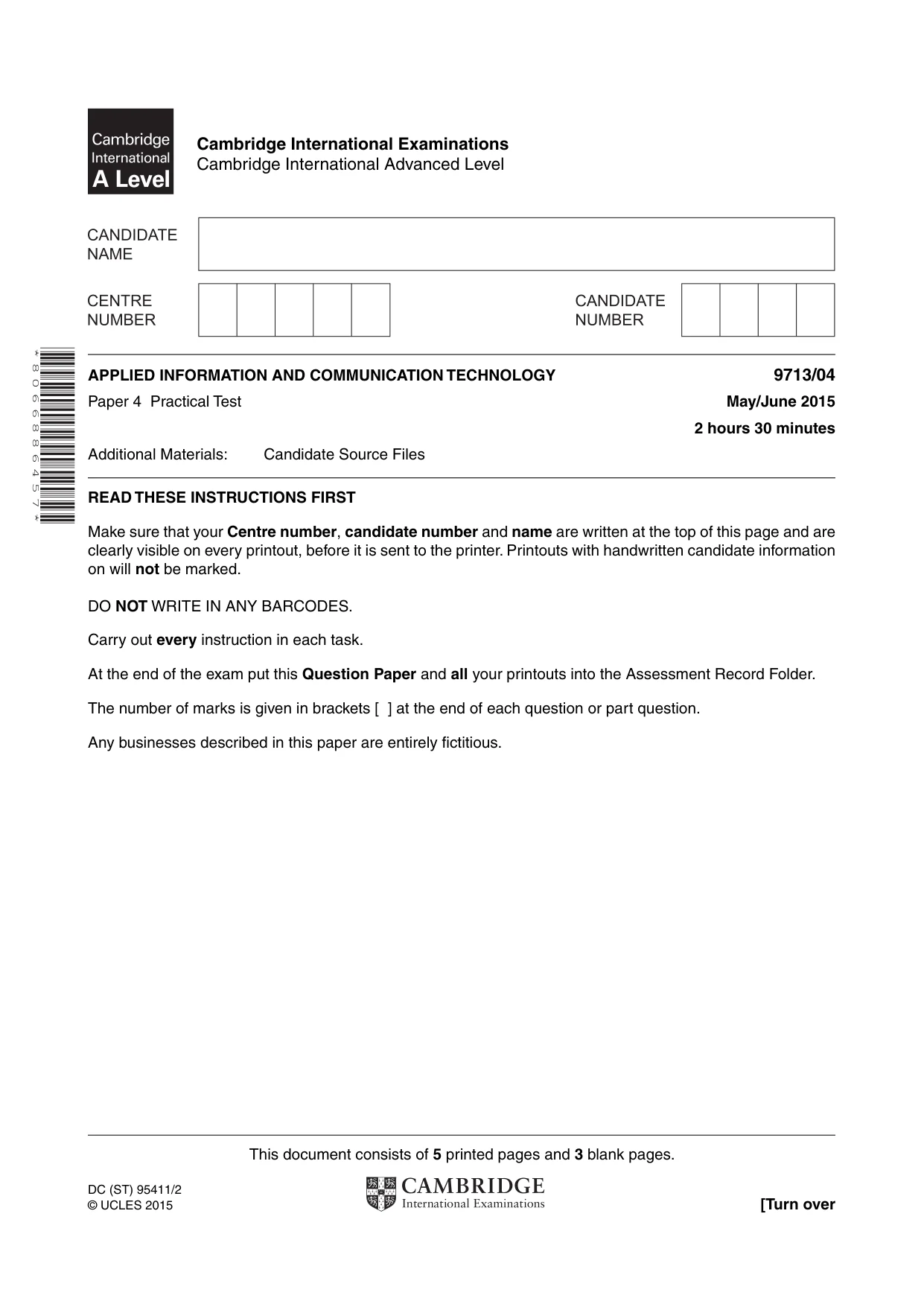
This document consists of 5 printed pages and 3 blank pages. DC (ST) 95411/2 © UCLES 2015 [Turn over Cambridge International Examinations Cambridge International Advanced Level * 8 0 6 6 8 8 6 4 5 7 * APPLIED INFORMATION AND COMMUNICATION TECHNOLOGY 9713/04 Paper 4 Practical Test May/June 2015 2 hours 30 minutes Additional Materials: Candidate Source Files READ THESE INSTRUCTIONS FIRST Make sure that your Centre number, candidate number and name are written at the top of this page and are clearly visible on every printout, before it is sent to the printer. Printouts with handwritten candidate information on will not be marked. DO NOT WRITE IN ANY BARCODES. Carry out every instruction in each task. At the end of the exam put this Question Paper and all your printouts into the Assessment Record Folder. The number of marks is given in brackets [ ] at the end of each question or part question. Any businesses described in this paper are entirely fictitious.
Question paper, page 2
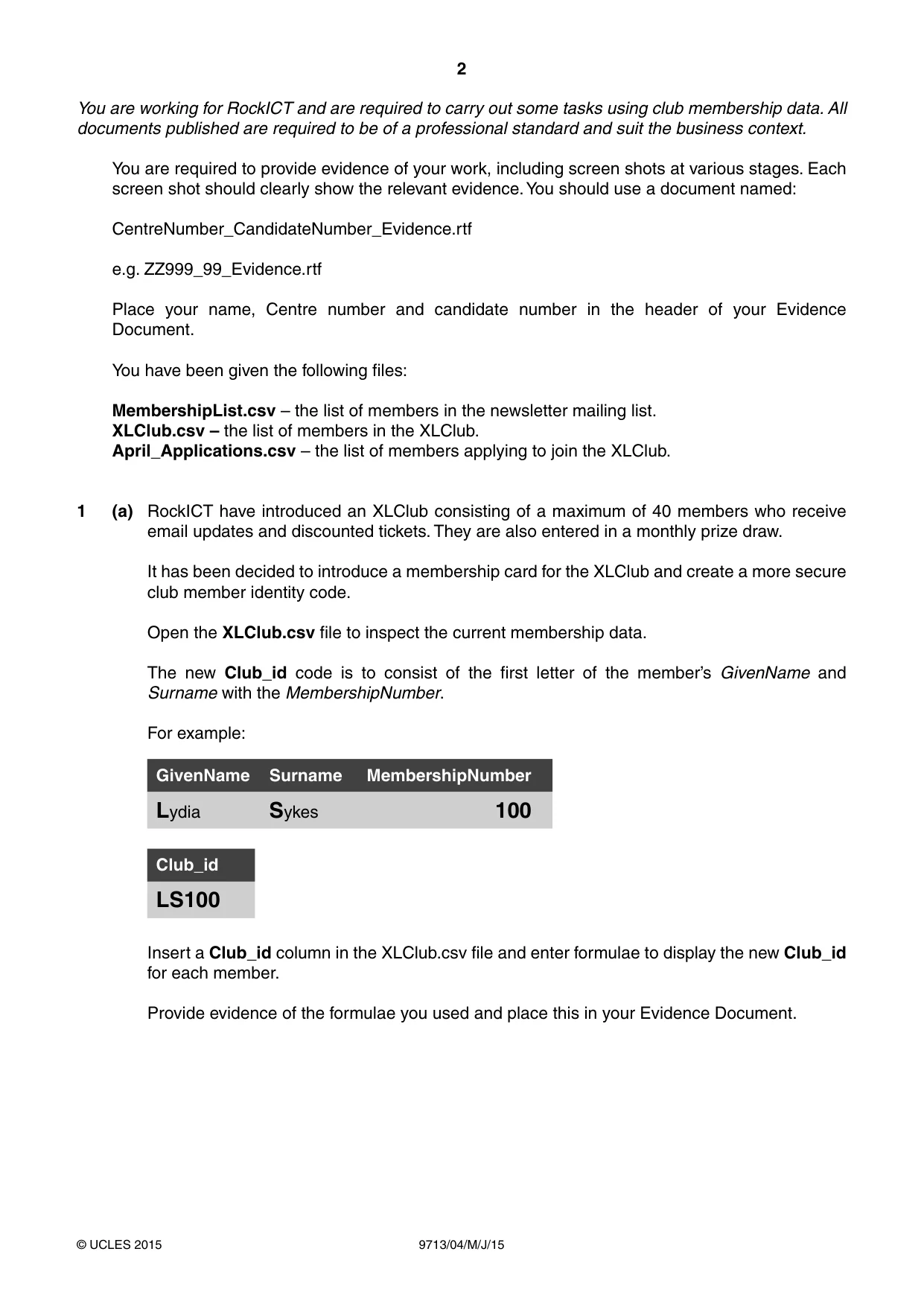
2 9713/04/M/J/15 © UCLES 2015 You are working for RockICT and are required to carry out some tasks using club membership data. All documents published are required to be of a professional standard and suit the business context. You are required to provide evidence of your work, including screen shots at various stages. Each screen shot should clearly show the relevant evidence. You should use a document named: CentreNumber_CandidateNumber_Evidence.rtf e.g. ZZ999_99_Evidence.rtf Place your name, Centre number and candidate number in the header of your Evidence Document. You have been given the following files: MembershipList.csv – the list of members in the newsletter mailing list. XLClub.csv – the list of members in the XLClub. April_Applications.csv – the list of members applying to join the XLClub. 1 (a) RockICT have introduced an XLClub consisting of a maximum of 40 members who receive email updates and discounted tickets. They are also entered in a monthly prize draw. It has been decided to introduce a membership card for the XLClub and create a more secure club member identity code. Open the XLClub.csv file to inspect the current membership data. The new Club_id code is to consist of the first letter of the member’s GivenName and Surname with the MembershipNumber. For example: GivenName Surname MembershipNumber Lydia Sykes 100 Club_id LS100 Insert a Club_id column in the XLClub.csv file and enter formulae to display the new Club_id for each member. Provide evidence of the formulae you used and place this in your Evidence Document.
Question paper, page 3
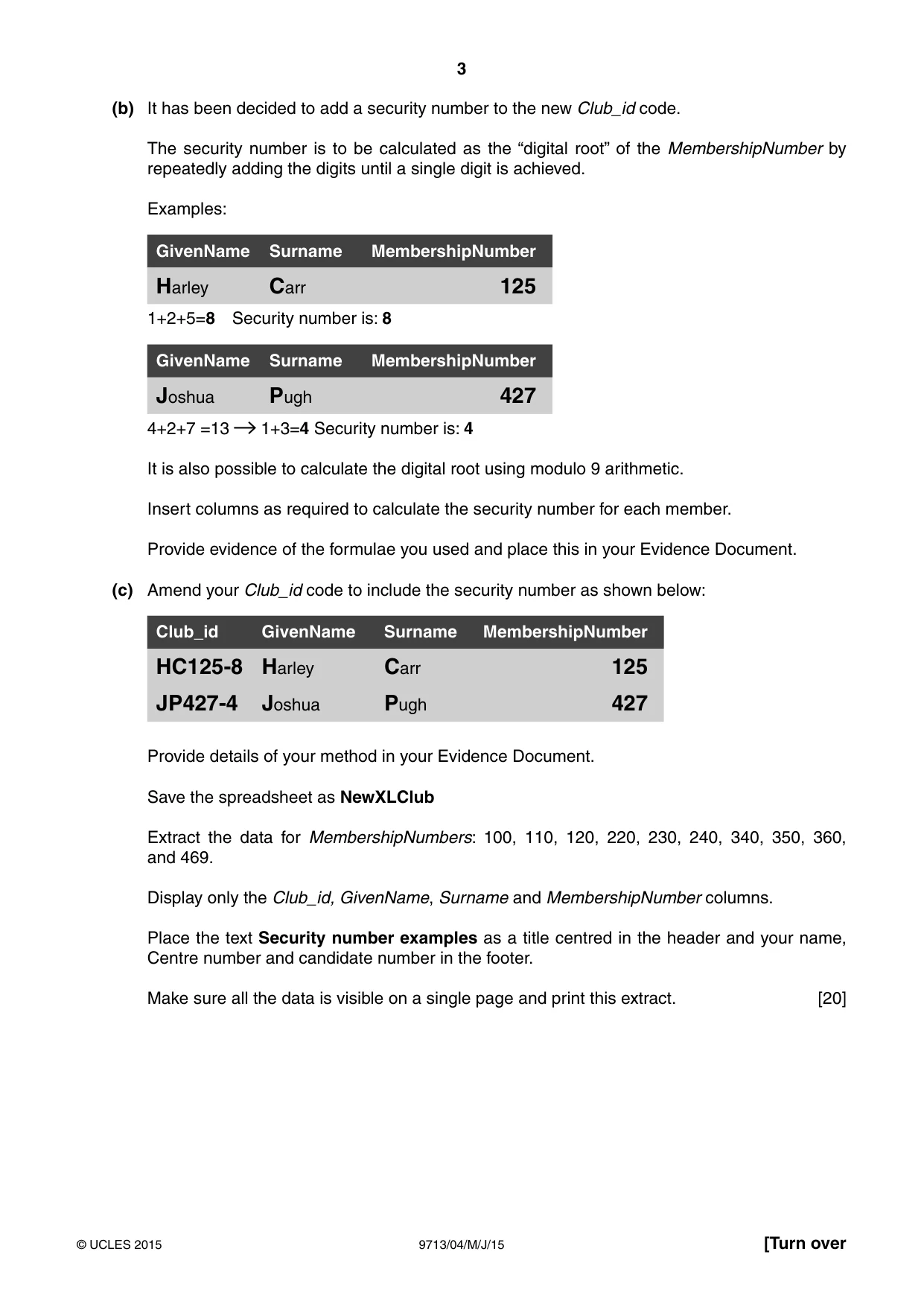
3 9713/04/M/J/15 © UCLES 2015 [Turn over (b) It has been decided to add a security number to the new Club_id code. The security number is to be calculated as the “digital root” of the MembershipNumber by repeatedly adding the digits until a single digit is achieved. Examples: GivenName Surname MembershipNumber Harley Carr 125 1+2+5=8 Security number is: 8 GivenName Surname MembershipNumber Joshua Pugh 427 4+2+7 =13 1+3=4 Security number is: 4 It is also possible to calculate the digital root using modulo 9 arithmetic. Insert columns as required to calculate the security number for each member. Provide evidence of the formulae you used and place this in your Evidence Document. (c) Amend your Club_id code to include the security number as shown below: Club_id GivenName Surname MembershipNumber HC125-8 Harley Carr 125 JP427-4 Joshua Pugh 427 Provide details of your method in your Evidence Document. Save the spreadsheet as NewXLClub Extract the data for MembershipNumbers: 100, 110, 120, 220, 230, 240, 340, 350, 360, and 469. Display only the Club_id, GivenName, Surname and MembershipNumber columns. Place the text Security number examples as a title centred in the header and your name, Centre number and candidate number in the footer. Make sure all the data is visible on a single page and print this extract. [20]
Question paper, page 4
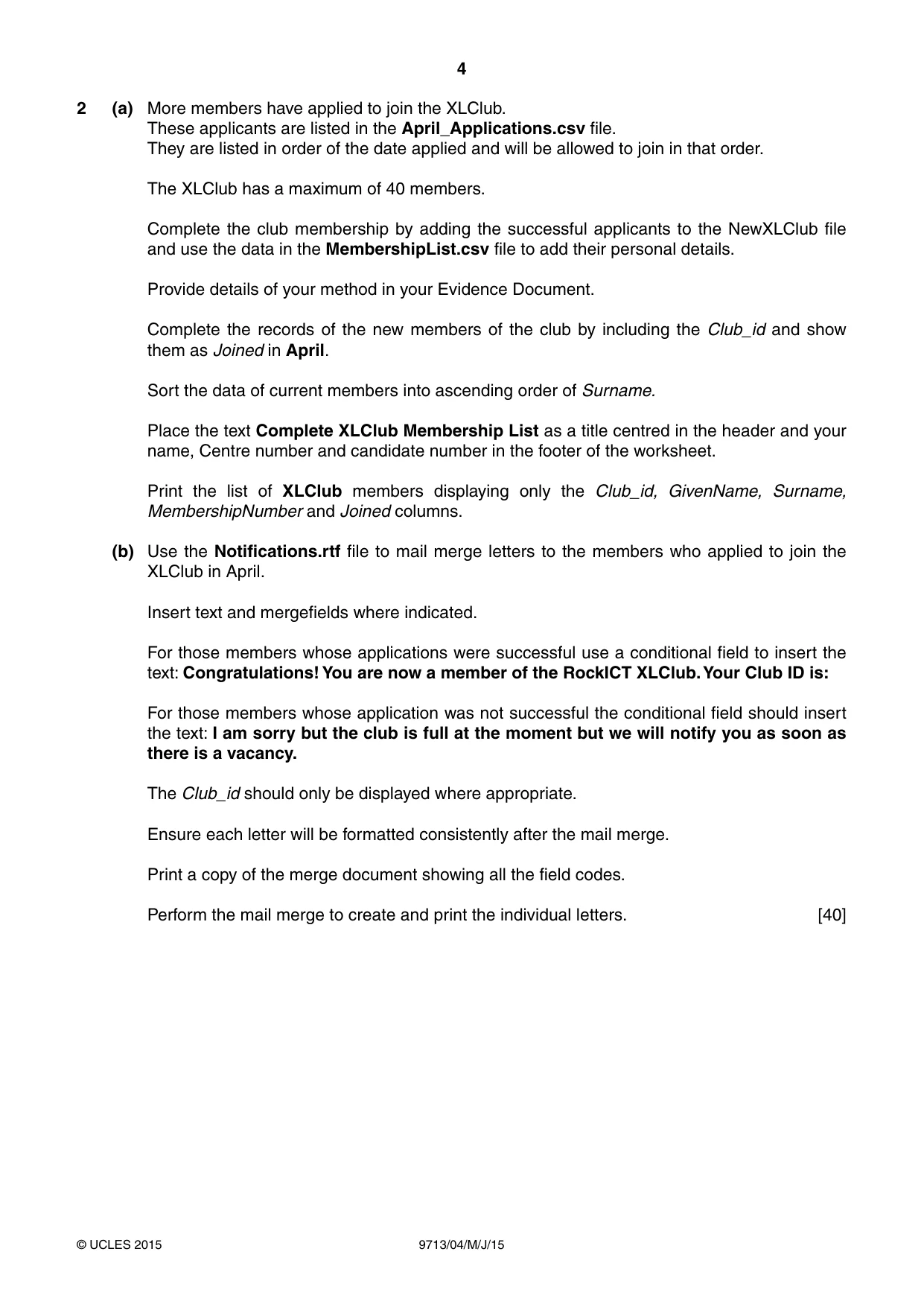
4 9713/04/M/J/15 © UCLES 2015 2 (a) More members have applied to join the XLClub. These applicants are listed in the April_Applications.csv file. They are listed in order of the date applied and will be allowed to join in that order. The XLClub has a maximum of 40 members. Complete the club membership by adding the successful applicants to the NewXLClub file and use the data in the MembershipList.csv file to add their personal details. Provide details of your method in your Evidence Document. Complete the records of the new members of the club by including the Club_id and show them as Joined in April. Sort the data of current members into ascending order of Surname. Place the text Complete XLClub Membership List as a title centred in the header and your name, Centre number and candidate number in the footer of the worksheet. Print the list of XLClub members displaying only the Club_id, GivenName, Surname, MembershipNumber and Joined columns. (b) Use the Notifications.rtf file to mail merge letters to the members who applied to join the XLClub in April. Insert text and mergefields where indicated. For those members whose applications were successful use a conditional field to insert the text: Congratulations! You are now a member of the RockICT XLClub. Your Club ID is: For those members whose application was not successful the conditional field should insert the text: I am sorry but the club is full at the moment but we will notify you as soon as there is a vacancy. The Club_id should only be displayed where appropriate. Ensure each letter will be formatted consistently after the mail merge. Print a copy of the merge document showing all the field codes. Perform the mail merge to create and print the individual letters. [40]
Question paper, page 5
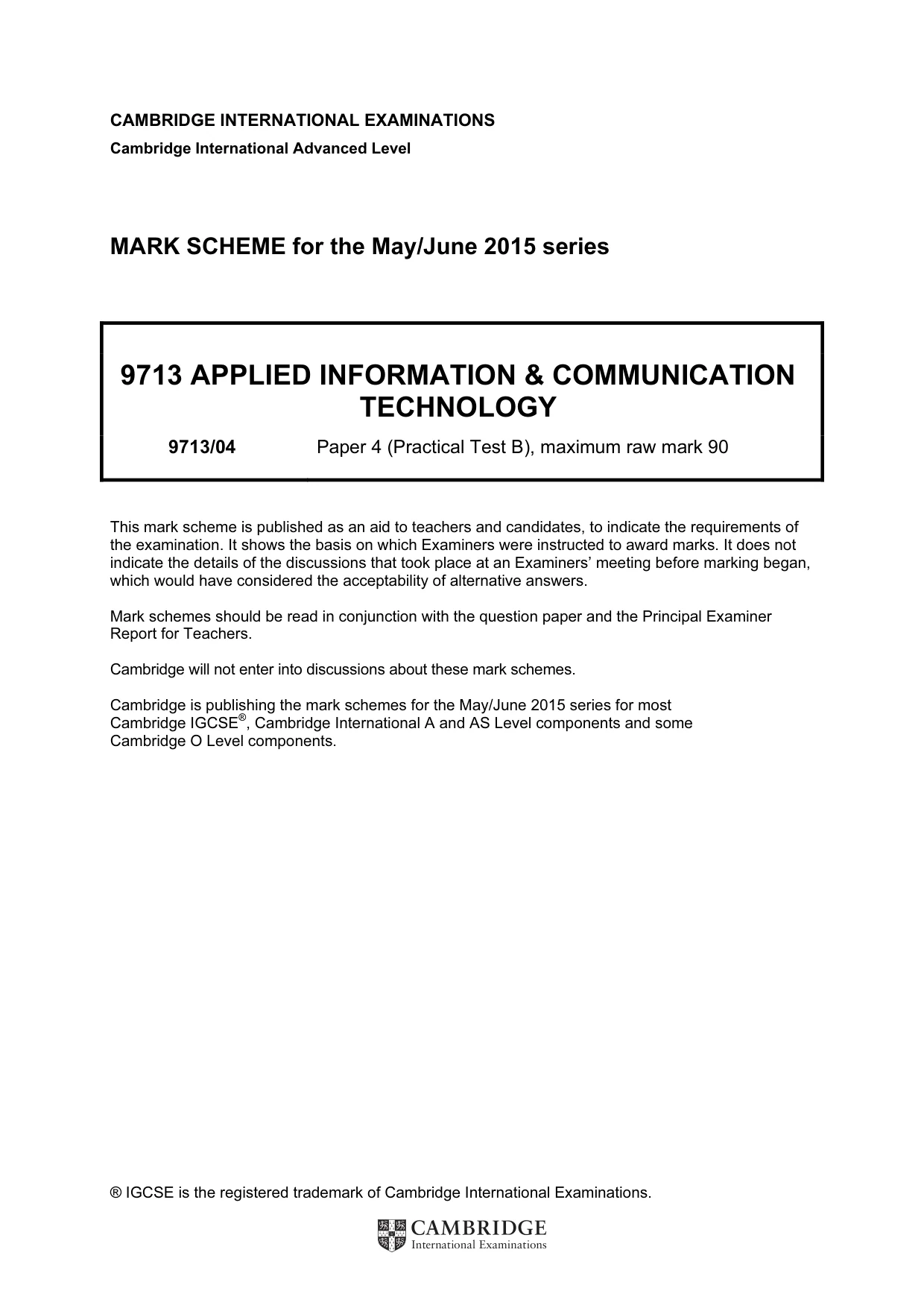
5 9713/04/M/J/15 © UCLES 2015 3 (a) It has been decided to record membership of the XLClub in the MembershipList file. In a new column labelled XLClub create a formula to display the Club_id for the members of the XLClub only. Display a blank cell for non-members. In your Evidence Document provide details of your method and examples of each formula used. Add an appropriate title in the header and your name, Centre number and candidate number in the footer. Save the spreadsheet as NewMembershipList Print only the first page of data. Make sure all columns fit on a single page. (b) Create a macro or procedure to carry out the following steps using the NewMembershipList file. • Sort the data into ascending order of Surname. • Select only the members in the XLClub. • Display only the Club_id, GivenName, Surname and EmailAddress columns. • Embolden these headings. • Print the data. Run the macro or procedure to print the document. Insert explanatory text into the macro before each of the steps specified. Print a copy of the macro or procedure. [30] 4 Print your Evidence Document. Write today’s date in the box below. Date
Question paper, page 6
6 9713/04/M/J/15 © UCLES 2015 BLANK PAGE
Question paper, page 7
7 9713/04/M/J/15 © UCLES 2015 BLANK PAGE
Question paper, page 8
8 9713/04/M/J/15 © UCLES 2015 Permission to reproduce items where third-party owned material protected by copyright is included has been sought and cleared where possible. Every reasonable effort has been made by the publisher (UCLES) to trace copyright holders, but if any items requiring clearance have unwittingly been included, the publisher will be pleased to make amends at the earliest possible opportunity. To avoid the issue of disclosure of answer-related information to candidates, all copyright acknowledgements are reproduced online in the Cambridge International Examinations Copyright Acknowledgements Booklet. This is produced for each series of examinations and is freely available to download at www.cie.org.uk after the live examination series. Cambridge International Examinations is part of the Cambridge Assessment Group. Cambridge Assessment is the brand name of University of Cambridge Local Examinations Syndicate (UCLES), which is itself a department of the University of Cambridge. BLANK PAGE
Mark scheme, page 1
® IGCSE is the registered trademark of Cambridge International Examinations. CAMBRIDGE INTERNATIONAL EXAMINATIONS Cambridge International Advanced Level MARK SCHEME for the May/June 2015 series 9713 APPLIED INFORMATION & COMMUNICATION TECHNOLOGY 9713/04 Paper 4 (Practical Test B), maximum raw mark 90 This mark scheme is published as an aid to teachers and candidates, to indicate the requirements of the examination. It shows the basis on which Examiners were instructed to award marks. It does not indicate the details of the discussions that took place at an Examiners’ meeting before marking began, which would have considered the acceptability of alternative answers. Mark schemes should be read in conjunction with the question paper and the Principal Examiner Report for Teachers. Cambridge will not enter into discussions about these mark schemes. Cambridge is publishing the mark schemes for the May/June 2015 series for most Cambridge IGCSE®, Cambridge International A and AS Level components and some Cambridge O Level components.
Mark scheme, page 2
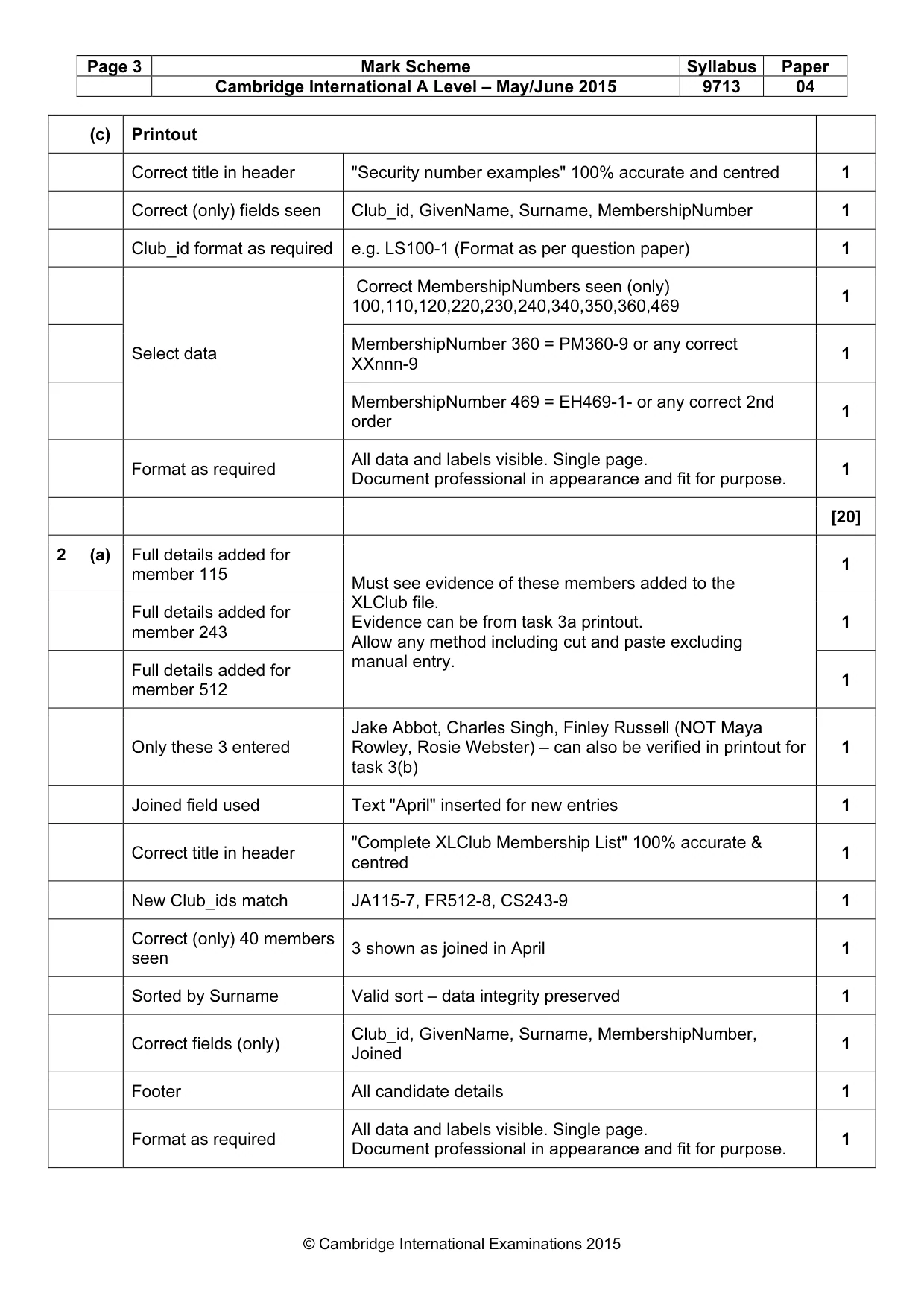
Page 2 Mark Scheme Syllabus Paper Cambridge International A Level – May/June 2015 9713 04 © Cambridge International Examinations 2015 Task Mark 1 (a) Evidence of the contents of all cells referenced by any formula must be seen for the award of the marks Use of correct components GivenName, Surname, MembershipNumber 1 Use of a String( ) function e.g. LEFT() or MID() seen 1 Correct extraction of first character from GivenName e.g. LEFT(B2,1) MID(B2,1,1) 1 Correct extraction of first character from Surname e.g. LEFT(C2,1) MID(C2,1,1) 1 Concatenate elements CONCATENATE (Elements above and MembershipNumber) 1 Format as shown in the question paper Evidence can be taken from any printout 1 (b)&(c) Separate digits e.g. Left( ) Mid( ) Right( ) or equivalent use of MOD(9) or efficient solution 1 Valid method for 1st order totals. i.e. sum of digits <=9 e.g. Sum( ) digits 1 Attempt method for 2nd order totals sum of digits >9 – Use of IF( ) 1 Valid attempt for 2nd order totals Tests for 9< sum of digits <19 Tests for MOD(9)=0 Both marks 1 Valid attempt for 3rd order totals Tests for sum of digits >=19 1 Combine with Club_id from Task 1(a) Correct concatenation 1 Format as shown in the question paper Evidence can be taken from any printout 1
Mark scheme, page 3
Page 3 Mark Scheme Syllabus Paper Cambridge International A Level – May/June 2015 9713 04 © Cambridge International Examinations 2015 (c) Printout Correct title in header "Security number examples" 100% accurate and centred 1 Correct (only) fields seen Club_id, GivenName, Surname, MembershipNumber 1 Club_id format as required e.g. LS100-1 (Format as per question paper) 1 Select data Correct MembershipNumbers seen (only) 100,110,120,220,230,240,340,350,360,469 1 MembershipNumber 360 = PM360-9 or any correct XXnnn-9 1 MembershipNumber 469 = EH469-1- or any correct 2nd order 1 Format as required All data and labels visible. Single page. Document professional in appearance and fit for purpose. 1 [20] 2 (a) Full details added for member 115 Must see evidence of these members added to the XLClub file. Evidence can be from task 3a printout. Allow any method including cut and paste excluding manual entry. 1 Full details added for member 243 1 Full details added for member 512 1 Only these 3 entered Jake Abbot, Charles Singh, Finley Russell (NOT Maya Rowley, Rosie Webster) – can also be verified in printout for task 3(b) 1 Joined field used Text "April" inserted for new entries 1 Correct title in header "Complete XLClub Membership List" 100% accurate & centred 1 New Club_ids match JA115-7, FR512-8, CS243-9 1 Correct (only) 40 members seen 3 shown as joined in April 1 Sorted by Surname Valid sort – data integrity preserved 1 Correct fields (only) Club_id, GivenName, Surname, MembershipNumber, Joined 1 Footer All candidate details 1 Format as required All data and labels visible. Single page. Document professional in appearance and fit for purpose. 1
Mark scheme, page 4
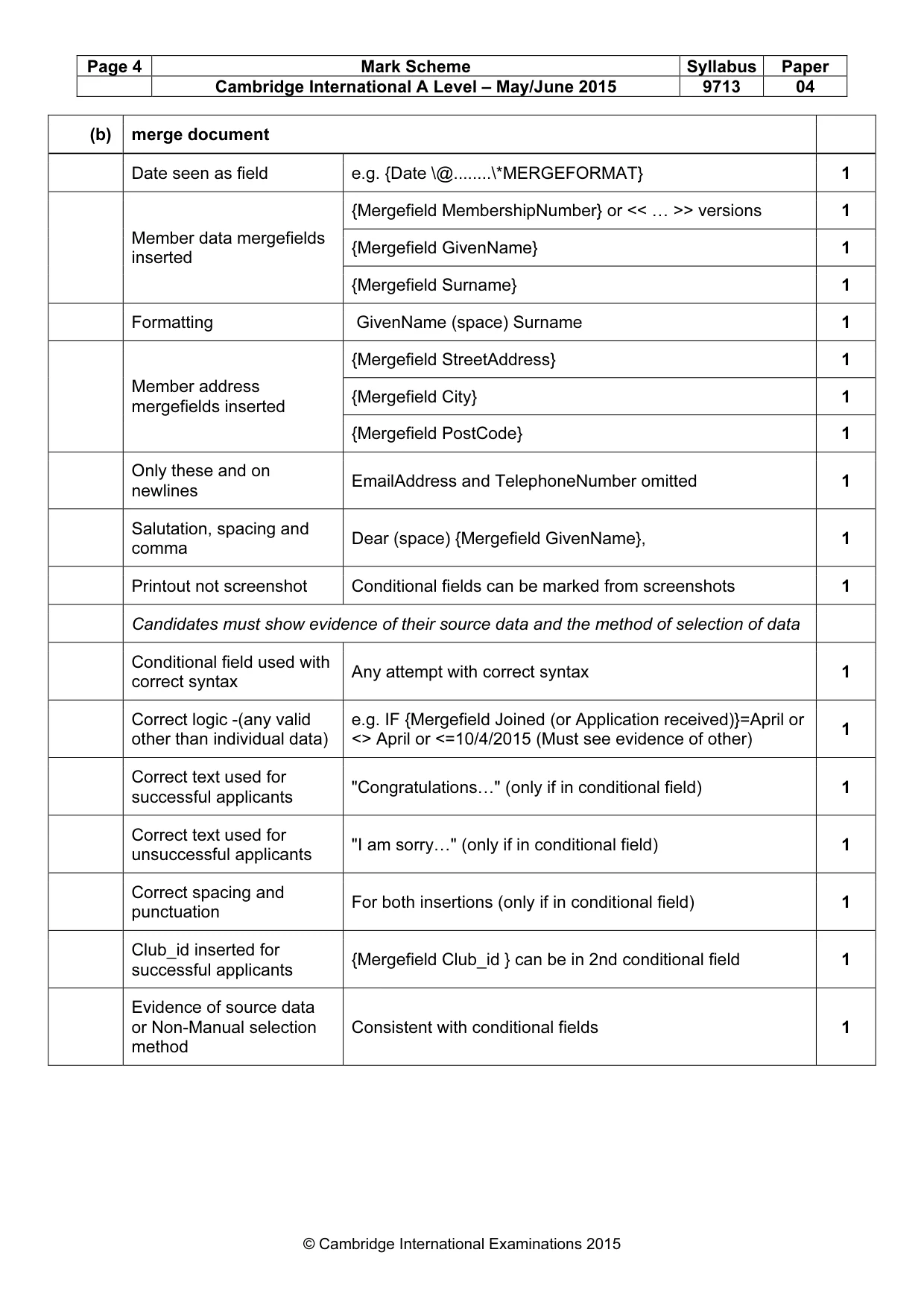
Page 4 Mark Scheme Syllabus Paper Cambridge International A Level – May/June 2015 9713 04 © Cambridge International Examinations 2015 (b) merge document Date seen as field e.g. {Date \@…\*MERGEFORMAT} 1 Member data mergefields inserted {Mergefield MembershipNumber} or << … >> versions 1 {Mergefield GivenName} 1 {Mergefield Surname} 1 Formatting GivenName (space) Surname 1 Member address mergefields inserted {Mergefield StreetAddress} 1 {Mergefield City} 1 {Mergefield PostCode} 1 Only these and on newlines EmailAddress and TelephoneNumber omitted 1 Salutation, spacing and comma Dear (space) {Mergefield GivenName}, 1 Printout not screenshot Conditional fields can be marked from screenshots 1 Candidates must show evidence of their source data and the method of selection of data Conditional field used with correct syntax Any attempt with correct syntax 1 Correct logic -(any valid other than individual data) e.g. IF {Mergefield Joined (or Application received)}=April or <> April or <=10/4/2015 (Must see evidence of other) 1 Correct text used for successful applicants "Congratulations…" (only if in conditional field) 1 Correct text used for unsuccessful applicants "I am sorry…" (only if in conditional field) 1 Correct spacing and punctuation For both insertions (only if in conditional field) 1 Club_id inserted for successful applicants {Mergefield Club_id } can be in 2nd conditional field 1 Evidence of source data or Non-Manual selection method Consistent with conditional fields 1
Mark scheme, page 5
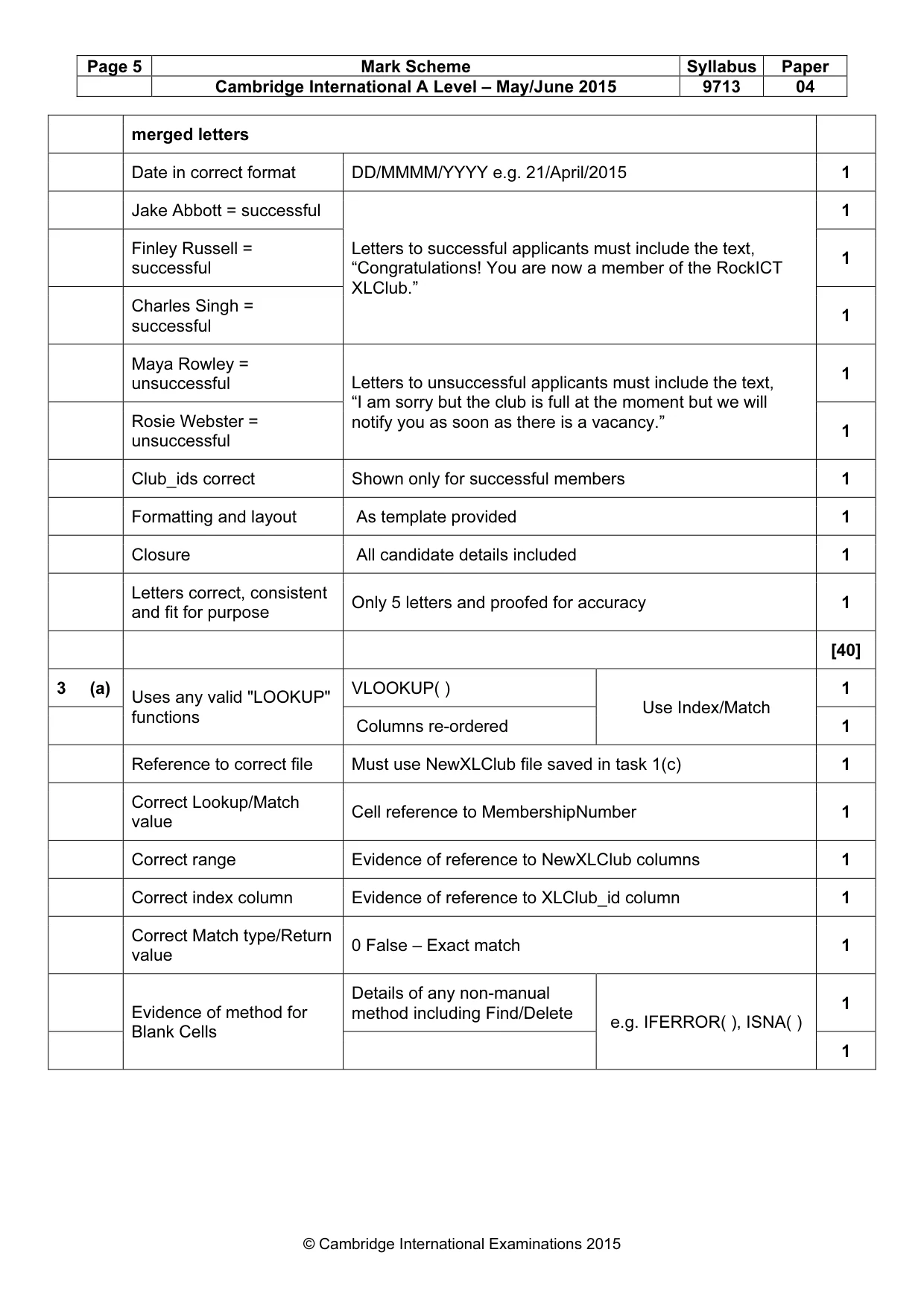
Page 5 Mark Scheme Syllabus Paper Cambridge International A Level – May/June 2015 9713 04 © Cambridge International Examinations 2015 merged letters Date in correct format DD/MMMM/YYYY e.g. 21/April/2015 1 Jake Abbott = successful Letters to successful applicants must include the text, “Congratulations! You are now a member of the RockICT XLClub.” 1 Finley Russell = successful 1 Charles Singh = successful 1 Maya Rowley = unsuccessful Letters to unsuccessful applicants must include the text, “I am sorry but the club is full at the moment but we will notify you as soon as there is a vacancy.” 1 Rosie Webster = unsuccessful 1 Club_ids correct Shown only for successful members 1 Formatting and layout As template provided 1 Closure All candidate details included 1 Letters correct, consistent and fit for purpose Only 5 letters and proofed for accuracy 1 [40] 3 (a) Uses any valid "LOOKUP" functions VLOOKUP( ) Use Index/Match 1 Columns re-ordered 1 Reference to correct file Must use NewXLClub file saved in task 1(c) 1 Correct Lookup/Match value Cell reference to MembershipNumber 1 Correct range Evidence of reference to NewXLClub columns 1 Correct index column Evidence of reference to XLClub_id column 1 Correct Match type/Return value 0 False – Exact match 1 Evidence of method for Blank Cells Details of any non-manual method including Find/Delete e.g. IFERROR( ), ISNA( ) 1 1
Mark scheme, page 6
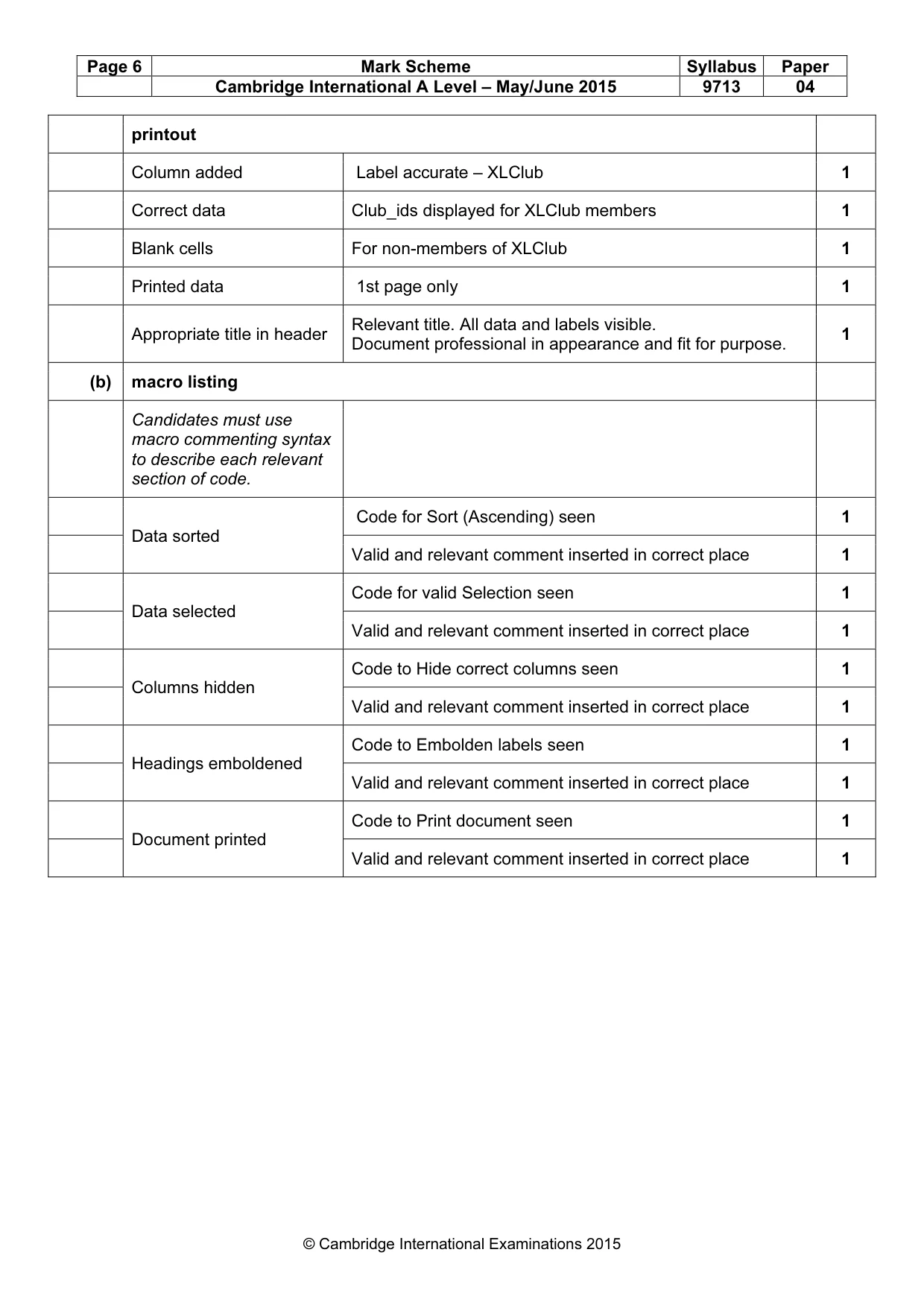
Page 6 Mark Scheme Syllabus Paper Cambridge International A Level – May/June 2015 9713 04 © Cambridge International Examinations 2015 printout Column added Label accurate – XLClub 1 Correct data Club_ids displayed for XLClub members 1 Blank cells For non-members of XLClub 1 Printed data 1st page only 1 Appropriate title in header Relevant title. All data and labels visible. Document professional in appearance and fit for purpose. 1 (b) macro listing Candidates must use macro commenting syntax to describe each relevant section of code. Data sorted Code for Sort (Ascending) seen 1 Valid and relevant comment inserted in correct place 1 Data selected Code for valid Selection seen 1 Valid and relevant comment inserted in correct place 1 Columns hidden Code to Hide correct columns seen 1 Valid and relevant comment inserted in correct place 1 Headings emboldened Code to Embolden labels seen 1 Valid and relevant comment inserted in correct place 1 Document printed Code to Print document seen 1 Valid and relevant comment inserted in correct place 1
Mark scheme, page 7
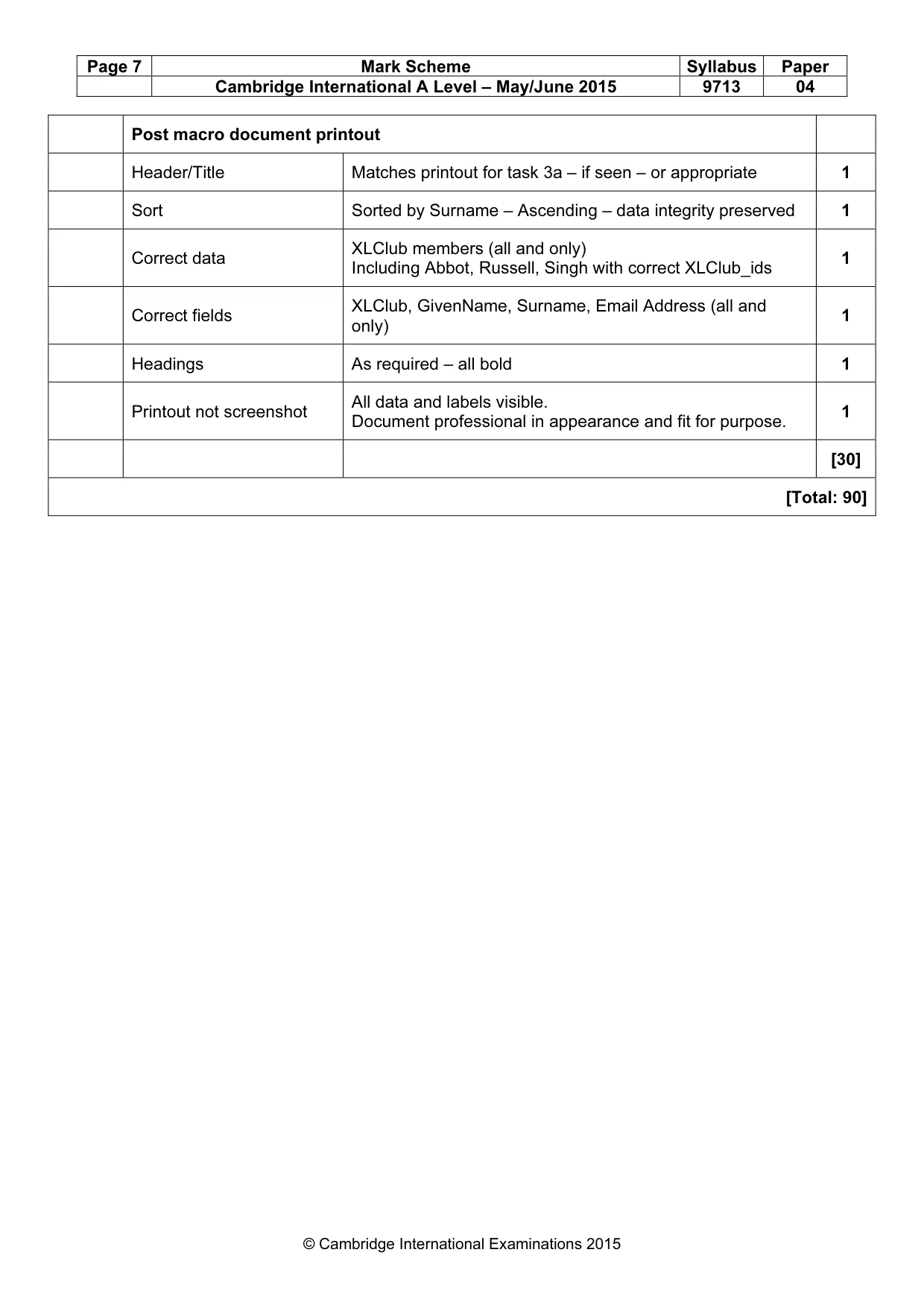
Page 7 Mark Scheme Syllabus Paper Cambridge International A Level – May/June 2015 9713 04 © Cambridge International Examinations 2015 Post macro document printout Header/Title Matches printout for task 3a – if seen – or appropriate 1 Sort Sorted by Surname – Ascending – data integrity preserved 1 Correct data XLClub members (all and only) Including Abbot, Russell, Singh with correct XLClub_ids 1 Correct fields XLClub, GivenName, Surname, Email Address (all and only) 1 Headings As required – all bold 1 Printout not screenshot All data and labels visible. Document professional in appearance and fit for purpose. 1 [30] [Total: 90]
What you needed in this session
Cambridge’s own grade thresholds for 2015 May/June, Paper 4 · Variant 1. A higher threshold means an easier paper — the bar moves with how the cohort did.