Cambridge A Level Information Technology (from 2017) 9626 — 2024 Oct/Nov Paper 4 · Variant 0
9626/40/O/N/24 · 90 marks · ≈101 min
The question paper and its mark scheme, free to read here and free to download. This is Cambridge’s own paper, exactly as it was sat.
Question paper16 pages
Mark scheme
No mark scheme is in the library for this paper.
Paper as text
Question paper, page 1
This document has 16 pages. Any blank pages are indicated. [Turn over Cambridge International AS & A Level INFORMATION TECHNOLOGY 9626/04 Paper 4 Advanced Practical October/November 2024 2 hours 30 minutes You will need: Candidate source files (listed on page 2) INSTRUCTIONS ● Carry out every instruction in each task. ● Save your work using the file names given in the task as and when instructed. ● You must not have access to either the internet or any email system during this examination. ● You must save your work in the correct file format as stated in the tasks. If work is saved in an incorrect file format, you will not receive marks for that task. INFORMATION ● The total mark for this paper is 90. ● The number of marks for each question or part question is shown in brackets [ ]. * 3 6 1 4 3 7 8 3 2 3 * DC (ST/CB) 327861/3 © UCLES 2024
Question paper, page 2
2 9626/04/O/N/24 © UCLES 2024 You have been supplied with the following source files: Axis.png Background.gif Bay.jpg Earth.png MarketingPlans.xls MemWordTest.html MemWordTest.js Moon.jpg Moonlight.png Create a folder called Examination . You must save all your work in this folder. Copy the source files into this folder. Do not delete these files when submitting your work. Do not tidy the folder by deleting files created at any stage of attempting the tasks. You must use the most efficient methods to solve each task. All work produced must be of a professional standard and contain your candidate details.
Question paper, page 3
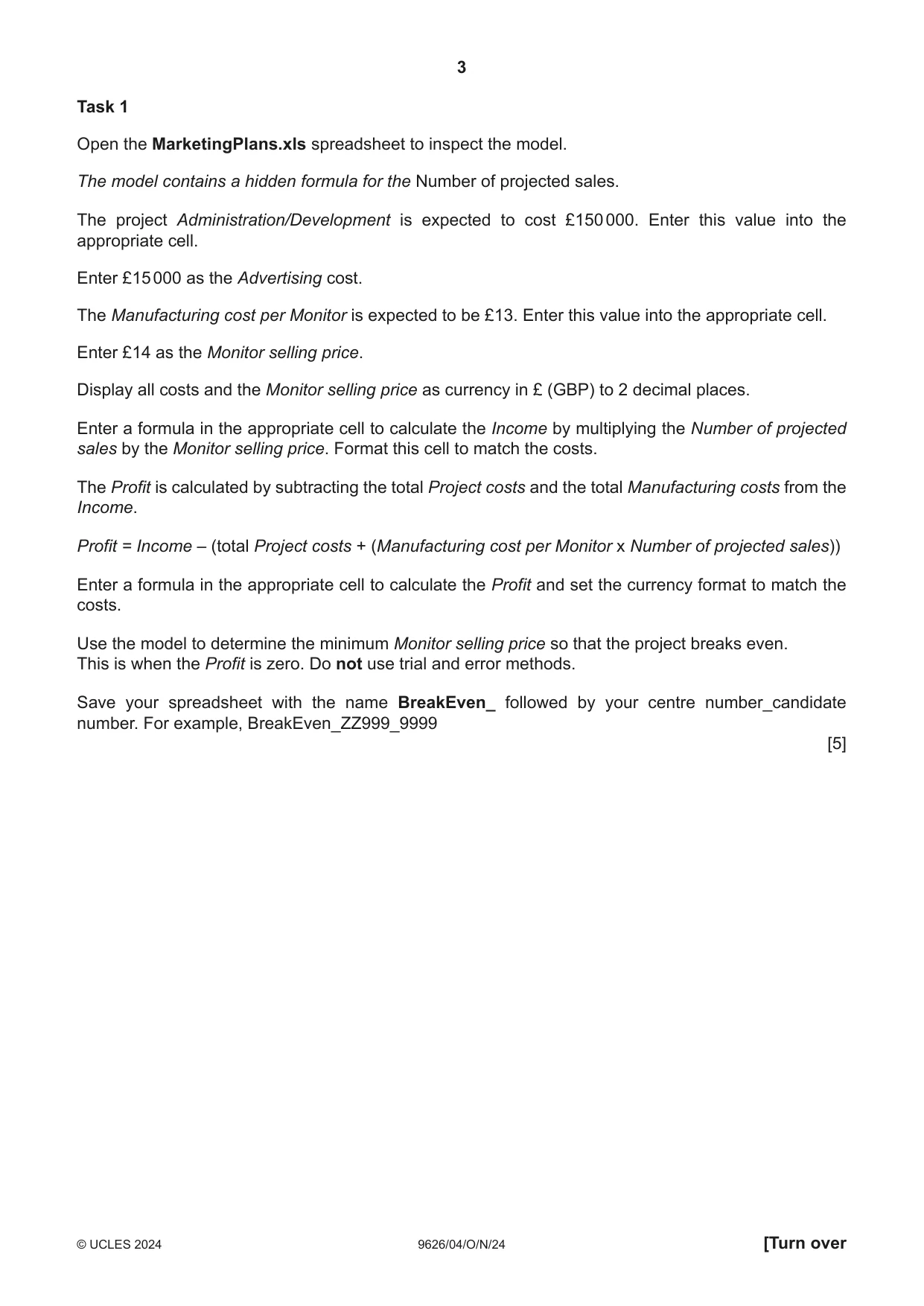
3 9626/04/O/N/24 © UCLES 2024 [Turn over Task 1 Open the MarketingPlans.xls spreadsheet to inspect the model. The model contains a hidden formula for the Number of projected sales. The project Administration/Development is expected to cost £150 000. Enter this value into the appropriate cell. Enter £15 000 as the Advertising cost. The Manufacturing cost per Monitor is expected to be £13. Enter this value into the appropriate cell. Enter £14 as the Monitor selling price. Display all costs and the Monitor selling price as currency in £ (GBP) to 2 decimal places. Enter a formula in the appropriate cell to calculate the Income by multiplying the Number of projected sales by the Monitor selling price. Format this cell to match the costs. The Profit is calculated by subtracting the total Project costs and the total Manufacturing costs from the Income. Profit = Income – (total Project costs + (Manufacturing cost per Monitor x Number of projected sales)) Enter a formula in the appropriate cell to calculate the Profit and set the currency format to match the costs. Use the model to determine the minimum Monitor selling price so that the project breaks even. This is when the Profit is zero. Do not use trial and error methods. Save your spreadsheet with the name BreakEven_ followed by your centre number_candidate number. For example, BreakEven_ZZ999_9999 [5]
Question paper, page 4
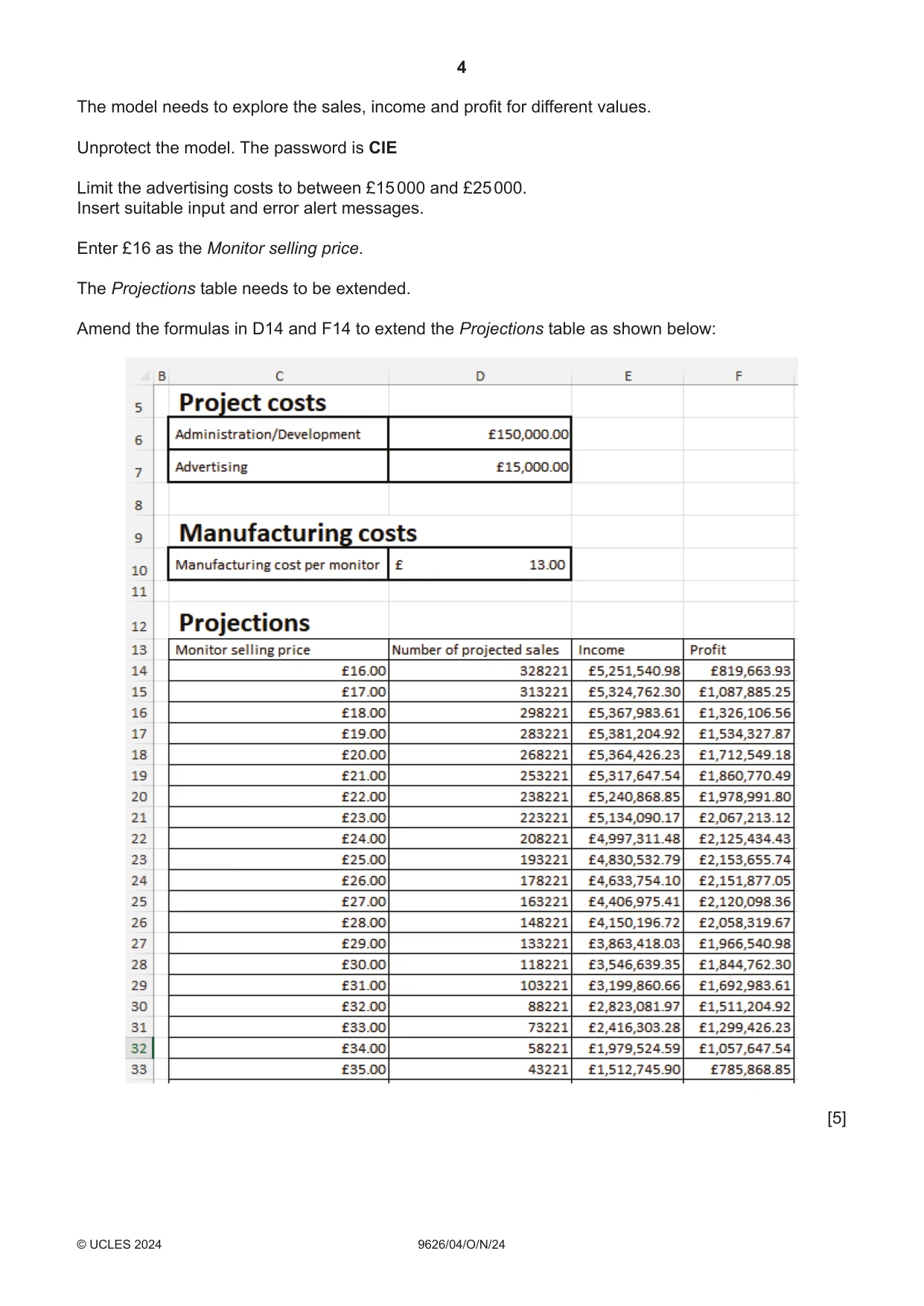
4 9626/04/O/N/24 © UCLES 2024 The model needs to explore the sales, income and profit for different values. Unprotect the model. The password is CIE Limit the advertising costs to between £15 000 and £25 000. Insert suitable input and error alert messages. Enter £16 as the Monitor selling price. The Projections table needs to be extended. Amend the formulas in D14 and F14 to extend the Projections table as shown below: [5]
Question paper, page 5
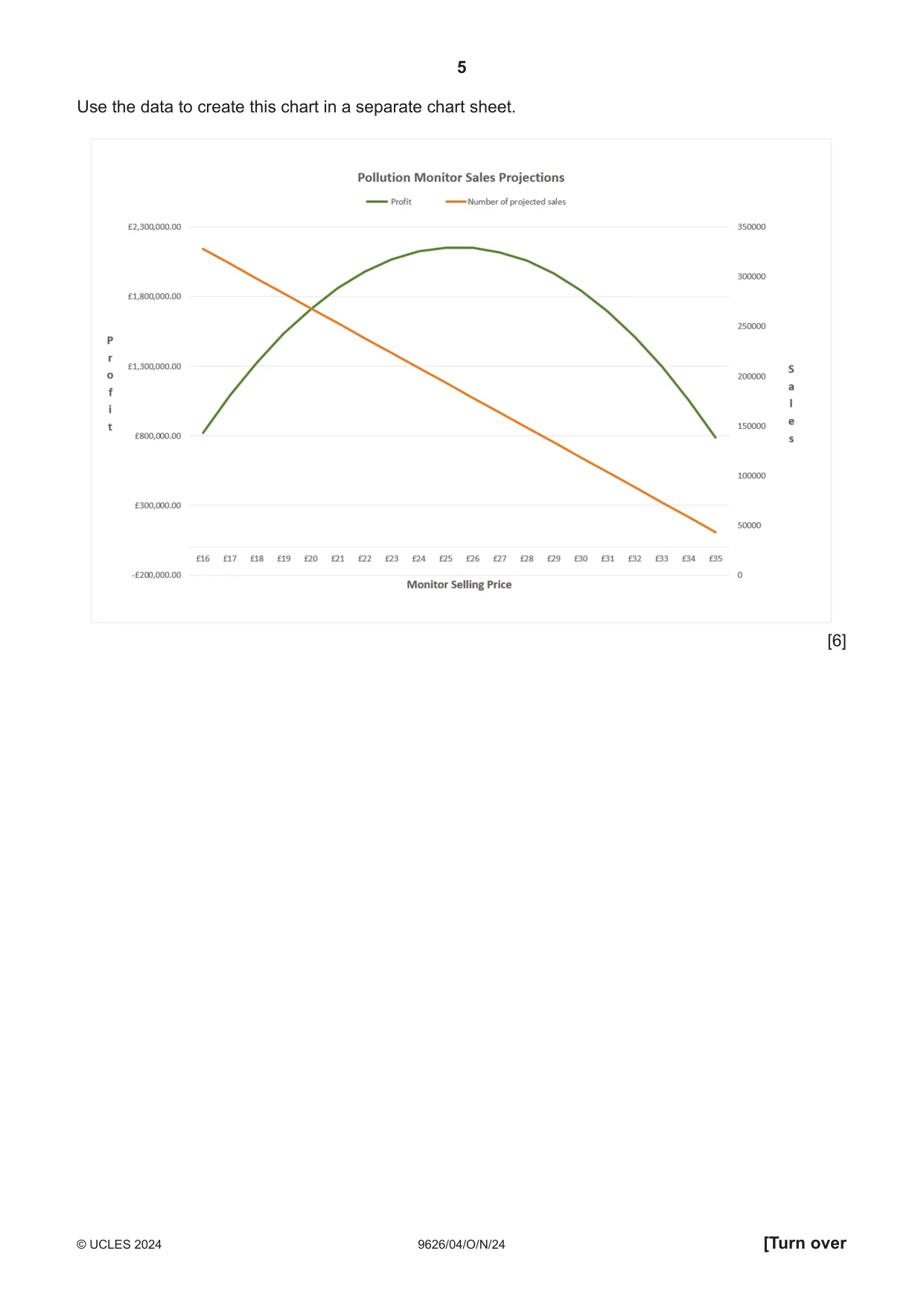
5 9626/04/O/N/24 © UCLES 2024 [Turn over Use the data to create this chart in a separate chart sheet. [6]
Question paper, page 6
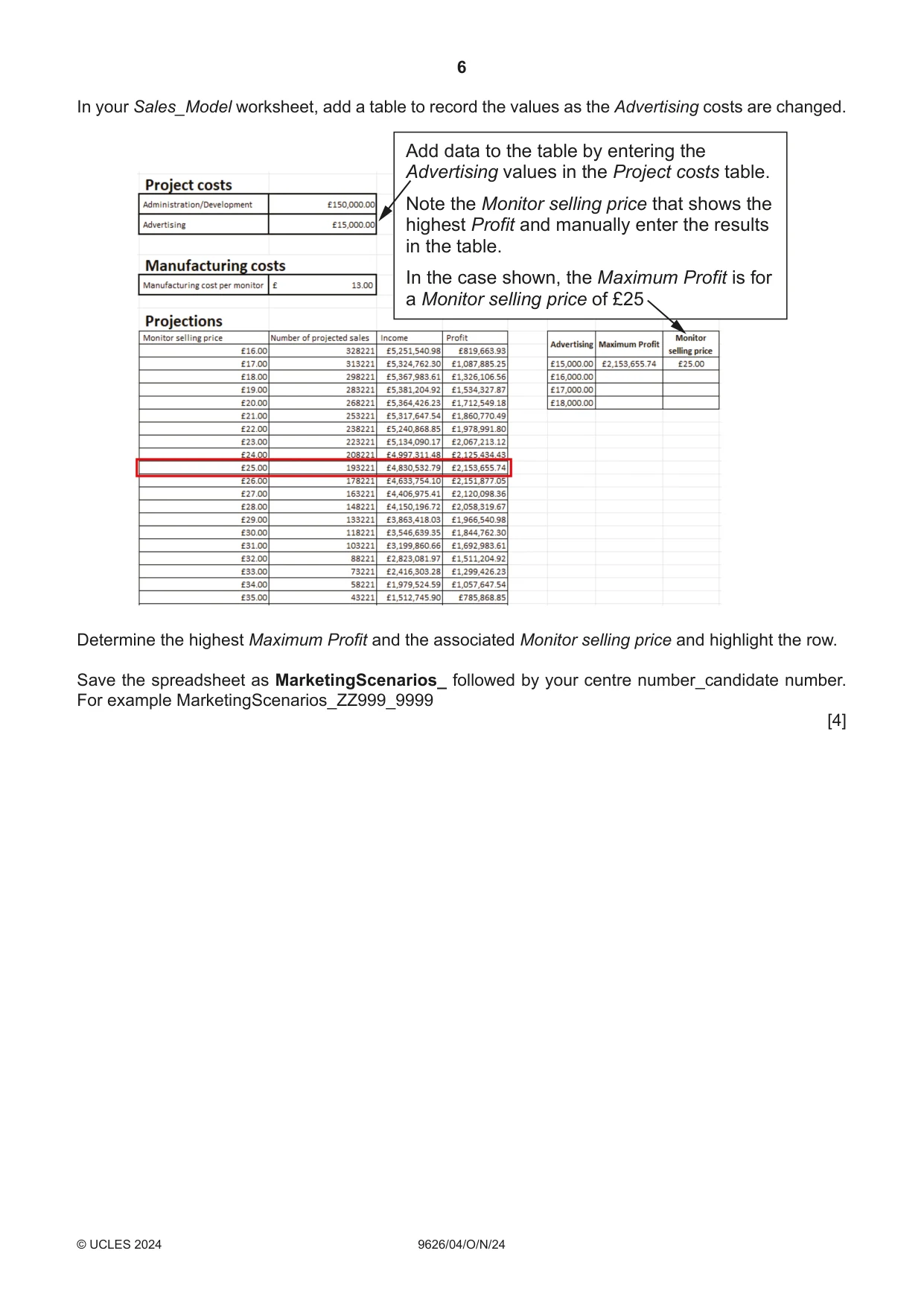
6 9626/04/O/N/24 © UCLES 2024 In your Sales_Model worksheet, add a table to record the values as the Advertising costs are changed. Add data to the table by entering the Advertising values in the Project costs table. Note the Monitor selling price that shows the highest Profit and manually enter the results in the table. In the case shown, the Maximum Profit is for a Monitor selling price of £25 Determine the highest Maximum Profit and the associated Monitor selling price and highlight the row. Save the spreadsheet as MarketingScenarios_ followed by your centre number_candidate number. For example MarketingScenarios_ZZ999_9999 [4]
Question paper, page 7
7 9626/04/O/N/24 © UCLES 2024 [Turn over BLANK PAGE
Question paper, page 8
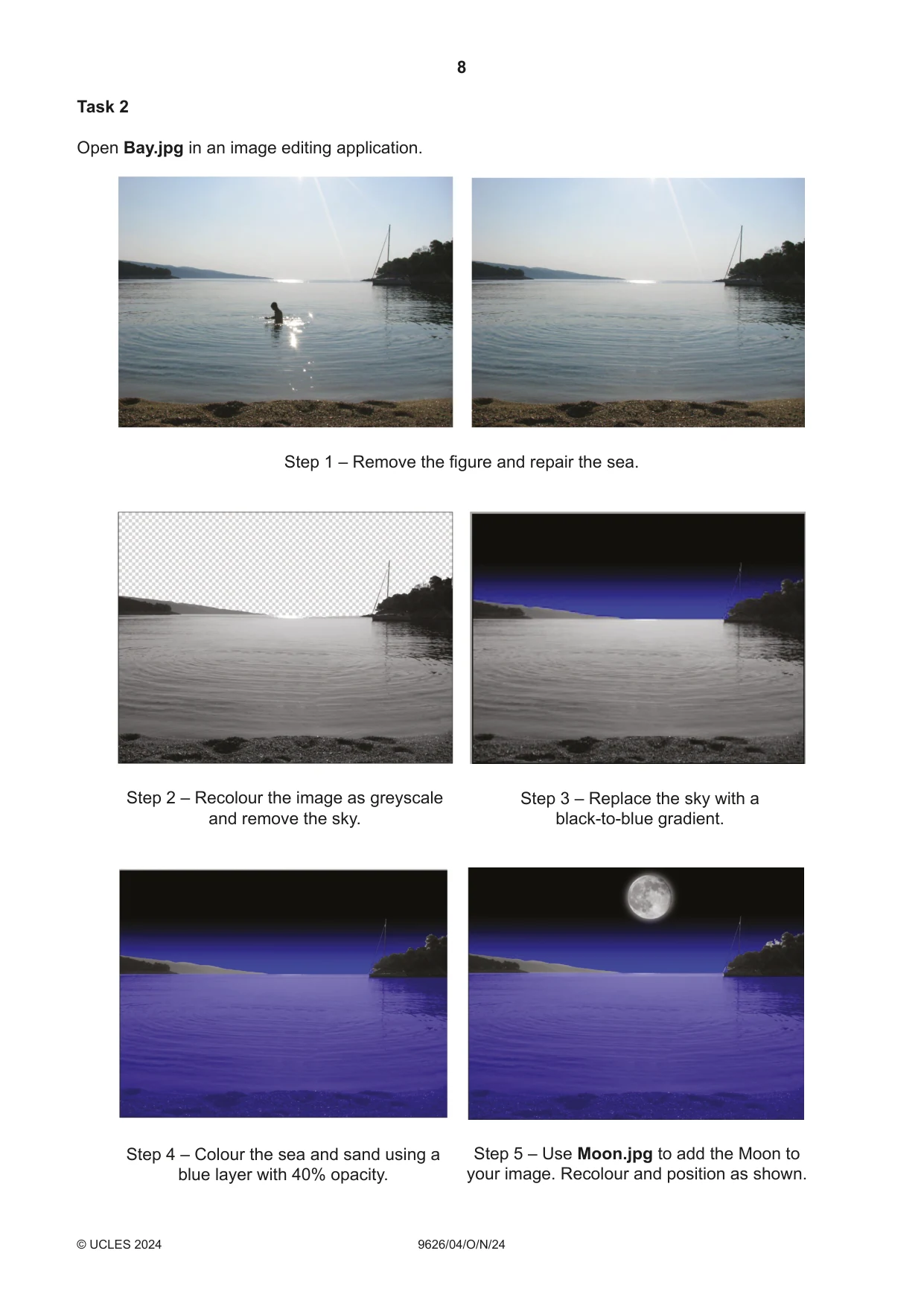
8 9626/04/O/N/24 © UCLES 2024 Task 2 Open Bay.jpg in an image editing application. Step 1 – Remove the figure and repair the sea. Step 2 – Recolour the image as greyscale and remove the sky. Step 3 – Replace the sky with a black‑to‑blue gradient. Step 4 – Colour the sea and sand using a blue layer with 40% opacity. Step 5 – Use Moon.jpg to add the Moon to your image. Recolour and position as shown.
Question paper, page 9
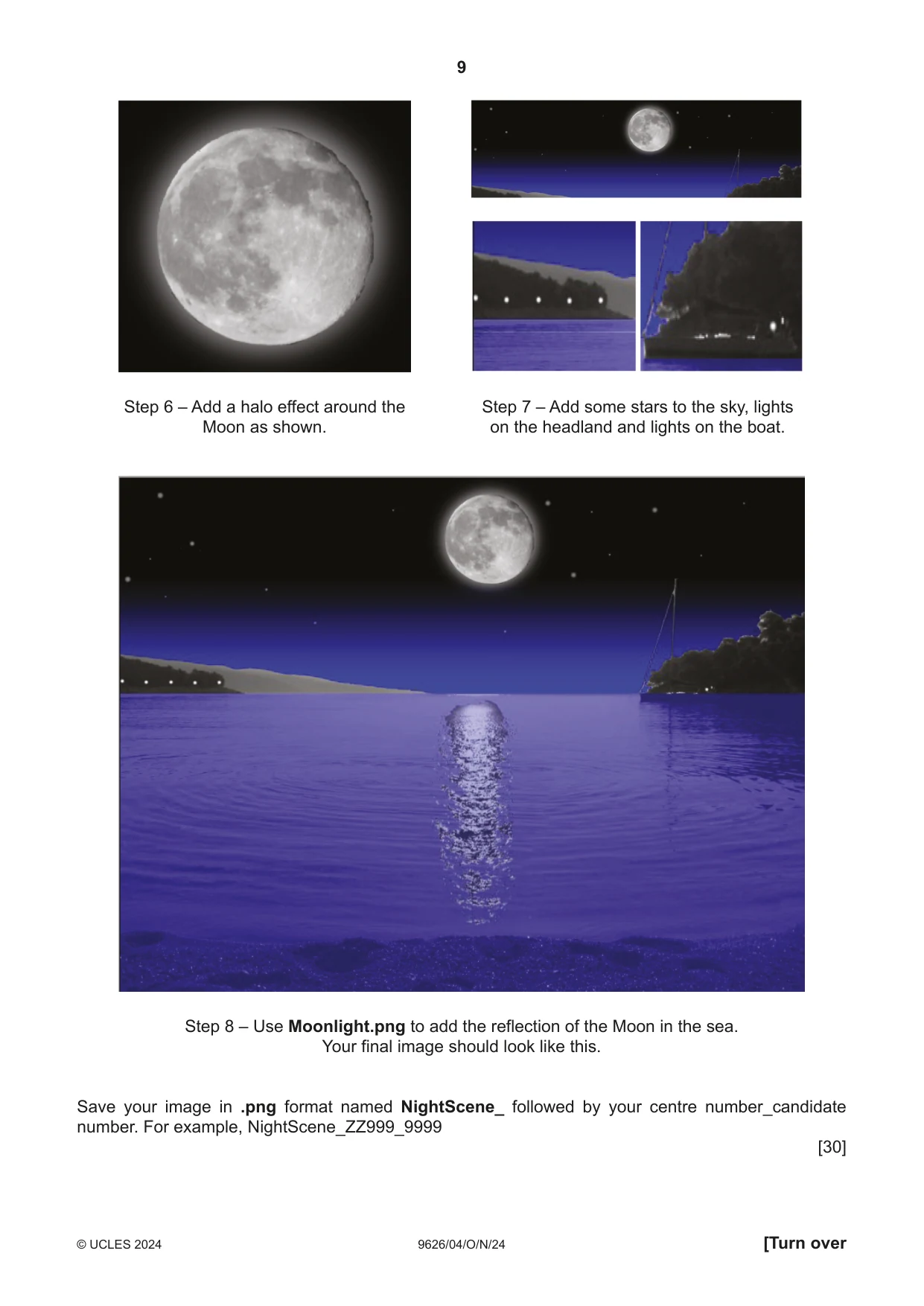
9 9626/04/O/N/24 © UCLES 2024 [Turn over Step 6 – Add a halo effect around the Moon as shown. Step 7 – Add some stars to the sky, lights on the headland and lights on the boat. Step 8 – Use Moonlight.png to add the reflection of the Moon in the sea. Your final image should look like this. Save your image in .png format named NightScene_ followed by your centre number_candidate number. For example, NightScene_ZZ999_9999 [30]
Question paper, page 10
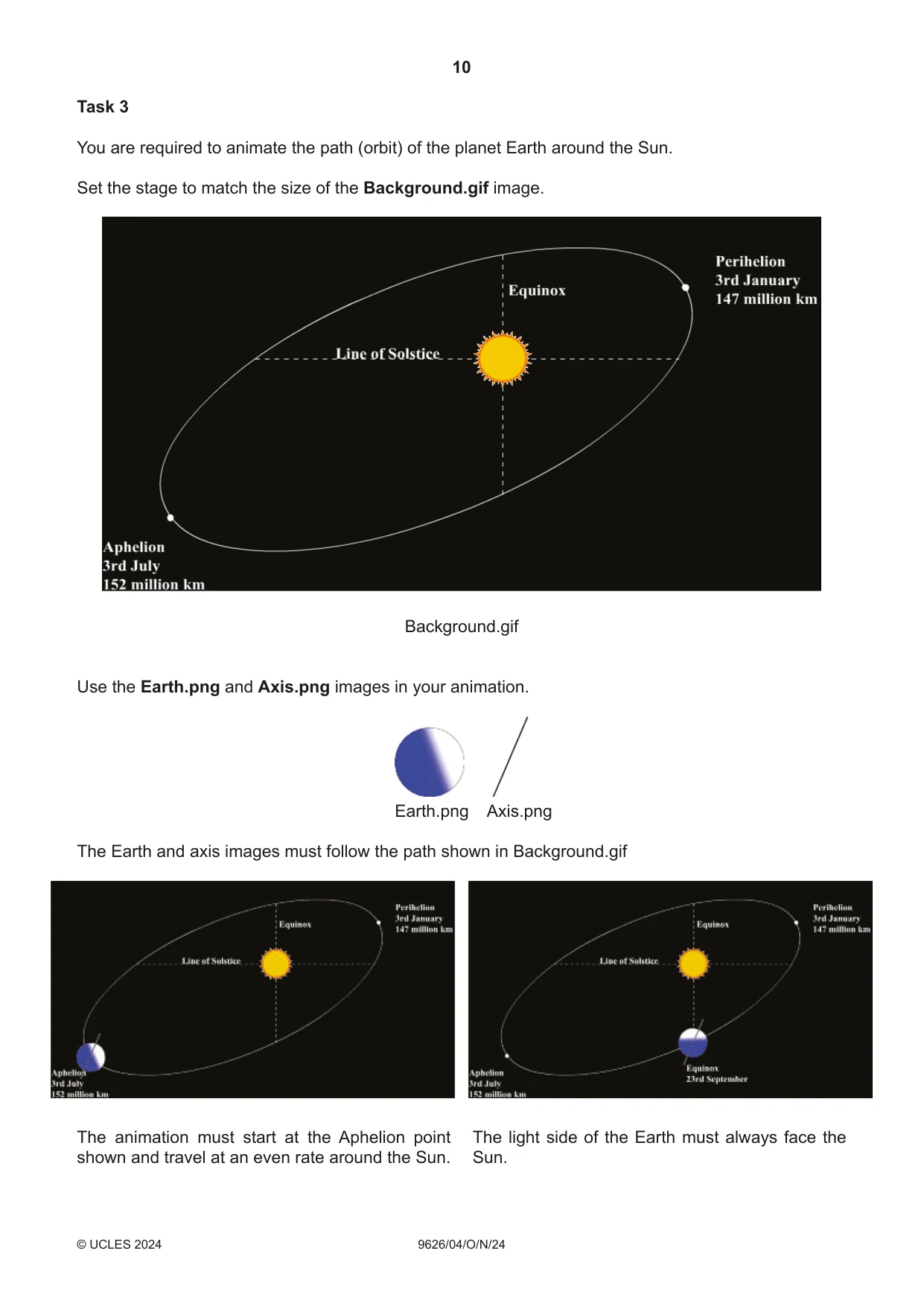
10 9626/04/O/N/24 © UCLES 2024 Task 3 You are required to animate the path (orbit) of the planet Earth around the Sun. Set the stage to match the size of the Background.gif image. Background.gif Use the Earth.png and Axis.png images in your animation. Earth.png Axis.png The Earth and axis images must follow the path shown in Background.gif The animation must start at the Aphelion point shown and travel at an even rate around the Sun. The light side of the Earth must always face the Sun.
Question paper, page 11
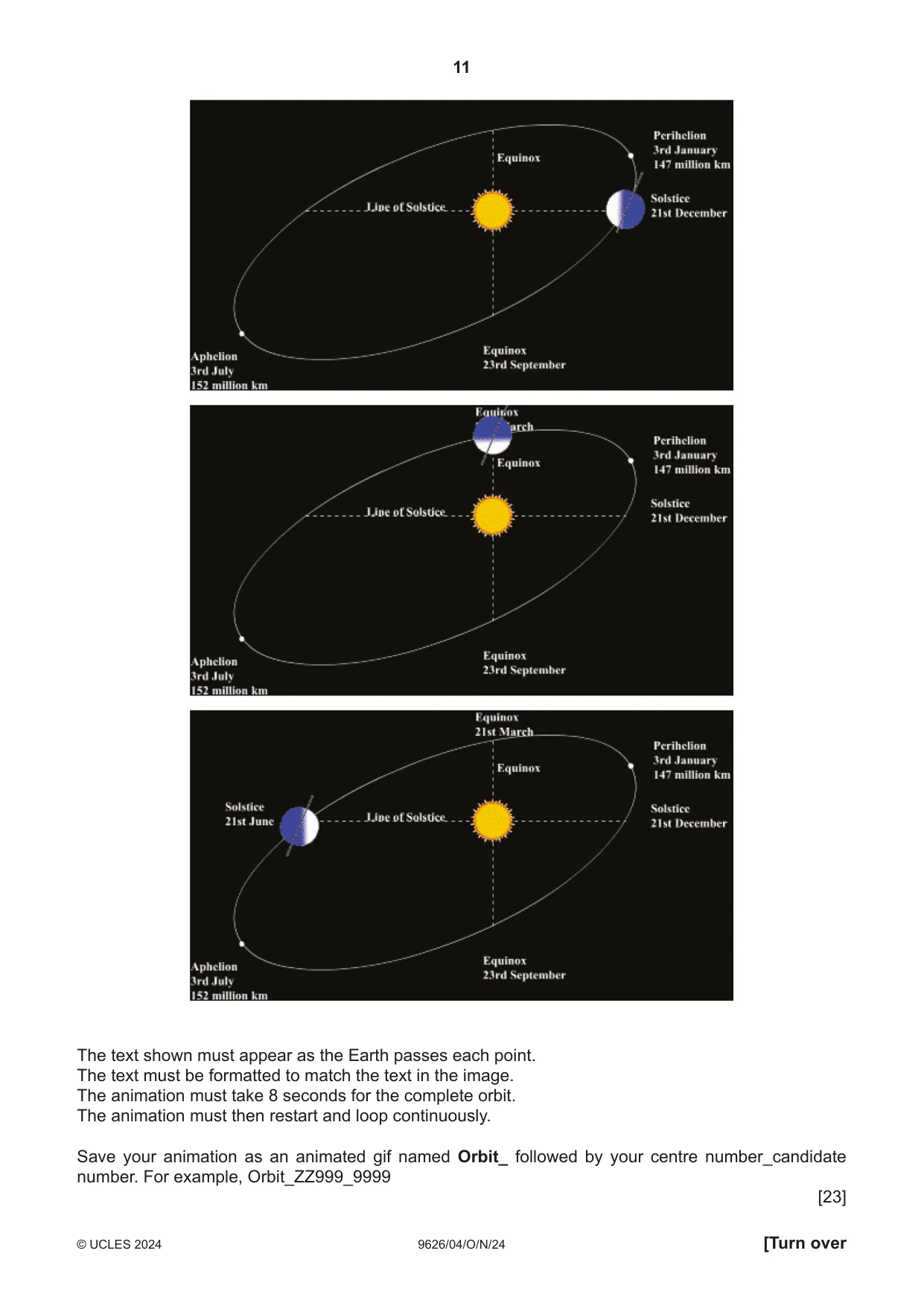
11 9626/04/O/N/24 © UCLES 2024 [Turn over The text shown must appear as the Earth passes each point. The text must be formatted to match the text in the image. The animation must take 8 seconds for the complete orbit. The animation must then restart and loop continuously. Save your animation as an animated gif named Orbit_ followed by your centre number_candidate number. For example, Orbit_ZZ999_9999 [23]
Question paper, page 12
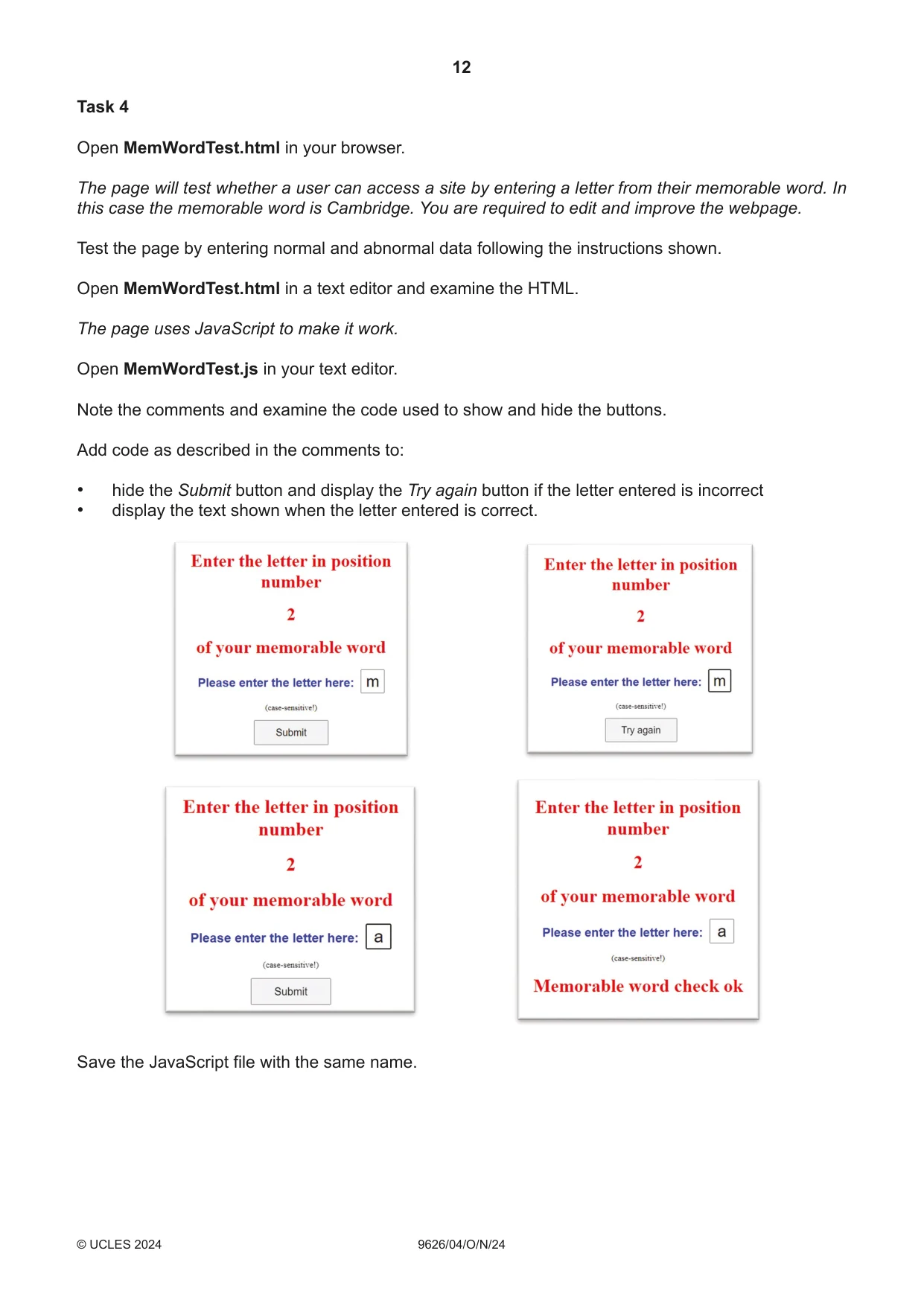
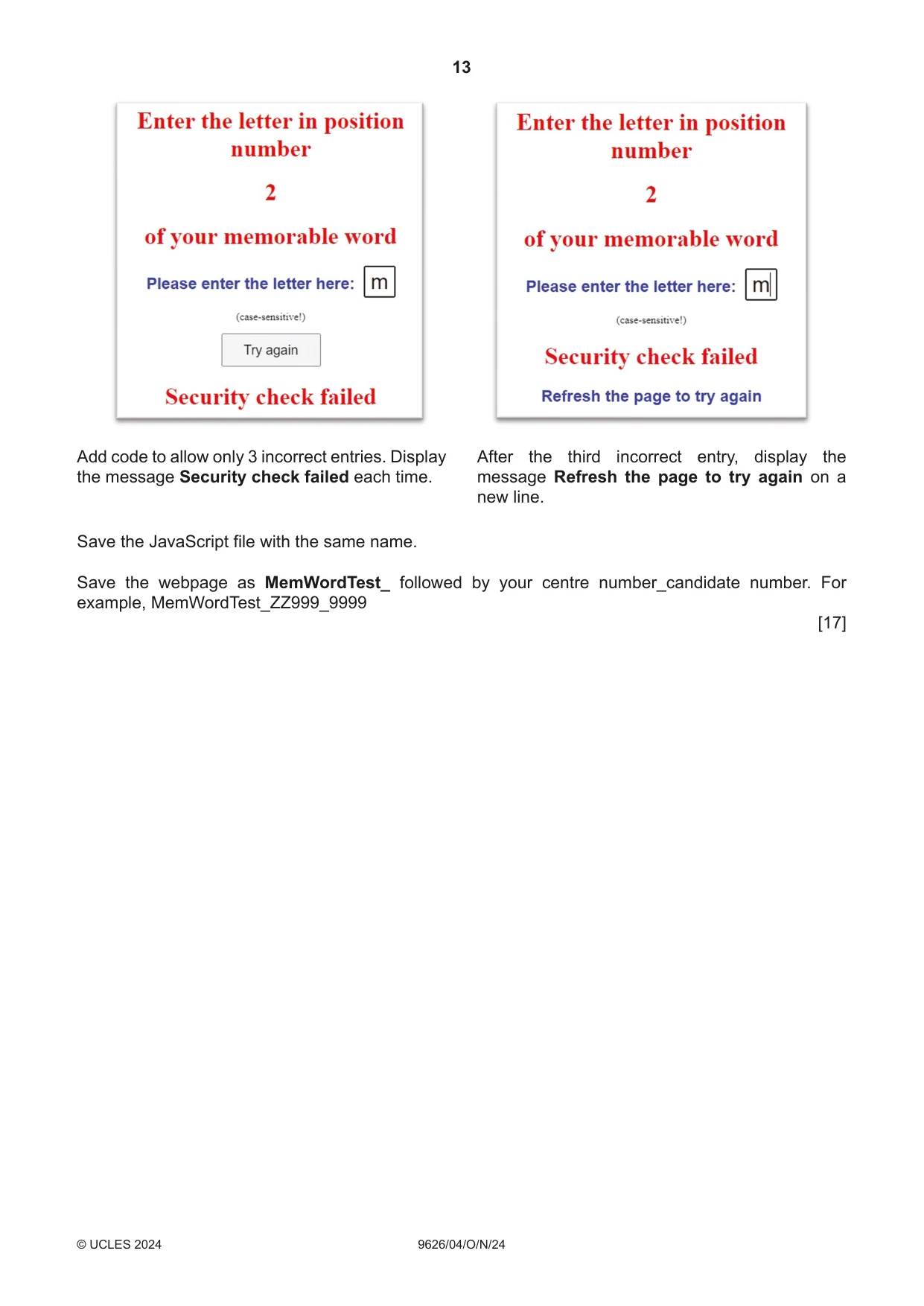
12 9626/04/O/N/24 © UCLES 2024 Task 4 Open MemWordTest.html in your browser. The page will test whether a user can access a site by entering a letter from their memorable word. In this case the memorable word is Cambridge. You are required to edit and improve the webpage. Test the page by entering normal and abnormal data following the instructions shown. Open MemWordTest.html in a text editor and examine the HTML. The page uses JavaScript to make it work. Open MemWordTest.js in your text editor. Note the comments and examine the code used to show and hide the buttons. Add code as described in the comments to: • hide the Submit button and display the Try again button if the letter entered is incorrect • display the text shown when the letter entered is correct. Save the JavaScript file with the same name.
Question paper, page 13
13 9626/04/O/N/24 © UCLES 2024 Add code to allow only 3 incorrect entries. Display the message Security check failed each time. After the third incorrect entry, display the message Refresh the page to try again on a new line. Save the JavaScript file with the same name. Save the webpage as MemWordTest_ followed by your centre number_candidate number. For example, MemWordTest_ZZ999_9999 [17]
Question paper, page 14
14 9626/04/O/N/24 © UCLES 2024 BLANK PAGE
Question paper, page 15
15 9626/04/O/N/24 © UCLES 2024 BLANK PAGE
Question paper, page 16
16 9626/04/O/N/24 © UCLES 2024 Permission to reproduce items where third‑party owned material protected by copyright is included has been sought and cleared where possible. Every reasonable effort has been made by the publisher (UCLES) to trace copyright holders, but if any items requiring clearance have unwittingly been included, the publisher will be pleased to make amends at the earliest possible opportunity. To avoid the issue of disclosure of answer‑related information to candidates, all copyright acknowledgements are reproduced online in the Cambridge Assessment International Education Copyright Acknowledgements Booklet. This is produced for each series of examinations and is freely available to download at www.cambridgeinternational.org after the live examination series. Cambridge Assessment International Education is part of Cambridge Assessment. Cambridge Assessment is the brand name of the University of Cambridge Local Examinations Syndicate (UCLES), which is a department of the University of Cambridge. BLANK PAGE
What you needed in this session
Cambridge’s own grade thresholds for 2024 Oct/Nov, Paper 4 · Variant 0. A higher threshold means an easier paper — the bar moves with how the cohort did.