Cambridge A Level Information Technology (from 2017) 9626 — 2023 Feb/March Paper 4 · Variant 0
9626/40/F/M/23 · 90 marks · ≈101 min
The question paper and its mark scheme, free to read here and free to download. This is Cambridge’s own paper, exactly as it was sat.
Question paper8 pages

Mark scheme
No mark scheme is in the library for this paper.
Paper as text
Question paper, page 1
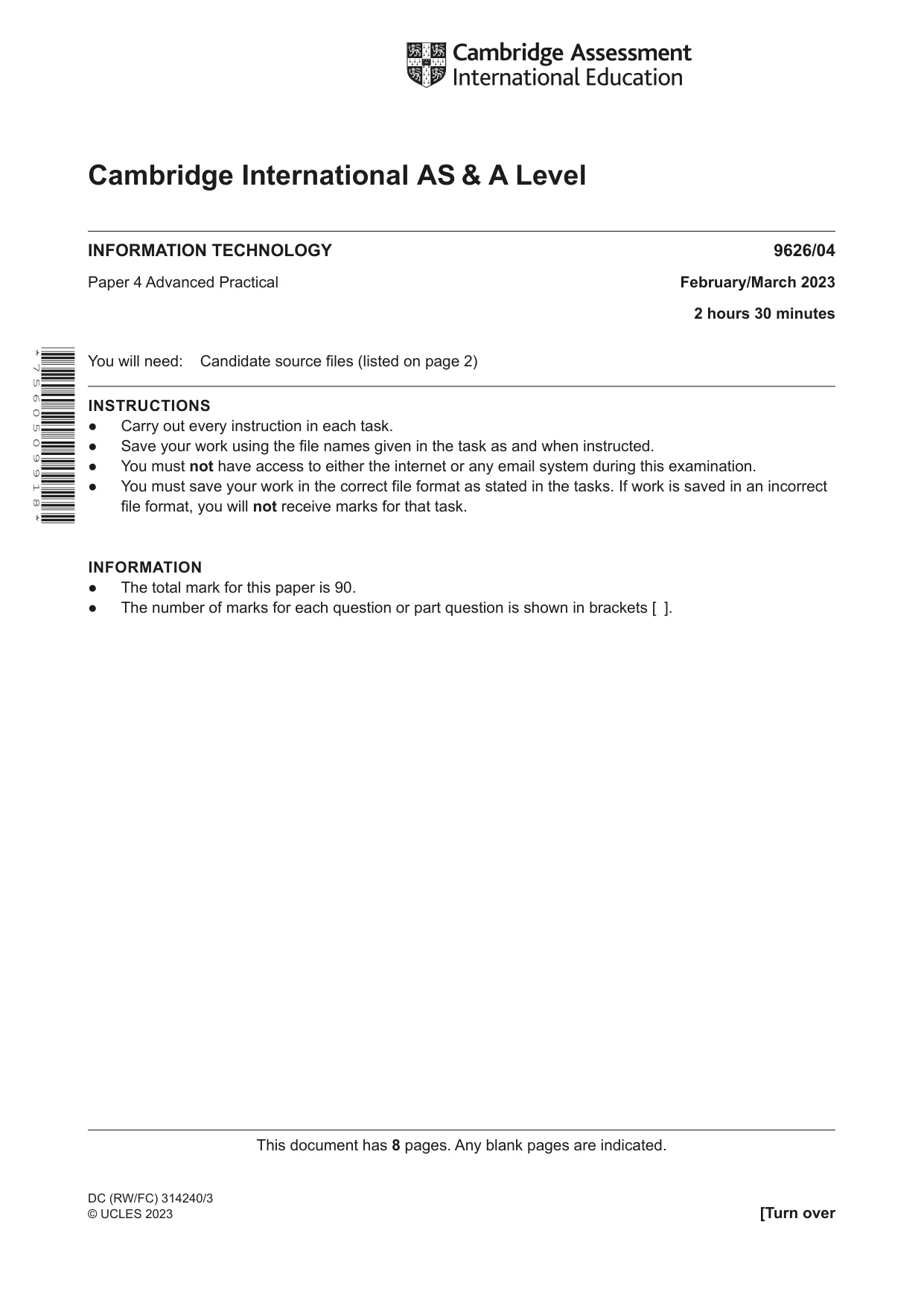
This document has 8 pages. Any blank pages are indicated. [Turn over Cambridge International AS & A Level INFORMATION TECHNOLOGY 9626/04 Paper 4 Advanced Practical February/March 2023 2 hours 30 minutes You will need: Candidate source files (listed on page 2) INSTRUCTIONS ● Carry out every instruction in each task. ● Save your work using the file names given in the task as and when instructed. ● You must not have access to either the internet or any email system during this examination. ● You must save your work in the correct file format as stated in the tasks. If work is saved in an incorrect file format, you will not receive marks for that task. INFORMATION ● The total mark for this paper is 90. ● The number of marks for each question or part question is shown in brackets [ ]. * 7 5 6 0 5 0 9 9 1 8 * DC (RW/FC) 314240/3 © UCLES 2023
Question paper, page 2
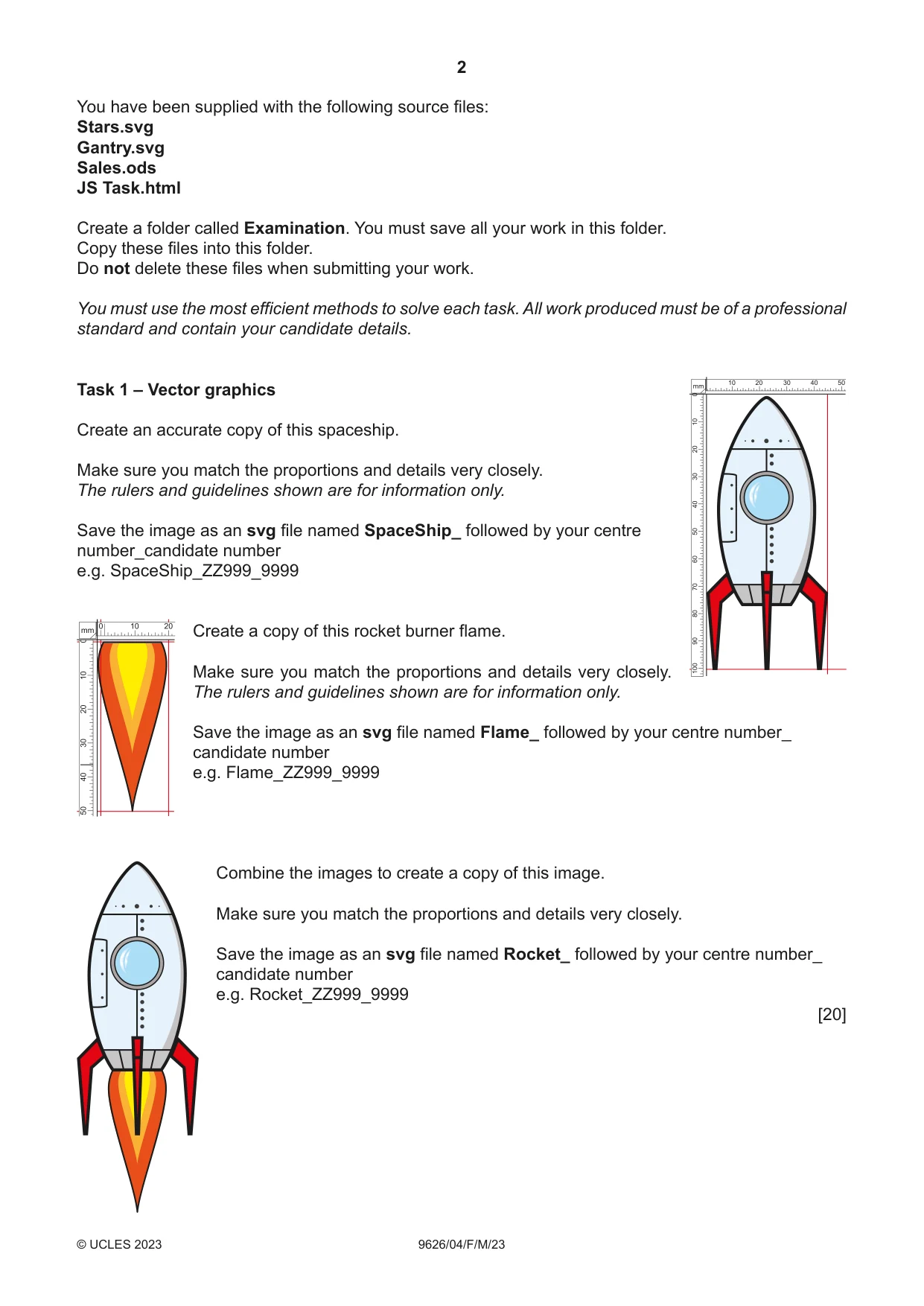
2 9626/04/ F /M /23 © UCLES 2023 You have been supplied with the following source files: Stars.svg Gantry.svg Sales.ods JS Task.html Create a folder called Examination. You must save all your work in this folder. Copy these files into this folder. Do not delete these files when submitting your work. You must use the most efficient methods to solve each task. All work produced must be of a professional standard and contain your candidate details. Task 1 – Vector graphics Create an accurate copy of this spaceship. Make sure you match the proportions and details very closely. The rulers and guidelines shown are for information only. Save the image as an svg file named SpaceShip_ followed by your centre number_candidate number e.g. SpaceShip_ZZ999_9999 Create a copy of this rocket burner flame. Make sure you match the proportions and details very closely. The rulers and guidelines shown are for information only. Save the image as an svg file named Flame_ followed by your centre number_ candidate number e.g. Flame_ZZ999_9999 Combine the images to create a copy of this image. Make sure you match the proportions and details very closely. Save the image as an svg file named Rocket_ followed by your centre number_ candidate number e.g. Rocket_ZZ999_9999 [20]
Question paper, page 3
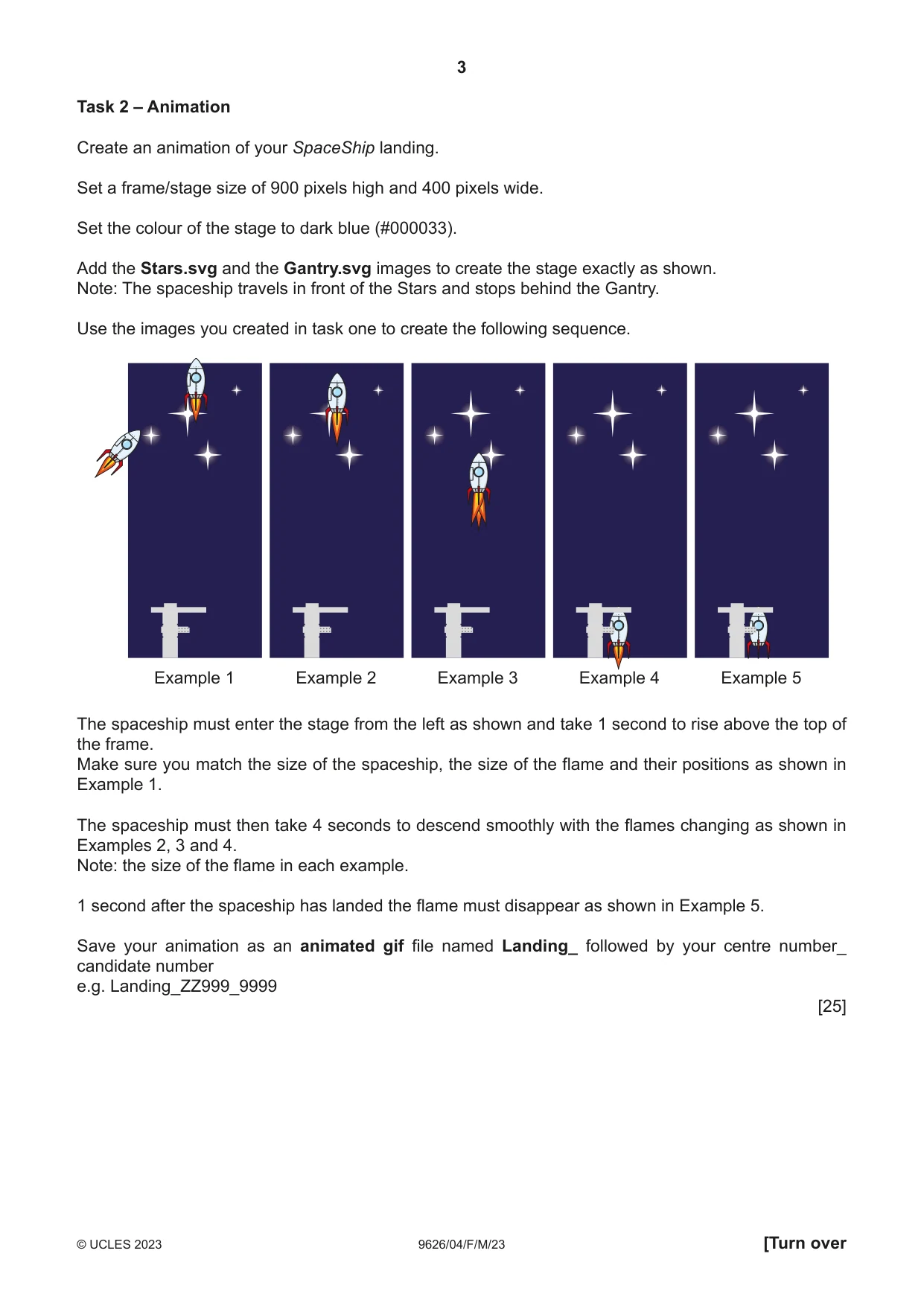
3 9626/04/ F /M /23 © UCLES 2023 [Turn over Task 2 – Animation Create an animation of your SpaceShip landing. Set a frame/stage size of 900 pixels high and 400 pixels wide. Set the colour of the stage to dark blue (#000033). Add the Stars.svg and the Gantry.svg images to create the stage exactly as shown. Note: The spaceship travels in front of the Stars and stops behind the Gantry. Use the images you created in task one to create the following sequence. Example 1 Example 2 Example 3 Example 4 Example 5 The spaceship must enter the stage from the left as shown and take 1 second to rise above the top of the frame. Make sure you match the size of the spaceship, the size of the flame and their positions as shown in Example 1. The spaceship must then take 4 seconds to descend smoothly with the flames changing as shown in Examples 2, 3 and 4. Note: the size of the flame in each example. 1 second after the spaceship has landed the flame must disappear as shown in Example 5. Save your animation as an animated gif file named Landing_ followed by your centre number_ candidate number e.g. Landing_ZZ999_9999 [25]
Question paper, page 4
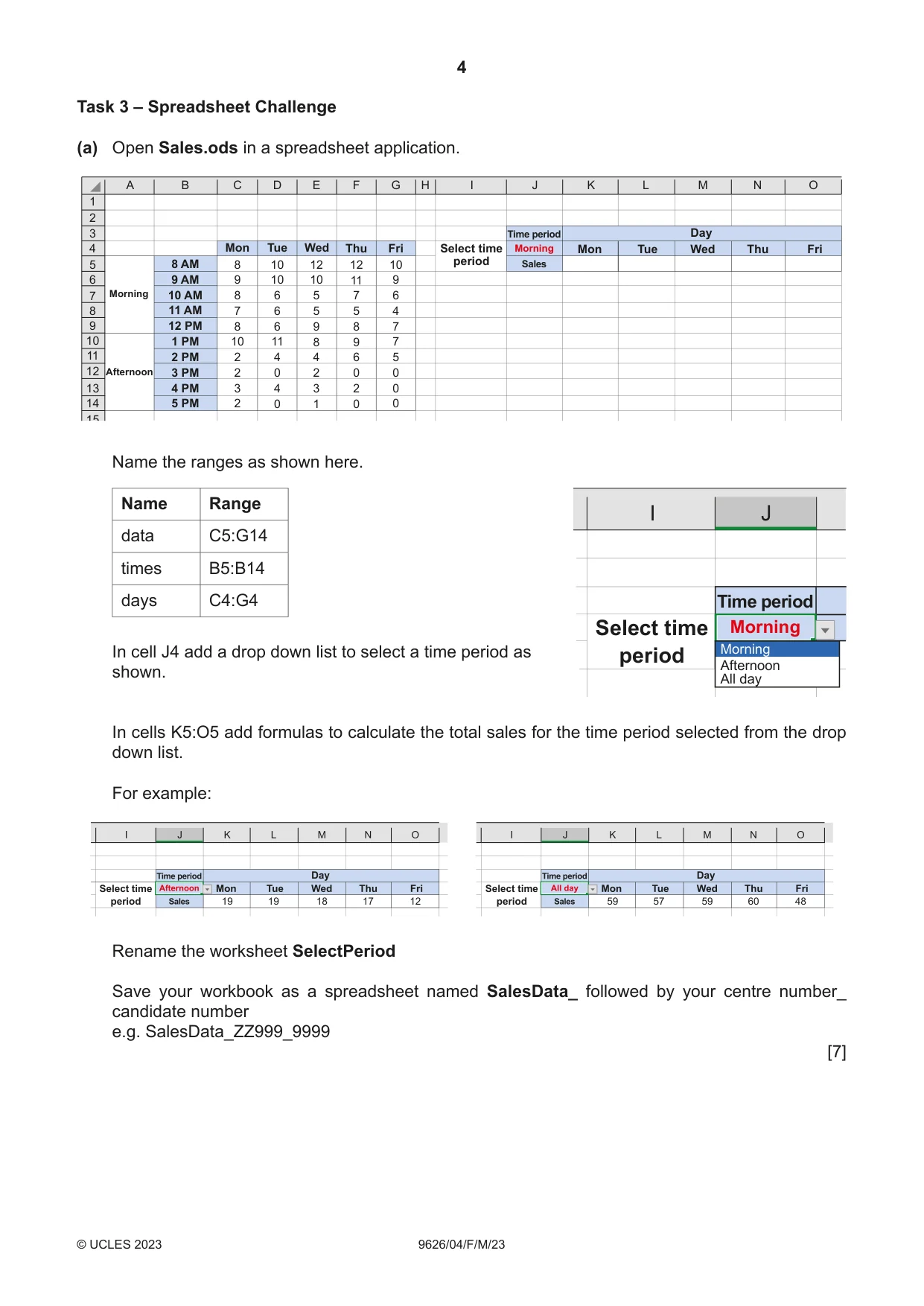
4 9626/04/F/M/23 © UCLES 2023 Task 3 – Spreadsheet Challenge (a) Open Sales.ods in a spreadsheet application. A 1 2 3 4 5 B C D E F Mon 8 9 8 7 8 10 2 2 3 2 Tue 10 10 6 6 6 11 4 0 4 0 Wed 12 10 5 5 9 8 4 2 3 1 Thu 12 11 7 5 8 9 6 0 2 0 Fri Mon Tue Wed Thu Fri Day Time period Select time period Sales Morning Morning Afternoon 10 9 6 4 7 7 5 0 0 0 8 AM 9 AM 10 AM 11 AM 12 PM 1 PM 2 PM 3 PM 4 PM 5 PM G H I J K L M N O 6 7 8 9 10 11 12 13 14 15 Name the ranges as shown here. Name Range data C5:G14 times B5:B14 days C4:G4 Time period Select time period Morning I J Morning Afternoon All day In cell J4 add a drop down list to select a time period as shown. In cells K5:O5 add formulas to calculate the total sales for the time period selected from the drop down list. For example: Select time period Select time period Rename the worksheet SelectPeriod Save your workbook as a spreadsheet named SalesData_ followed by your centre number_ candidate number e.g. SalesData_ZZ999_9999 [7]
Question paper, page 5
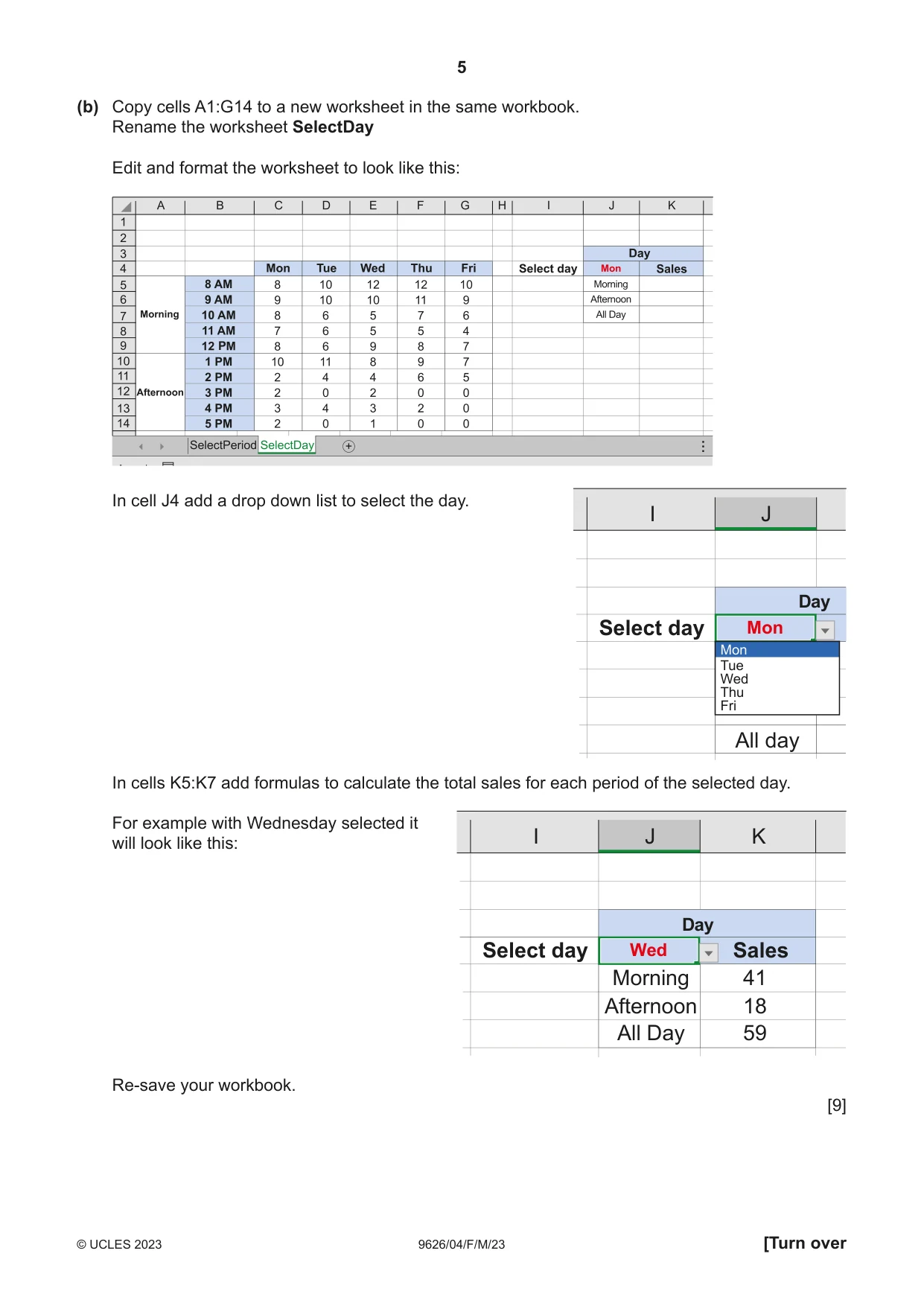
5 9626/04/F/M/23 © UCLES 2023 [Turn over (b) Copy cells A1:G14 to a new worksheet in the same workbook. Rename the worksheet SelectDay Edit and format the worksheet to look like this: P I In cell J4 add a drop down list to select the day. Day Select day All day Mon I J Mon Tue Wed Thu Fri In cells K5:K7 add formulas to calculate the total sales for each period of the selected day. Day Select day Sales Morning 41 Afternoon 18 All Day 59 Wed I J K For example with Wednesday selected it will look like this: Re-save your workbook. [9]
Question paper, page 6
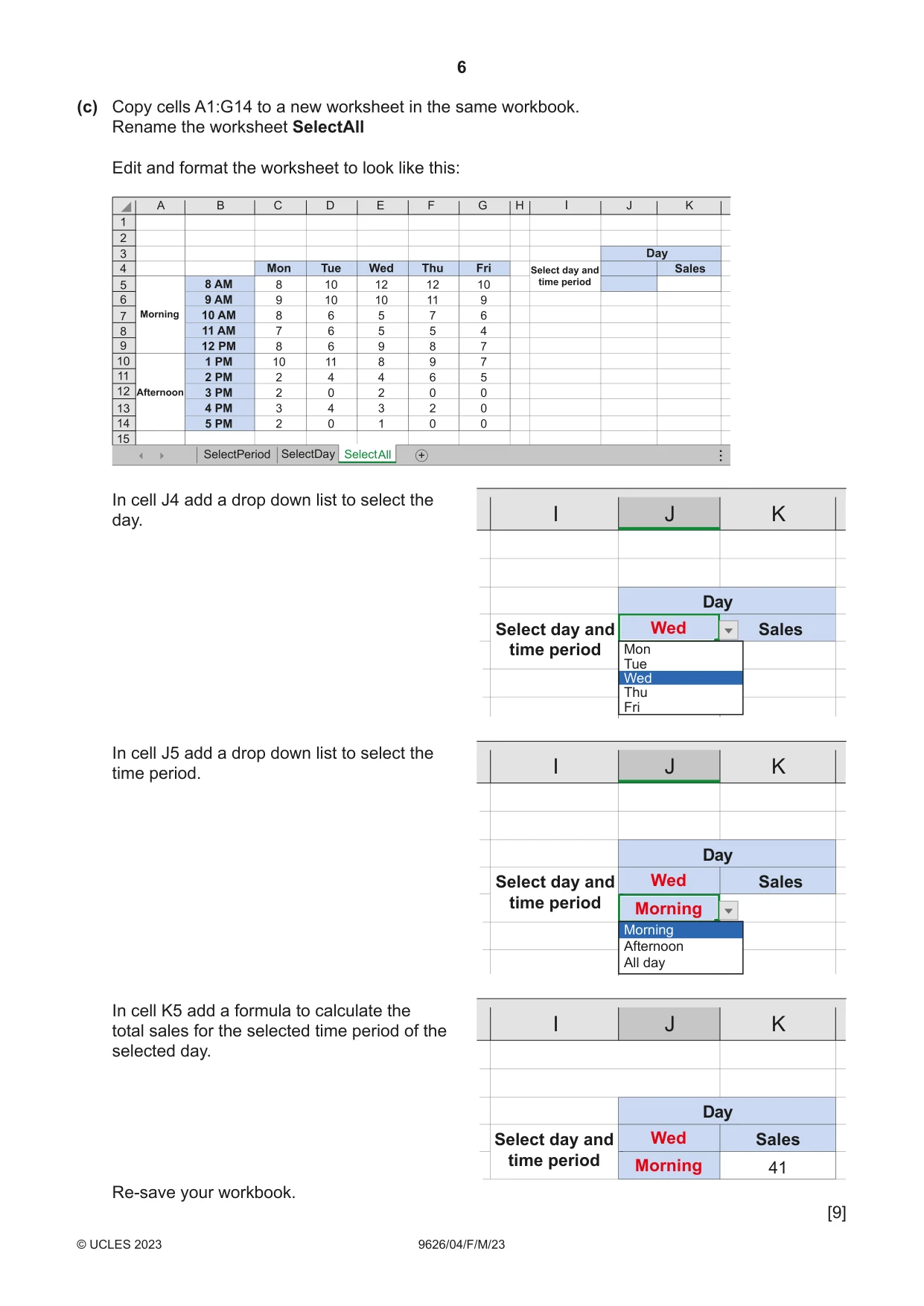
6 9626/04/F/M/23 © UCLES 2023 (c) Copy cells A1:G14 to a new worksheet in the same workbook. Rename the worksheet SelectAll Edit and format the worksheet to look like this: SelectDay All Sales I In cell J4 add a drop down list to select the day. Day Select day and time period Sales Wed I J K Mon Tue Wed Thu Fri In cell J5 add a drop down list to select the time period. Day Select day and time period Sales Wed Morning I J K Morning Afternoon All day In cell K5 add a formula to calculate the total sales for the selected time period of the selected day. Re-save your workbook. Day Select day and time period Sales 41 Wed Morning I J K [9]
Question paper, page 7
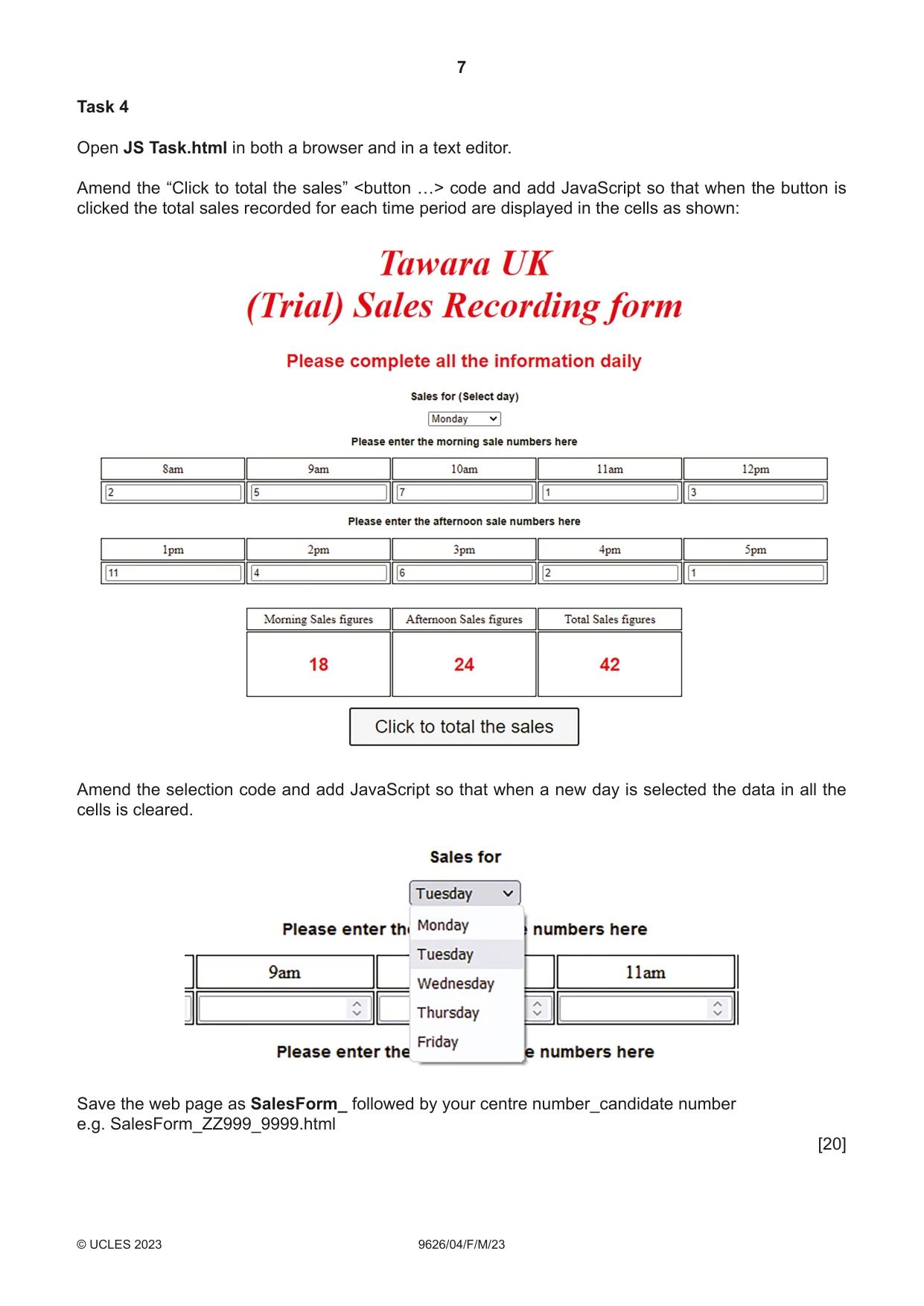
7 9626/04/F/M/23 © UCLES 2023 Task 4 Open JS Task.html in both a browser and in a text editor. Amend the “Click to total the sales” <button …> code and add JavaScript so that when the button is clicked the total sales recorded for each time period are displayed in the cells as shown: Amend the selection code and add JavaScript so that when a new day is selected the data in all the cells is cleared. Save the web page as SalesForm_ followed by your centre number_candidate number e.g. SalesForm_ZZ999_9999.html [20]
Question paper, page 8
8 9626/04/F/M/23 © UCLES 2023 Permission to reproduce items where third-party owned material protected by copyright is included has been sought and cleared where possible. Every reasonable effort has been made by the publisher (UCLES) to trace copyright holders, but if any items requiring clearance have unwittingly been included, the publisher will be pleased to make amends at the earliest possible opportunity. To avoid the issue of disclosure of answer-related information to candidates, all copyright acknowledgements are reproduced online in the Cambridge Assessment International Education Copyright Acknowledgements Booklet. This is produced for each series of examinations and is freely available to download at www.cambridgeinternational.org after the live examination series. Cambridge Assessment International Education is part of Cambridge Assessment. Cambridge Assessment is the brand name of the University of Cambridge Local Examinations Syndicate (UCLES), which is a department of the University of Cambridge. BLANK PAGE
What you needed in this session
Cambridge’s own grade thresholds for 2023 Feb/March, Paper 4 · Variant 0. A higher threshold means an easier paper — the bar moves with how the cohort did.