Cambridge A Level Information Technology (from 2017) 9626 — 2022 Feb/March Paper 4 · Variant 0
9626/40/F/M/22 · 90 marks · ≈101 min
The question paper and its mark scheme, free to read here and free to download. This is Cambridge’s own paper, exactly as it was sat.
Question paper8 pages

Mark scheme
No mark scheme is in the library for this paper.
Paper as text
Question paper, page 1
This document has 8 pages. Any blank pages are indicated. [Turn over Cambridge International AS & A Level INFORMATION TECHNOLOGY 9626/04 Paper 4 Advanced Practical February/March 2022 2 hours 30 minutes You will need: Candidate source files (listed on page 2) INSTRUCTIONS ● Carry out every instruction in each task. ● Save your work using the file names given in the task as and when instructed. ● You must not have access to either the internet or any email system during this examination. ● You must save your work in the correct file format as stated in the tasks. If work is saved in an incorrect file format, you will not receive marks for that task. INFORMATION ● The total mark for this paper is 90. ● The number of marks for each question or part question is shown in brackets [ ]. * 4 2 5 9 0 5 9 9 9 3 * DC (CE/JG) 302748/4 © UCLES 2022
Question paper, page 2
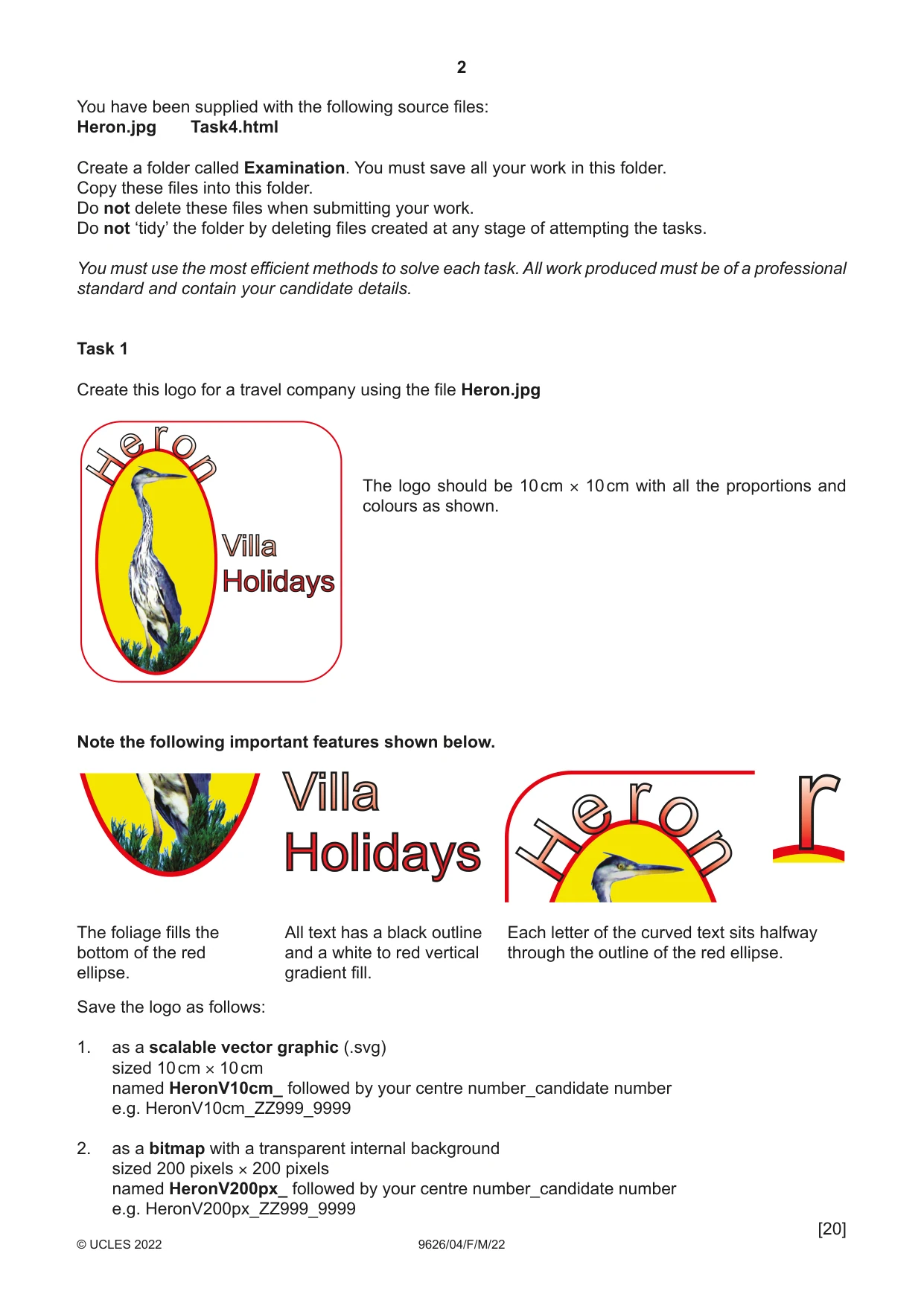
2 9626/04/ F /M /22 © UCLES 2022 You have been supplied with the following source files: Heron.jpg Task4.html Create a folder called Examination. You must save all your work in this folder. Copy these files into this folder. Do not delete these files when submitting your work. Do not ‘tidy’ the folder by deleting files created at any stage of attempting the tasks. You must use the most efficient methods to solve each task. All work produced must be of a professional standard and contain your candidate details. Task 1 Create this logo for a travel company using the file Heron.jpg The logo should be 10 cm × 10 cm with all the proportions and colours as shown. Note the following important features shown below. The foliage fills the bottom of the red ellipse. All text has a black outline and a white to red vertical gradient fill. Each letter of the curved text sits halfway through the outline of the red ellipse. Save the logo as follows: 1. as a scalable vector graphic (.svg) sized 10 cm × 10 cm named HeronV10cm_ followed by your centre number_candidate number e.g. HeronV10cm_ZZ999_9999 2. as a bitmap with a transparent internal background sized 200 pixels × 200 pixels named HeronV200px_ followed by your centre number_candidate number e.g. HeronV200px_ZZ999_9999 [20]
Question paper, page 3
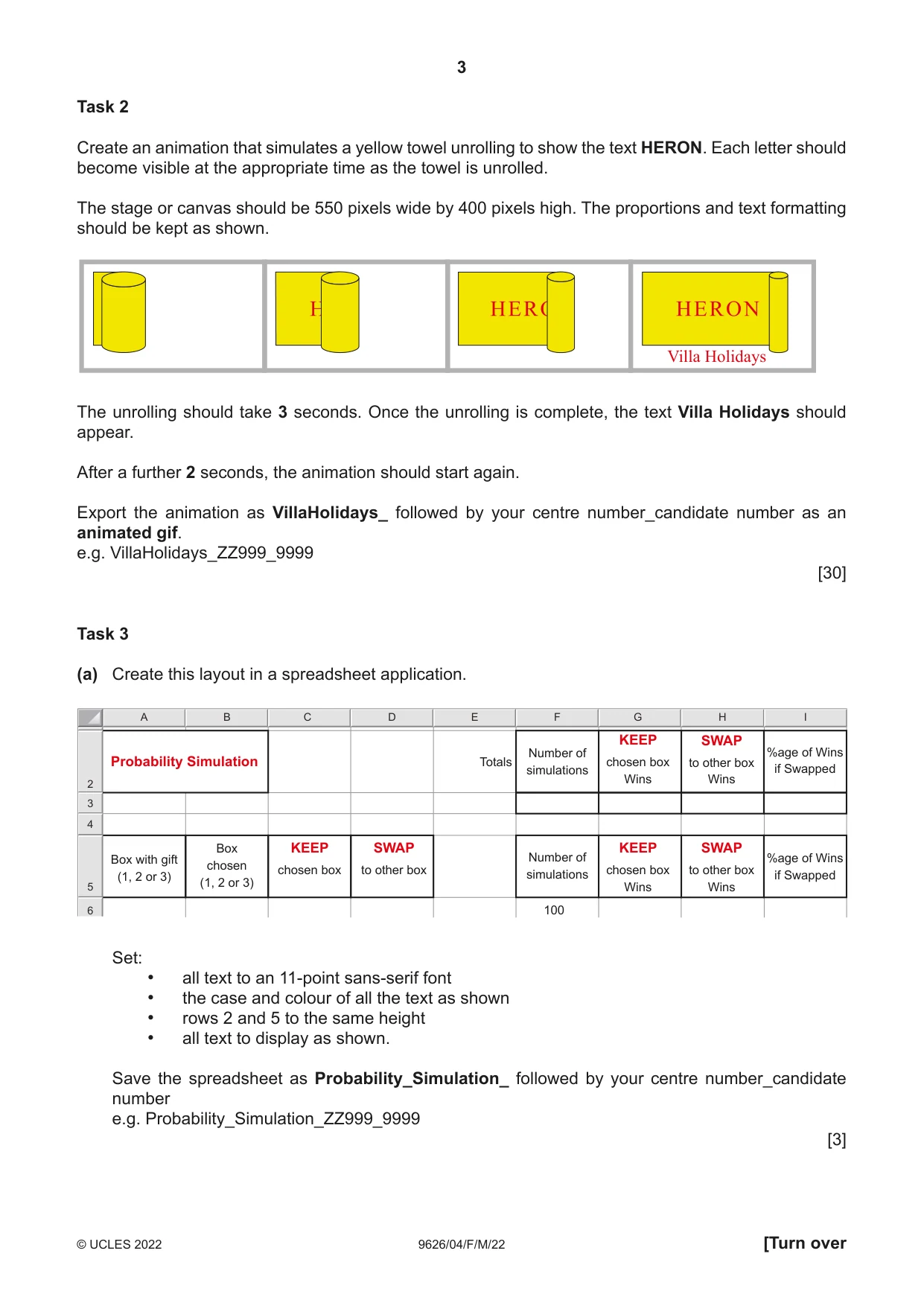
3 9626/04/F/M/22 © UCLES 2022 [Turn over Task 2 Create an animation that simulates a yellow towel unrolling to show the text HERON. Each letter should become visible at the appropriate time as the towel is unrolled. The stage or canvas should be 550 pixels wide by 400 pixels high. The proportions and text formatting should be kept as shown. Villa Holidays The unrolling should take 3 seconds. Once the unrolling is complete, the text Villa Holidays should appear. After a further 2 seconds, the animation should start again. Export the animation as VillaHolidays_ followed by your centre number_candidate number as an animated gif. e.g. VillaHolidays_ZZ999_9999 [30] Task 3 (a) Create this layout in a spreadsheet application. A B C D E F G H I 2 3 4 5 6 Totals KEEP Probability Simulation Number of simulations Number of simulations Box with gift (1, 2 or 3) Box chosen (1, 2 or 3) %age of Wins if Swapped %age of Wins if Swapped chosen box Wins KEEP chosen box Wins KEEP chosen box SWAP to other box Wins SWAP to other box Wins SWAP to other box 100 Set: • all text to an 11-point sans-serif font • the case and colour of all the text as shown • rows 2 and 5 to the same height • all text to display as shown. Save the spreadsheet as Probability_Simulation_ followed by your centre number_candidate number e.g. Probability_Simulation_ZZ999_9999 [3]
Question paper, page 4
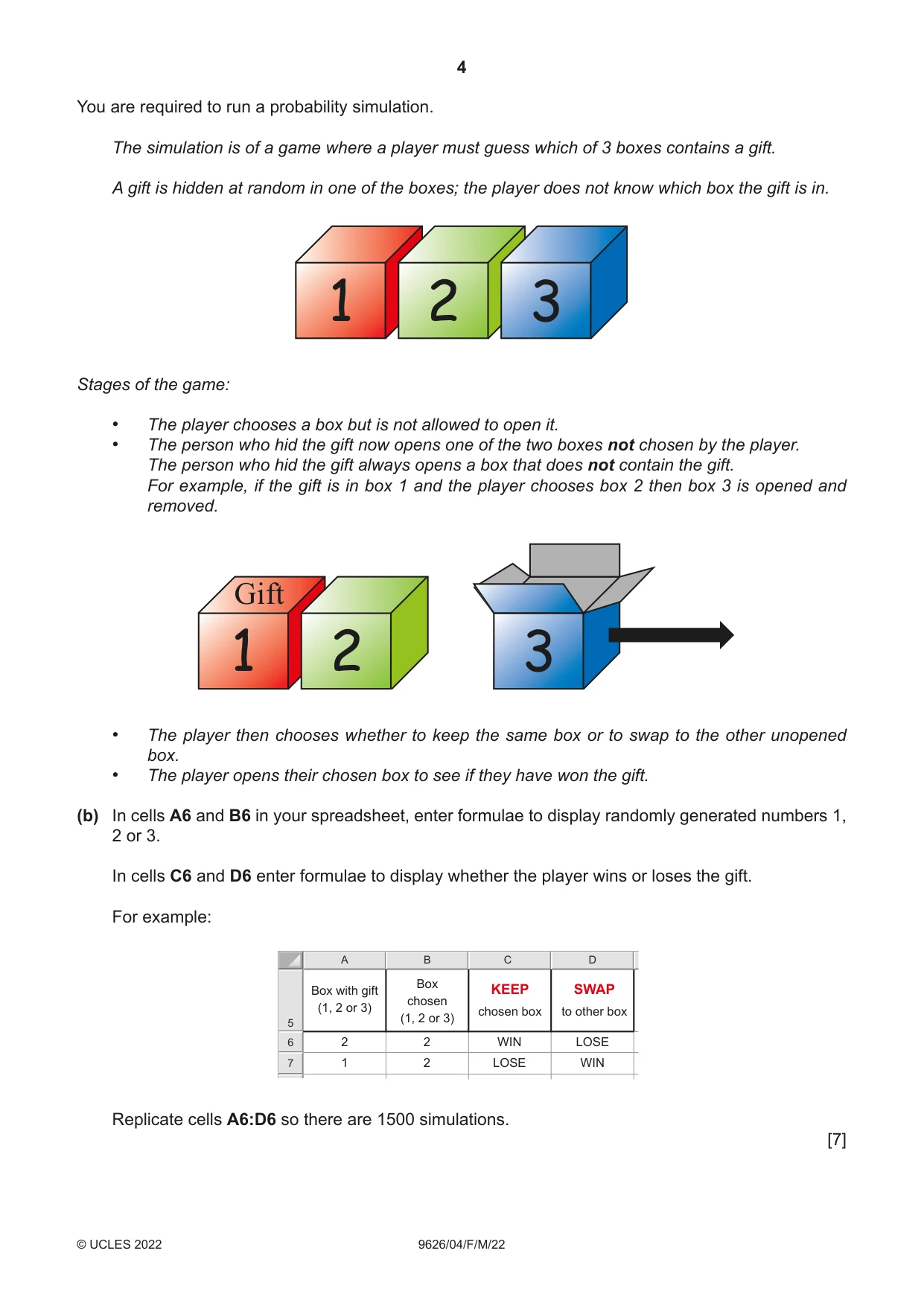
4 9626/04/F/M/22 © UCLES 2022 You are required to run a probability simulation. The simulation is of a game where a player must guess which of 3 boxes contains a gift. A gift is hidden at random in one of the boxes; the player does not know which box the gift is in. 1 2 3 Stages of the game: • The player chooses a box but is not allowed to open it. • The person who hid the gift now opens one of the two boxes not chosen by the player. The person who hid the gift always opens a box that does not contain the gift. For example, if the gift is in box 1 and the player chooses box 2 then box 3 is opened and removed. 1 2 3 Gift • The player then chooses whether to keep the same box or to swap to the other unopened box. • The player opens their chosen box to see if they have won the gift. (b) In cells A6 and B6 in your spreadsheet, enter formulae to display randomly generated numbers 1, 2 or 3. In cells C6 and D6 enter formulae to display whether the player wins or loses the gift. For example: A B C D 5 6 7 Box with gift (1, 2 or 3) Box chosen (1, 2 or 3) KEEP chosen box SWAP to other box 2 2 WIN LOSE 1 2 LOSE WIN Replicate cells A6:D6 so there are 1500 simulations. [7]
Question paper, page 5
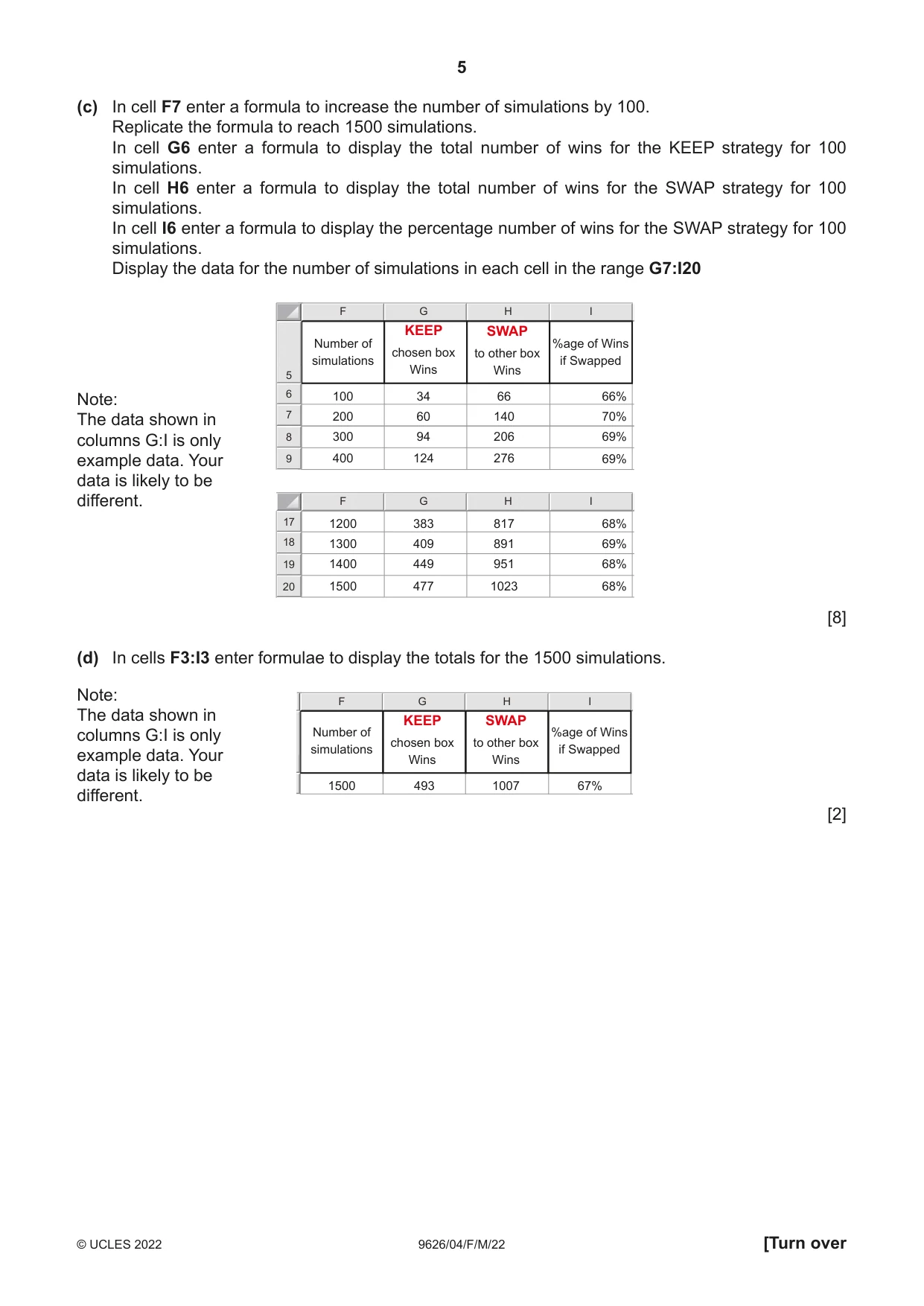
5 9626/04/F/M/22 © UCLES 2022 [Turn over (c) In cell F7 enter a formula to increase the number of simulations by 100. Replicate the formula to reach 1500 simulations. In cell G6 enter a formula to display the total number of wins for the KEEP strategy for 100 simulations. In cell H6 enter a formula to display the total number of wins for the SWAP strategy for 100 simulations. In cell I6 enter a formula to display the percentage number of wins for the SWAP strategy for 100 simulations. Display the data for the number of simulations in each cell in the range G7:I20 F G H I KEEP Number of simulations %age of Wins if Swapped chosen box Wins SWAP to other box Wins 100 200 300 400 34 60 94 124 66 140 206 276 66% 70% 69% 69% 5 6 7 8 9 F G H I 1200 1300 1400 1500 383 409 449 477 817 891 951 1023 68% 69% 68% 68% 17 18 19 20 [8] (d) In cells F3:I3 enter formulae to display the totals for the 1500 simulations. F G H I KEEP Number of simulations %age of Wins if Swapped chosen box Wins SWAP to other box Wins 1500 493 1007 67% [2] Note: The data shown in columns G:I is only example data. Your data is likely to be different. Note: The data shown in columns G:I is only example data. Your data is likely to be different.
Question paper, page 6
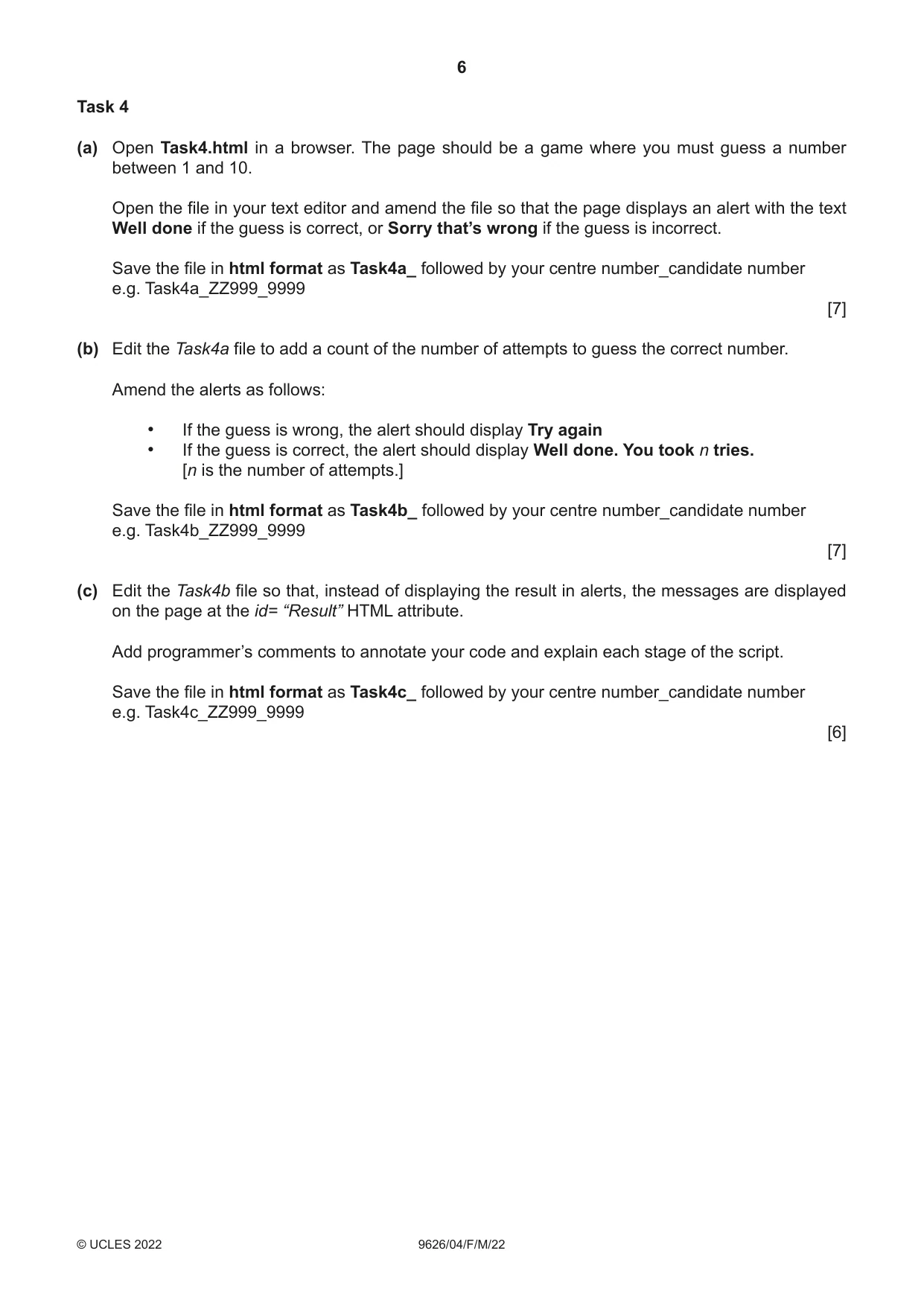
6 9626/04/F/M/22 © UCLES 2022 Task 4 (a) Open Task4.html in a browser. The page should be a game where you must guess a number between 1 and 10. Open the file in your text editor and amend the file so that the page displays an alert with the text Well done if the guess is correct, or Sorry that’s wrong if the guess is incorrect. Save the file in html format as Task4a_ followed by your centre number_candidate number e.g. Task4a_ZZ999_9999 [7] (b) Edit the Task4a file to add a count of the number of attempts to guess the correct number. Amend the alerts as follows: • If the guess is wrong, the alert should display Try again • If the guess is correct, the alert should display Well done. You took n tries. [n is the number of attempts.] Save the file in html format as Task4b_ followed by your centre number_candidate number e.g. Task4b_ZZ999_9999 [7] (c) Edit the Task4b file so that, instead of displaying the result in alerts, the messages are displayed on the page at the id= “Result” HTML attribute. Add programmer’s comments to annotate your code and explain each stage of the script. Save the file in html format as Task4c_ followed by your centre number_candidate number e.g. Task4c_ZZ999_9999 [6]
Question paper, page 7
7 9626/04/F/M/22 © UCLES 2022 BLANK PAGE
Question paper, page 8
8 9626/04/F/M/22 © UCLES 2022 Permission to reproduce items where third-party owned material protected by copyright is included has been sought and cleared where possible. Every reasonable effort has been made by the publisher (UCLES) to trace copyright holders, but if any items requiring clearance have unwittingly been included, the publisher will be pleased to make amends at the earliest possible opportunity. To avoid the issue of disclosure of answer-related information to candidates, all copyright acknowledgements are reproduced online in the Cambridge Assessment International Education Copyright Acknowledgements Booklet. This is produced for each series of examinations and is freely available to download at www.cambridgeinternational.org after the live examination series. Cambridge Assessment International Education is part of Cambridge Assessment. Cambridge Assessment is the brand name of the University of Cambridge Local Examinations Syndicate (UCLES), which is a department of the University of Cambridge. BLANK PAGE
What you needed in this session
Cambridge’s own grade thresholds for 2022 Feb/March, Paper 4 · Variant 0. A higher threshold means an easier paper — the bar moves with how the cohort did.