Cambridge A Level Information Technology (from 2017) 9626 — 2021 Oct/Nov Paper 4 · Variant 0
9626/40/O/N/21 · 110 marks · ≈124 min
The question paper and its mark scheme, free to read here and free to download. This is Cambridge’s own paper, exactly as it was sat.
Question paper8 pages
Mark scheme
No mark scheme is in the library for this paper.
Paper as text
Question paper, page 1
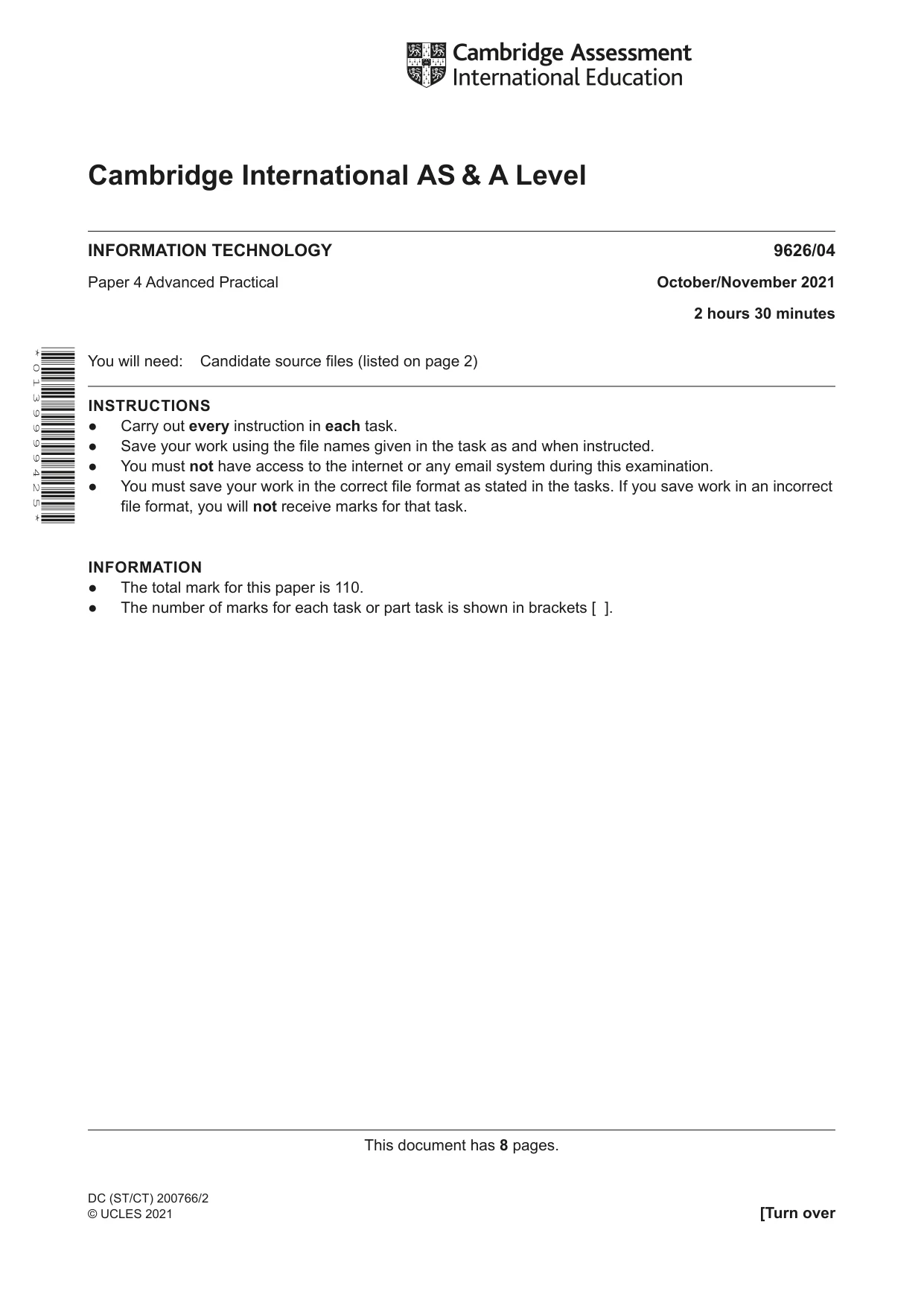
This document has 8 pages. Cambridge International AS & A Level INFORMATION TECHNOLOGY 9626/04 Paper 4 Advanced Practical October/November 2021 2 hours 30 minutes You will need: Candidate source files (listed on page 2) INSTRUCTIONS ● Carry out every instruction in each task. ● Save your work using the file names given in the task as and when instructed. ● You must not have access to the internet or any email system during this examination. ● You must save your work in the correct file format as stated in the tasks. If you save work in an incorrect file format, you will not receive marks for that task. INFORMATION ● The total mark for this paper is 110. ● The number of marks for each task or part task is shown in brackets [ ]. * 0 1 3 9 9 9 9 4 2 5 * DC (ST/CT) 200766/2 © UCLES 2021 [Turn over
Question paper, page 2
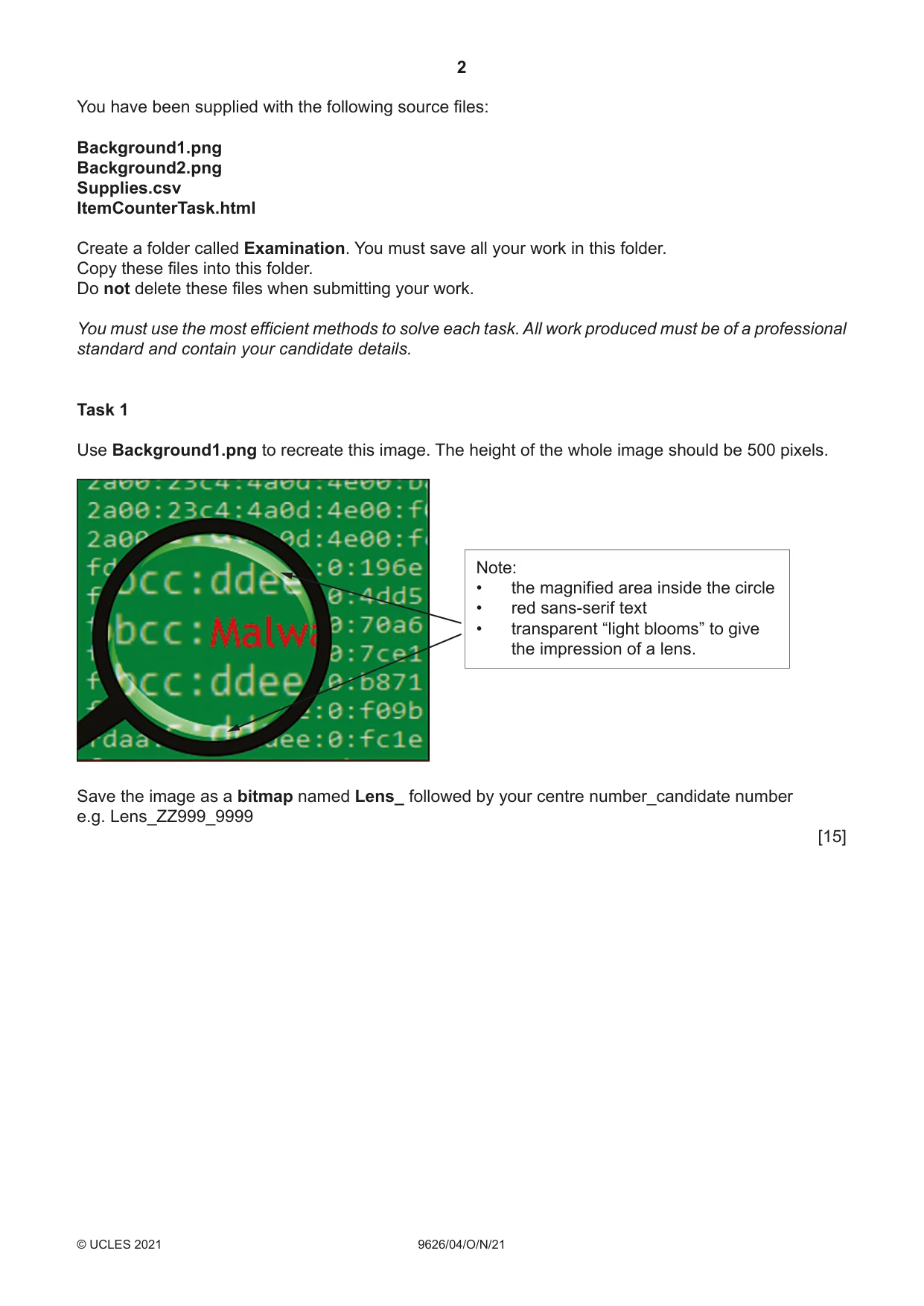
2 9626/04/ O/ N/21 © UCLES 2021 You have been supplied with the following source files: Background1.png Background2.png Supplies.csv ItemCounterTask.html Create a folder called Examination. You must save all your work in this folder. Copy these files into this folder. Do not delete these files when submitting your work. You must use the most efficient methods to solve each task. All work produced must be of a professional standard and contain your candidate details. Task 1 Use Background1.png to recreate this image. The height of the whole image should be 500 pixels. Save the image as a bitmap named Lens_ followed by your centre number_candidate number e.g. Lens_ZZ999_9999 [15] Note: • the magnified area inside the circle • red sans-serif text • transparent “light blooms” to give the impression of a lens.
Question paper, page 3
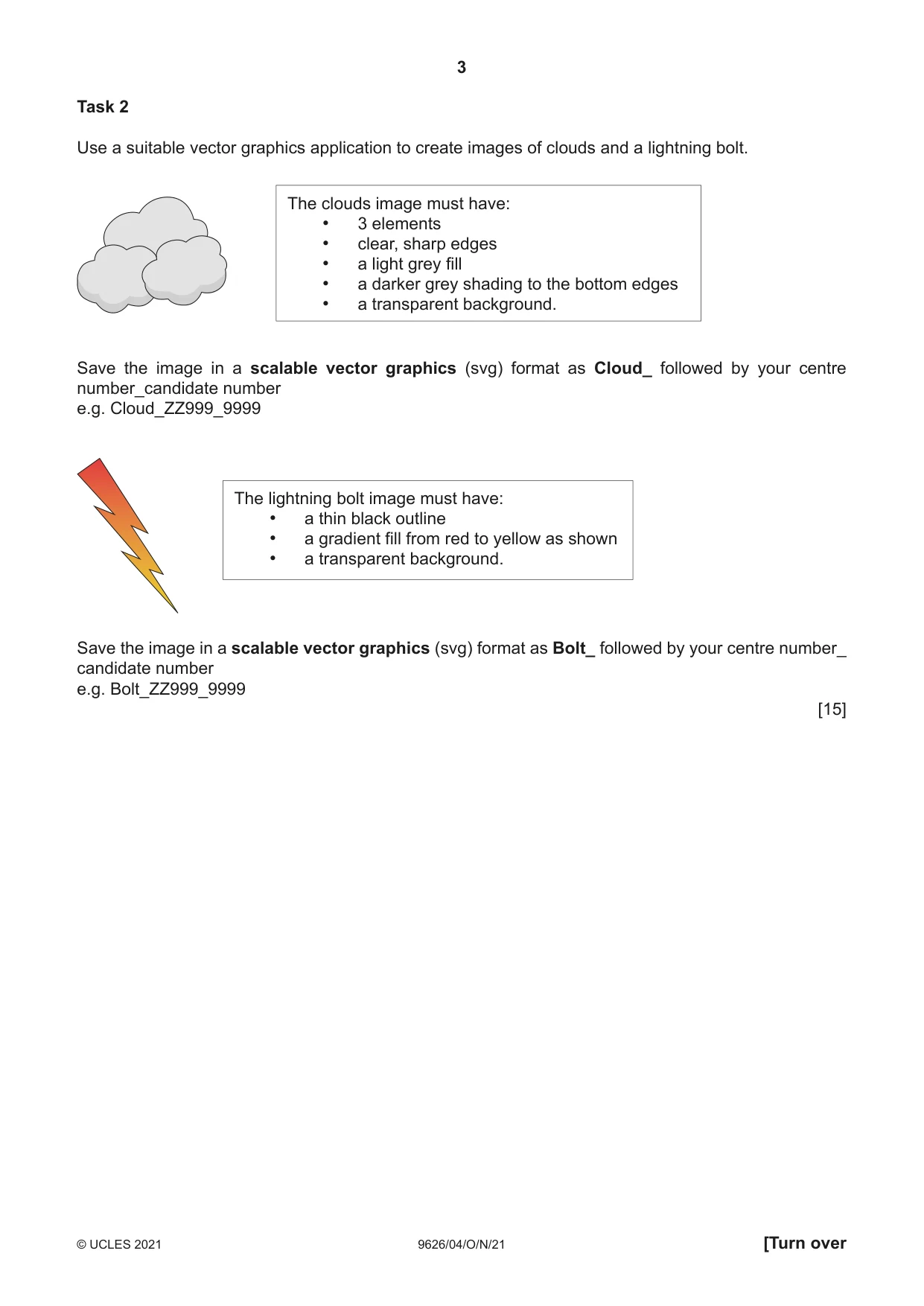
3 9626/04/O/N/21 © UCLES 2021 [Turn over Task 2 Use a suitable vector graphics application to create images of clouds and a lightning bolt. Save the image in a scalable vector graphics (svg) format as Cloud_ followed by your centre number_candidate number e.g. Cloud_ZZ999_9999 Save the image in a scalable vector graphics (svg) format as Bolt_ followed by your centre number_ candidate number e.g. Bolt_ZZ999_9999 [15] The clouds image must have: • 3 elements • clear, sharp edges • a light grey fill • a darker grey shading to the bottom edges • a transparent background. The lightning bolt image must have: • a thin black outline • a gradient fill from red to yellow as shown • a transparent background.
Question paper, page 4
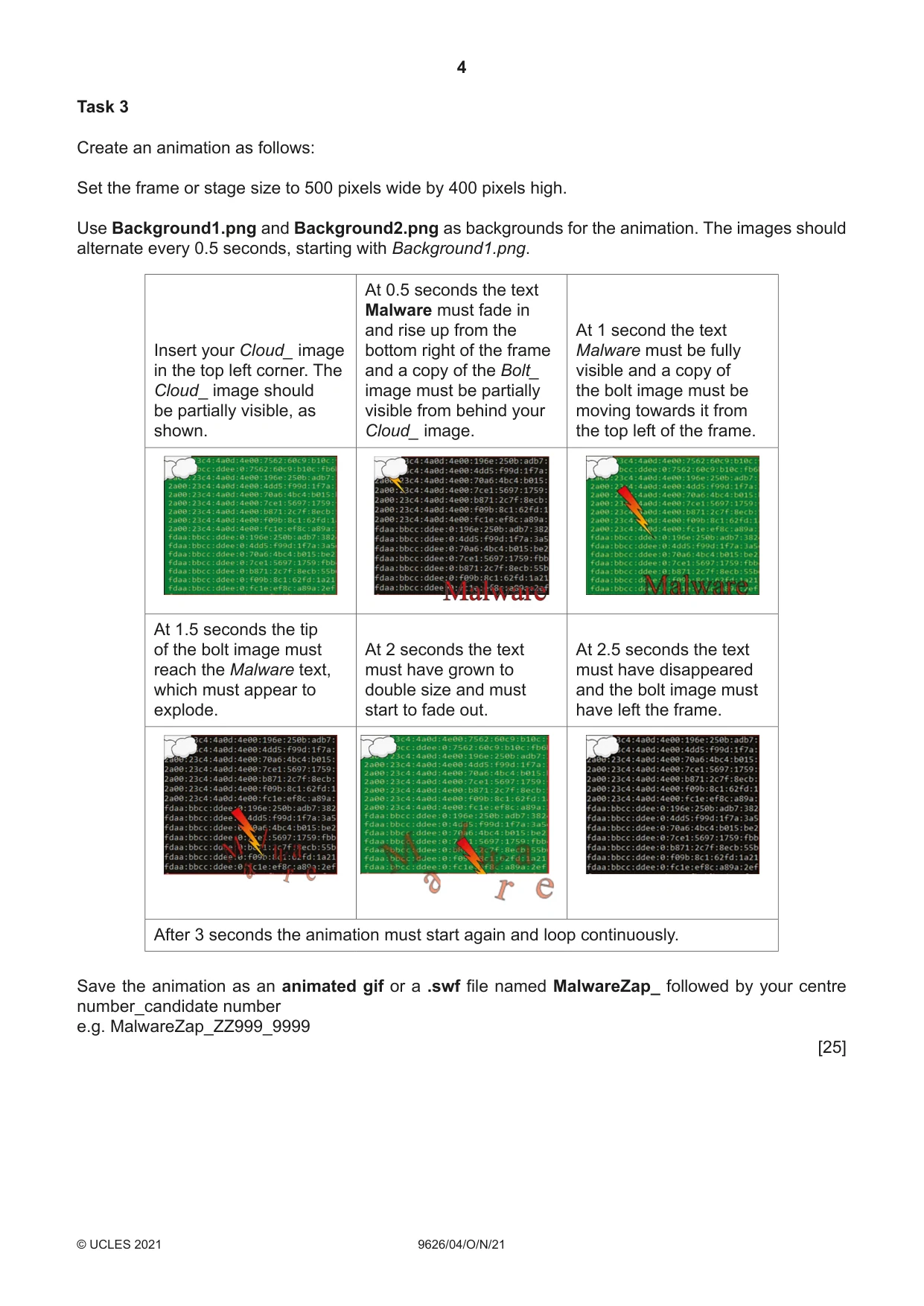
4 9626/04/ O/ N/21 © UCLES 2021 Task 3 Create an animation as follows: Set the frame or stage size to 500 pixels wide by 400 pixels high. Use Background1.png and Background2.png as backgrounds for the animation. The images should alternate every 0.5 seconds, starting with Background1.png. Insert your Cloud_ image in the top left corner. The Cloud_ image should be partially visible, as shown. At 0.5 seconds the text Malware must fade in and rise up from the bottom right of the frame and a copy of the Bolt_ image must be partially visible from behind your Cloud_ image. At 1 second the text Malware must be fully visible and a copy of the bolt image must be moving towards it from the top left of the frame. At 1.5 seconds the tip of the bolt image must reach the Malware text, which must appear to explode. At 2 seconds the text must have grown to double size and must start to fade out. At 2.5 seconds the text must have disappeared and the bolt image must have left the frame. After 3 seconds the animation must start again and loop continuously. Save the animation as an animated gif or a .swf file named MalwareZap_ followed by your centre number_candidate number e.g. MalwareZap_ZZ999_9999 [25]
Question paper, page 5
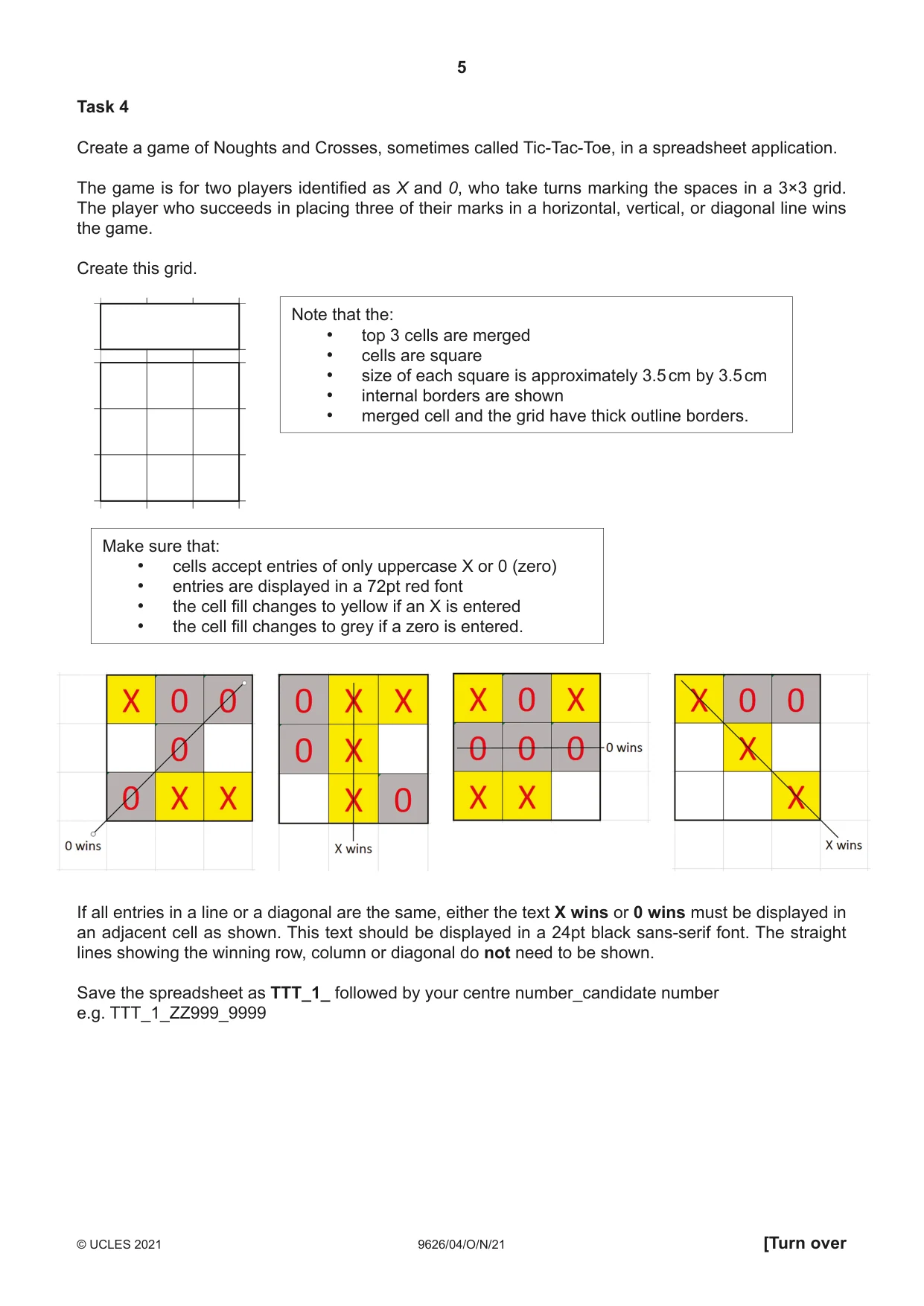
5 9626/04/O/N/21 © UCLES 2021 [Turn over Task 4 Create a game of Noughts and Crosses, sometimes called Tic-Tac-Toe, in a spreadsheet application. The game is for two players identified as X and 0, who take turns marking the spaces in a 3×3 grid. The player who succeeds in placing three of their marks in a horizontal, vertical, or diagonal line wins the game. Create this grid. If all entries in a line or a diagonal are the same, either the text X wins or 0 wins must be displayed in an adjacent cell as shown. This text should be displayed in a 24pt black sans-serif font. The straight lines showing the winning row, column or diagonal do not need to be shown. Save the spreadsheet as TTT_1_ followed by your centre number_candidate number e.g. TTT_1_ZZ999_9999 Note that the: • top 3 cells are merged • cells are square • size of each square is approximately 3.5 cm by 3.5 cm • internal borders are shown • merged cell and the grid have thick outline borders. Make sure that: • cells accept entries of only uppercase X or 0 (zero) • entries are displayed in a 72pt red font • the cell fill changes to yellow if an X is entered • the cell fill changes to grey if a zero is entered.
Question paper, page 6
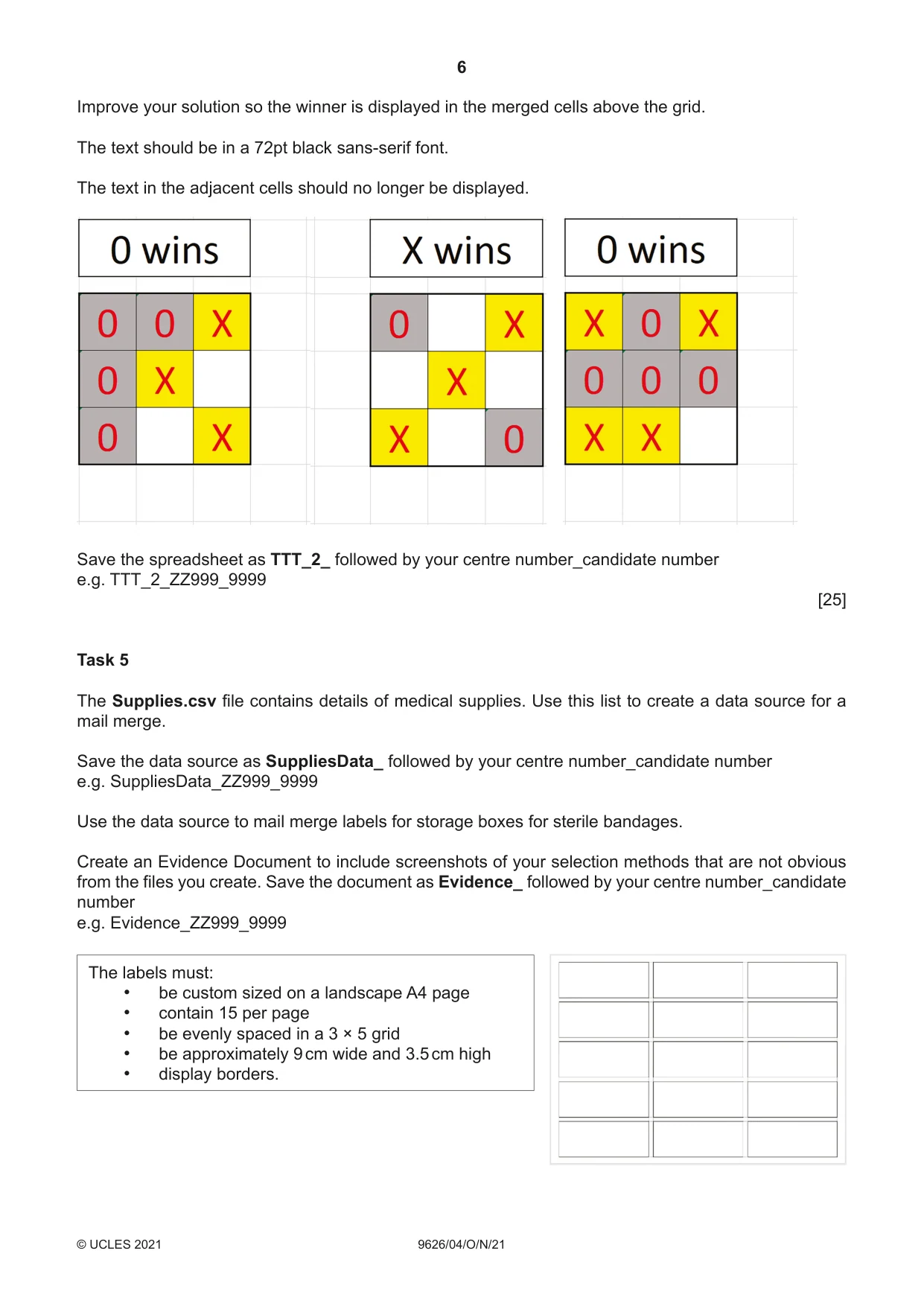
6 9626/04/O/N/21 © UCLES 2021 Improve your solution so the winner is displayed in the merged cells above the grid. The text should be in a 72pt black sans-serif font. The text in the adjacent cells should no longer be displayed. Save the spreadsheet as TTT_2_ followed by your centre number_candidate number e.g. TTT_2_ZZ999_9999 [25] Task 5 The Supplies.csv file contains details of medical supplies. Use this list to create a data source for a mail merge. Save the data source as SuppliesData_ followed by your centre number_candidate number e.g. SuppliesData_ZZ999_9999 Use the data source to mail merge labels for storage boxes for sterile bandages. Create an Evidence Document to include screenshots of your selection methods that are not obvious from the files you create. Save the document as Evidence_ followed by your centre number_candidate number e.g. Evidence_ZZ999_9999 The labels must: • be custom sized on a landscape A4 page • contain 15 per page • be evenly spaced in a 3 × 5 grid • be approximately 9 cm wide and 3.5 cm high • display borders.
Question paper, page 7
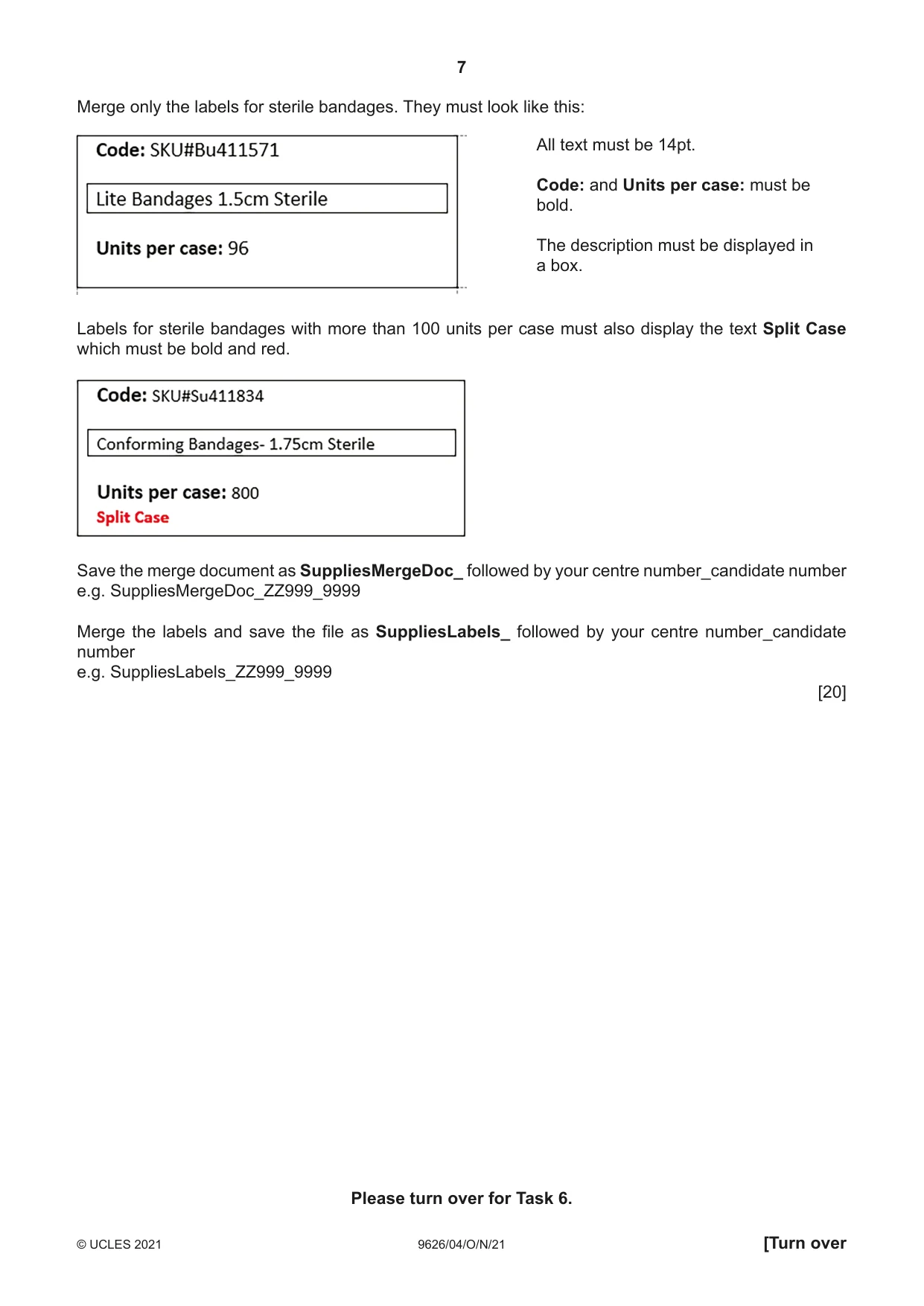
7 9626/04/O/N/21 © UCLES 2021 [Turn over Merge only the labels for sterile bandages. They must look like this: Labels for sterile bandages with more than 100 units per case must also display the text Split Case which must be bold and red. Save the merge document as SuppliesMergeDoc_ followed by your centre number_candidate number e.g. SuppliesMergeDoc_ZZ999_9999 Merge the labels and save the file as SuppliesLabels_ followed by your centre number_candidate number e.g. SuppliesLabels_ZZ999_9999 [20] Please turn over for Task 6. All text must be 14pt. Code: and Units per case: must be bold. The description must be displayed in a box.
Question paper, page 8
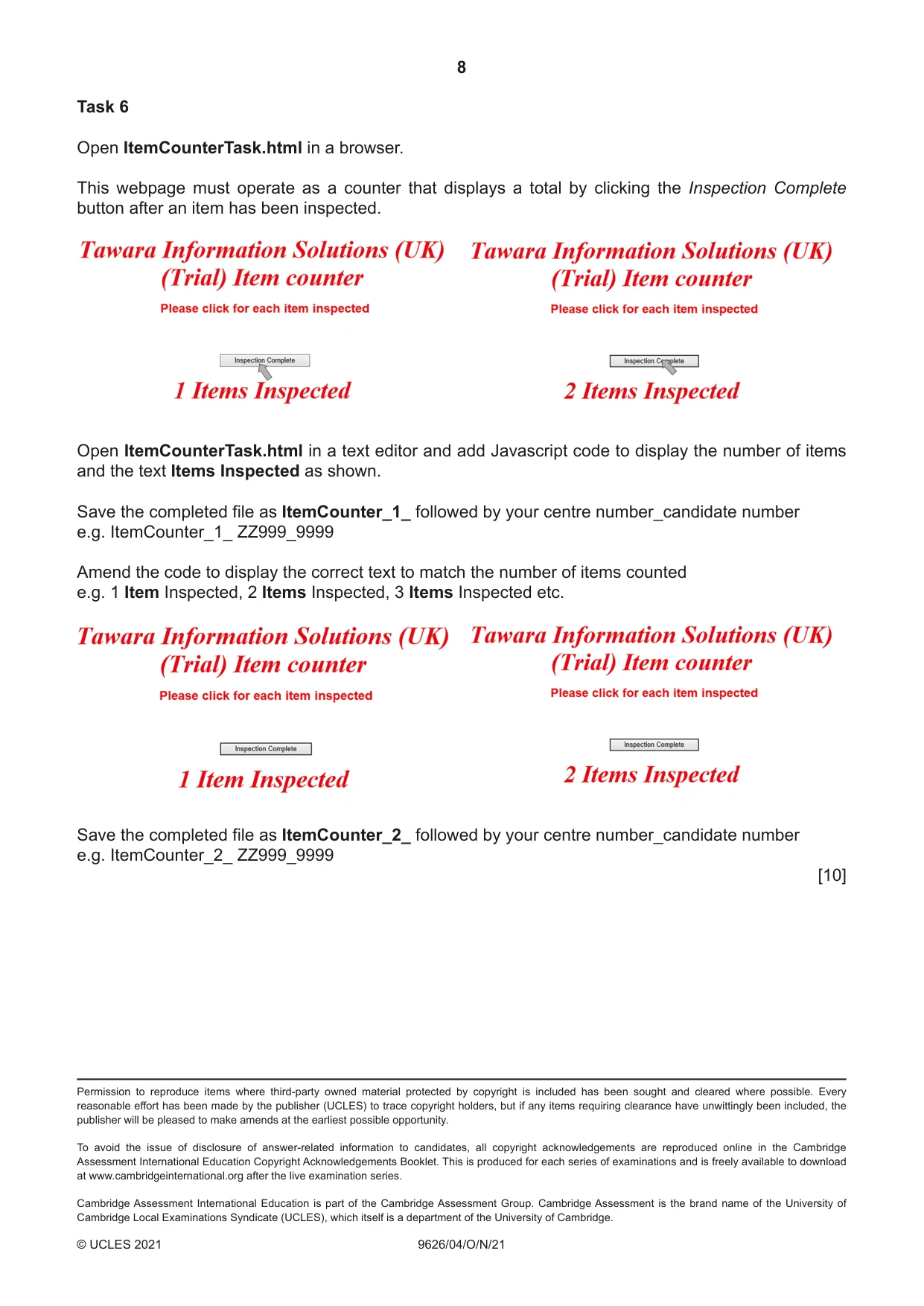
8 9626/04/O/N/21 © UCLES 2021 Permission to reproduce items where third-party owned material protected by copyright is included has been sought and cleared where possible. Every reasonable effort has been made by the publisher (UCLES) to trace copyright holders, but if any items requiring clearance have unwittingly been included, the publisher will be pleased to make amends at the earliest possible opportunity. To avoid the issue of disclosure of answer-related information to candidates, all copyright acknowledgements are reproduced online in the Cambridge Assessment International Education Copyright Acknowledgements Booklet. This is produced for each series of examinations and is freely available to download at www.cambridgeinternational.org after the live examination series. Cambridge Assessment International Education is part of the Cambridge Assessment Group. Cambridge Assessment is the brand name of the University of Cambridge Local Examinations Syndicate (UCLES), which itself is a department of the University of Cambridge. Task 6 Open ItemCounterTask.html in a browser. This webpage must operate as a counter that displays a total by clicking the Inspection Complete button after an item has been inspected. Open ItemCounterTask.html in a text editor and add Javascript code to display the number of items and the text Items Inspected as shown. Save the completed file as ItemCounter_1_ followed by your centre number_candidate number e.g. ItemCounter_1_ ZZ999_9999 Amend the code to display the correct text to match the number of items counted e.g. 1 Item Inspected, 2 Items Inspected, 3 Items Inspected etc. Save the completed file as ItemCounter_2_ followed by your centre number_candidate number e.g. ItemCounter_2_ ZZ999_9999 [10]
What you needed in this session
Cambridge’s own grade thresholds for 2021 Oct/Nov, Paper 4 · Variant 0. A higher threshold means an easier paper — the bar moves with how the cohort did.