Cambridge A Level Information Technology (from 2017) 9626 — 2021 May/June Paper 4 · Variant 0
9626/40/M/J/21
The question paper and its mark scheme, free to read here and free to download. This is Cambridge’s own paper, exactly as it was sat.
Question paper8 pages
Mark scheme
No mark scheme is in the library for this paper.
Paper as text
Question paper, page 1
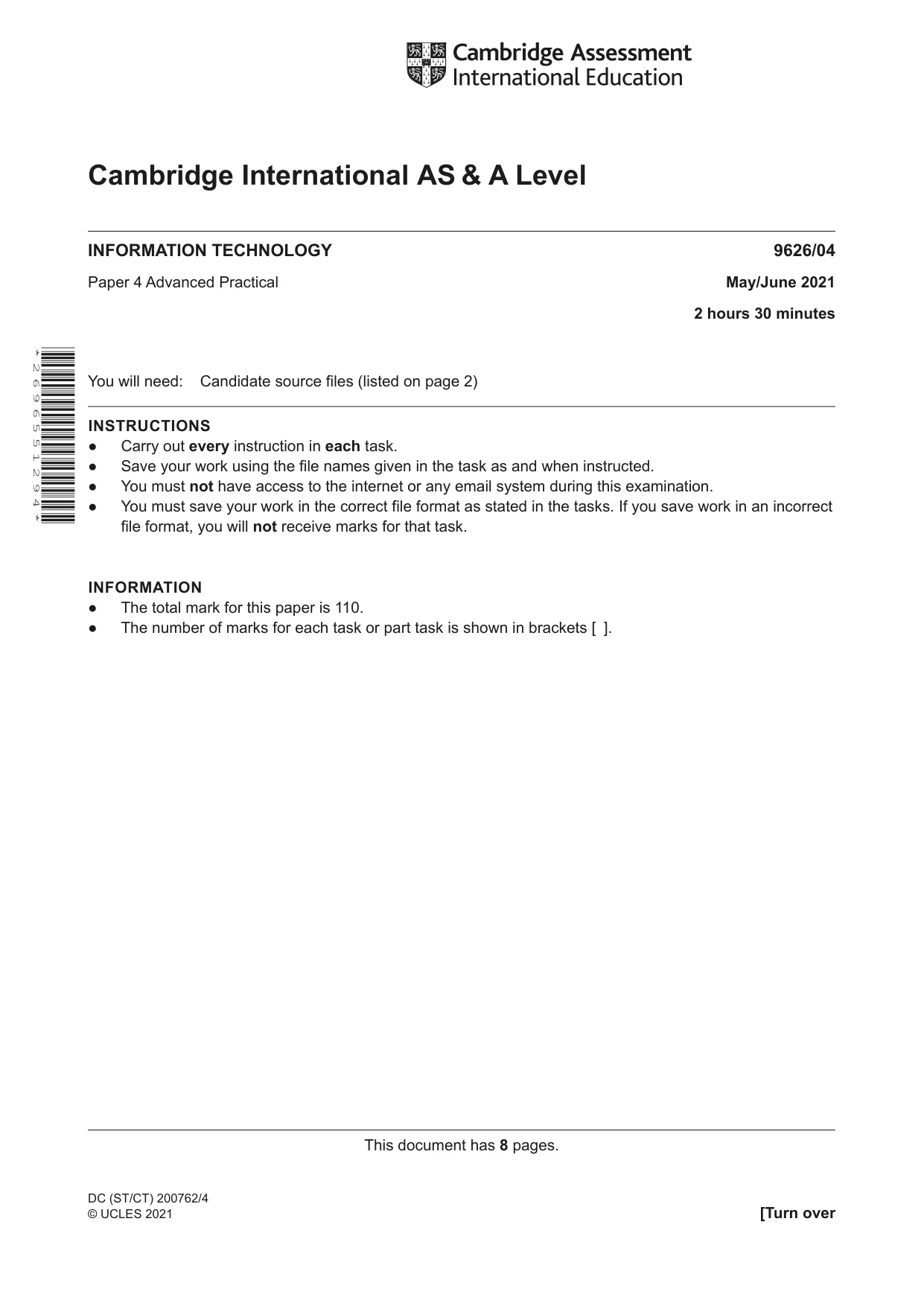
This document has 8 pages. Cambridge International AS & A Level INFORMATION TECHNOLOGY 9626/04 Paper 4 Advanced Practical May/June 2021 2 hours 30 minutes You will need: Candidate source files (listed on page 2) INSTRUCTIONS ● Carry out every instruction in each task. ● Save your work using the file names given in the task as and when instructed. ● You must not have access to the internet or any email system during this examination. ● You must save your work in the correct file format as stated in the tasks. If you save work in an incorrect file format, you will not receive marks for that task. INFORMATION ● The total mark for this paper is 110. ● The number of marks for each task or part task is shown in brackets [ ]. * 2 6 9 6 5 5 1 2 9 4 * DC (ST/CT) 200762/4 © UCLES 2021 [Turn over
Question paper, page 2
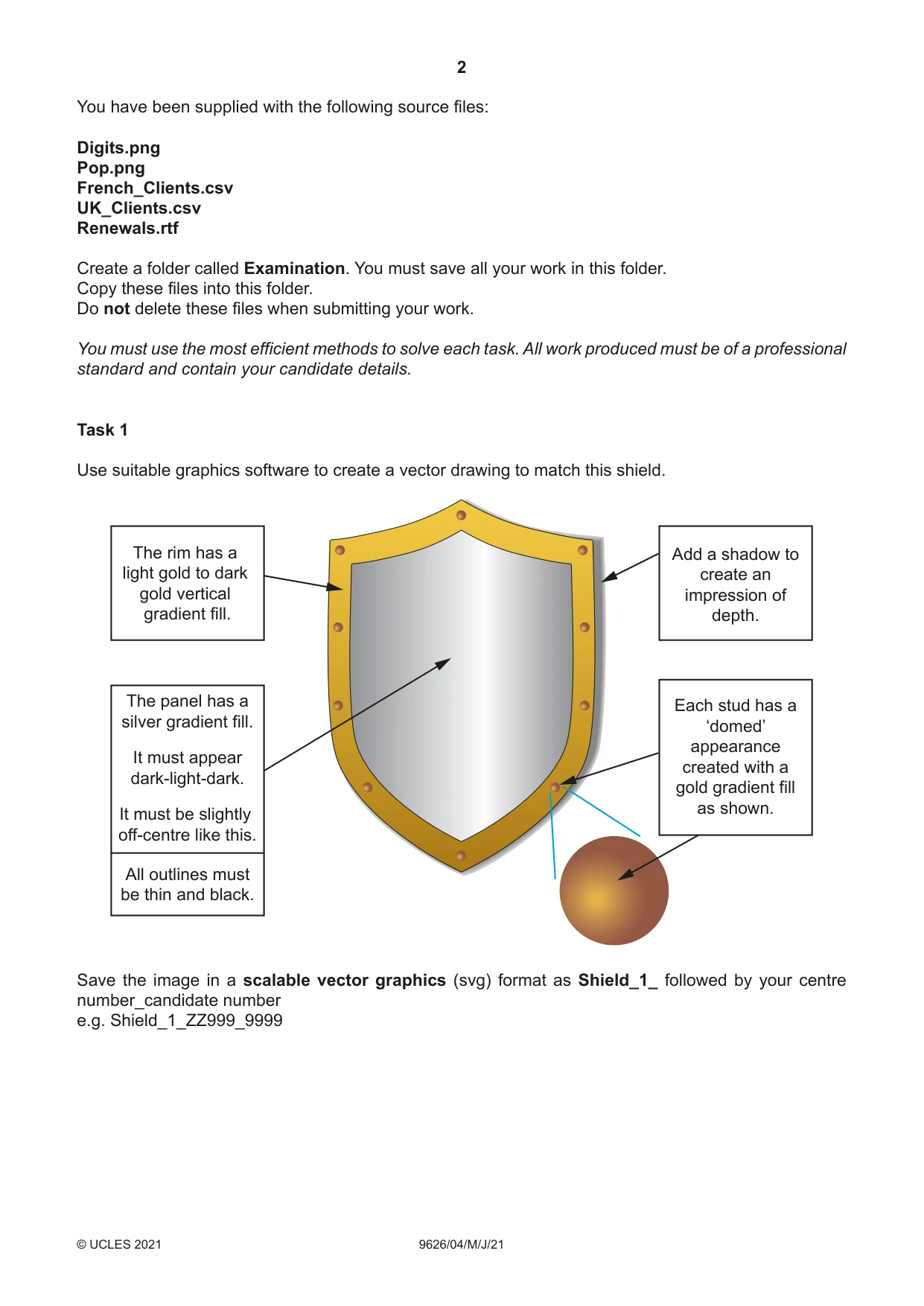
2 9626/04/M/J/21 © UCLES 2021 You have been supplied with the following source files: Digits.png Pop.png French_Clients.csv UK_Clients.csv Renewals.rtf Create a folder called Examination. You must save all your work in this folder. Copy these files into this folder. Do not delete these files when submitting your work. You must use the most efficient methods to solve each task. All work produced must be of a professional standard and contain your candidate details. Task 1 Use suitable graphics software to create a vector drawing to match this shield. The rim has a light gold to dark gold vertical gradient fill. Add a shadow to create an impression of depth. Each stud has a ‘domed’ appearance created with a gold gradient fill as shown. The panel has a silver gradient fill. It must appear dark-light-dark. It must be slightly off-centre like this. All outlines must be thin and black. Save the image in a scalable vector graphics (svg) format as Shield_1_ followed by your centre number_candidate number e.g. Shield_1_ZZ999_9999
Question paper, page 3
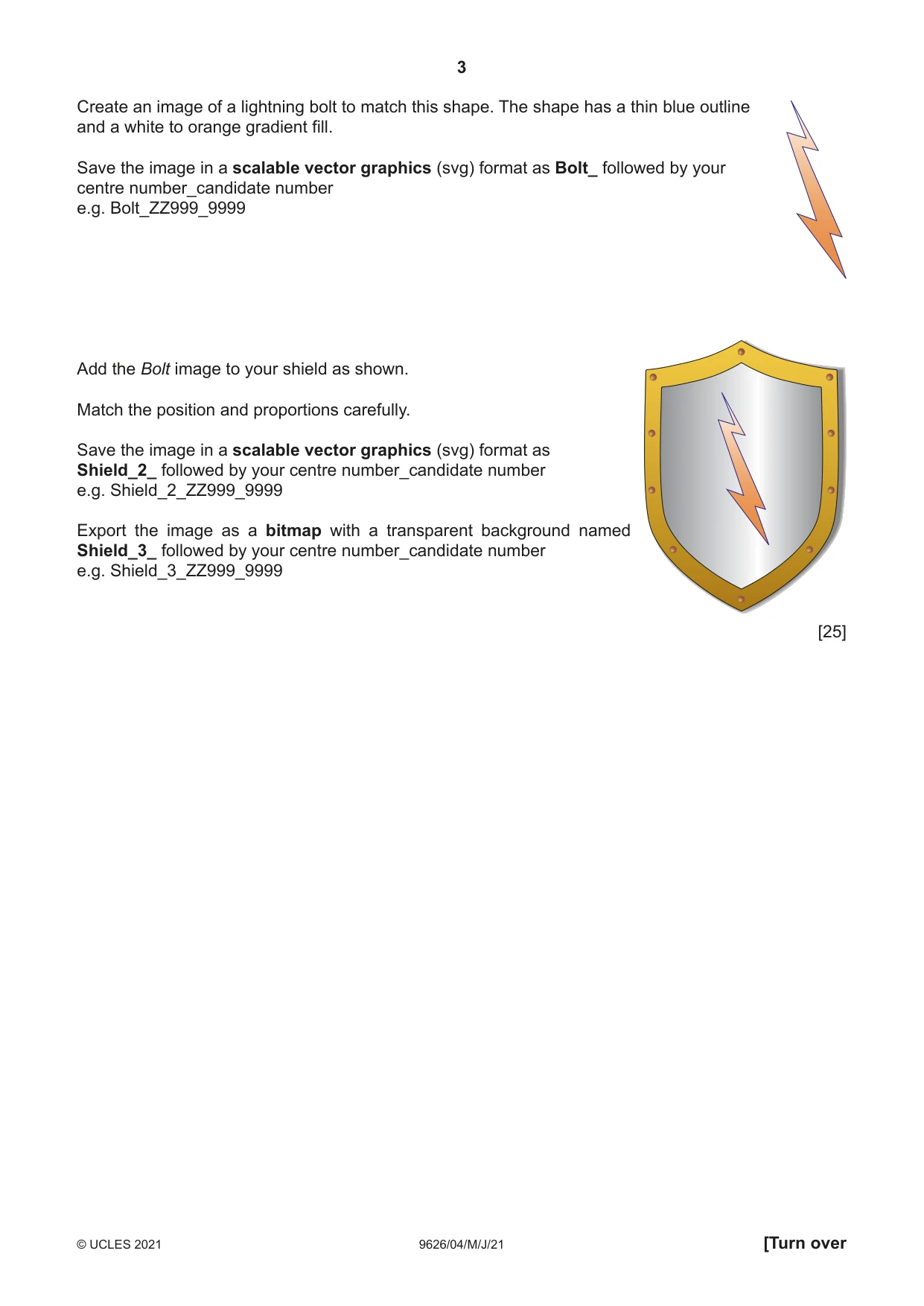
3 9626/04/M/J/21 © UCLES 2021 [Turn over Create an image of a lightning bolt to match this shape. The shape has a thin blue outline and a white to orange gradient fill. Save the image in a scalable vector graphics (svg) format as Bolt_ followed by your centre number_candidate number e.g. Bolt_ZZ999_9999 Add the Bolt image to your shield as shown. Match the position and proportions carefully. Save the image in a scalable vector graphics (svg) format as Shield_2_ followed by your centre number_candidate number e.g. Shield_2_ZZ999_9999 Export the image as a bitmap with a transparent background named Shield_3_ followed by your centre number_candidate number e.g. Shield_3_ZZ999_9999 [25]
Question paper, page 4
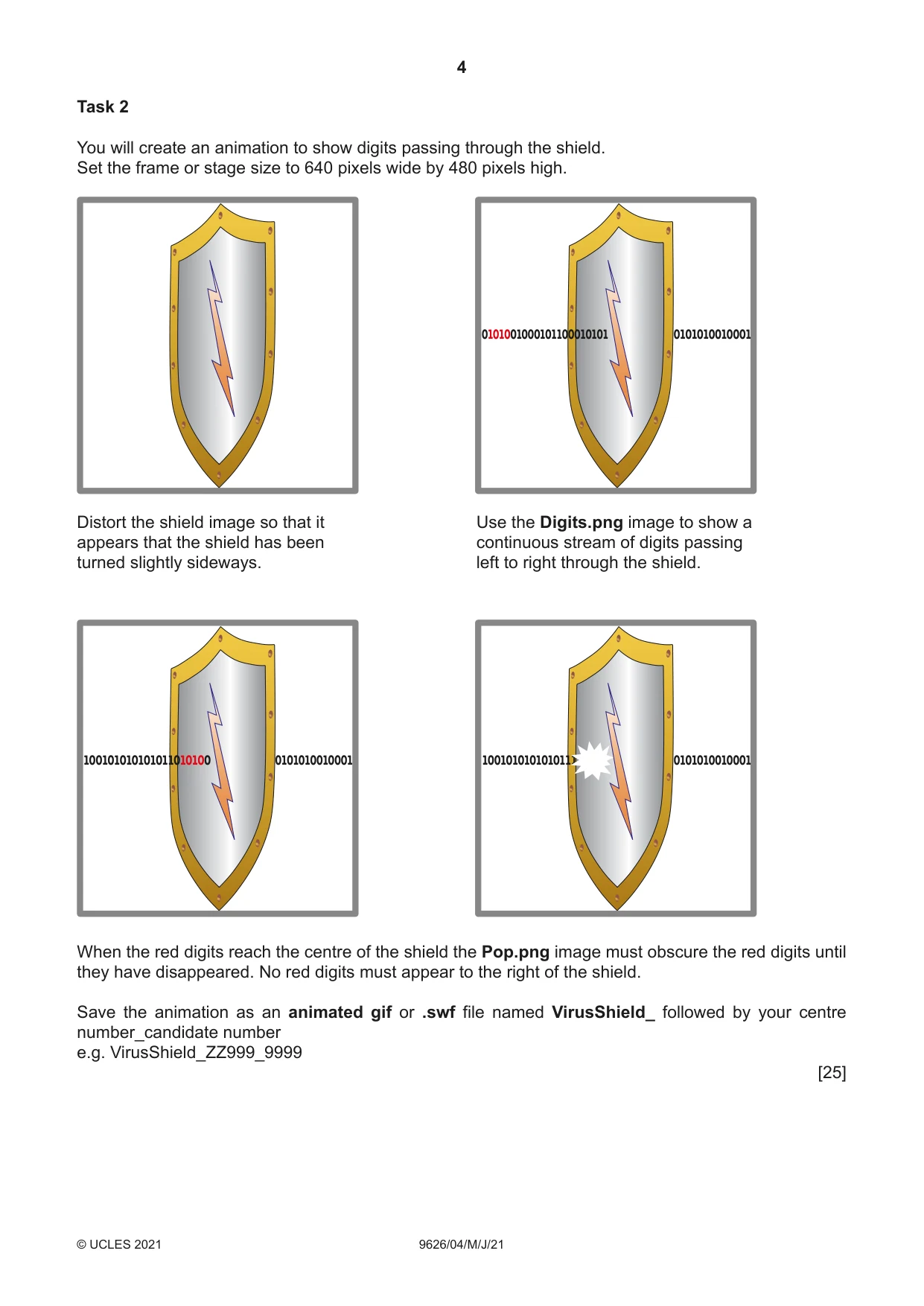
4 9626/04/M/J/21 © UCLES 2021 Task 2 You will create an animation to show digits passing through the shield. Set the frame or stage size to 640 pixels wide by 480 pixels high. 0101001000101100010101 0101010010001 1001010101010111 0101010010001 100101010101011010100 0101010010001 When the red digits reach the centre of the shield the Pop.png image must obscure the red digits until they have disappeared. No red digits must appear to the right of the shield. Save the animation as an animated gif or .swf file named VirusShield_ followed by your centre number_candidate number e.g. VirusShield_ZZ999_9999 [25] Distort the shield image so that it appears that the shield has been turned slightly sideways. Use the Digits.png image to show a continuous stream of digits passing left to right through the shield.
Question paper, page 5
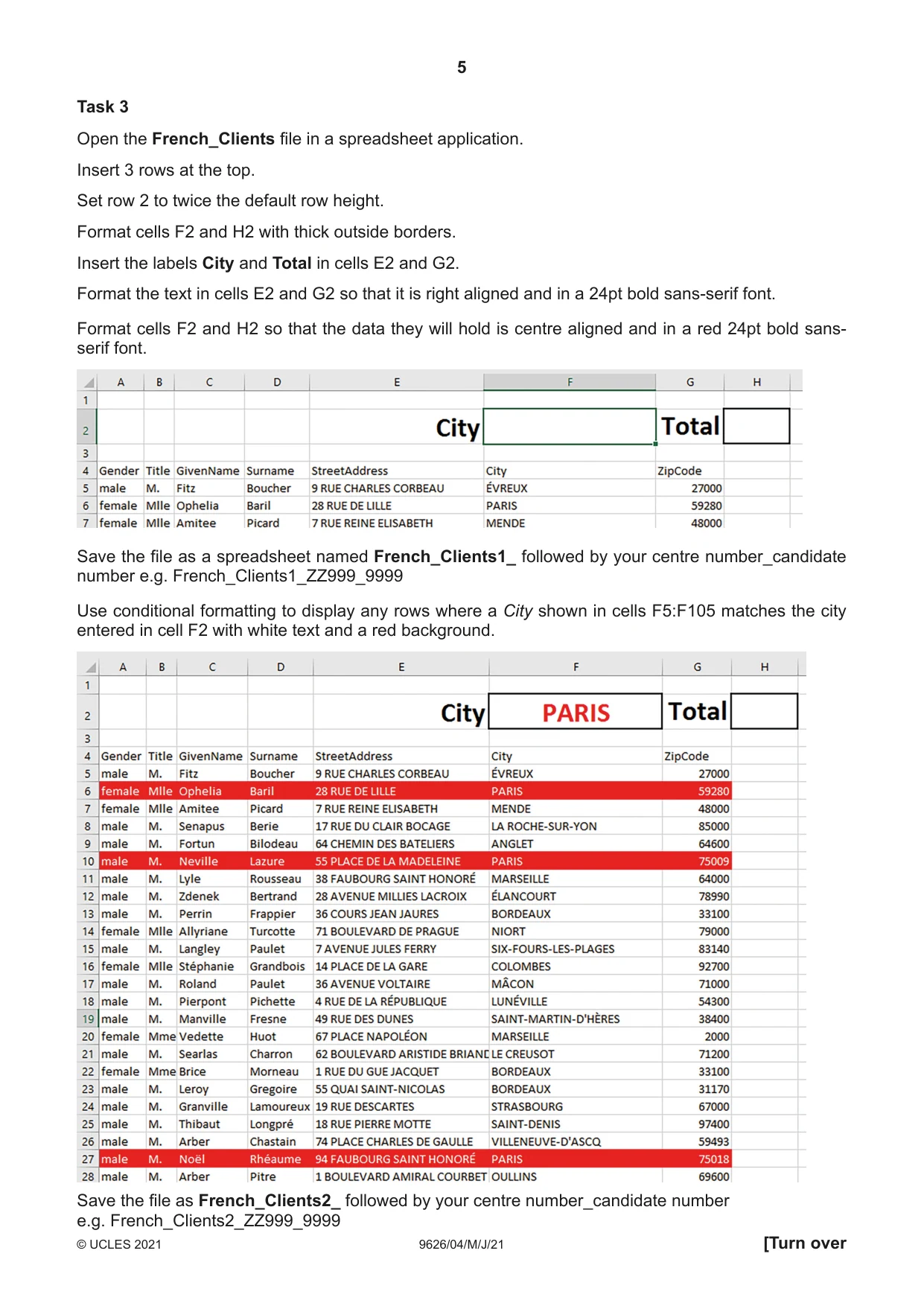
5 9626/04/M/J/21 © UCLES 2021 [Turn over Task 3 Open the French_Clients file in a spreadsheet application. Insert 3 rows at the top. Set row 2 to twice the default row height. Format cells F2 and H2 with thick outside borders. Insert the labels City and Total in cells E2 and G2. Format the text in cells E2 and G2 so that it is right aligned and in a 24pt bold sans-serif font. Format cells F2 and H2 so that the data they will hold is centre aligned and in a red 24pt bold sans- serif font. Save the file as a spreadsheet named French_Clients1_ followed by your centre number_candidate number e.g. French_Clients1_ZZ999_9999 Use conditional formatting to display any rows where a City shown in cells F5:F105 matches the city entered in cell F2 with white text and a red background. Save the file as French_Clients2_ followed by your centre number_candidate number e.g. French_Clients2_ZZ999_9999
Question paper, page 6
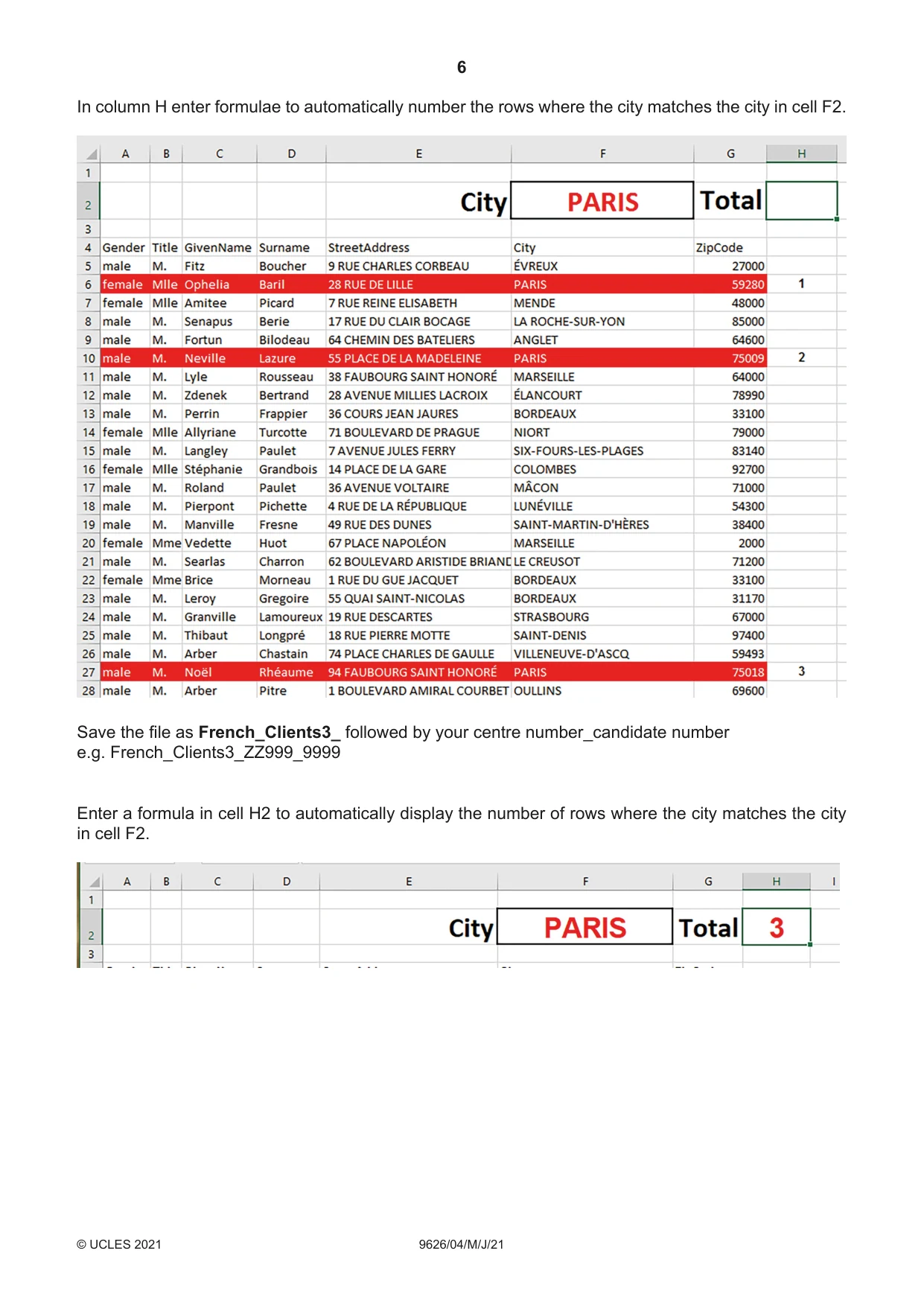
6 9626/04/M/J/21 © UCLES 2021 In column H enter formulae to automatically number the rows where the city matches the city in cell F2. Save the file as French_Clients3_ followed by your centre number_candidate number e.g. French_Clients3_ZZ999_9999 Enter a formula in cell H2 to automatically display the number of rows where the city matches the city in cell F2.
Question paper, page 7
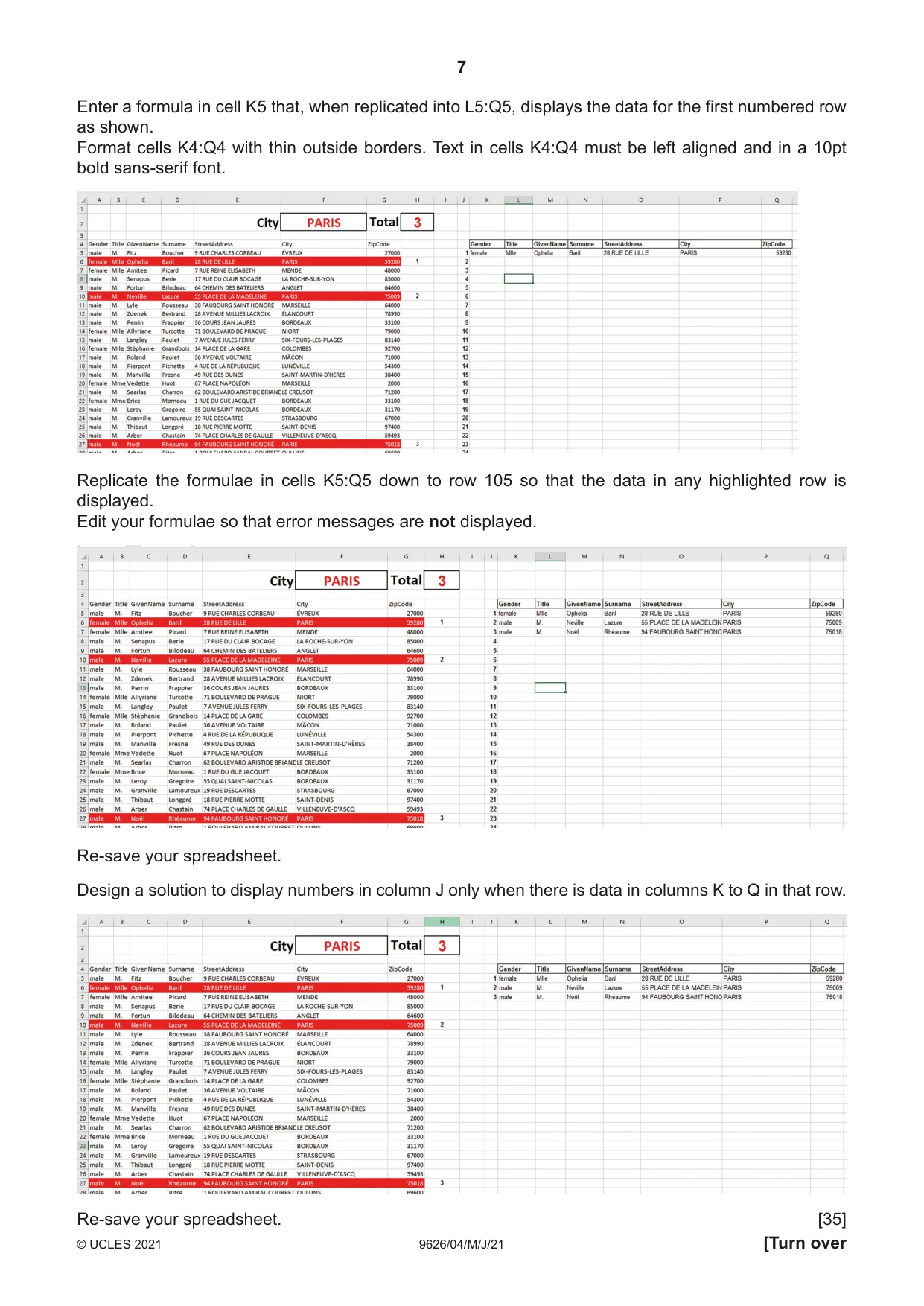
7 9626/04/M/J/21 © UCLES 2021 [Turn over Enter a formula in cell K5 that, when replicated into L5:Q5, displays the data for the first numbered row as shown. Format cells K4:Q4 with thin outside borders. Text in cells K4:Q4 must be left aligned and in a 10pt bold sans-serif font. Replicate the formulae in cells K5:Q5 down to row 105 so that the data in any highlighted row is displayed. Edit your formulae so that error messages are not displayed. Re-save your spreadsheet. Design a solution to display numbers in column J only when there is data in columns K to Q in that row. Re-save your spreadsheet. [35]
Question paper, page 8
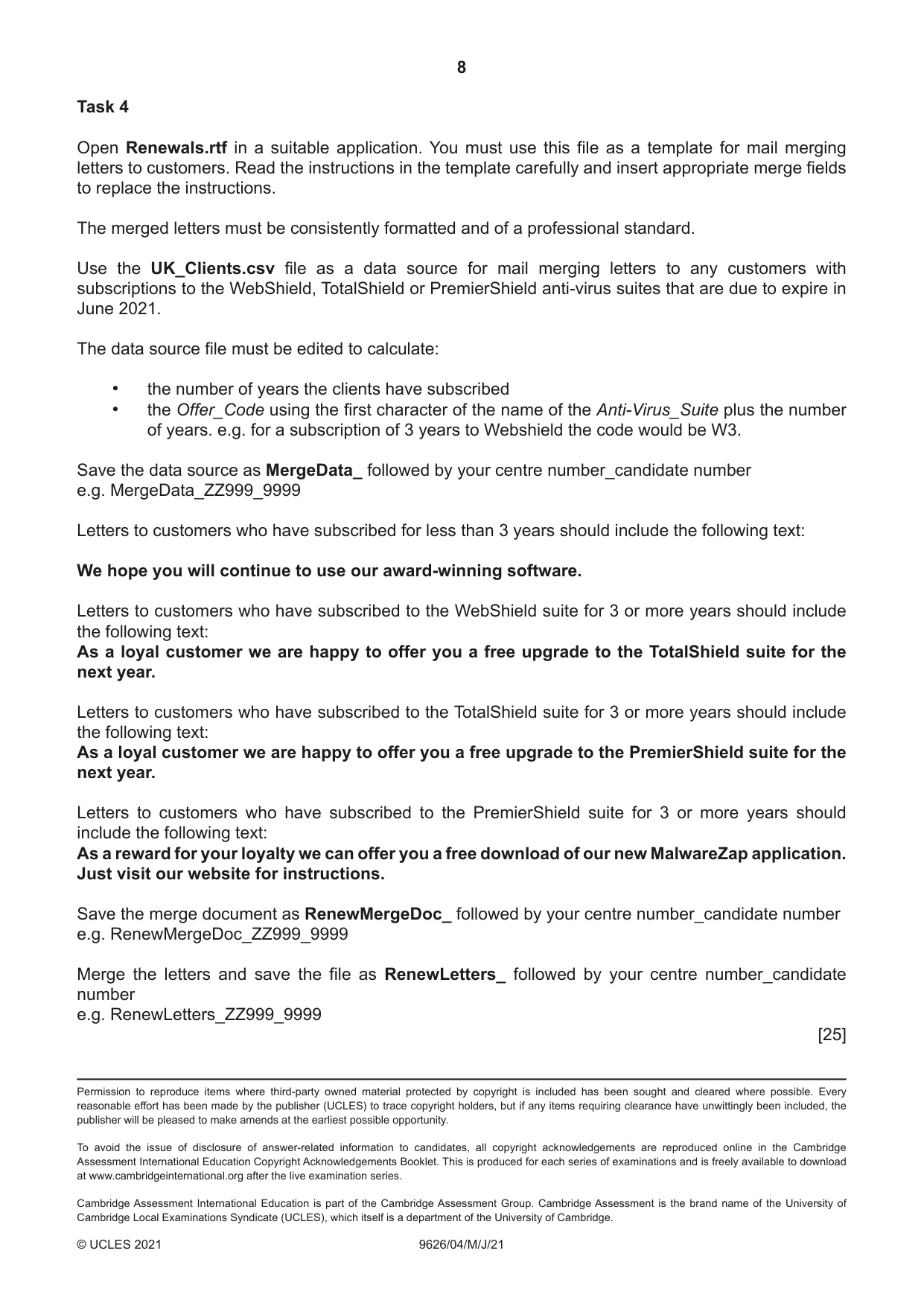
8 9626/04/M/J/21 © UCLES 2021 Permission to reproduce items where third-party owned material protected by copyright is included has been sought and cleared where possible. Every reasonable effort has been made by the publisher (UCLES) to trace copyright holders, but if any items requiring clearance have unwittingly been included, the publisher will be pleased to make amends at the earliest possible opportunity. To avoid the issue of disclosure of answer-related information to candidates, all copyright acknowledgements are reproduced online in the Cambridge Assessment International Education Copyright Acknowledgements Booklet. This is produced for each series of examinations and is freely available to download at www.cambridgeinternational.org after the live examination series. Cambridge Assessment International Education is part of the Cambridge Assessment Group. Cambridge Assessment is the brand name of the University of Cambridge Local Examinations Syndicate (UCLES), which itself is a department of the University of Cambridge. Task 4 Open Renewals.rtf in a suitable application. You must use this file as a template for mail merging letters to customers. Read the instructions in the template carefully and insert appropriate merge fields to replace the instructions. The merged letters must be consistently formatted and of a professional standard. Use the UK_Clients.csv file as a data source for mail merging letters to any customers with subscriptions to the WebShield, TotalShield or PremierShield anti-virus suites that are due to expire in June 2021. The data source file must be edited to calculate: • the number of years the clients have subscribed • the Offer_Code using the first character of the name of the Anti-Virus_Suite plus the number of years. e.g. for a subscription of 3 years to Webshield the code would be W3. Save the data source as MergeData_ followed by your centre number_candidate number e.g. MergeData_ZZ999_9999 Letters to customers who have subscribed for less than 3 years should include the following text: We hope you will continue to use our award-winning software. Letters to customers who have subscribed to the WebShield suite for 3 or more years should include the following text: As a loyal customer we are happy to offer you a free upgrade to the TotalShield suite for the next year. Letters to customers who have subscribed to the TotalShield suite for 3 or more years should include the following text: As a loyal customer we are happy to offer you a free upgrade to the PremierShield suite for the next year. Letters to customers who have subscribed to the PremierShield suite for 3 or more years should include the following text: As a reward for your loyalty we can offer you a free download of our new MalwareZap application. Just visit our website for instructions. Save the merge document as RenewMergeDoc_ followed by your centre number_candidate number e.g. RenewMergeDoc_ZZ999_9999 Merge the letters and save the file as RenewLetters_ followed by your centre number_candidate number e.g. RenewLetters_ZZ999_9999 [25]