Cambridge A Level Information Technology (from 2017) 9626 — 2020 Oct/Nov Paper 4 · Variant 0
9626/40/O/N/20
The question paper and its mark scheme, free to read here and free to download. This is Cambridge’s own paper, exactly as it was sat.
Question paper8 pages
Mark scheme
No mark scheme is in the library for this paper.
Paper as text
Question paper, page 1
Cambridge International AS & A Level This document has 8 pages. Blank pages are indicated. DC (SC/TP) 180970/2 © UCLES 2020 [Turn over * 2 2 1 2 2 1 2 8 3 1 * INFORMATION TECHNOLOGY 9626/04 Paper 4 Advanced Practical October/November 2020 2 hours 30 minutes You will need: Candidate source files (listed on page 2) INSTRUCTIONS ● Carry out every instruction in each task. ● Save your work using the file names given in the task as and when instructed. ● You must not have access to the internet or any email system during this examination. ● You must save your work in the correct file format as stated in the tasks. If you save work in an incorrect file format, you will not receive marks for that task. INFORMATION ● The total mark for this paper is 110. ● The number of marks for each task or part task is shown in brackets [ ].
Question paper, page 2
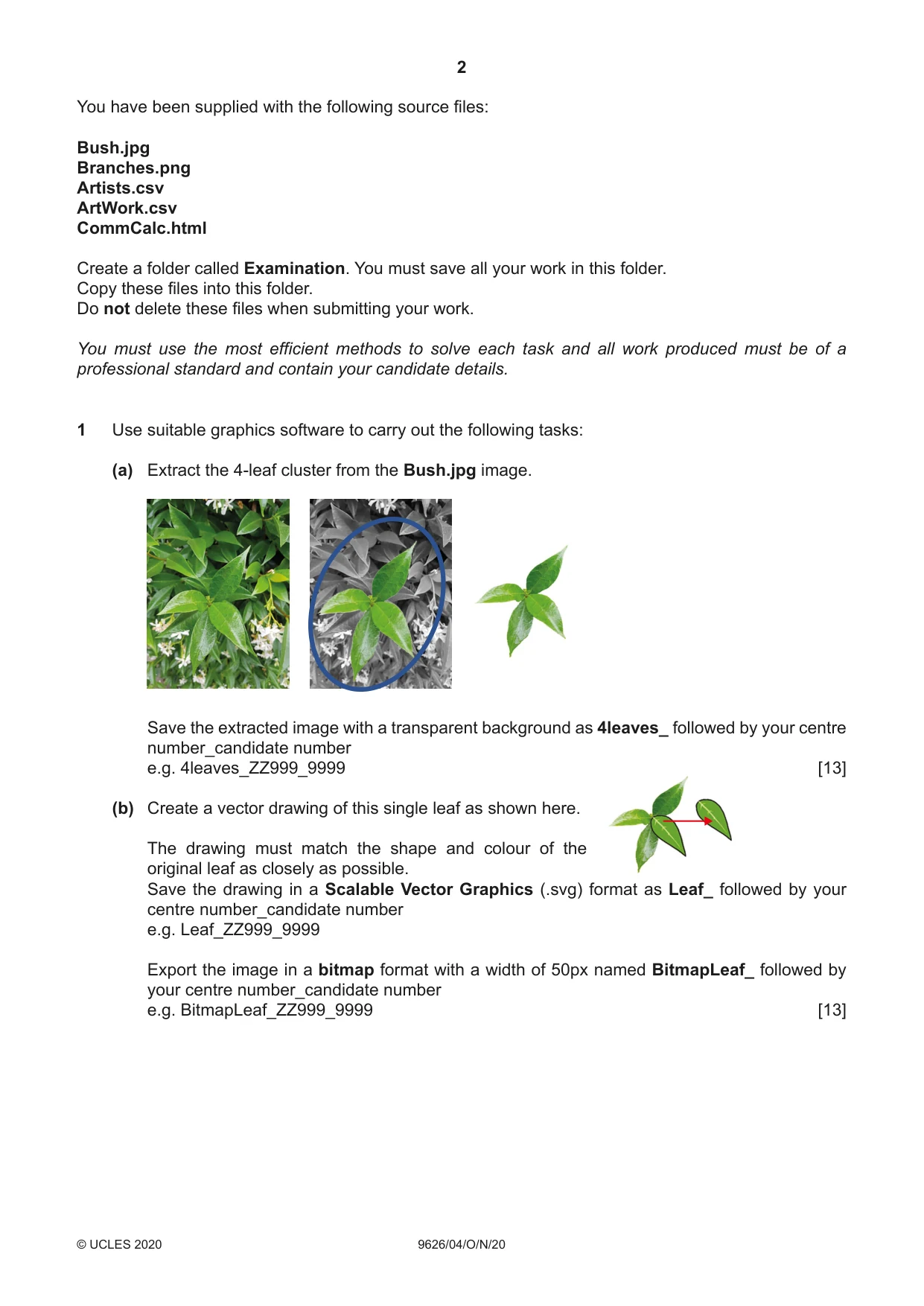
2 9626/04/O/N/20 © UCLES 2020 You have been supplied with the following source files: Bush.jpg Branches.png Artists.csv ArtWork.csv CommCalc.html Create a folder called Examination. You must save all your work in this folder. Copy these files into this folder. Do not delete these files when submitting your work. You must use the most efficient methods to solve each task and all work produced must be of a professional standard and contain your candidate details. 1 Use suitable graphics software to carry out the following tasks: (a) Extract the 4-leaf cluster from the Bush.jpg image. Save the extracted image with a transparent background as 4leaves_ followed by your centre number_candidate number e.g. 4leaves_ZZ999_9999 [13] (b) Create a vector drawing of this single leaf as shown here. The drawing must match the shape and colour of the original leaf as closely as possible. Save the drawing in a Scalable Vector Graphics (.svg) format as Leaf_ followed by your centre number_candidate number e.g. Leaf_ZZ999_9999 Export the image in a bitmap format with a width of 50px named BitmapLeaf_ followed by your centre number_candidate number e.g. BitmapLeaf_ZZ999_9999 [13]
Question paper, page 3
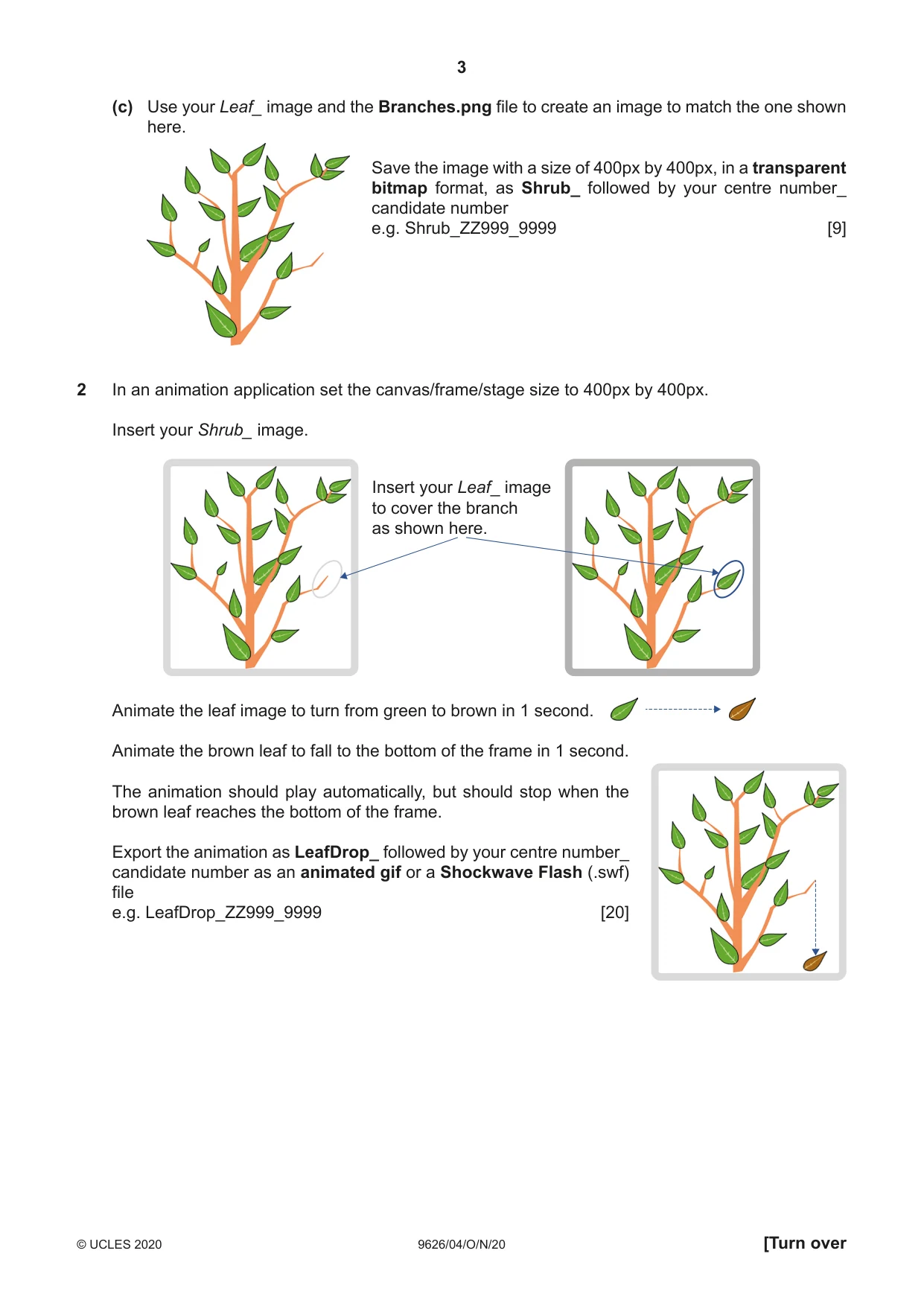
3 9626/04/O/N/20 © UCLES 2020 [Turn over (c) Use your Leaf_ image and the Branches.png file to create an image to match the one shown here. Save the image with a size of 400px by 400px, in a transparent bitmap format, as Shrub_ followed by your centre number_ candidate number e.g. Shrub_ZZ999_9999 [9] 2 In an animation application set the canvas/frame/stage size to 400px by 400px. Insert your Shrub_ image. Insert your Leaf_ image to cover the branch as shown here. Animate the leaf image to turn from green to brown in 1 second. Animate the brown leaf to fall to the bottom of the frame in 1 second. The animation should play automatically, but should stop when the brown leaf reaches the bottom of the frame. Export the animation as LeafDrop_ followed by your centre number_ candidate number as an animated gif or a Shockwave Flash (.swf) file e.g. LeafDrop_ZZ999_9999 [20]
Question paper, page 4
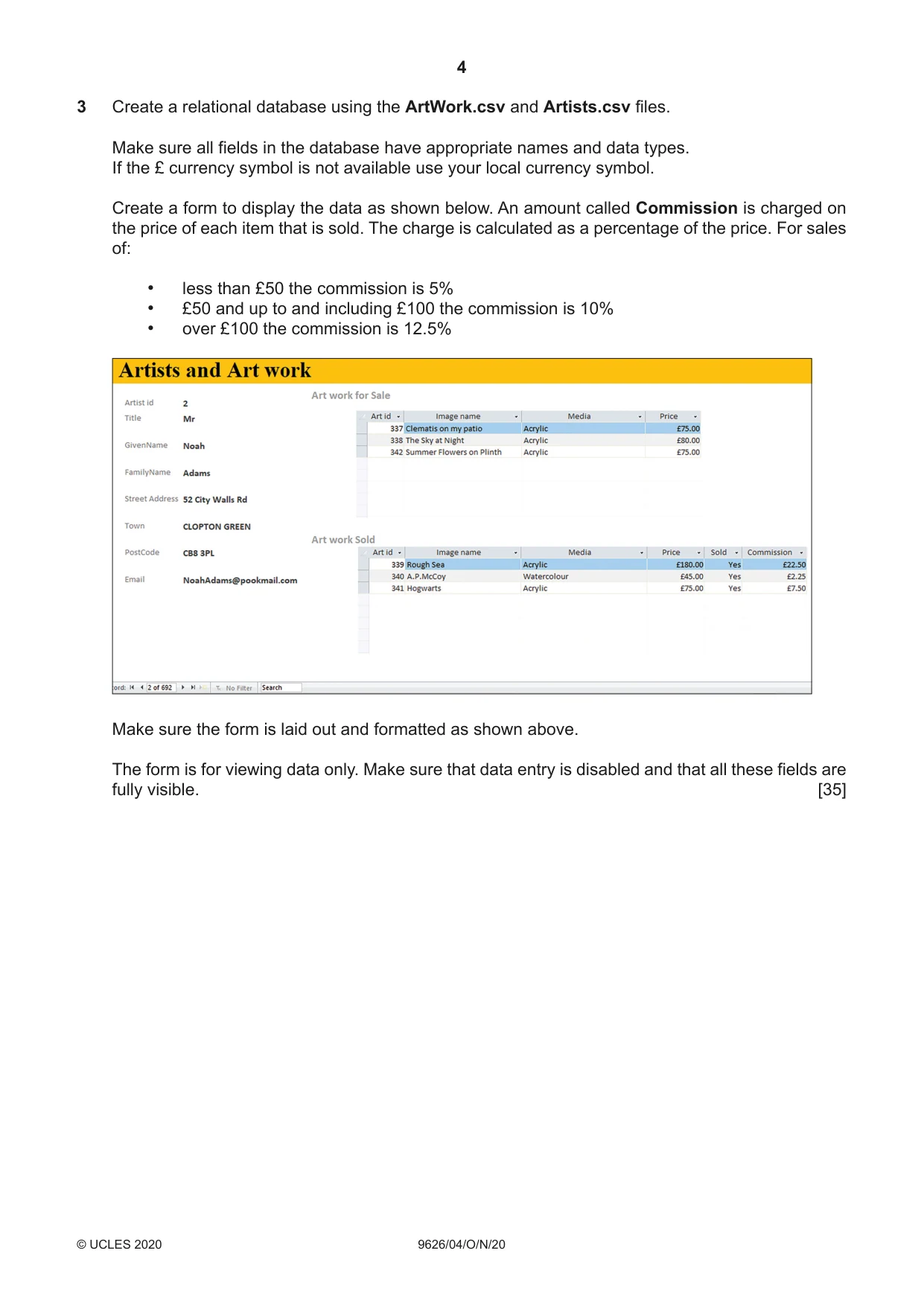
4 9626/04/O/N/20 © UCLES 2020 3 Create a relational database using the ArtWork.csv and Artists.csv files. Make sure all fields in the database have appropriate names and data types. If the £ currency symbol is not available use your local currency symbol. Create a form to display the data as shown below. An amount called Commission is charged on the price of each item that is sold. The charge is calculated as a percentage of the price. For sales of: • less than £50 the commission is 5% • £50 and up to and including £100 the commission is 10% • over £100 the commission is 12.5% Make sure the form is laid out and formatted as shown above. The form is for viewing data only. Make sure that data entry is disabled and that all these fields are fully visible. [35]
Question paper, page 5
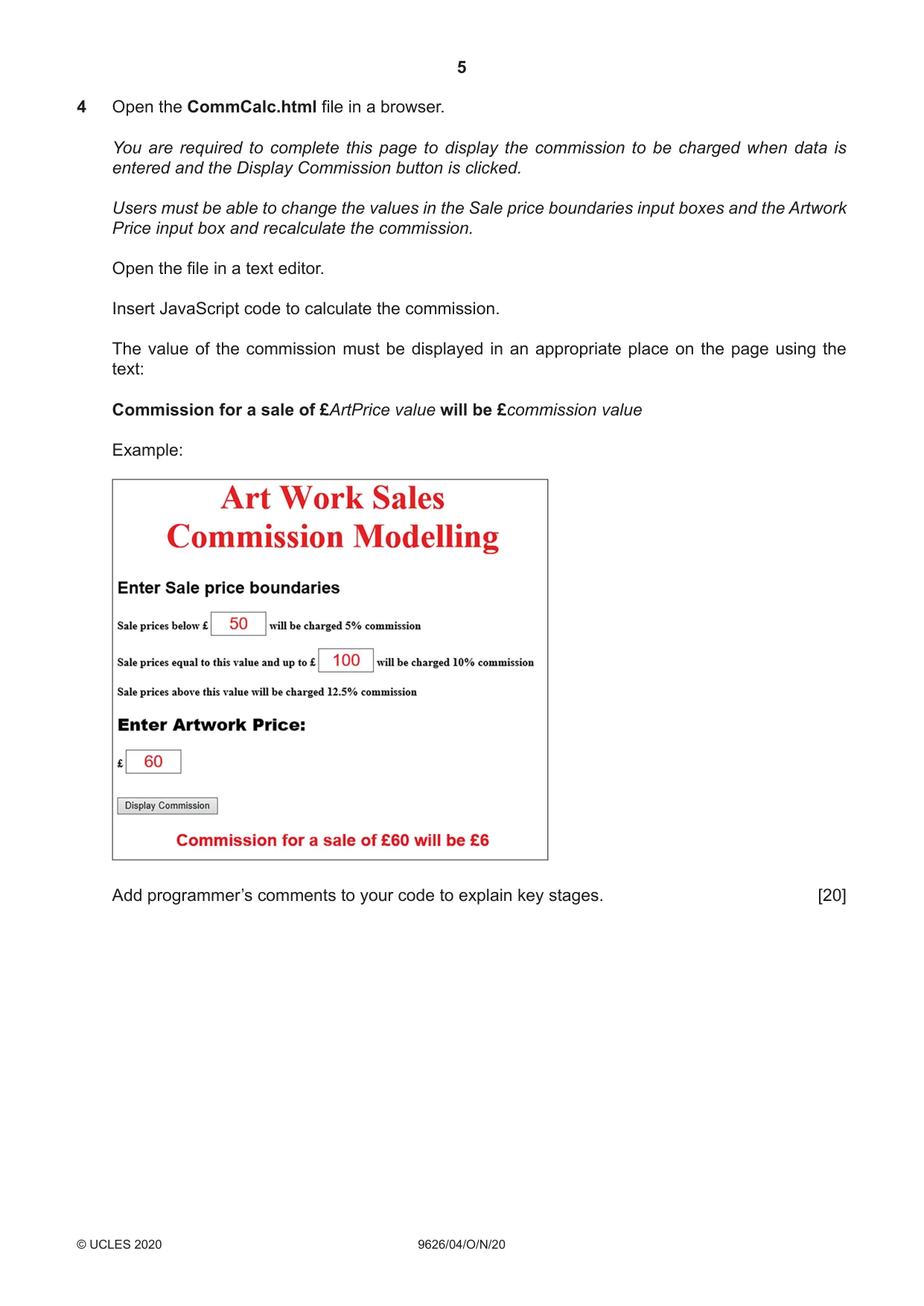
5 9626/04/O/N/20 © UCLES 2020 4 Open the CommCalc.html file in a browser. You are required to complete this page to display the commission to be charged when data is entered and the Display Commission button is clicked. Users must be able to change the values in the Sale price boundaries input boxes and the Artwork Price input box and recalculate the commission. Open the file in a text editor. Insert JavaScript code to calculate the commission. The value of the commission must be displayed in an appropriate place on the page using the text: Commission for a sale of £ArtPrice value will be £commission value Example: Add programmer’s comments to your code to explain key stages. [20]
Question paper, page 6
6 9626/04/O/N/20 © UCLES 2020 BLANK PAGE
Question paper, page 7
7 9626/04/O/N/20 © UCLES 2020 BLANK PAGE
Question paper, page 8
8 9626/04/O/N/20 © UCLES 2020 Permission to reproduce items where third-party owned material protected by copyright is included has been sought and cleared where possible. Every reasonable effort has been made by the publisher (UCLES) to trace copyright holders, but if any items requiring clearance have unwittingly been included, the publisher will be pleased to make amends at the earliest possible opportunity. To avoid the issue of disclosure of answer-related information to candidates, all copyright acknowledgements are reproduced online in the Cambridge Assessment International Education Copyright Acknowledgements Booklet. This is produced for each series of examinations and is freely available to download at www.cambridgeinternational.org after the live examination series. Cambridge Assessment International Education is part of the Cambridge Assessment Group. Cambridge Assessment is the brand name of the University of Cambridge Local Examinations Syndicate (UCLES), which itself is a department of the University of Cambridge. BLANK PAGE