Cambridge A Level Information Technology (from 2017) 9626 — 2020 Feb/March Paper 4 · Variant 0
9626/40/F/M/20
The question paper and its mark scheme, free to read here and free to download. This is Cambridge’s own paper, exactly as it was sat.
Question paper12 pages



Mark scheme
No mark scheme is in the library for this paper.
Paper as text
Question paper, page 1
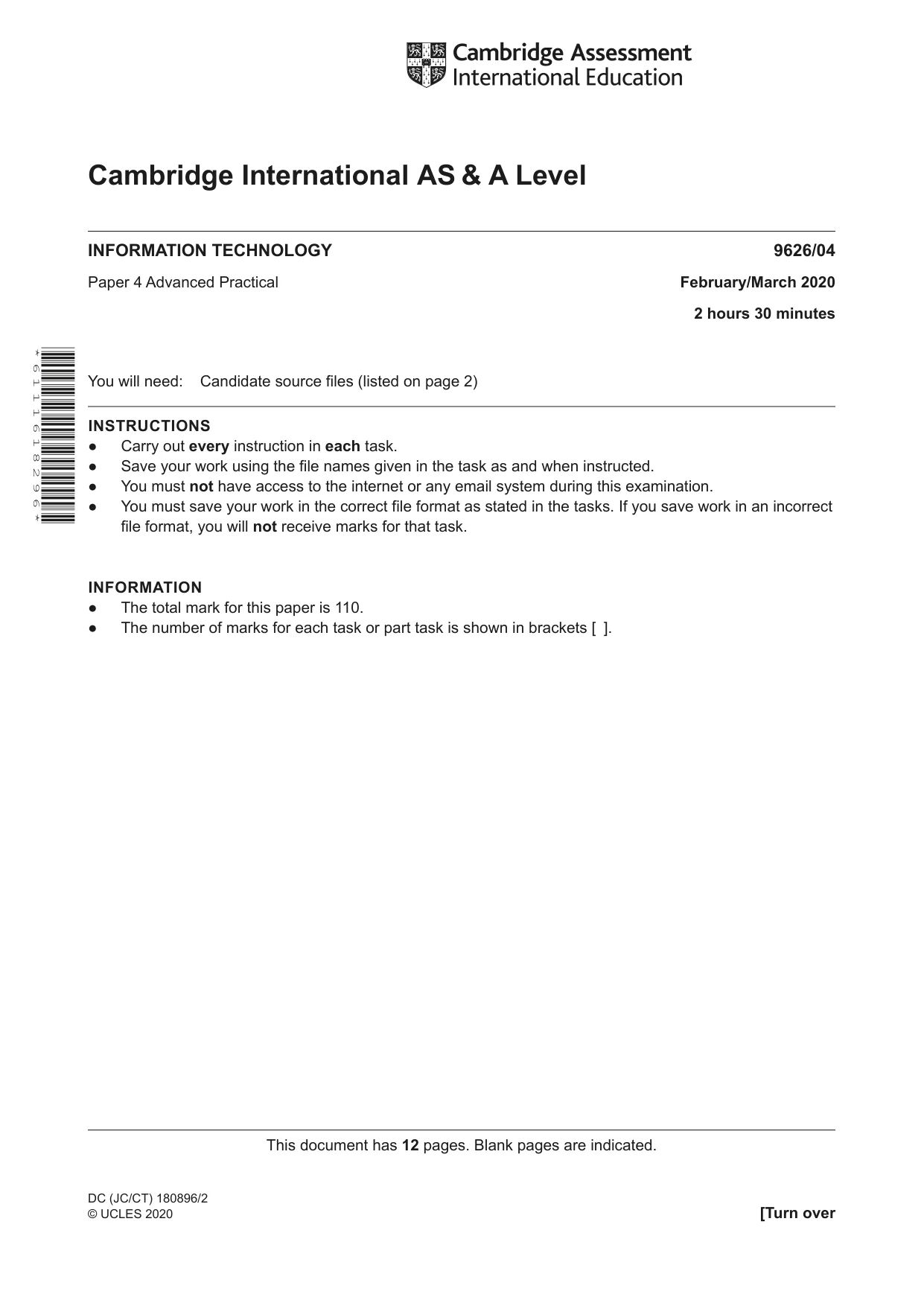
Cambridge International AS & A Level DC (JC/CT) 180896/2 © UCLES 2020 [Turn over This document has 12 pages. Blank pages are indicated. * 6 1 1 1 6 1 8 2 9 6 * INFORMATION TECHNOLOGY 9626/04 Paper 4 Advanced Practical February/March 2020 2 hours 30 minutes You will need: Candidate source files (listed on page 2) INSTRUCTIONS ● Carry out every instruction in each task. ● Save your work using the file names given in the task as and when instructed. ● You must not have access to the internet or any email system during this examination. ● You must save your work in the correct file format as stated in the tasks. If you save work in an incorrect file format, you will not receive marks for that task. INFORMATION ● The total mark for this paper is 110. ● The number of marks for each task or part task is shown in brackets [ ].
Question paper, page 2
2 9626/04/F/M/20 © UCLES 2020 You have been supplied with the following source files: Assessment.csv MailMergeTemplate.rtf MarkConversionTask.html Create a folder called Examination_centre number_candidate number e.g. Examination_ZZ999_9999 You must save all your work in this folder. Copy the source files into your Examination folder. Do not delete these files when submitting your work. You must use the most efficient methods and all work produced must be of a professional standard and contain your candidate details.
Question paper, page 3
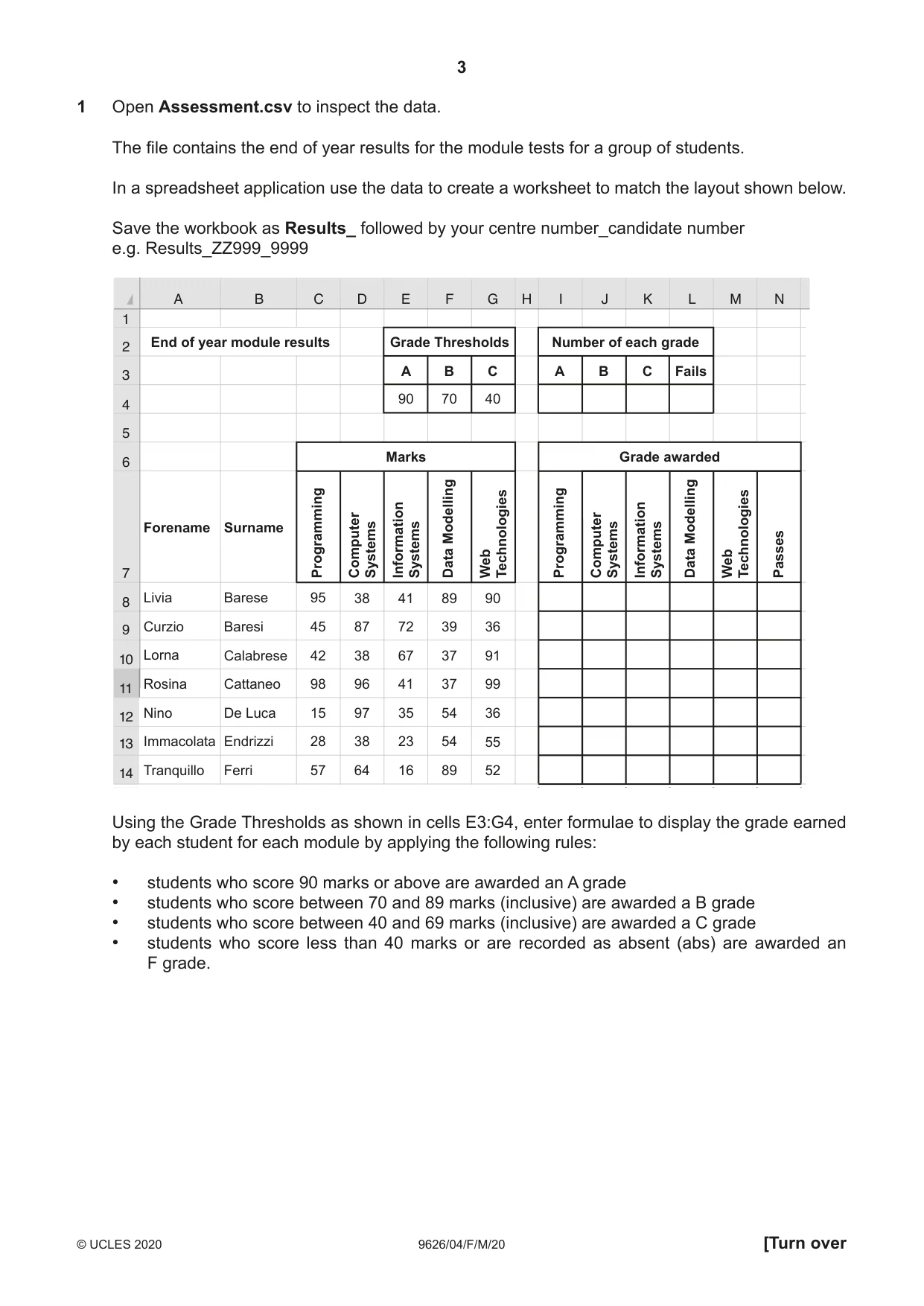
3 9626/04/F/M/20 © UCLES 2020 [Turn over 1 Open Assessment.csv to inspect the data. The file contains the end of year results for the module tests for a group of students. In a spreadsheet application use the data to create a worksheet to match the layout shown below. Save the workbook as Results_ followed by your centre number_candidate number e.g. Results_ZZ999_9999 A B D F G H I J K L M N 1 2 3 4 5 6 8 9 10 11 12 13 14 E C 7 11 End of year module results Grade Thresholds Number of each grade Forename Livia Curzio Lorna Rosina Nino Immacolata Tranquillo Barese Baresi Calabrese Cattaneo De Luca Endrizzi Ferri 95 45 42 98 15 28 57 38 87 38 96 97 38 64 41 72 67 41 35 23 16 89 39 37 37 54 54 89 90 90 70 40 A B C A B C Fails 36 91 99 36 55 52 Surname Programming Computer Systems Information Systems Data Modelling Web Technologies Programming Computer Systems Information Systems Data Modelling Passes Web Technologies Marks Grade awarded Using the Grade Thresholds as shown in cells E3:G4, enter formulae to display the grade earned by each student for each module by applying the following rules: • students who score 90 marks or above are awarded an A grade • students who score between 70 and 89 marks (inclusive) are awarded a B grade • students who score between 40 and 69 marks (inclusive) are awarded a C grade • students who score less than 40 marks or are recorded as absent (abs) are awarded an F grade.
Question paper, page 4
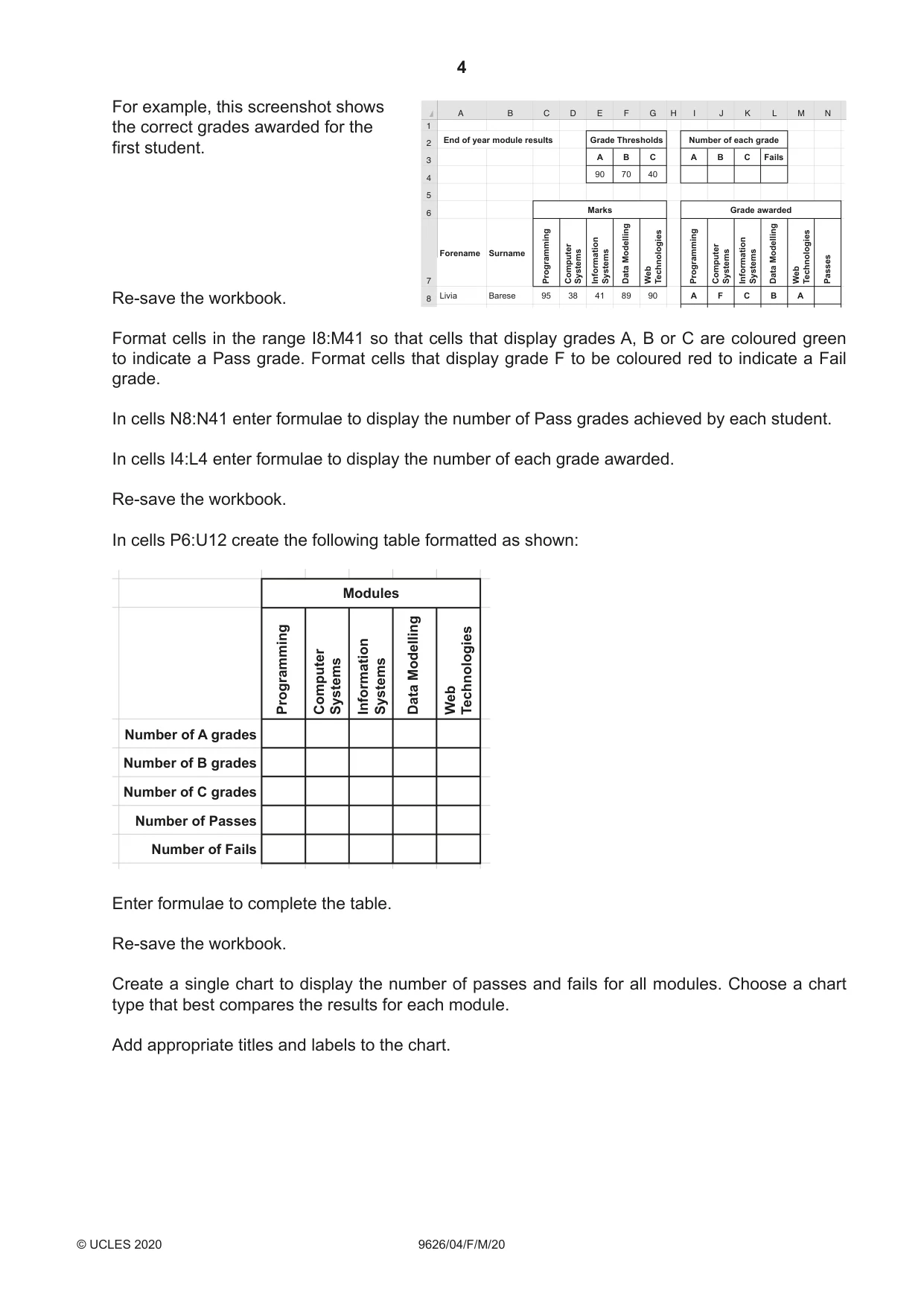
4 9626/04/F/M/20 © UCLES 2020 For example, this screenshot shows the correct grades awarded for the first student. Re-save the workbook. Format cells in the range I8:M41 so that cells that display grades A, B or C are coloured green to indicate a Pass grade. Format cells that display grade F to be coloured red to indicate a Fail grade. In cells N8:N41 enter formulae to display the number of Pass grades achieved by each student. In cells I4:L4 enter formulae to display the number of each grade awarded. Re-save the workbook. In cells P6:U12 create the following table formatted as shown: Number of A grades Number of B grades Number of C grades Number of Passes Number of Fails Programming Computer Systems Information Systems Data Modelling Web Technologies Modules Enter formulae to complete the table. Re-save the workbook. Create a single chart to display the number of passes and fails for all modules. Choose a chart type that best compares the results for each module. Add appropriate titles and labels to the chart. A B D F G H I J K L M N 1 2 3 4 5 6 8 E C 7 End of year module results Grade Thresholds Number of each grade Forename Livia Barese 95 38 41 89 90 90 70 40 A B C A A F C B A B C Fails Surname Programming Computer Systems Information Systems Data Modelling Web Technologies Programming Computer Systems Information Systems Data Modelling Passes Web Technologies Marks Grade awarded
Question paper, page 5
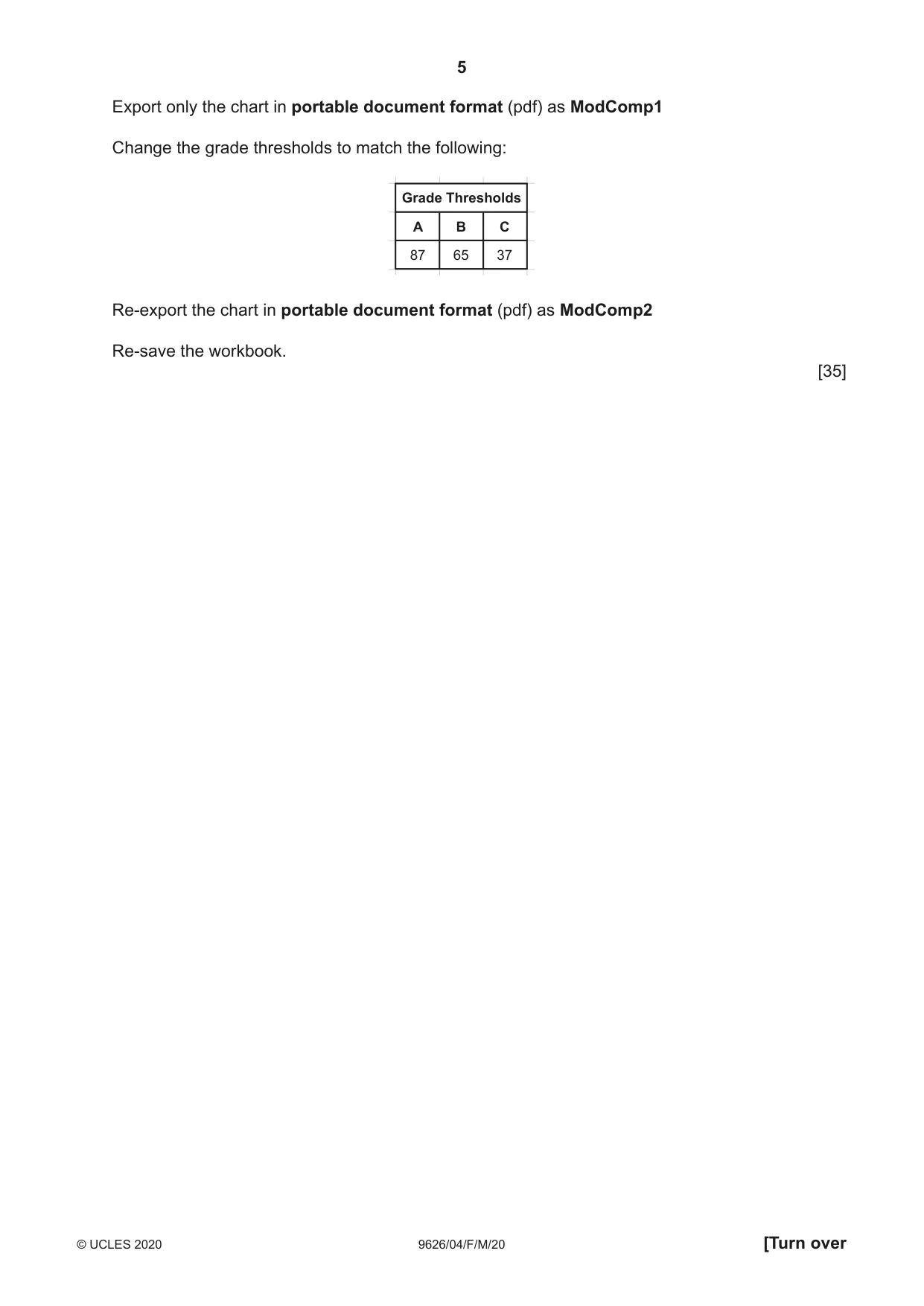
5 9626/04/F/M/20 © UCLES 2020 [Turn over Export only the chart in portable document format (pdf) as ModComp1 Change the grade thresholds to match the following: Grade Thresholds 87 65 37 A B C Re-export the chart in portable document format (pdf) as ModComp2 Re-save the workbook. [35]
Question paper, page 6
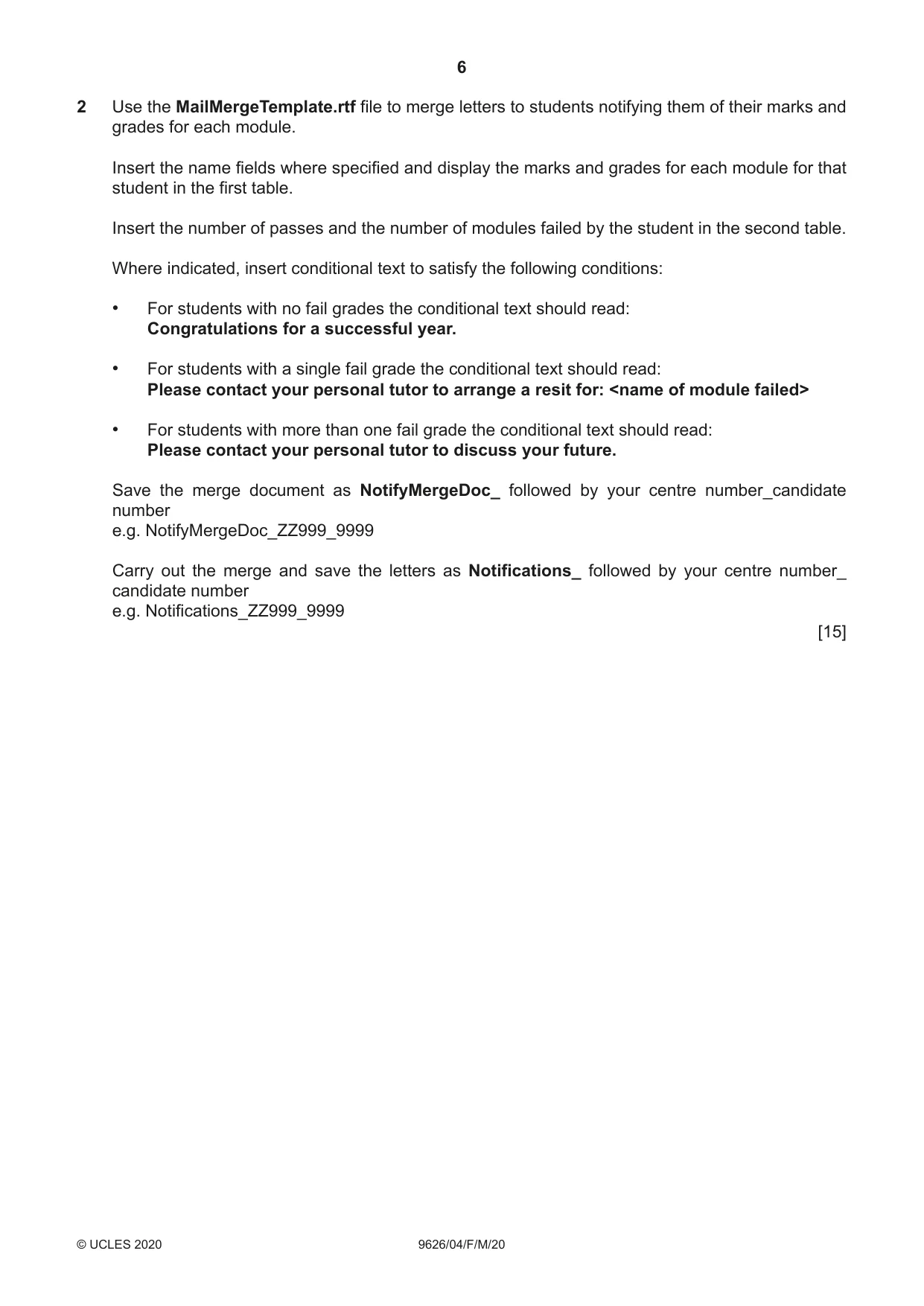
6 9626/04/F/M/20 © UCLES 2020 2 Use the MailMergeTemplate.rtf file to merge letters to students notifying them of their marks and grades for each module. Insert the name fields where specified and display the marks and grades for each module for that student in the first table. Insert the number of passes and the number of modules failed by the student in the second table. Where indicated, insert conditional text to satisfy the following conditions: • For students with no fail grades the conditional text should read: Congratulations for a successful year. • For students with a single fail grade the conditional text should read: Please contact your personal tutor to arrange a resit for: <name of module failed> • For students with more than one fail grade the conditional text should read: Please contact your personal tutor to discuss your future. Save the merge document as NotifyMergeDoc_ followed by your centre number_candidate number e.g. NotifyMergeDoc_ZZ999_9999 Carry out the merge and save the letters as Notifications_ followed by your centre number_ candidate number e.g. Notifications_ZZ999_9999 [15]
Question paper, page 7
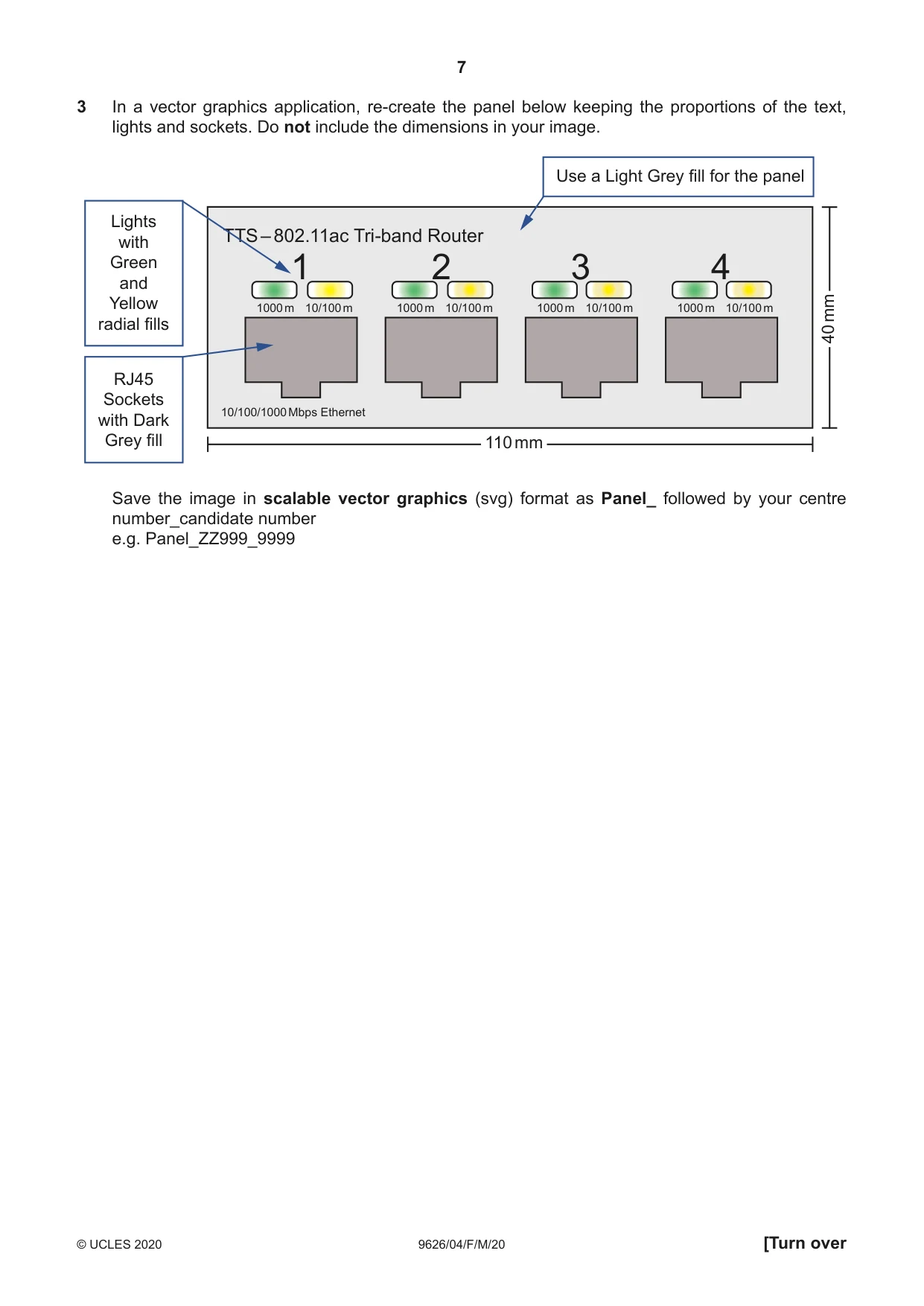
7 9626/04/F/M/20 © UCLES 2020 [Turn over 3 In a vector graphics application, re-create the panel below keeping the proportions of the text, lights and sockets. Do not include the dimensions in your image. 1 1000 m 10/100/1000 Mbps Ethernet 10/100 m 2 1000 m 10/100 m 3 1000 m 10/100 m 4 1000 m 10/100 m TTS – 802.11ac Tri-band Router Lights with Green and Yellow radial fills RJ45 Sockets with Dark Grey fill Use a Light Grey fill for the panel 110 mm 40 mm Save the image in scalable vector graphics (svg) format as Panel_ followed by your centre number_candidate number e.g. Panel_ZZ999_9999
Question paper, page 8
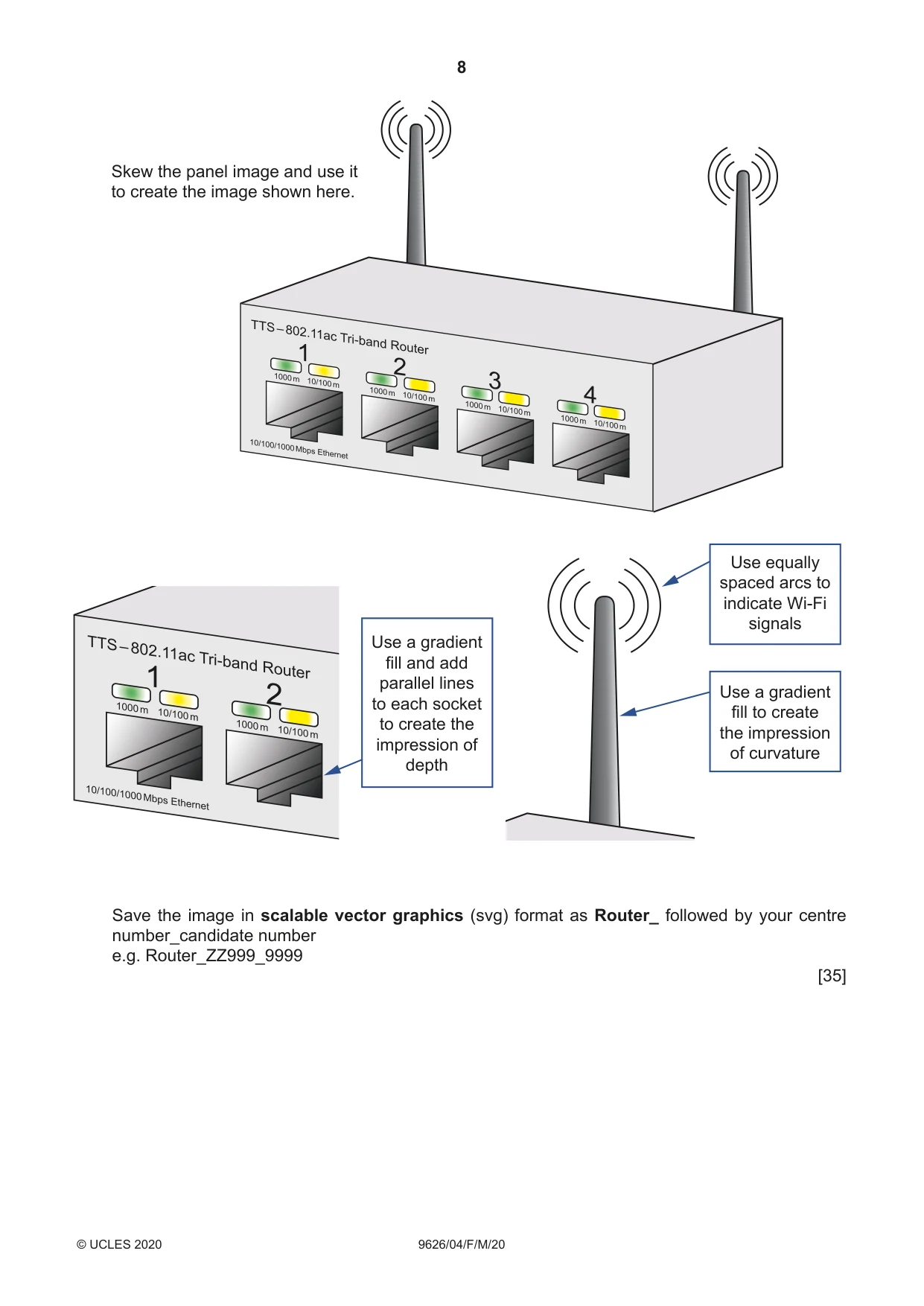
8 9626/04/F/M/20 © UCLES 2020 Use a gradient fill and add parallel lines to each socket to create the impression of depth Use equally spaced arcs to indicate Wi-Fi signals Use a gradient fill to create the impression of curvature Skew the panel image and use it to create the image shown here. Save the image in scalable vector graphics (svg) format as Router_ followed by your centre number_candidate number e.g. Router_ZZ999_9999 [35]
Question paper, page 9
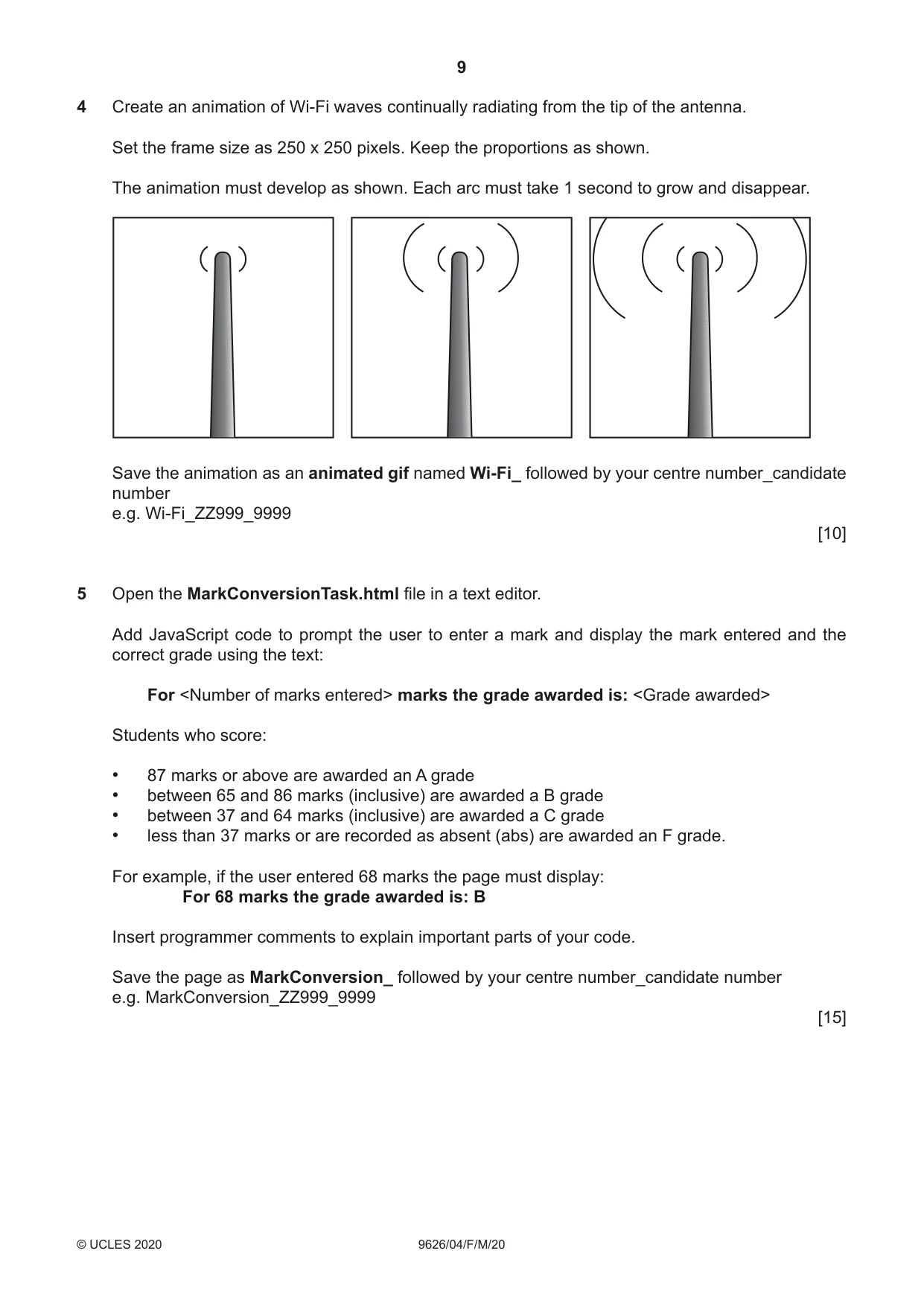
9 9626/04/F/M/20 © UCLES 2020 4 Create an animation of Wi-Fi waves continually radiating from the tip of the antenna. Set the frame size as 250 x 250 pixels. Keep the proportions as shown. The animation must develop as shown. Each arc must take 1 second to grow and disappear. Save the animation as an animated gif named Wi-Fi_ followed by your centre number_candidate number e.g. Wi-Fi_ZZ999_9999 [10] 5 Open the MarkConversionTask.html file in a text editor. Add JavaScript code to prompt the user to enter a mark and display the mark entered and the correct grade using the text: For <Number of marks entered> marks the grade awarded is: <Grade awarded> Students who score: • 87 marks or above are awarded an A grade • between 65 and 86 marks (inclusive) are awarded a B grade • between 37 and 64 marks (inclusive) are awarded a C grade • less than 37 marks or are recorded as absent (abs) are awarded an F grade. For example, if the user entered 68 marks the page must display: For 68 marks the grade awarded is: B Insert programmer comments to explain important parts of your code. Save the page as MarkConversion_ followed by your centre number_candidate number e.g. MarkConversion_ZZ999_9999 [15]
Question paper, page 10
10 9626/04/F/M/20 © UCLES 2020 BLANK PAGE
Question paper, page 11
11 9626/04/F/M/20 © UCLES 2020 BLANK PAGE
Question paper, page 12
12 9626/04/F/M/20 © UCLES 2020 Permission to reproduce items where third-party owned material protected by copyright is included has been sought and cleared where possible. Every reasonable effort has been made by the publisher (UCLES) to trace copyright holders, but if any items requiring clearance have unwittingly been included, the publisher will be pleased to make amends at the earliest possible opportunity. To avoid the issue of disclosure of answer-related information to candidates, all copyright acknowledgements are reproduced online in the Cambridge Assessment International Education Copyright Acknowledgements Booklet. This is produced for each series of examinations and is freely available to download at www.cambridgeinternational.org after the live examination series. Cambridge Assessment International Education is part of the Cambridge Assessment Group. Cambridge Assessment is the brand name of the University of Cambridge Local Examinations Syndicate (UCLES), which itself is a department of the University of Cambridge. BLANK PAGE