Cambridge A Level Applied Information and Communication Technology 9713 — 2017 Oct/Nov Paper 2 · Variant 1
9713/21/O/N/17 · 120 marks · ≈135 min
The question paper and its mark scheme, free to read here and free to download. This is Cambridge’s own paper, exactly as it was sat.
Question paper8 pages



Mark scheme21 pages
Answers below. Sit the paper first if you are practising.
Paper as text
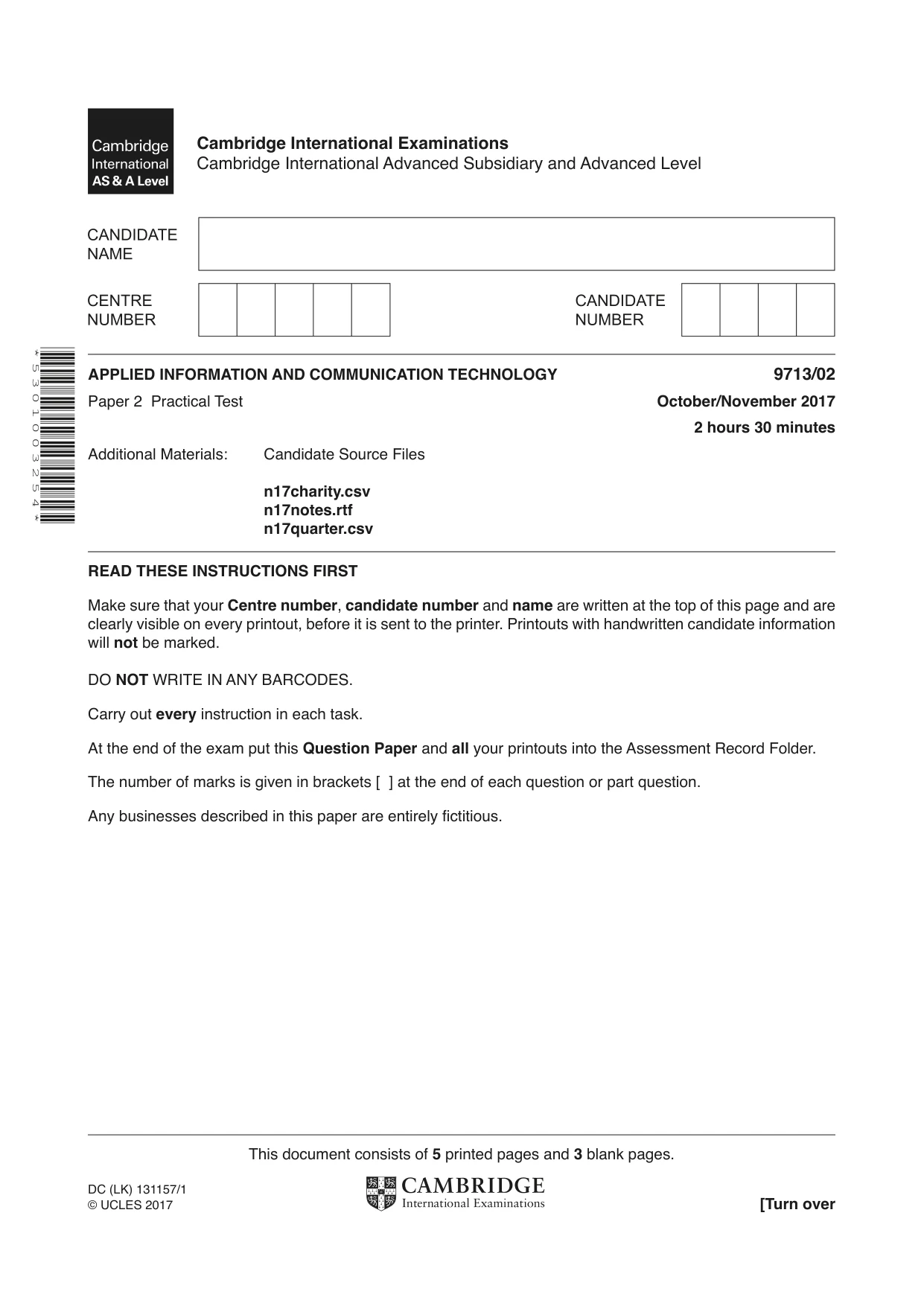
Question paper, page 1
This document consists of 5 printed pages and 3 blank pages. DC (LK) 131157/1 © UCLES 2017 [Turn over Cambridge International Examinations Cambridge International Advanced Subsidiary and Advanced Level * 5 3 0 1 0 0 3 2 5 4 * APPLIED INFORMATION AND COMMUNICATION TECHNOLOGY 9713/02 Paper 2 Practical Test October/November 2017 2 hours 30 minutes Additional Materials: Candidate Source Files n17charity.csv n17notes.rtf n17quarter.csv READ THESE INSTRUCTIONS FIRST Make sure that your Centre number, candidate number and name are written at the top of this page and are clearly visible on every printout, before it is sent to the printer. Printouts with handwritten candidate information will not be marked. DO NOT WRITE IN ANY BARCODES. Carry out every instruction in each task. At the end of the exam put this Question Paper and all your printouts into the Assessment Record Folder. The number of marks is given in brackets [ ] at the end of each question or part question. Any businesses described in this paper are entirely fictitious.
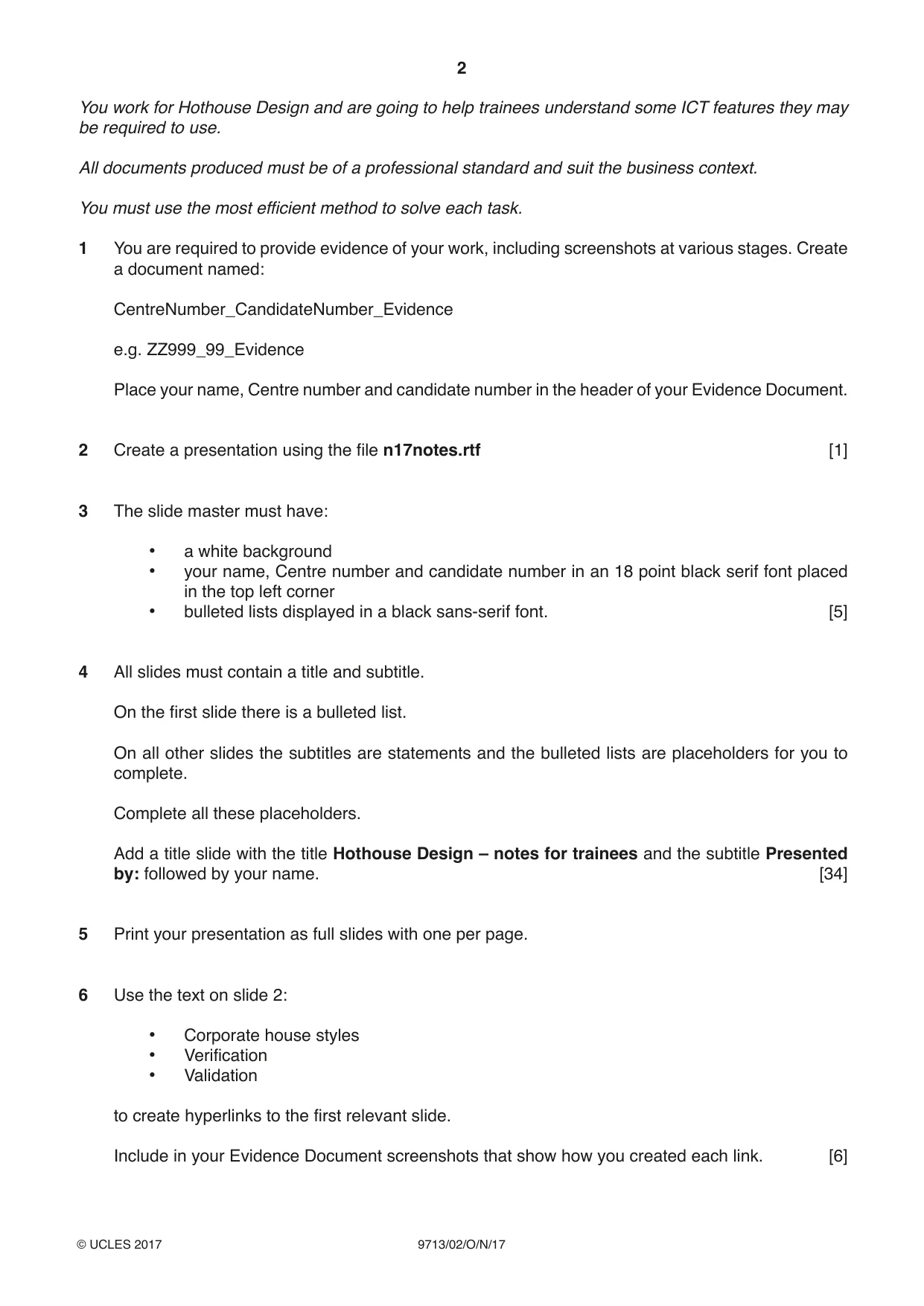
Question paper, page 2
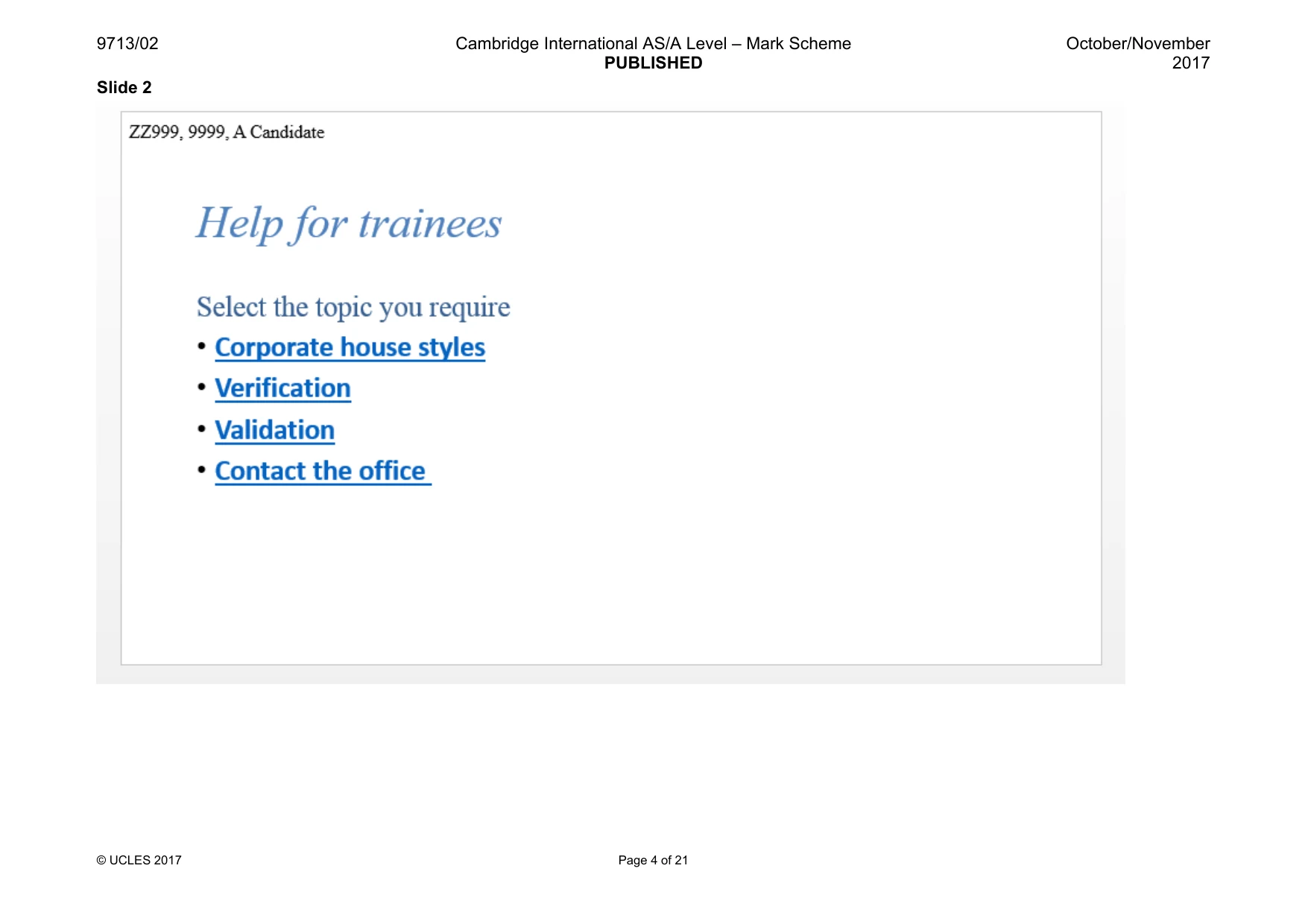
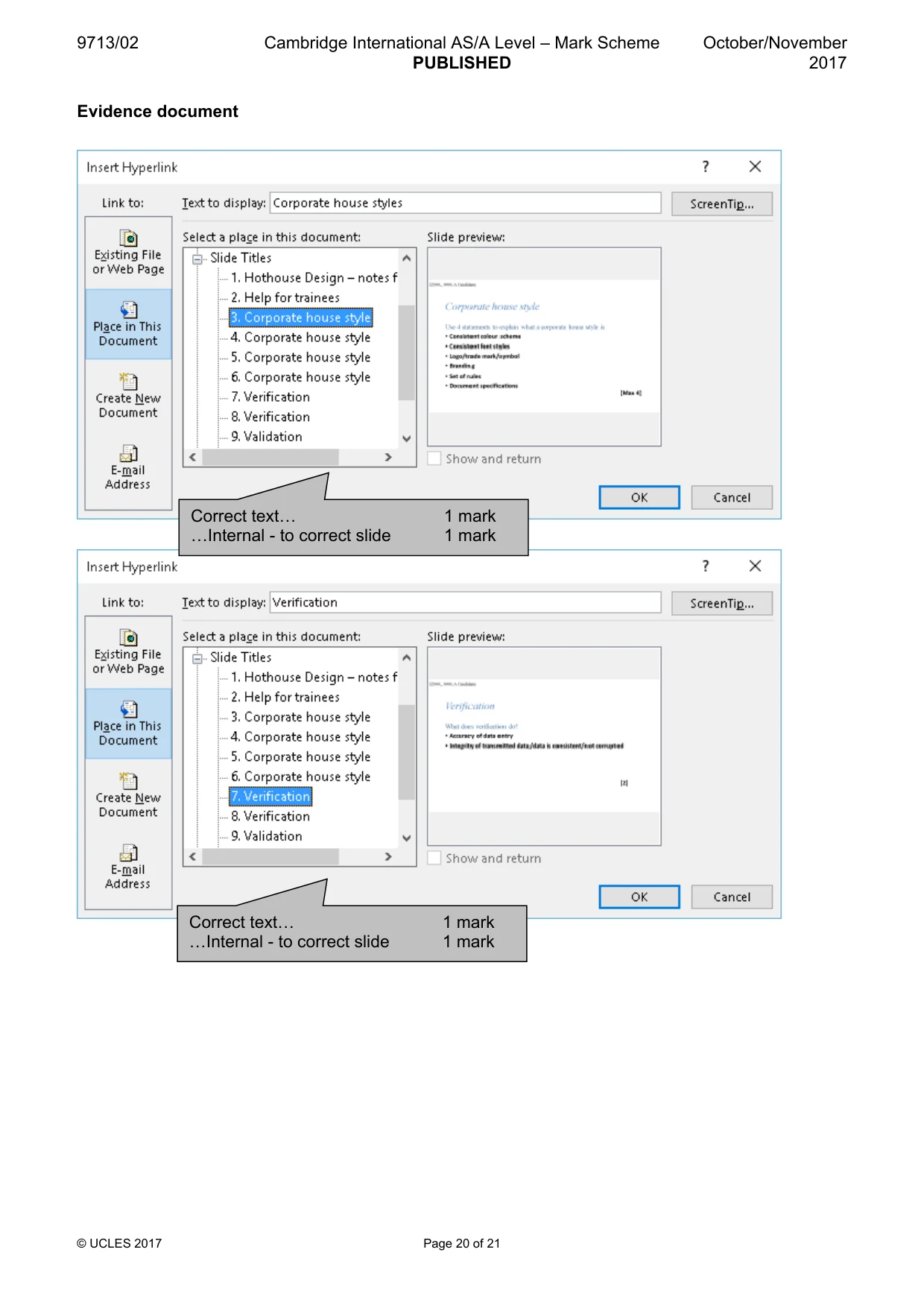
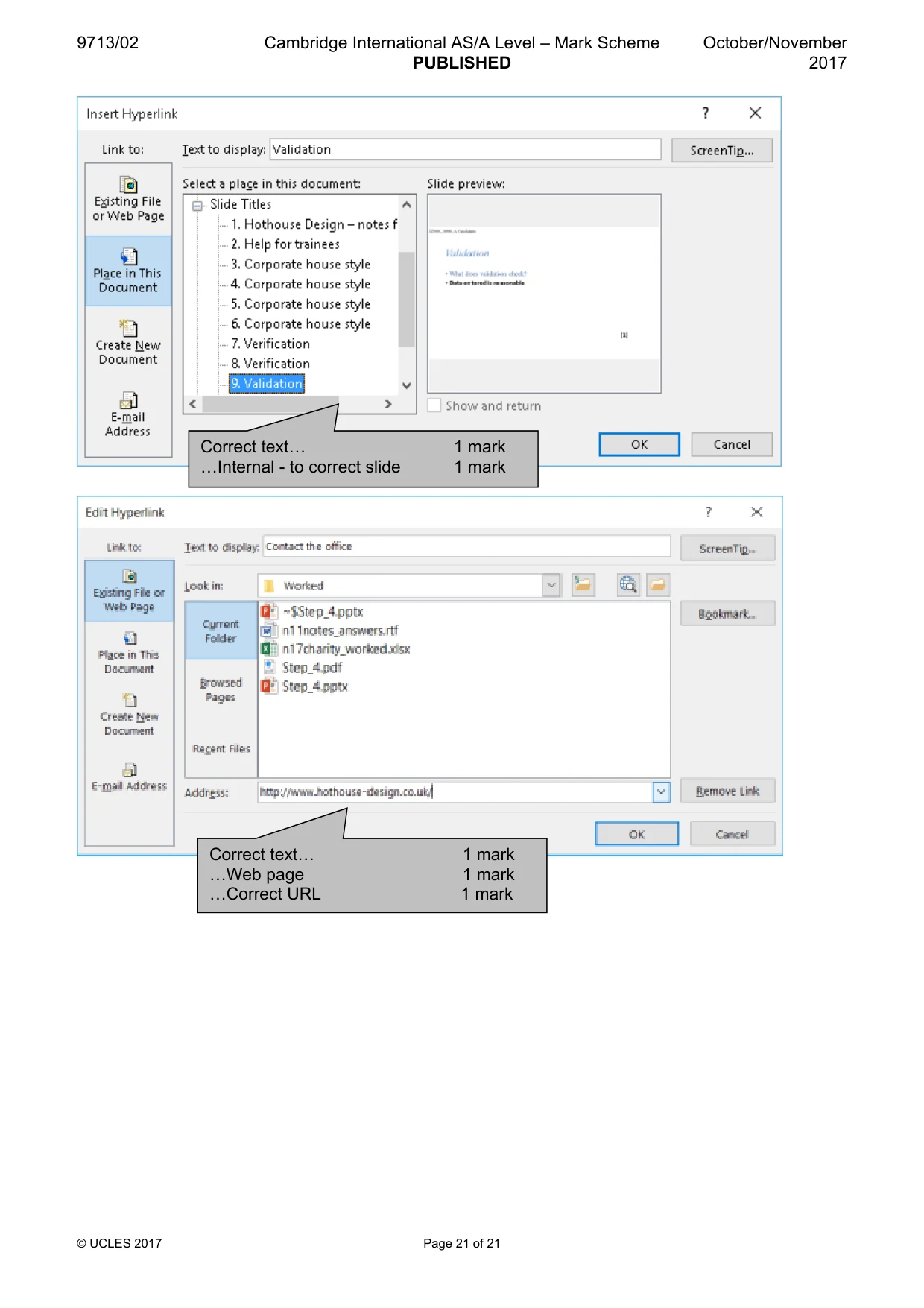
2 9713/02/O/N/17 © UCLES 2017 You work for Hothouse Design and are going to help trainees understand some ICT features they may be required to use. All documents produced must be of a professional standard and suit the business context. You must use the most efficient method to solve each task. 1 You are required to provide evidence of your work, including screenshots at various stages. Create a document named: CentreNumber_CandidateNumber_Evidence e.g. ZZ999_99_Evidence Place your name, Centre number and candidate number in the header of your Evidence Document. 2 Create a presentation using the file n17notes.rtf [1] 3 The slide master must have: • a white background • your name, Centre number and candidate number in an 18 point black serif font placed in the top left corner • bulleted lists displayed in a black sans-serif font. [5] 4 All slides must contain a title and subtitle. On the first slide there is a bulleted list. On all other slides the subtitles are statements and the bulleted lists are placeholders for you to complete. Complete all these placeholders. Add a title slide with the title Hothouse Design – notes for trainees and the subtitle Presented by: followed by your name. [34] 5 Print your presentation as full slides with one per page. 6 Use the text on slide 2: • Corporate house styles • Verification • Validation to create hyperlinks to the first relevant slide. Include in your Evidence Document screenshots that show how you created each link. [6]
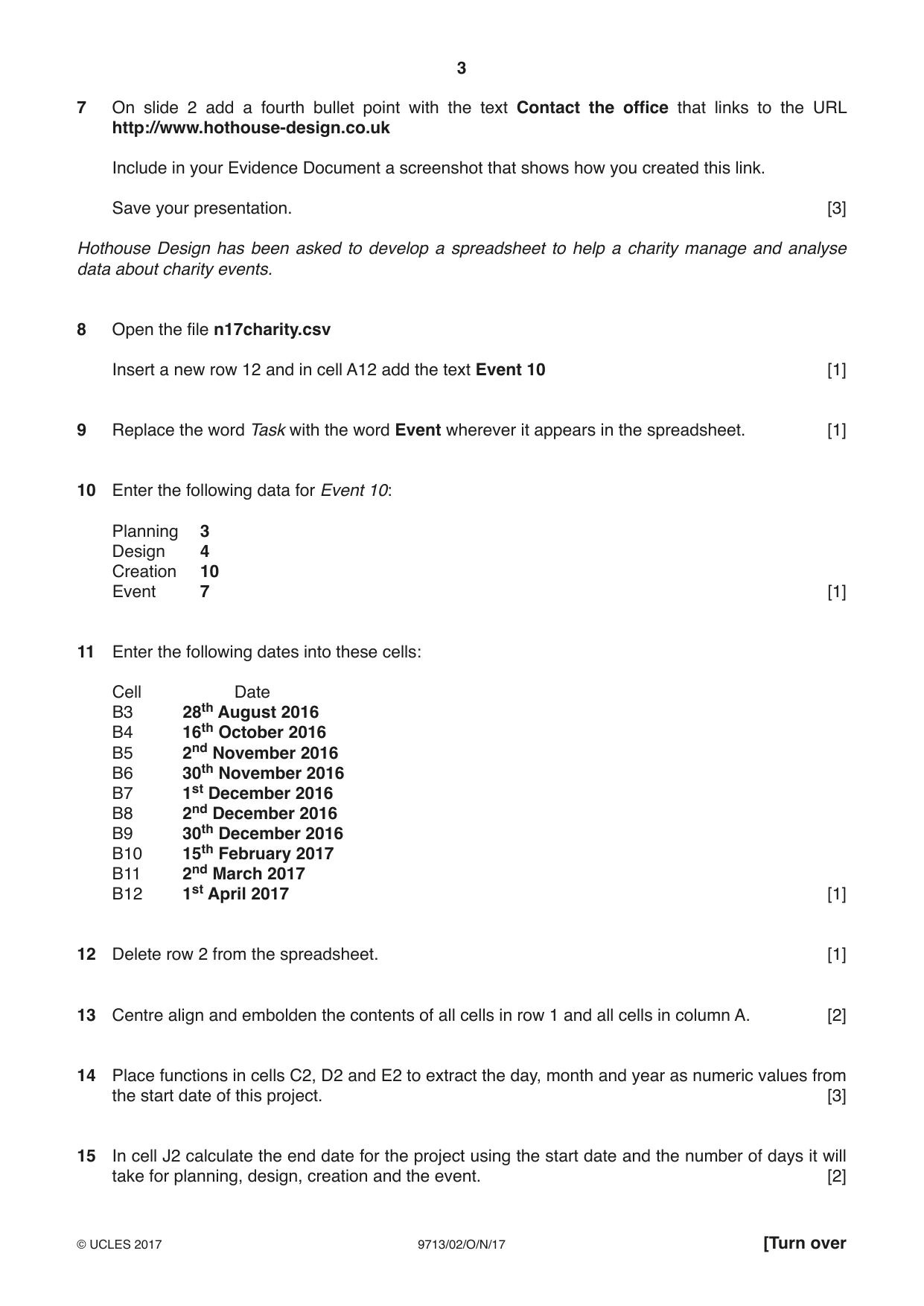
Question paper, page 3
3 9713/02/O/N/17 © UCLES 2017 [Turn over 7 On slide 2 add a fourth bullet point with the text Contact the office that links to the URL http://www.hothouse-design.co.uk Include in your Evidence Document a screenshot that shows how you created this link. Save your presentation. [3] Hothouse Design has been asked to develop a spreadsheet to help a charity manage and analyse data about charity events. 8 Open the file n17charity.csv Insert a new row 12 and in cell A12 add the text Event 10 [1] 9 Replace the word Task with the word Event wherever it appears in the spreadsheet. [1] 10 Enter the following data for Event 10: Planning 3 Design 4 Creation 10 Event 7 [1] 11 Enter the following dates into these cells: Cell Date B3 28th August 2016 B4 16th October 2016 B5 2nd November 2016 B6 30th November 2016 B7 1st December 2016 B8 2nd December 2016 B9 30th December 2016 B10 15th February 2017 B11 2nd March 2017 B12 1st April 2017 [1] 12 Delete row 2 from the spreadsheet. [1] 13 Centre align and embolden the contents of all cells in row 1 and all cells in column A. [2] 14 Place functions in cells C2, D2 and E2 to extract the day, month and year as numeric values from the start date of this project. [3] 15 In cell J2 calculate the end date for the project using the start date and the number of days it will take for planning, design, creation and the event. [2]
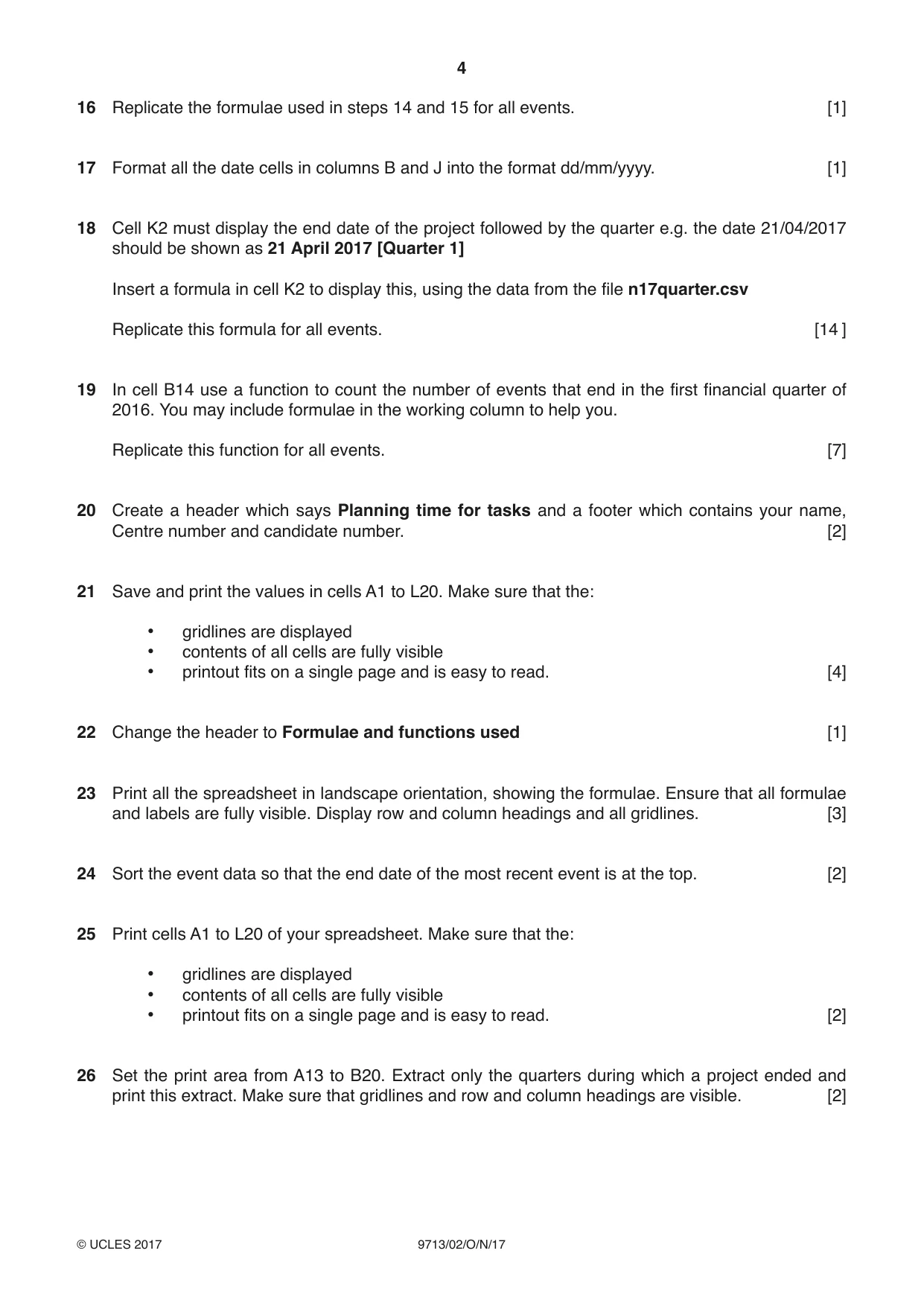
Question paper, page 4
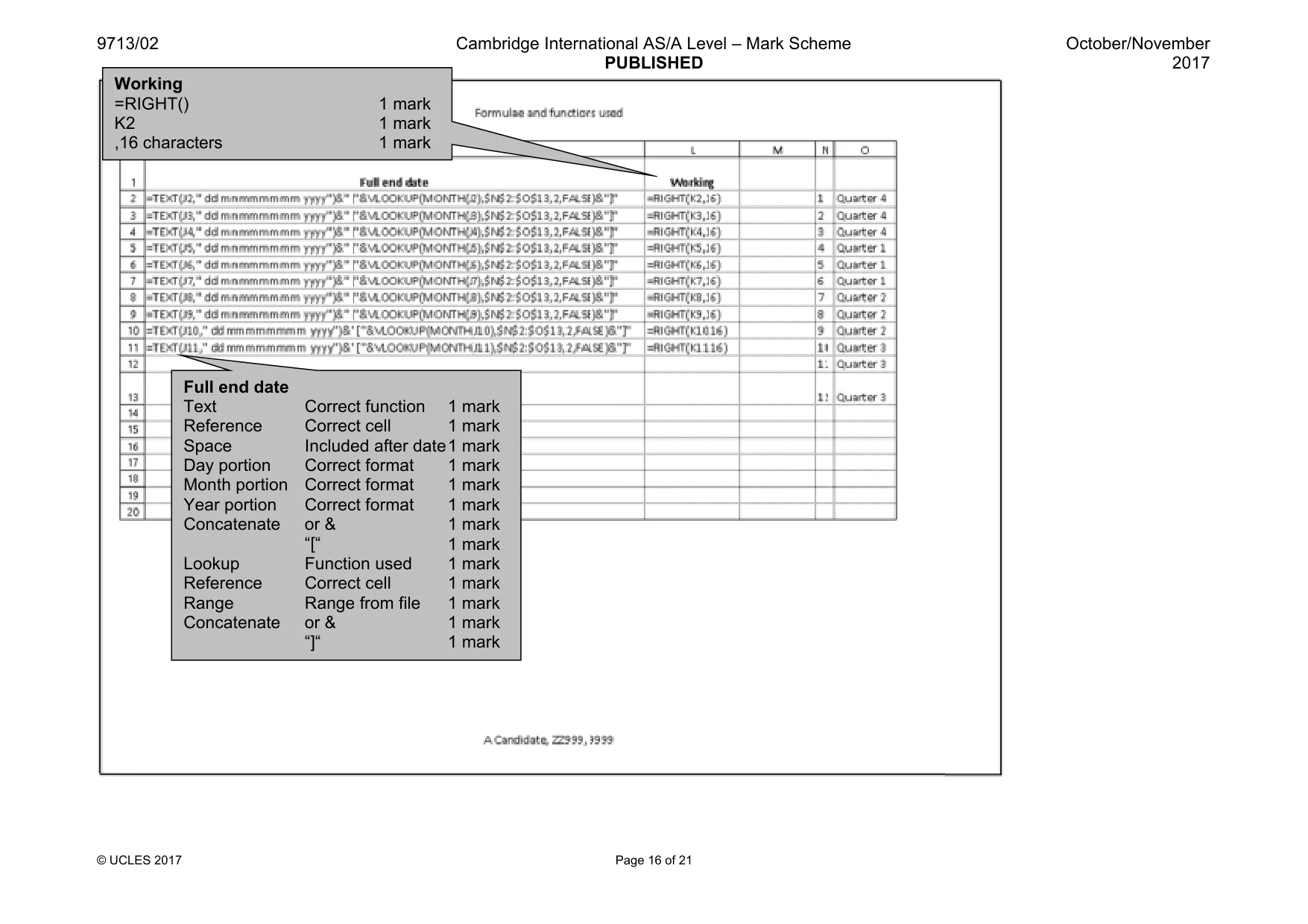
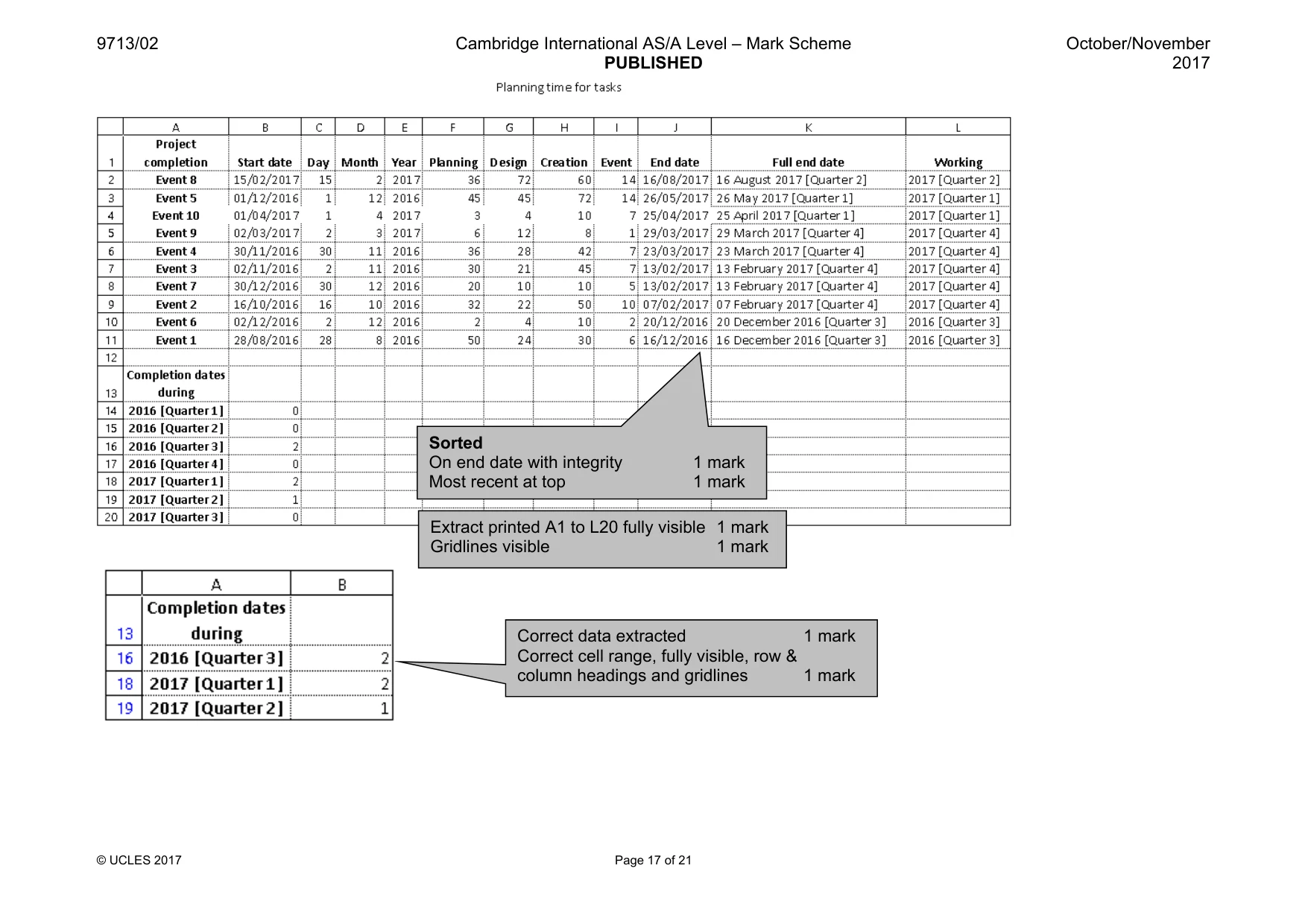
4 9713/02/O/N/17 © UCLES 2017 16 Replicate the formulae used in steps 14 and 15 for all events. [1] 17 Format all the date cells in columns B and J into the format dd/mm/yyyy. [1] 18 Cell K2 must display the end date of the project followed by the quarter e.g. the date 21/04/2017 should be shown as 21 April 2017 [Quarter 1] Insert a formula in cell K2 to display this, using the data from the file n17quarter.csv Replicate this formula for all events. [14 ] 19 In cell B14 use a function to count the number of events that end in the first financial quarter of 2016. You may include formulae in the working column to help you. Replicate this function for all events. [7] 20 Create a header which says Planning time for tasks and a footer which contains your name, Centre number and candidate number. [2] 21 Save and print the values in cells A1 to L20. Make sure that the: • gridlines are displayed • contents of all cells are fully visible • printout fits on a single page and is easy to read. [4] 22 Change the header to Formulae and functions used [1] 23 Print all the spreadsheet in landscape orientation, showing the formulae. Ensure that all formulae and labels are fully visible. Display row and column headings and all gridlines. [3] 24 Sort the event data so that the end date of the most recent event is at the top. [2] 25 Print cells A1 to L20 of your spreadsheet. Make sure that the: • gridlines are displayed • contents of all cells are fully visible • printout fits on a single page and is easy to read. [2] 26 Set the print area from A13 to B20. Extract only the quarters during which a project ended and print this extract. Make sure that gridlines and row and column headings are visible. [2]
Question paper, page 5
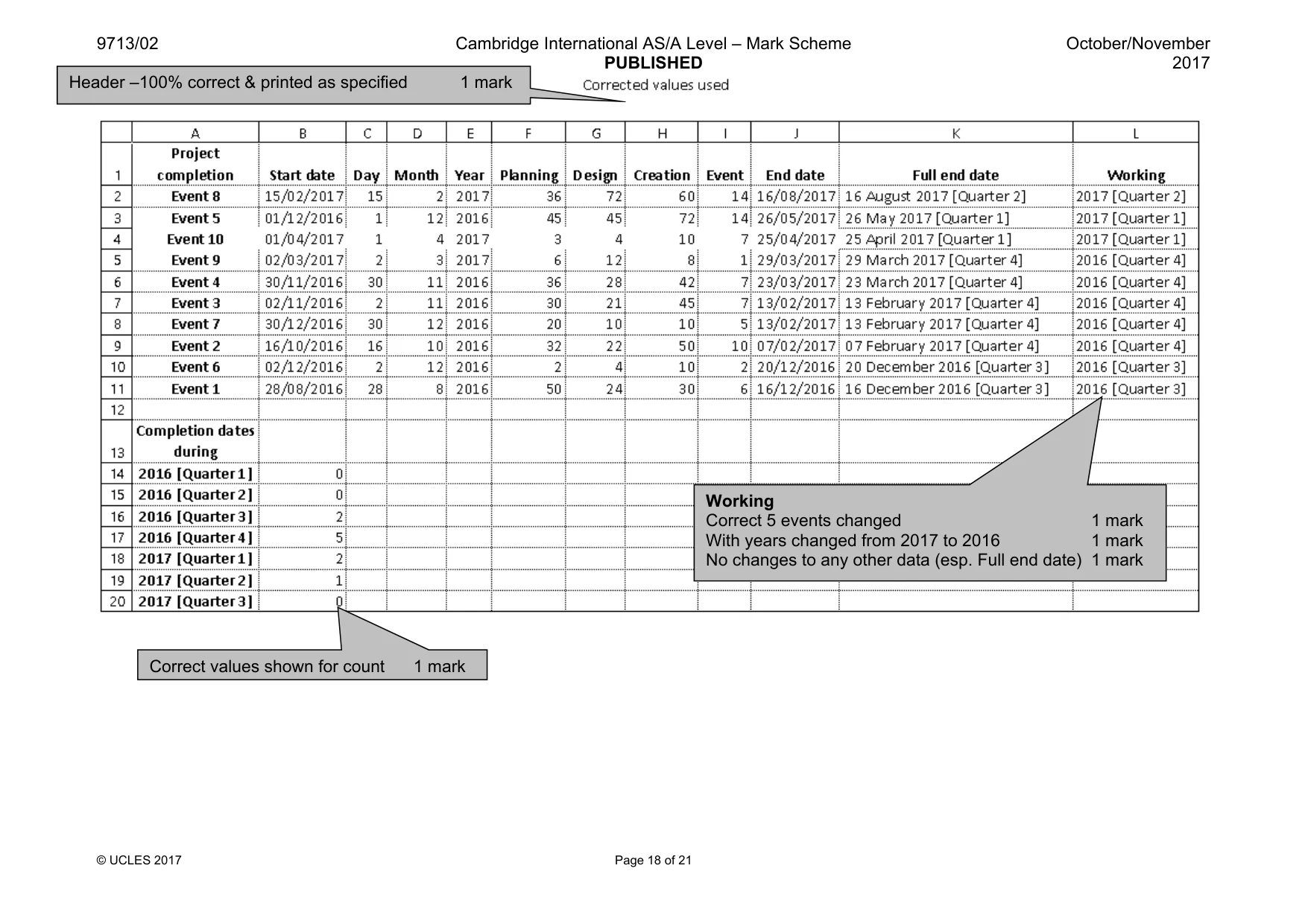
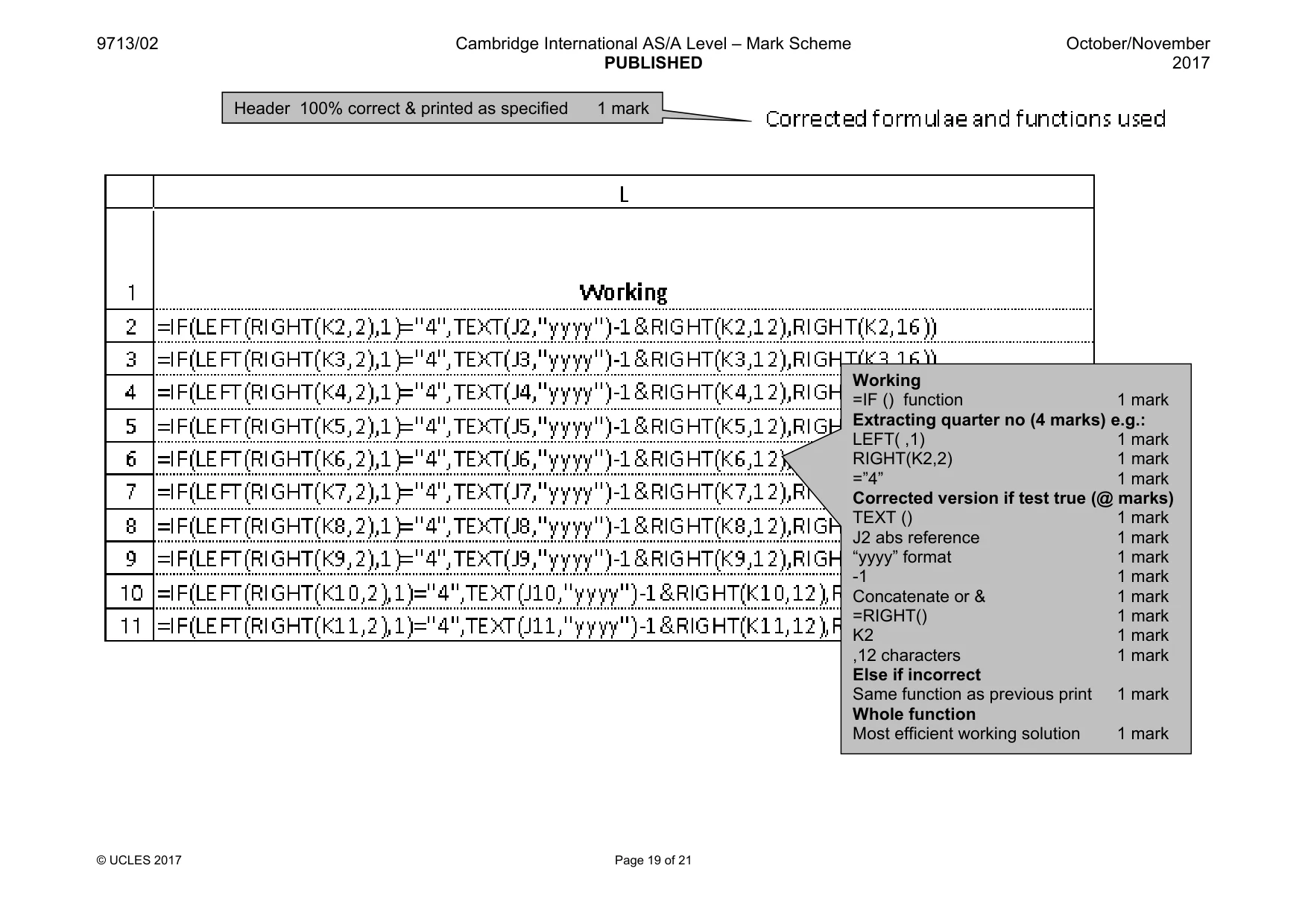
5 9713/02/O/N/17 © UCLES 2017 After analysing the spreadsheet your manager has noticed that some of the figures are incorrect. The company counts any business in January, February and March as taking place in the previous year. He knows that there were 7 projects that were completed in the tax year 2016. For example: in the ‘Full end date’ column, the 7th February 2017 is shown as 7 February 2017 [Quarter 4] but this must be shown in the ‘Completion dates during’ column as 2016 [Quarter 4]. 27 Correct your formulae to show the correct counts for the Completion dates during section of the spreadsheet. Do NOT change the data displayed in the Full end date column. [18] 28 Change the header to Corrected values used Save the spreadsheet. Print cells A1 to L20 of your spreadsheet. Make sure that the: • gridlines are displayed • contents of all cells are fully visible • printout fits on a single page and is easy to read. [1] 29 Change the header to Corrected formulae and functions used Print all the spreadsheet in landscape orientation, showing the formulae. Ensure that all formulae and labels are fully visible. Display row and column headings and all gridlines. [1] 30 Save and print your Evidence Document. Write today’s date in the box below Date
Question paper, page 6
6 9713/02/O/N/17 © UCLES 2017 BLANK PAGE
Question paper, page 7
7 9713/02/O/N/17 © UCLES 2017 BLANK PAGE
Question paper, page 8
8 9713/02/O/N/17 © UCLES 2017 Permission to reproduce items where third-party owned material protected by copyright is included has been sought and cleared where possible. Every reasonable effort has been made by the publisher (UCLES) to trace copyright holders, but if any items requiring clearance have unwittingly been included, the publisher will be pleased to make amends at the earliest possible opportunity. To avoid the issue of disclosure of answer-related information to candidates, all copyright acknowledgements are reproduced online in the Cambridge International Examinations Copyright Acknowledgements Booklet. This is produced for each series of examinations and is freely available to download at www.cie.org.uk after the live examination series. Cambridge International Examinations is part of the Cambridge Assessment Group. Cambridge Assessment is the brand name of University of Cambridge Local Examinations Syndicate (UCLES), which is itself a department of the University of Cambridge. BLANK PAGE
Mark scheme, page 1
® IGCSE is a registered trademark. This document consists of 21 printed pages. © UCLES 2017 [Turn over Cambridge Assessment International Education Cambridge International Advanced Subsidiary and Advanced Level APPLIED INFORMATION AND COMMUNICATION TECHNOLOGY 9713/02 Paper 2 Practical Test A October/November 2017 MARK SCHEME Maximum Mark: 120 Published This mark scheme is published as an aid to teachers and candidates, to indicate the requirements of the examination. It shows the basis on which Examiners were instructed to award marks. It does not indicate the details of the discussions that took place at an Examiners’ meeting before marking began, which would have considered the acceptability of alternative answers. Mark schemes should be read in conjunction with the question paper and the Principal Examiner Report for Teachers. Cambridge International will not enter into discussions about these mark schemes. Cambridge International is publishing the mark schemes for the October/November 2017 series for most Cambridge IGCSE®, Cambridge International A and AS Level components and some Cambridge O Level components.
Mark scheme, page 2
9713/02 Cambridge International AS/A Level – Mark Scheme PUBLISHED October/November 2017 © UCLES 2017 Page 2 of 21 No marks to be awarded for any printout not containing the candidate name, candidate number and centre number.
Mark scheme, page 3
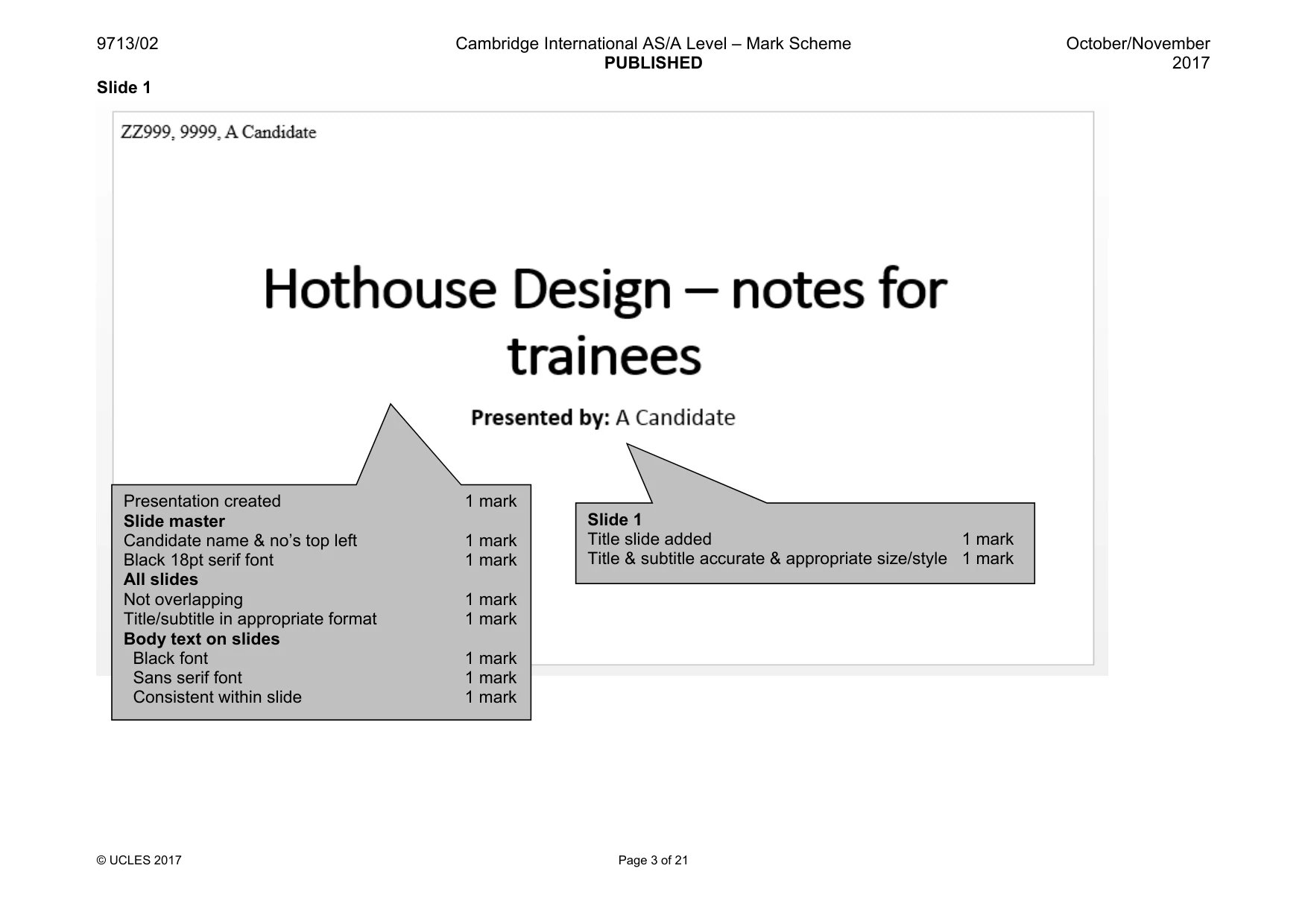
9713/02 Cambridge International AS/A Level – Mark Scheme PUBLISHED October/November 2017 © UCLES 2017 Page 3 of 21 Slide 1 Presentation created 1 mark Slide master Candidate name & no’s top left 1 mark Black 18pt serif font 1 mark All slides Not overlapping 1 mark Title/subtitle in appropriate format 1 mark Body text on slides Black font 1 mark Sans serif font 1 mark Consistent within slide 1 mark Slide 1 Title slide added 1 mark Title & subtitle accurate & appropriate size/style 1 mark
Mark scheme, page 4
9713/02 Cambridge International AS/A Level – Mark Scheme PUBLISHED October/November 2017 © UCLES 2017 Page 4 of 21 Slide 2
Mark scheme, page 5
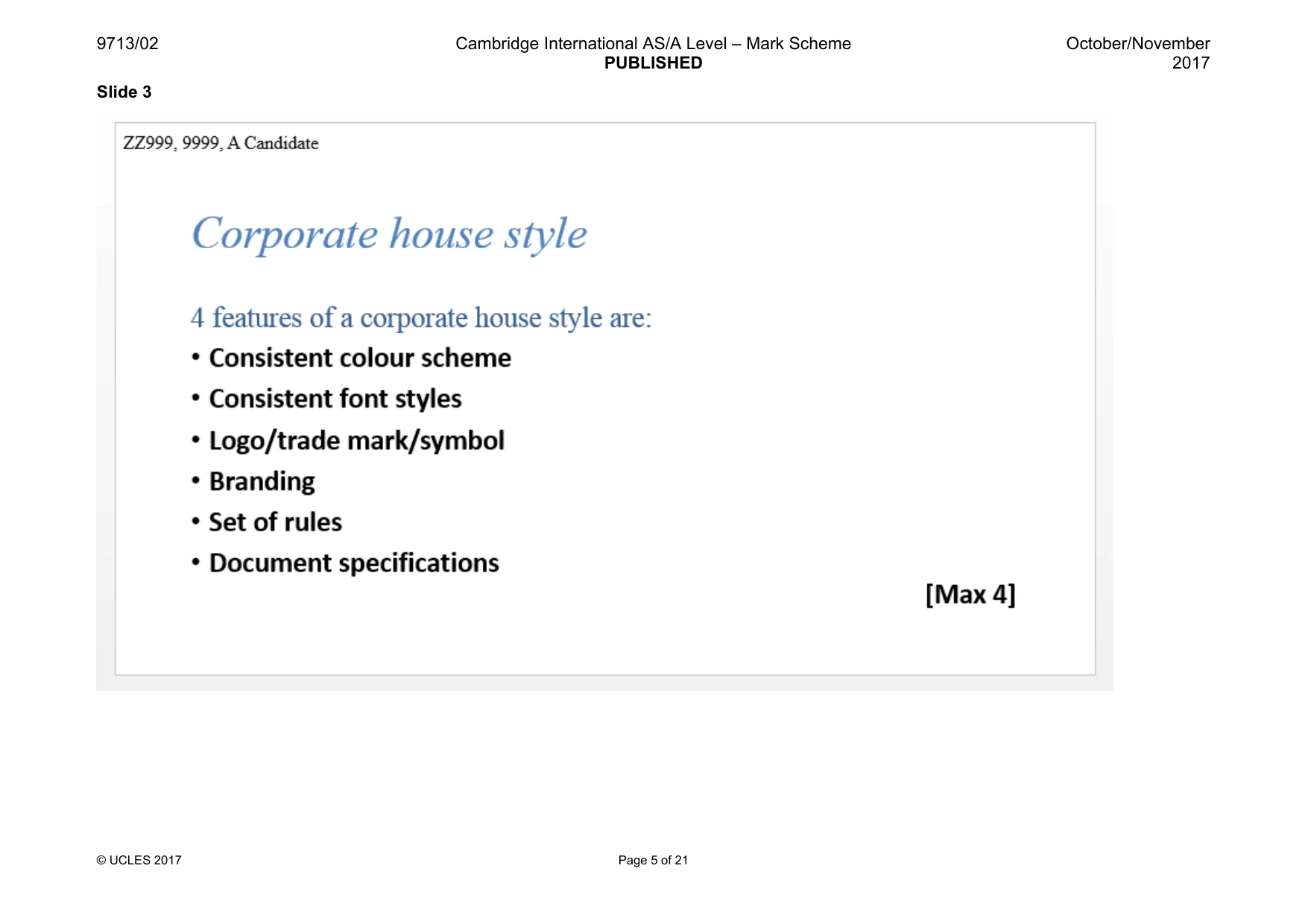
9713/02 Cambridge International AS/A Level – Mark Scheme PUBLISHED October/November 2017 © UCLES 2017 Page 5 of 21 Slide 3
Mark scheme, page 6
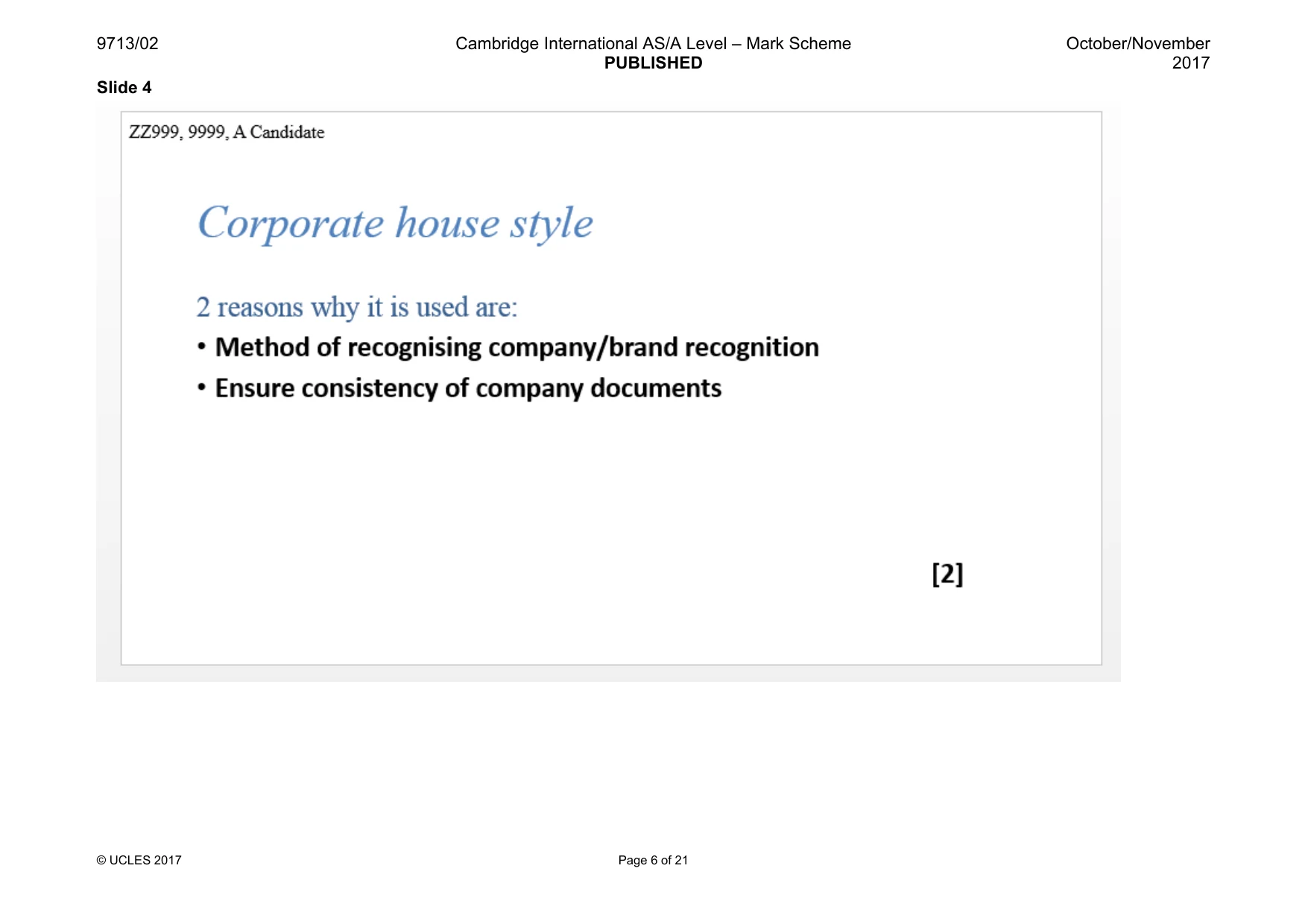
9713/02 Cambridge International AS/A Level – Mark Scheme PUBLISHED October/November 2017 © UCLES 2017 Page 6 of 21 Slide 4
Mark scheme, page 7
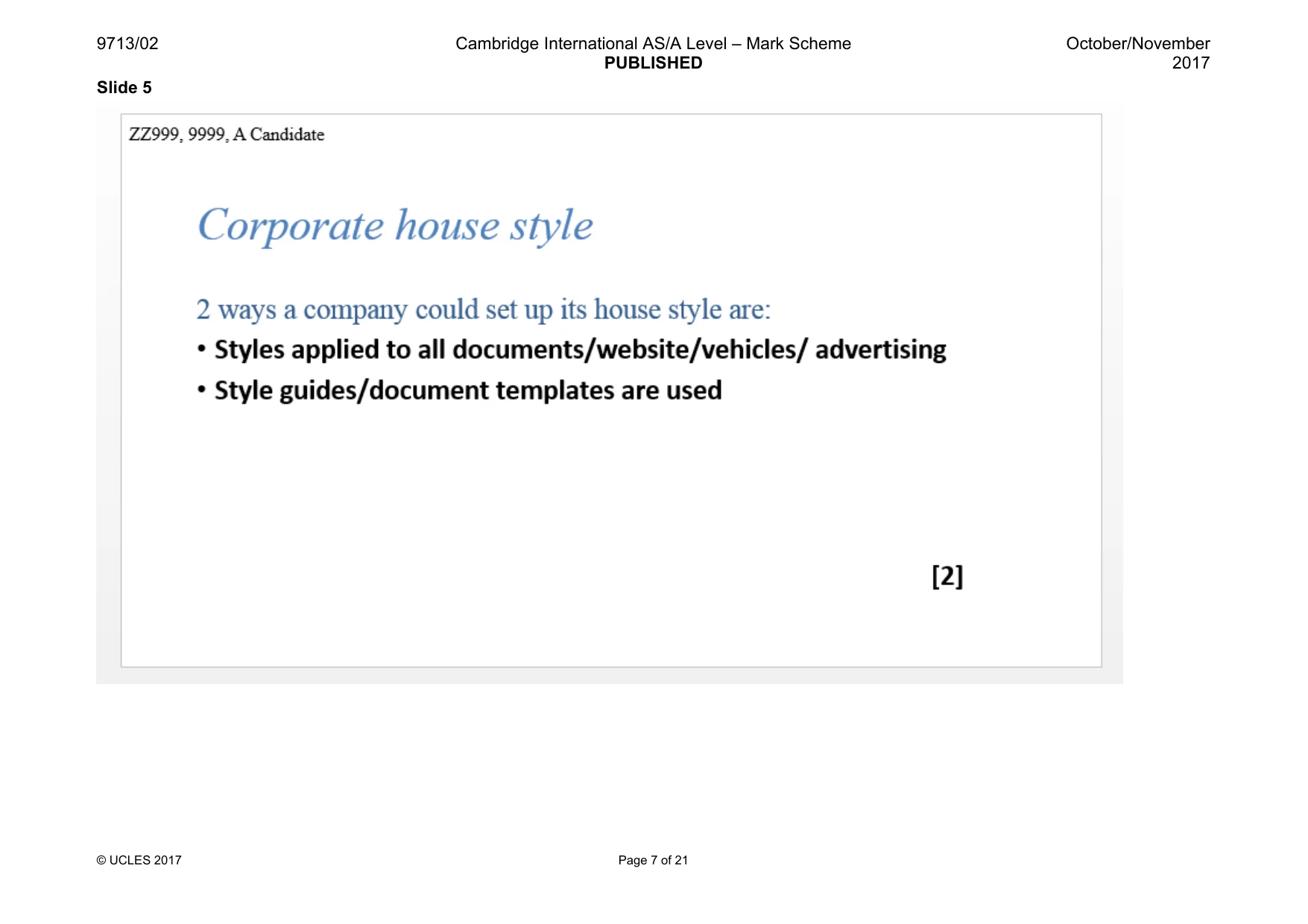
9713/02 Cambridge International AS/A Level – Mark Scheme PUBLISHED October/November 2017 © UCLES 2017 Page 7 of 21 Slide 5
Mark scheme, page 8
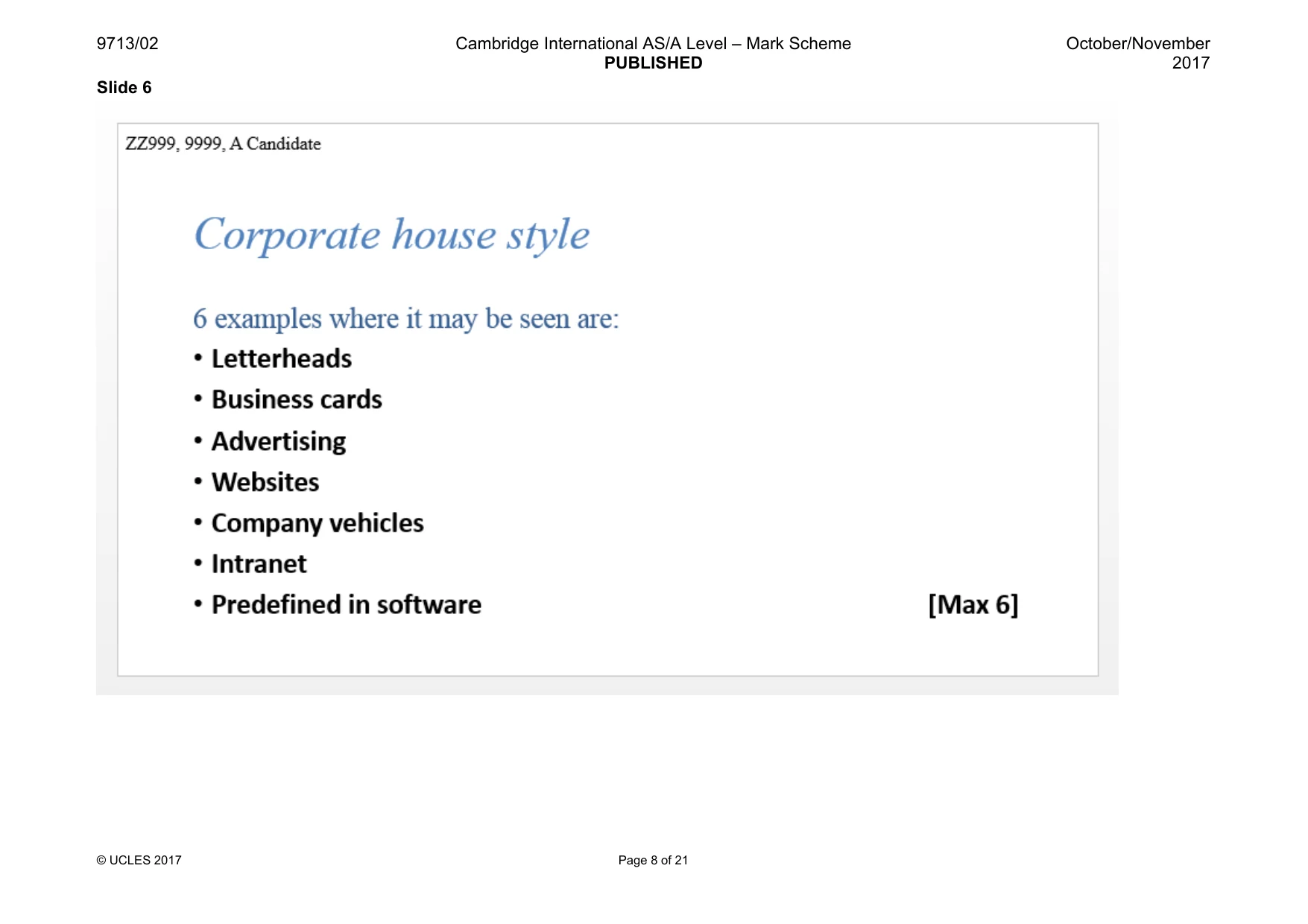
9713/02 Cambridge International AS/A Level – Mark Scheme PUBLISHED October/November 2017 © UCLES 2017 Page 8 of 21 Slide 6
Mark scheme, page 9
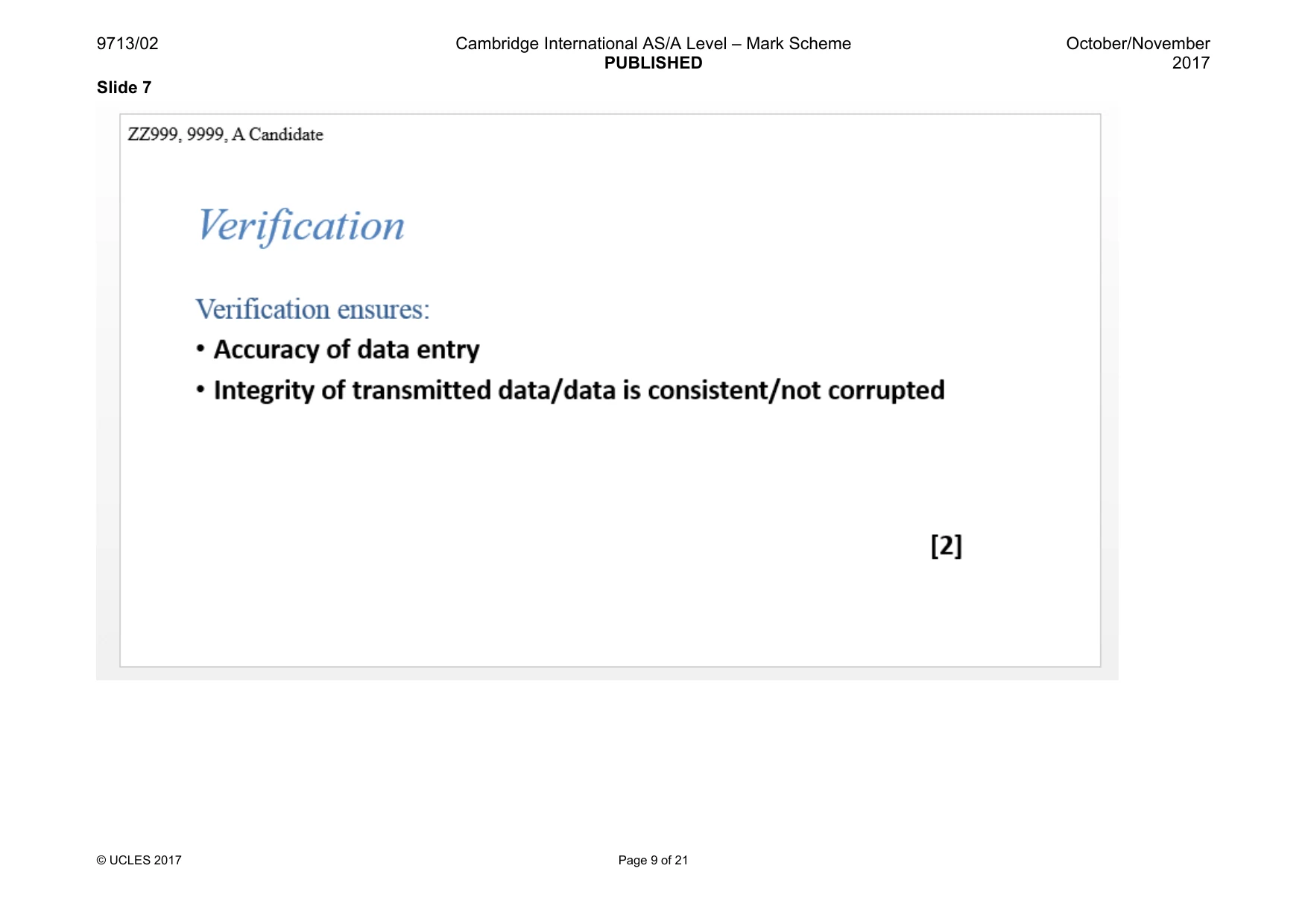
9713/02 Cambridge International AS/A Level – Mark Scheme PUBLISHED October/November 2017 © UCLES 2017 Page 9 of 21 Slide 7
Mark scheme, page 10
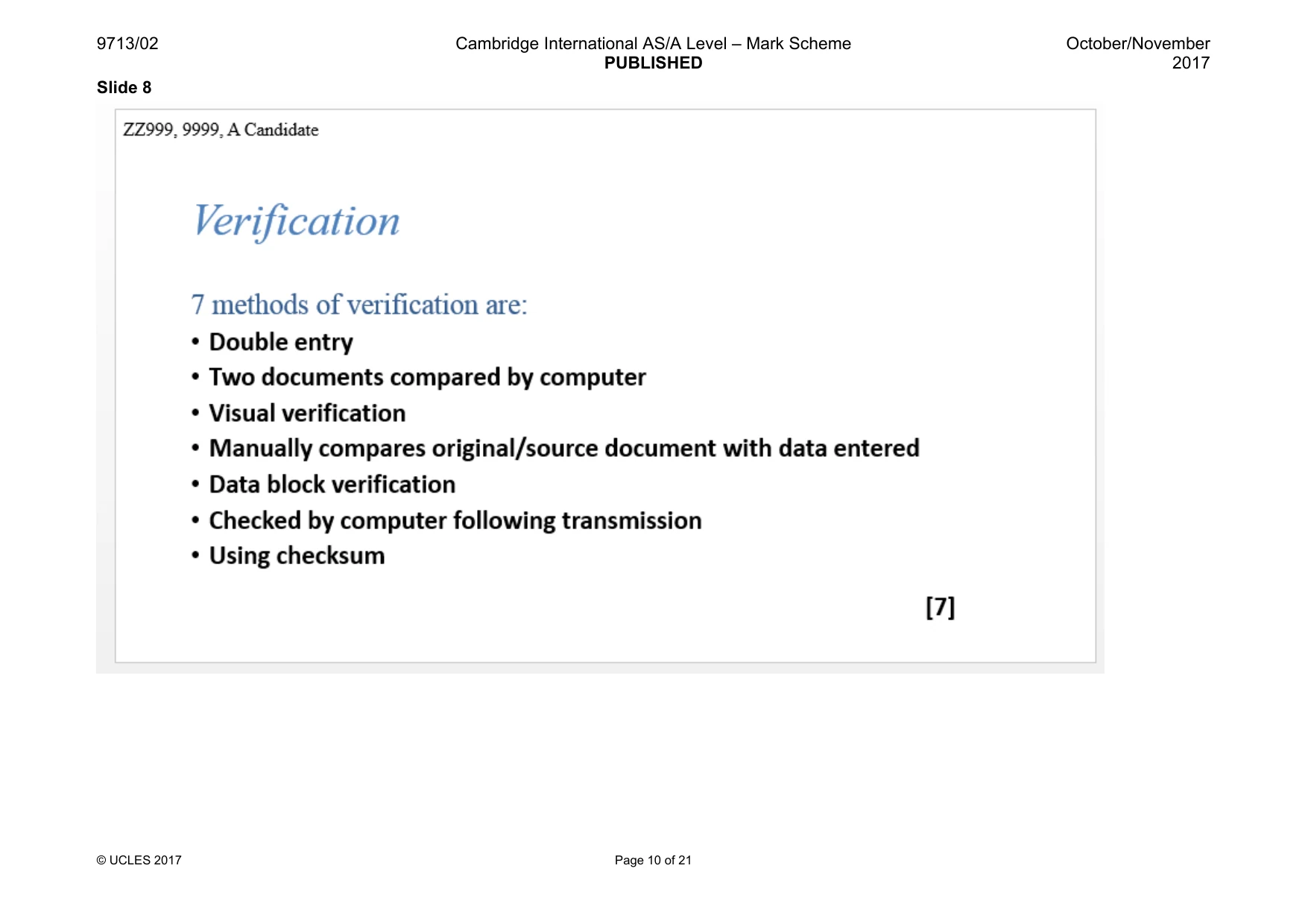
9713/02 Cambridge International AS/A Level – Mark Scheme PUBLISHED October/November 2017 © UCLES 2017 Page 10 of 21 Slide 8
Mark scheme, page 11
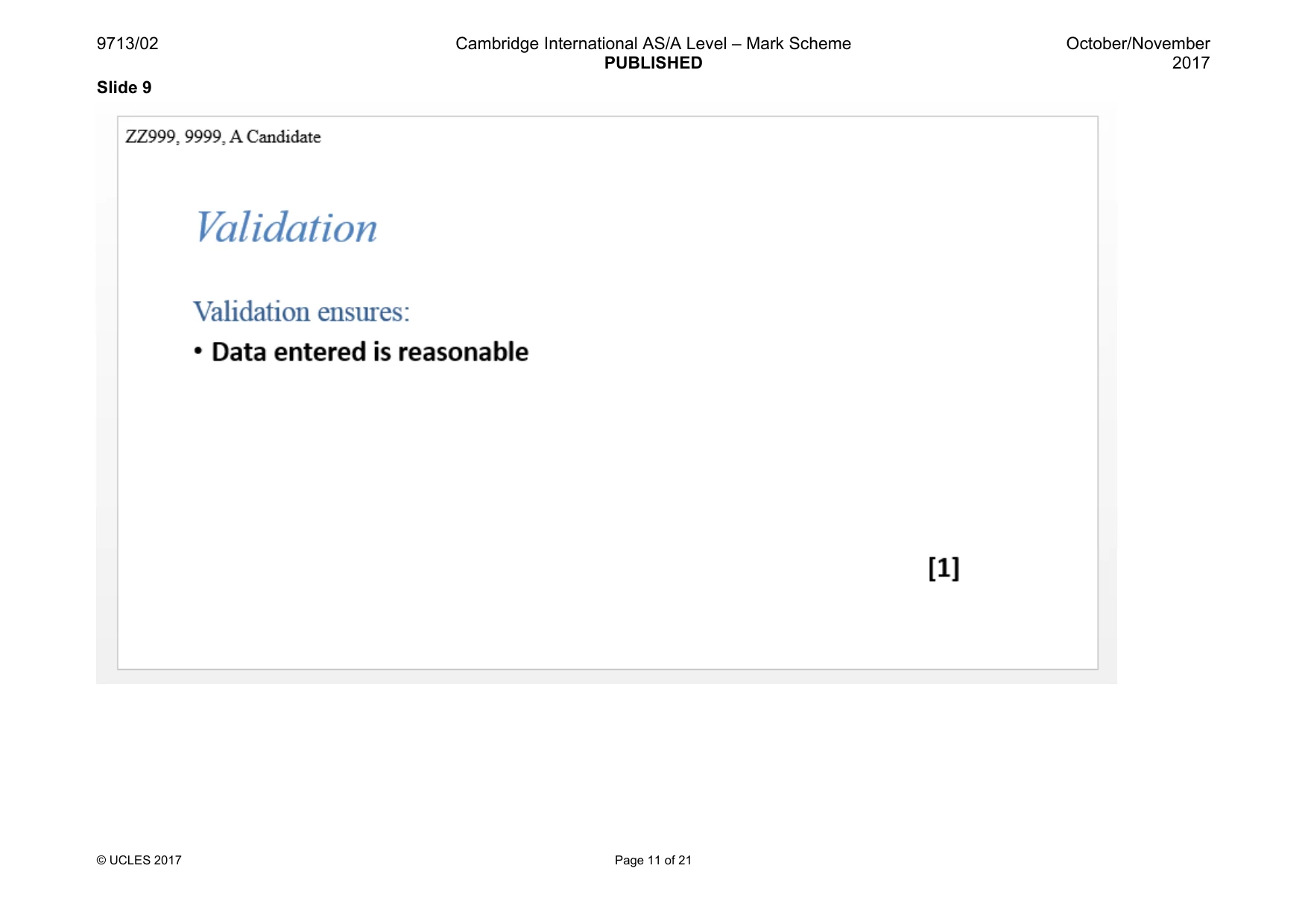
9713/02 Cambridge International AS/A Level – Mark Scheme PUBLISHED October/November 2017 © UCLES 2017 Page 11 of 21 Slide 9
Mark scheme, page 12
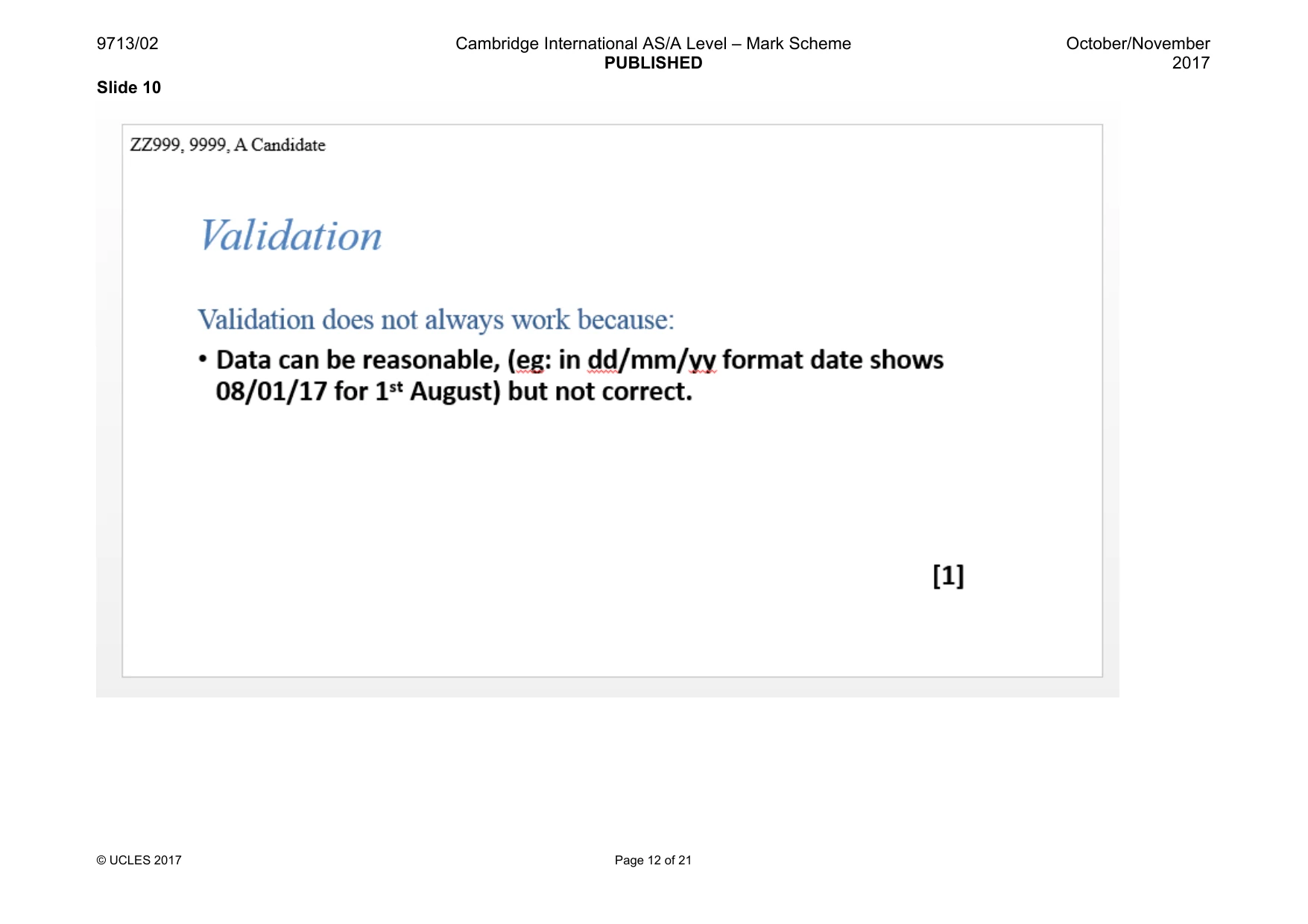
9713/02 Cambridge International AS/A Level – Mark Scheme PUBLISHED October/November 2017 © UCLES 2017 Page 12 of 21 Slide 10
Mark scheme, page 13
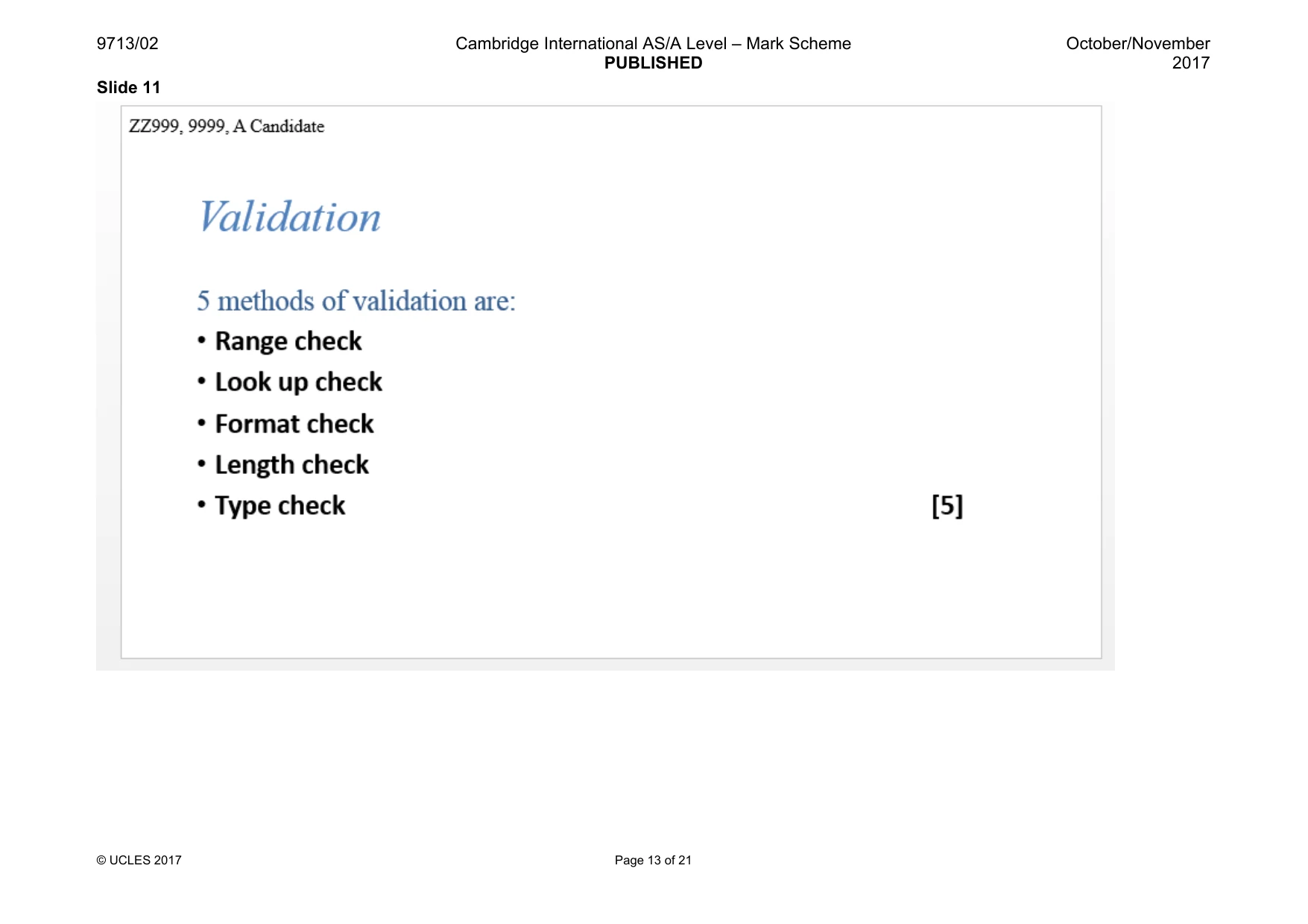
9713/02 Cambridge International AS/A Level – Mark Scheme PUBLISHED October/November 2017 © UCLES 2017 Page 13 of 21 Slide 11
Mark scheme, page 14
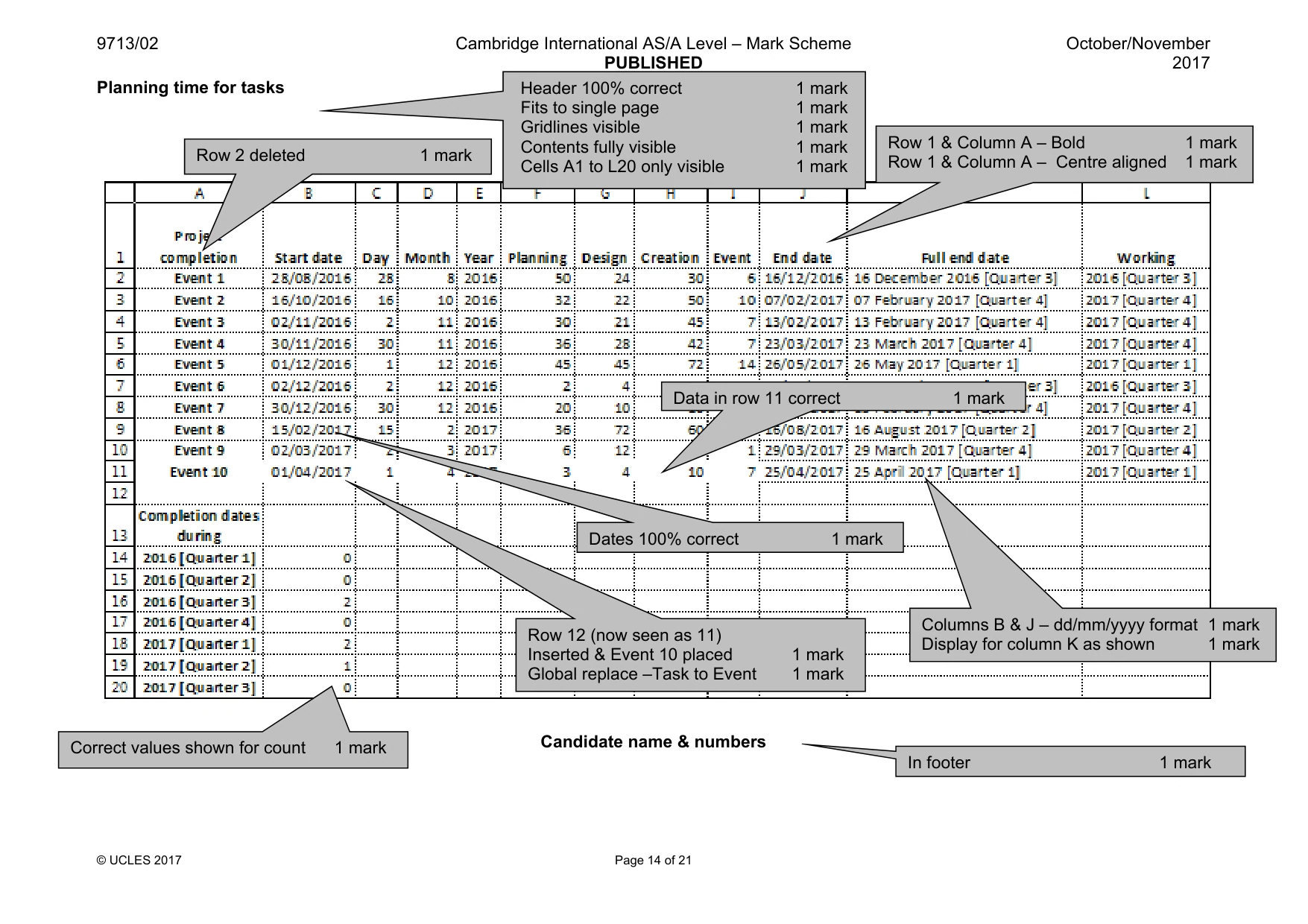
9713/02 Cambridge International AS/A Level – Mark Scheme PUBLISHED October/November 2017 © UCLES 2017 Page 14 of 21 Planning time for tasks Candidate name & numbers Row 2 deleted 1 mark Dates 100% correct 1 mark Header 100% correct 1 mark Fits to single page 1 mark Gridlines visible 1 mark Contents fully visible 1 mark Cells A1 to L20 only visible 1 mark In footer 1 mark Row 1 & Column A – Bold 1 mark Row 1 & Column A – Centre aligned 1 mark Row 12 (now seen as 11) Inserted & Event 10 placed 1 mark Global replace –Task to Event 1 mark Data in row 11 correct 1 mark Columns B & J – dd/mm/yyyy format 1 mark Display for column K as shown 1 mark Correct values shown for count 1 mark
Mark scheme, page 15
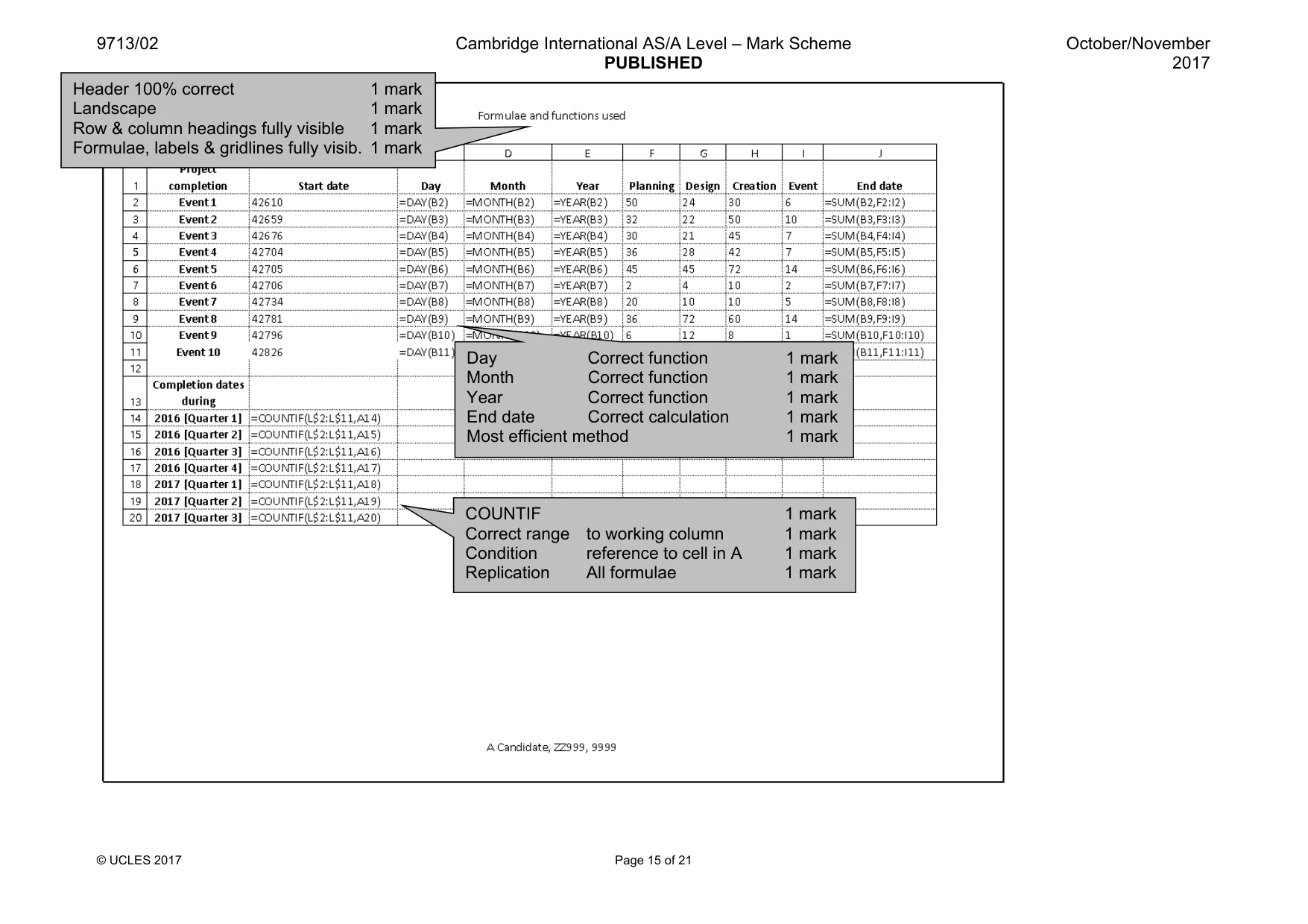
9713/02 Cambridge International AS/A Level – Mark Scheme PUBLISHED October/November 2017 © UCLES 2017 Page 15 of 21 Header 100% correct 1 mark Landscape 1 mark Row & column headings fully visible 1 mark Formulae, labels & gridlines fully visib. 1 mark Day Correct function 1 mark Month Correct function 1 mark Year Correct function 1 mark End date Correct calculation 1 mark Most efficient method 1 mark COUNTIF 1 mark Correct range to working column 1 mark Condition reference to cell in A 1 mark Replication All formulae 1 mark
Mark scheme, page 16
971 © U W = K , 13/02 CLES 2017 Full en Text Referen Space Day po Month Year po Concat Lookup Referen Range Concat Working =RIGHT() K2 16 characters nd date Correc nce Correc Include ortion Correc portion Correc ortion Correc tenate or & “[“ p Functio nce Correc Range tenate or & “]“ Ca ct function 1 m ct cell 1 m ed after date 1 m ct format 1 m ct format 1 m ct format 1 m 1 m 1 m on used 1 m ct cell 1 m from file 1 m 1 m 1 m 1 mark 1 mark 1 mark ambridge Interna mark mark mark mark mark mark mark mark mark mark mark mark mark ational AS/A Lev PUBLISHED Page 16 of 21 vel – Mark Scheme October/Novem 2 mber 017
Mark scheme, page 17
9713/02 Cambridge International AS/A Level – Mark Scheme PUBLISHED October/November 2017 © UCLES 2017 Page 17 of 21 Sorted On end date with integrity 1 mark Most recent at top 1 mark Extract printed A1 to L20 fully visible 1 mark Gridlines visible 1 mark Correct data extracted 1 mark Correct cell range, fully visible, row & column headings and gridlines 1 mark
Mark scheme, page 18
9713/02 Cambridge International AS/A Level – Mark Scheme PUBLISHED October/November 2017 © UCLES 2017 Page 18 of 21 Correct values shown for count 1 mark Working Correct 5 events changed 1 mark With years changed from 2017 to 2016 1 mark No changes to any other data (esp. Full end date) 1 mark Header –100% correct & printed as specified 1 mark
Mark scheme, page 19
9713/02 Cambridge International AS/A Level – Mark Scheme PUBLISHED October/November 2017 © UCLES 2017 Page 19 of 21 Working =IF () function 1 mark Extracting quarter no (4 marks) e.g.: LEFT( ,1) 1 mark RIGHT(K2,2) 1 mark =”4” 1 mark Corrected version if test true (@ marks) TEXT () 1 mark J2 abs reference 1 mark “yyyy” format 1 mark -1 1 mark Concatenate or & 1 mark =RIGHT() 1 mark K2 1 mark ,12 characters 1 mark Else if incorrect Same function as previous print 1 mark Whole function Most efficient working solution 1 mark Header 100% correct & printed as specified 1 mark
Mark scheme, page 20
9713/02 Cambridge International AS/A Level – Mark Scheme PUBLISHED October/November 2017 © UCLES 2017 Page 20 of 21 Evidence document Correct text« 1 mark «Internal - to correct slide 1 mark Correct text« 1 mark «Internal - to correct slide 1 mark
Mark scheme, page 21
9713/02 Cambridge International AS/A Level – Mark Scheme PUBLISHED October/November 2017 © UCLES 2017 Page 21 of 21 Correct text« 1 mark «Internal - to correct slide 1 mark Correct text« 1 mark «Web page 1 mark «Correct URL 1 mark
What you needed in this session
Cambridge’s own grade thresholds for 2017 Oct/Nov, Paper 2 · Variant 1. A higher threshold means an easier paper — the bar moves with how the cohort did.