Cambridge IGCSE Information and Communication Technology (9-1) 0983 — 2024 Oct/Nov Paper 2 · Variant 0
0983/20/O/N/24 · 70 marks · ≈79 min
The question paper and its mark scheme, free to read here and free to download. This is Cambridge’s own paper, exactly as it was sat.
Question paper12 pages

Mark scheme
No mark scheme is in the library for this paper.
Paper as text
Question paper, page 1
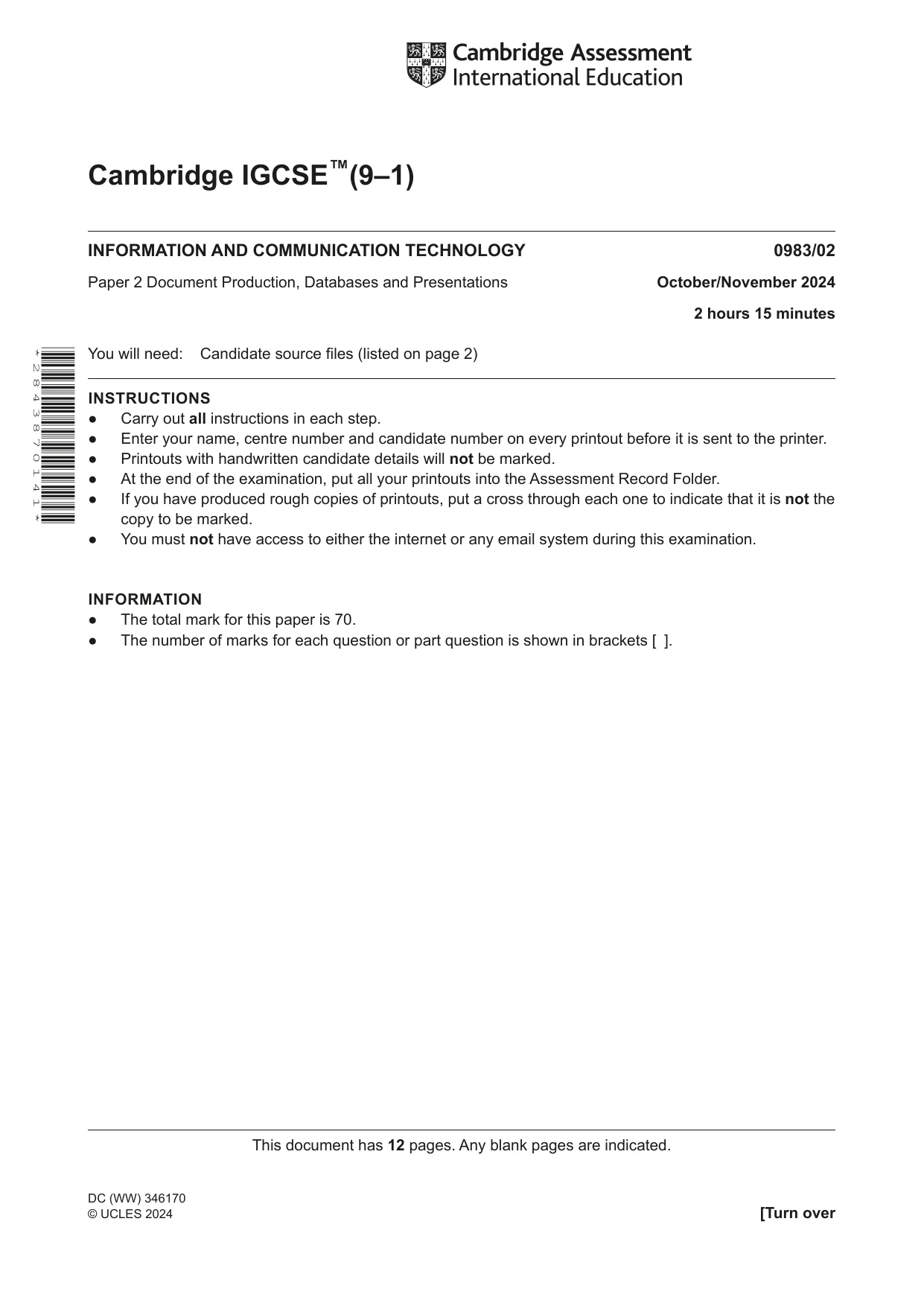
This document has 12 pages. Any blank pages are indicated. [Turn over Cambridge IGCSE™(9–1) * 2 8 4 3 8 7 0 1 4 1 * INFORMATION AND COMMUNICATION TECHNOLOGY 0983/02 Paper 2 Document Production, Databases and Presentations October/November 2024 2 hours 15 minutes You will need: Candidate source files (listed on page 2) INSTRUCTIONS ● Carry out all instructions in each step. ● Enter your name, centre number and candidate number on every printout before it is sent to the printer. ● Printouts with handwritten candidate details will not be marked. ● At the end of the examination, put all your printouts into the Assessment Record Folder. ● If you have produced rough copies of printouts, put a cross through each one to indicate that it is not the copy to be marked. ● You must not have access to either the internet or any email system during this examination. INFORMATION ● The total mark for this paper is 70. ● The number of marks for each question or part question is shown in brackets [ ]. DC (WW) 346170 © UCLES 2024
Question paper, page 2
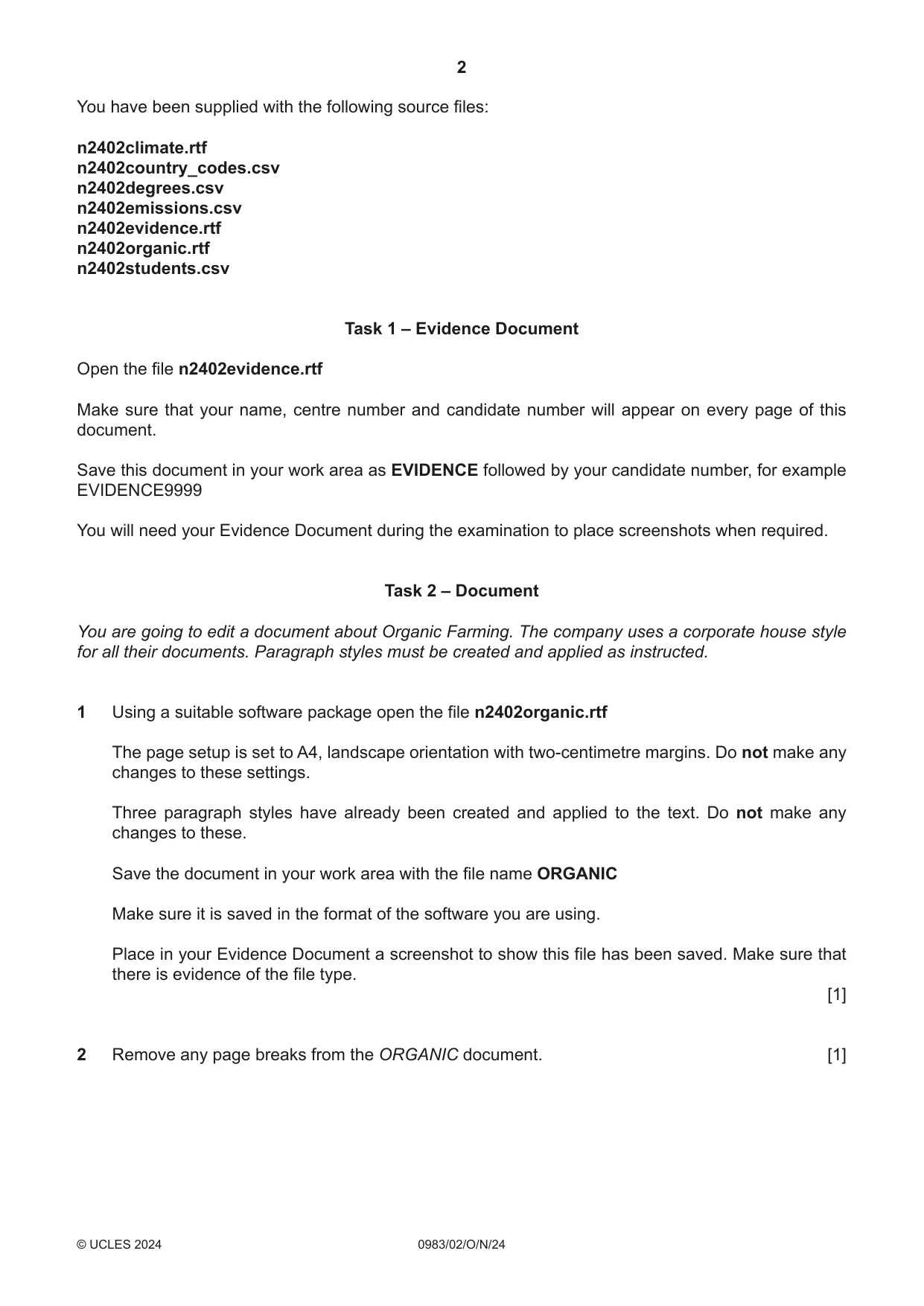
2 0983/02/O/N/24 © UCLES 2024 You have been supplied with the following source files: n2402climate.rtf n2402country_codes.csv n2402degrees.csv n2402emissions.csv n2402evidence.rtf n2402organic.rtf n2402students.csv Task 1 – Evidence Document Open the file n2402evidence.rtf Make sure that your name, centre number and candidate number will appear on every page of this document. Save this document in your work area as EVIDENCE followed by your candidate number, for example EVIDENCE9999 You will need your Evidence Document during the examination to place screenshots when required. Task 2 – Document You are going to edit a document about Organic Farming. The company uses a corporate house style for all their documents. Paragraph styles must be created and applied as instructed. 1 Using a suitable software package open the file n2402organic.rtf The page setup is set to A4, landscape orientation with two-centimetre margins. Do not make any changes to these settings. Three paragraph styles have already been created and applied to the text. Do not make any changes to these. Save the document in your work area with the file name ORGANIC Make sure it is saved in the format of the software you are using. Place in your Evidence Document a screenshot to show this file has been saved. Make sure that there is evidence of the file type. [1] 2 Remove any page breaks from the ORGANIC document. [1]
Question paper, page 3
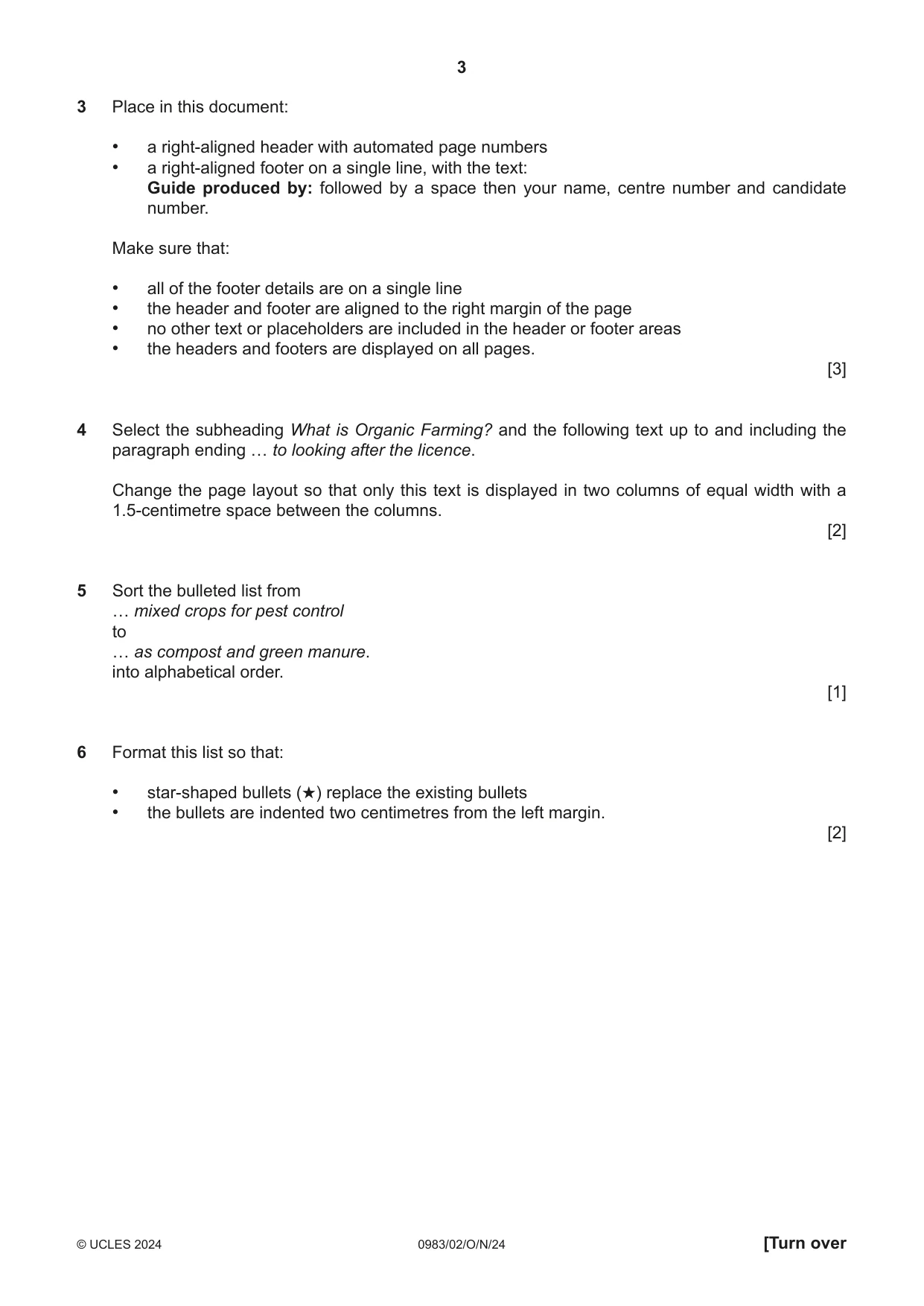
3 0983/02/O/N/24 © UCLES 2024 [Turn over 3 Place in this document: • a right-aligned header with automated page numbers • a right-aligned footer on a single line, with the text: Guide produced by: followed by a space then your name, centre number and candidate number. Make sure that: • all of the footer details are on a single line • the header and footer are aligned to the right margin of the page • no other text or placeholders are included in the header or footer areas • the headers and footers are displayed on all pages. [3] 4 Select the subheading What is Organic Farming? and the following text up to and including the paragraph ending … to looking after the licence. Change the page layout so that only this text is displayed in two columns of equal width with a 1.5-centimetre space between the columns. [2] 5 Sort the bulleted list from … mixed crops for pest control to … as compost and green manure. into alphabetical order. [1] 6 Format this list so that: • star-shaped bullets (★) replace the existing bullets • the bullets are indented two centimetres from the left margin. [2]
Question paper, page 4
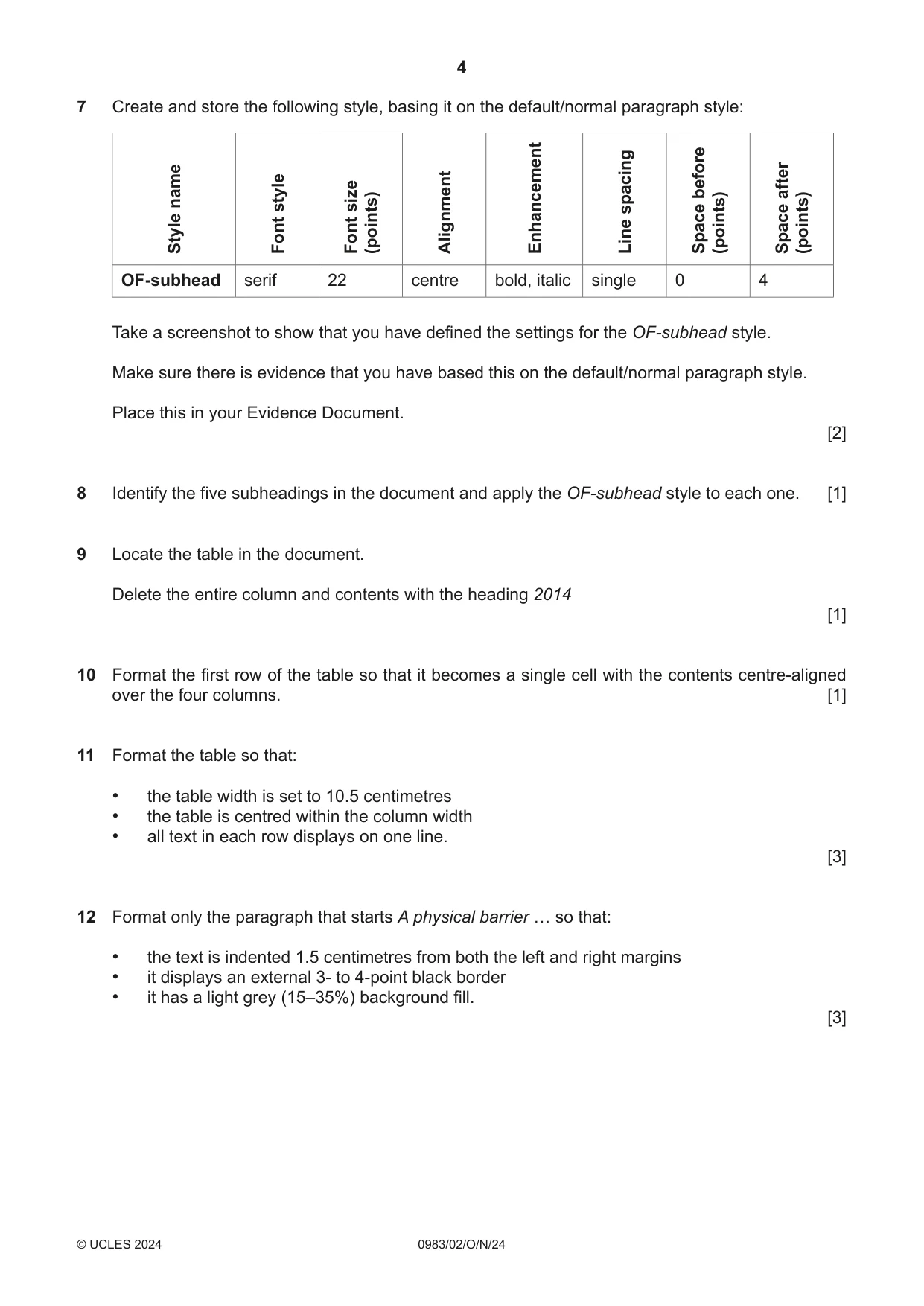
4 0983/02/O/N/24 © UCLES 2024 7 Create and store the following style, basing it on the default/normal paragraph style: Style name Font style Font size (points) Alignment Enhancement Line spacing Space before (points) Space after (points) OF-subhead serif 22 centre bold, italic single 0 4 Take a screenshot to show that you have defined the settings for the OF-subhead style. Make sure there is evidence that you have based this on the default/normal paragraph style. Place this in your Evidence Document. [2] 8 Identify the five subheadings in the document and apply the OF-subhead style to each one. [1] 9 Locate the table in the document. Delete the entire column and contents with the heading 2014 [1] 10 Format the first row of the table so that it becomes a single cell with the contents centre-aligned over the four columns. [1] 11 Format the table so that: • the table width is set to 10.5 centimetres • the table is centred within the column width • all text in each row displays on one line. [3] 12 Format only the paragraph that starts A physical barrier … so that: • the text is indented 1.5 centimetres from both the left and right margins • it displays an external 3- to 4-point black border • it has a light grey (15–35%) background fill. [3]
Question paper, page 5
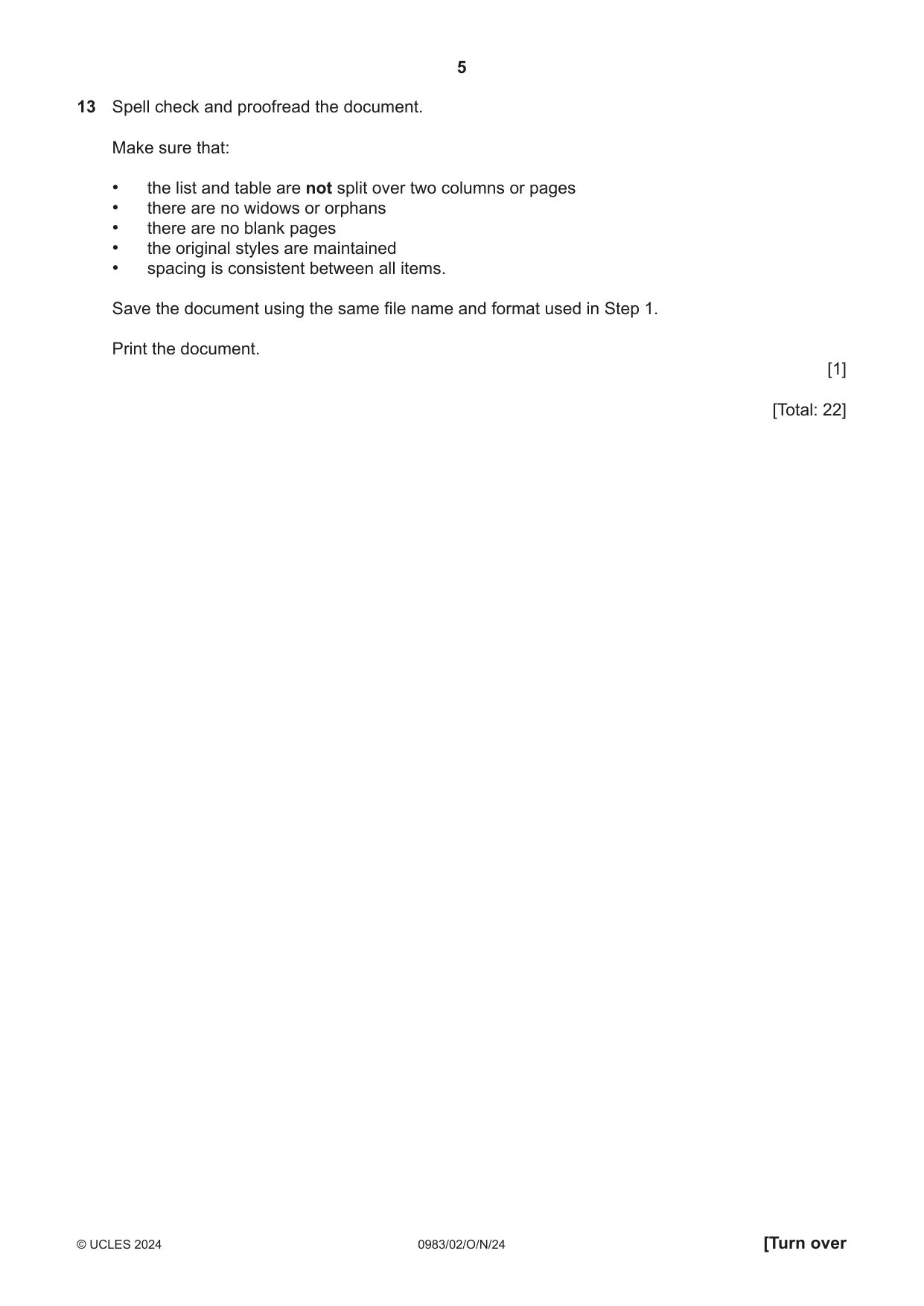
5 0983/02/O/N/24 © UCLES 2024 [Turn over 13 Spell check and proofread the document. Make sure that: • the list and table are not split over two columns or pages • there are no widows or orphans • there are no blank pages • the original styles are maintained • spacing is consistent between all items. Save the document using the same file name and format used in Step 1. Print the document. [1] [Total: 22]
Question paper, page 6
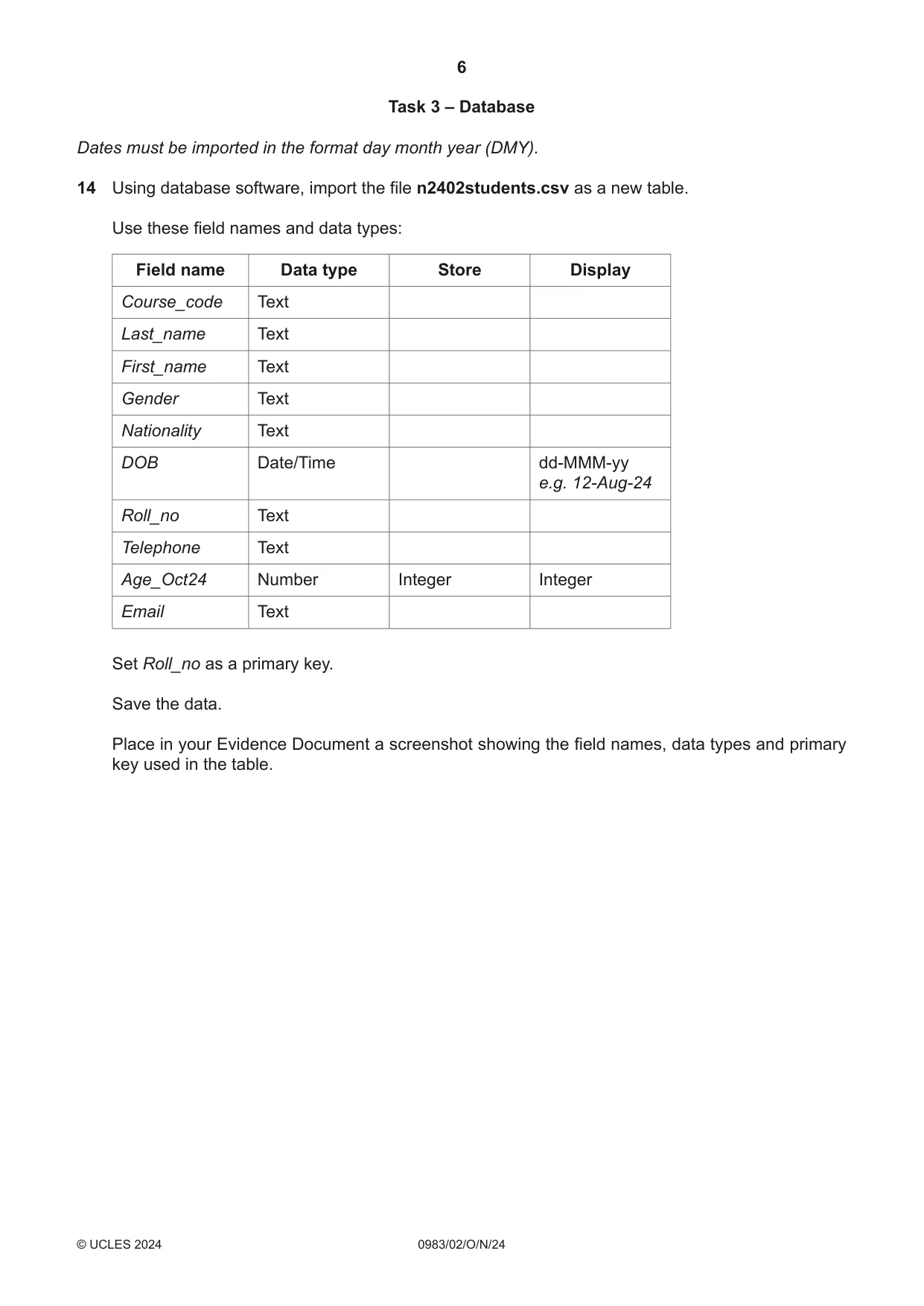
6 0983/02/O/N/24 © UCLES 2024 Task 3 – Database Dates must be imported in the format day month year (DMY). 14 Using database software, import the file n2402students.csv as a new table. Use these field names and data types: Field name Data type Store Display Course_code Text Last_name Text First_name Text Gender Text Nationality Text DOB Date/Time dd-MMM-yy e.g. 12-Aug-24 Roll_no Text Telephone Text Age_Oct24 Number Integer Integer Email Text Set Roll_no as a primary key. Save the data. Place in your Evidence Document a screenshot showing the field names, data types and primary key used in the table.
Question paper, page 7
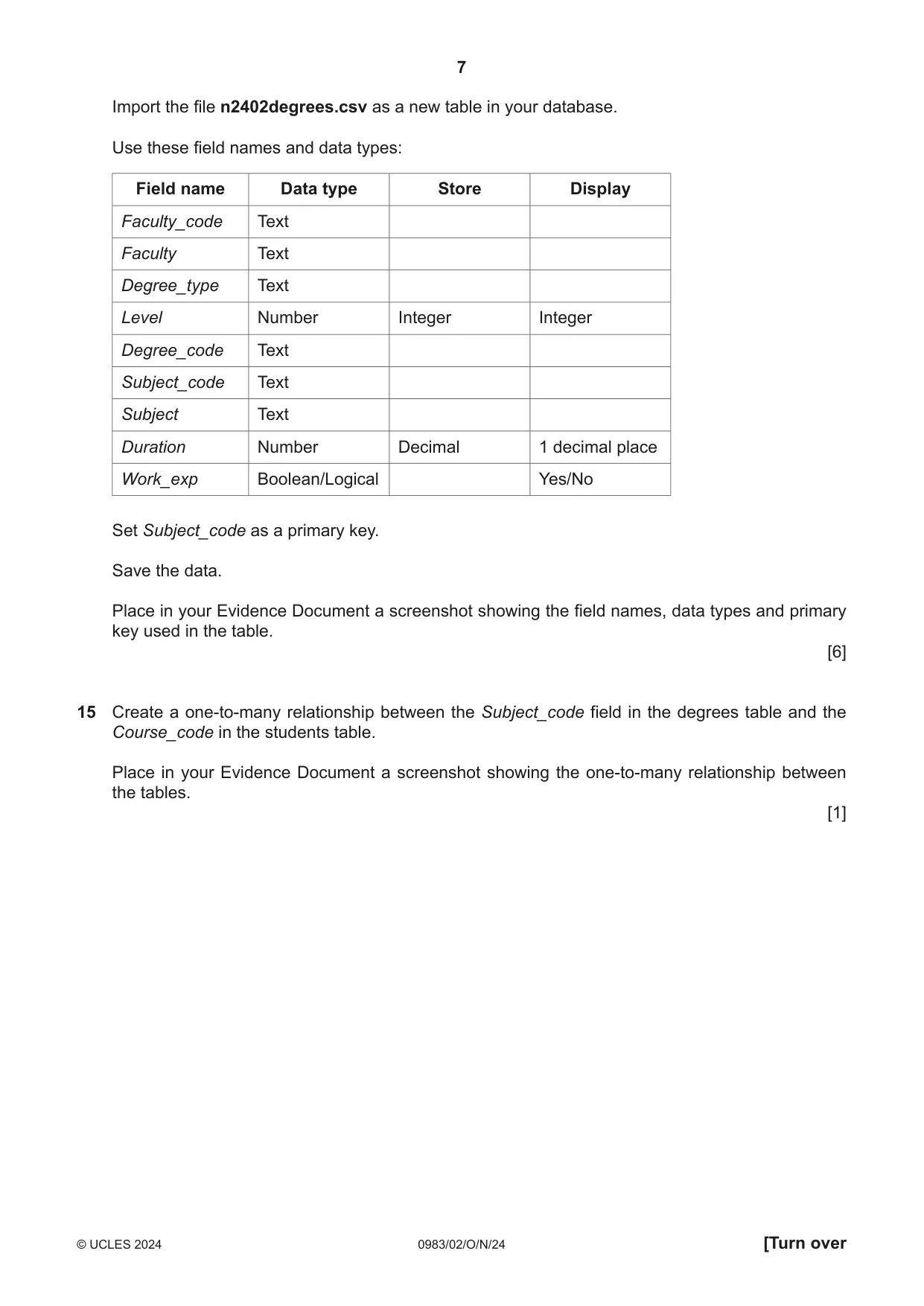
7 0983/02/O/N/24 © UCLES 2024 [Turn over Import the file n2402degrees.csv as a new table in your database. Use these field names and data types: Field name Data type Store Display Faculty_code Text Faculty Text Degree_type Text Level Number Integer Integer Degree_code Text Subject_code Text Subject Text Duration Number Decimal 1 decimal place Work_exp Boolean/Logical Yes/No Set Subject_code as a primary key. Save the data. Place in your Evidence Document a screenshot showing the field names, data types and primary key used in the table. [6] 15 Create a one-to-many relationship between the Subject_code field in the degrees table and the Course_code in the students table. Place in your Evidence Document a screenshot showing the one-to-many relationship between the tables. [1]
Question paper, page 8
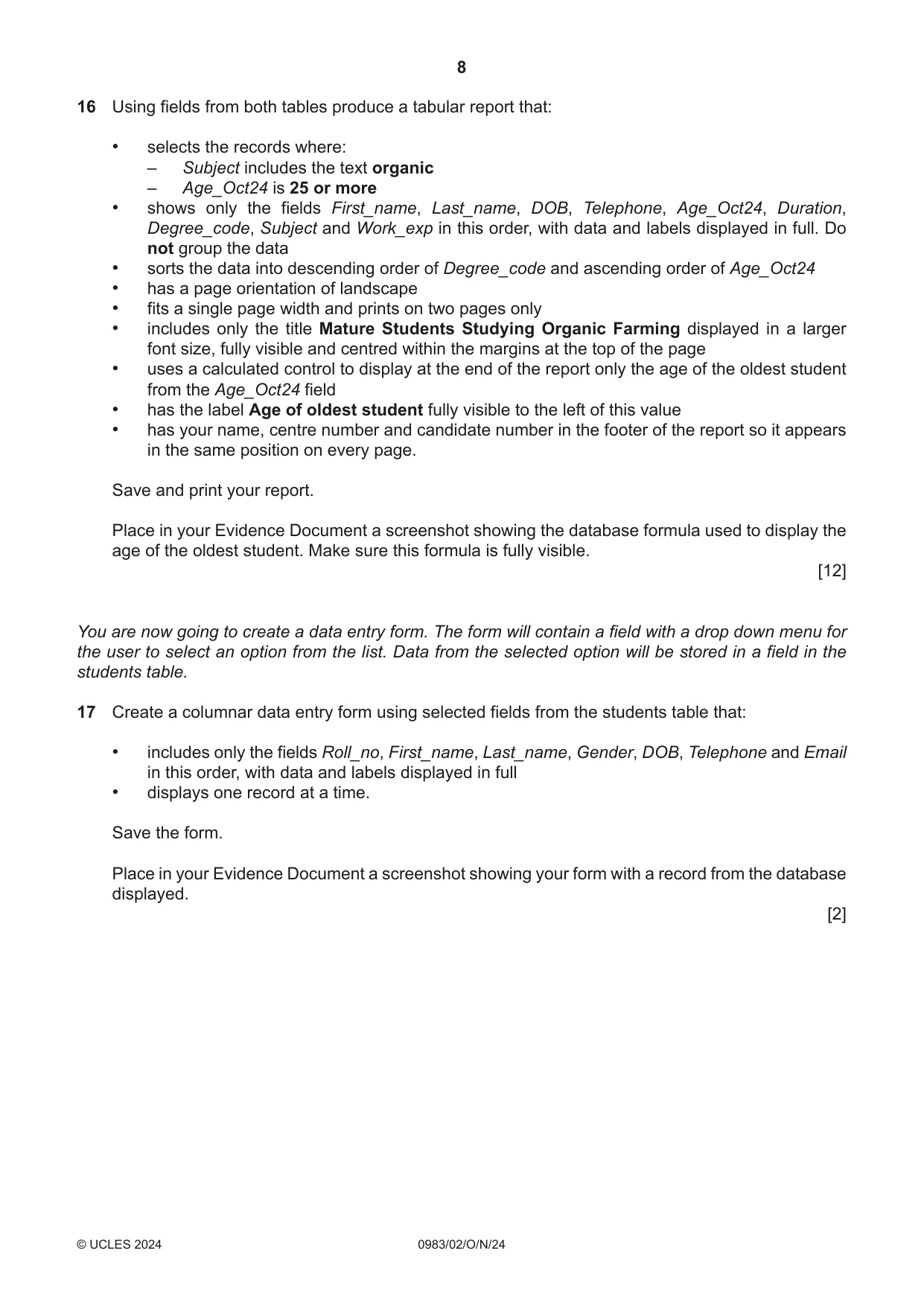
8 0983/02/O/N/24 © UCLES 2024 16 Using fields from both tables produce a tabular report that: • selects the records where: – Subject includes the text organic – Age_Oct24 is 25 or more • shows only the fields First_name, Last_name, DOB, Telephone, Age_Oct24, Duration, Degree_code, Subject and Work_exp in this order, with data and labels displayed in full. Do not group the data • sorts the data into descending order of Degree_code and ascending order of Age_Oct24 • has a page orientation of landscape • fits a single page width and prints on two pages only • includes only the title Mature Students Studying Organic Farming displayed in a larger font size, fully visible and centred within the margins at the top of the page • uses a calculated control to display at the end of the report only the age of the oldest student from the Age_Oct24 field • has the label Age of oldest student fully visible to the left of this value • has your name, centre number and candidate number in the footer of the report so it appears in the same position on every page. Save and print your report. Place in your Evidence Document a screenshot showing the database formula used to display the age of the oldest student. Make sure this formula is fully visible. [12] You are now going to create a data entry form. The form will contain a field with a drop down menu for the user to select an option from the list. Data from the selected option will be stored in a field in the students table. 17 Create a columnar data entry form using selected fields from the students table that: • includes only the fields Roll_no, First_name, Last_name, Gender, DOB, Telephone and Email in this order, with data and labels displayed in full • displays one record at a time. Save the form. Place in your Evidence Document a screenshot showing your form with a record from the database displayed. [2]
Question paper, page 9
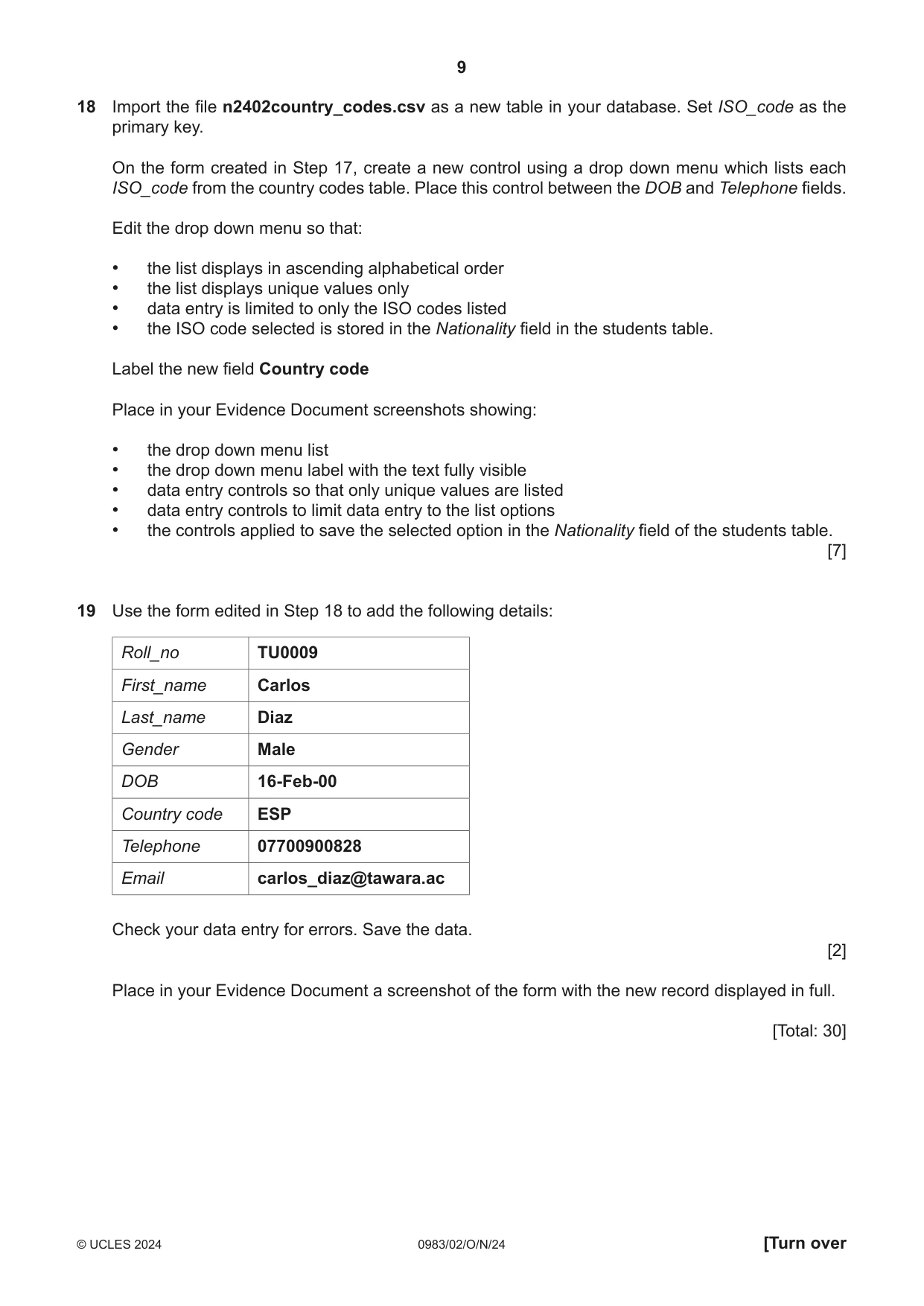
9 0983/02/O/N/24 © UCLES 2024 [Turn over 18 Import the file n2402country_codes.csv as a new table in your database. Set ISO_code as the primary key. On the form created in Step 17, create a new control using a drop down menu which lists each ISO_code from the country codes table. Place this control between the DOB and Telephone fields. Edit the drop down menu so that: • the list displays in ascending alphabetical order • the list displays unique values only • data entry is limited to only the ISO codes listed • the ISO code selected is stored in the Nationality field in the students table. Label the new field Country code Place in your Evidence Document screenshots showing: • the drop down menu list • the drop down menu label with the text fully visible • data entry controls so that only unique values are listed • data entry controls to limit data entry to the list options • the controls applied to save the selected option in the Nationality field of the students table. [7] 19 Use the form edited in Step 18 to add the following details: Roll_no TU0009 First_name Carlos Last_name Diaz Gender Male DOB 16-Feb-00 Country code ESP Telephone 07700900828 Email carlos_diaz@tawara.ac Check your data entry for errors. Save the data. [2] Place in your Evidence Document a screenshot of the form with the new record displayed in full. [Total: 30]
Question paper, page 10
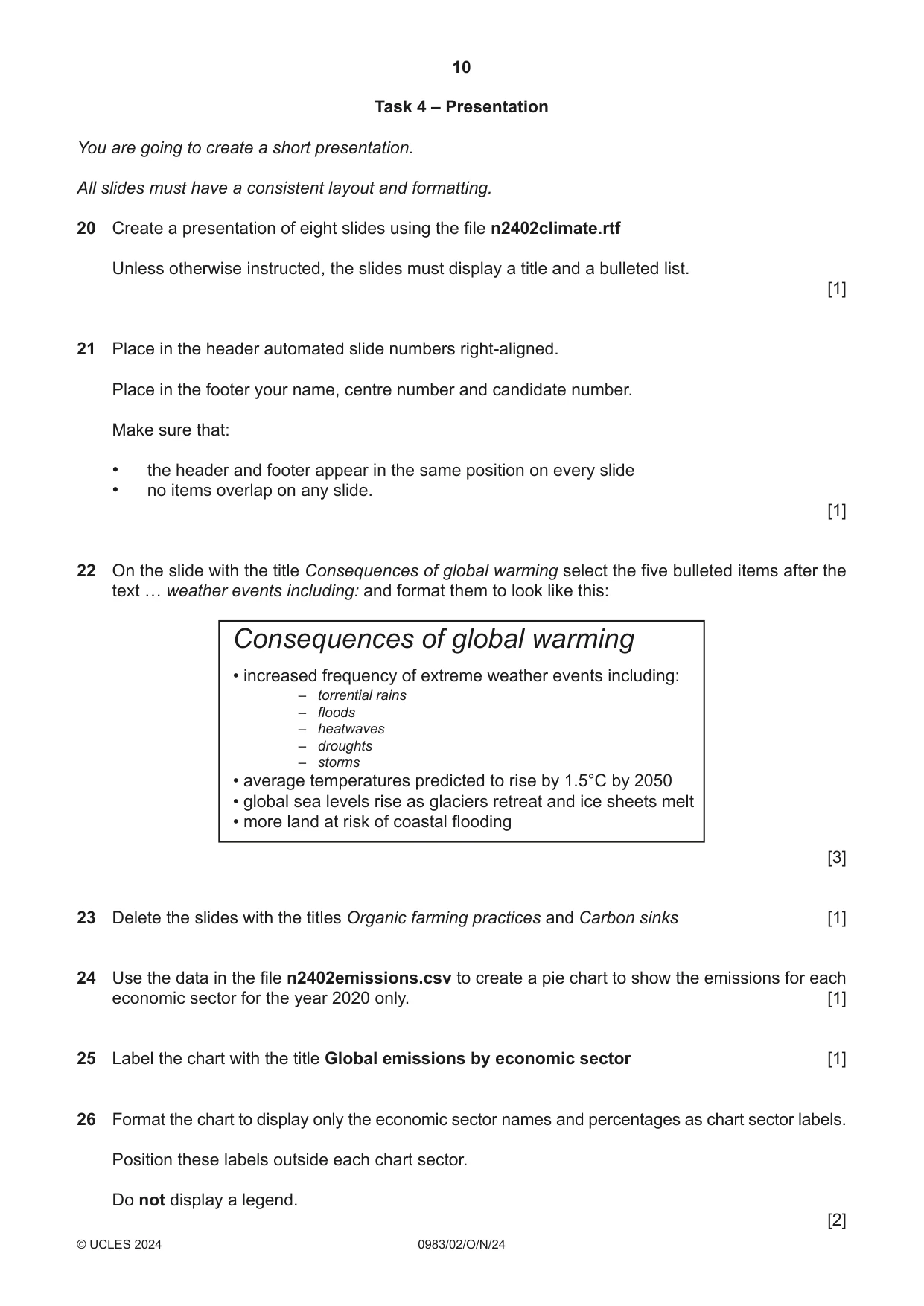
10 0983/02/O/N/24 © UCLES 2024 Task 4 – Presentation You are going to create a short presentation. All slides must have a consistent layout and formatting. 20 Create a presentation of eight slides using the file n2402climate.rtf Unless otherwise instructed, the slides must display a title and a bulleted list. [1] 21 Place in the header automated slide numbers right-aligned. Place in the footer your name, centre number and candidate number. Make sure that: • the header and footer appear in the same position on every slide • no items overlap on any slide. [1] 22 On the slide with the title Consequences of global warming select the five bulleted items after the text … weather events including: and format them to look like this: • increased frequency of extreme weather events including: Consequences of global warming • average temperatures predicted to rise by 1.5°C by 2050 • global sea levels rise as glaciers retreat and ice sheets melt • more land at risk of coastal flooding – torrential rains – floods – heatwaves – droughts – storms [3] 23 Delete the slides with the titles Organic farming practices and Carbon sinks [1] 24 Use the data in the file n2402emissions.csv to create a pie chart to show the emissions for each economic sector for the year 2020 only. [1] 25 Label the chart with the title Global emissions by economic sector [1] 26 Format the chart to display only the economic sector names and percentages as chart sector labels. Position these labels outside each chart sector. Do not display a legend. [2]
Question paper, page 11
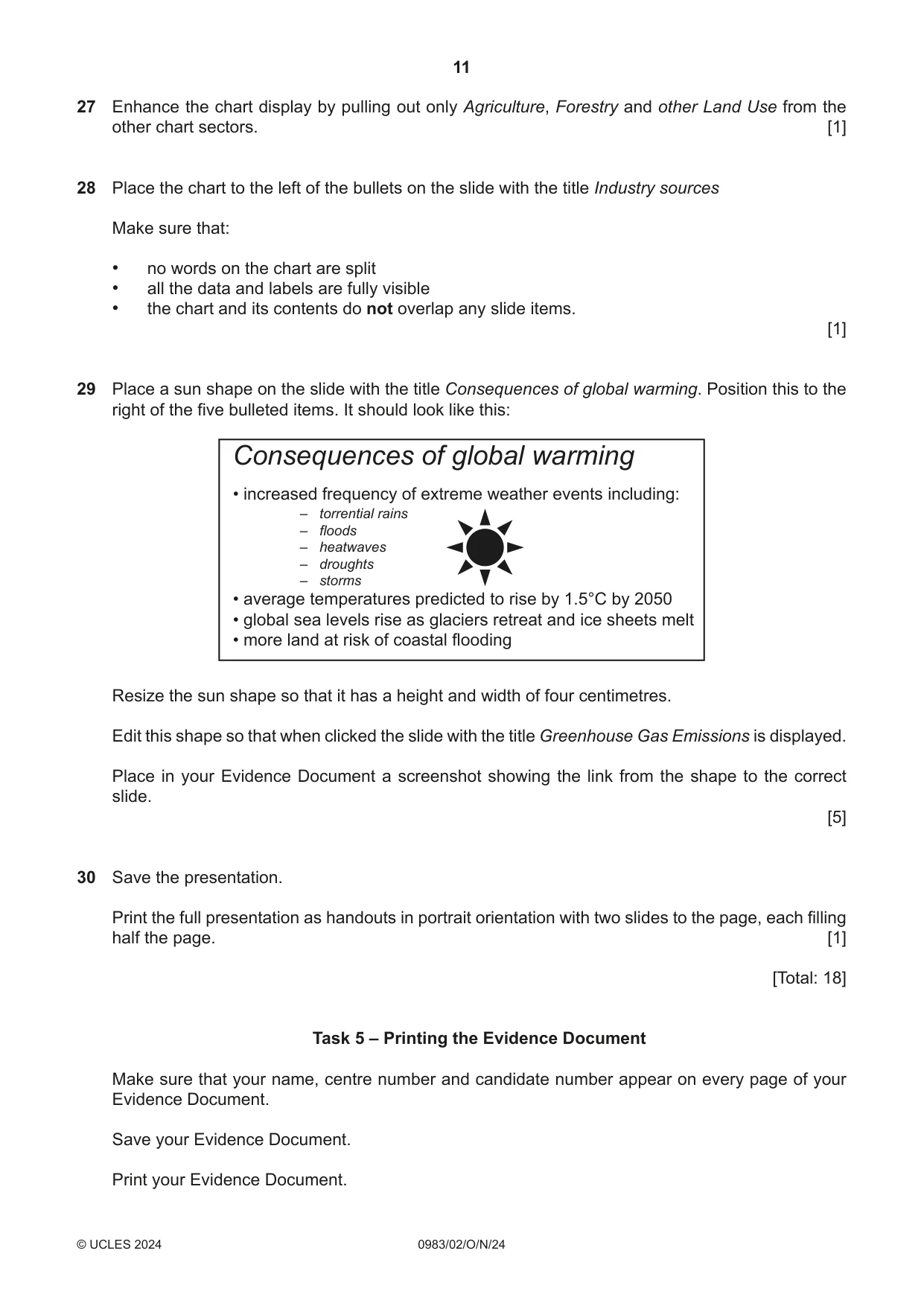
11 0983/02/O/N/24 © UCLES 2024 27 Enhance the chart display by pulling out only Agriculture, Forestry and other Land Use from the other chart sectors. [1] 28 Place the chart to the left of the bullets on the slide with the title Industry sources Make sure that: • no words on the chart are split • all the data and labels are fully visible • the chart and its contents do not overlap any slide items. [1] 29 Place a sun shape on the slide with the title Consequences of global warming. Position this to the right of the five bulleted items. It should look like this: Consequences of global warming • average temperatures predicted to rise by 1.5°C by 2050 • global sea levels rise as glaciers retreat and ice sheets melt • more land at risk of coastal flooding – torrential rains – floods – heatwaves – droughts – storms • increased frequency of extreme weather events including: Resize the sun shape so that it has a height and width of four centimetres. Edit this shape so that when clicked the slide with the title Greenhouse Gas Emissions is displayed. Place in your Evidence Document a screenshot showing the link from the shape to the correct slide. [5] 30 Save the presentation. Print the full presentation as handouts in portrait orientation with two slides to the page, each filling half the page. [1] [Total: 18] Task 5 – Printing the Evidence Document Make sure that your name, centre number and candidate number appear on every page of your Evidence Document. Save your Evidence Document. Print your Evidence Document.
Question paper, page 12
12 0983/02/O/N/24 © UCLES 2024 Permission to reproduce items where third-party owned material protected by copyright is included has been sought and cleared where possible. Every reasonable effort has been made by the publisher (UCLES) to trace copyright holders, but if any items requiring clearance have unwittingly been included, the publisher will be pleased to make amends at the earliest possible opportunity. To avoid the issue of disclosure of answer-related information to candidates, all copyright acknowledgements are reproduced online in the Cambridge Assessment International Education Copyright Acknowledgements Booklet. This is produced for each series of examinations and is freely available to download at www.cambridgeinternational.org after the live examination series. Cambridge Assessment International Education is part of Cambridge Assessment. Cambridge Assessment is the brand name of the University of Cambridge Local Examinations Syndicate (UCLES), which is a department of the University of Cambridge. BLANK PAGE
What you needed in this session
Cambridge’s own grade thresholds for 2024 Oct/Nov, Paper 2 · Variant 0. A higher threshold means an easier paper — the bar moves with how the cohort did.