Cambridge IGCSE Information and Communication Technology (9-1) 0983 — 2022 Oct/Nov Paper 2 · Variant 0
0983/20/O/N/22 · 80 marks · ≈90 min
The question paper and its mark scheme, free to read here and free to download. This is Cambridge’s own paper, exactly as it was sat.
Question paper16 pages

Mark scheme
No mark scheme is in the library for this paper.
Paper as text
Question paper, page 1
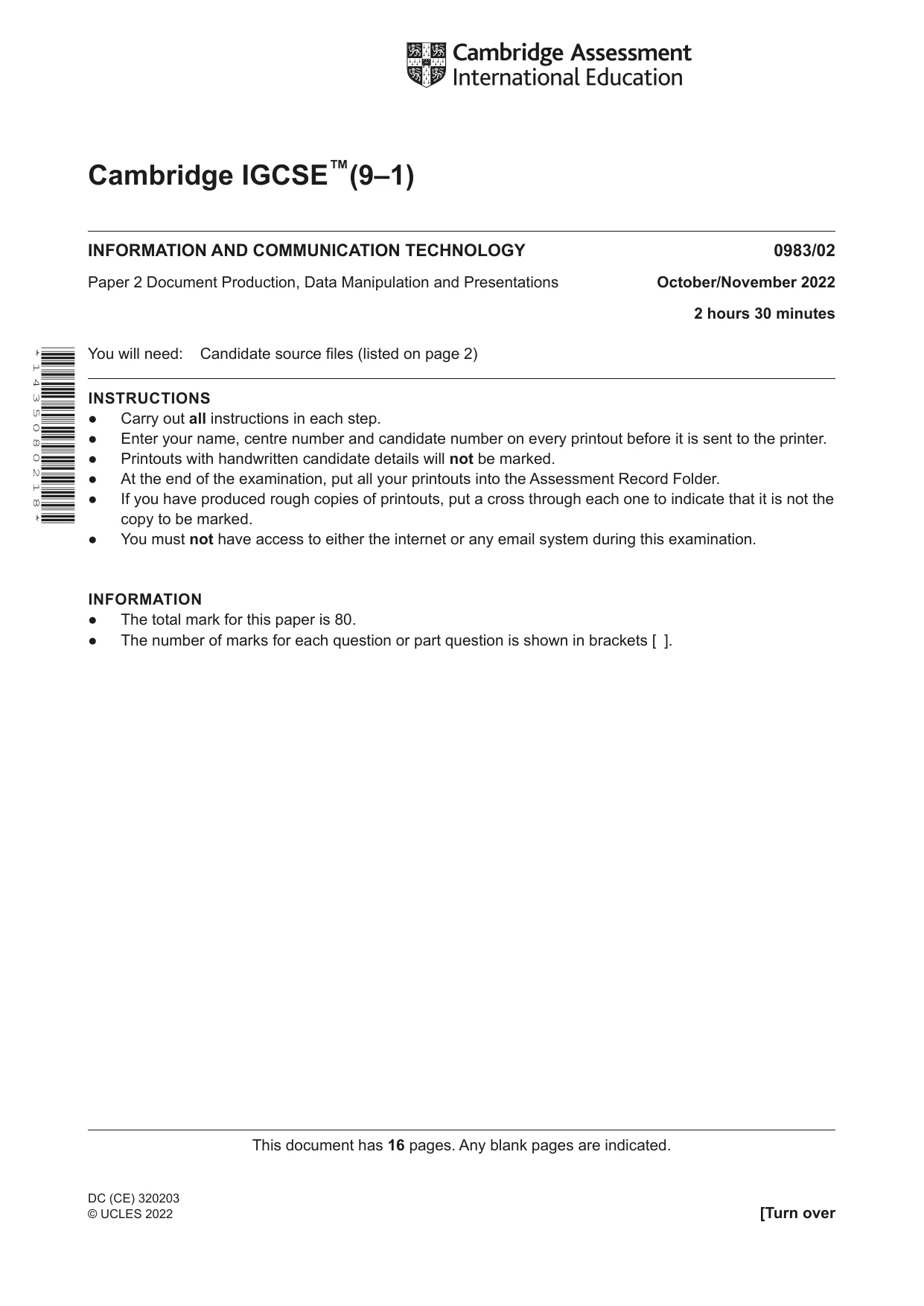
This document has 16 pages. Any blank pages are indicated. [Turn over Cambridge IGCSE™(9–1) * 1 4 3 5 0 8 0 2 1 8 * INFORMATION AND COMMUNICATION TECHNOLOGY 0983/02 Paper 2 Document Production, Data Manipulation and Presentations October/November 2022 2 hours 30 minutes You will need: Candidate source files (listed on page 2) INSTRUCTIONS ● Carry out all instructions in each step. ● Enter your name, centre number and candidate number on every printout before it is sent to the printer. ● Printouts with handwritten candidate details will not be marked. ● At the end of the examination, put all your printouts into the Assessment Record Folder. ● If you have produced rough copies of printouts, put a cross through each one to indicate that it is not the copy to be marked. ● You must not have access to either the internet or any email system during this examination. INFORMATION ● The total mark for this paper is 80. ● The number of marks for each question or part question is shown in brackets [ ]. DC (CE) 320203 © UCLES 2022
Question paper, page 2
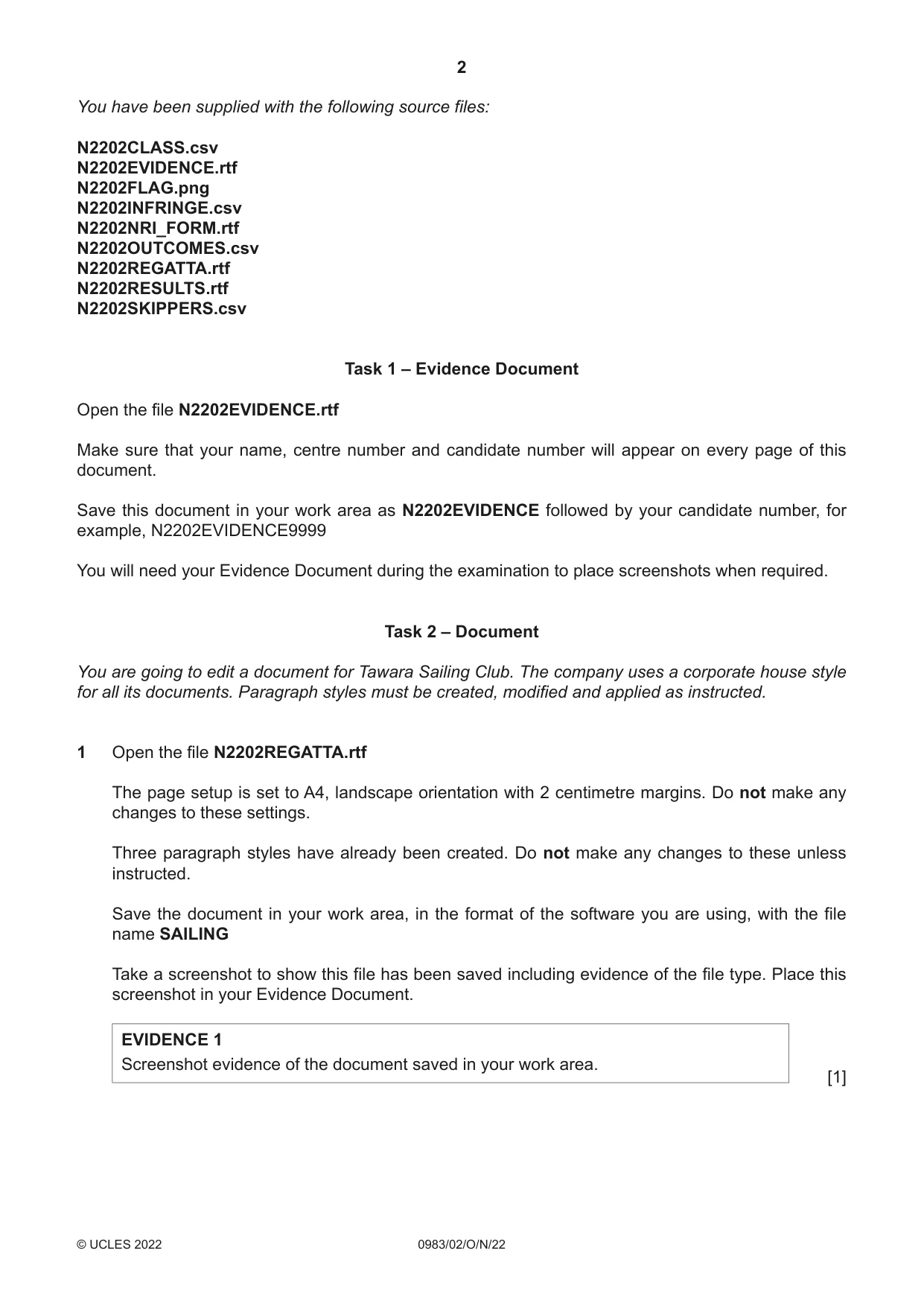
2 0983/02/O/N/22 © UCLES 2022 You have been supplied with the following source files: N2202CLASS.csv N2202EVIDENCE.rtf N2202FLAG.png N2202INFRINGE.csv N2202NRI_FORM.rtf N2202OUTCOMES.csv N2202REGATTA.rtf N2202RESULTS.rtf N2202SKIPPERS.csv Task 1 – Evidence Document Open the file N2202EVIDENCE.rtf Make sure that your name, centre number and candidate number will appear on every page of this document. Save this document in your work area as N2202EVIDENCE followed by your candidate number, for example, N2202EVIDENCE9999 You will need your Evidence Document during the examination to place screenshots when required. Task 2 – Document You are going to edit a document for Tawara Sailing Club. The company uses a corporate house style for all its documents. Paragraph styles must be created, modified and applied as instructed. 1 Open the file N2202REGATTA.rtf The page setup is set to A4, landscape orientation with 2 centimetre margins. Do not make any changes to these settings. Three paragraph styles have already been created. Do not make any changes to these unless instructed. Save the document in your work area, in the format of the software you are using, with the file name SAILING Take a screenshot to show this file has been saved including evidence of the file type. Place this screenshot in your Evidence Document. EVIDENCE 1 Screenshot evidence of the document saved in your work area. [1]
Question paper, page 3
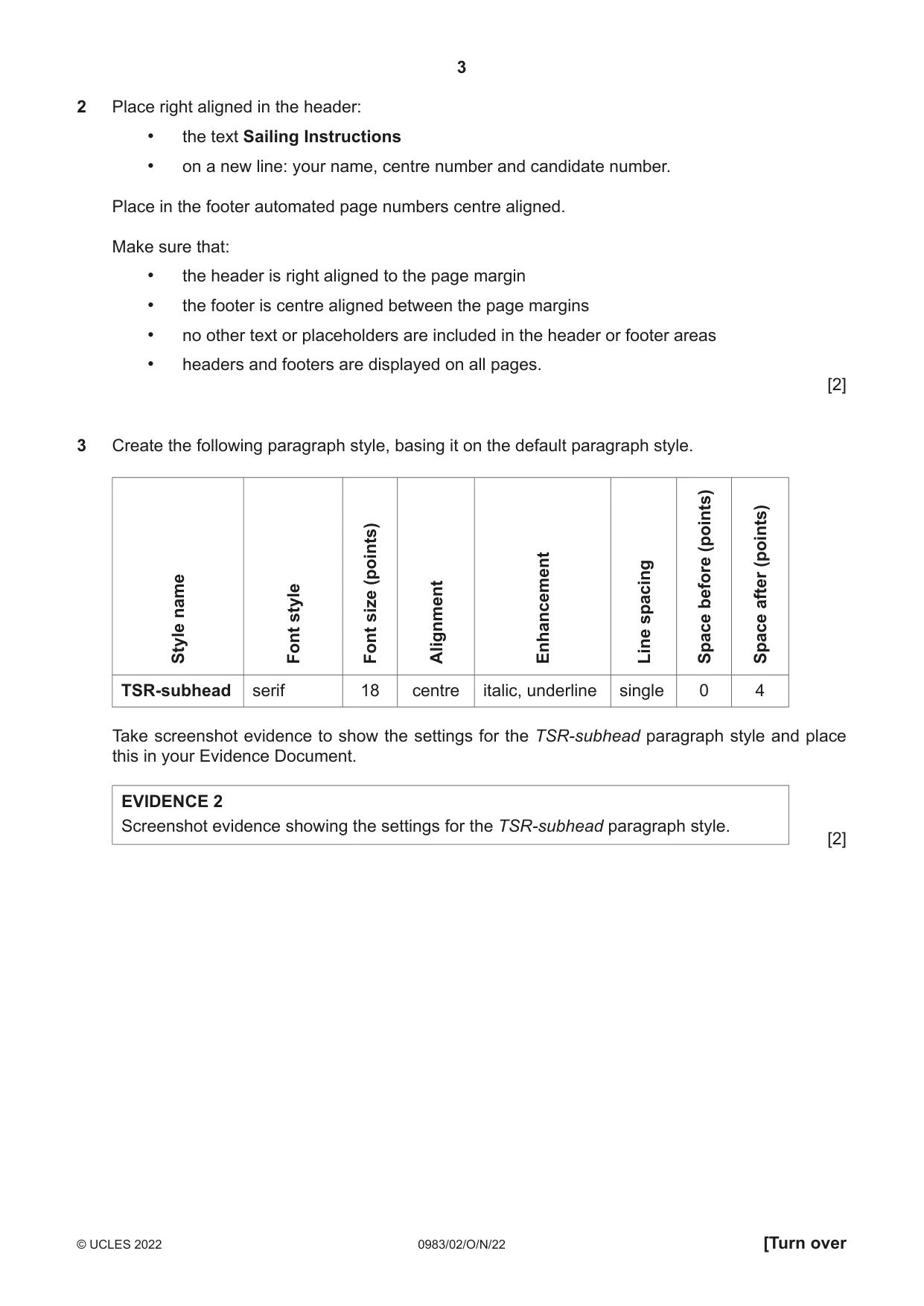
3 0983/02/O/N/22 © UCLES 2022 [Turn over 2 Place right aligned in the header: • the text Sailing Instructions • on a new line: your name, centre number and candidate number. Place in the footer automated page numbers centre aligned. Make sure that: • the header is right aligned to the page margin • the footer is centre aligned between the page margins • no other text or placeholders are included in the header or footer areas • headers and footers are displayed on all pages. [2] 3 Create the following paragraph style, basing it on the default paragraph style. Style name Font style Font size (points) Alignment Enhancement Line spacing Space before (points) Space after (points) TSR-subhead serif 18 centre italic, underline single 0 4 Take screenshot evidence to show the settings for the TSR-subhead paragraph style and place this in your Evidence Document. EVIDENCE 2 Screenshot evidence showing the settings for the TSR-subhead paragraph style. [2]
Question paper, page 4
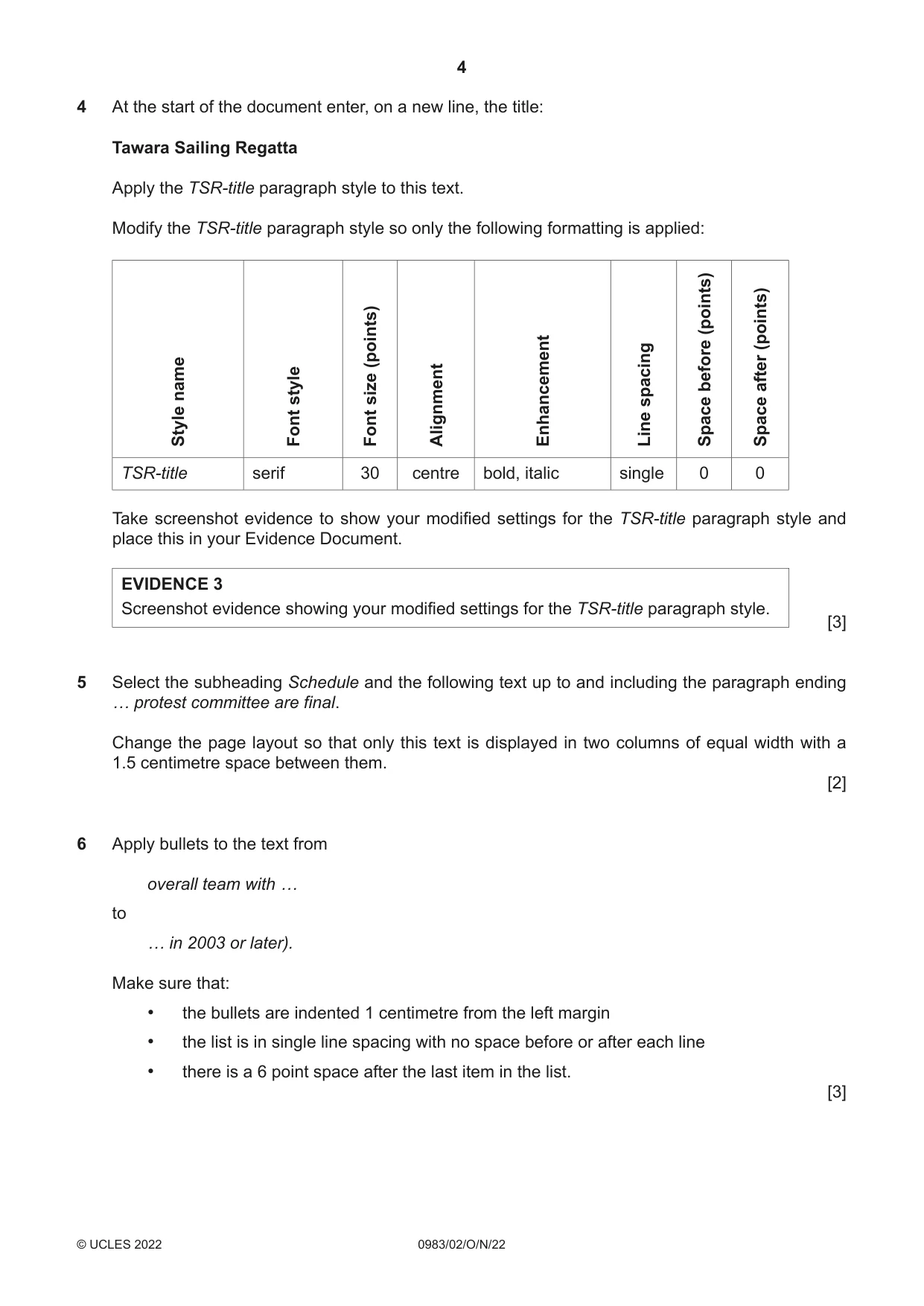
4 0983/02/O/N/22 © UCLES 2022 4 At the start of the document enter, on a new line, the title: Tawara Sailing Regatta Apply the TSR-title paragraph style to this text. Modify the TSR-title paragraph style so only the following formatting is applied: Style name Font style Font size (points) Alignment Enhancement Line spacing Space before (points) Space after (points) TSR-title serif 30 centre bold, italic single 0 0 Take screenshot evidence to show your modified settings for the TSR-title paragraph style and place this in your Evidence Document. EVIDENCE 3 Screenshot evidence showing your modified settings for the TSR-title paragraph style. [3] 5 Select the subheading Schedule and the following text up to and including the paragraph ending … protest committee are final. Change the page layout so that only this text is displayed in two columns of equal width with a 1.5 centimetre space between them. [2] 6 Apply bullets to the text from overall team with … to … in 2003 or later). Make sure that: • the bullets are indented 1 centimetre from the left margin • the list is in single line spacing with no space before or after each line • there is a 6 point space after the last item in the list. [3]
Question paper, page 5
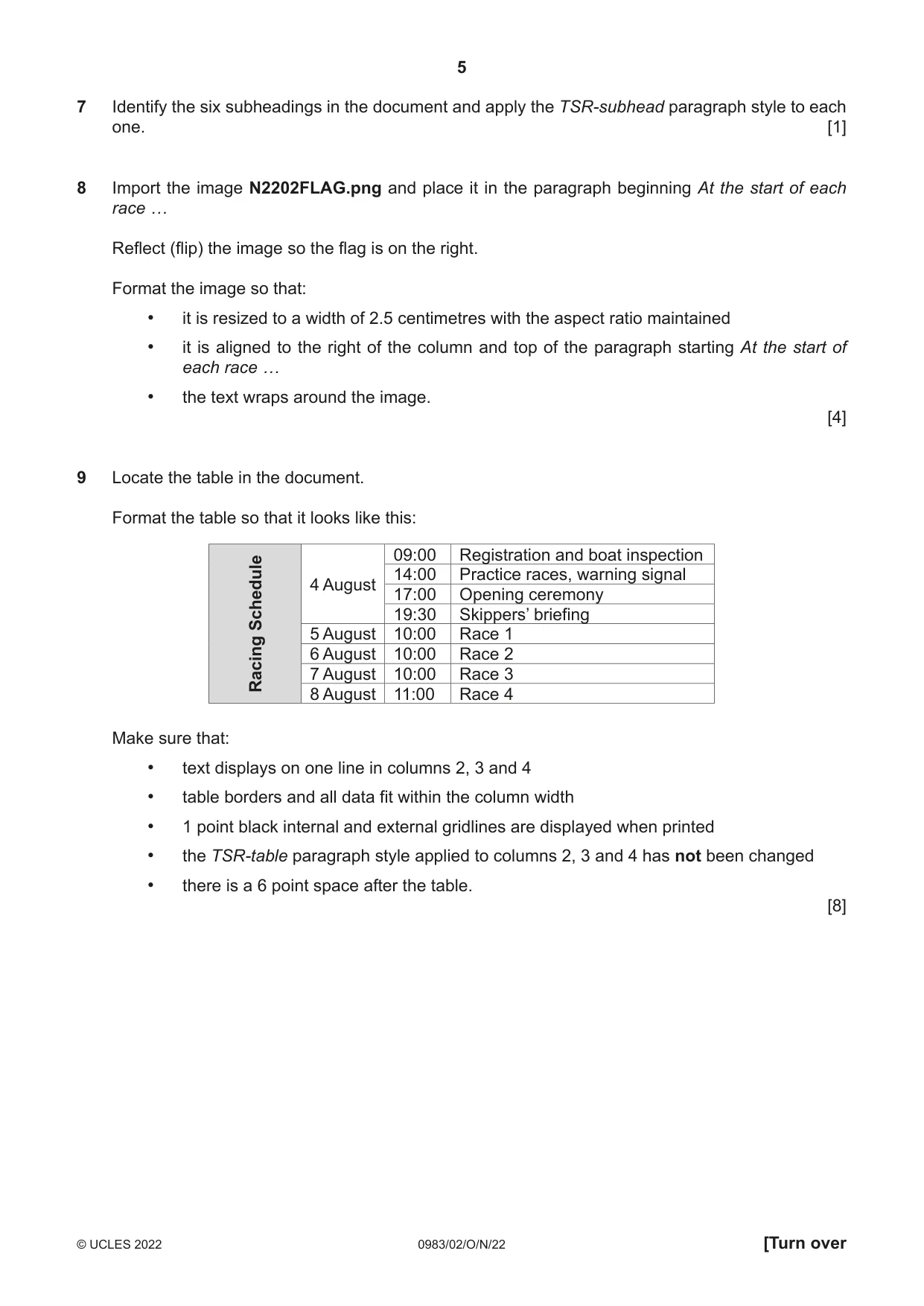
5 0983/02/O/N/22 © UCLES 2022 [Turn over 7 Identify the six subheadings in the document and apply the TSR-subhead paragraph style to each one. [1] 8 Import the image N2202FLAG.png and place it in the paragraph beginning At the start of each race … Reflect (flip) the image so the flag is on the right. Format the image so that: • it is resized to a width of 2.5 centimetres with the aspect ratio maintained • it is aligned to the right of the column and top of the paragraph starting At the start of each race … • the text wraps around the image. [4] 9 Locate the table in the document. Format the table so that it looks like this: Racing Schedule 4 August 09:00 Registration and boat inspection 14:00 Practice races, warning signal 17:00 Opening ceremony 19:30 Skippers’ briefing 5 August 10:00 Race 1 6 August 10:00 Race 2 7 August 10:00 Race 3 8 August 11:00 Race 4 Make sure that: • text displays on one line in columns 2, 3 and 4 • table borders and all data fit within the column width • 1 point black internal and external gridlines are displayed when printed • the TSR-table paragraph style applied to columns 2, 3 and 4 has not been changed • there is a 6 point space after the table. [8]
Question paper, page 6
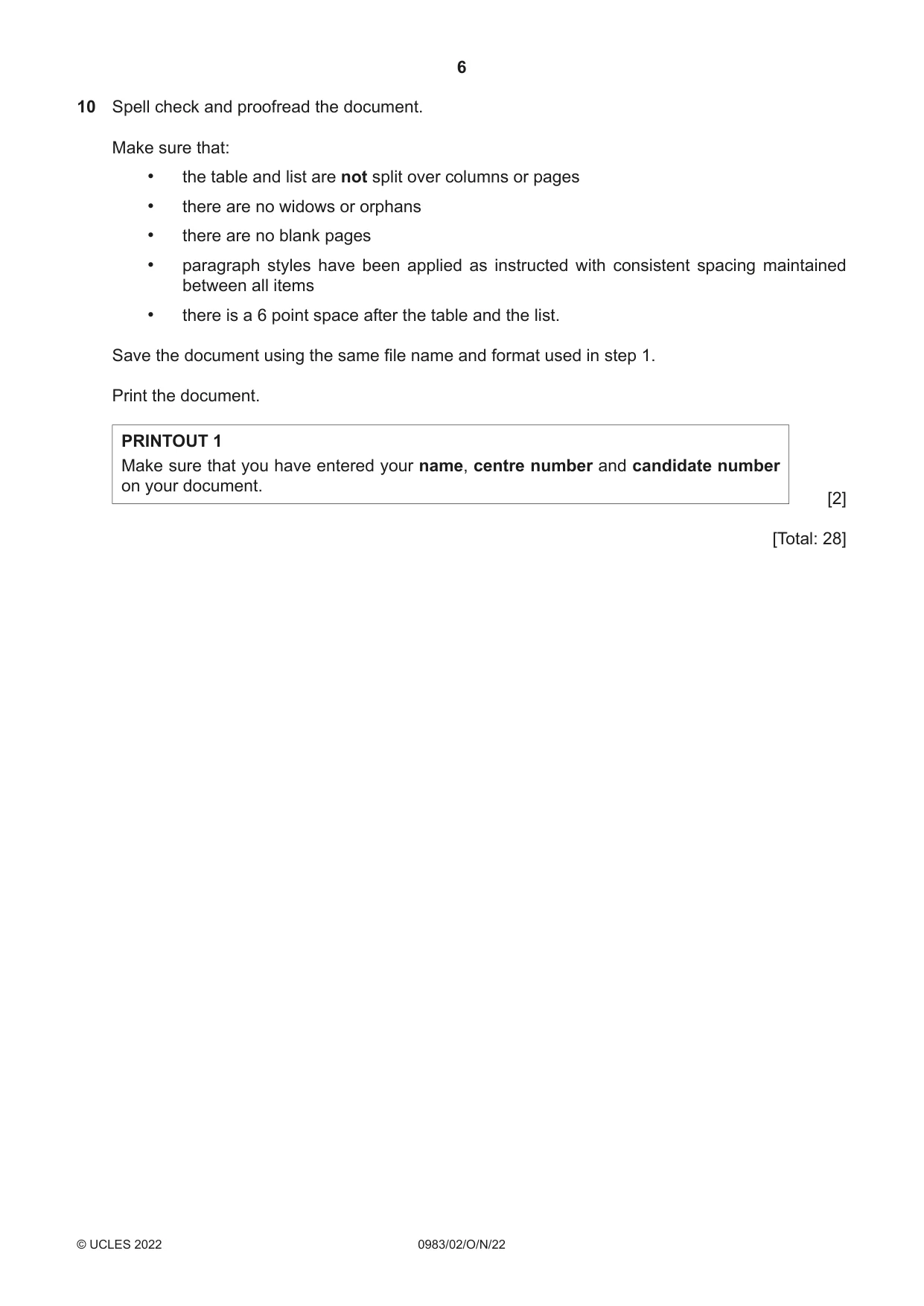
6 0983/02/O/N/22 © UCLES 2022 10 Spell check and proofread the document. Make sure that: • the table and list are not split over columns or pages • there are no widows or orphans • there are no blank pages • paragraph styles have been applied as instructed with consistent spacing maintained between all items • there is a 6 point space after the table and the list. Save the document using the same file name and format used in step 1. Print the document. PRINTOUT 1 Make sure that you have entered your name, centre number and candidate number on your document. [2] [Total: 28]
Question paper, page 7
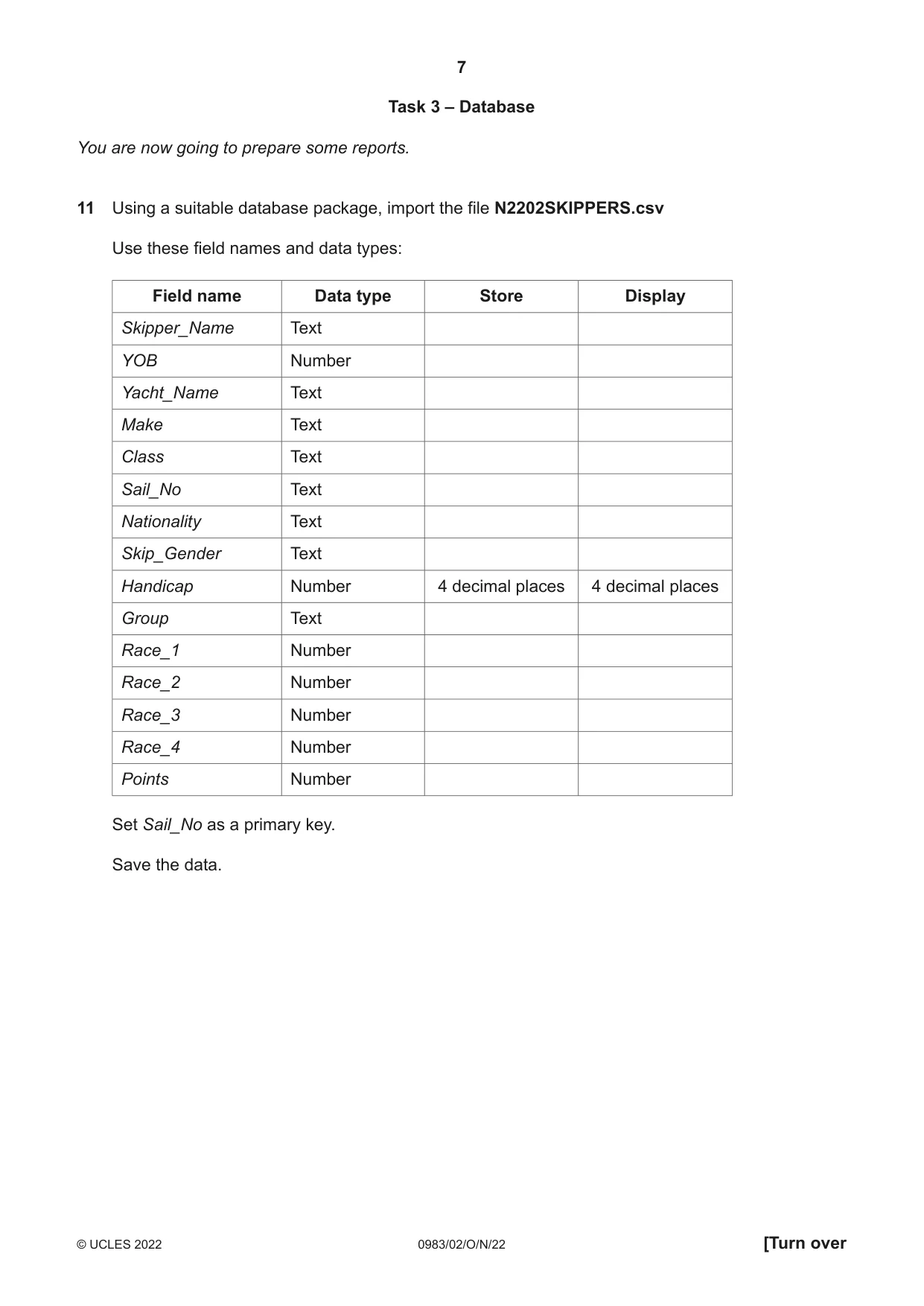
7 0983/02/O/N/22 © UCLES 2022 [Turn over Task 3 – Database You are now going to prepare some reports. 11 Using a suitable database package, import the file N2202SKIPPERS.csv Use these field names and data types: Field name Data type Store Display Skipper_Name Text YOB Number Yacht_Name Text Make Text Class Text Sail_No Text Nationality Text Skip_Gender Text Handicap Number 4 decimal places 4 decimal places Group Text Race_1 Number Race_2 Number Race_3 Number Race_4 Number Points Number Set Sail_No as a primary key. Save the data.
Question paper, page 8
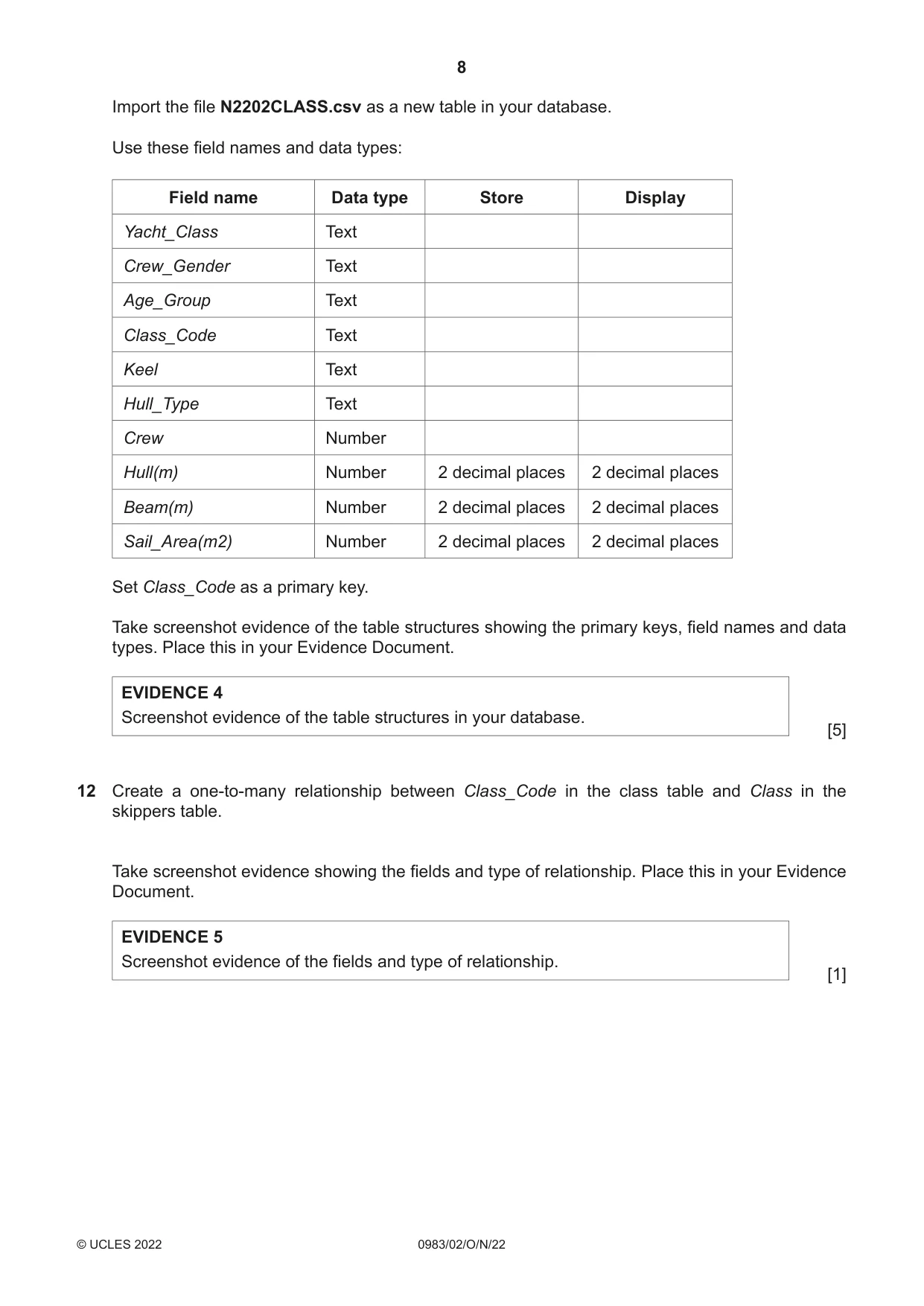
8 0983/02/O/N/22 © UCLES 2022 Import the file N2202CLASS.csv as a new table in your database. Use these field names and data types: Field name Data type Store Display Yacht_Class Text Crew_Gender Text Age_Group Text Class_Code Text Keel Text Hull_Type Text Crew Number Hull(m) Number 2 decimal places 2 decimal places Beam(m) Number 2 decimal places 2 decimal places Sail_Area(m2) Number 2 decimal places 2 decimal places Set Class_Code as a primary key. Take screenshot evidence of the table structures showing the primary keys, field names and data types. Place this in your Evidence Document. EVIDENCE 4 Screenshot evidence of the table structures in your database. [5] 12 Create a one-to-many relationship between Class_Code in the class table and Class in the skippers table. Take screenshot evidence showing the fields and type of relationship. Place this in your Evidence Document. EVIDENCE 5 Screenshot evidence of the fields and type of relationship. [1]
Question paper, page 9
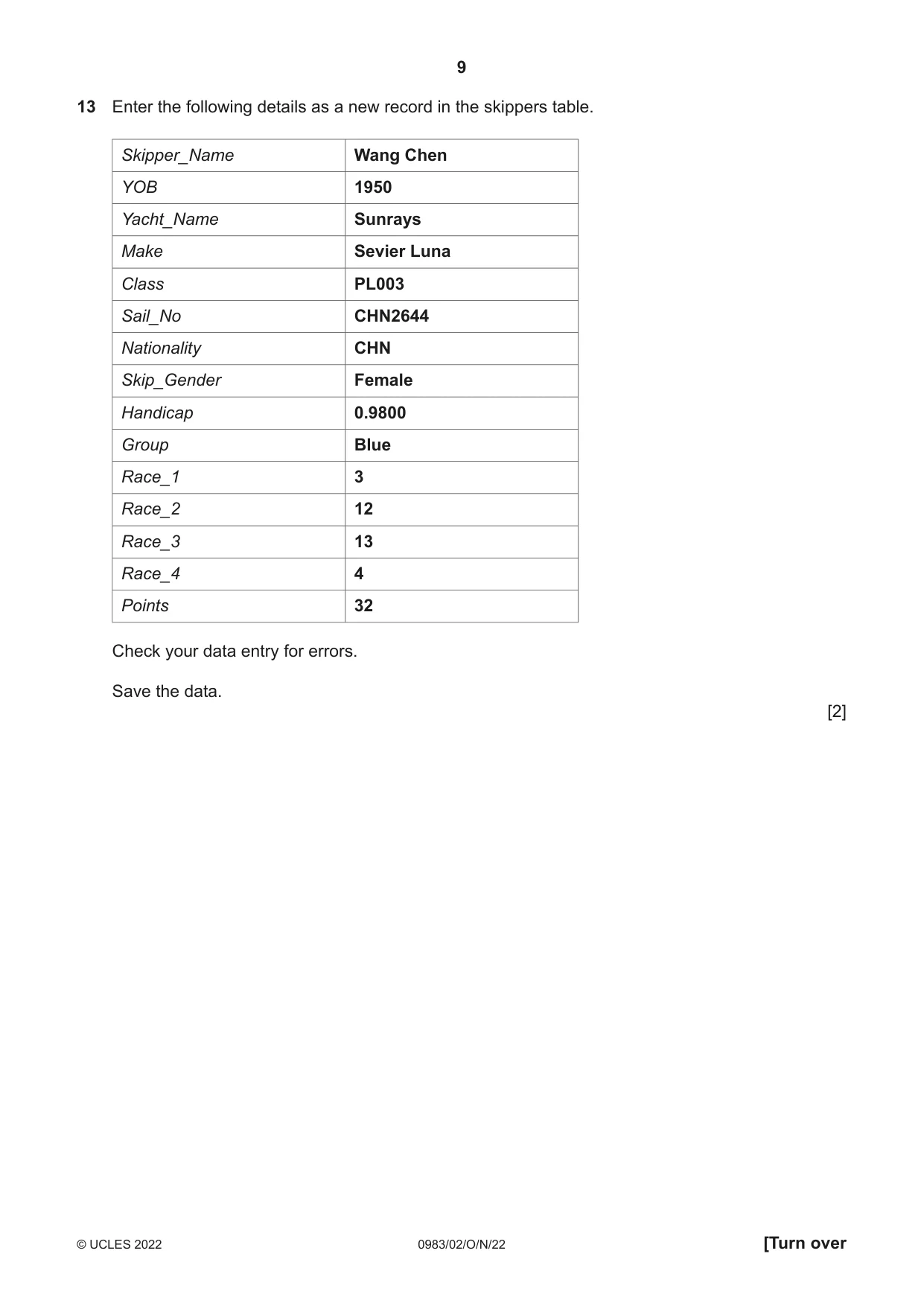
9 0983/02/O/N/22 © UCLES 2022 [Turn over 13 Enter the following details as a new record in the skippers table. Skipper_Name Wang Chen YOB 1950 Yacht_Name Sunrays Make Sevier Luna Class PL003 Sail_No CHN2644 Nationality CHN Skip_Gender Female Handicap 0.9800 Group Blue Race_1 3 Race_2 12 Race_3 13 Race_4 4 Points 32 Check your data entry for errors. Save the data. [2]
Question paper, page 10
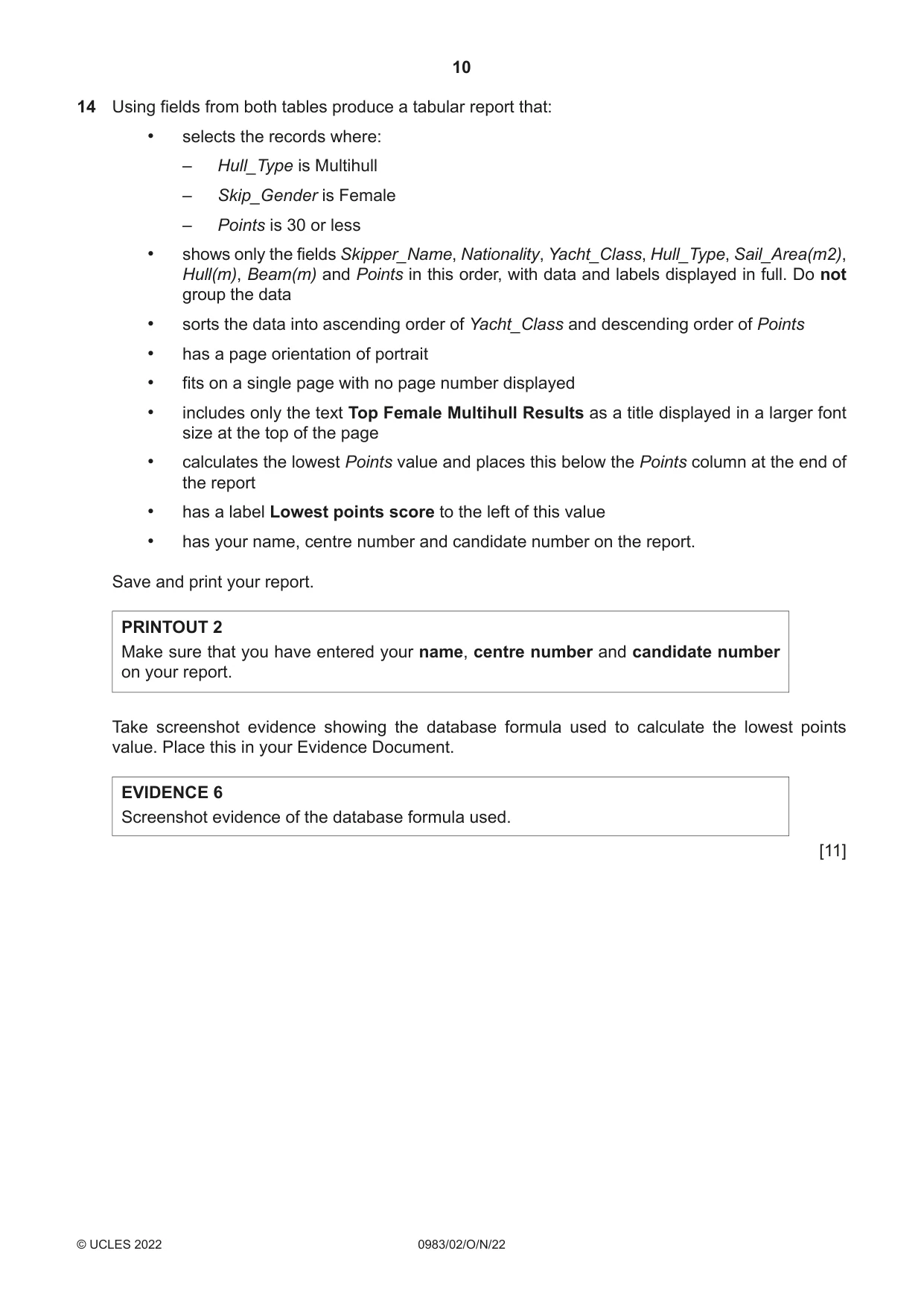
10 0983/02/O/N/22 © UCLES 2022 14 Using fields from both tables produce a tabular report that: • selects the records where: – Hull_Type is Multihull – Skip_Gender is Female – Points is 30 or less • shows only the fields Skipper_Name, Nationality, Yacht_Class, Hull_Type, Sail_Area(m2), Hull(m), Beam(m) and Points in this order, with data and labels displayed in full. Do not group the data • sorts the data into ascending order of Yacht_Class and descending order of Points • has a page orientation of portrait • fits on a single page with no page number displayed • includes only the text Top Female Multihull Results as a title displayed in a larger font size at the top of the page • calculates the lowest Points value and places this below the Points column at the end of the report • has a label Lowest points score to the left of this value • has your name, centre number and candidate number on the report. Save and print your report. PRINTOUT 2 Make sure that you have entered your name, centre number and candidate number on your report. Take screenshot evidence showing the database formula used to calculate the lowest points value. Place this in your Evidence Document. EVIDENCE 6 Screenshot evidence of the database formula used. [11]
Question paper, page 11
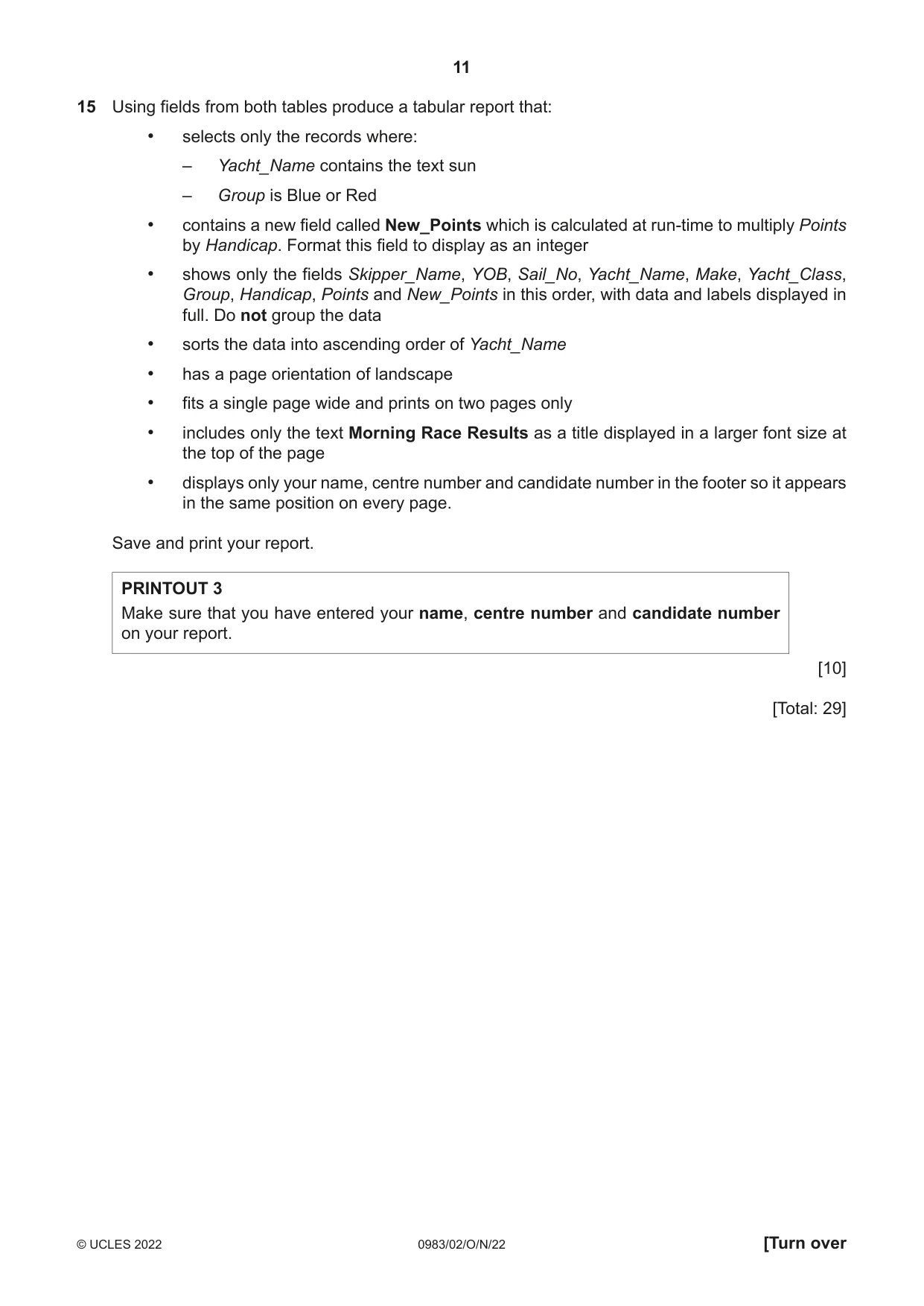
11 0983/02/O/N/22 © UCLES 2022 [Turn over 15 Using fields from both tables produce a tabular report that: • selects only the records where: – Yacht_Name contains the text sun – Group is Blue or Red • contains a new field called New_Points which is calculated at run-time to multiply Points by Handicap. Format this field to display as an integer • shows only the fields Skipper_Name, YOB, Sail_No, Yacht_Name, Make, Yacht_Class, Group, Handicap, Points and New_Points in this order, with data and labels displayed in full. Do not group the data • sorts the data into ascending order of Yacht_Name • has a page orientation of landscape • fits a single page wide and prints on two pages only • includes only the text Morning Race Results as a title displayed in a larger font size at the top of the page • displays only your name, centre number and candidate number in the footer so it appears in the same position on every page. Save and print your report. PRINTOUT 3 Make sure that you have entered your name, centre number and candidate number on your report. [10] [Total: 29]
Question paper, page 12
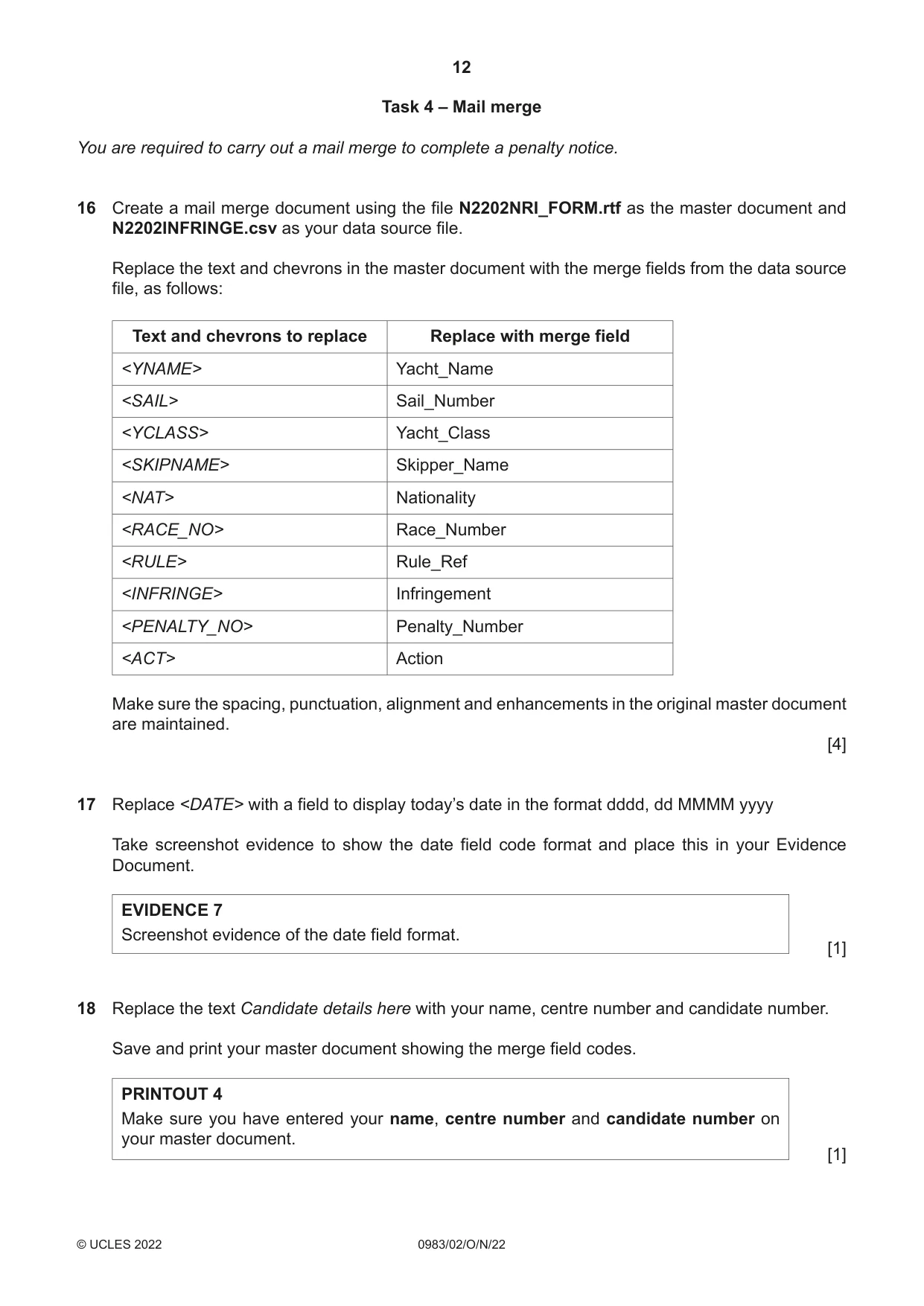
12 0983/02/O/N/22 © UCLES 2022 Task 4 – Mail merge You are required to carry out a mail merge to complete a penalty notice. 16 Create a mail merge document using the file N2202NRI_FORM.rtf as the master document and N2202INFRINGE.csv as your data source file. Replace the text and chevrons in the master document with the merge fields from the data source file, as follows: Text and chevrons to replace Replace with merge field <YNAME> Yacht_Name <SAIL> Sail_Number <YCLASS> Yacht_Class <SKIPNAME> Skipper_Name <NAT> Nationality <RACE_NO> Race_Number <RULE> Rule_Ref <INFRINGE> Infringement <PENALTY_NO> Penalty_Number <ACT> Action Make sure the spacing, punctuation, alignment and enhancements in the original master document are maintained. [4] 17 Replace <DATE> with a field to display today’s date in the format dddd, dd MMMM yyyy Take screenshot evidence to show the date field code format and place this in your Evidence Document. EVIDENCE 7 Screenshot evidence of the date field format. [1] 18 Replace the text Candidate details here with your name, centre number and candidate number. Save and print your master document showing the merge field codes. PRINTOUT 4 Make sure you have entered your name, centre number and candidate number on your master document. [1]
Question paper, page 13
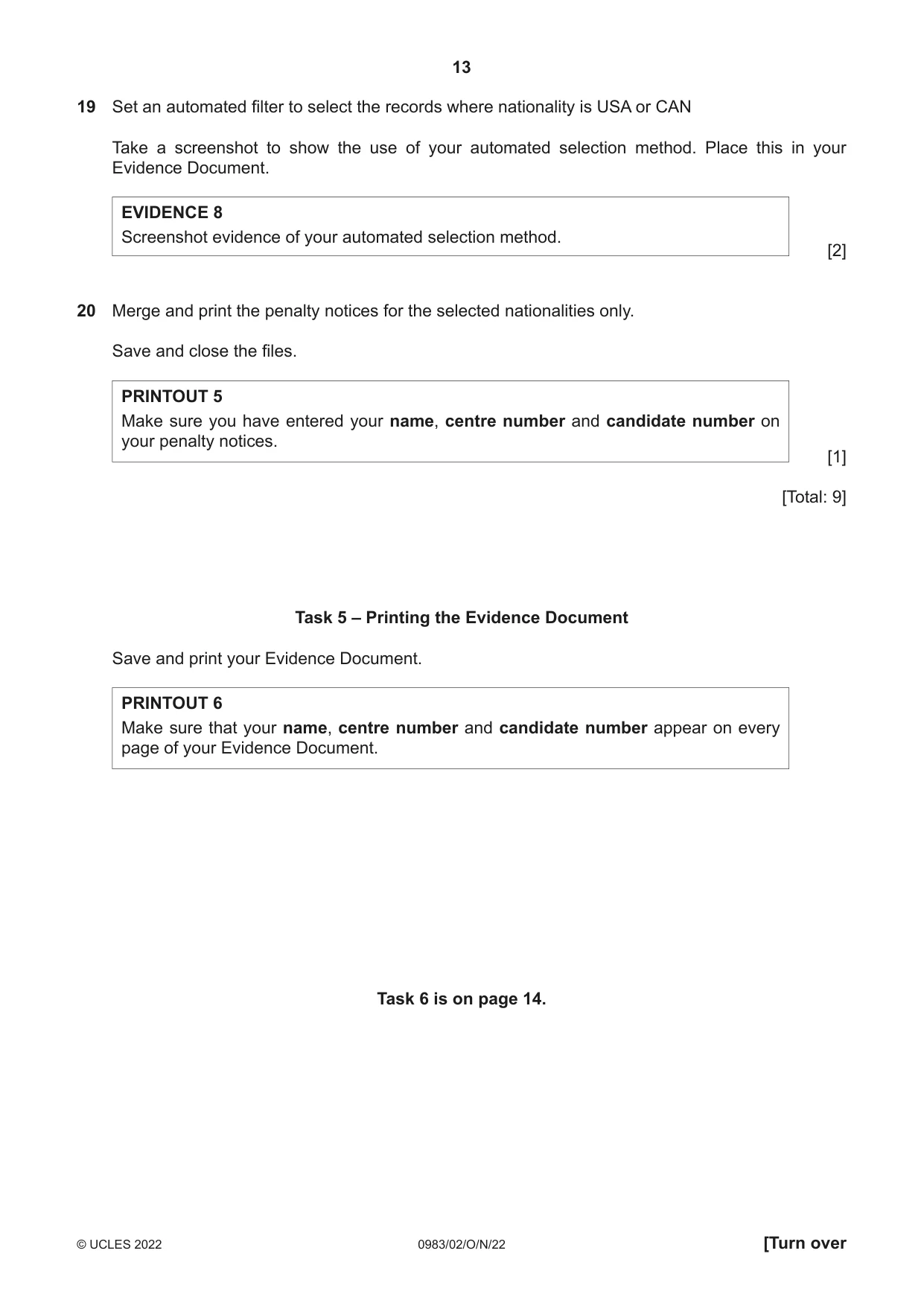
13 0983/02/O/N/22 © UCLES 2022 [Turn over 19 Set an automated filter to select the records where nationality is USA or CAN Take a screenshot to show the use of your automated selection method. Place this in your Evidence Document. EVIDENCE 8 Screenshot evidence of your automated selection method. [2] 20 Merge and print the penalty notices for the selected nationalities only. Save and close the files. PRINTOUT 5 Make sure you have entered your name, centre number and candidate number on your penalty notices. [1] [Total: 9] Task 5 – Printing the Evidence Document Save and print your Evidence Document. PRINTOUT 6 Make sure that your name, centre number and candidate number appear on every page of your Evidence Document. Task 6 is on page 14.
Question paper, page 14
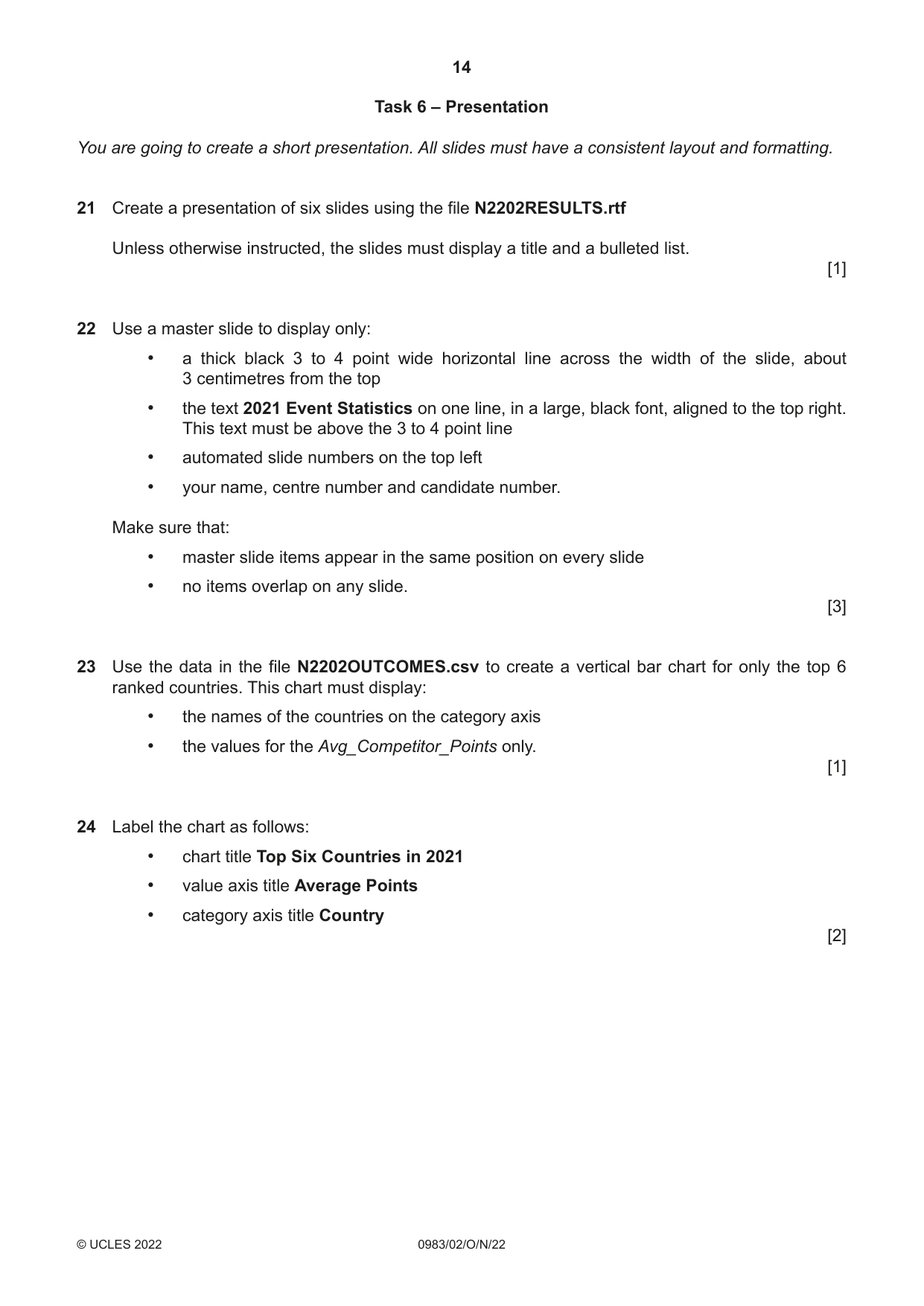
14 0983/02/O/N/22 © UCLES 2022 Task 6 – Presentation You are going to create a short presentation. All slides must have a consistent layout and formatting. 21 Create a presentation of six slides using the file N2202RESULTS.rtf Unless otherwise instructed, the slides must display a title and a bulleted list. [1] 22 Use a master slide to display only: • a thick black 3 to 4 point wide horizontal line across the width of the slide, about 3 centimetres from the top • the text 2021 Event Statistics on one line, in a large, black font, aligned to the top right. This text must be above the 3 to 4 point line • automated slide numbers on the top left • your name, centre number and candidate number. Make sure that: • master slide items appear in the same position on every slide • no items overlap on any slide. [3] 23 Use the data in the file N2202OUTCOMES.csv to create a vertical bar chart for only the top 6 ranked countries. This chart must display: • the names of the countries on the category axis • the values for the Avg_Competitor_Points only. [1] 24 Label the chart as follows: • chart title Top Six Countries in 2021 • value axis title Average Points • category axis title Country [2]
Question paper, page 15
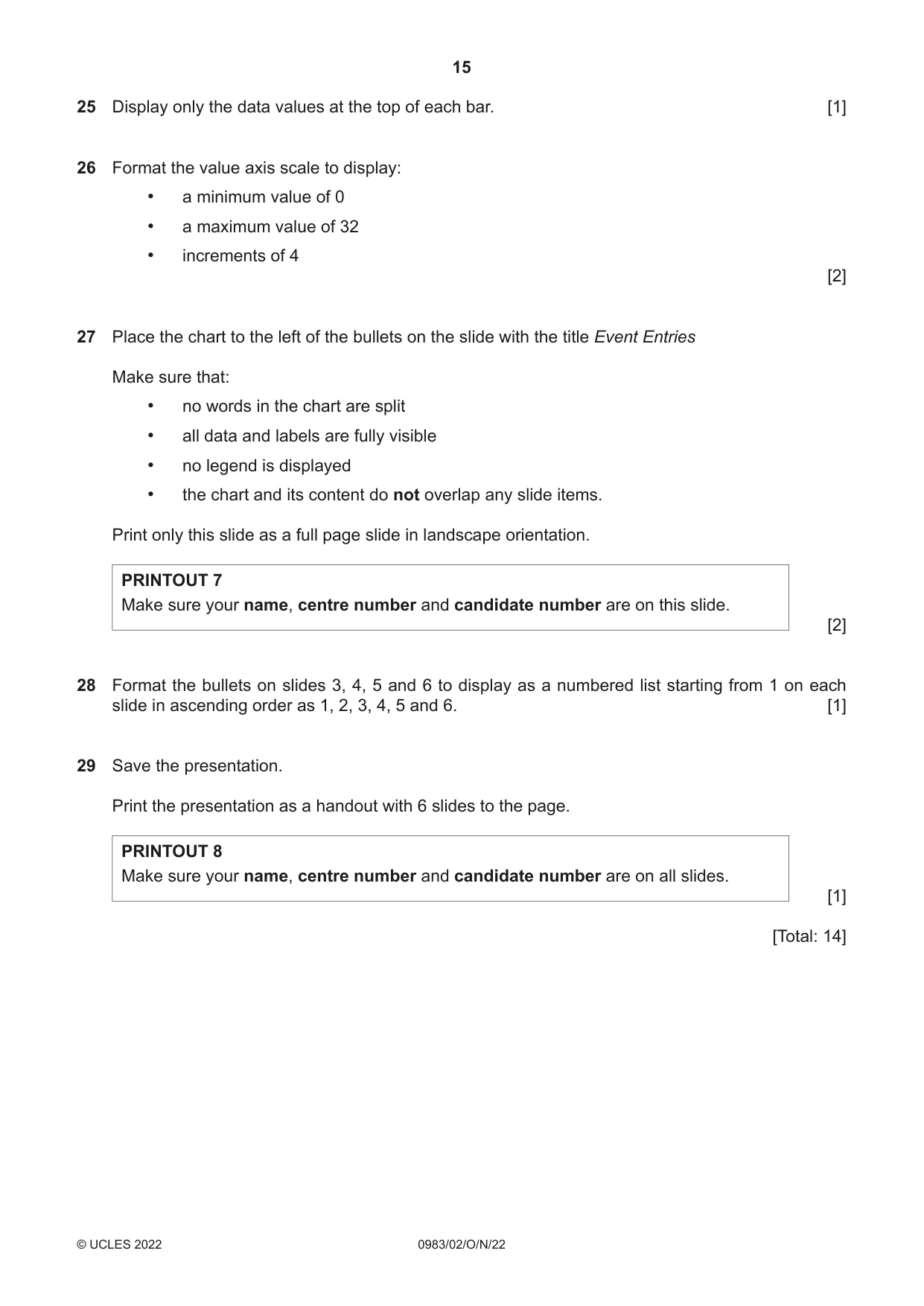
15 0983/02/O/N/22 © UCLES 2022 25 Display only the data values at the top of each bar. [1] 26 Format the value axis scale to display: • a minimum value of 0 • a maximum value of 32 • increments of 4 [2] 27 Place the chart to the left of the bullets on the slide with the title Event Entries Make sure that: • no words in the chart are split • all data and labels are fully visible • no legend is displayed • the chart and its content do not overlap any slide items. Print only this slide as a full page slide in landscape orientation. PRINTOUT 7 Make sure your name, centre number and candidate number are on this slide. [2] 28 Format the bullets on slides 3, 4, 5 and 6 to display as a numbered list starting from 1 on each slide in ascending order as 1, 2, 3, 4, 5 and 6. [1] 29 Save the presentation. Print the presentation as a handout with 6 slides to the page. PRINTOUT 8 Make sure your name, centre number and candidate number are on all slides. [1] [Total: 14]
Question paper, page 16
16 0983/02/O/N/22 © UCLES 2022 Permission to reproduce items where third-party owned material protected by copyright is included has been sought and cleared where possible. Every reasonable effort has been made by the publisher (UCLES) to trace copyright holders, but if any items requiring clearance have unwittingly been included, the publisher will be pleased to make amends at the earliest possible opportunity. To avoid the issue of disclosure of answer-related information to candidates, all copyright acknowledgements are reproduced online in the Cambridge Assessment International Education Copyright Acknowledgements Booklet. This is produced for each series of examinations and is freely available to download at www.cambridgeinternational.org after the live examination series. Cambridge Assessment International Education is part of Cambridge Assessment. Cambridge Assessment is the brand name of the University of Cambridge Local Examinations Syndicate (UCLES), which is a department of the University of Cambridge. BLANK PAGE
What you needed in this session
Cambridge’s own grade thresholds for 2022 Oct/Nov, Paper 2 · Variant 0. A higher threshold means an easier paper — the bar moves with how the cohort did.