Cambridge IGCSE Information and Communication Technology (9-1) 0983 — 2020 Oct/Nov Paper 2 · Variant 0
0983/20/O/N/20
The question paper and its mark scheme, free to read here and free to download. This is Cambridge’s own paper, exactly as it was sat.
Question paper16 pages



Mark scheme
No mark scheme is in the library for this paper.
Paper as text
Question paper, page 1
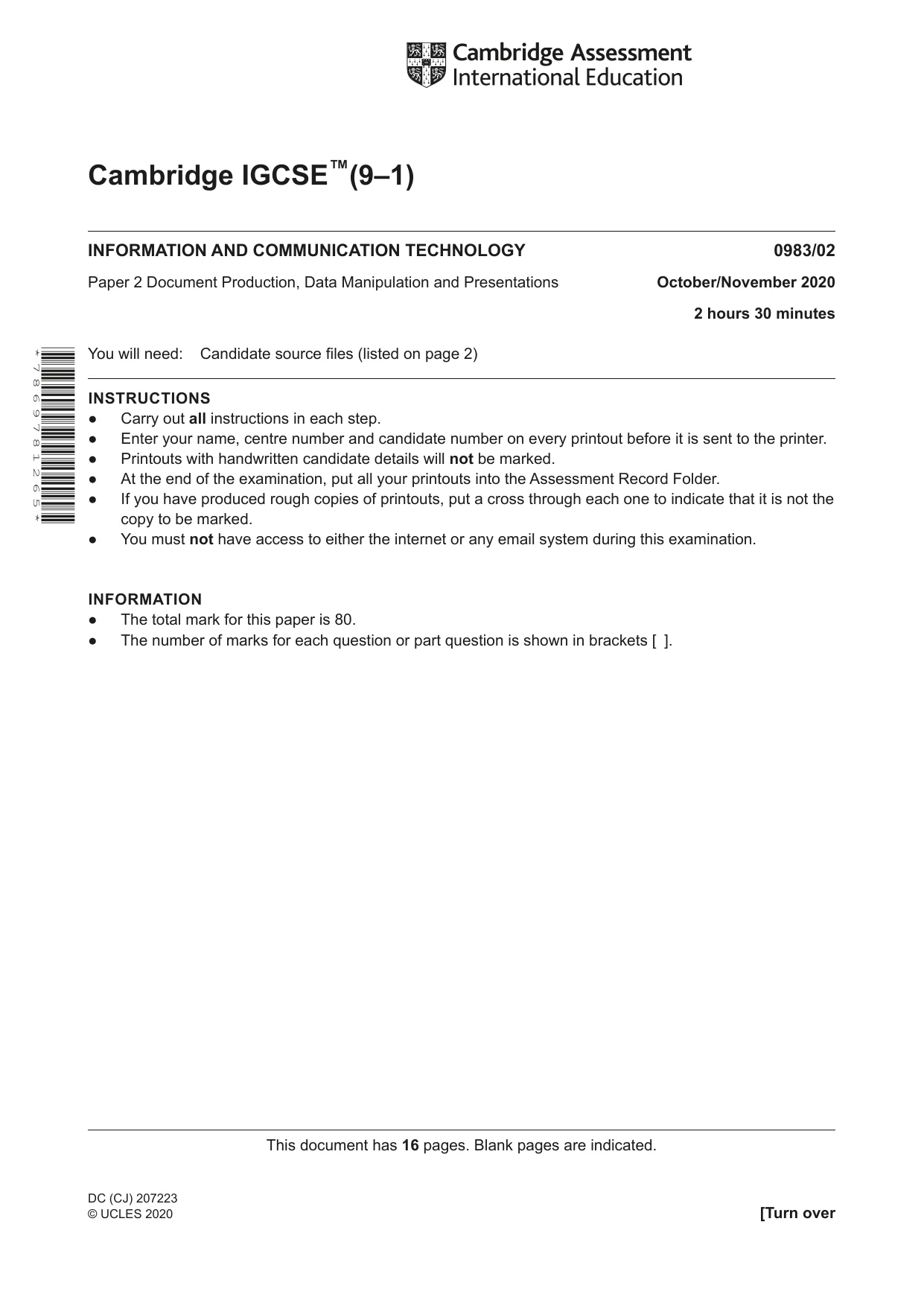
Cambridge IGCSE™(9–1) This document has 16 pages. Blank pages are indicated. * 7 8 6 9 7 8 1 2 6 5 * DC (CJ) 207223 © UCLES 2020 [Turn over INFORMATION AND COMMUNICATION TECHNOLOGY 0983/02 Paper 2 Document Production, Data Manipulation and Presentations October/November 2020 2 hours 30 minutes You will need: Candidate source files (listed on page 2) INSTRUCTIONS ● Carry out all instructions in each step. ● Enter your name, centre number and candidate number on every printout before it is sent to the printer. ● Printouts with handwritten candidate details will not be marked. ● At the end of the examination, put all your printouts into the Assessment Record Folder. ● If you have produced rough copies of printouts, put a cross through each one to indicate that it is not the copy to be marked. ● You must not have access to either the internet or any email system during this examination. INFORMATION ● The total mark for this paper is 80. ● The number of marks for each question or part question is shown in brackets [ ].
Question paper, page 2
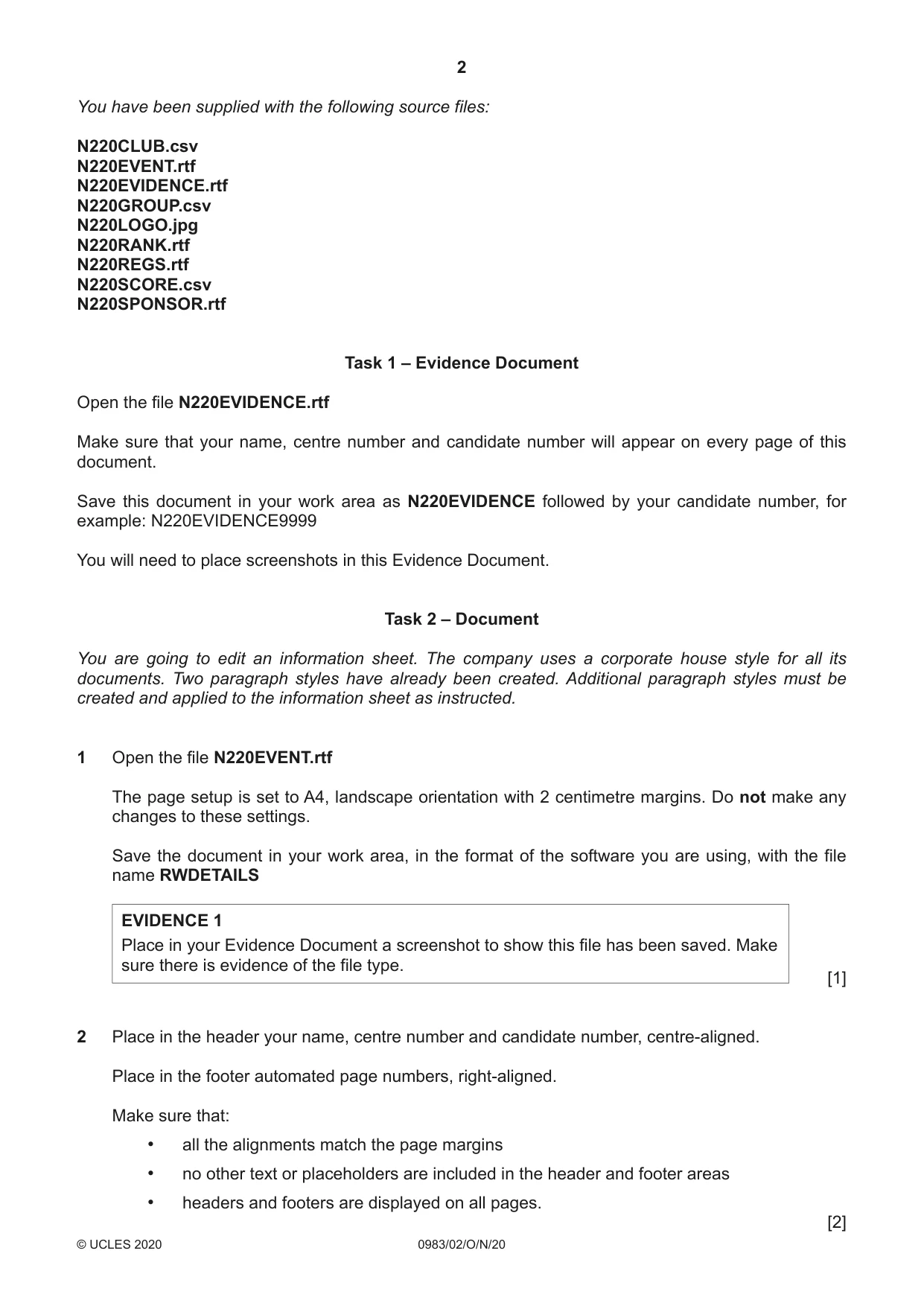
2 0983/02/O/N/20 © UCLES 2020 You have been supplied with the following source files: N220CLUB.csv N220EVENT.rtf N220EVIDENCE.rtf N220GROUP.csv N220LOGO.jpg N220RANK.rtf N220REGS.rtf N220SCORE.csv N220SPONSOR.rtf Task 1 – Evidence Document Open the file N220EVIDENCE.rtf Make sure that your name, centre number and candidate number will appear on every page of this document. Save this document in your work area as N220EVIDENCE followed by your candidate number, for example: N220EVIDENCE9999 You will need to place screenshots in this Evidence Document. Task 2 – Document You are going to edit an information sheet. The company uses a corporate house style for all its documents. Two paragraph styles have already been created. Additional paragraph styles must be created and applied to the information sheet as instructed. 1 Open the file N220EVENT.rtf The page setup is set to A4, landscape orientation with 2 centimetre margins. Do not make any changes to these settings. Save the document in your work area, in the format of the software you are using, with the file name RWDETAILS EVIDENCE 1 Place in your Evidence Document a screenshot to show this file has been saved. Make sure there is evidence of the file type. [1] 2 Place in the header your name, centre number and candidate number, centre-aligned. Place in the footer automated page numbers, right-aligned. Make sure that: • all the alignments match the page margins • no other text or placeholders are included in the header and footer areas • headers and footers are displayed on all pages. [2]
Question paper, page 3
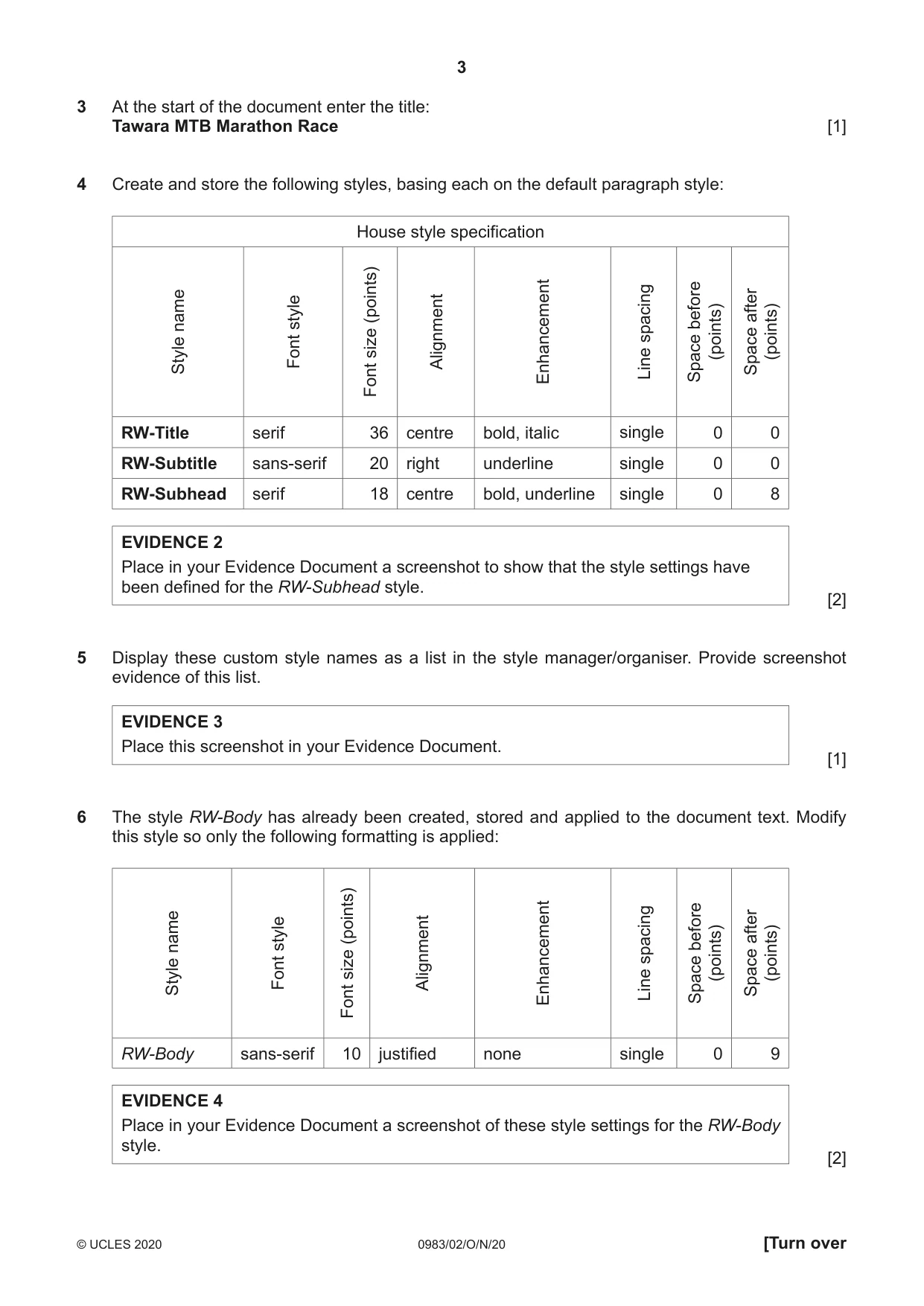
3 0983/02/O/N/20 © UCLES 2020 [Turn over 3 At the start of the document enter the title: Tawara MTB Marathon Race [1] 4 Create and store the following styles, basing each on the default paragraph style: House style specification Style name Font style Font size (points) Alignment Enhancement Line spacing Space before (points) Space after (points) RW-Title serif 36 centre bold, italic single 0 0 RW-Subtitle sans-serif 20 right underline single 0 0 RW-Subhead serif 18 centre bold, underline single 0 8 EVIDENCE 2 Place in your Evidence Document a screenshot to show that the style settings have been defined for the RW-Subhead style. [2] 5 Display these custom style names as a list in the style manager/organiser. Provide screenshot evidence of this list. EVIDENCE 3 Place this screenshot in your Evidence Document. [1] 6 The style RW-Body has already been created, stored and applied to the document text. Modify this style so only the following formatting is applied: Style name Font style Font size (points) Alignment Enhancement Line spacing Space before (points) Space after (points) RW-Body sans-serif 10 justified none single 0 9 EVIDENCE 4 Place in your Evidence Document a screenshot of these style settings for the RW-Body style. [2]
Question paper, page 4
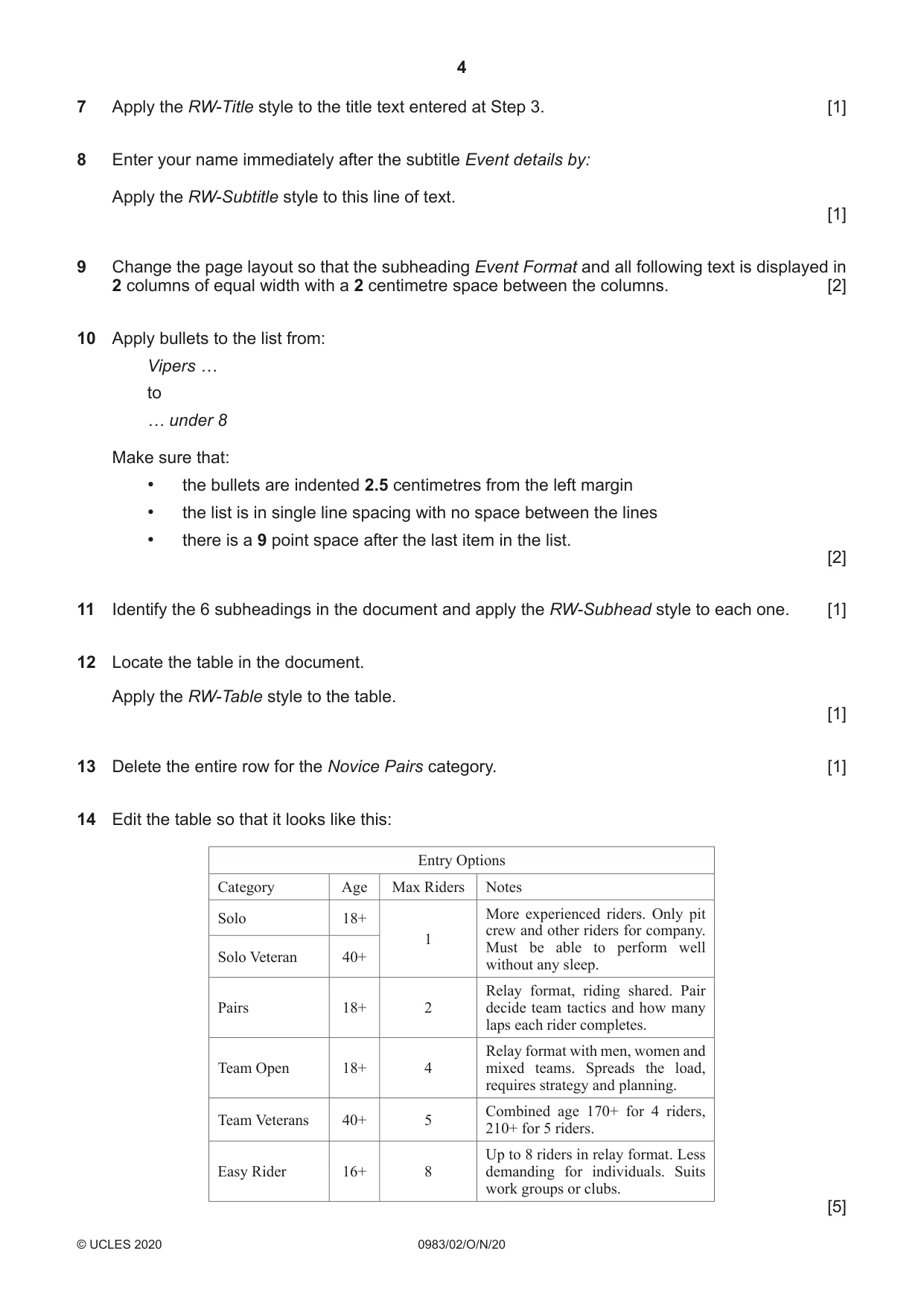
4 0983/02/O/N/20 © UCLES 2020 7 Apply the RW-Title style to the title text entered at Step 3. [1] 8 Enter your name immediately after the subtitle Event details by: Apply the RW-Subtitle style to this line of text. [1] 9 Change the page layout so that the subheading Event Format and all following text is displayed in 2 columns of equal width with a 2 centimetre space between the columns. [2] 10 Apply bullets to the list from: Vipers … to … under 8 Make sure that: • the bullets are indented 2.5 centimetres from the left margin • the list is in single line spacing with no space between the lines • there is a 9 point space after the last item in the list. [2] 11 Identify the 6 subheadings in the document and apply the RW-Subhead style to each one. [1] 12 Locate the table in the document. Apply the RW-Table style to the table. [1] 13 Delete the entire row for the Novice Pairs category. [1] 14 Edit the table so that it looks like this: Entry Options Category Age Max Riders Notes Solo 18+ 1 More experienced riders. Only pit crew and other riders for company. Must be able to perform well without any sleep. Solo Veteran 40+ Pairs 18+ 2 Relay format, riding shared. Pair decide team tactics and how many laps each rider completes. Team Open 18+ 4 Relay format with men, women and mixed teams. Spreads the load, requires strategy and planning. Team Veterans 40+ 5 Combined age 170+ for 4 riders, 210+ for 5 riders. Easy Rider 16+ 8 Up to 8 riders in relay format. Less demanding for individuals. Suits work groups or clubs. [5]
Question paper, page 5
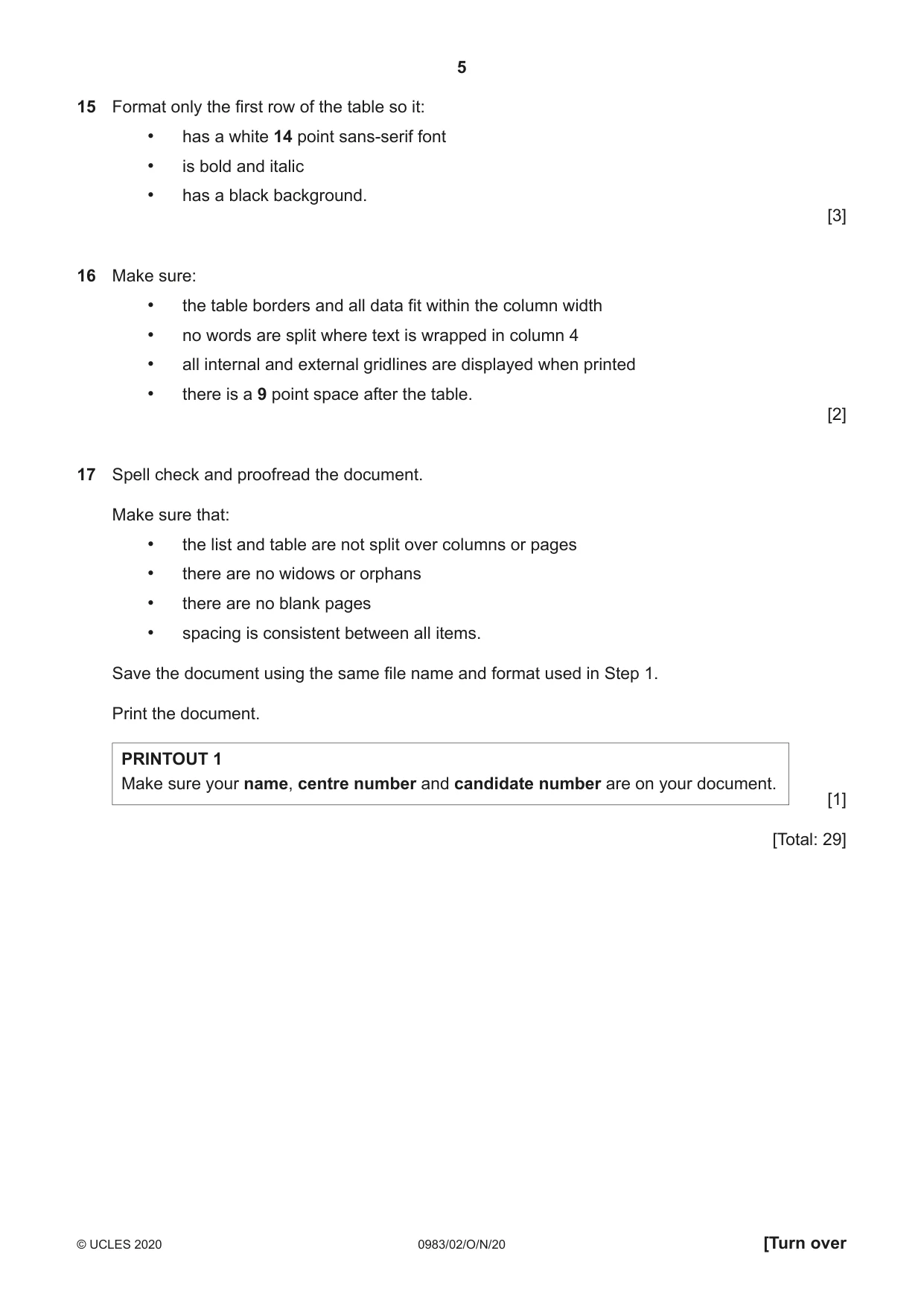
5 0983/02/O/N/20 © UCLES 2020 [Turn over 15 Format only the first row of the table so it: • has a white 14 point sans-serif font • is bold and italic • has a black background. [3] 16 Make sure: • the table borders and all data fit within the column width • no words are split where text is wrapped in column 4 • all internal and external gridlines are displayed when printed • there is a 9 point space after the table. [2] 17 Spell check and proofread the document. Make sure that: • the list and table are not split over columns or pages • there are no widows or orphans • there are no blank pages • spacing is consistent between all items. Save the document using the same file name and format used in Step 1. Print the document. PRINTOUT 1 Make sure your name, centre number and candidate number are on your document. [1] [Total: 29]
Question paper, page 6
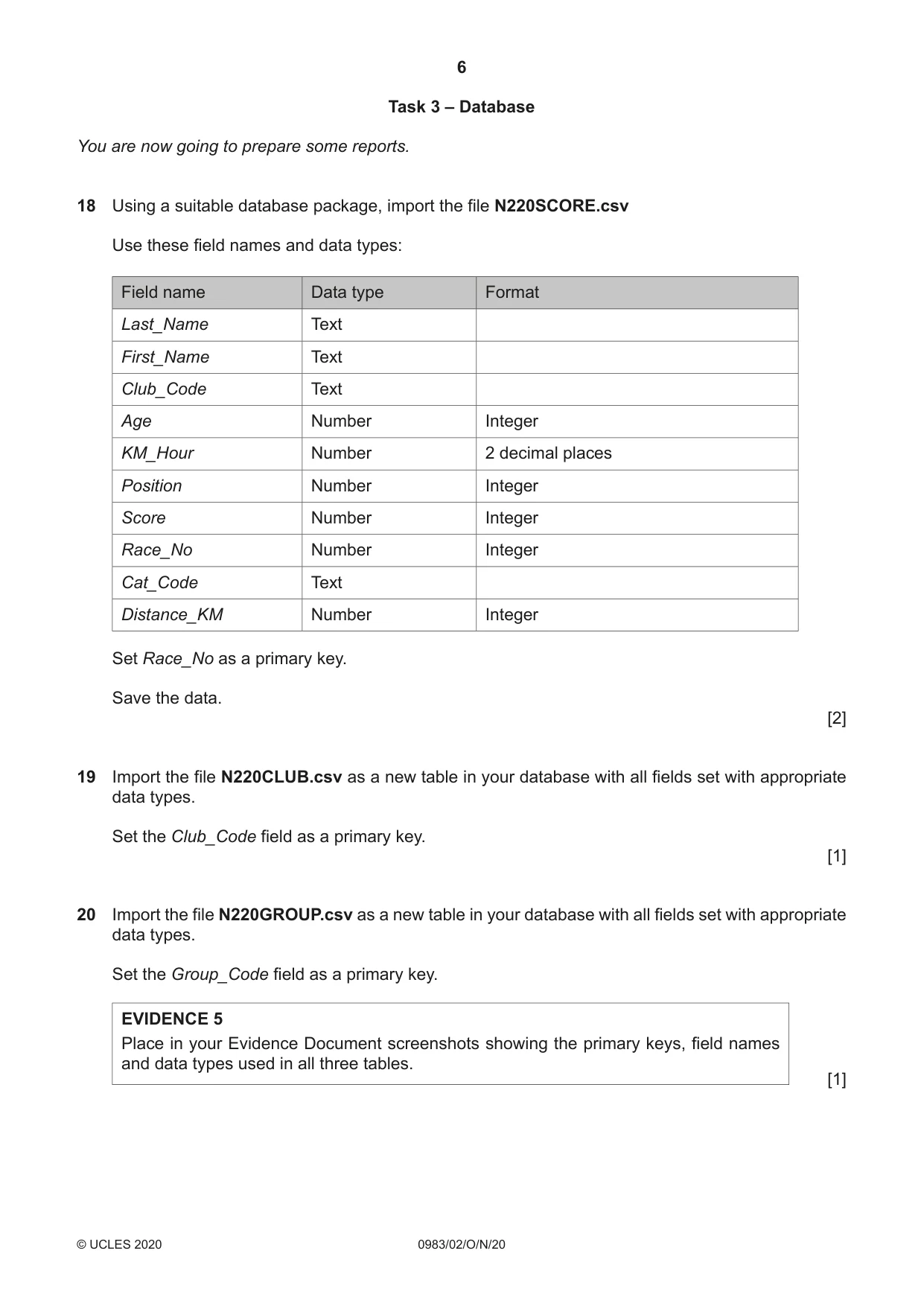
6 0983/02/O/N/20 © UCLES 2020 Task 3 – Database You are now going to prepare some reports. 18 Using a suitable database package, import the file N220SCORE.csv Use these field names and data types: Field name Data type Format Last_Name Text First_Name Text Club_Code Text Age Number Integer KM_Hour Number 2 decimal places Position Number Integer Score Number Integer Race_No Number Integer Cat_Code Text Distance_KM Number Integer Set Race_No as a primary key. Save the data. [2] 19 Import the file N220CLUB.csv as a new table in your database with all fields set with appropriate data types. Set the Club_Code field as a primary key. [1] 20 Import the file N220GROUP.csv as a new table in your database with all fields set with appropriate data types. Set the Group_Code field as a primary key. EVIDENCE 5 Place in your Evidence Document screenshots showing the primary keys, field names and data types used in all three tables. [1]
Question paper, page 7
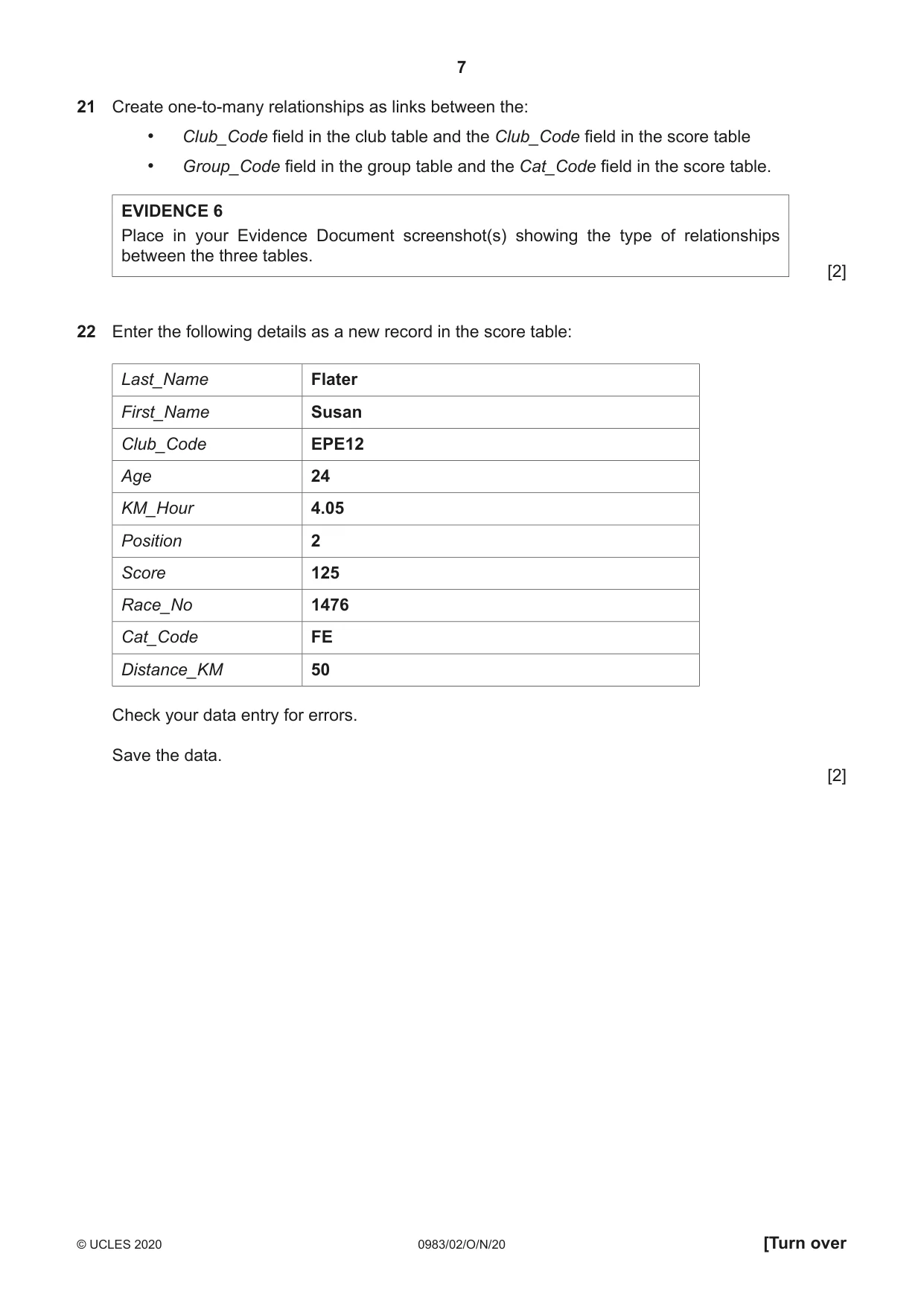
7 0983/02/O/N/20 © UCLES 2020 [Turn over 21 Create one-to-many relationships as links between the: • Club_Code field in the club table and the Club_Code field in the score table • Group_Code field in the group table and the Cat_Code field in the score table. EVIDENCE 6 Place in your Evidence Document screenshot(s) showing the type of relationships between the three tables. [2] 22 Enter the following details as a new record in the score table: Last_Name Flater First_Name Susan Club_Code EPE12 Age 24 KM_Hour 4.05 Position 2 Score 125 Race_No 1476 Cat_Code FE Distance_KM 50 Check your data entry for errors. Save the data. [2]
Question paper, page 8
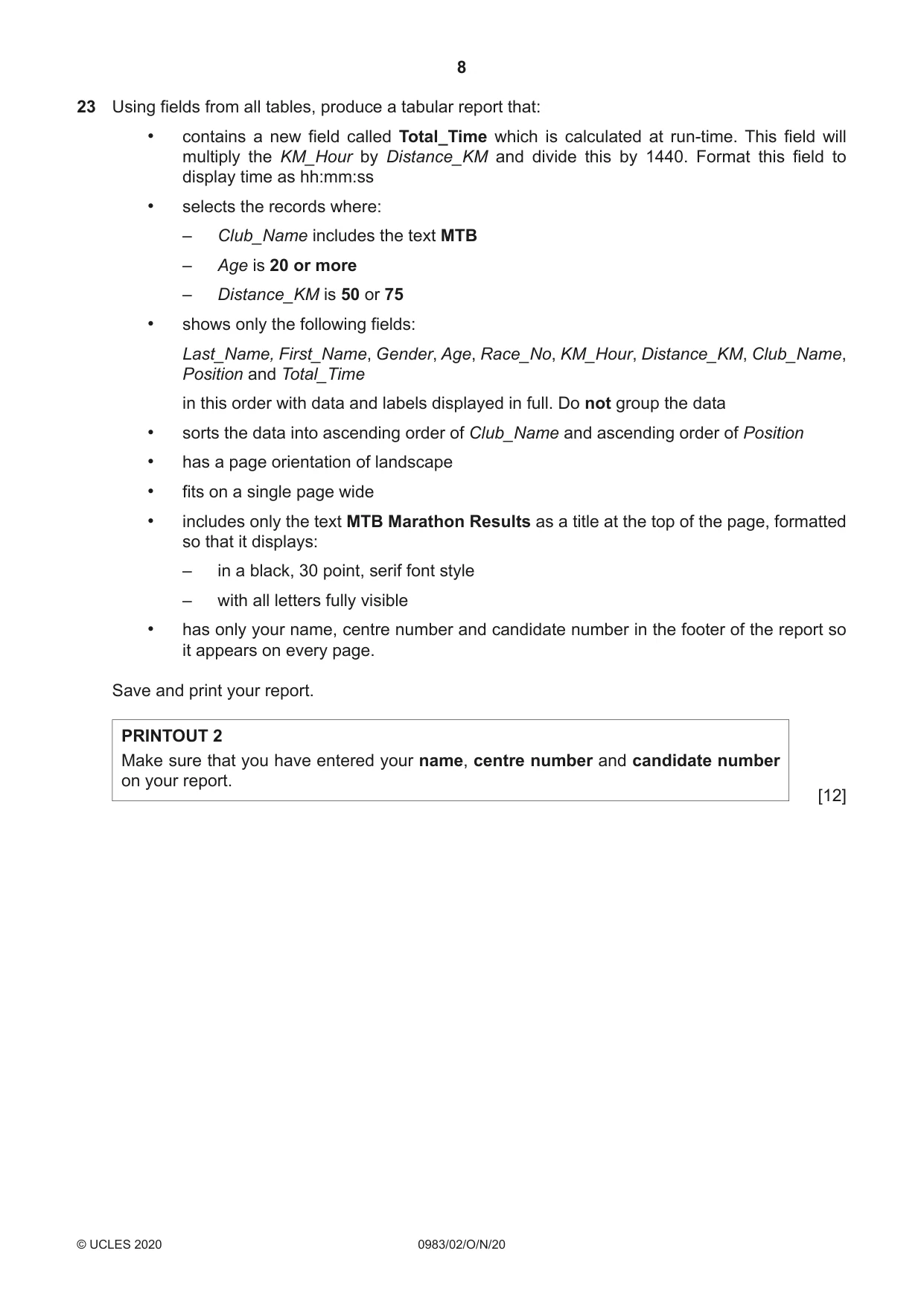
8 0983/02/O/N/20 © UCLES 2020 23 Using fields from all tables, produce a tabular report that: • contains a new field called Total_Time which is calculated at run-time. This field will multiply the KM_Hour by Distance_KM and divide this by 1440. Format this field to display time as hh:mm:ss • selects the records where: – Club_Name includes the text MTB – Age is 20 or more – Distance_KM is 50 or 75 • shows only the following fields: Last_Name, First_Name, Gender, Age, Race_No, KM_Hour, Distance_KM, Club_Name, Position and Total_Time in this order with data and labels displayed in full. Do not group the data • sorts the data into ascending order of Club_Name and ascending order of Position • has a page orientation of landscape • fits on a single page wide • includes only the text MTB Marathon Results as a title at the top of the page, formatted so that it displays: – in a black, 30 point, serif font style – with all letters fully visible • has only your name, centre number and candidate number in the footer of the report so it appears on every page. Save and print your report. PRINTOUT 2 Make sure that you have entered your name, centre number and candidate number on your report. [12]
Question paper, page 9
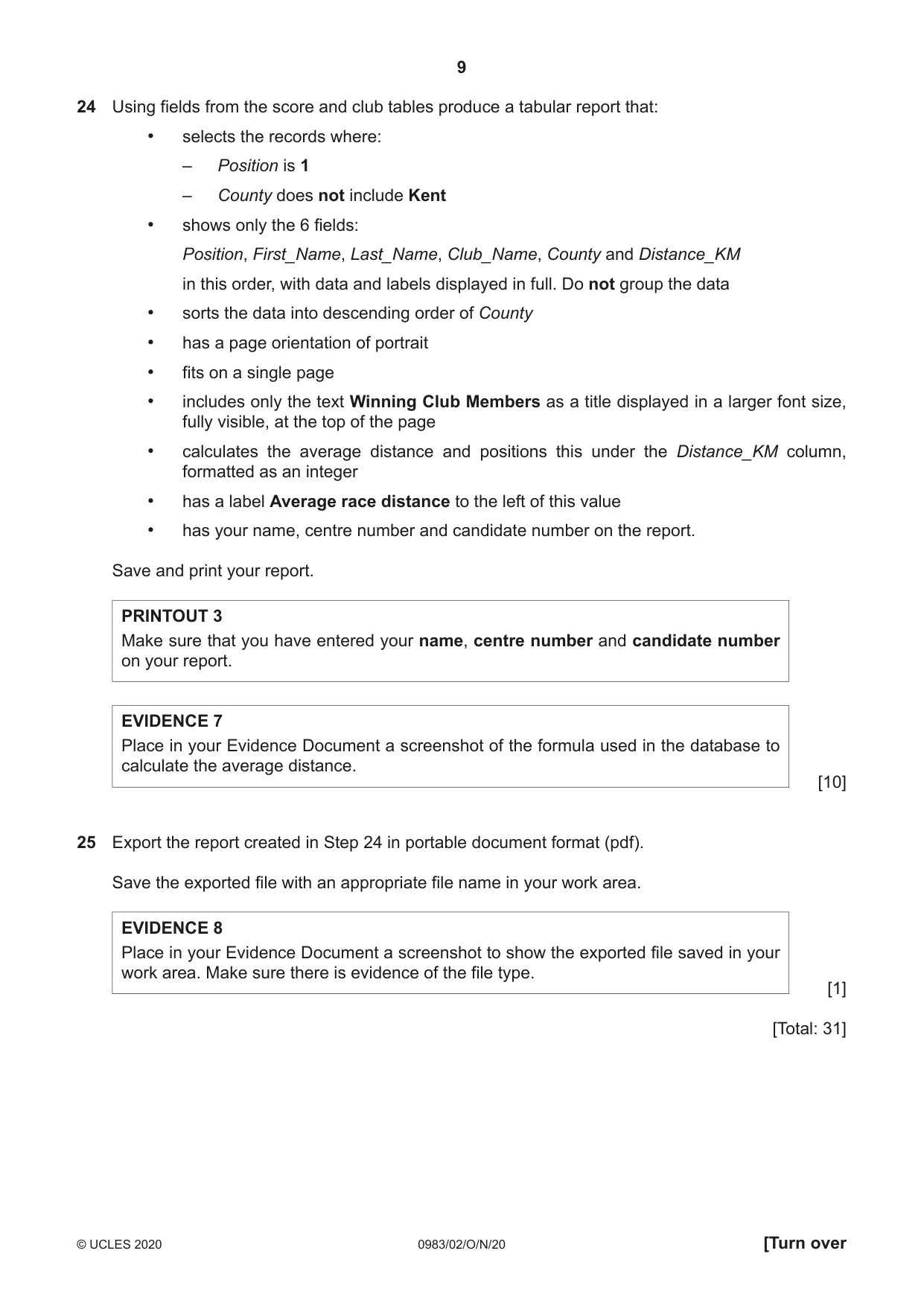
9 0983/02/O/N/20 © UCLES 2020 [Turn over 24 Using fields from the score and club tables produce a tabular report that: • selects the records where: – Position is 1 – County does not include Kent • shows only the 6 fields: Position, First_Name, Last_Name, Club_Name, County and Distance_KM in this order, with data and labels displayed in full. Do not group the data • sorts the data into descending order of County • has a page orientation of portrait • fits on a single page • includes only the text Winning Club Members as a title displayed in a larger font size, fully visible, at the top of the page • calculates the average distance and positions this under the Distance_KM column, formatted as an integer • has a label Average race distance to the left of this value • has your name, centre number and candidate number on the report. Save and print your report. PRINTOUT 3 Make sure that you have entered your name, centre number and candidate number on your report. EVIDENCE 7 Place in your Evidence Document a screenshot of the formula used in the database to calculate the average distance. [10] 25 Export the report created in Step 24 in portable document format (pdf). Save the exported file with an appropriate file name in your work area. EVIDENCE 8 Place in your Evidence Document a screenshot to show the exported file saved in your work area. Make sure there is evidence of the file type. [1] [Total: 31]
Question paper, page 10
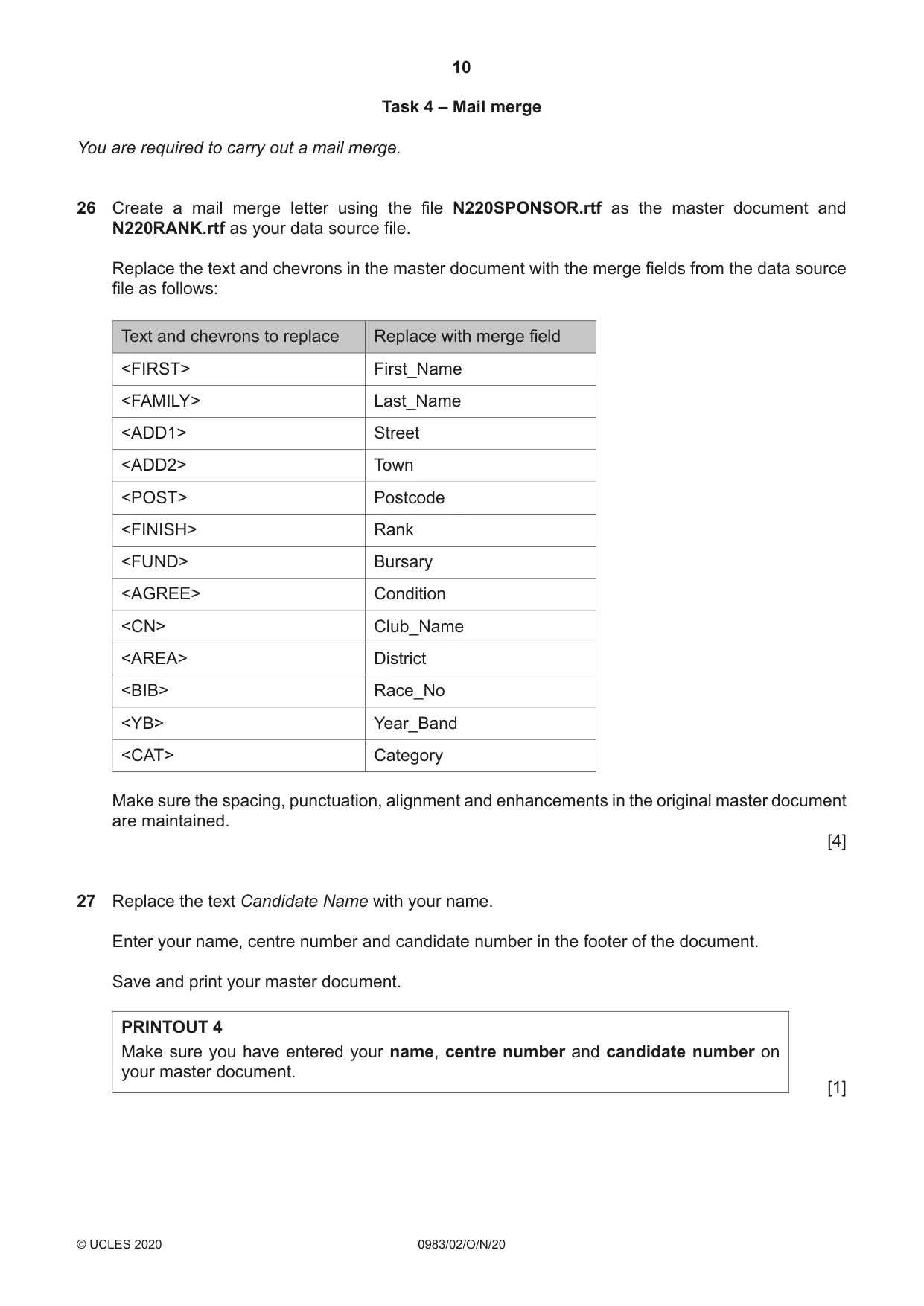
10 0983/02/O/N/20 © UCLES 2020 Task 4 – Mail merge You are required to carry out a mail merge. 26 Create a mail merge letter using the file N220SPONSOR.rtf as the master document and N220RANK.rtf as your data source file. Replace the text and chevrons in the master document with the merge fields from the data source file as follows: Text and chevrons to replace Replace with merge field <FIRST> First_Name <FAMILY> Last_Name <ADD1> Street <ADD2> Town <POST> Postcode <FINISH> Rank <FUND> Bursary <AGREE> Condition <CN> Club_Name <AREA> District <BIB> Race_No <YB> Year_Band <CAT> Category Make sure the spacing, punctuation, alignment and enhancements in the original master document are maintained. [4] 27 Replace the text Candidate Name with your name. Enter your name, centre number and candidate number in the footer of the document. Save and print your master document. PRINTOUT 4 Make sure you have entered your name, centre number and candidate number on your master document. [1]
Question paper, page 11
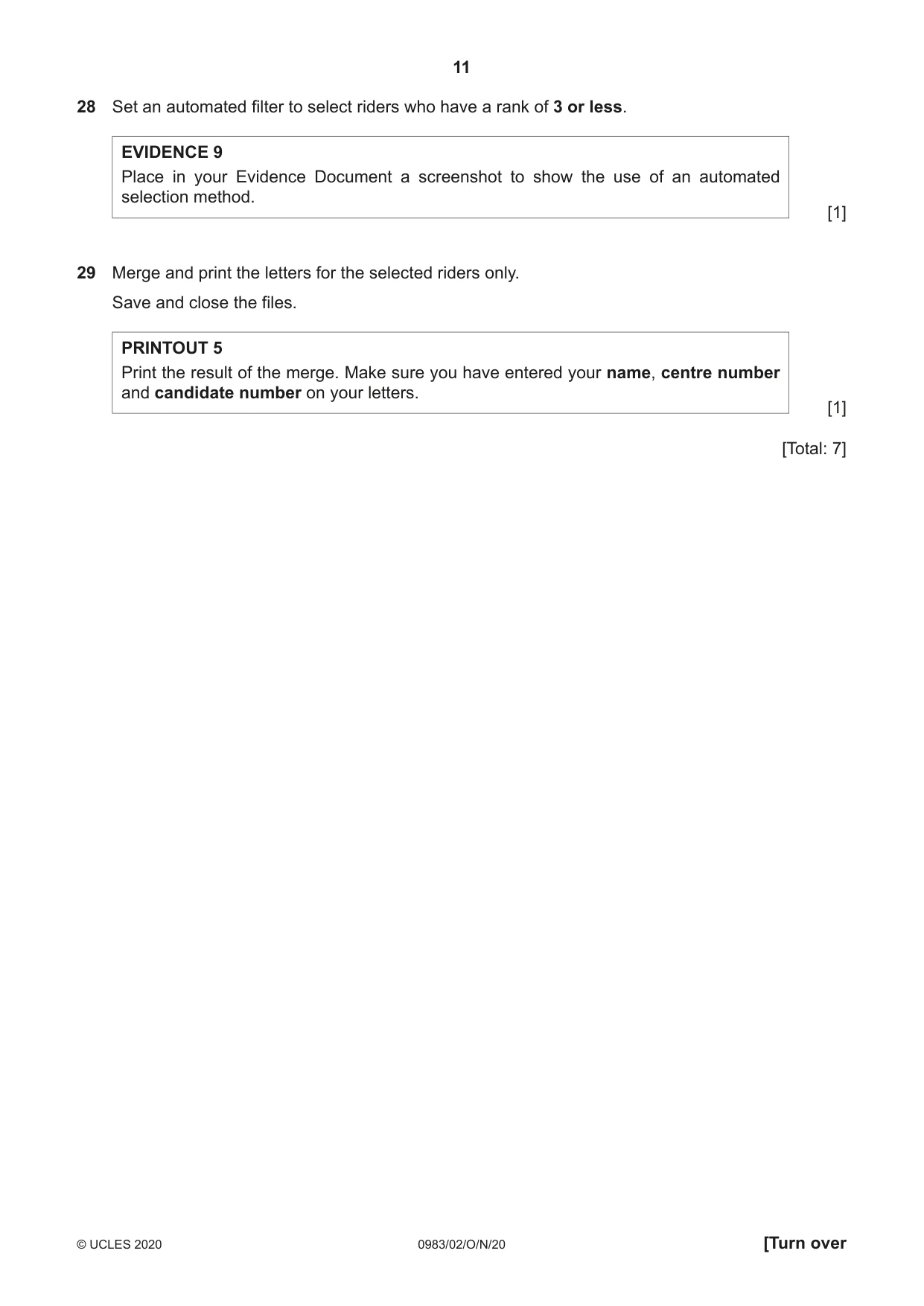
11 0983/02/O/N/20 © UCLES 2020 [Turn over 28 Set an automated filter to select riders who have a rank of 3 or less. EVIDENCE 9 Place in your Evidence Document a screenshot to show the use of an automated selection method. [1] 29 Merge and print the letters for the selected riders only. Save and close the files. PRINTOUT 5 Print the result of the merge. Make sure you have entered your name, centre number and candidate number on your letters. [1] [Total: 7]
Question paper, page 12
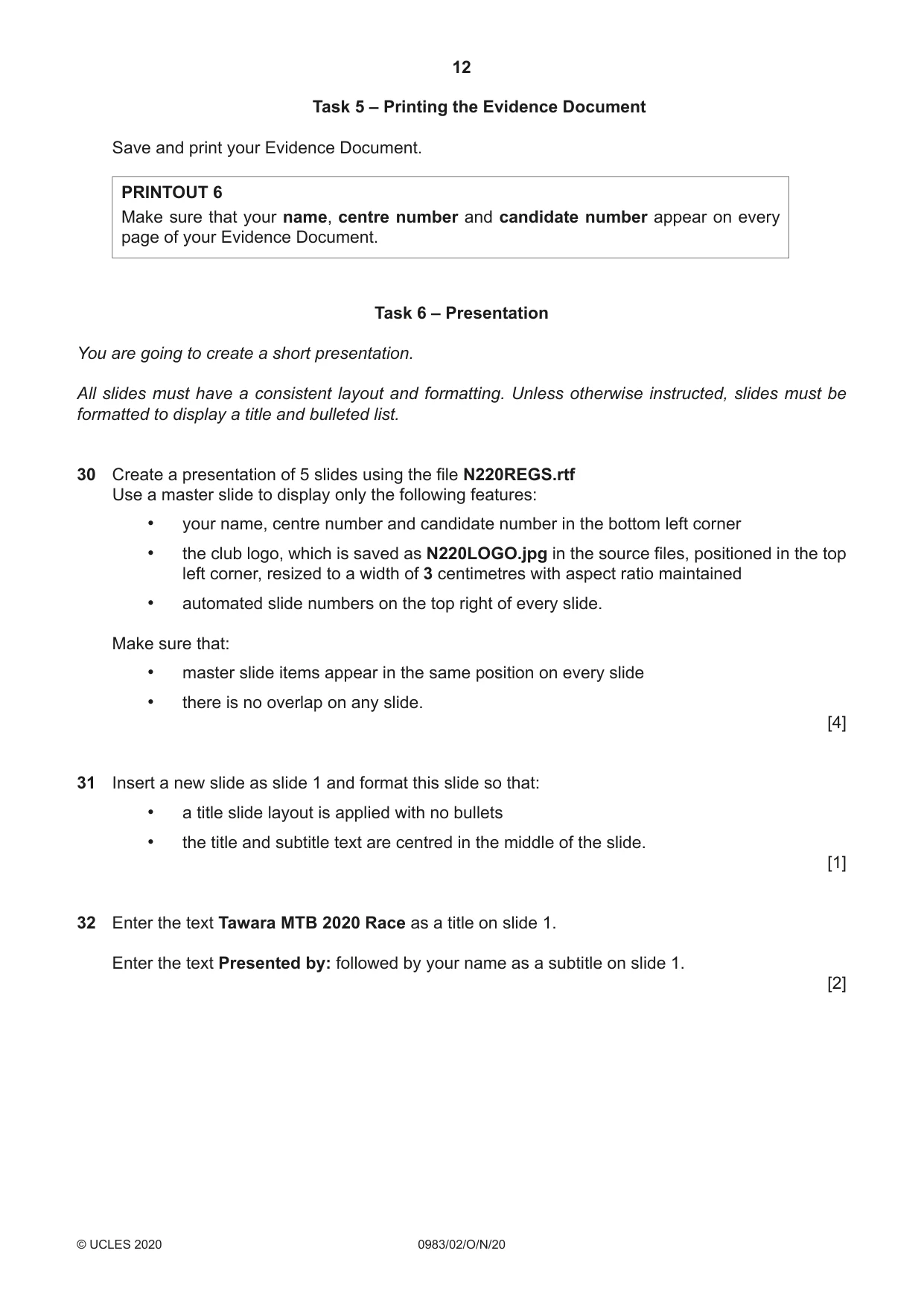
12 0983/02/O/N/20 © UCLES 2020 Task 5 – Printing the Evidence Document Save and print your Evidence Document. PRINTOUT 6 Make sure that your name, centre number and candidate number appear on every page of your Evidence Document. Task 6 – Presentation You are going to create a short presentation. All slides must have a consistent layout and formatting. Unless otherwise instructed, slides must be formatted to display a title and bulleted list. 30 Create a presentation of 5 slides using the file N220REGS.rtf Use a master slide to display only the following features: • your name, centre number and candidate number in the bottom left corner • the club logo, which is saved as N220LOGO.jpg in the source files, positioned in the top left corner, resized to a width of 3 centimetres with aspect ratio maintained • automated slide numbers on the top right of every slide. Make sure that: • master slide items appear in the same position on every slide • there is no overlap on any slide. [4] 31 Insert a new slide as slide 1 and format this slide so that: • a title slide layout is applied with no bullets • the title and subtitle text are centred in the middle of the slide. [1] 32 Enter the text Tawara MTB 2020 Race as a title on slide 1. Enter the text Presented by: followed by your name as a subtitle on slide 1. [2]
Question paper, page 13
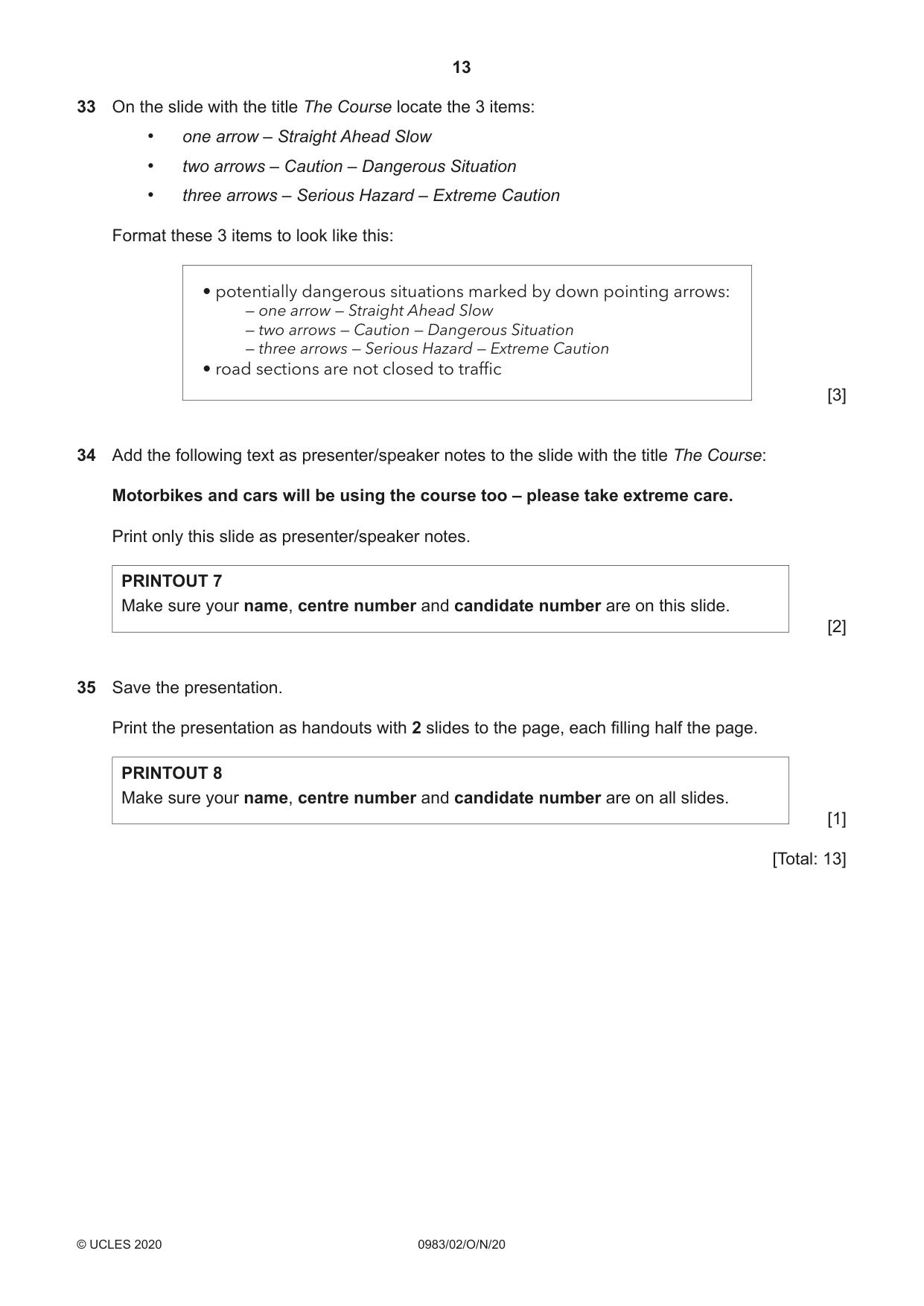
13 0983/02/O/N/20 © UCLES 2020 33 On the slide with the title The Course locate the 3 items: • one arrow – Straight Ahead Slow • two arrows – Caution – Dangerous Situation • three arrows – Serious Hazard – Extreme Caution Format these 3 items to look like this: • potentially dangerous situations marked by down pointing arrows: — one arrow — Straight Ahead Slow — two arrows — Caution — Dangerous Situation — three arrows — Serious Hazard — Extreme Caution • road sections are not closed to traffic [3] 34 Add the following text as presenter/speaker notes to the slide with the title The Course: Motorbikes and cars will be using the course too – please take extreme care. Print only this slide as presenter/speaker notes. PRINTOUT 7 Make sure your name, centre number and candidate number are on this slide. [2] 35 Save the presentation. Print the presentation as handouts with 2 slides to the page, each filling half the page. PRINTOUT 8 Make sure your name, centre number and candidate number are on all slides. [1] [Total: 13]
Question paper, page 14
14 0983/02/O/N/20 © UCLES 2020 BLANK PAGE
Question paper, page 15
15 0983/02/O/N/20 © UCLES 2020 BLANK PAGE
Question paper, page 16
16 0983/02/O/N/20 © UCLES 2020 Permission to reproduce items where third-party owned material protected by copyright is included has been sought and cleared where possible. Every reasonable effort has been made by the publisher (UCLES) to trace copyright holders, but if any items requiring clearance have unwittingly been included, the publisher will be pleased to make amends at the earliest possible opportunity. To avoid the issue of disclosure of answer-related information to candidates, all copyright acknowledgements are reproduced online in the Cambridge Assessment International Education Copyright Acknowledgements Booklet. This is produced for each series of examinations and is freely available to download at www.cambridgeinternational.org after the live examination series. Cambridge Assessment International Education is part of the Cambridge Assessment Group. Cambridge Assessment is the brand name of the University of Cambridge Local Examinations Syndicate (UCLES), which itself is a department of the University of Cambridge. BLANK PAGE