Cambridge A Level Applied Information and Communication Technology 9713 — 2015 Oct/Nov Paper 2 · Variant 0
9713/20/O/N/15
The question paper and its mark scheme, free to read here and free to download. This is Cambridge’s own paper, exactly as it was sat.
Question paper4 pages
Mark scheme
No mark scheme is in the library for this paper.
Paper as text
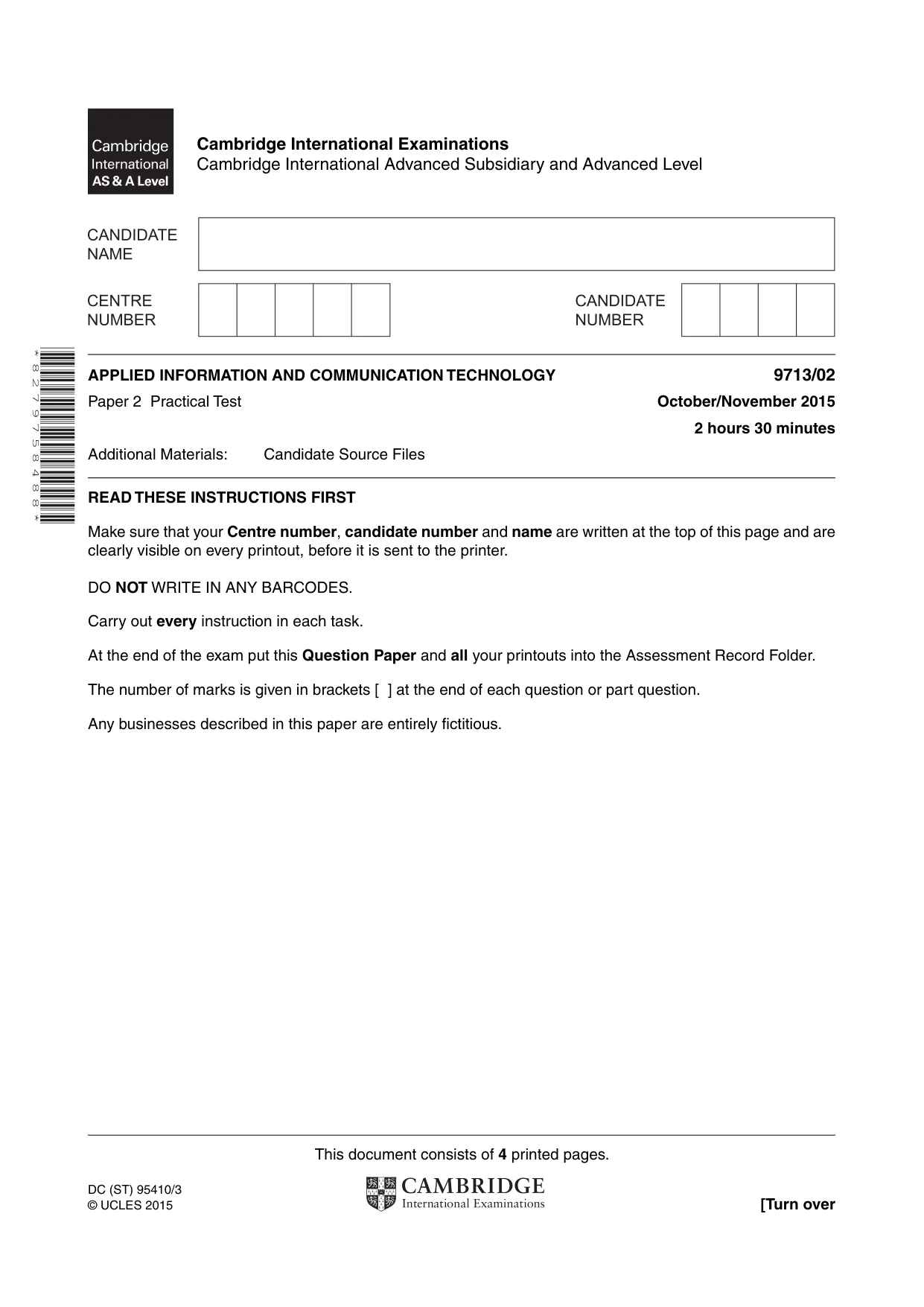
Question paper, page 1
This document consists of 4 printed pages. DC (ST) 95410/3 © UCLES 2015 [Turn over Cambridge International Examinations Cambridge International Advanced Subsidiary and Advanced Level * 8 2 7 9 7 5 8 4 8 8 * APPLIED INFORMATION AND COMMUNICATION TECHNOLOGY 9713/02 Paper 2 Practical Test October/November 2015 2 hours 30 minutes Additional Materials: Candidate Source Files READ THESE INSTRUCTIONS FIRST Make sure that your Centre number, candidate number and name are written at the top of this page and are clearly visible on every printout, before it is sent to the printer. DO NOT WRITE IN ANY BARCODES. Carry out every instruction in each task. At the end of the exam put this Question Paper and all your printouts into the Assessment Record Folder. The number of marks is given in brackets [ ] at the end of each question or part question. Any businesses described in this paper are entirely fictitious.
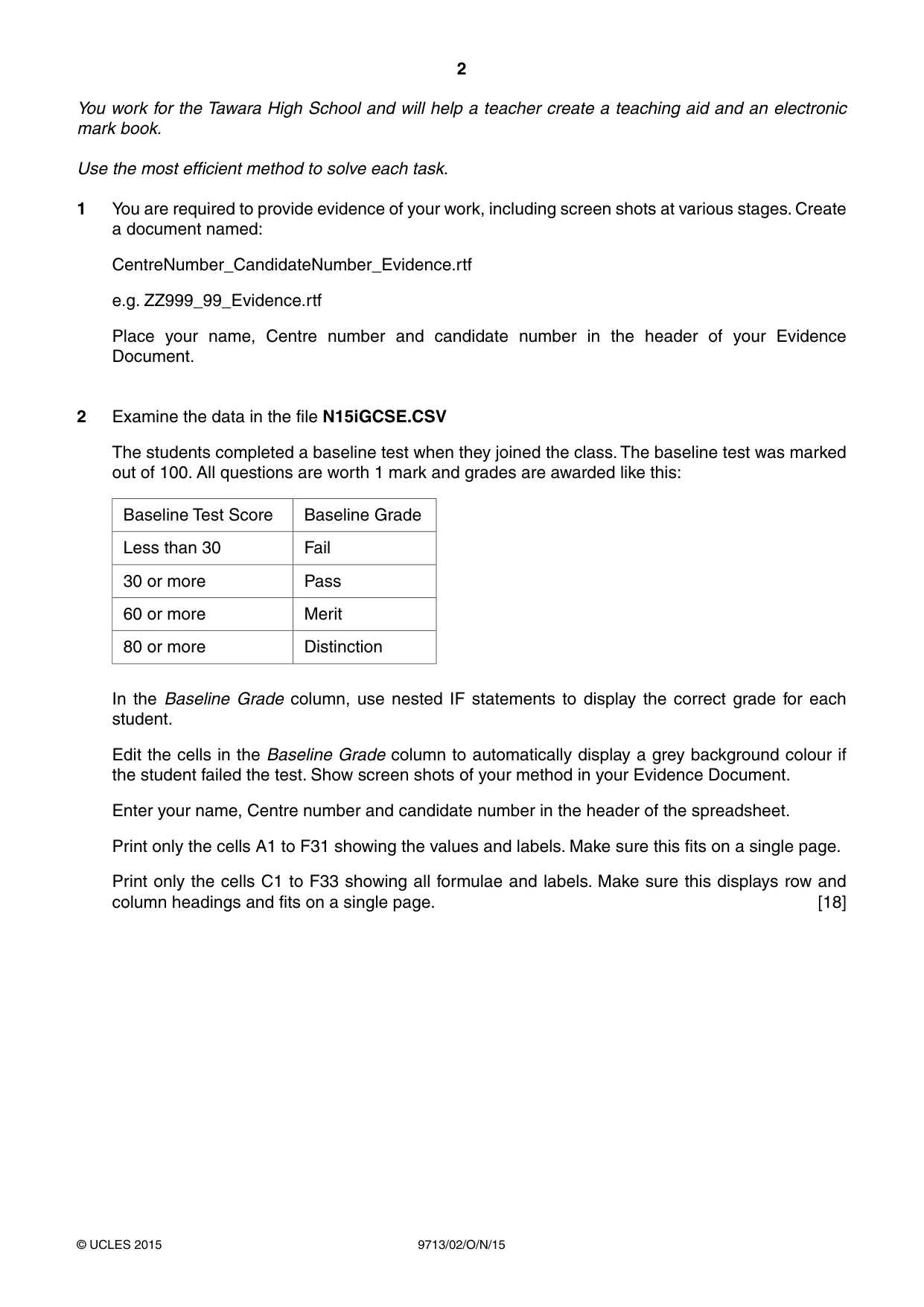
Question paper, page 2
2 9713/02/O/N/15 © UCLES 2015 You work for the Tawara High School and will help a teacher create a teaching aid and an electronic mark book. Use the most efficient method to solve each task. 1 You are required to provide evidence of your work, including screen shots at various stages. Create a document named: CentreNumber_CandidateNumber_Evidence.rtf e.g. ZZ999_99_Evidence.rtf Place your name, Centre number and candidate number in the header of your Evidence Document. 2 Examine the data in the file N15iGCSE.CSV The students completed a baseline test when they joined the class. The baseline test was marked out of 100. All questions are worth 1 mark and grades are awarded like this: Baseline Test Score Baseline Grade Less than 30 Fail 30 or more Pass 60 or more Merit 80 or more Distinction In the Baseline Grade column, use nested IF statements to display the correct grade for each student. Edit the cells in the Baseline Grade column to automatically display a grey background colour if the student failed the test. Show screen shots of your method in your Evidence Document. Enter your name, Centre number and candidate number in the header of the spreadsheet. Print only the cells A1 to F31 showing the values and labels. Make sure this fits on a single page. Print only the cells C1 to F33 showing all formulae and labels. Make sure this displays row and column headings and fits on a single page. [18]
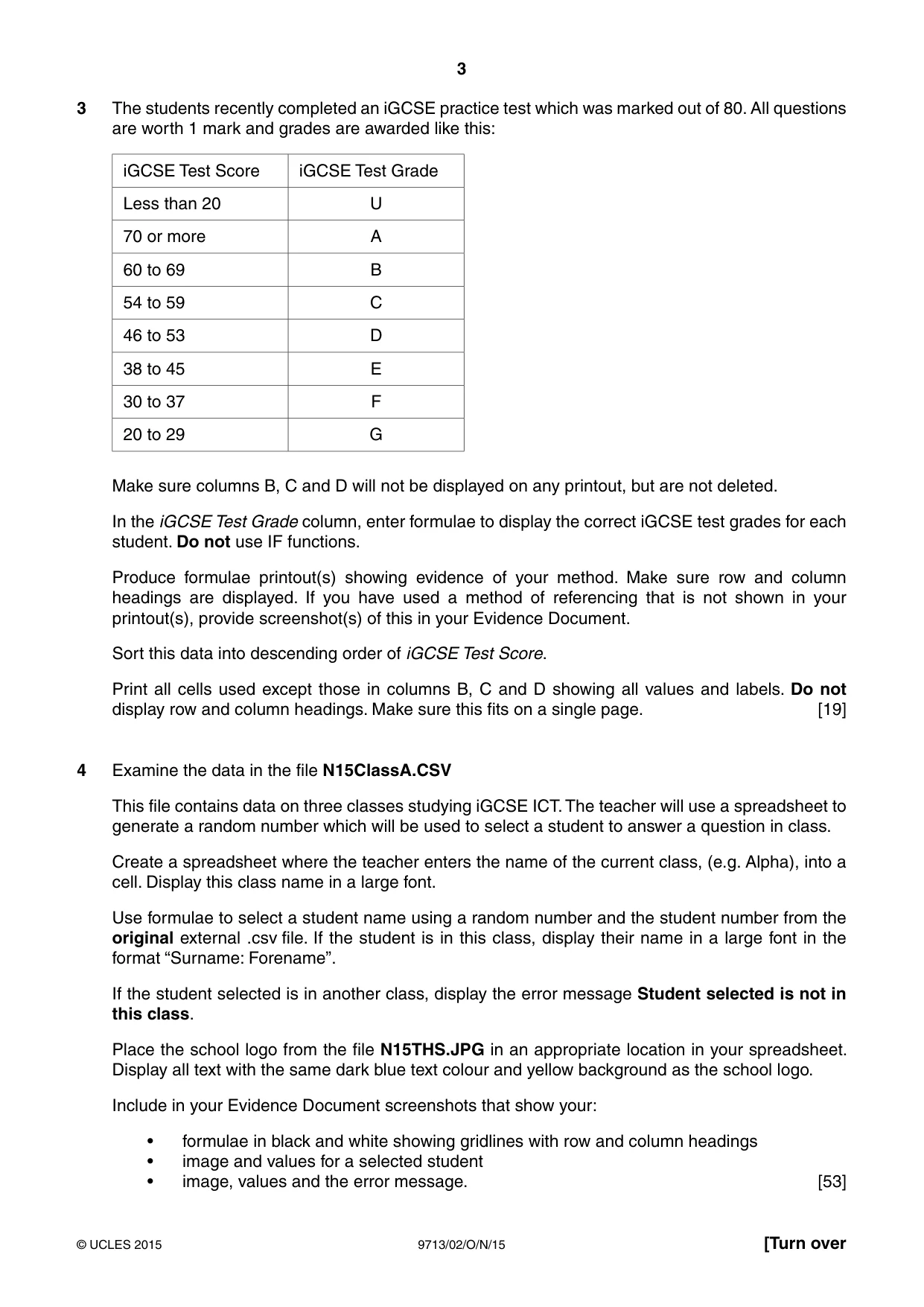
Question paper, page 3
3 9713/02/O/N/15 © UCLES 2015 [Turn over 3 The students recently completed an iGCSE practice test which was marked out of 80. All questions are worth 1 mark and grades are awarded like this: iGCSE Test Score iGCSE Test Grade Less than 20 U 70 or more A 60 to 69 B 54 to 59 C 46 to 53 D 38 to 45 E 30 to 37 F 20 to 29 G Make sure columns B, C and D will not be displayed on any printout, but are not deleted. In the iGCSE Test Grade column, enter formulae to display the correct iGCSE test grades for each student. Do not use IF functions. Produce formulae printout(s) showing evidence of your method. Make sure row and column headings are displayed. If you have used a method of referencing that is not shown in your printout(s), provide screenshot(s) of this in your Evidence Document. Sort this data into descending order of iGCSE Test Score. Print all cells used except those in columns B, C and D showing all values and labels. Do not display row and column headings. Make sure this fits on a single page. [19] 4 Examine the data in the file N15ClassA.CSV This file contains data on three classes studying iGCSE ICT. The teacher will use a spreadsheet to generate a random number which will be used to select a student to answer a question in class. Create a spreadsheet where the teacher enters the name of the current class, (e.g. Alpha), into a cell. Display this class name in a large font. Use formulae to select a student name using a random number and the student number from the original external .csv file. If the student is in this class, display their name in a large font in the format “Surname: Forename”. If the student selected is in another class, display the error message Student selected is not in this class. Place the school logo from the file N15THS.JPG in an appropriate location in your spreadsheet. Display all text with the same dark blue text colour and yellow background as the school logo. Include in your Evidence Document screenshots that show your: • formulae in black and white showing gridlines with row and column headings • image and values for a selected student • image, values and the error message. [53]
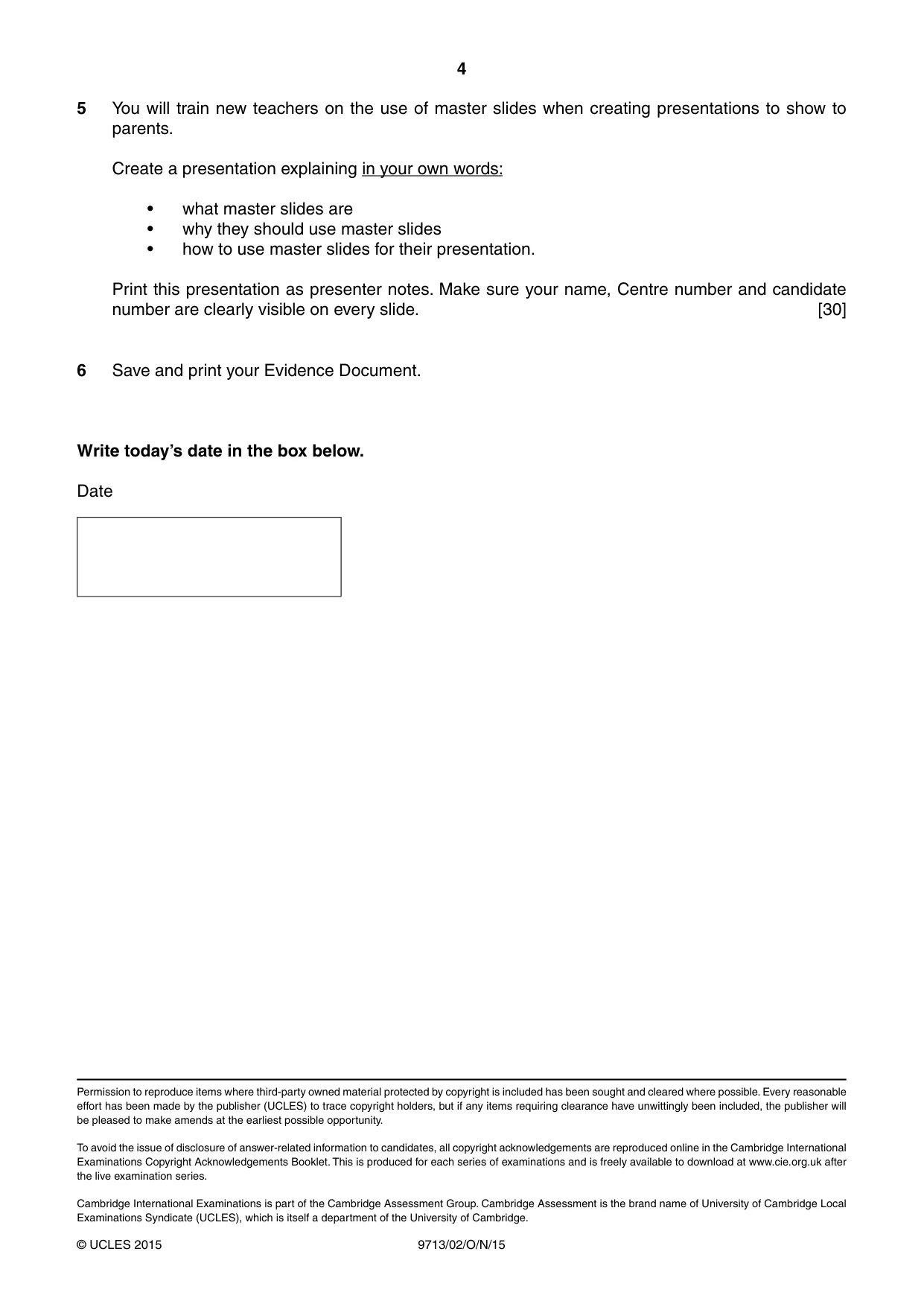
Question paper, page 4
4 9713/02/O/N/15 © UCLES 2015 Permission to reproduce items where third-party owned material protected by copyright is included has been sought and cleared where possible. Every reasonable effort has been made by the publisher (UCLES) to trace copyright holders, but if any items requiring clearance have unwittingly been included, the publisher will be pleased to make amends at the earliest possible opportunity. To avoid the issue of disclosure of answer-related information to candidates, all copyright acknowledgements are reproduced online in the Cambridge International Examinations Copyright Acknowledgements Booklet. This is produced for each series of examinations and is freely available to download at www.cie.org.uk after the live examination series. Cambridge International Examinations is part of the Cambridge Assessment Group. Cambridge Assessment is the brand name of University of Cambridge Local Examinations Syndicate (UCLES), which is itself a department of the University of Cambridge. 5 You will train new teachers on the use of master slides when creating presentations to show to parents. Create a presentation explaining in your own words: • what master slides are • why they should use master slides • how to use master slides for their presentation. Print this presentation as presenter notes. Make sure your name, Centre number and candidate number are clearly visible on every slide. [30] 6 Save and print your Evidence Document. Write today’s date in the box below. Date