Cambridge IGCSE Information and Communication Technology (9-1) 0983 — 2025 May/June Paper 3 · Variant 2
0983/32/M/J/25 · 70 marks · ≈79 min
The question paper and its mark scheme, free to read here and free to download. This is Cambridge’s own paper, exactly as it was sat.
Question paper8 pages
Mark scheme8 pages
Answers below. Sit the paper first if you are practising.
Paper as text
Question paper, page 1
[Turn over Cambridge IGCSE™(9–1) DC (IP) 354916 © UCLES 2025 This document has 8 pages. * 0 1 5 2 3 0 1 0 6 8 * INFORMATION AND COMMUNICATION TECHNOLOGY 0983/32 Paper 3 Spreadsheets and Website Authoring May/June 2025 2 hours 15 minutes You will need: Candidate source files (listed on page 2) INSTRUCTIONS ● Carry out all instructions in each step. ● Enter your name, centre number and candidate number on every printout before it is sent to the printer. ● Printouts with handwritten candidate details will not be marked. ● At the end of the examination, put all your printouts into the Assessment Record Folder. ● If you have produced rough copies of printouts, put a cross through each one to indicate that it is not the copy to be marked. ● You must not have access to either the internet or any email system during this examination. INFORMATION ● The total mark for this paper is 70. ● The number of marks for each question or part question is shown in brackets [ ].
Question paper, page 2
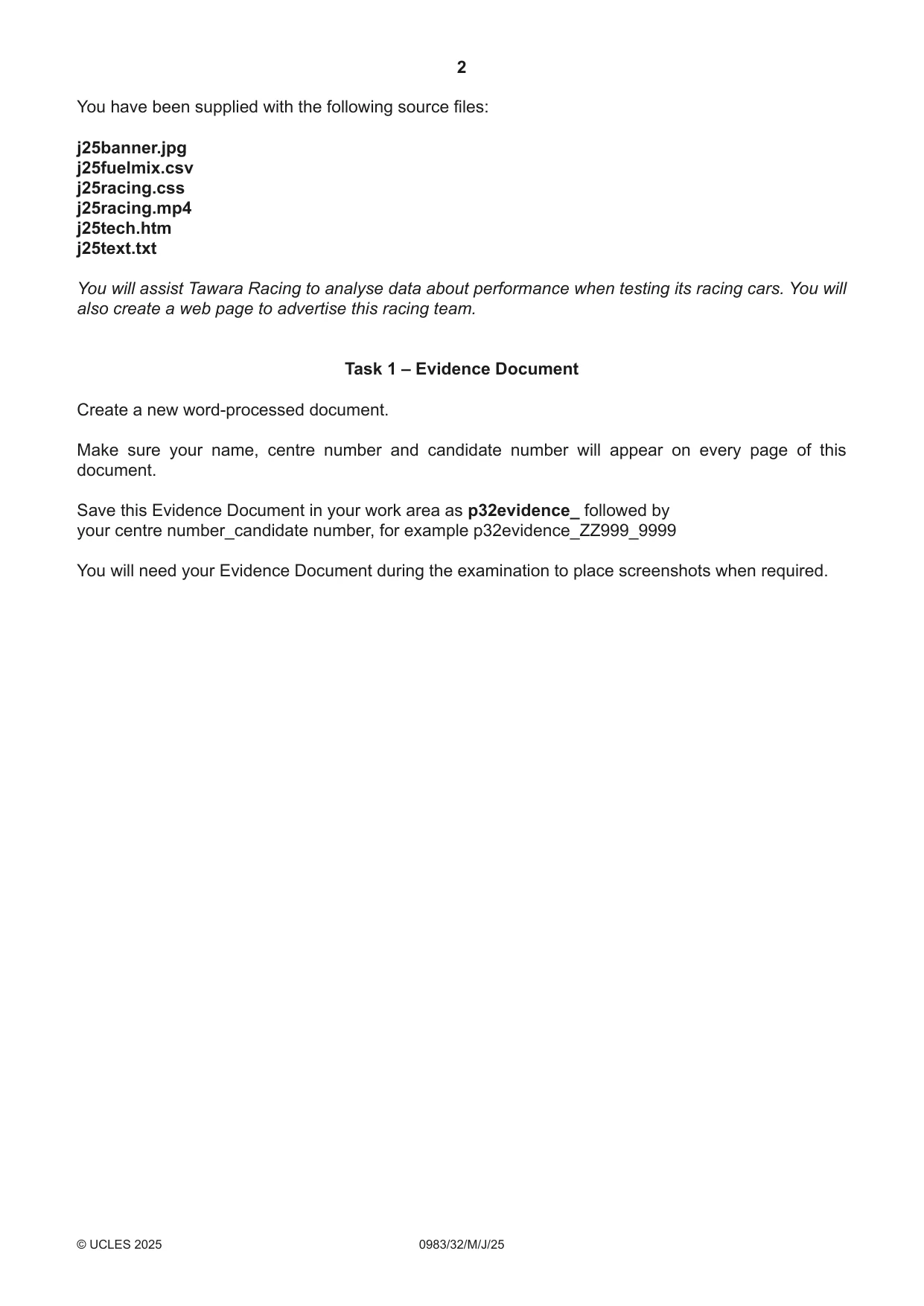
2 0983/32/M/J/25 © UCLES 2025 You have been supplied with the following source files: j25banner.jpg j25fuelmix.csv j25racing.css j25racing.mp4 j25tech.htm j25text.txt You will assist Tawara Racing to analyse data about performance when testing its racing cars. You will also create a web page to advertise this racing team. Task 1 – Evidence Document Create a new word-processed document. Make sure your name, centre number and candidate number will appear on every page of this document. Save this Evidence Document in your work area as p32evidence_ followed by your centre number_candidate number, for example p32evidence_ZZ999_9999 You will need your Evidence Document during the examination to place screenshots when required.
Question paper, page 3
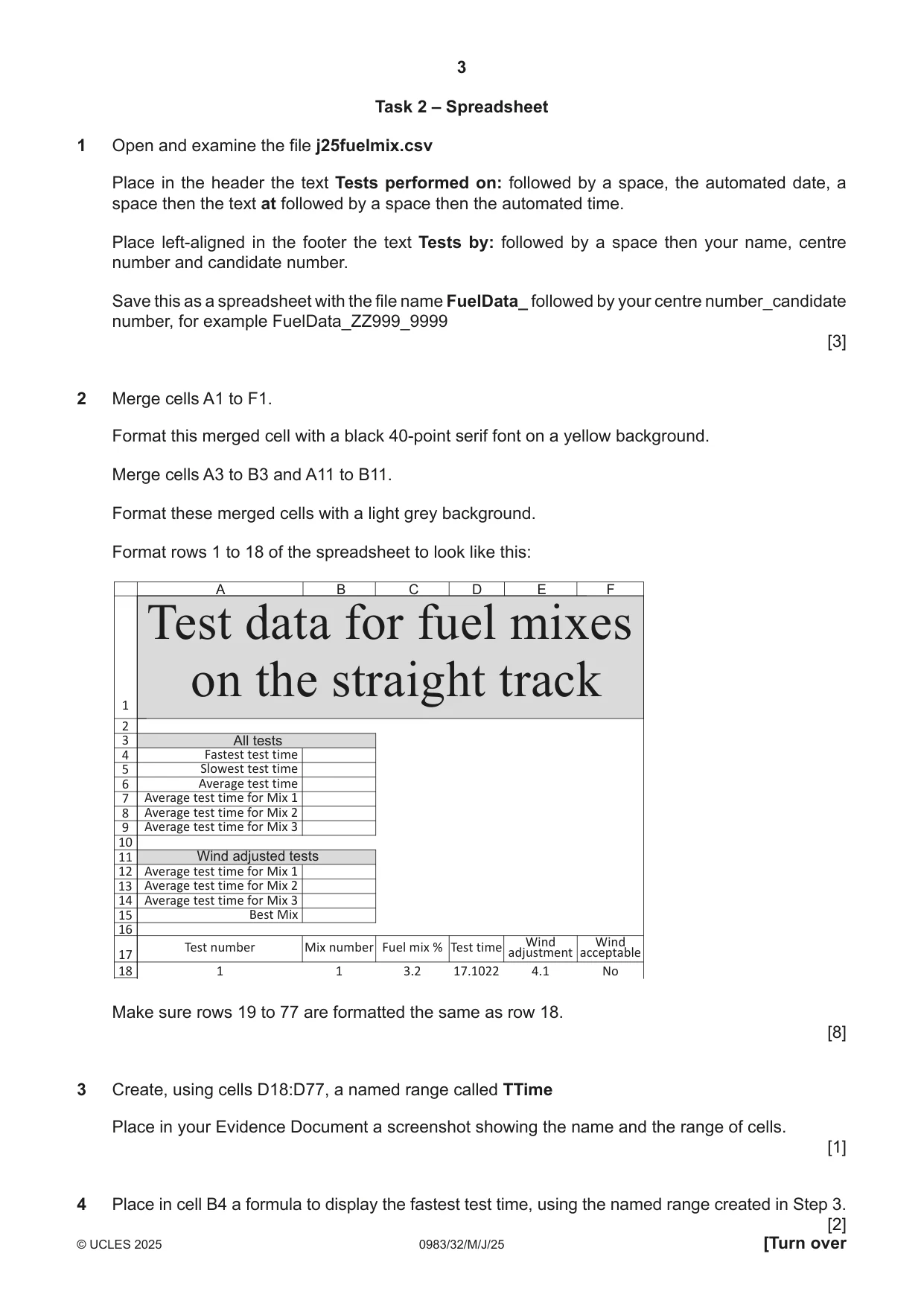
3 0983/32/M/J/25 © UCLES 2025 [Turn over Task 2 – Spreadsheet 1 Open and examine the file j25fuelmix.csv Place in the header the text Tests performed on: followed by a space, the automated date, a space then the text at followed by a space then the automated time. Place left-aligned in the footer the text Tests by: followed by a space then your name, centre number and candidate number. Save this as a spreadsheet with the file name FuelData_ followed by your centre number_candidate number, for example FuelData_ZZ999_9999 [3] 2 Merge cells A1 to F1. Format this merged cell with a black 40-point serif font on a yellow background. Merge cells A3 to B3 and A11 to B11. Format these merged cells with a light grey background. Format rows 1 to 18 of the spreadsheet to look like this: Test data for fuel mixes on the straight track A B C D E F 1 2 3 4 5 6 7 8 9 10 11 12 13 14 15 16 18 17 Fastest test time All tests Wind adjusted tests Slowest test time Average test time Average test time for Mix 1 Average test time for Mix 2 Average test time for Mix 3 Average test time for Mix 1 Average test time for Mix 2 Average test time for Mix 3 Best Mix Test number 1 Mix number 1 Fuel mix % 3.2 Test time 17.1022 Wind adjustment 4.1 Wind acceptable No Make sure rows 19 to 77 are formatted the same as row 18. [8] 3 Create, using cells D18:D77, a named range called TTime Place in your Evidence Document a screenshot showing the name and the range of cells. [1] 4 Place in cell B4 a formula to display the fastest test time, using the named range created in Step 3. [2]
Question paper, page 4
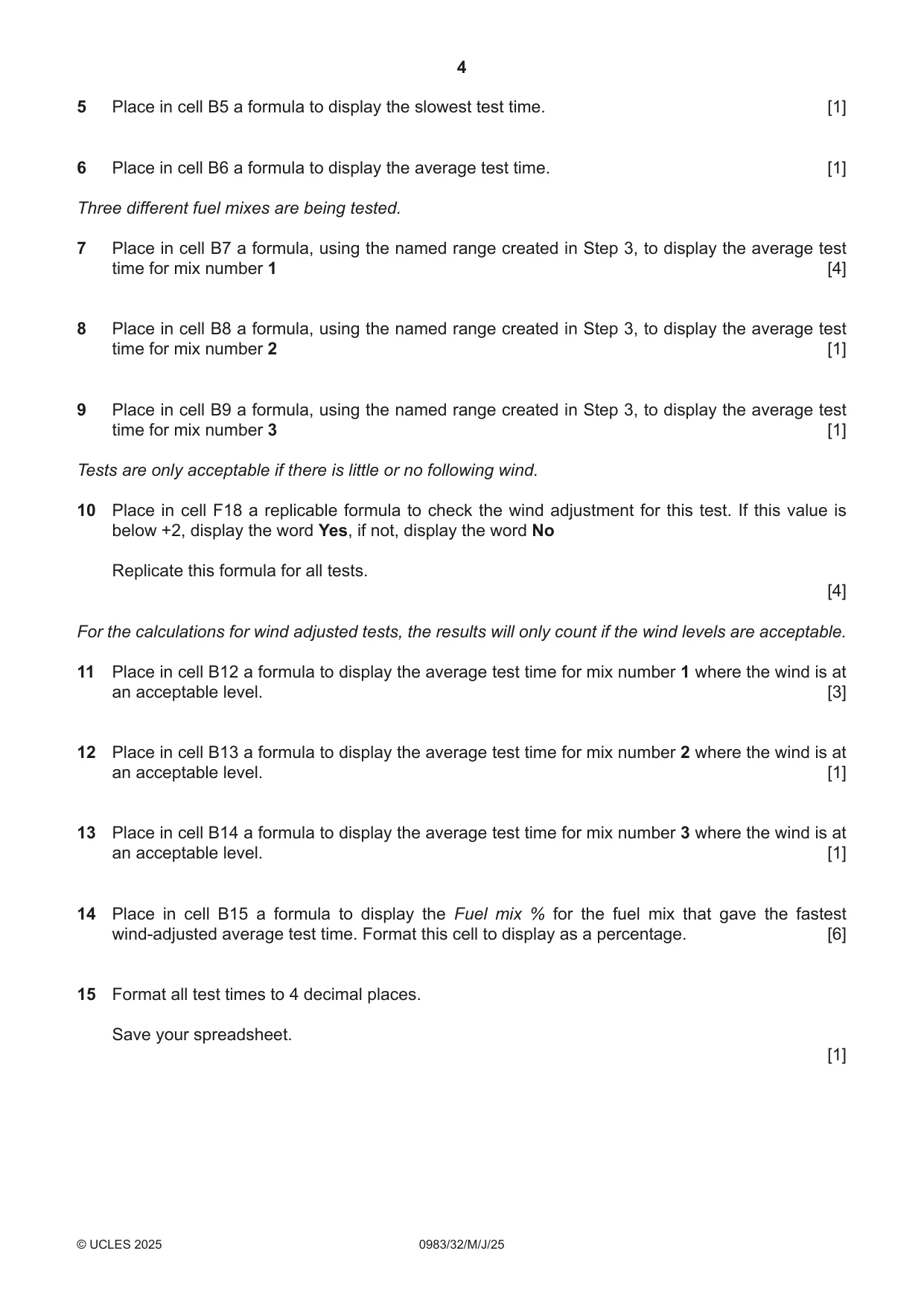
4 0983/32/M/J/25 © UCLES 2025 5 Place in cell B5 a formula to display the slowest test time. [1] 6 Place in cell B6 a formula to display the average test time. [1] Three different fuel mixes are being tested. 7 Place in cell B7 a formula, using the named range created in Step 3, to display the average test time for mix number 1 [4] 8 Place in cell B8 a formula, using the named range created in Step 3, to display the average test time for mix number 2 [1] 9 Place in cell B9 a formula, using the named range created in Step 3, to display the average test time for mix number 3 [1] Tests are only acceptable if there is little or no following wind. 10 Place in cell F18 a replicable formula to check the wind adjustment for this test. If this value is below +2, display the word Yes, if not, display the word No Replicate this formula for all tests. [4] For the calculations for wind adjusted tests, the results will only count if the wind levels are acceptable. 11 Place in cell B12 a formula to display the average test time for mix number 1 where the wind is at an acceptable level. [3] 12 Place in cell B13 a formula to display the average test time for mix number 2 where the wind is at an acceptable level. [1] 13 Place in cell B14 a formula to display the average test time for mix number 3 where the wind is at an acceptable level. [1] 14 Place in cell B15 a formula to display the Fuel mix % for the fuel mix that gave the fastest wind-adjusted average test time. Format this cell to display as a percentage. [6] 15 Format all test times to 4 decimal places. Save your spreadsheet. [1]
Question paper, page 5
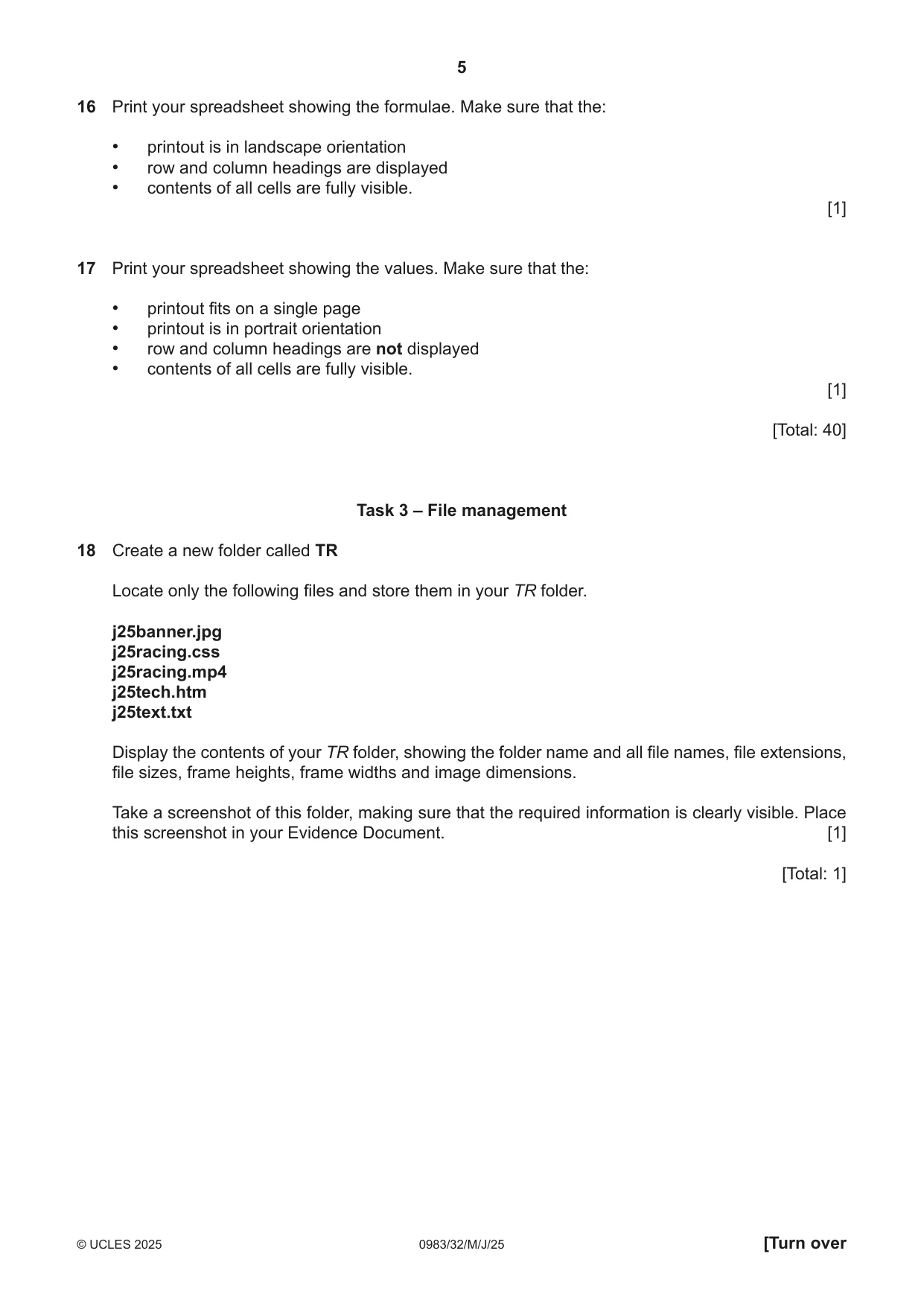
5 0983/32/M/J/25 © UCLES 2025 [Turn over 16 Print your spreadsheet showing the formulae. Make sure that the: • printout is in landscape orientation • row and column headings are displayed • contents of all cells are fully visible. [1] 17 Print your spreadsheet showing the values. Make sure that the: • printout fits on a single page • printout is in portrait orientation • row and column headings are not displayed • contents of all cells are fully visible. [1] [Total: 40] Task 3 – File management 18 Create a new folder called TR Locate only the following files and store them in your TR folder. j25banner.jpg j25racing.css j25racing.mp4 j25tech.htm j25text.txt Display the contents of your TR folder, showing the folder name and all file names, file extensions, file sizes, frame heights, frame widths and image dimensions. Take a screenshot of this folder, making sure that the required information is clearly visible. Place this screenshot in your Evidence Document. [1] [Total: 1]
Question paper, page 6
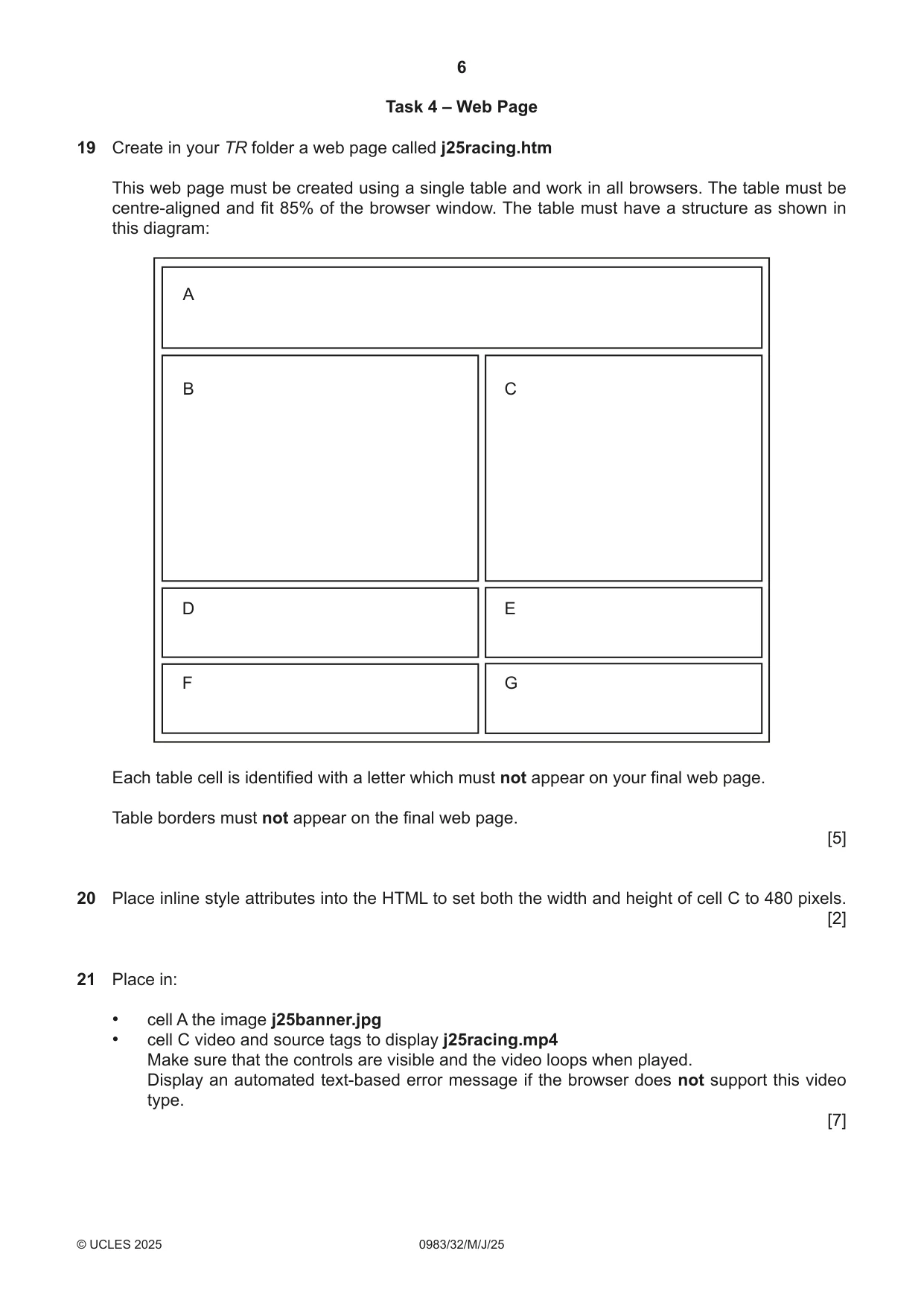
6 0983/32/M/J/25 © UCLES 2025 Task 4 – Web Page 19 Create in your TR folder a web page called j25racing.htm This web page must be created using a single table and work in all browsers. The table must be centre-aligned and fit 85% of the browser window. The table must have a structure as shown in this diagram: F G D E B A C Each table cell is identified with a letter which must not appear on your final web page. Table borders must not appear on the final web page. [5] 20 Place inline style attributes into the HTML to set both the width and height of cell C to 480 pixels. [2] 21 Place in: • cell A the image j25banner.jpg • cell C video and source tags to display j25racing.mp4 Make sure that the controls are visible and the video loops when played. Display an automated text-based error message if the browser does not support this video type. [7]
Question paper, page 7
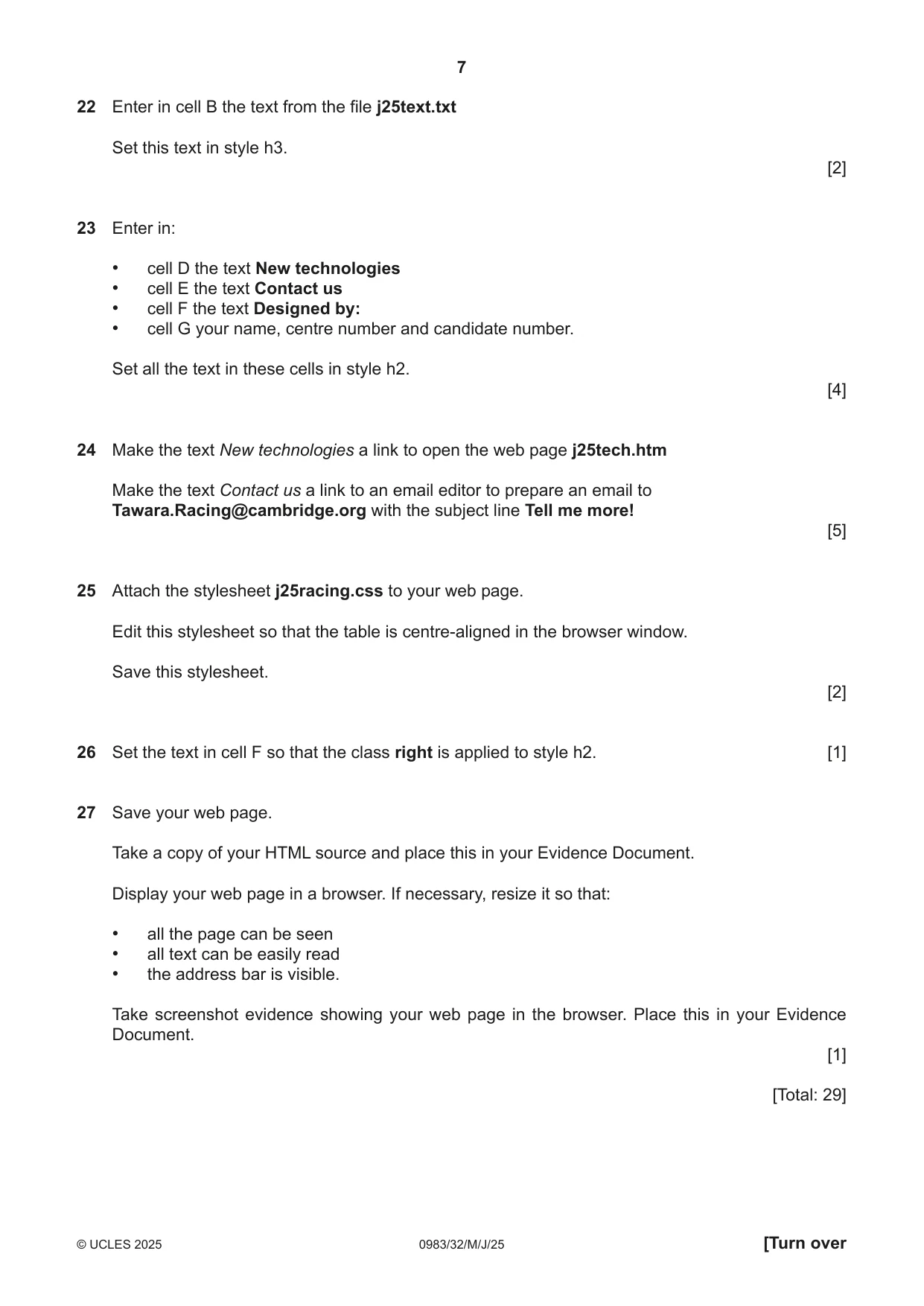
7 0983/32/M/J/25 © UCLES 2025 [Turn over 22 Enter in cell B the text from the file j25text.txt Set this text in style h3. [2] 23 Enter in: • cell D the text New technologies • cell E the text Contact us • cell F the text Designed by: • cell G your name, centre number and candidate number. Set all the text in these cells in style h2. [4] 24 Make the text New technologies a link to open the web page j25tech.htm Make the text Contact us a link to an email editor to prepare an email to Tawara.Racing@cambridge.org with the subject line Tell me more! [5] 25 Attach the stylesheet j25racing.css to your web page. Edit this stylesheet so that the table is centre-aligned in the browser window. Save this stylesheet. [2] 26 Set the text in cell F so that the class right is applied to style h2. [1] 27 Save your web page. Take a copy of your HTML source and place this in your Evidence Document. Display your web page in a browser. If necessary, resize it so that: • all the page can be seen • all text can be easily read • the address bar is visible. Take screenshot evidence showing your web page in the browser. Place this in your Evidence Document. [1] [Total: 29]
Question paper, page 8
8 0983/32/M/J/25 © UCLES 2025 Permission to reproduce items where third-party owned material protected by copyright is included has been sought and cleared where possible. Every reasonable effort has been made by the publisher (UCLES) to trace copyright holders, but if any items requiring clearance have unwittingly been included, the publisher will be pleased to make amends at the earliest possible opportunity. To avoid the issue of disclosure of answer-related information to candidates, all copyright acknowledgements are reproduced online in the Cambridge Assessment International Education Copyright Acknowledgements Booklet. This is produced for each series of examinations and is freely available to download at www.cambridgeinternational.org after the live examination series. Cambridge Assessment International Education is part of Cambridge Assessment. Cambridge Assessment is the brand name of the University of Cambridge Local Examinations Syndicate (UCLES), which is a department of the University of Cambridge. Task 5 – Printing the Evidence Document Save and print your Evidence Document. Make sure your name, centre number and candidate number appear on every page of your Evidence Document.
Mark scheme, page 1
This document consists of 8 printed pages. © Cambridge University Press & Assessment 2025 [Turn over Cambridge IGCSE™ (9–1) INFORMATION AND COMMUNICATION TECHNOLOGY 0983/32 Paper 3 Spreadsheets and Website Authoring May/June 2025 MARK SCHEME Maximum Mark: 70 Published This mark scheme is published as an aid to teachers and candidates, to indicate the requirements of the examination. It shows the basis on which Examiners were instructed to award marks. It does not indicate the details of the discussions that took place at an Examiners’ meeting before marking began, which would have considered the acceptability of alternative answers. Mark schemes should be read in conjunction with the question paper and the Principal Examiner Report for Teachers. Cambridge International will not enter into discussions about these mark schemes. Cambridge International is publishing the mark schemes for the May/June 2025 series for most Cambridge IGCSE, Cambridge International A and AS Level components, and some Cambridge O Level components.
Mark scheme, page 2
0983/32 Cambridge IGCSE (9–1) – Mark Scheme PUBLISHED May/June 2025 © Cambridge University Press & Assessment 2025 Page 2 of 8 Generic Marking Principles These general marking principles must be applied by all examiners when marking candidate answers. They should be applied alongside the specific content of the mark scheme or generic level descriptions for a question. Each question paper and mark scheme will also comply with these marking principles. GENERIC MARKING PRINCIPLE 1: Marks must be awarded in line with: • the specific content of the mark scheme or the generic level descriptors for the question • the specific skills defined in the mark scheme or in the generic level descriptors for the question • the standard of response required by a candidate as exemplified by the standardisation scripts. GENERIC MARKING PRINCIPLE 2: Marks awarded are always whole marks (not half marks, or other fractions). GENERIC MARKING PRINCIPLE 3: Marks must be awarded positively: • marks are awarded for correct/valid answers, as defined in the mark scheme. However, credit is given for valid answers which go beyond the scope of the syllabus and mark scheme, referring to your Team Leader as appropriate • marks are awarded when candidates clearly demonstrate what they know and can do • marks are not deducted for errors • marks are not deducted for omissions • answers should only be judged on the quality of spelling, punctuation and grammar when these features are specifically assessed by the question as indicated by the mark scheme. The meaning, however, should be unambiguous. GENERIC MARKING PRINCIPLE 4: Rules must be applied consistently, e.g. in situations where candidates have not followed instructions or in the application of generic level descriptors. GENERIC MARKING PRINCIPLE 5: Marks should be awarded using the full range of marks defined in the mark scheme for the question (however; the use of the full mark range may be limited according to the quality of the candidate responses seen). GENERIC MARKING PRINCIPLE 6: Marks awarded are based solely on the requirements as defined in the mark scheme. Marks should not be awarded with grade thresholds or grade descriptors in mind.
Mark scheme, page 3
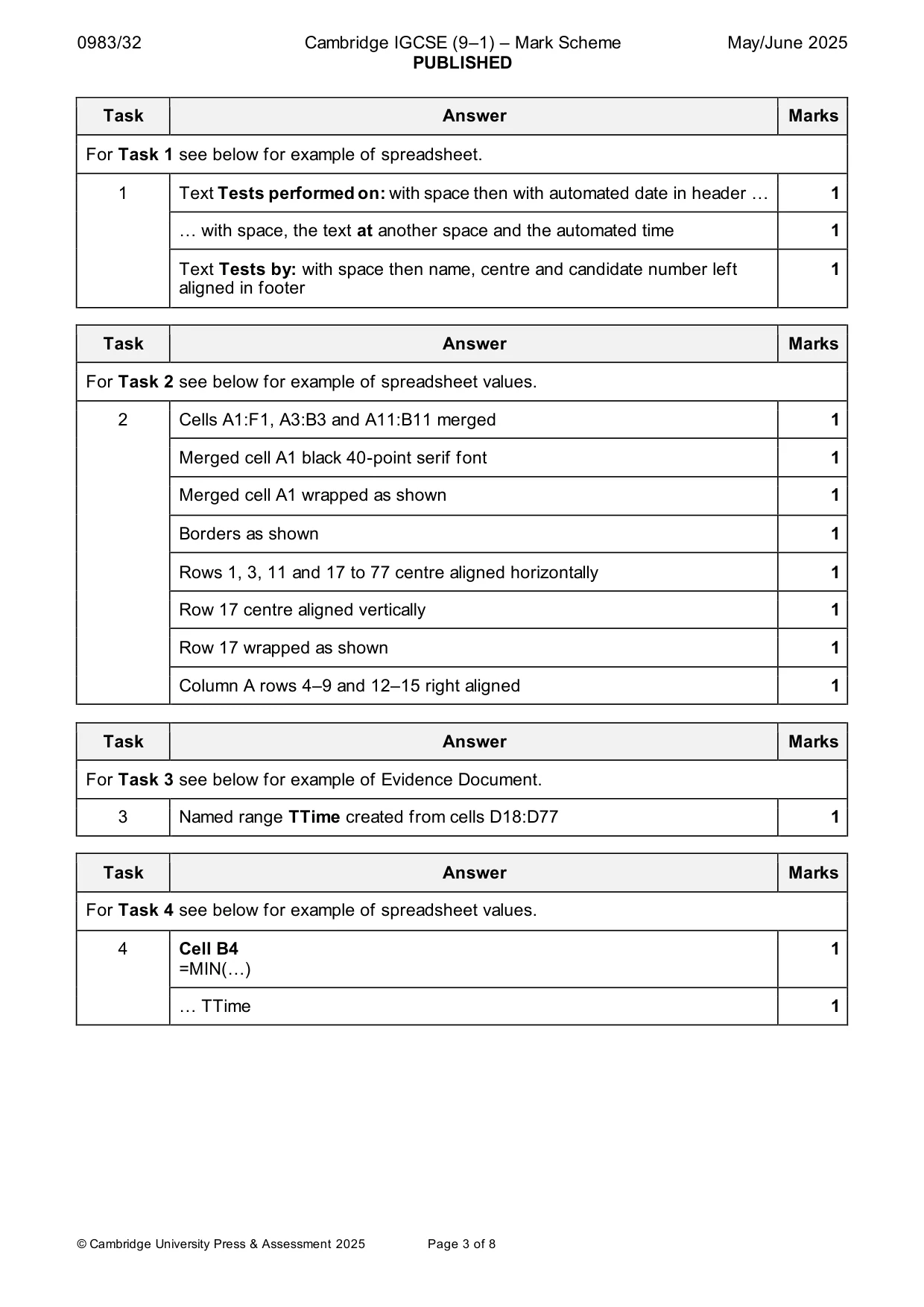
0983/32 Cambridge IGCSE (9–1) – Mark Scheme PUBLISHED May/June 2025 © Cambridge University Press & Assessment 2025 Page 3 of 8 Task Answer Marks For Task 1 see below for example of spreadsheet. 1 Text Tests performed on: with space then with automated date in header … 1 … with space, the text at another space and the automated time 1 Text Tests by: with space then name, centre and candidate number left aligned in footer 1 Task Answer Marks For Task 2 see below for example of spreadsheet values. 2 Cells A1:F1, A3:B3 and A11:B11 merged 1 Merged cell A1 black 40-point serif font 1 Merged cell A1 wrapped as shown 1 Borders as shown 1 Rows 1, 3, 11 and 17 to 77 centre aligned horizontally 1 Row 17 centre aligned vertically 1 Row 17 wrapped as shown 1 Column A rows 4–9 and 12–15 right aligned 1 Task Answer Marks For Task 3 see below for example of Evidence Document. 3 Named range TTime created from cells D18:D77 1 Task Answer Marks For Task 4 see below for example of spreadsheet values. 4 Cell B4 =MIN(…) 1 … TTime 1
Mark scheme, page 4
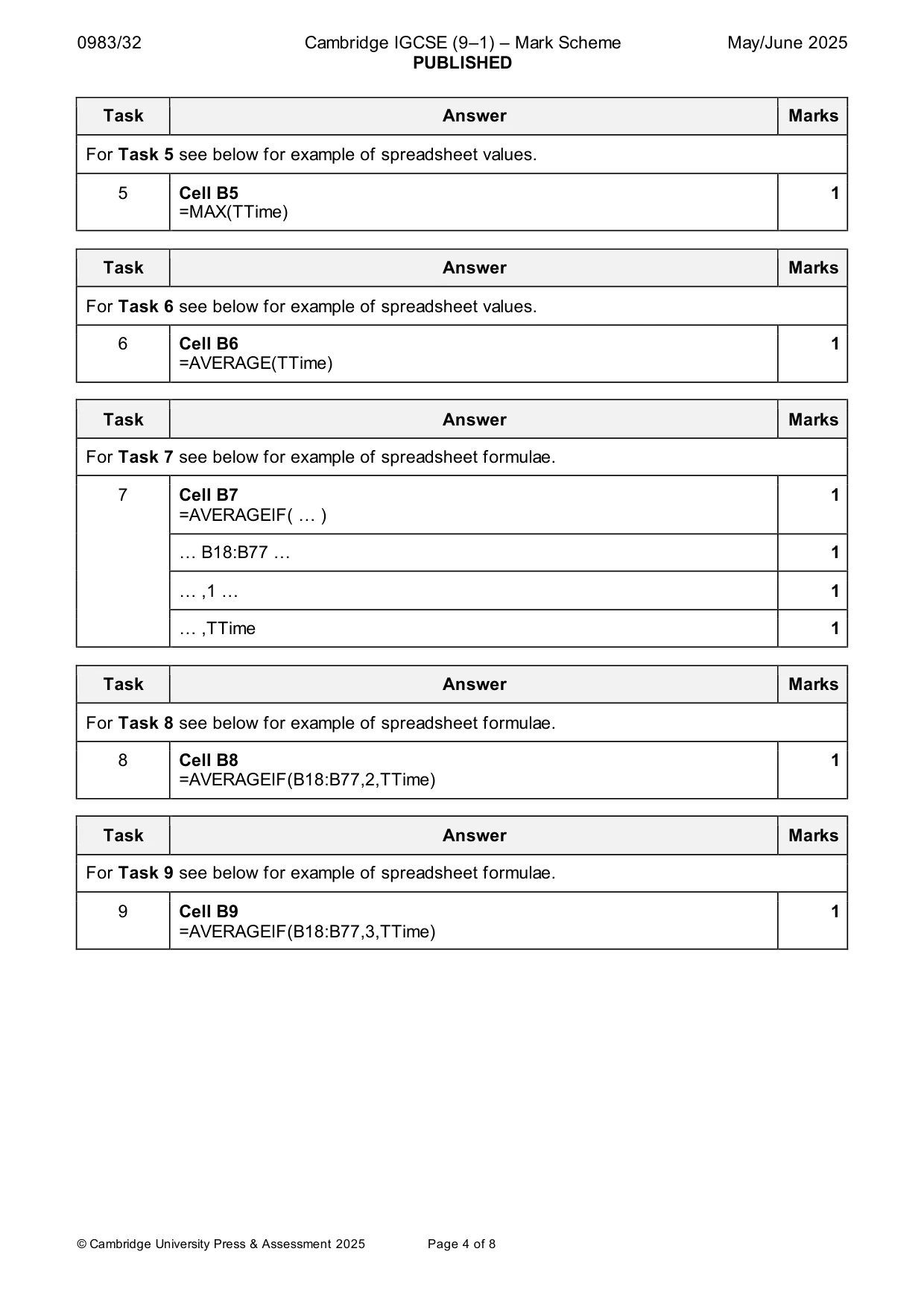
0983/32 Cambridge IGCSE (9–1) – Mark Scheme PUBLISHED May/June 2025 © Cambridge University Press & Assessment 2025 Page 4 of 8 Task Answer Marks For Task 5 see below for example of spreadsheet values. 5 Cell B5 =MAX(TTime) 1 Task Answer Marks For Task 6 see below for example of spreadsheet values. 6 Cell B6 =AVERAGE(TTime) 1 Task Answer Marks For Task 7 see below for example of spreadsheet formulae. 7 Cell B7 =AVERAGEIF( … ) 1 … B18:B77 … 1 … ,1 … 1 … ,TTime 1 Task Answer Marks For Task 8 see below for example of spreadsheet formulae. 8 Cell B8 =AVERAGEIF(B18:B77,2,TTime) 1 Task Answer Marks For Task 9 see below for example of spreadsheet formulae. 9 Cell B9 =AVERAGEIF(B18:B77,3,TTime) 1
Mark scheme, page 5
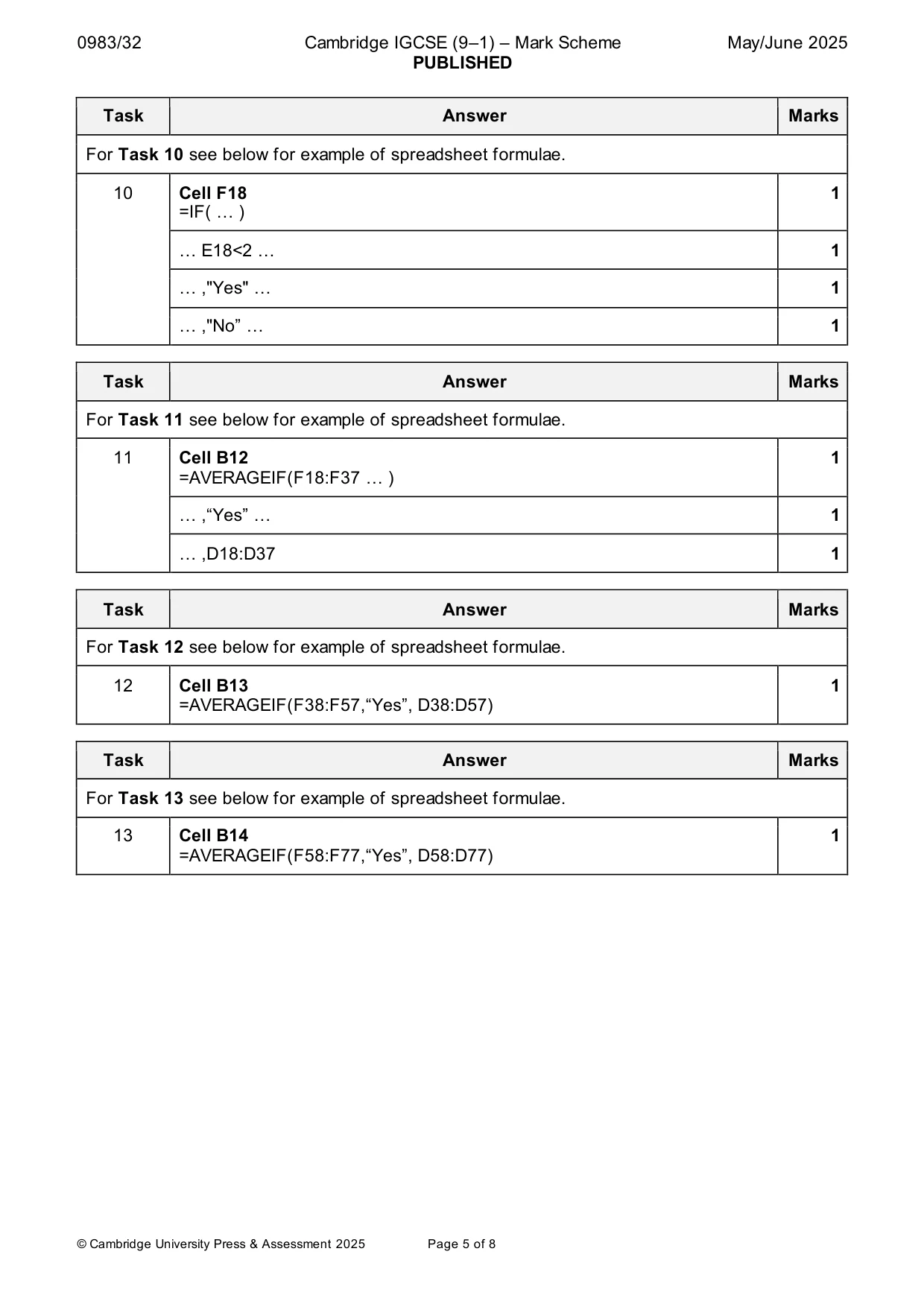
0983/32 Cambridge IGCSE (9–1) – Mark Scheme PUBLISHED May/June 2025 © Cambridge University Press & Assessment 2025 Page 5 of 8 Task Answer Marks For Task 10 see below for example of spreadsheet formulae. 10 Cell F18 =IF( … ) 1 … E18<2 … 1 … ,"Yes" … 1 … ,"No” … 1 Task Answer Marks For Task 11 see below for example of spreadsheet formulae. 11 Cell B12 =AVERAGEIF(F18:F37 … ) 1 … ,“Yes” … 1 … ,D18:D37 1 Task Answer Marks For Task 12 see below for example of spreadsheet formulae. 12 Cell B13 =AVERAGEIF(F38:F57,“Yes”, D38:D57) 1 Task Answer Marks For Task 13 see below for example of spreadsheet formulae. 13 Cell B14 =AVERAGEIF(F58:F77,“Yes”, D58:D77) 1
Mark scheme, page 6
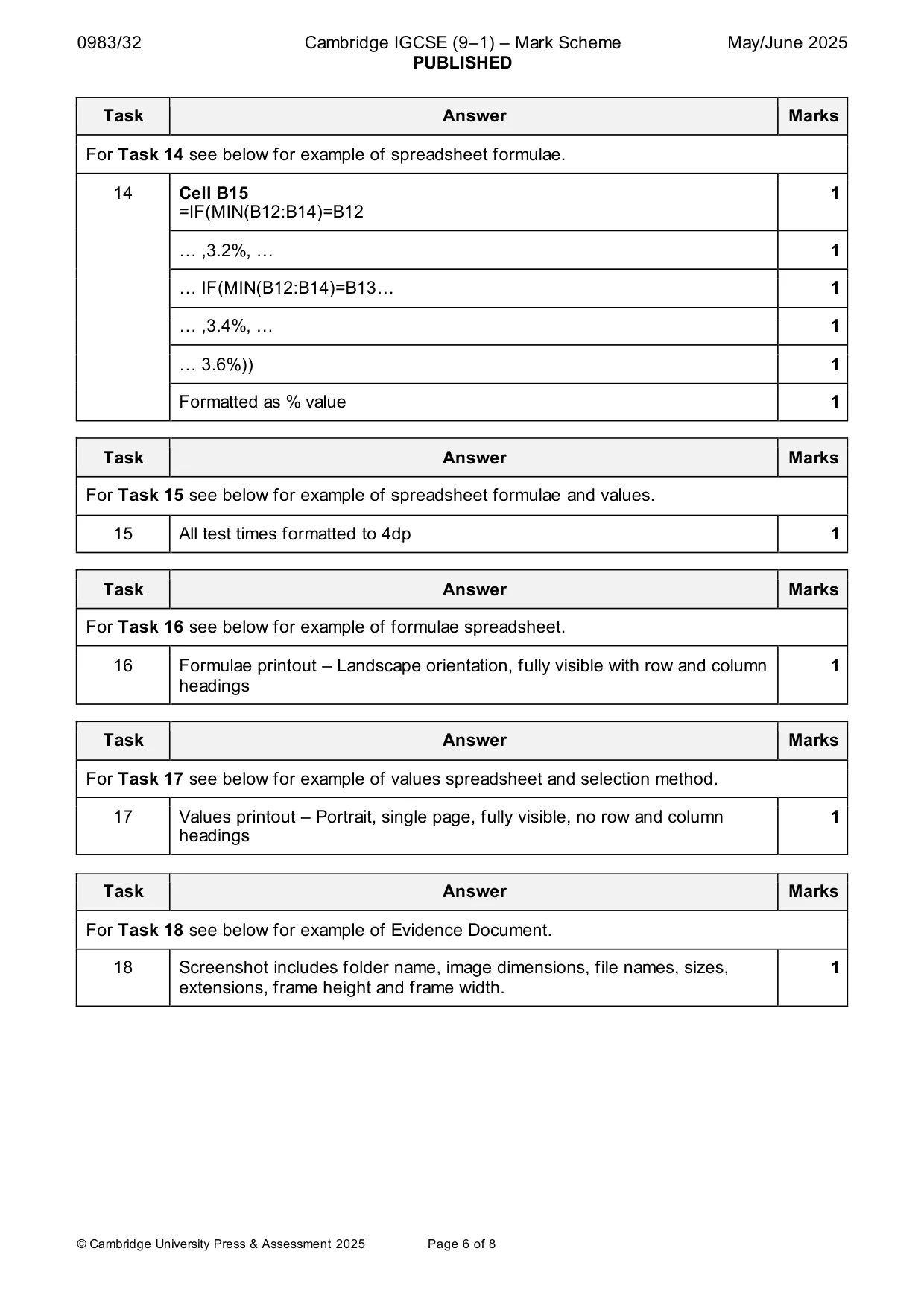
0983/32 Cambridge IGCSE (9–1) – Mark Scheme PUBLISHED May/June 2025 © Cambridge University Press & Assessment 2025 Page 6 of 8 Task Answer Marks For Task 14 see below for example of spreadsheet formulae. 14 Cell B15 =IF(MIN(B12:B14)=B12 1 … ,3.2%, … 1 … IF(MIN(B12:B14)=B13… 1 … ,3.4%, … 1 … 3.6%)) 1 Formatted as % value 1 Task Answer Marks For Task 15 see below for example of spreadsheet formulae and values. 15 All test times formatted to 4dp 1 Task Answer Marks For Task 16 see below for example of formulae spreadsheet. 16 Formulae printout – Landscape orientation, fully visible with row and column headings 1 Task Answer Marks For Task 17 see below for example of values spreadsheet and selection method. 17 Values printout – Portrait, single page, fully visible, no row and column headings 1 Task Answer Marks For Task 18 see below for example of Evidence Document. 18 Screenshot includes folder name, image dimensions, file names, sizes, extensions, frame height and frame width. 1
Mark scheme, page 7
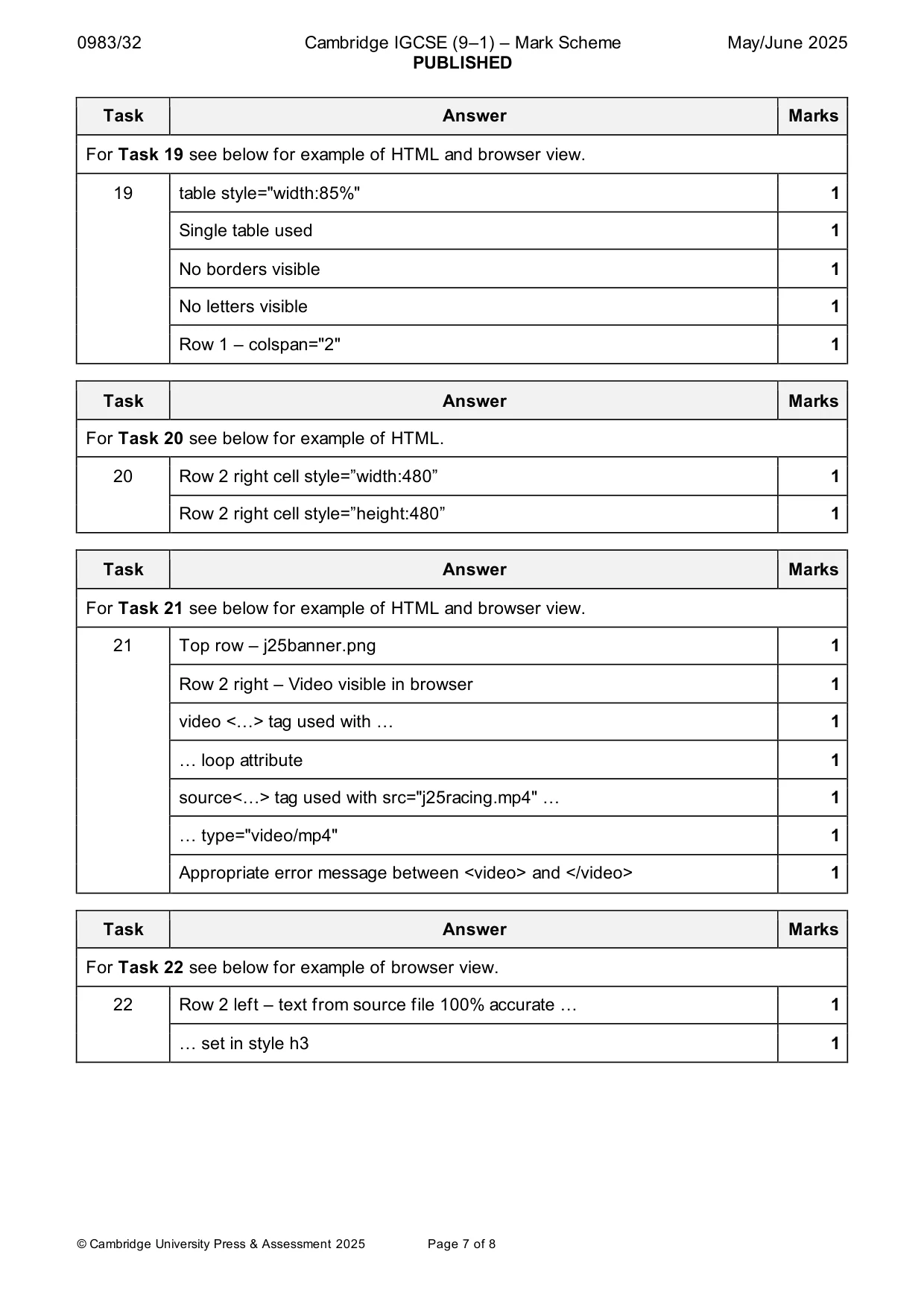
0983/32 Cambridge IGCSE (9–1) – Mark Scheme PUBLISHED May/June 2025 © Cambridge University Press & Assessment 2025 Page 7 of 8 Task Answer Marks For Task 19 see below for example of HTML and browser view. 19 table style="width:85%" 1 Single table used 1 No borders visible 1 No letters visible 1 Row 1 – colspan="2" 1 Task Answer Marks For Task 20 see below for example of HTML. 20 Row 2 right cell style=”width:480” 1 Row 2 right cell style=”height:480” 1 Task Answer Marks For Task 21 see below for example of HTML and browser view. 21 Top row – j25banner.png 1 Row 2 right – Video visible in browser 1 video <…> tag used with … 1 … loop attribute 1 source<…> tag used with src="j25racing.mp4" … 1 … type="video/mp4" 1 Appropriate error message between <video> and </video> 1 Task Answer Marks For Task 22 see below for example of browser view. 22 Row 2 left – text from source file 100% accurate … 1 … set in style h3 1
Mark scheme, page 8
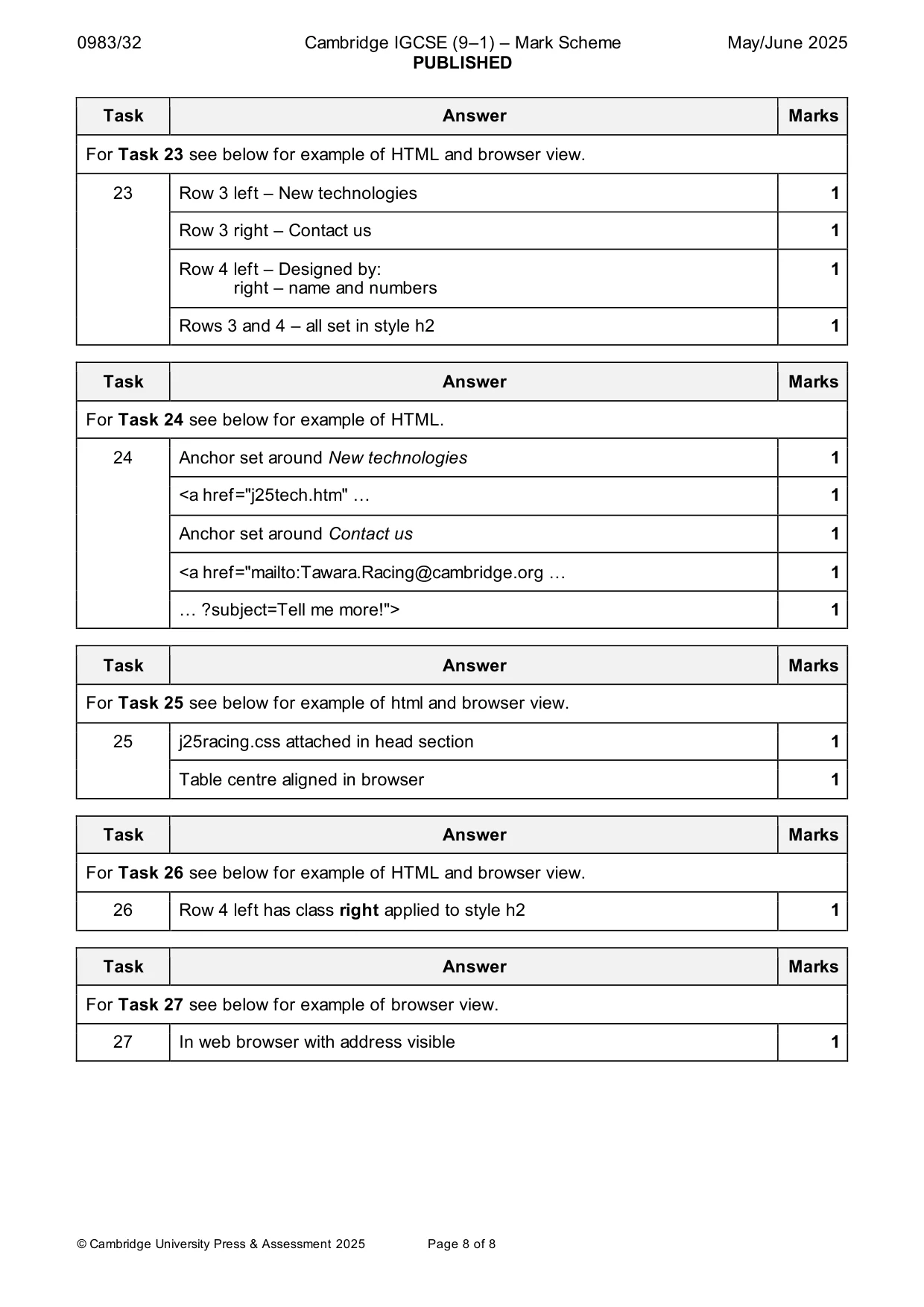
0983/32 Cambridge IGCSE (9–1) – Mark Scheme PUBLISHED May/June 2025 © Cambridge University Press & Assessment 2025 Page 8 of 8 Task Answer Marks For Task 23 see below for example of HTML and browser view. 23 Row 3 left – New technologies 1 Row 3 right – Contact us 1 Row 4 left – Designed by: right – name and numbers 1 Rows 3 and 4 – all set in style h2 1 Task Answer Marks For Task 24 see below for example of HTML. 24 Anchor set around New technologies 1 <a href="j25tech.htm" … 1 Anchor set around Contact us 1 <a href="mailto:Tawara.Racing@cambridge.org … 1 … ?subject=Tell me more!"> 1 Task Answer Marks For Task 25 see below for example of html and browser view. 25 j25racing.css attached in head section 1 Table centre aligned in browser 1 Task Answer Marks For Task 26 see below for example of HTML and browser view. 26 Row 4 left has class right applied to style h2 1 Task Answer Marks For Task 27 see below for example of browser view. 27 In web browser with address visible 1
What you needed in this session
Cambridge’s own grade thresholds for 2025 May/June, Paper 3 · Variant 2. A higher threshold means an easier paper — the bar moves with how the cohort did.