Cambridge IGCSE Information and Communication Technology (9-1) 0983 — 2024 Oct/Nov Paper 3 · Variant 0
0983/30/O/N/24 · 70 marks · ≈79 min
The question paper and its mark scheme, free to read here and free to download. This is Cambridge’s own paper, exactly as it was sat.
Question paper8 pages

Mark scheme
No mark scheme is in the library for this paper.
Paper as text
Question paper, page 1
This document has 8 pages. Any blank pages are indicated. [Turn over Cambridge IGCSE™(9–1) * 7 5 4 0 4 2 6 1 1 4 * INFORMATION AND COMMUNICATION TECHNOLOGY 0983/03 Paper 3 Spreadsheets and Website Authoring October/November 2024 2 hours 15 minutes You will need: Candidate source files (listed on page 2) INSTRUCTIONS ● Carry out all instructions in each step. ● Enter your name, centre number and candidate number on every printout before it is sent to the printer. ● Printouts with handwritten candidate details will not be marked. ● At the end of the examination, put all your printouts into the Assessment Record Folder. ● If you have produced rough copies of printouts, put a cross through each one to indicate that it is not the copy to be marked. ● You must not have access to either the internet or any email system during this examination. INFORMATION ● The total mark for this paper is 70. ● The number of marks for each question or part question is shown in brackets [ ]. DC (WW) 346171 © UCLES 2024
Question paper, page 2
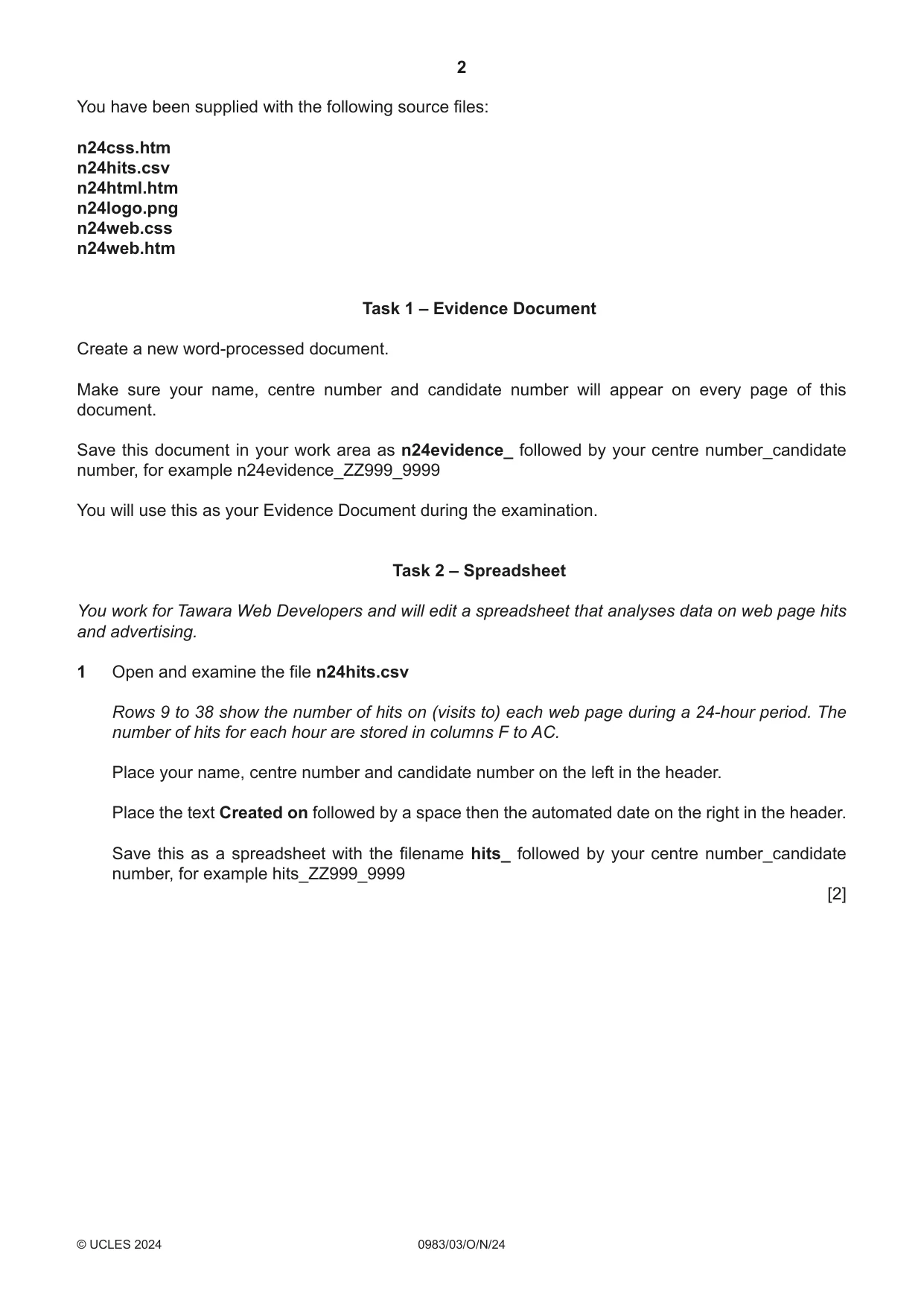
2 0983/03/O/N/24 © UCLES 2024 You have been supplied with the following source files: n24css.htm n24hits.csv n24html.htm n24logo.png n24web.css n24web.htm Task 1 – Evidence Document Create a new word-processed document. Make sure your name, centre number and candidate number will appear on every page of this document. Save this document in your work area as n24evidence_ followed by your centre number_candidate number, for example n24evidence_ZZ999_9999 You will use this as your Evidence Document during the examination. Task 2 – Spreadsheet You work for Tawara Web Developers and will edit a spreadsheet that analyses data on web page hits and advertising. 1 Open and examine the file n24hits.csv Rows 9 to 38 show the number of hits on (visits to) each web page during a 24-hour period. The number of hits for each hour are stored in columns F to AC. Place your name, centre number and candidate number on the left in the header. Place the text Created on followed by a space then the automated date on the right in the header. Save this as a spreadsheet with the filename hits_ followed by your centre number_candidate number, for example hits_ZZ999_9999 [2]
Question paper, page 3
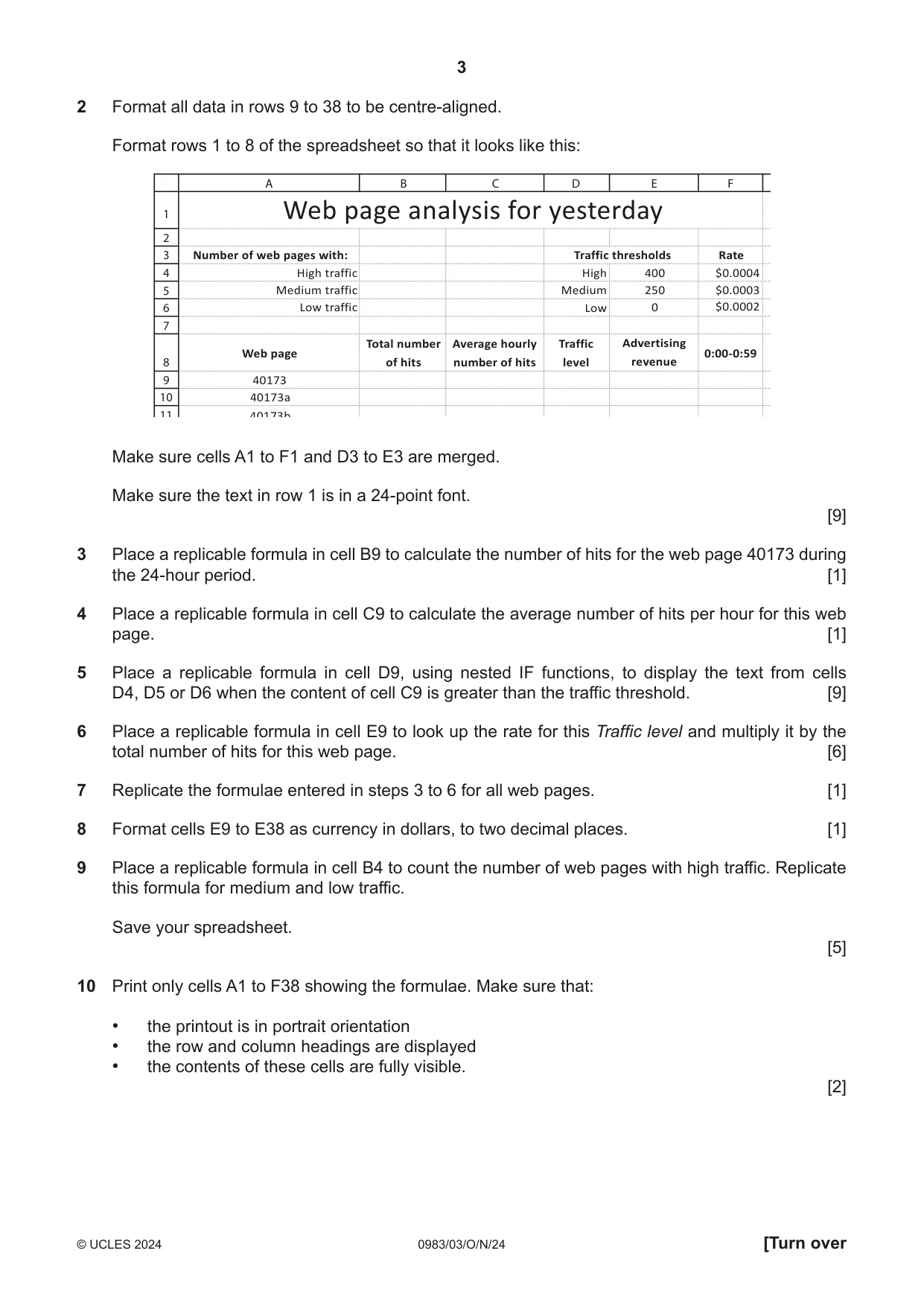
3 0983/03/O/N/24 © UCLES 2024 [Turn over 2 Format all data in rows 9 to 38 to be centre-aligned. Format rows 1 to 8 of the spreadsheet so that it looks like this: Number of web pages with: Web page Total number of hits Average hourly number of hits Traffic level Advertising revenue 40173 40173a 40173b Web page analysis for yesterday 1 2 3 4 5 6 7 8 9 10 11 A B C D E F High traffic Medium traffic Low traffic High 400 Rate 250 0 Medium Low Traffic thresholds $0.0004 $0.0003 $0.0002 0:00-0:59 Make sure cells A1 to F1 and D3 to E3 are merged. Make sure the text in row 1 is in a 24-point font. [9] 3 Place a replicable formula in cell B9 to calculate the number of hits for the web page 40173 during the 24-hour period. [1] 4 Place a replicable formula in cell C9 to calculate the average number of hits per hour for this web page. [1] 5 Place a replicable formula in cell D9, using nested IF functions, to display the text from cells D4, D5 or D6 when the content of cell C9 is greater than the traffic threshold. [9] 6 Place a replicable formula in cell E9 to look up the rate for this Traffic level and multiply it by the total number of hits for this web page. [6] 7 Replicate the formulae entered in steps 3 to 6 for all web pages. [1] 8 Format cells E9 to E38 as currency in dollars, to two decimal places. [1] 9 Place a replicable formula in cell B4 to count the number of web pages with high traffic. Replicate this formula for medium and low traffic. Save your spreadsheet. [5] 10 Print only cells A1 to F38 showing the formulae. Make sure that: • the printout is in portrait orientation • the row and column headings are displayed • the contents of these cells are fully visible. [2]
Question paper, page 4
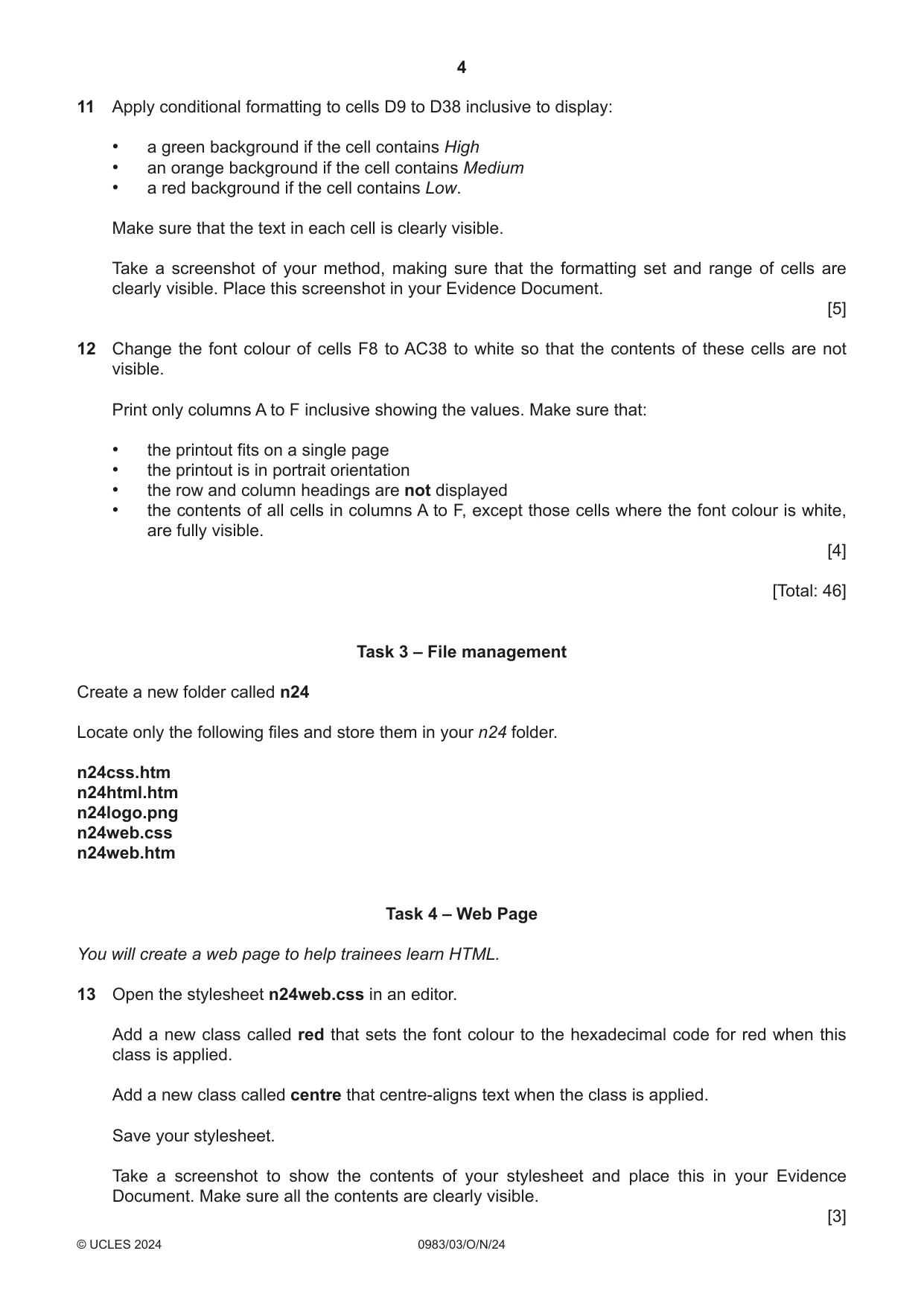
4 0983/03/O/N/24 © UCLES 2024 11 Apply conditional formatting to cells D9 to D38 inclusive to display: • a green background if the cell contains High • an orange background if the cell contains Medium • a red background if the cell contains Low. Make sure that the text in each cell is clearly visible. Take a screenshot of your method, making sure that the formatting set and range of cells are clearly visible. Place this screenshot in your Evidence Document. [5] 12 Change the font colour of cells F8 to AC38 to white so that the contents of these cells are not visible. Print only columns A to F inclusive showing the values. Make sure that: • the printout fits on a single page • the printout is in portrait orientation • the row and column headings are not displayed • the contents of all cells in columns A to F, except those cells where the font colour is white, are fully visible. [4] [Total: 46] Task 3 – File management Create a new folder called n24 Locate only the following files and store them in your n24 folder. n24css.htm n24html.htm n24logo.png n24web.css n24web.htm Task 4 – Web Page You will create a web page to help trainees learn HTML. 13 Open the stylesheet n24web.css in an editor. Add a new class called red that sets the font colour to the hexadecimal code for red when this class is applied. Add a new class called centre that centre-aligns text when the class is applied. Save your stylesheet. Take a screenshot to show the contents of your stylesheet and place this in your Evidence Document. Make sure all the contents are clearly visible. [3]
Question paper, page 5
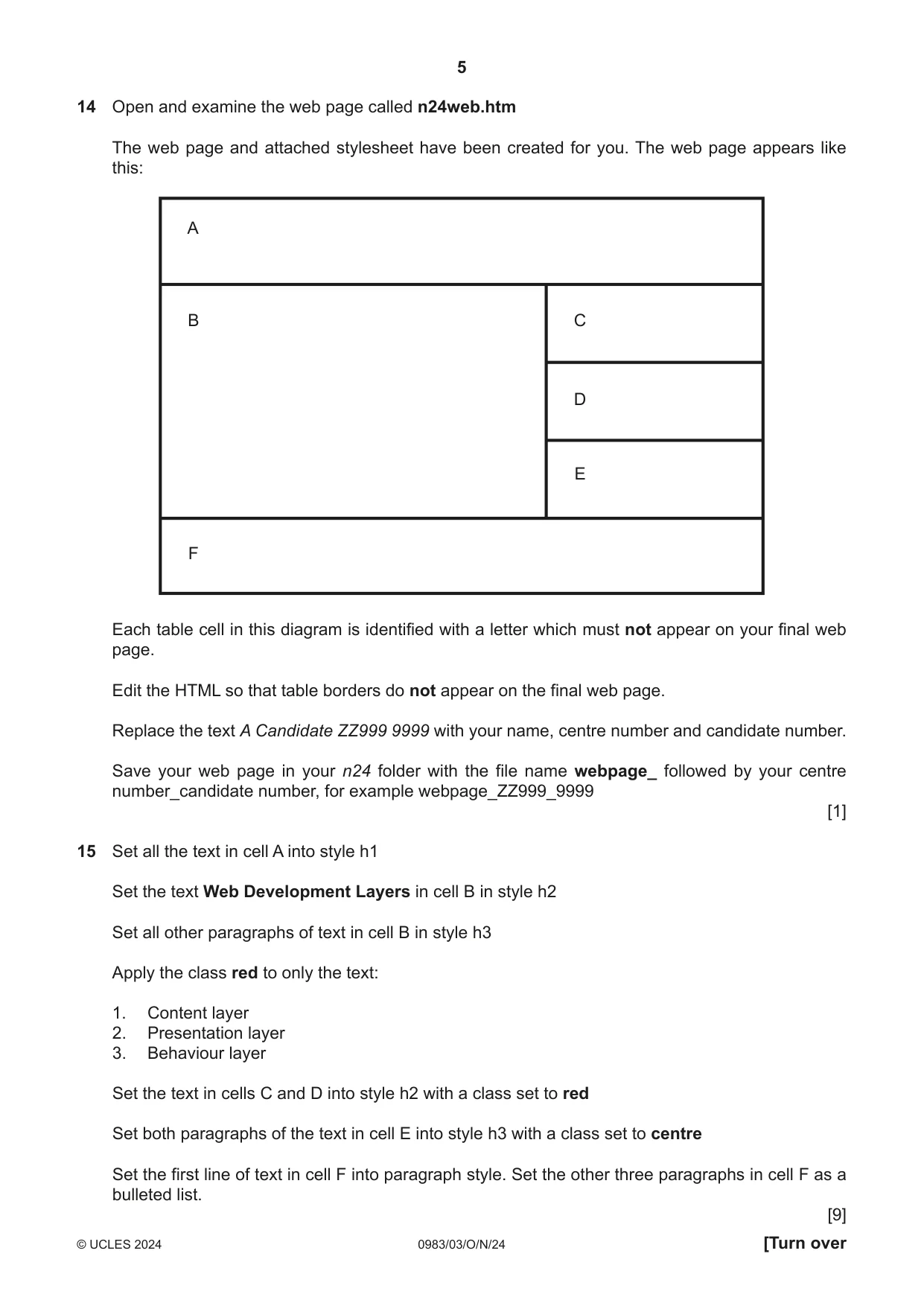
5 0983/03/O/N/24 © UCLES 2024 [Turn over 14 Open and examine the web page called n24web.htm The web page and attached stylesheet have been created for you. The web page appears like this: A B F C D E Each table cell in this diagram is identified with a letter which must not appear on your final web page. Edit the HTML so that table borders do not appear on the final web page. Replace the text A Candidate ZZ999 9999 with your name, centre number and candidate number. Save your web page in your n24 folder with the file name webpage_ followed by your centre number_candidate number, for example webpage_ZZ999_9999 [1] 15 Set all the text in cell A into style h1 Set the text Web Development Layers in cell B in style h2 Set all other paragraphs of text in cell B in style h3 Apply the class red to only the text: 1. Content layer 2. Presentation layer 3. Behaviour layer Set the text in cells C and D into style h2 with a class set to red Set both paragraphs of the text in cell E into style h3 with a class set to centre Set the first line of text in cell F into paragraph style. Set the other three paragraphs in cell F as a bulleted list. [9]
Question paper, page 6
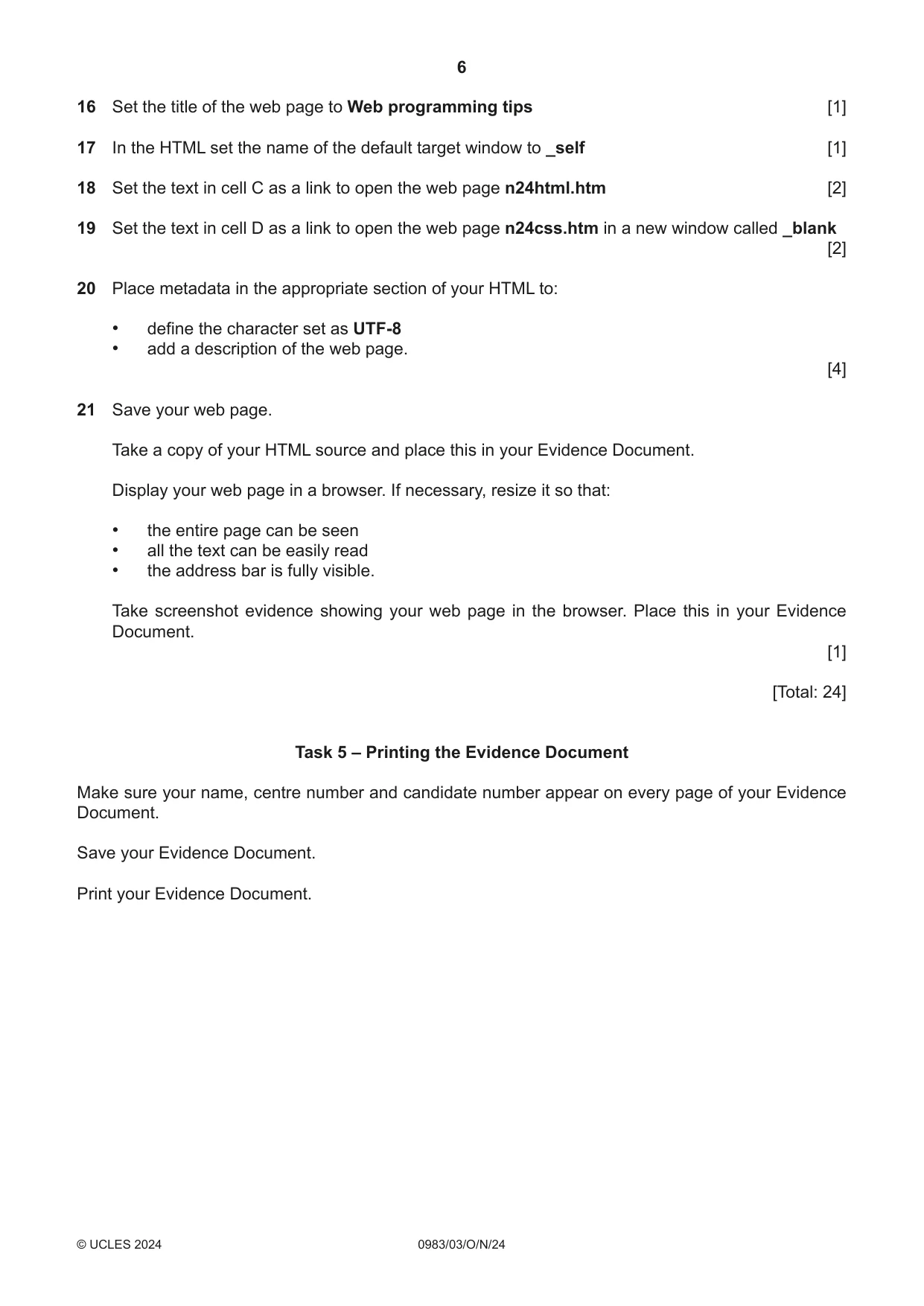
6 0983/03/O/N/24 © UCLES 2024 16 Set the title of the web page to Web programming tips [1] 17 In the HTML set the name of the default target window to _self [1] 18 Set the text in cell C as a link to open the web page n24html.htm [2] 19 Set the text in cell D as a link to open the web page n24css.htm in a new window called _blank [2] 20 Place metadata in the appropriate section of your HTML to: • define the character set as UTF-8 • add a description of the web page. [4] 21 Save your web page. Take a copy of your HTML source and place this in your Evidence Document. Display your web page in a browser. If necessary, resize it so that: • the entire page can be seen • all the text can be easily read • the address bar is fully visible. Take screenshot evidence showing your web page in the browser. Place this in your Evidence Document. [1] [Total: 24] Task 5 – Printing the Evidence Document Make sure your name, centre number and candidate number appear on every page of your Evidence Document. Save your Evidence Document. Print your Evidence Document.
Question paper, page 7
7 0983/03/O/N/24 © UCLES 2024 BLANK PAGE
Question paper, page 8
8 0983/03/O/N/24 © UCLES 2024 Permission to reproduce items where third-party owned material protected by copyright is included has been sought and cleared where possible. Every reasonable effort has been made by the publisher (UCLES) to trace copyright holders, but if any items requiring clearance have unwittingly been included, the publisher will be pleased to make amends at the earliest possible opportunity. To avoid the issue of disclosure of answer-related information to candidates, all copyright acknowledgements are reproduced online in the Cambridge Assessment International Education Copyright Acknowledgements Booklet. This is produced for each series of examinations and is freely available to download at www.cambridgeinternational.org after the live examination series. Cambridge Assessment International Education is part of Cambridge Assessment. Cambridge Assessment is the brand name of the University of Cambridge Local Examinations Syndicate (UCLES), which is a department of the University of Cambridge. BLANK PAGE
What you needed in this session
Cambridge’s own grade thresholds for 2024 Oct/Nov, Paper 3 · Variant 0. A higher threshold means an easier paper — the bar moves with how the cohort did.