Cambridge IGCSE Information and Communication Technology (9-1) 0983 — 2020 Oct/Nov Paper 3 · Variant 0
0983/30/O/N/20
The question paper and its mark scheme, free to read here and free to download. This is Cambridge’s own paper, exactly as it was sat.
Question paper8 pages
Mark scheme
No mark scheme is in the library for this paper.
Paper as text
Question paper, page 1
Cambridge IGCSE™(9–1) This document has 8 pages. Blank pages are indicated. INFORMATION AND COMMUNICATION TECHNOLOGY 0983/03 Paper 3 Data Analysis and Website Authoring October/November 2020 2 hours 30 minutes You will need: Candidate source files (listed on page 2) INSTRUCTIONS ● Carry out all instructions in each step. ● Enter your name, centre number and candidate number on every printout before it is sent to the printer. ● Printouts with handwritten candidate details will not be marked. ● At the end of the examination, put all your printouts into the Assessment Record Folder. ● If you have produced rough copies of printouts, put a cross through each one to indicate that it is not the copy to be marked. ● You must not have access to either the internet or any email system during this examination. INFORMATION ● The total mark for this paper is 80. ● The number of marks for each question or part question is shown in brackets [ ]. * 4 2 1 7 7 3 2 9 0 8 * DC (CJ) 212952/1 © UCLES 2020 [Turn over
Question paper, page 2
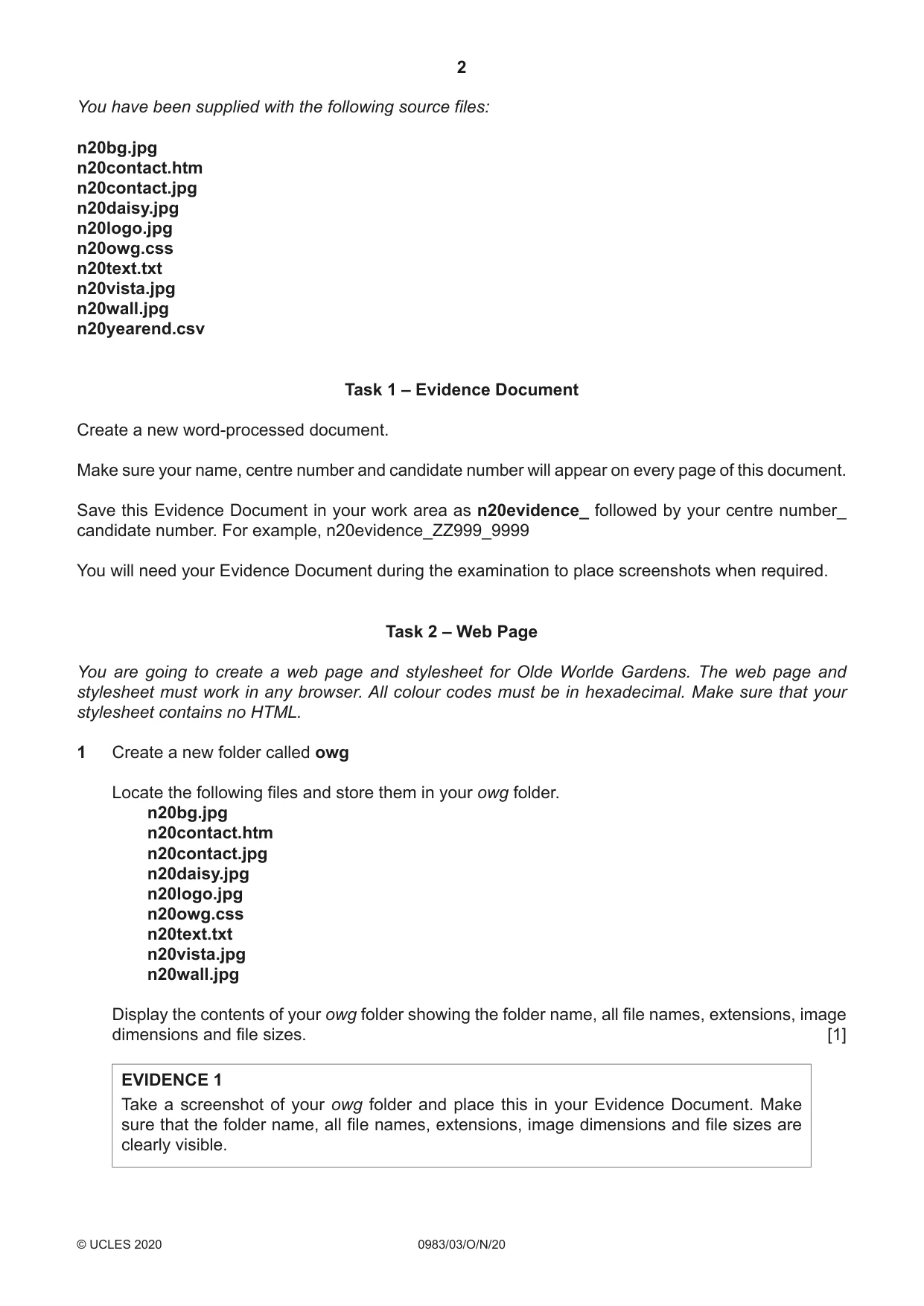
2 0983/03/O/N/20 © UCLES 2020 You have been supplied with the following source files: n20bg.jpg n20contact.htm n20contact.jpg n20daisy.jpg n20logo.jpg n20owg.css n20text.txt n20vista.jpg n20wall.jpg n20yearend.csv Task 1 – Evidence Document Create a new word-processed document. Make sure your name, centre number and candidate number will appear on every page of this document. Save this Evidence Document in your work area as n20evidence_ followed by your centre number_ candidate number. For example, n20evidence_ZZ999_9999 You will need your Evidence Document during the examination to place screenshots when required. Task 2 – Web Page You are going to create a web page and stylesheet for Olde Worlde Gardens. The web page and stylesheet must work in any browser. All colour codes must be in hexadecimal. Make sure that your stylesheet contains no HTML. 1 Create a new folder called owg Locate the following files and store them in your owg folder. n20bg.jpg n20contact.htm n20contact.jpg n20daisy.jpg n20logo.jpg n20owg.css n20text.txt n20vista.jpg n20wall.jpg Display the contents of your owg folder showing the folder name, all file names, extensions, image dimensions and file sizes. [1] EVIDENCE 1 Take a screenshot of your owg folder and place this in your Evidence Document. Make sure that the folder name, all file names, extensions, image dimensions and file sizes are clearly visible.
Question paper, page 3
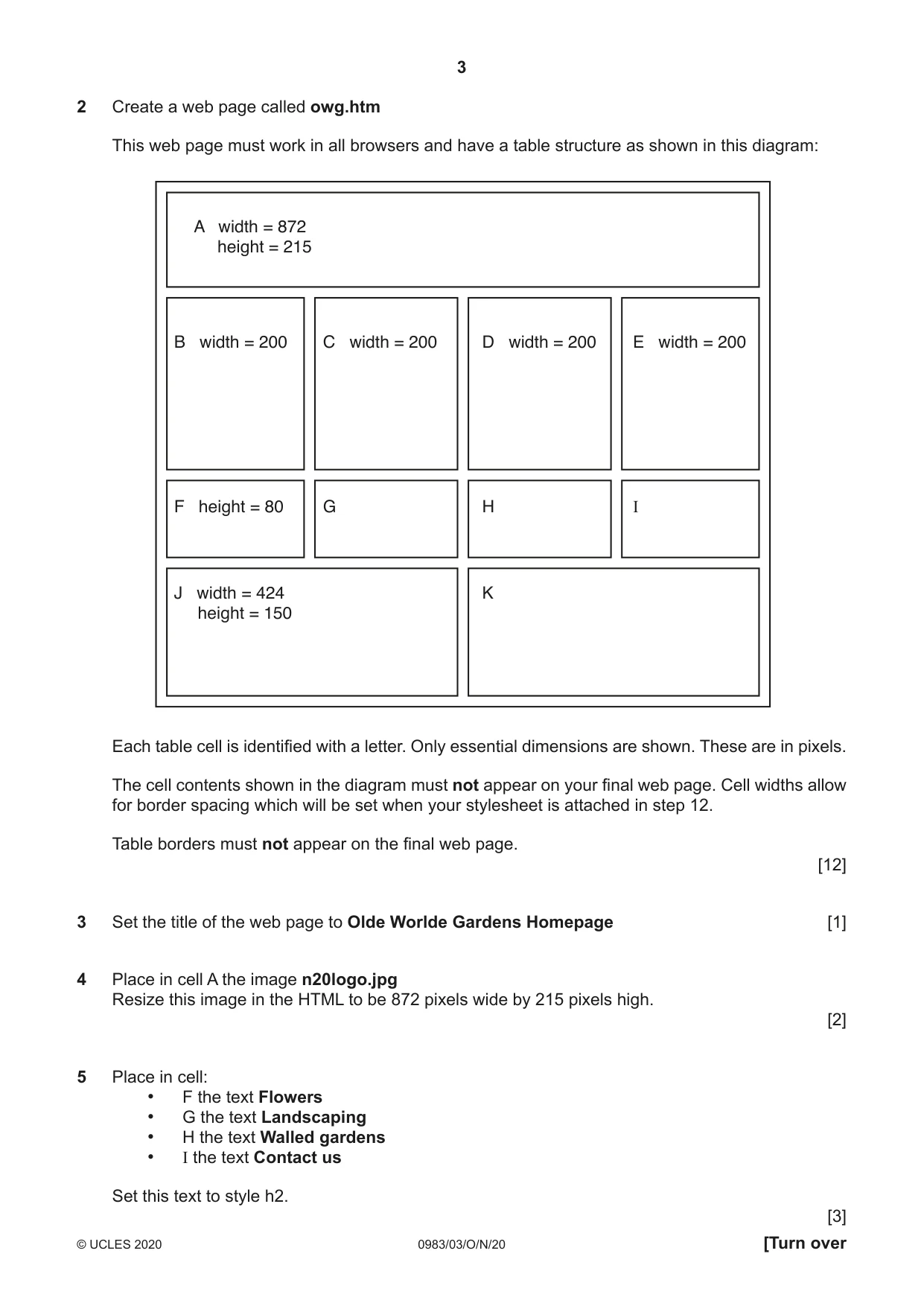
3 0983/03/O/N/20 © UCLES 2020 [Turn over 2 Create a web page called owg.htm This web page must work in all browsers and have a table structure as shown in this diagram: A width = 872 height = 215 B width = 200 C width = 200 D width = 200 E width = 200 J width = 424 height = 150 F height = 80 G H K I Each table cell is identified with a letter. Only essential dimensions are shown. These are in pixels. The cell contents shown in the diagram must not appear on your final web page. Cell widths allow for border spacing which will be set when your stylesheet is attached in step 12. Table borders must not appear on the final web page. [12] 3 Set the title of the web page to Olde Worlde Gardens Homepage [1] 4 Place in cell A the image n20logo.jpg Resize this image in the HTML to be 872 pixels wide by 215 pixels high. [2] 5 Place in cell: • F the text Flowers • G the text Landscaping • H the text Walled gardens • I the text Contact us Set this text to style h2. [3]
Question paper, page 4
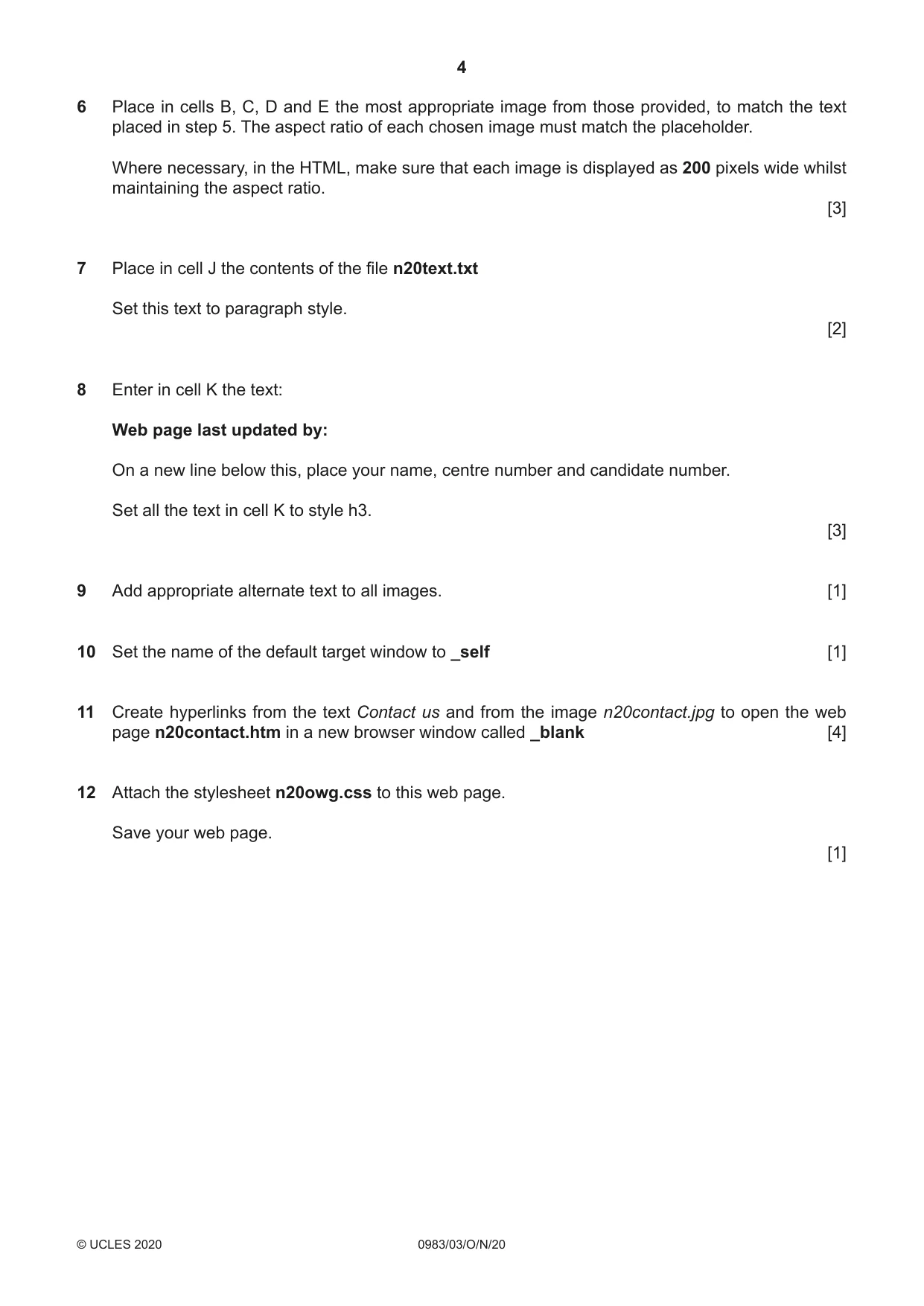
4 0983/03/O/N/20 © UCLES 2020 6 Place in cells B, C, D and E the most appropriate image from those provided, to match the text placed in step 5. The aspect ratio of each chosen image must match the placeholder. Where necessary, in the HTML, make sure that each image is displayed as 200 pixels wide whilst maintaining the aspect ratio. [3] 7 Place in cell J the contents of the file n20text.txt Set this text to paragraph style. [2] 8 Enter in cell K the text: Web page last updated by: On a new line below this, place your name, centre number and candidate number. Set all the text in cell K to style h3. [3] 9 Add appropriate alternate text to all images. [1] 10 Set the name of the default target window to _self [1] 11 Create hyperlinks from the text Contact us and from the image n20contact.jpg to open the web page n20contact.htm in a new browser window called _blank [4] 12 Attach the stylesheet n20owg.css to this web page. Save your web page. [1]
Question paper, page 5
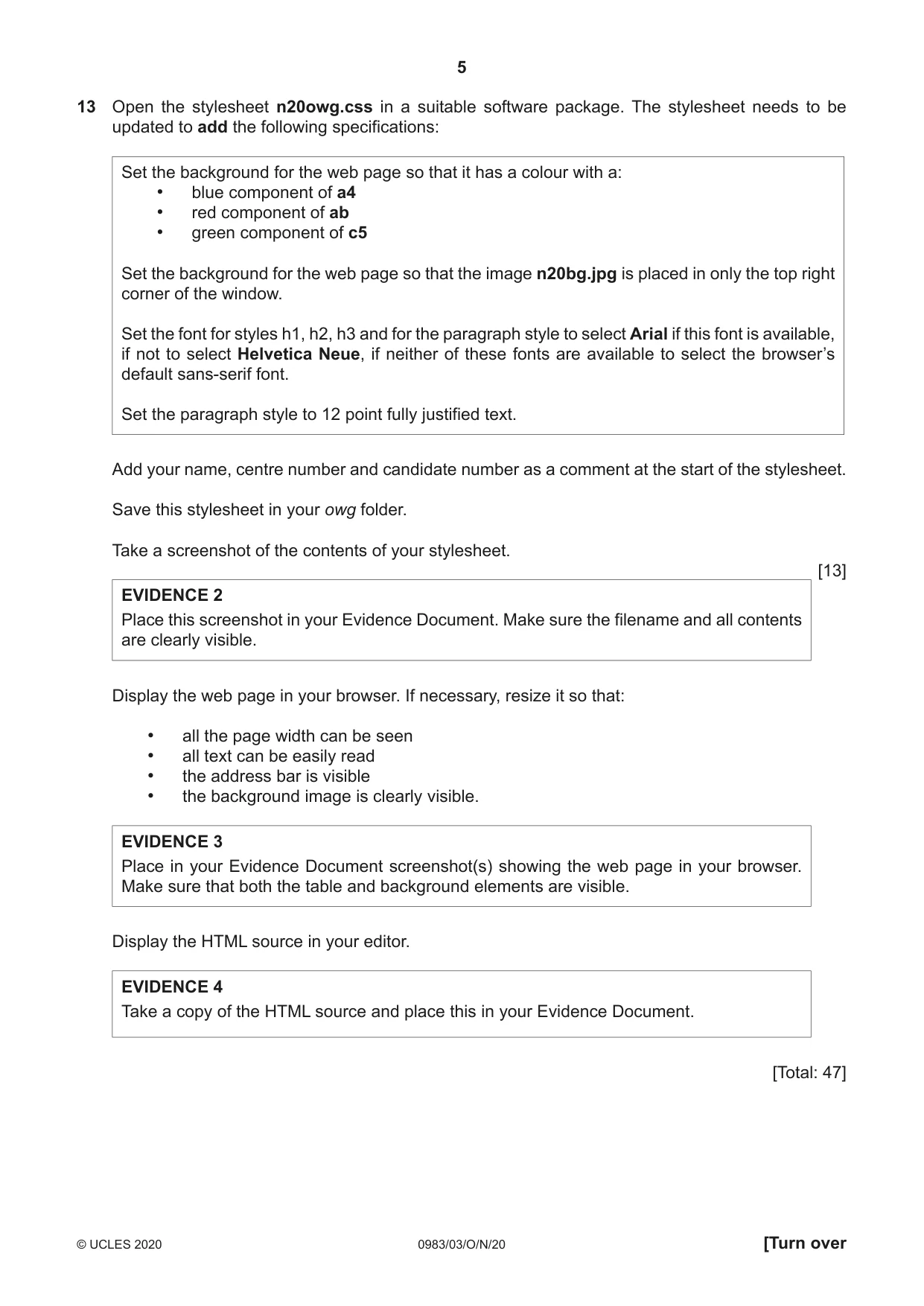
5 0983/03/O/N/20 © UCLES 2020 [Turn over 13 Open the stylesheet n20owg.css in a suitable software package. The stylesheet needs to be updated to add the following specifications: Set the background for the web page so that it has a colour with a: • blue component of a4 • red component of ab • green component of c5 Set the background for the web page so that the image n20bg.jpg is placed in only the top right corner of the window. Set the font for styles h1, h2, h3 and for the paragraph style to select Arial if this font is available, if not to select Helvetica Neue, if neither of these fonts are available to select the browser’s default sans-serif font. Set the paragraph style to 12 point fully justified text. Add your name, centre number and candidate number as a comment at the start of the stylesheet. Save this stylesheet in your owg folder. Take a screenshot of the contents of your stylesheet. [13] EVIDENCE 2 Place this screenshot in your Evidence Document. Make sure the filename and all contents are clearly visible. Display the web page in your browser. If necessary, resize it so that: • all the page width can be seen • all text can be easily read • the address bar is visible • the background image is clearly visible. EVIDENCE 3 Place in your Evidence Document screenshot(s) showing the web page in your browser. Make sure that both the table and background elements are visible. Display the HTML source in your editor. EVIDENCE 4 Take a copy of the HTML source and place this in your Evidence Document. [Total: 47]
Question paper, page 6
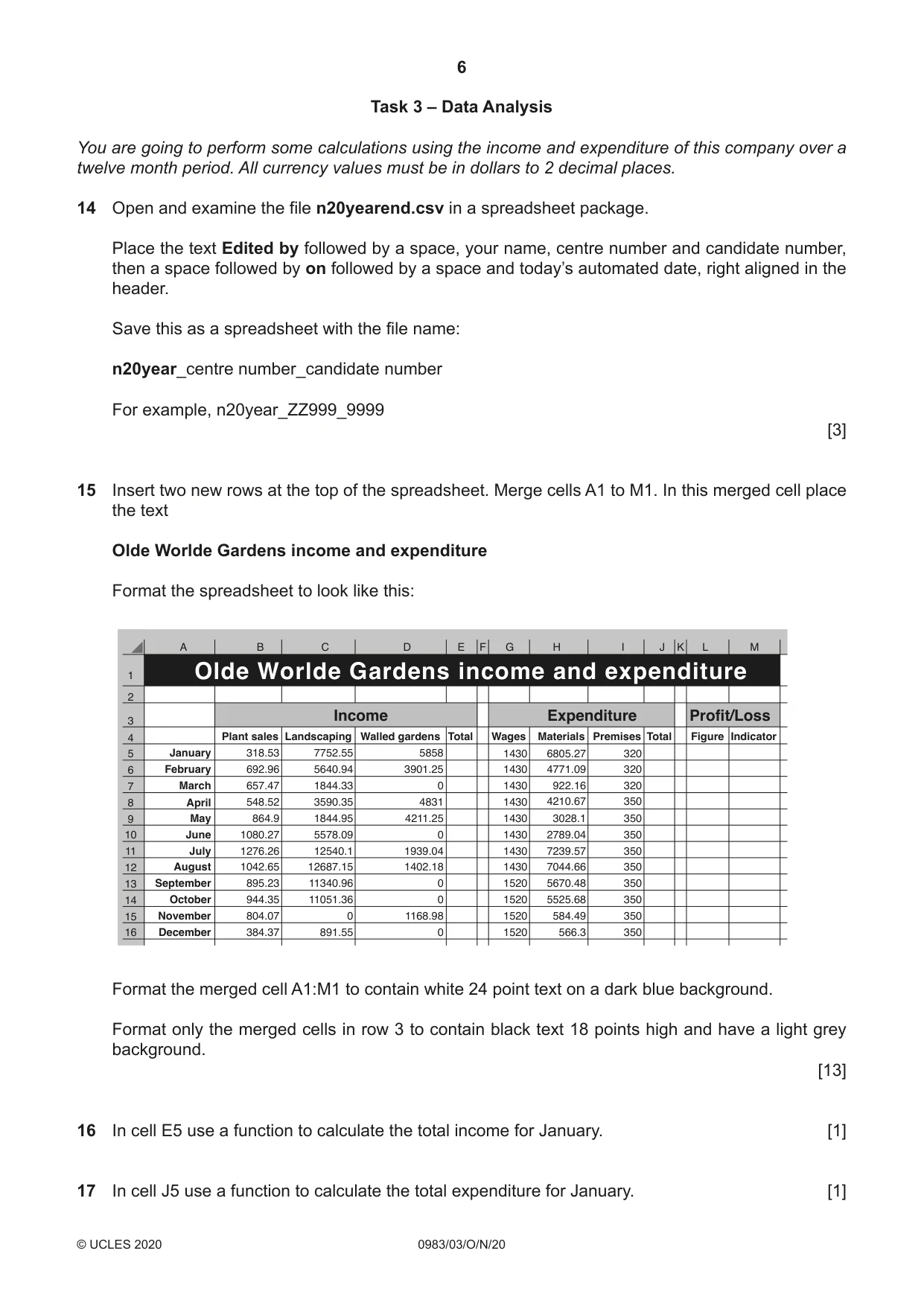
6 0983/03/O/N/20 © UCLES 2020 Task 3 – Data Analysis You are going to perform some calculations using the income and expenditure of this company over a twelve month period. All currency values must be in dollars to 2 decimal places. 14 Open and examine the file n20yearend.csv in a spreadsheet package. Place the text Edited by followed by a space, your name, centre number and candidate number, then a space followed by on followed by a space and today’s automated date, right aligned in the header. Save this as a spreadsheet with the file name: n20year_centre number_candidate number For example, n20year_ZZ999_9999 [3] 15 Insert two new rows at the top of the spreadsheet. Merge cells A1 to M1. In this merged cell place the text Olde Worlde Gardens income and expenditure Format the spreadsheet to look like this: Olde Worlde Gardens income and expenditure Income Expenditure Profit/Loss A 2 B C D E F G H M J L K I 1 4 5 6 7 8 9 10 11 13 14 15 16 3 12 January September Plant sales Landscaping Walled gardens Total Wages Materials Premises Total Figure Indicator February March April May June July August October November December 318.53 692.96 657.47 548.52 864.9 1080.27 1276.26 1042.65 895.23 944.35 804.07 384.37 7752.55 5640.94 1844.33 3590.35 1844.95 5578.09 12540.1 12687.15 11340.96 11051.36 0 891.55 5858 3901.25 0 4831 4211.25 0 0 0 0 1939.04 1402.18 1168.98 1430 1430 1430 1430 1430 1430 1430 1430 1520 1520 1520 1520 6805.27 4771.09 922.16 4210.67 3028.1 2789.04 7239.57 7044.66 5670.48 5525.68 584.49 566.3 320 320 320 350 350 350 350 350 350 350 350 350 Format the merged cell A1:M1 to contain white 24 point text on a dark blue background. Format only the merged cells in row 3 to contain black text 18 points high and have a light grey background. [13] 16 In cell E5 use a function to calculate the total income for January. [1] 17 In cell J5 use a function to calculate the total expenditure for January. [1]
Question paper, page 7
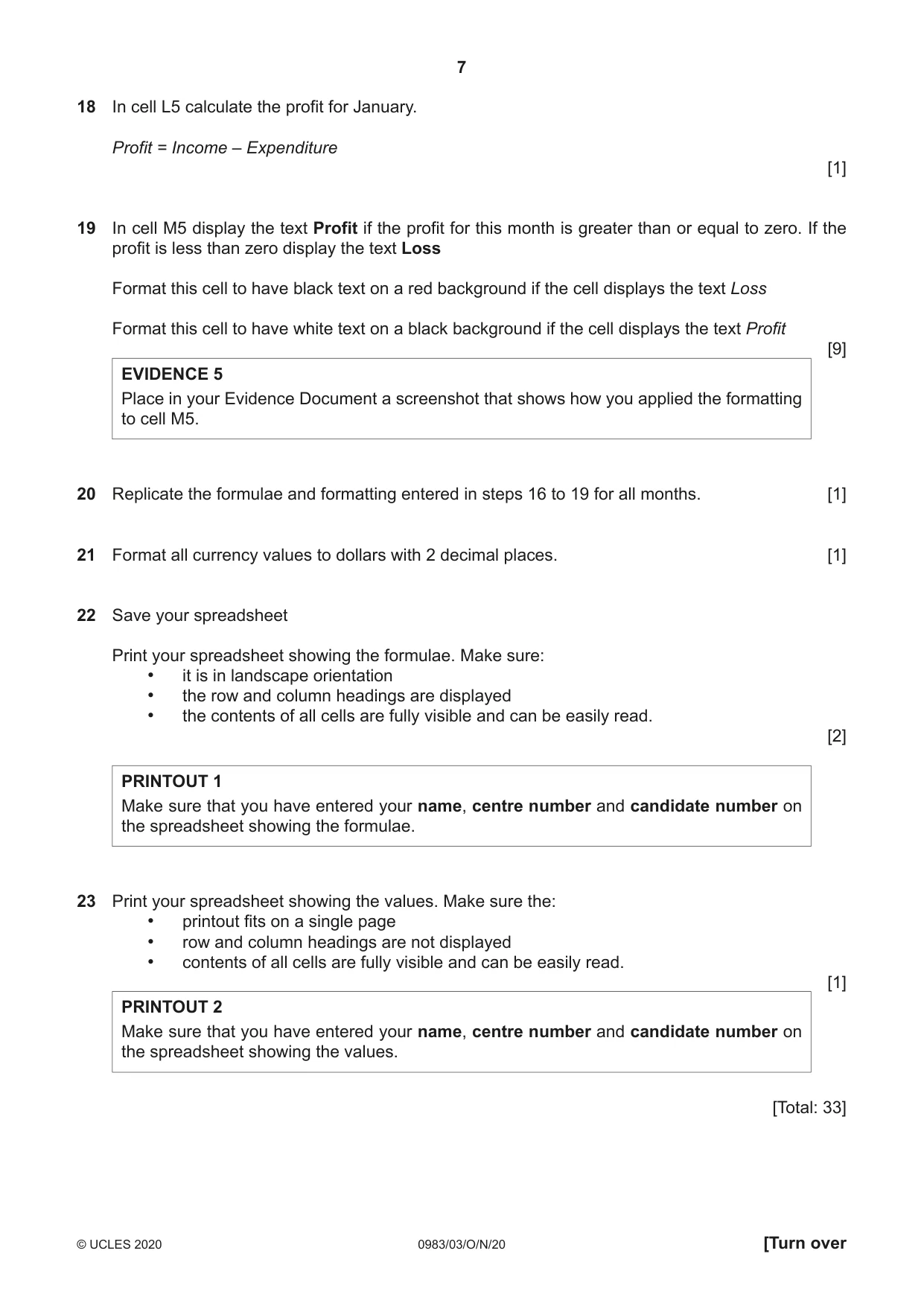
7 0983/03/O/N/20 © UCLES 2020 [Turn over 18 In cell L5 calculate the profit for January. Profit = Income – Expenditure [1] 19 In cell M5 display the text Profit if the profit for this month is greater than or equal to zero. If the profit is less than zero display the text Loss Format this cell to have black text on a red background if the cell displays the text Loss Format this cell to have white text on a black background if the cell displays the text Profit [9] EVIDENCE 5 Place in your Evidence Document a screenshot that shows how you applied the formatting to cell M5. 20 Replicate the formulae and formatting entered in steps 16 to 19 for all months. [1] 21 Format all currency values to dollars with 2 decimal places. [1] 22 Save your spreadsheet Print your spreadsheet showing the formulae. Make sure: • it is in landscape orientation • the row and column headings are displayed • the contents of all cells are fully visible and can be easily read. [2] PRINTOUT 1 Make sure that you have entered your name, centre number and candidate number on the spreadsheet showing the formulae. 23 Print your spreadsheet showing the values. Make sure the: • printout fits on a single page • row and column headings are not displayed • contents of all cells are fully visible and can be easily read. [1] PRINTOUT 2 Make sure that you have entered your name, centre number and candidate number on the spreadsheet showing the values. [Total: 33]
Question paper, page 8
8 0983/03/O/N/20 © UCLES 2020 Permission to reproduce items where third-party owned material protected by copyright is included has been sought and cleared where possible. Every reasonable effort has been made by the publisher (UCLES) to trace copyright holders, but if any items requiring clearance have unwittingly been included, the publisher will be pleased to make amends at the earliest possible opportunity. To avoid the issue of disclosure of answer-related information to candidates, all copyright acknowledgements are reproduced online in the Cambridge Assessment International Education Copyright Acknowledgements Booklet. This is produced for each series of examinations and is freely available to download at www.cambridgeinternational.org after the live examination series. Cambridge Assessment International Education is part of the Cambridge Assessment Group. Cambridge Assessment is the brand name of the University of Cambridge Local Examinations Syndicate (UCLES), which itself is a department of the University of Cambridge. Task 4 – Printing the Evidence Document 24 You now need to print your Evidence Document. PRINTOUT 3 Make sure that your name, centre number and candidate number appear on every page of your Evidence Document.