Cambridge A Level Applied Information and Communication Technology 9713 — 2016 May/June Paper 4 · Variant 0
9713/40/M/J/16
The question paper and its mark scheme, free to read here and free to download. This is Cambridge’s own paper, exactly as it was sat.
Question paper8 pages


Mark scheme
No mark scheme is in the library for this paper.
Paper as text
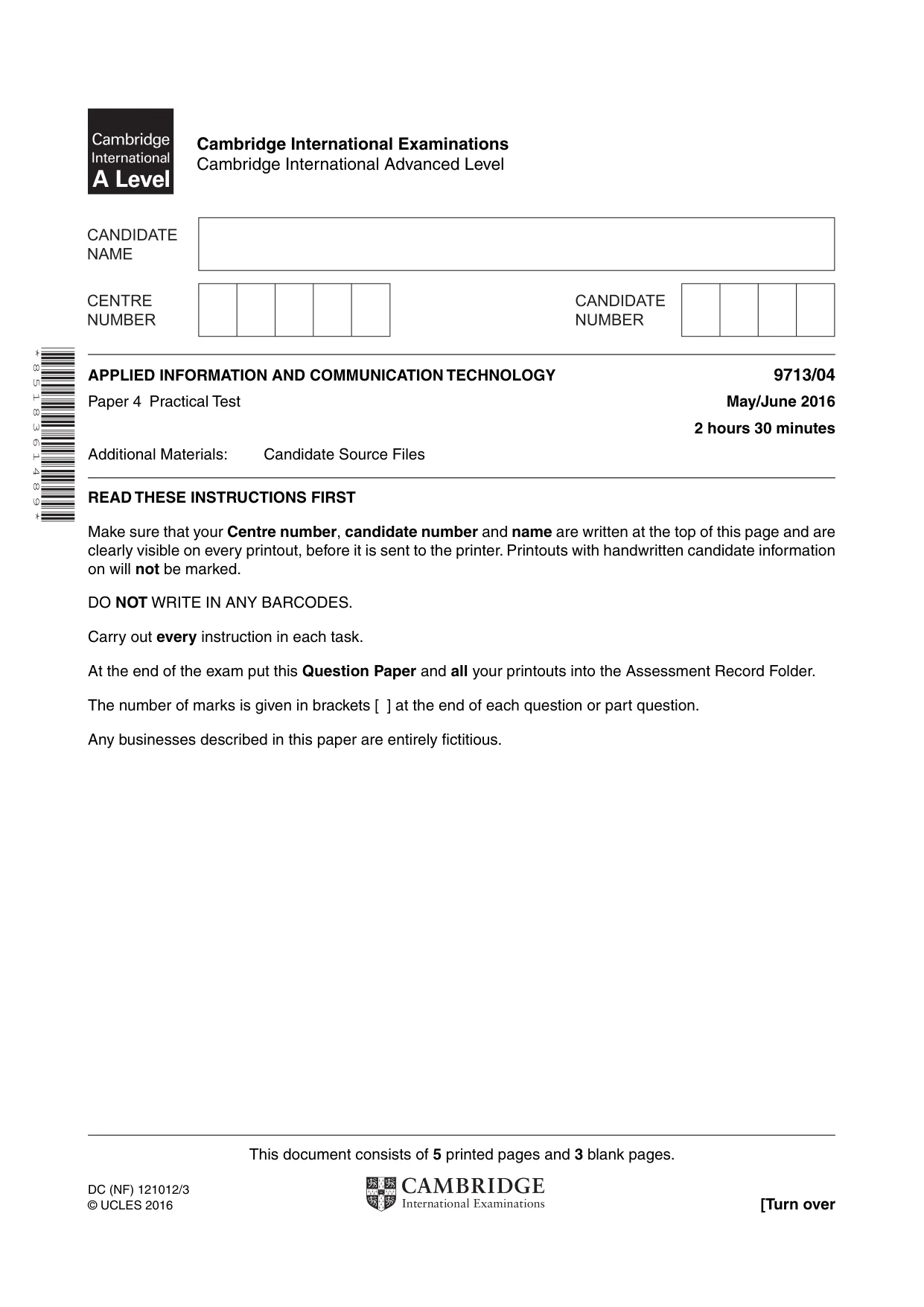
Question paper, page 1
This document consists of 5 printed pages and 3 blank pages. DC (NF) 121012/3 © UCLES 2016 [Turn over Cambridge International Examinations Cambridge International Advanced Level * 8 5 1 8 3 6 1 4 8 9 * APPLIED INFORMATION AND COMMUNICATION TECHNOLOGY 9713/04 Paper 4 Practical Test May/June 2016 2 hours 30 minutes Additional Materials: Candidate Source Files READ THESE INSTRUCTIONS FIRST Make sure that your Centre number, candidate number and name are written at the top of this page and are clearly visible on every printout, before it is sent to the printer. Printouts with handwritten candidate information on will not be marked. DO NOT WRITE IN ANY BARCODES. Carry out every instruction in each task. At the end of the exam put this Question Paper and all your printouts into the Assessment Record Folder. The number of marks is given in brackets [ ] at the end of each question or part question. Any businesses described in this paper are entirely fictitious.
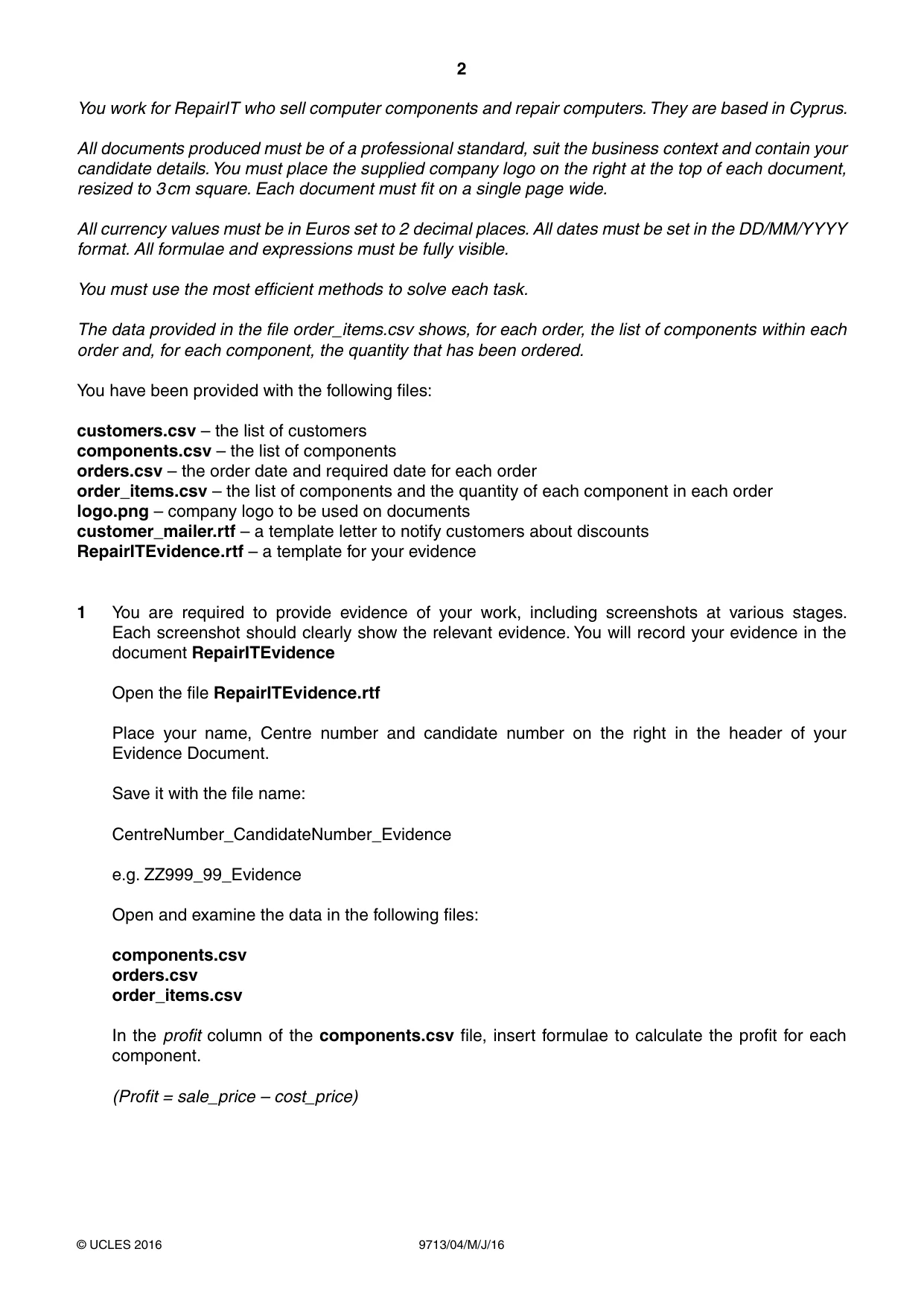
Question paper, page 2
2 9713/04/M/J/16 © UCLES 2016 You work for RepairIT who sell computer components and repair computers. They are based in Cyprus. All documents produced must be of a professional standard, suit the business context and contain your candidate details. You must place the supplied company logo on the right at the top of each document, resized to 3 cm square. Each document must fit on a single page wide. All currency values must be in Euros set to 2 decimal places. All dates must be set in the DD/MM/YYYY format. All formulae and expressions must be fully visible. You must use the most efficient methods to solve each task. The data provided in the file order_items.csv shows, for each order, the list of components within each order and, for each component, the quantity that has been ordered. You have been provided with the following files: customers.csv – the list of customers components.csv – the list of components orders.csv – the order date and required date for each order order_items.csv – the list of components and the quantity of each component in each order logo.png – company logo to be used on documents customer_mailer.rtf – a template letter to notify customers about discounts RepairITEvidence.rtf – a template for your evidence 1 You are required to provide evidence of your work, including screenshots at various stages. Each screenshot should clearly show the relevant evidence. You will record your evidence in the document RepairITEvidence Open the file RepairITEvidence.rtf Place your name, Centre number and candidate number on the right in the header of your Evidence Document. Save it with the file name: CentreNumber_CandidateNumber_Evidence e.g. ZZ999_99_Evidence Open and examine the data in the following files: components.csv orders.csv order_items.csv In the profit column of the components.csv file, insert formulae to calculate the profit for each component. (Profit = sale_price – cost_price)
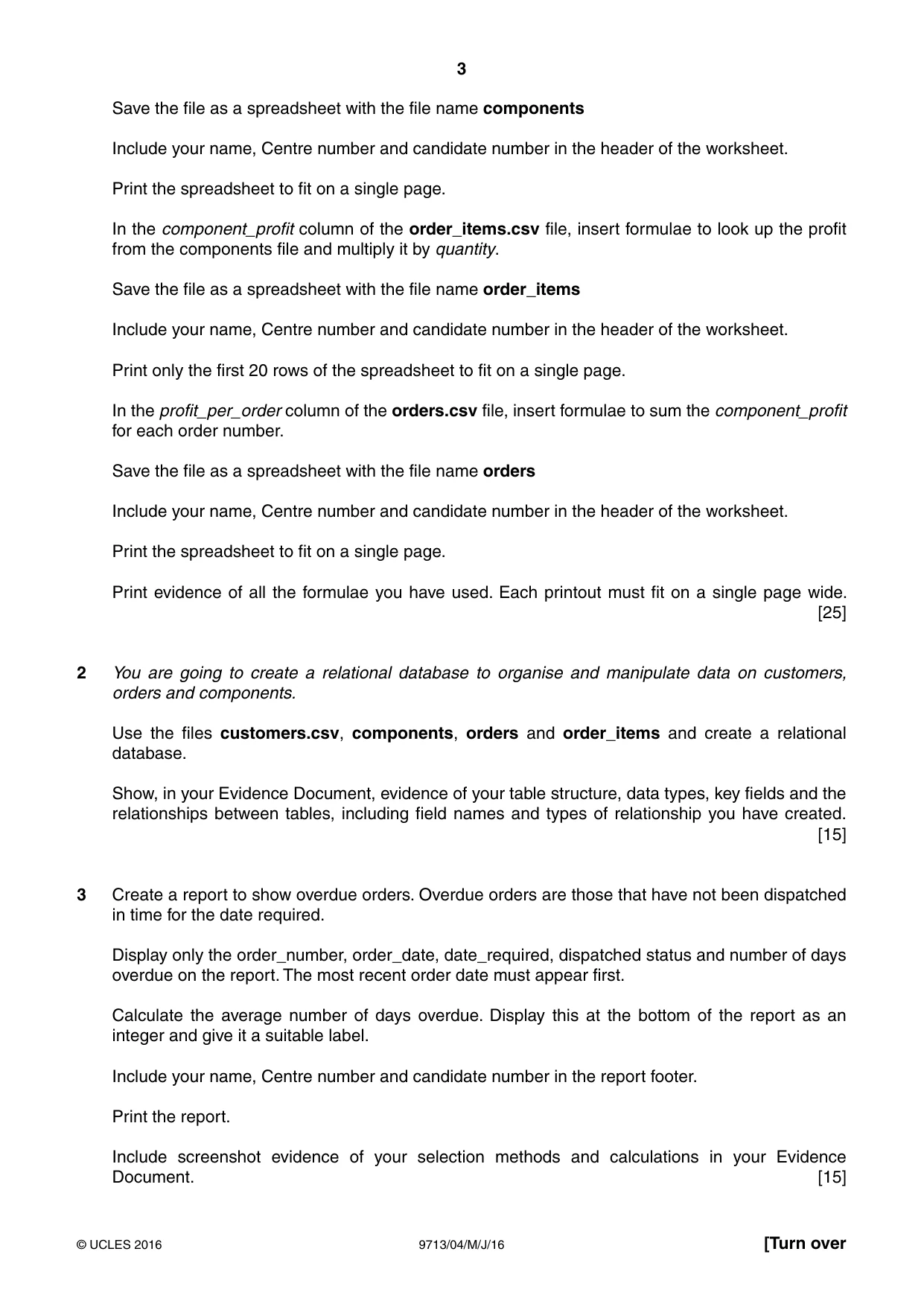
Question paper, page 3
3 9713/04/M/J/16 © UCLES 2016 [Turn over Save the file as a spreadsheet with the file name components Include your name, Centre number and candidate number in the header of the worksheet. Print the spreadsheet to fit on a single page. In the component_profit column of the order_items.csv file, insert formulae to look up the profit from the components file and multiply it by quantity. Save the file as a spreadsheet with the file name order_items Include your name, Centre number and candidate number in the header of the worksheet. Print only the first 20 rows of the spreadsheet to fit on a single page. In the profit_per_order column of the orders.csv file, insert formulae to sum the component_profit for each order number. Save the file as a spreadsheet with the file name orders Include your name, Centre number and candidate number in the header of the worksheet. Print the spreadsheet to fit on a single page. Print evidence of all the formulae you have used. Each printout must fit on a single page wide. [25] 2 You are going to create a relational database to organise and manipulate data on customers, orders and components. Use the files customers.csv, components, orders and order_items and create a relational database. Show, in your Evidence Document, evidence of your table structure, data types, key fields and the relationships between tables, including field names and types of relationship you have created. [15] 3 Create a report to show overdue orders. Overdue orders are those that have not been dispatched in time for the date required. Display only the order_number, order_date, date_required, dispatched status and number of days overdue on the report. The most recent order date must appear first. Calculate the average number of days overdue. Display this at the bottom of the report as an integer and give it a suitable label. Include your name, Centre number and candidate number in the report footer. Print the report. Include screenshot evidence of your selection methods and calculations in your Evidence Document. [15]
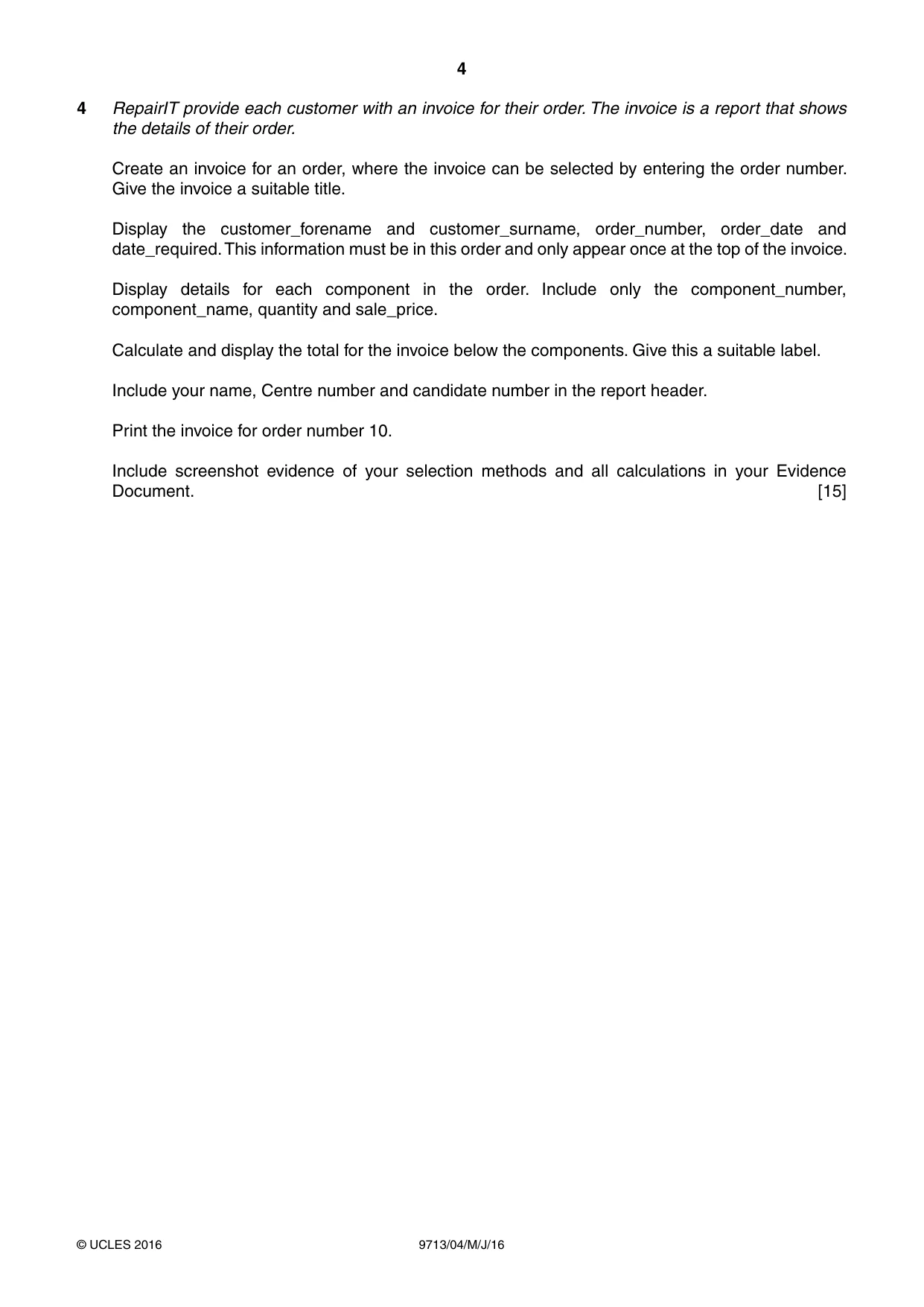
Question paper, page 4
4 9713/04/M/J/16 © UCLES 2016 4 RepairIT provide each customer with an invoice for their order. The invoice is a report that shows the details of their order. Create an invoice for an order, where the invoice can be selected by entering the order number. Give the invoice a suitable title. Display the customer_forename and customer_surname, order_number, order_date and date_required. This information must be in this order and only appear once at the top of the invoice. Display details for each component in the order. Include only the component_number, component_name, quantity and sale_price. Calculate and display the total for the invoice below the components. Give this a suitable label. Include your name, Centre number and candidate number in the report header. Print the invoice for order number 10. Include screenshot evidence of your selection methods and all calculations in your Evidence Document. [15]
Question paper, page 5
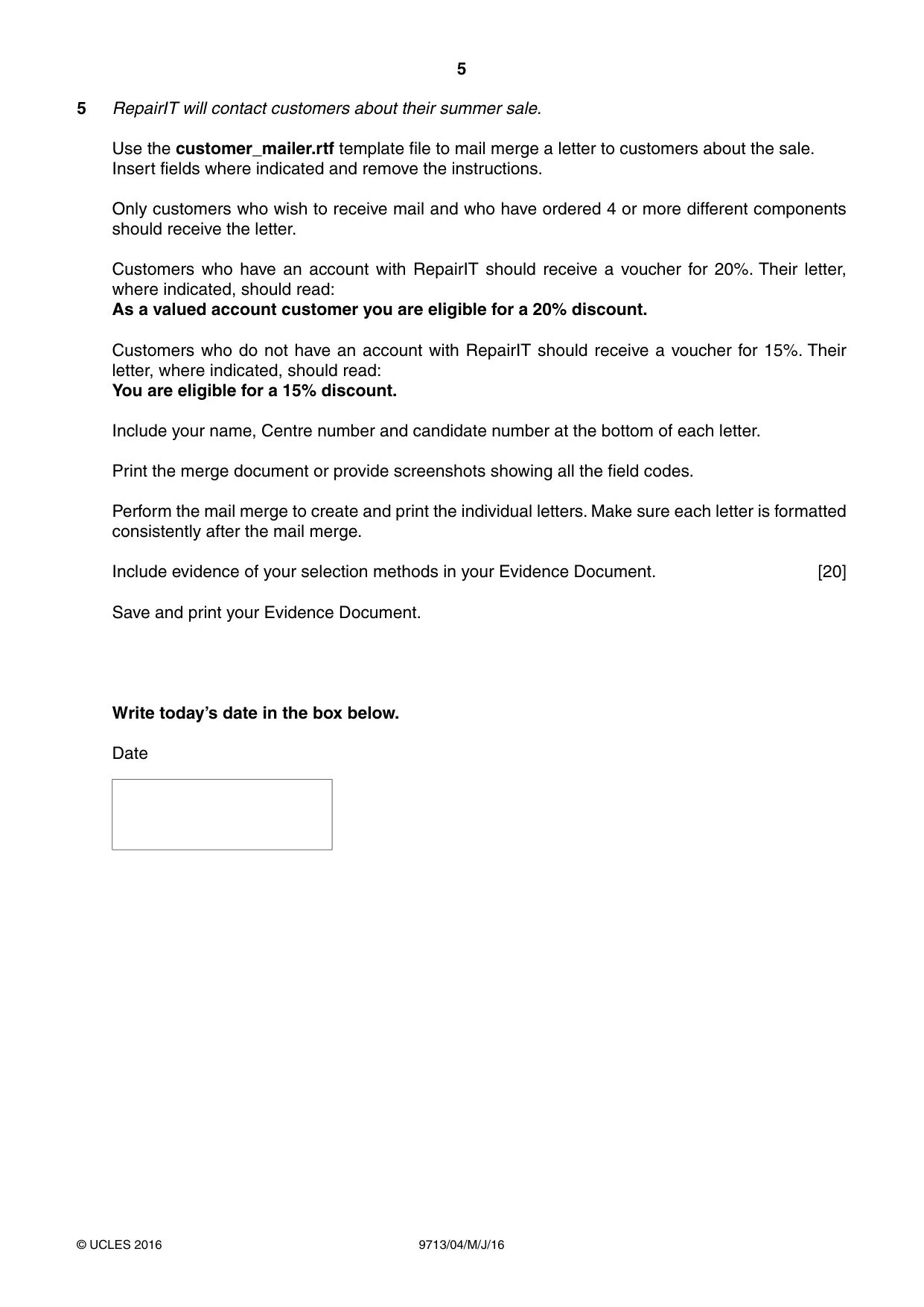
5 9713/04/M/J/16 © UCLES 2016 5 RepairIT will contact customers about their summer sale. Use the customer_mailer.rtf template file to mail merge a letter to customers about the sale. Insert fields where indicated and remove the instructions. Only customers who wish to receive mail and who have ordered 4 or more different components should receive the letter. Customers who have an account with Repair IT should receive a voucher for 20%. Their letter, where indicated, should read: As a valued account customer you are eligible for a 20% discount. Customers who do not have an account with RepairIT should receive a voucher for 15%. Their letter, where indicated, should read: You are eligible for a 15% discount. Include your name, Centre number and candidate number at the bottom of each letter. Print the merge document or provide screenshots showing all the field codes. Perform the mail merge to create and print the individual letters. Make sure each letter is formatted consistently after the mail merge. Include evidence of your selection methods in your Evidence Document. [20] Save and print your Evidence Document. Write today’s date in the box below. Date
Question paper, page 6
6 9713/04/M/J/16 © UCLES 2016 BLANK PAGE
Question paper, page 7
7 9713/04/M/J/16 © UCLES 2016 BLANK PAGE
Question paper, page 8
8 9713/04/M/J/16 © UCLES 2016 BLANK PAGE Permission to reproduce items where third-party owned material protected by copyright is included has been sought and cleared where possible. Every reasonable effort has been made by the publisher (UCLES) to trace copyright holders, but if any items requiring clearance have unwittingly been included, the publisher will be pleased to make amends at the earliest possible opportunity. To avoid the issue of disclosure of answer-related information to candidates, all copyright acknowledgements are reproduced online in the Cambridge International Examinations Copyright Acknowledgements Booklet. This is produced for each series of examinations and is freely available to download at www.cie.org.uk after the live examination series. Cambridge International Examinations is part of the Cambridge Assessment Group. Cambridge Assessment is the brand name of University of Cambridge Local Examinations Syndicate (UCLES), which is itself a department of the University of Cambridge.