Cambridge A Level Applied Information and Communication Technology 9713 — 2015 Oct/Nov Paper 4 · Variant 0
9713/40/O/N/15
The question paper and its mark scheme, free to read here and free to download. This is Cambridge’s own paper, exactly as it was sat.
Question paper8 pages



Mark scheme
No mark scheme is in the library for this paper.
Paper as text
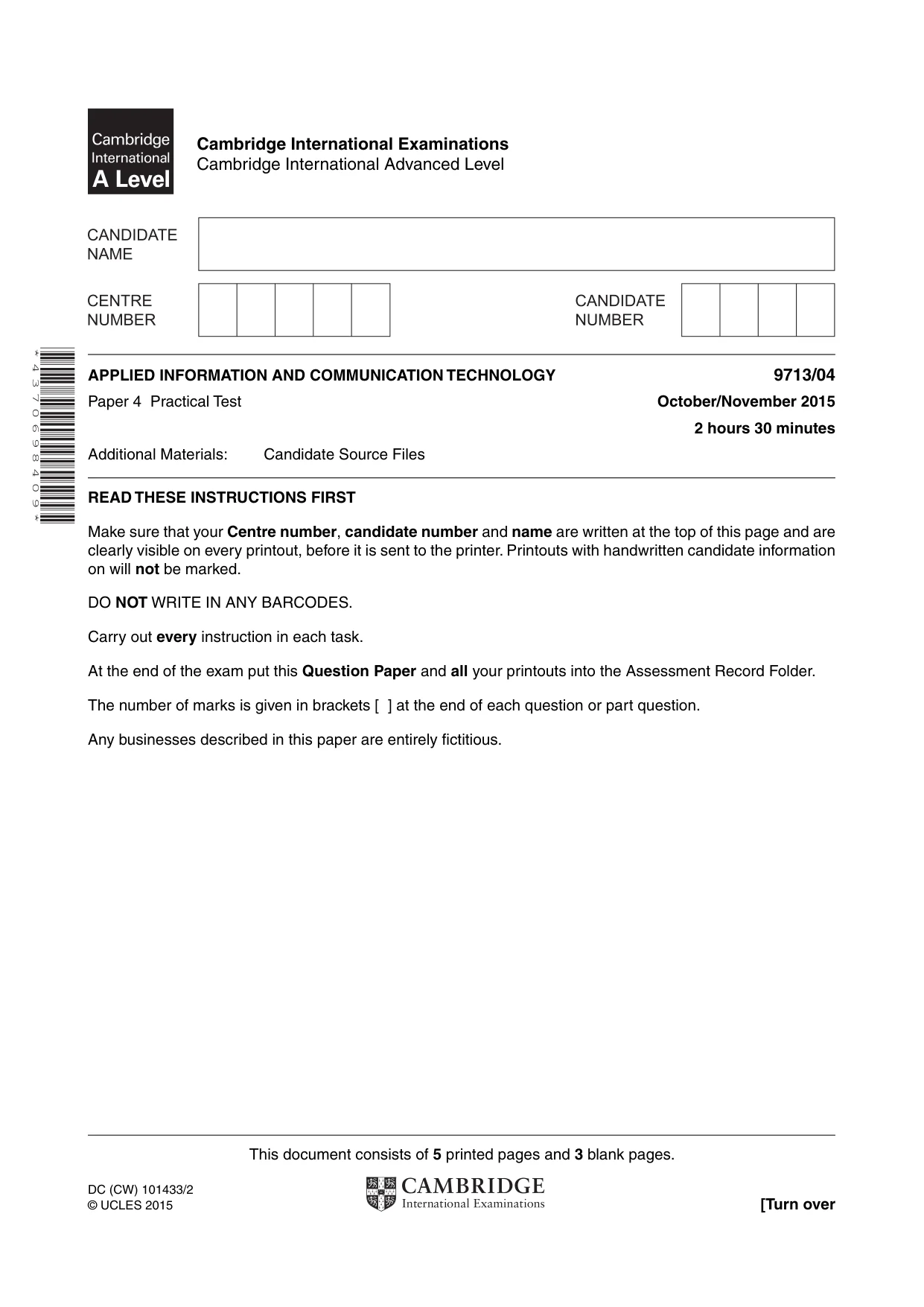
Question paper, page 1
This document consists of 5 printed pages and 3 blank pages. DC (CW) 101433/2 © UCLES 2015 [Turn over Cambridge International Examinations Cambridge International Advanced Level * 4 3 7 0 6 9 8 4 0 9 * APPLIED INFORMATION AND COMMUNICATION TECHNOLOGY 9713/04 Paper 4 Practical Test October/November 2015 2 hours 30 minutes Additional Materials: Candidate Source Files READ THESE INSTRUCTIONS FIRST Make sure that your Centre number, candidate number and name are written at the top of this page and are clearly visible on every printout, before it is sent to the printer. Printouts with handwritten candidate information on will not be marked. DO NOT WRITE IN ANY BARCODES. Carry out every instruction in each task. At the end of the exam put this Question Paper and all your printouts into the Assessment Record Folder. The number of marks is given in brackets [ ] at the end of each question or part question. Any businesses described in this paper are entirely fictitious.
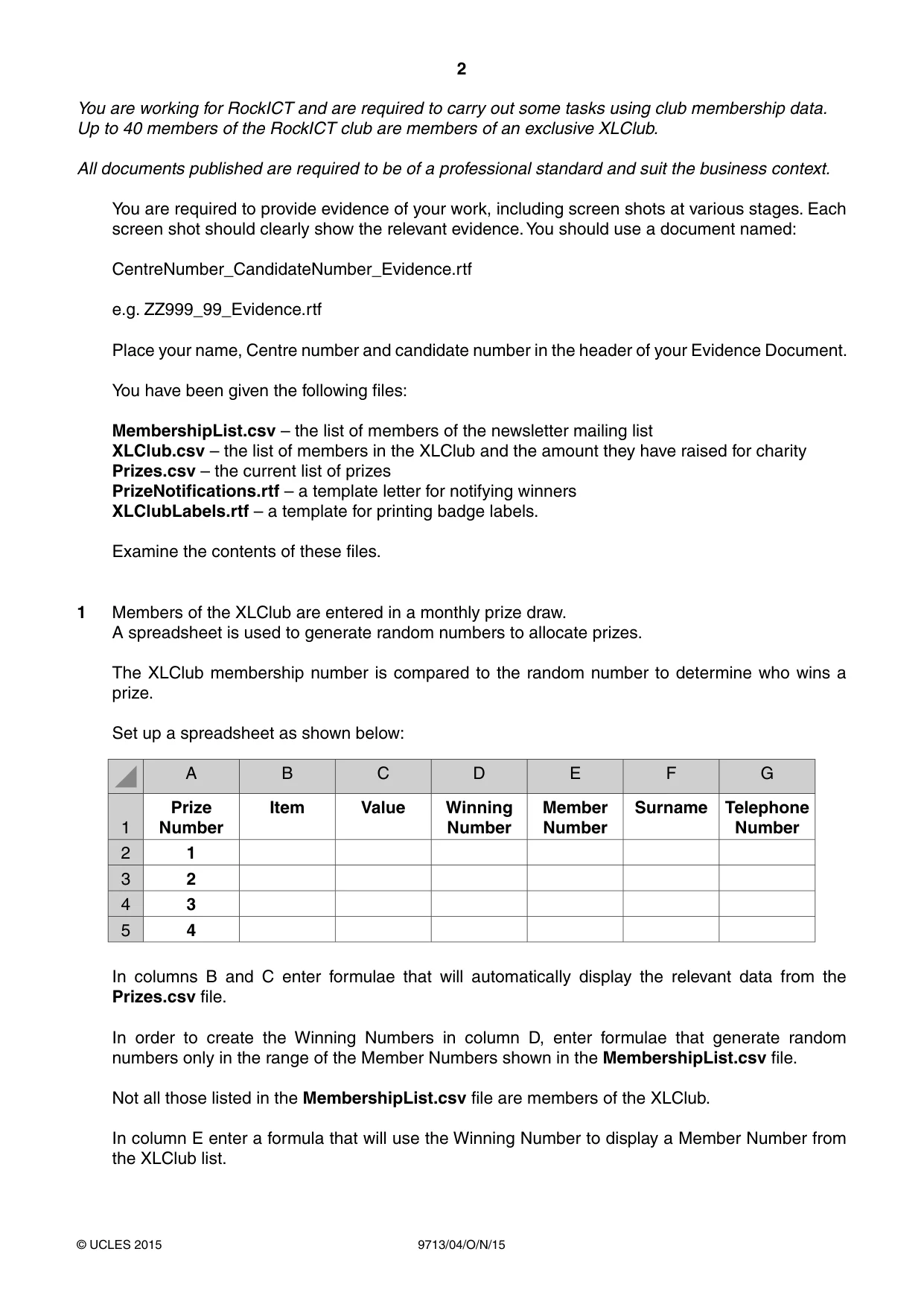
Question paper, page 2
2 9713/04/O/N/15 © UCLES 2015 You are working for RockICT and are required to carry out some tasks using club membership data. Up to 40 members of the RockICT club are members of an exclusive XLClub. All documents published are required to be of a professional standard and suit the business context. You are required to provide evidence of your work, including screen shots at various stages. Each screen shot should clearly show the relevant evidence. You should use a document named: CentreNumber_CandidateNumber_Evidence.rtf e.g. ZZ999_99_Evidence.rtf Place your name, Centre number and candidate number in the header of your Evidence Document. You have been given the following files: MembershipList.csv – the list of members of the newsletter mailing list XLClub.csv – the list of members in the XLClub and the amount they have raised for charity Prizes.csv – the current list of prizes PrizeNotifications.rtf – a template letter for notifying winners XLClubLabels.rtf – a template for printing badge labels. Examine the contents of these files. 1 Members of the XLClub are entered in a monthly prize draw. A spreadsheet is used to generate random numbers to allocate prizes. The XLClub membership number is compared to the random number to determine who wins a prize. Set up a spreadsheet as shown below: A B C D E F G 1 Prize Number Item Value Winning Number Member Number Surname Telephone Number 2 1 3 2 4 3 5 4 In columns B and C enter formulae that will automatically display the relevant data from the Prizes.csv file. In order to create the Winning Numbers in column D, enter formulae that generate random numbers only in the range of the Member Numbers shown in the MembershipList.csv file. Not all those listed in the MembershipList.csv file are members of the XLClub. In column E enter a formula that will use the Winning Number to display a Member Number from the XLClub list.
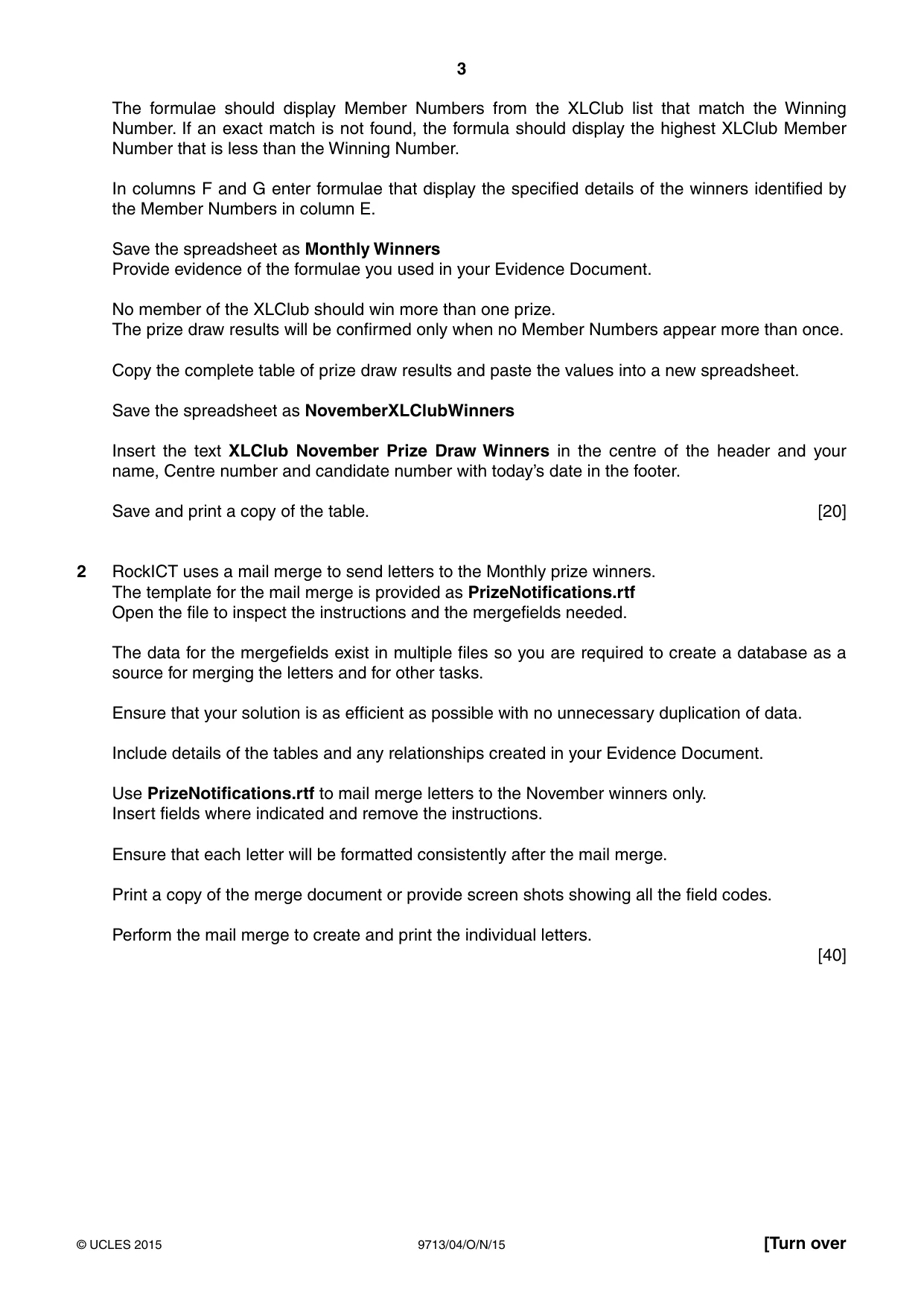
Question paper, page 3
3 9713/04/O/N/15 © UCLES 2015 [Turn over The formulae should display Member Numbers from the XLClub list that match the Winning Number. If an exact match is not found, the formula should display the highest XLClub Member Number that is less than the Winning Number. In columns F and G enter formulae that display the specified details of the winners identified by the Member Numbers in column E. Save the spreadsheet as Monthly Winners Provide evidence of the formulae you used in your Evidence Document. No member of the XLClub should win more than one prize. The prize draw results will be confirmed only when no Member Numbers appear more than once. Copy the complete table of prize draw results and paste the values into a new spreadsheet. Save the spreadsheet as NovemberXLClubWinners Insert the text XLClub November Prize Draw Winners in the centre of the header and your name, Centre number and candidate number with today’s date in the footer. Save and print a copy of the table. [20] 2 RockICT uses a mail merge to send letters to the Monthly prize winners. The template for the mail merge is provided as PrizeNotifications.rtf Open the file to inspect the instructions and the mergefields needed. The data for the mergefields exist in multiple files so you are required to create a database as a source for merging the letters and for other tasks. Ensure that your solution is as efficient as possible with no unnecessary duplication of data. Include details of the tables and any relationships created in your Evidence Document. Use PrizeNotifications.rtf to mail merge letters to the November winners only. Insert fields where indicated and remove the instructions. Ensure that each letter will be formatted consistently after the mail merge. Print a copy of the merge document or provide screen shots showing all the field codes. Perform the mail merge to create and print the individual letters. [40]
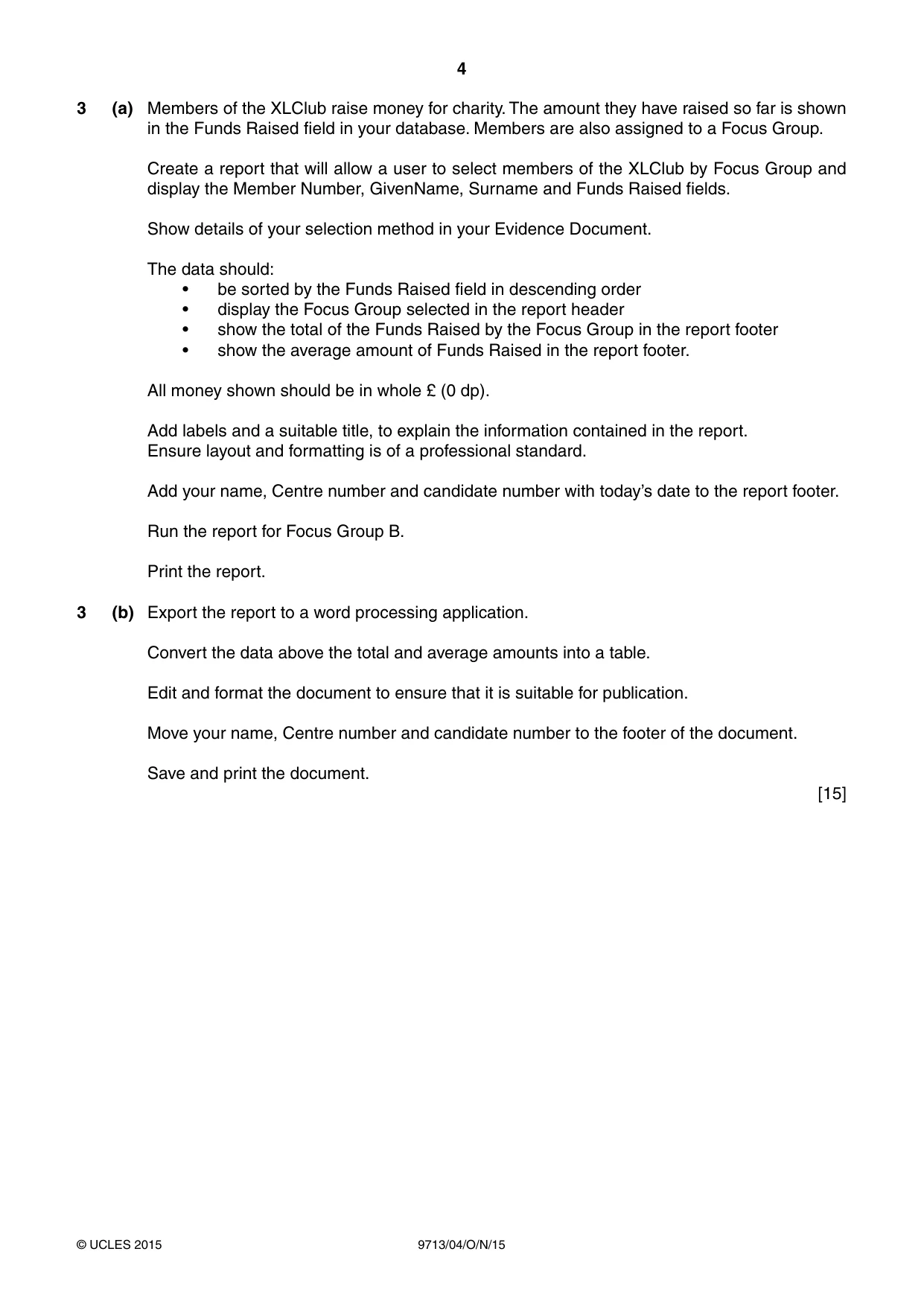
Question paper, page 4
4 9713/04/O/N/15 © UCLES 2015 3 (a) Members of the XLClub raise money for charity. The amount they have raised so far is shown in the Funds Raised field in your database. Members are also assigned to a Focus Group. Create a report that will allow a user to select members of the XLClub by Focus Group and display the Member Number, GivenName, Surname and Funds Raised fields. Show details of your selection method in your Evidence Document. The data should: • be sorted by the Funds Raised field in descending order • display the Focus Group selected in the report header • show the total of the Funds Raised by the Focus Group in the report footer • show the average amount of Funds Raised in the report footer. All money shown should be in whole £ (0 dp). Add labels and a suitable title, to explain the information contained in the report. Ensure layout and formatting is of a professional standard. Add your name, Centre number and candidate number with today’s date to the report footer. Run the report for Focus Group B. Print the report. 3 (b) Export the report to a word processing application. Convert the data above the total and average amounts into a table. Edit and format the document to ensure that it is suitable for publication. Move your name, Centre number and candidate number to the footer of the document. Save and print the document. [15]
Question paper, page 5
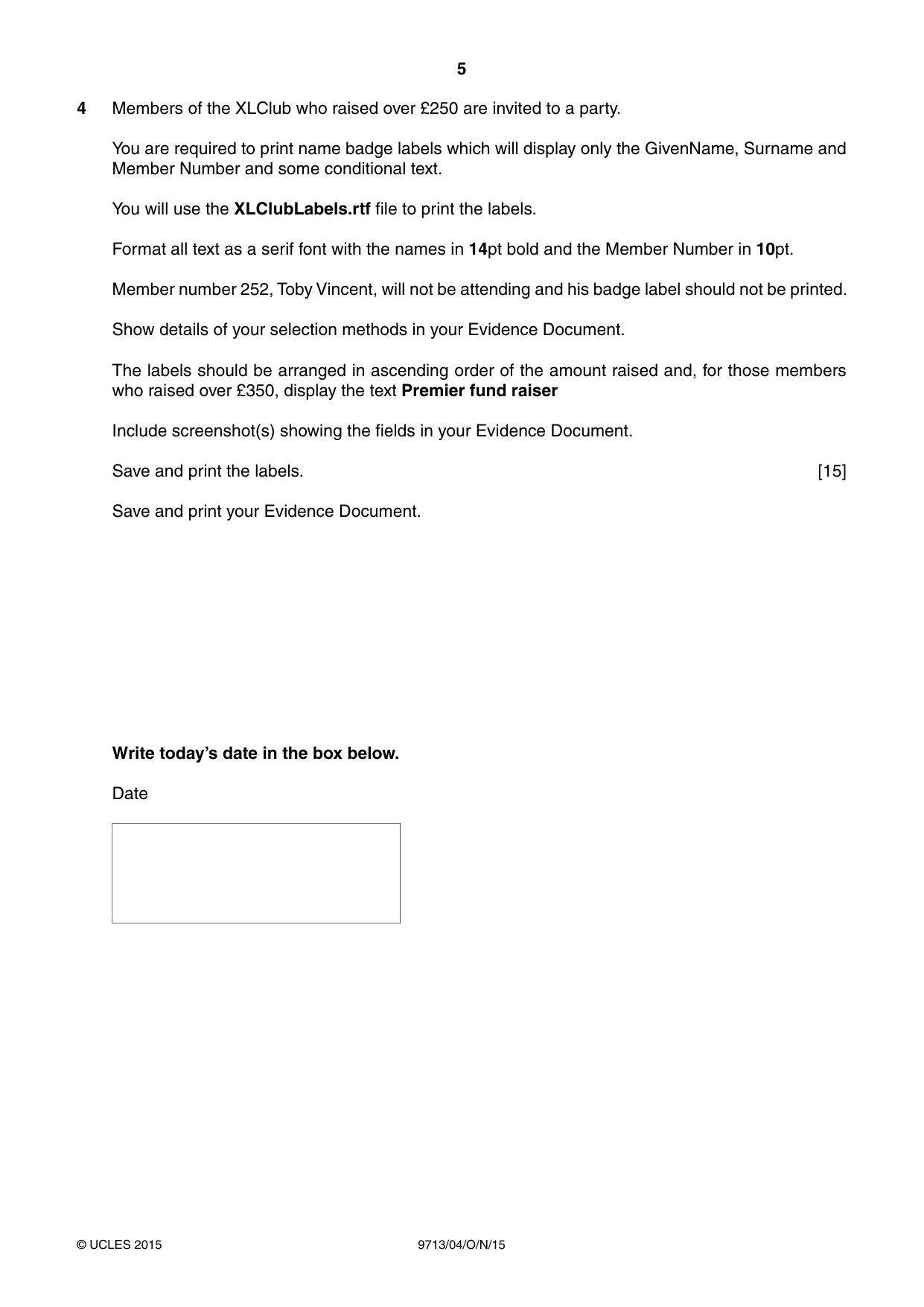
5 9713/04/O/N/15 © UCLES 2015 4 Members of the XLClub who raised over £250 are invited to a party. You are required to print name badge labels which will display only the GivenName, Surname and Member Number and some conditional text. You will use the XLClubLabels.rtf file to print the labels. Format all text as a serif font with the names in 14pt bold and the Member Number in 10pt. Member number 252, Toby Vincent, will not be attending and his badge label should not be printed. Show details of your selection methods in your Evidence Document. The labels should be arranged in ascending order of the amount raised and, for those members who raised over £350, display the text Premier fund raiser Include screenshot(s) showing the fields in your Evidence Document. Save and print the labels. [15] Save and print your Evidence Document. Write today’s date in the box below. Date
Question paper, page 6
6 9713/04/O/N/15 © UCLES 2015 BLANK PAGE
Question paper, page 7
7 9713/04/O/N/15 © UCLES 2015 BLANK PAGE
Question paper, page 8
8 9713/04/O/N/15 © UCLES 2015 BLANK PAGE Permission to reproduce items where third-party owned material protected by copyright is included has been sought and cleared where possible. Every reasonable effort has been made by the publisher (UCLES) to trace copyright holders, but if any items requiring clearance have unwittingly been included, the publisher will be pleased to make amends at the earliest possible opportunity. To avoid the issue of disclosure of answer-related information to candidates, all copyright acknowledgements are reproduced online in the Cambridge International Examinations Copyright Acknowledgements Booklet. This is produced for each series of examinations and is freely available to download at www.cie.org.uk after the live examination series. Cambridge International Examinations is part of the Cambridge Assessment Group. Cambridge Assessment is the brand name of University of Cambridge Local Examinations Syndicate (UCLES), which is itself a department of the University of Cambridge.